Extensions | DEX Manager Plus
Overview
The Extensions module in DEX Manager Plus provides a centralized repository of ready-to-use, curated resources—including Sensors, Scripts, dashboards and Workflows—designed to accelerate your digital experience initiatives.
Rather than building components from scratch, you can browse, preview, and instantly add pre-configured extensions to your environment. This helps streamline endpoint operations, improve user experience, and address common IT challenges with minimal effort.
Accessing Extensions
To access the Extensions module:
- Navigate to Extensions tab.
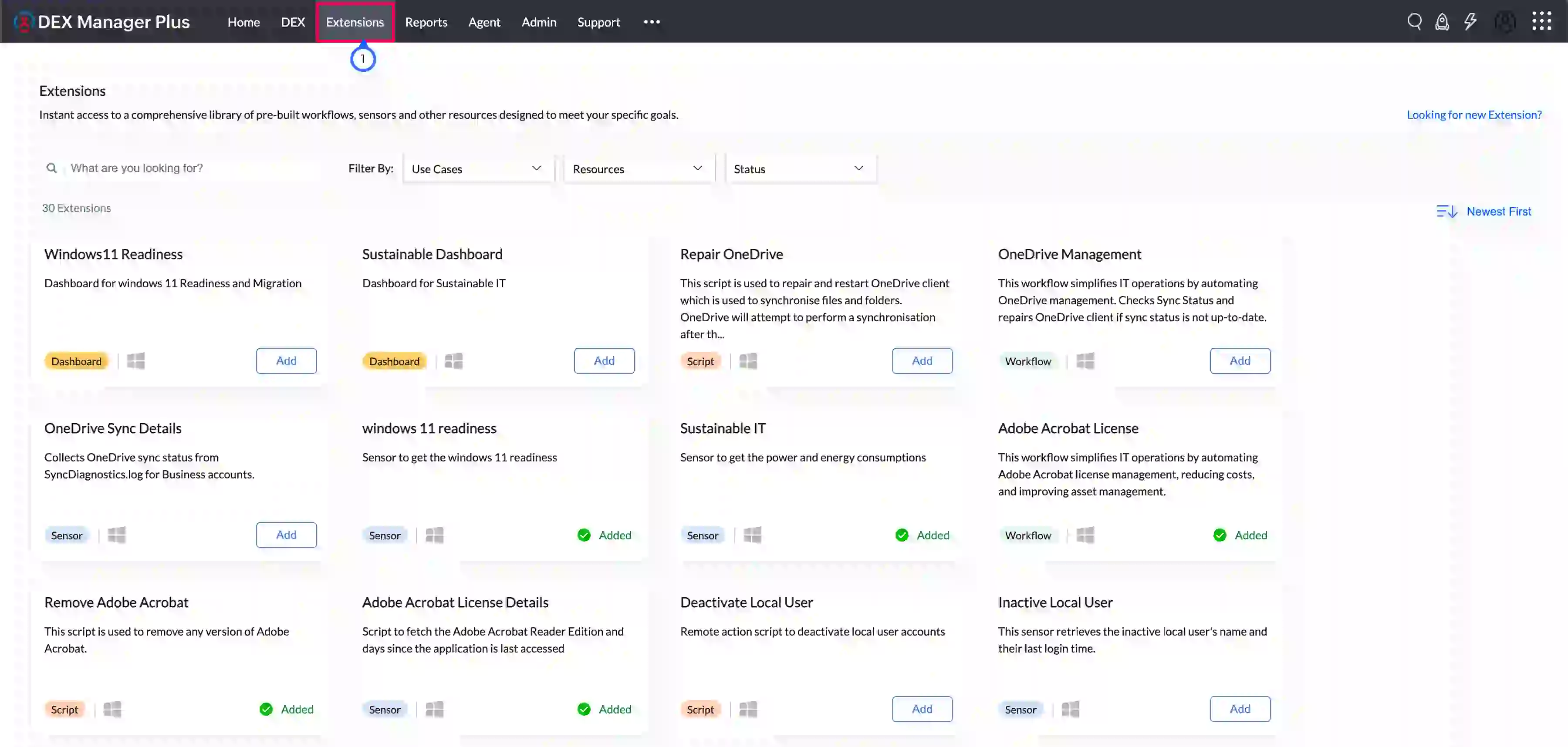
- A gallery of published extensions will appear in tile format, showing resource type, platform compatibility, and current status.
Finding the Right Extension
Use the available filters and search bar to quickly locate relevant extensions based on your needs.
Filter Options
| Filter | Description |
|---|---|
| Use Case | Group extensions by specific endpoint challenges or goals (e.g., security, performance, user productivity). |
| Resource Type | Scripts: Prebuilt scripts for device actions Sensors: Ready-to-use custom data collectors Workflows: Automation flows using sensors, scripts, engage and other stages. Dashboards : Visualise data collected using sensors. |
| Status | Added: Already installed in your environment Yet to Add: Available but not yet used Updates Available: Installed, but newer version exists |
Extension Tile Details
Each extension tile displays:
- Extension Name
- Short Description
- Resource Type: Script / Sensor / Workflow/ Dashboard
- Supported Platforms
- Status: Added / Yet to Add / Update Available
Click any tile to view the full Extension Details Page.
Extension Details Page
The Extension Details page provides all the information you need to evaluate and deploy the extension.
| Section | Description |
|---|---|
| Problem Statement | Describes the specific challenge this extension addresses. |
| Solution | Explains how the extension resolves the challenge. |
| Key Features | Highlights the core benefits and capabilities. |
| Screenshots | Visual preview of functionality or results. |
| Version | Tracks update history. Click to view all available versions. |
| Release Date | Shows the release date of the current version. |
| Contents | Lists what’s included—e.g., one sensor, one workflow. |
Image: Extension details page
Adding and Updating Extensions
- Click Add to install the extension into your resource list.
- Once added, the button changes to Added.
- You can customize the extension after adding it.
- Click Update on the Extension tile.
- This installs the latest version as a new resource.
- Your existing modified version will remain unchanged.
Permissions Required
To manage Extensions, appropriate user permissions must be assigned through role-based access.
Granting Access to Extensions
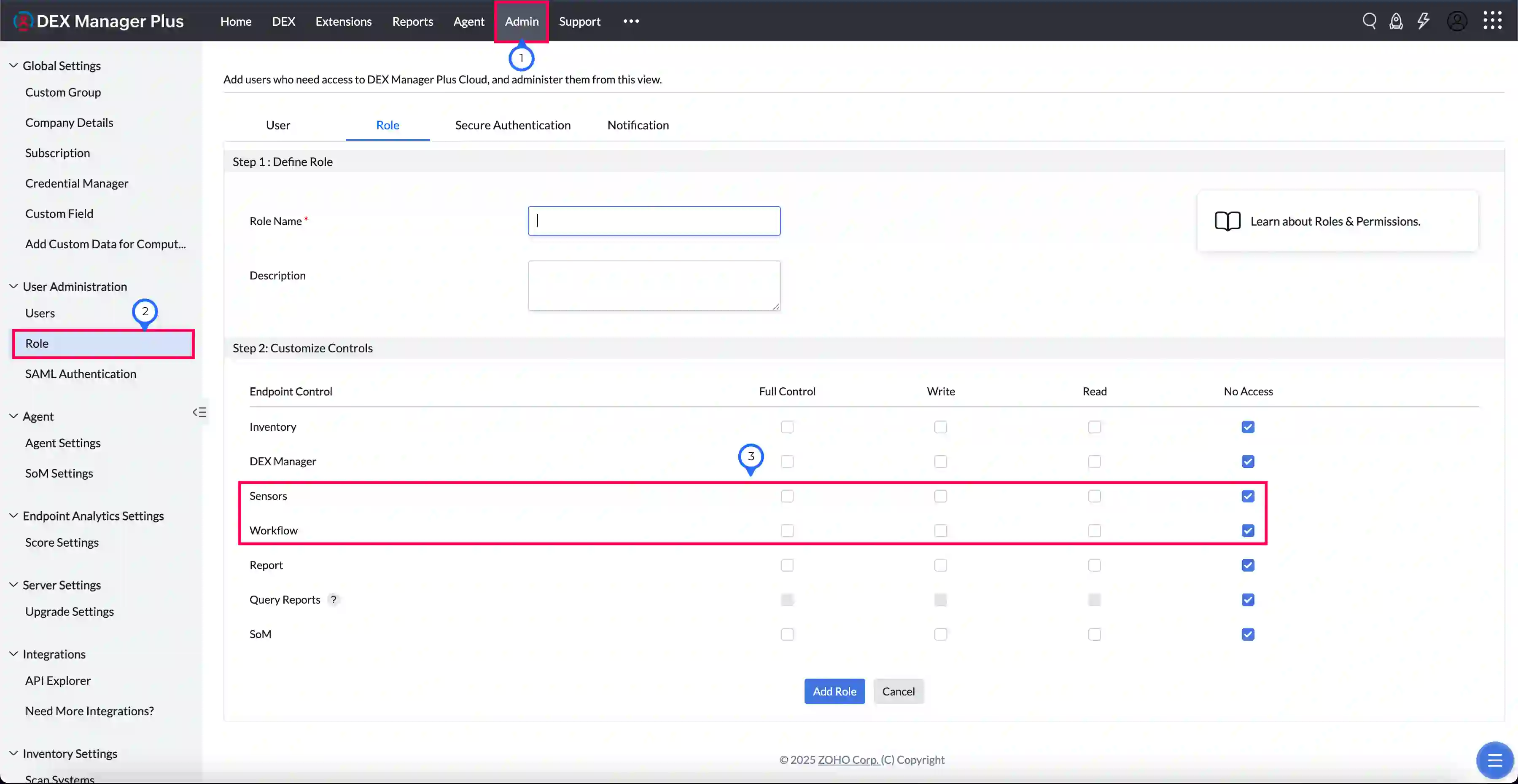
- Go to Admin > Role.
- Click Add Role or modify an existing one.
- Under the Endpoint Central section:
- Enable Sensors Read and Workflow Read to view extensions.
- Enable Sensors Full Control and Workflow Full Control to add or manage extensions.
Best Practices
| Recommendation | Reason |
|---|---|
| Use Extensions as starting points | Saves time and follows curated best practices |
| Customize after adding | Tailor to your environment's specific needs |
| Review version notes before updating | Avoid overwriting critical customizations |