Function Stage
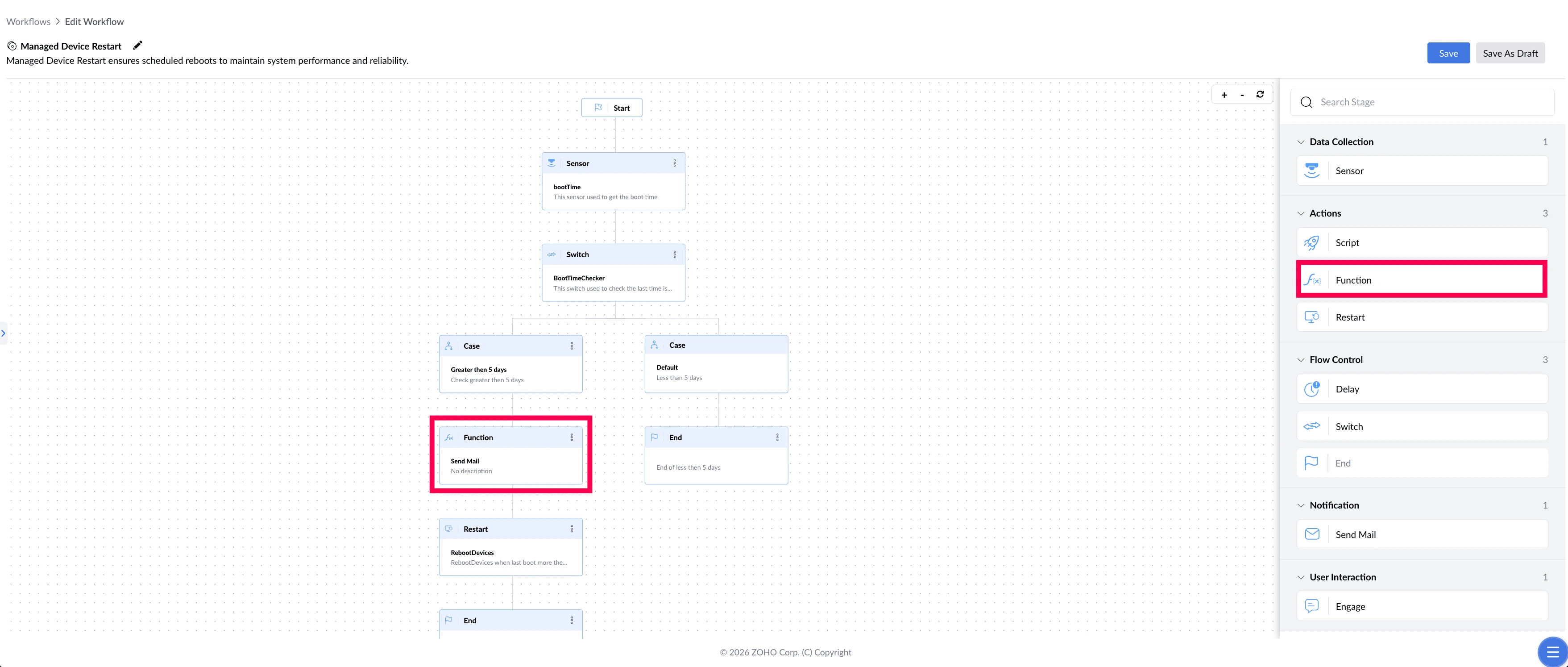
Use the Function stage to run custom logic that no other stage covers — creating a ticket in your ITSM tool, sending device data to another system, or applying a calculation to values collected earlier in the workflow. When the workflow reaches this stage, it runs the selected function, passes it any values you configured, and then continues to the next stage.
What This Stage Solves
The built-in stages cover the common cases — read a value, branch on it, run a script, notify someone. But some things sit outside that set: raising a ticket in a system DEX doesn't manage, or applying logic specific to how your organisation works. The Function stage is where you write that yourself.
| The problem | What Function does about it |
|---|---|
| Every detected issue still needs a ticket raised by hand | Creates the ticket automatically, with the device details already filled in |
| Device data stays inside DEX and never reaches your other tools | Sends the collected values to an external system |
| A decision needs logic the built-in stages can't express | Runs your own code as part of the workflow |
| A process in another platform has to be kicked off manually | Triggers it from within the workflow |
Example
Managed Device Restart
In this workflow, the Function stage is what creates the audit trail. Each time a device is found to have gone more than 5 days without restarting, the Function writes an entry into the organisation's asset tracking system — naming the device and how long it had gone without restarting — so IT can later see every restart the workflow enforced and why.
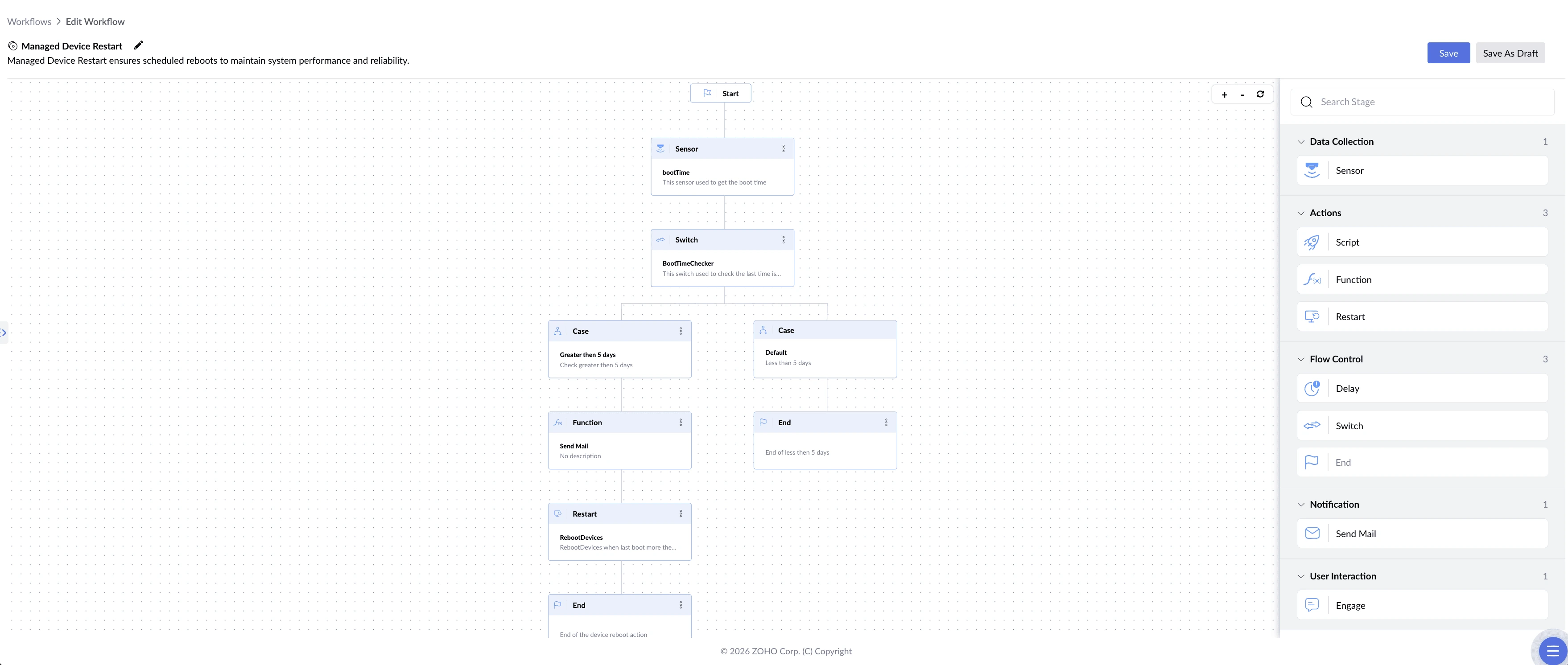
The function is written in Zoho Deluge, because that log entry needs real values from the workflow — the device name and the number of days. A JavaScript function would suit a task that needs nothing passed in.
Supported Languages
| Language | Best for |
|---|---|
| JavaScript | Self-contained logic that runs on its own, with no values passed in from the workflow |
| Zoho Deluge | Functions that need workflow data — Deluge lets you define typed parameters, so values like a disk percentage or device name can be passed in |
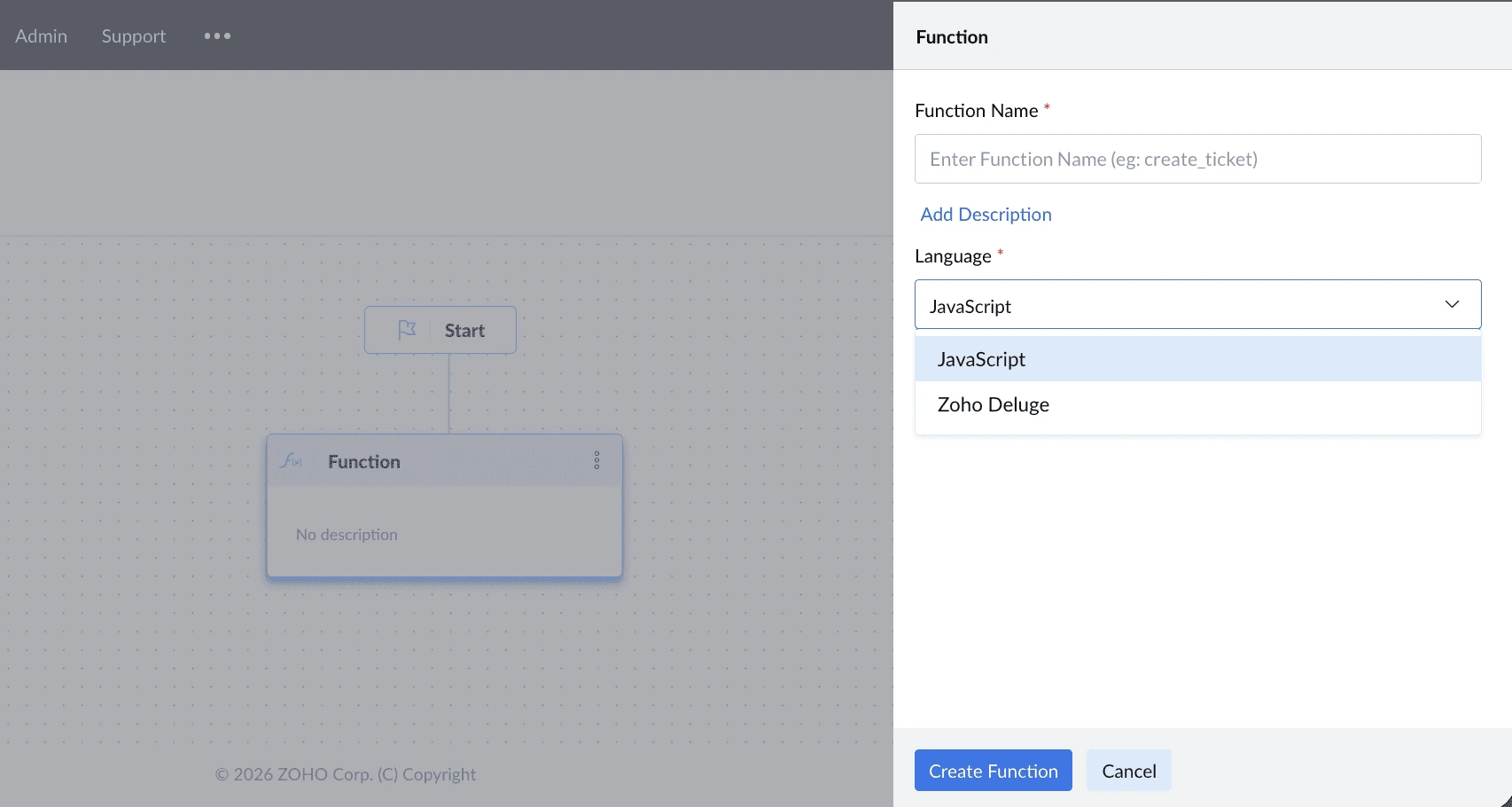
Zoho Deluge is Zoho's own scripting language. Choose it when the function needs information from earlier stages; choose JavaScript when it doesn't.
How to Configure
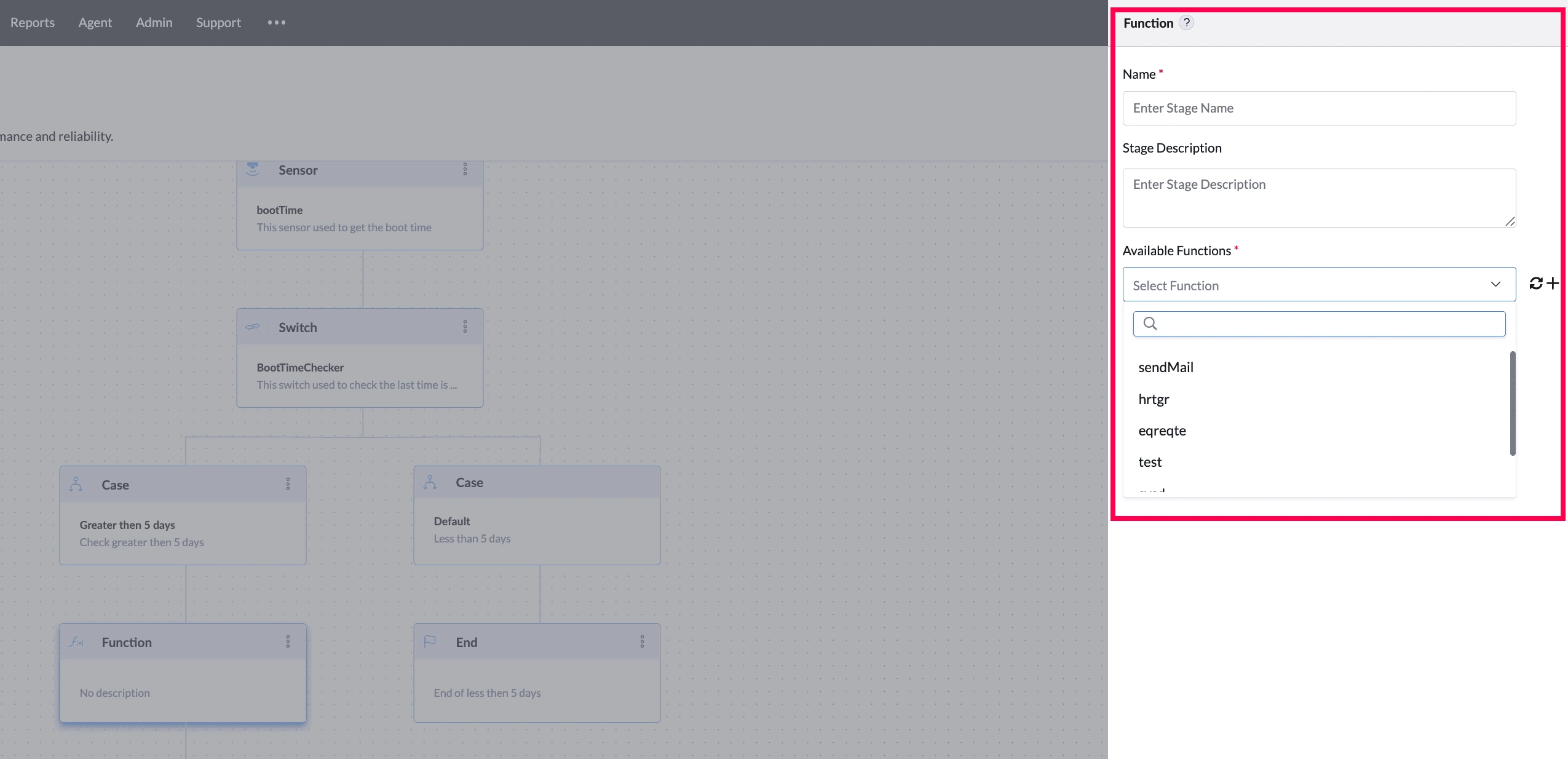
- Drag the Function stage onto the canvas and connect it to the preceding stage.
- Enter a Name for the stage (required).
- Enter a Stage Description (optional).
- Select a function from Available Functions.
- If the function you need does not exist, click + to create one — see Creating a New Function below.
- If you selected a Zoho Deluge function with parameters, a Parameters section appears — assign a value to each one. JavaScript functions have no parameters to configure here.
- Connect the Function stage to the next stage in your workflow.
Creating a New Function
- Click + next to Available Functions.
- Enter a Function Name (required).
- Optionally, click Add Description.
- Choose the Language — the next steps differ depending on which you pick.
If you chose JavaScript:
- A code editor opens with a starting function execute(){} template
- Write your logic inside the function
- Click Save, or Save As Draft to finish it later

If you chose Zoho Deluge:
- Define the function's Input Parameters — these decide what data the function can receive later:
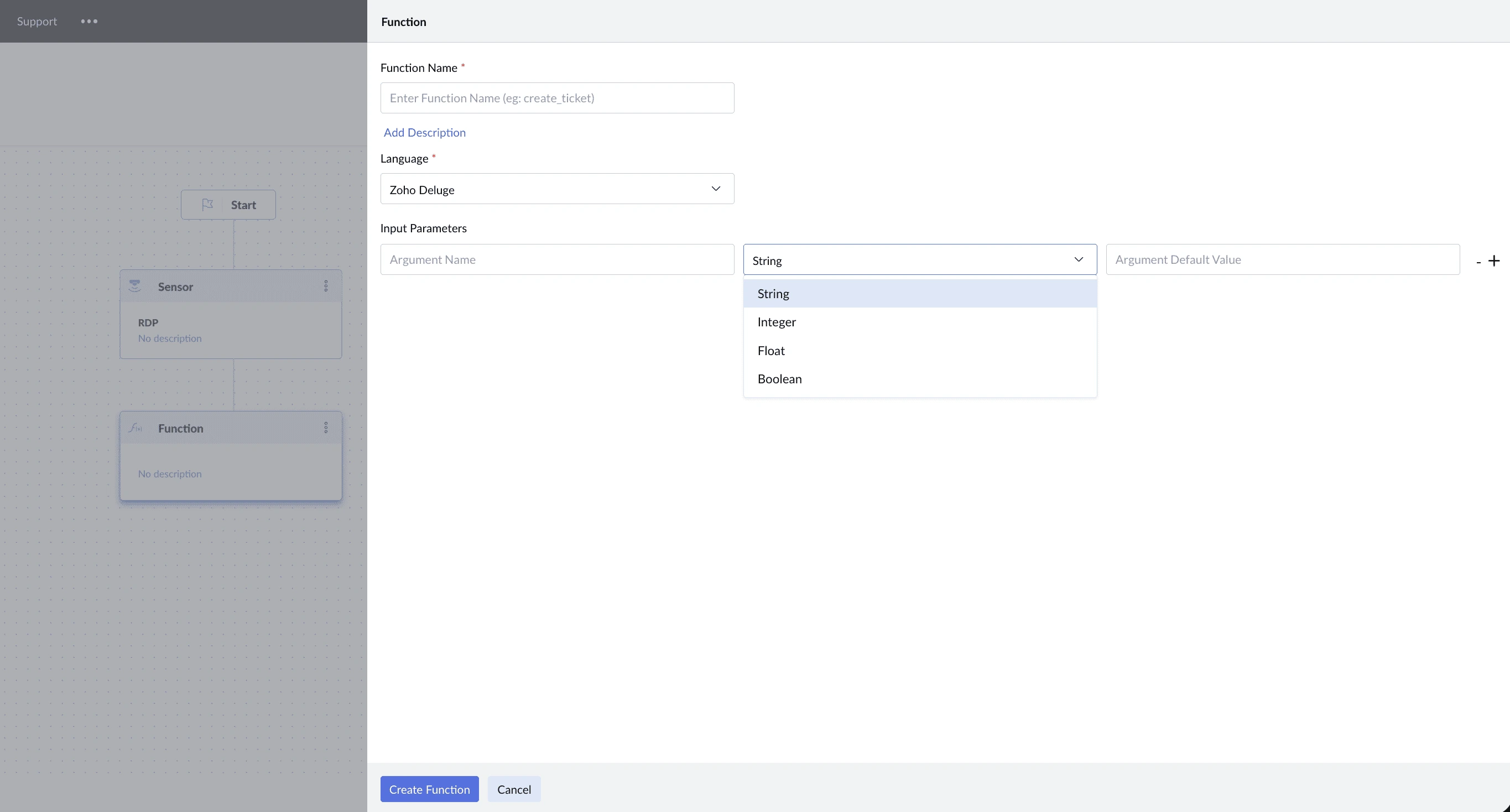
- Argument Name — what the parameter is called, for example mailAddress
- Type — String, Integer, Float, or Boolean
- Argument Default Value (optional) — used when no value is supplied
- Click + to add another parameter, or − to remove one
- Click Create Function
Once created, the function appears in Available Functions and can be selected in any Function stage.
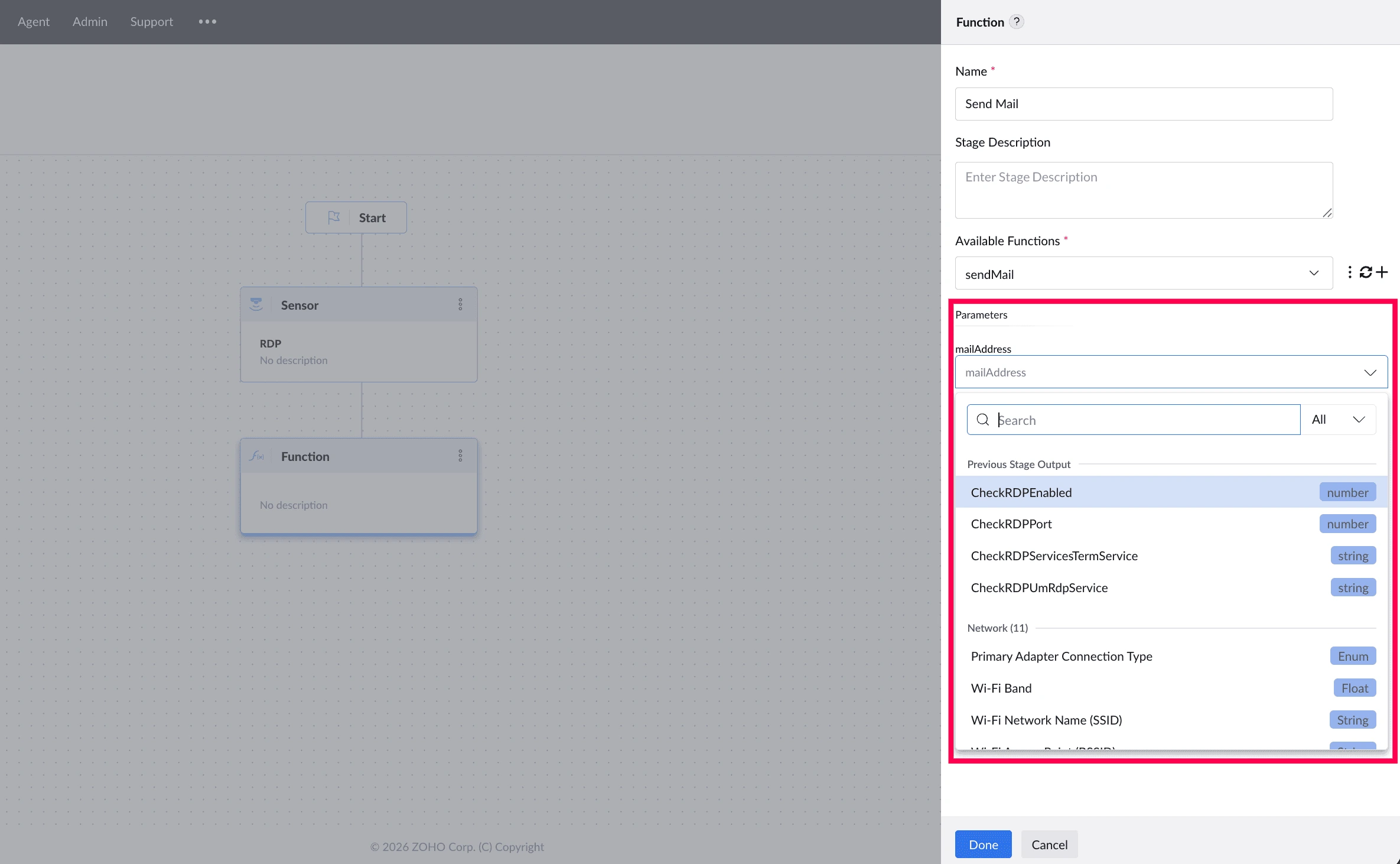
This step only defines what parameters the function expects — their names and types. After you click Create Function, you return to the stage panel, where a Parameters section appears listing each parameter by name.
What You Can Pass to a Parameter
Applies to Zoho Deluge functions only. Once the function is selected, each parameter you defined appears with a dropdown. Pick a value from the list — there's no variable syntax to type.
| Source | What it includes |
|---|---|
| Previous stage output | A value produced by an earlier stage in the workflow |
| Device properties | Details about the device, such as network information or OS version |
| Sensor fields | Fields from your existing sensors; selecting one runs that sensor during the workflow to fetch its value. |
Connecting to Other Services
Available for Zoho Deluge functions only.
A Connection handles the authentication between your function and an outside service. Rather than putting credentials into your script, you set the sign-in up once as a Connection, and the function uses it every time it runs. Connections cover the common authentication methods — API Key, Basic, OAuth 1, OAuth 2, and AWS Signature Version 4 — so most Zoho and third-party services can be reached.
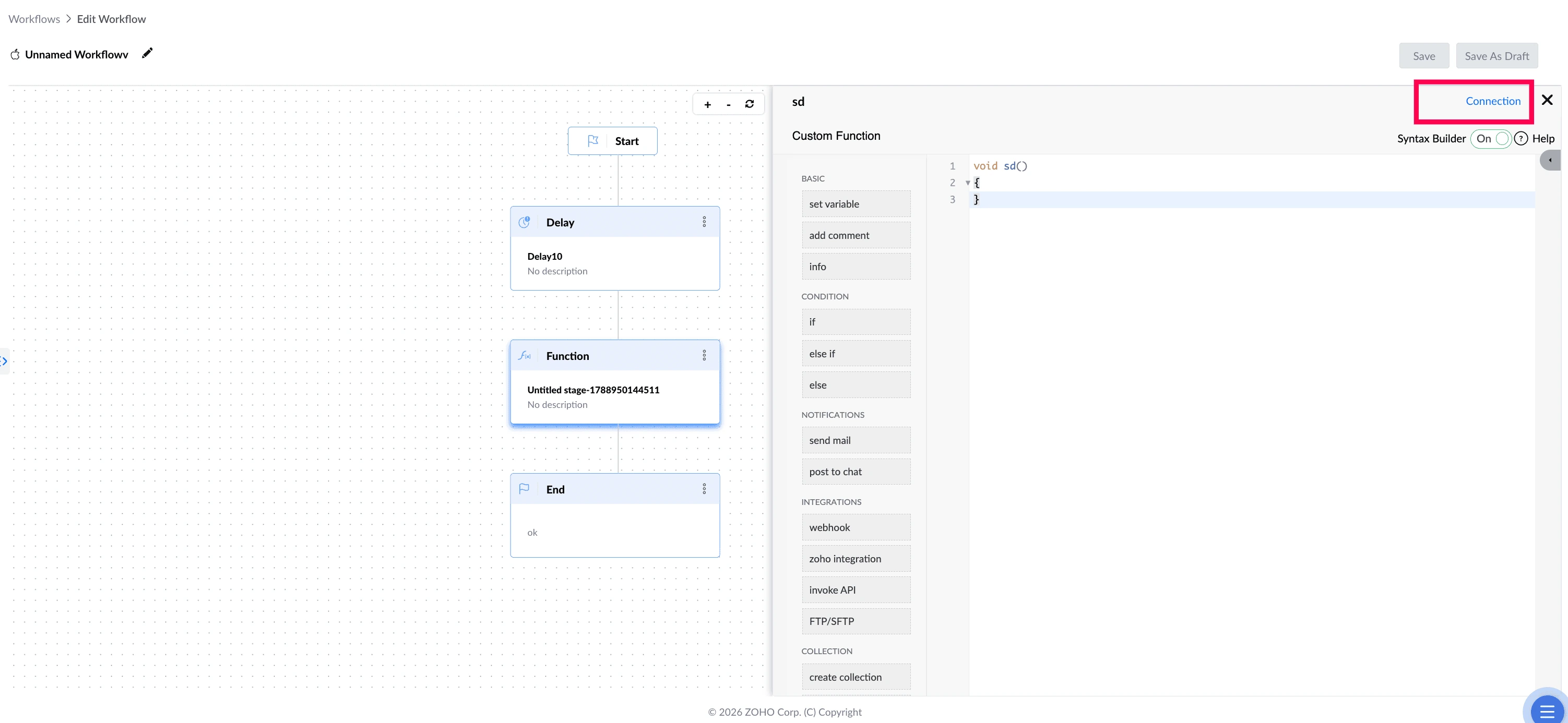
Click Connection at the top right of the code editor to create one or pick an existing one. Each Connection is given a link name, and that name is how you refer to it in your script — for example, in an invoke url task.
For the full setup steps and the list of supported services, see Zoho's Connections guide.
Things to Know
- Connections to outside services are available in Zoho Deluge only
- Only Zoho Deluge functions accept parameters, and their values are chosen from a dropdown — JavaScript functions have nothing to configure in the stage
- Produces no output — later stages cannot use the function's result
- Once created, a function can be reused in any other Function stage.