Script Stage
The Script stage runs a script on the device to make a change — clearing temporary files, disabling an account, restarting a service, or applying a setting. Unlike the Sensor stage, which only collects information, the Script stage actively changes the device. It runs quietly in the background without interrupting the user.
What This Stage Solves
Finding a problem doesn't fix it. A Sensor can report that a disk is full or an account has been idle for months, but something has to act on it. The Script stage makes the change — across every affected device at once, instead of someone logging into each one.
| The problem | What Script does about it |
|---|---|
| Disks fill up and users hit errors before IT hears about it | Clears temporary files, logs, and cached data |
| Idle local accounts stay enabled and become a security risk | Disables the account on the device |
| A stopped service breaks remote access | Restarts the service and restores the setting |
| Unused paid software keeps consuming licences | Uninstalls the application |
Example
Inactive Local Users Management
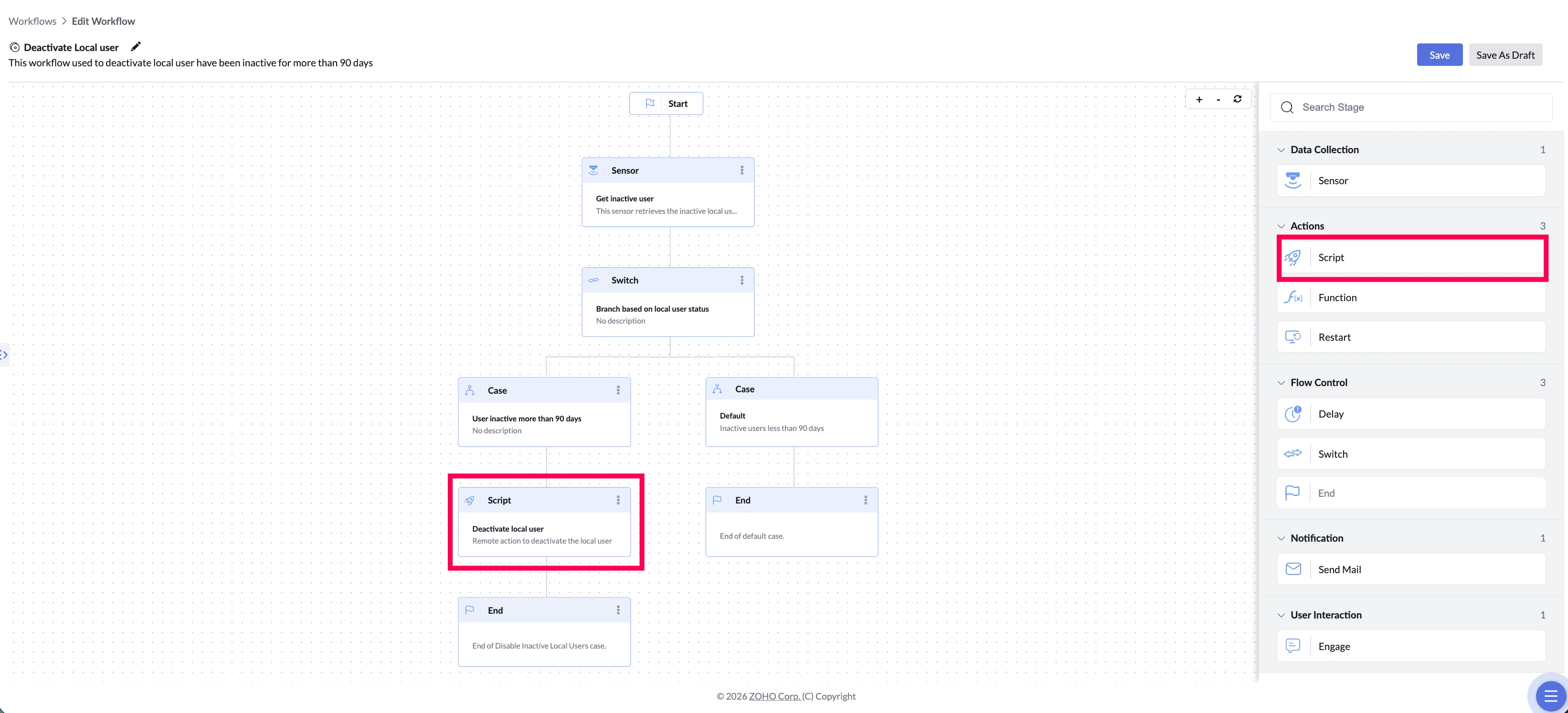
Once the Switch confirms an account has been idle for more than 90 days, something has to actually disable it. That's the Script stage — it runs on the device and switches the account off. The Sensor only reported the problem; the Script is what fixes it.
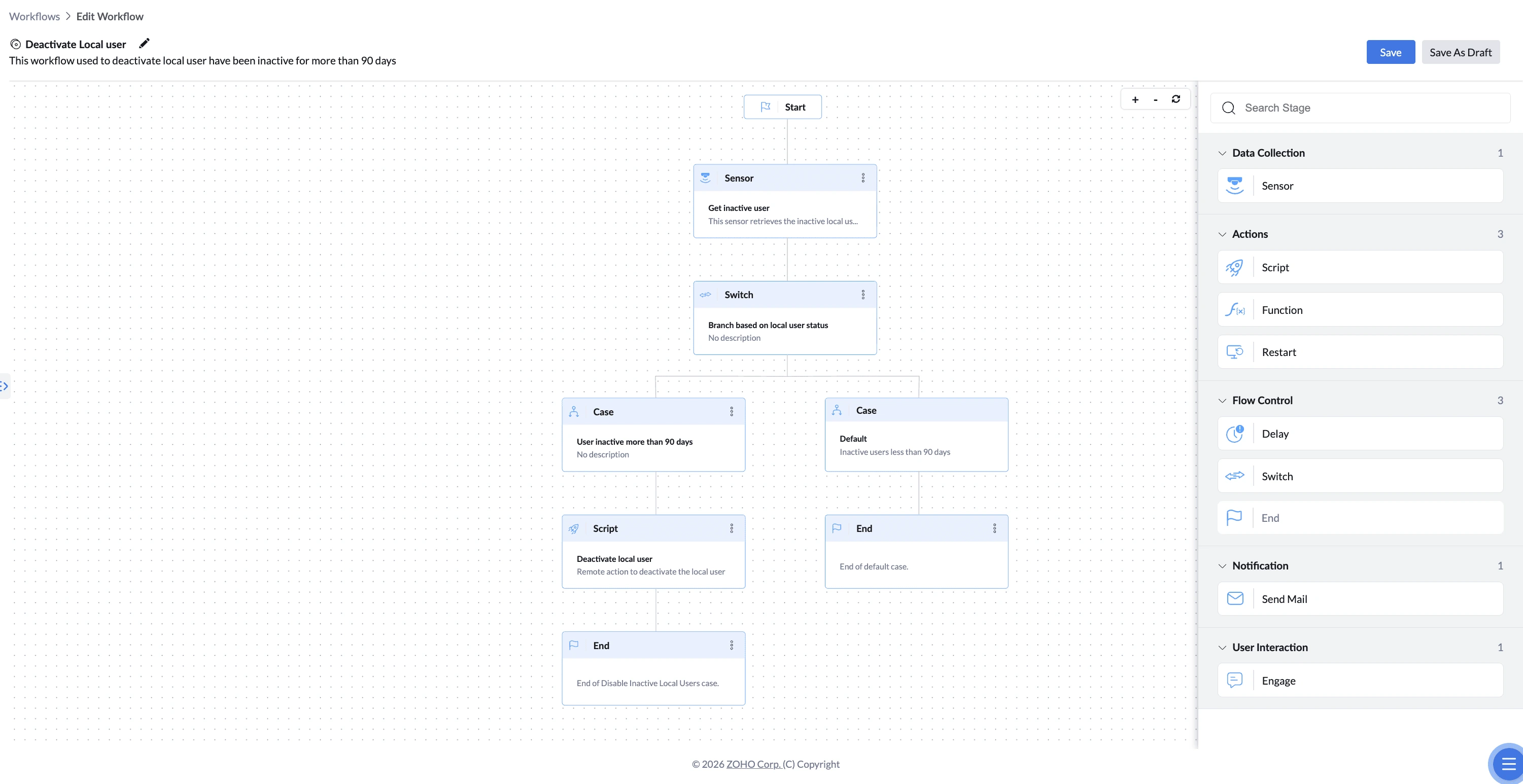
Accounts you want protected — such as Administrator or Sysadmin — can be excluded by editing that script's arguments in the Script Repository.
How to Configure
- Drag the Script stage onto the canvas and connect it to the preceding stage.
- Enter a Name for the stage (required).
- Enter a Stage Description (optional).
- Select the script to run:
- Windows-only workflow — select from Select Script (Windows)
- Mac-only workflow — select from Select Script (Mac)
- Workflow targeting both platforms — both dropdowns appear, and a script must be selected for each
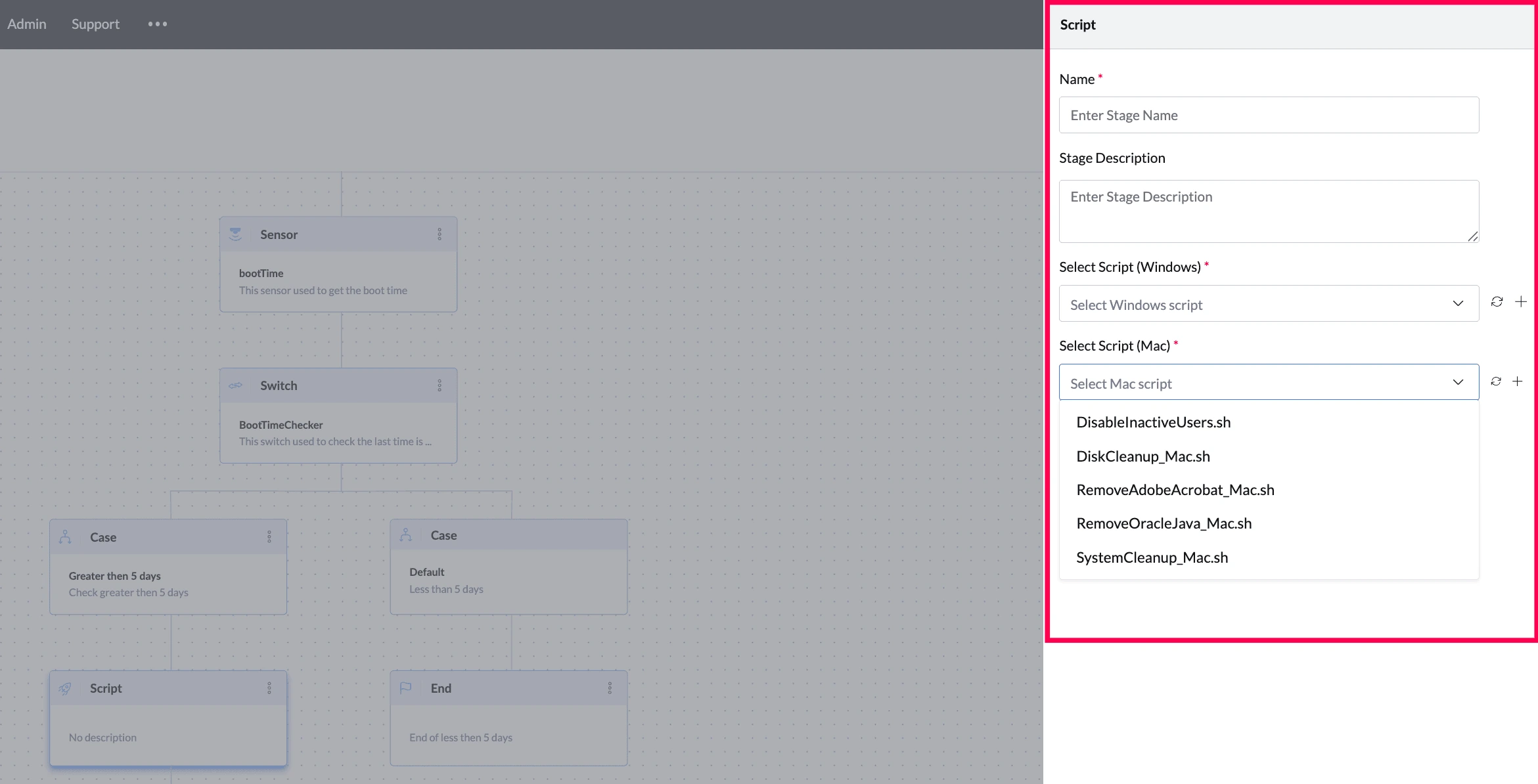
- If the script you need does not exist, click + to create one without leaving the workflow
- Connect the Script stage to the next stage in your workflow.
- Only scripts that are already created appear in the dropdown
- Scripts must be written as PowerShell (.ps1), VBScript (.vbs), or Batch (.bat) for Windows, or Shell (.sh) for Mac. These are the only script types supported. If you have any requirements, let us know.
- Scripts are created and managed under Configuration > Script Repository, where you can also edit a script's arguments.
Things to Know
- Runs silently — if the user should know something is happening, add an Engage stage before it
- Takes no input from earlier stages and produces no output — later stages cannot reference its result
- To confirm a change worked, add a Sensor stage after the Script to re-check the device