Send Mail Stage
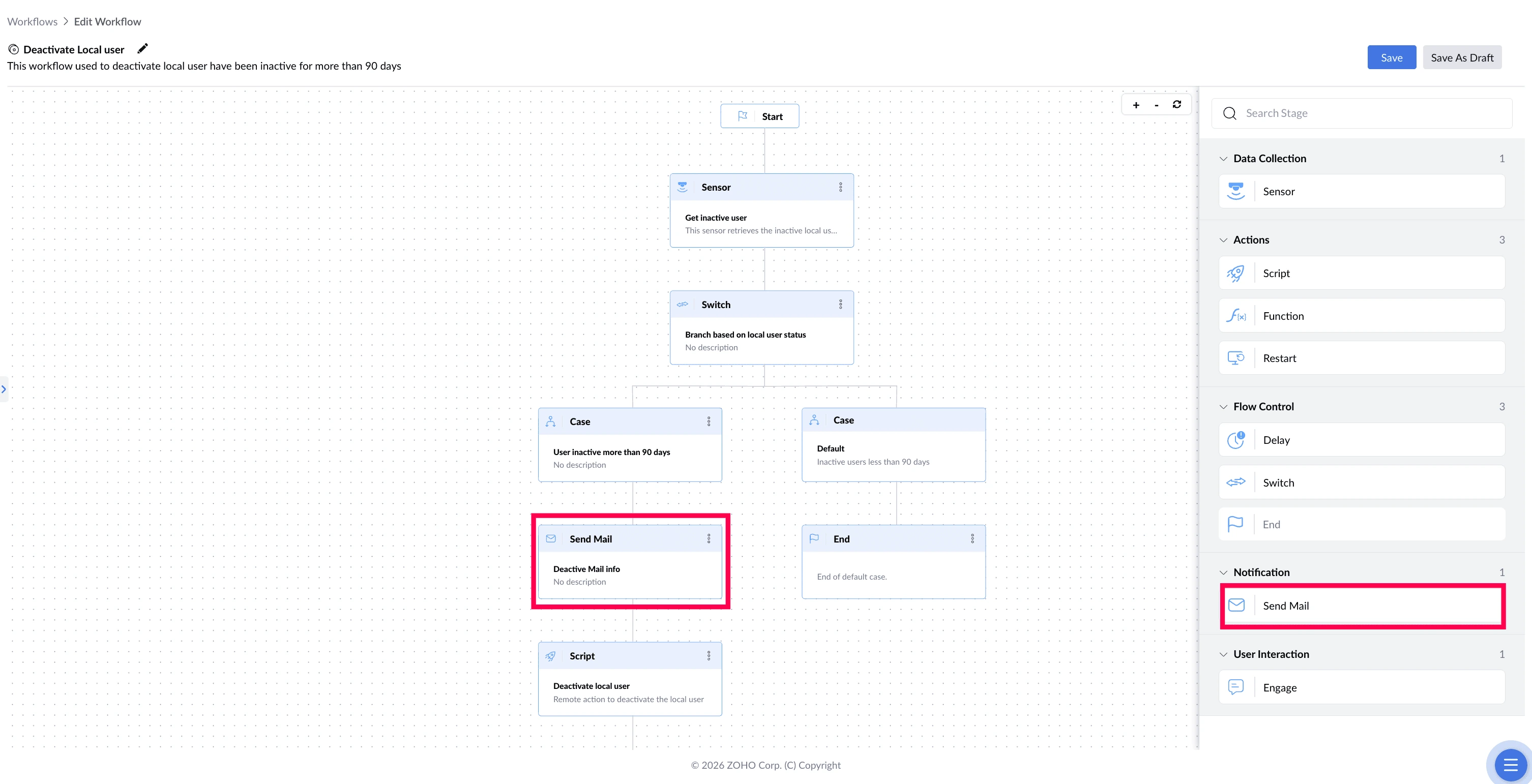
The Send Mail stage sends an email to one or more recipients at a defined point in the workflow. It keeps administrators and IT teams informed about what the workflow found or did, without anyone having to check dashboards. It makes no changes to the device.
A mail server must be configured under Admin > Mail Server Settings before this stage can be used.
What This Stage Solves
A workflow can fix a hundred devices overnight, but if nobody hears about it, IT is still left checking reports to find out what happened — and worse, still unaware of the devices the workflow couldn't fix. The Send Mail stage delivers that information as it happens, to the people who need to act on it.
| The problem | What Send Mail does about it |
|---|---|
| A laptop battery is failing, and nobody knows until it dies during a meeting | Emails IT the device name and battery health, with time to order a replacement |
| A cleanup fails on a few devices overnight, and it goes unnoticed for days | Emails IT which device failed and what went wrong |
| A user declines the cleanup, so the disk stays full and IT never hears about it | Emails IT that the device still needs attention |
| Someone opens the deployment report each morning just to see what ran | Emails the result as each device finishes |
Example
Battery Replacement
This workflow finds devices whose batteries are wearing out, based on battery health, backup time, and charge cycle count. The user gets a message on their screen, and the Send Mail stage emails the IT team the device details — so replacements can be arranged before someone is left with a laptop that won't hold charge.
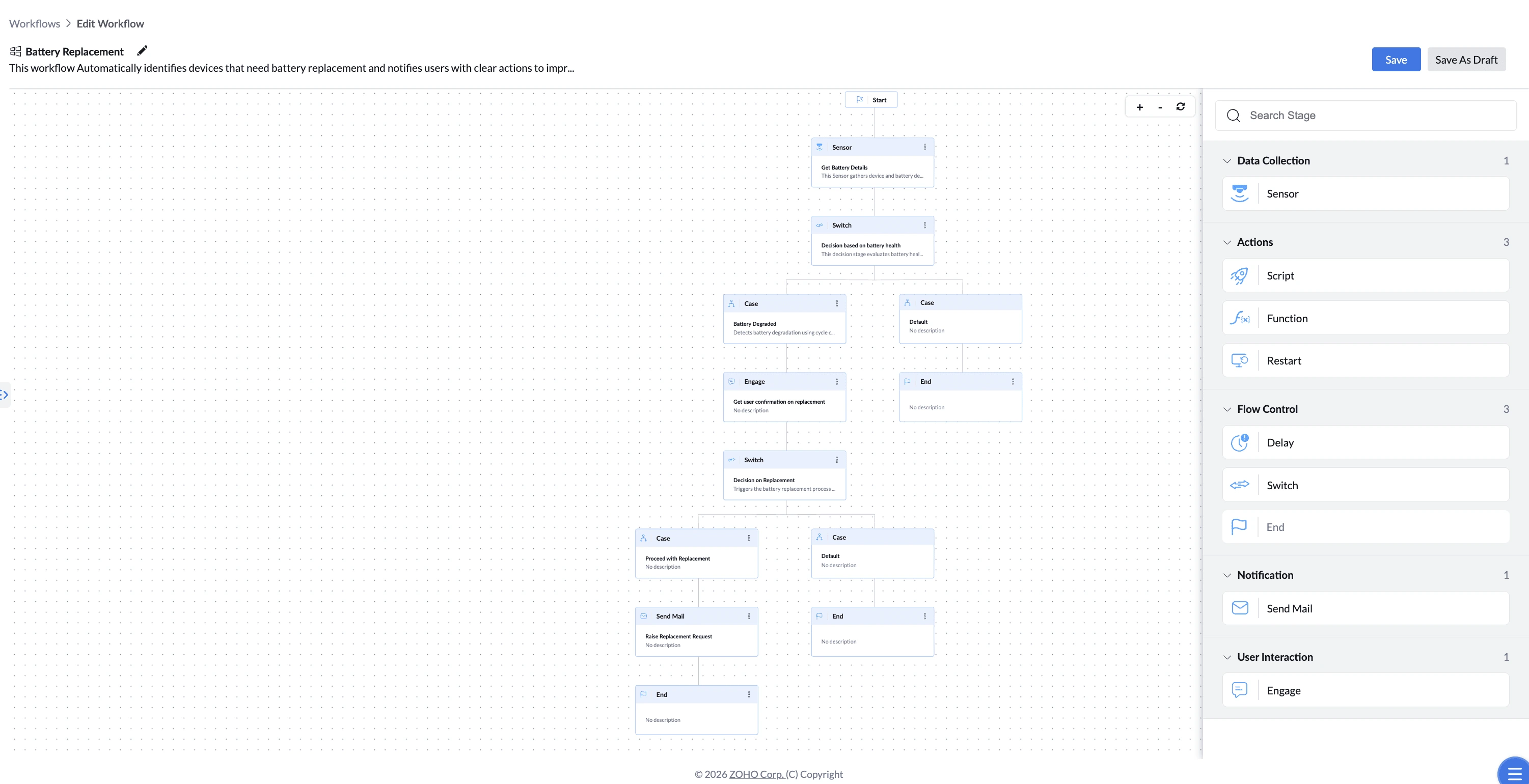
This workflow ships with a default email address. Update the Send Mail stage with your own administrator's address before deploying it.
How to Configure
- Drag the Send Mail stage onto the canvas and connect it to the preceding stage.
- Enter a Name for the stage (required).
- Click Add Description to describe the stage (optional).
- Enter one or more recipients in Email Address(es).
- Enter the Subject. Type $ to insert a value from the workflow.
- Enter the Message. Type $ to insert a value from the workflow.
- Connect the Send Mail stage to the next stage in your workflow.
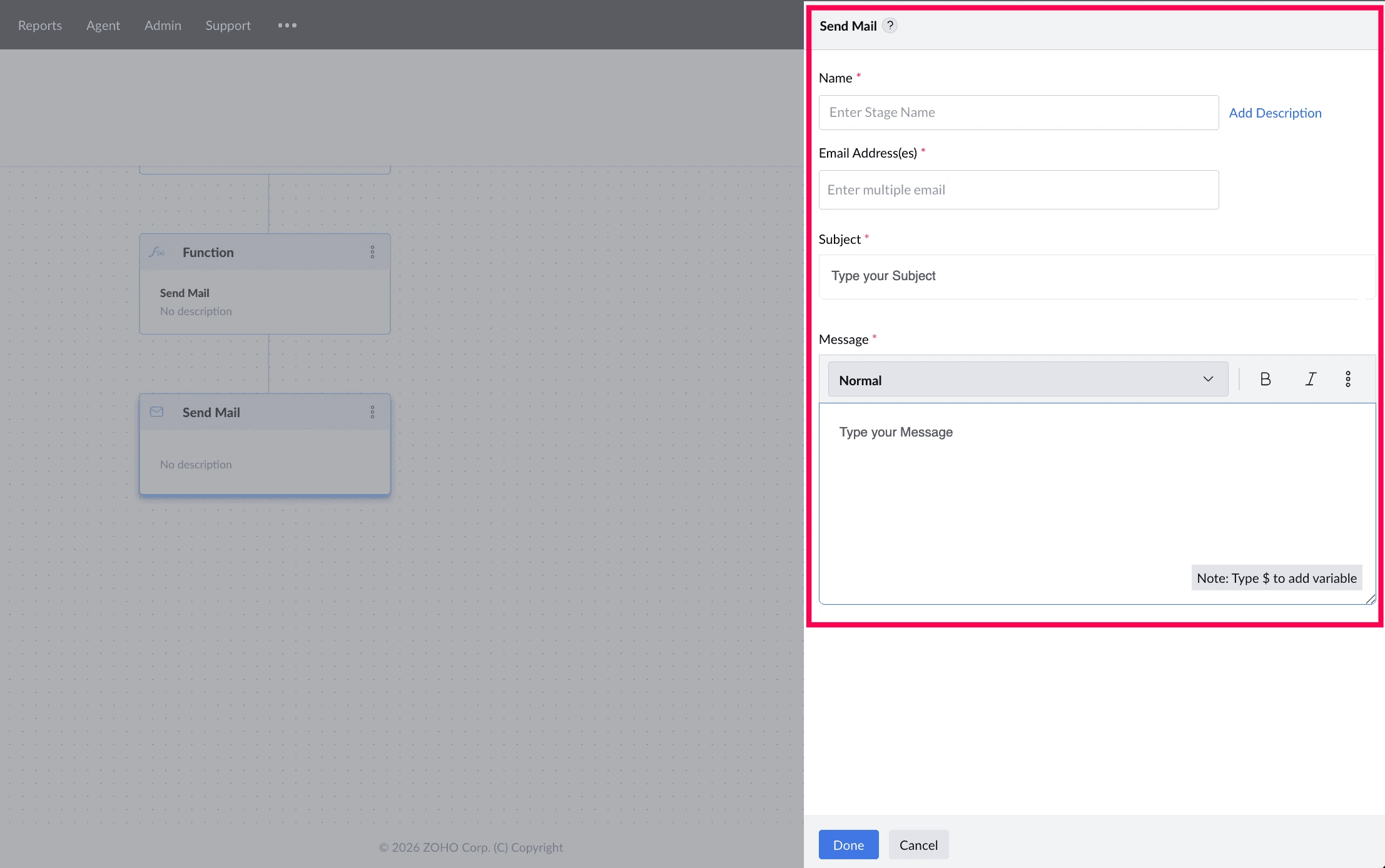
Subject and Message accept any language — type directly in the language your recipients read.
What You Can Include in the Email
Type $ in the Subject or Message field to insert a value from the workflow, so each email carries the details of the device that triggered it.
| Source | What it includes |
|---|---|
| Previous stage output | A value produced by an earlier stage in the workflow |
| Device properties | Details about the device, such as network information or OS version |
| Sensor fields | Fields from your existing sensors; selecting one runs that sensor during the workflow to fetch its value. |
Things to Know
- Sends to multiple recipients — enter as many addresses as you need
- The Message field supports formatting such as bold and italic
- Subject and Message support any language — type content in the language your recipients read
- Subject and Message both support inserting variable values (type $ in the field to insert live workflow data)