Sensor Stage
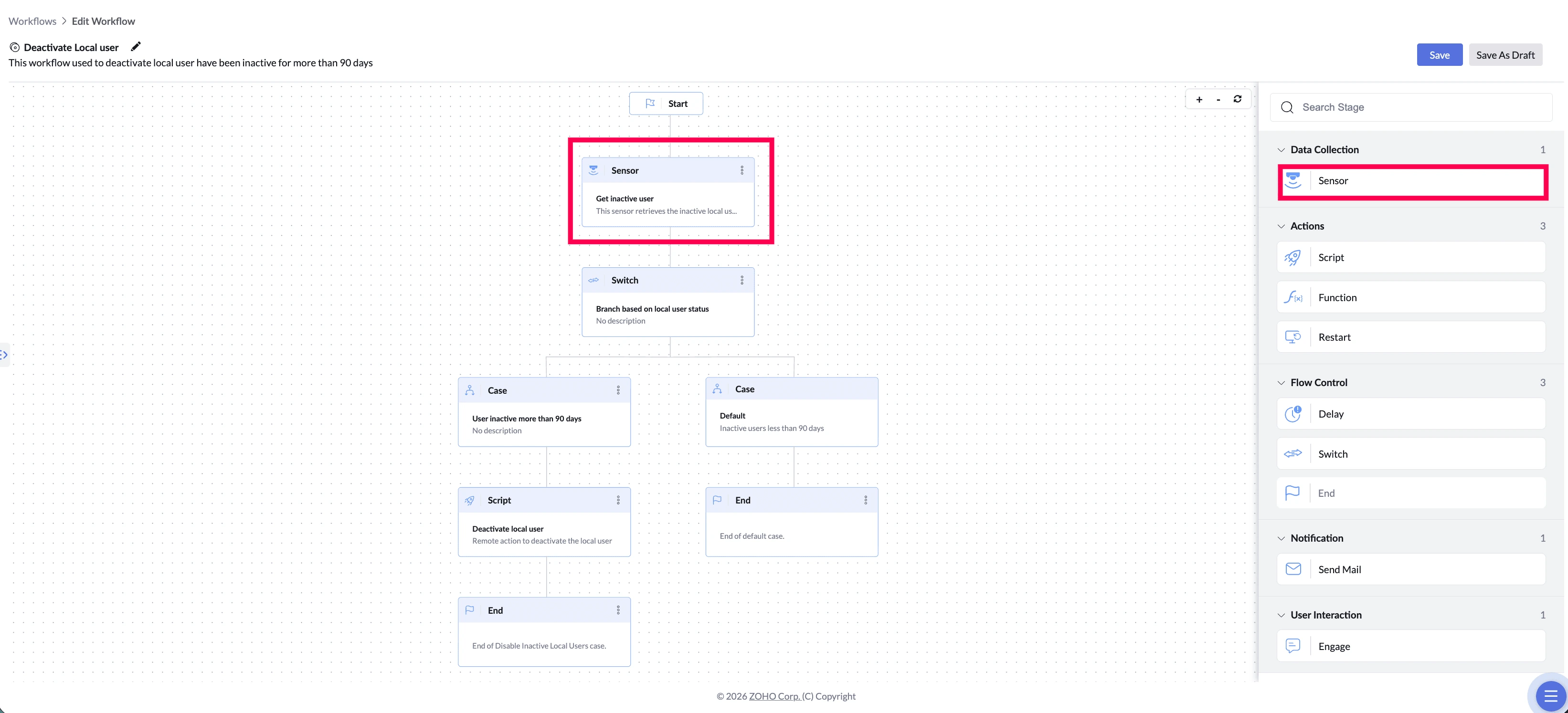
The Sensor stage collects specific information from the device — such as free disk space, battery health, or when a user last signed in. It only reads; it never changes anything on the device. The values it collects become available to the stages that follow it.
What This Stage Solves
You can't act on what you can't see. Most endpoint problems stay hidden until a user raises a ticket — a device that hasn't restarted in weeks, a disk quietly filling up, an account nobody has used in months. The Sensor reads the real state of each device at the moment the workflow runs, so every decision that follows is based on actual data rather than assumptions.
| The problem | What Sensor does about it |
|---|---|
| Devices go weeks without a restart — performance drops and patches stay uninstalled | Reads the last restart time from each device |
| Disks fill with temporary files, logs, and cache until users hit errors | Reads current free disk space as a percentage |
| Old local accounts stay enabled long after anyone stops using them | Reads each account's last logon date |
| Laptop batteries degrade silently until users complain | Reads battery health, backup time, and cycle count |
Example
Inactive Local Users Management
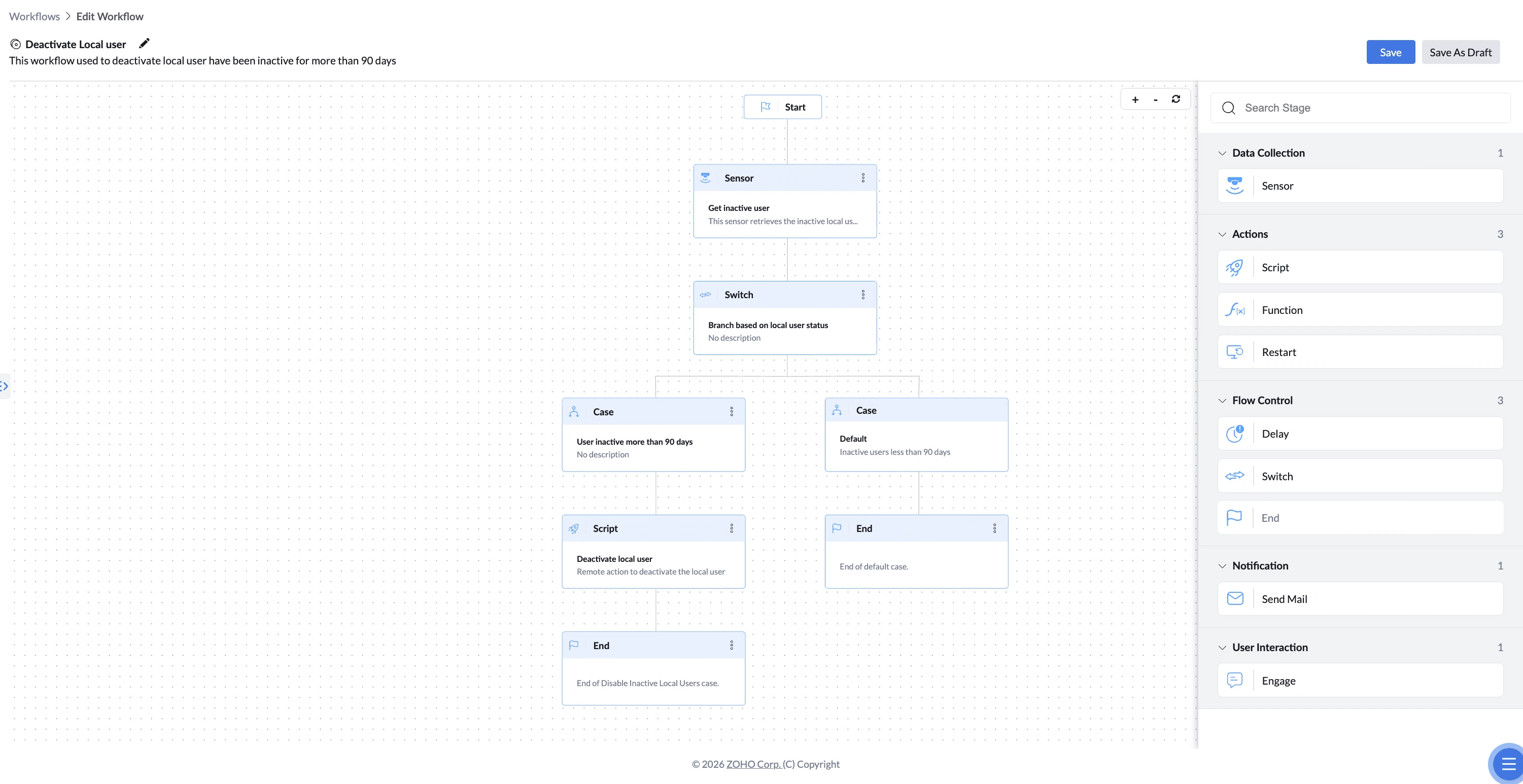
Before the workflow can decide anything, it needs to know who has been signing in. The Sensor collects local user account details and the last logon date from each device, then passes that to the Switch, which checks whether any account has been idle for more than 90 days.
Accounts you never want touched — such as Administrator or Sysadmin — can be excluded by editing the sensor's script arguments in the Sensors tab, outside the workflow.
How to Configure
- Drag the Sensor stage onto the canvas and connect it to the preceding stage.
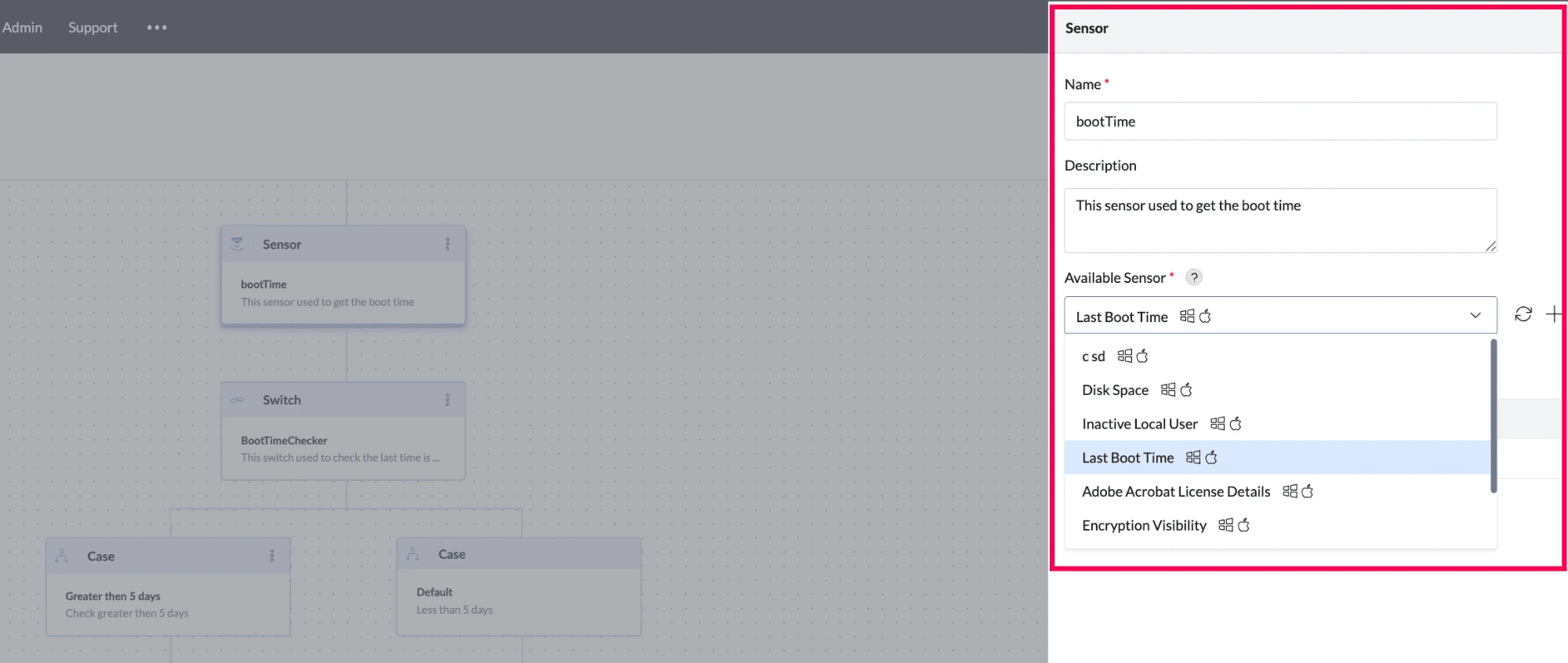
- Enter a Name for the stage (required).
- Enter a Description (optional).
- Under Available Sensor, select the sensor you want to run from the dropdown.
- If the sensor you need does not exist, click + to create one without leaving the workflow.
- Connect the Sensor stage to the next stage — usually a Switch, so the collected value can be evaluated.
- Only sensors that are already created appear in the dropdown.
- Sensor scripts must be written as PowerShell (.ps1) for Windows or Shell (.sh) for Mac. These are the only script types supported. If you have any requirements,let us know.
Where the Collected Value Can Be Used
| Stage | Where the value is used | How to insert it |
|---|---|---|
| Switch | In the case condition — to evaluate the value and branch the workflow | Pick it from the field dropdown |
| Engage | In the question text and the message after submission | Type $ in the field |
| Send Mail | In the subject and the message body | Type $ in the field |
| Function | In the function parameters, for Zoho Deluge functions | Pick it from the parameter dropdown |
Things to Know
- Sensor only reads — it never changes anything on the device
- A workflow can include multiple Sensor stages — each runs independently and produces its own values.
- The value reflects the device state at the moment the sensor runs.