Start and End Stages
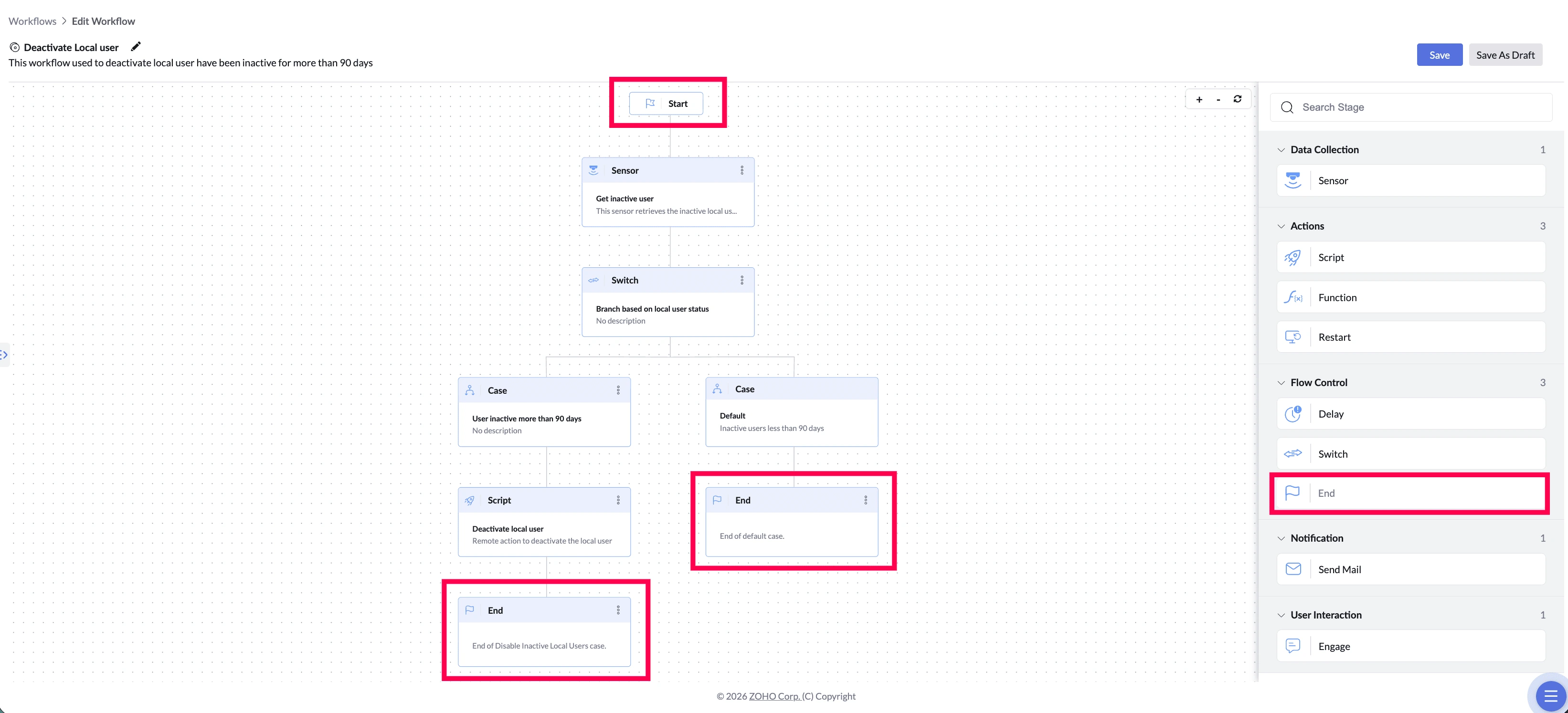
Every workflow runs from a Start stage to an End stage. Start is where execution begins — it is placed for you automatically and needs no setup. End is where the workflow finishes, and it records whether anything was actually changed on the device.
A workflow does not always follow a single straight line. A Switch stage can split it into different paths depending on what it finds on the device. Every path needs its own End stage.
What These Stages Solve
The same workflow can do different things on different devices. On one laptop it might clear a full disk; on another it might find nothing to clean and stop. Without a defined ending on each path, there is no record of which devices were acted on and which were already fine.
The End stage captures that result, so after the workflow runs you can see exactly what happened on each device.
| The problem | What Start & End do about it |
|---|---|
| A workflow needs one clear starting point, not several | Start is placed automatically — only one exists per workflow |
| After a run, you can't tell which devices actually needed fixing | End records Action Taken or No Action Taken for that path |
| A path left unconnected blocks the workflow from being saved | Every path must finish at an End stage before you can save |
Example
Inactive Local Users Management
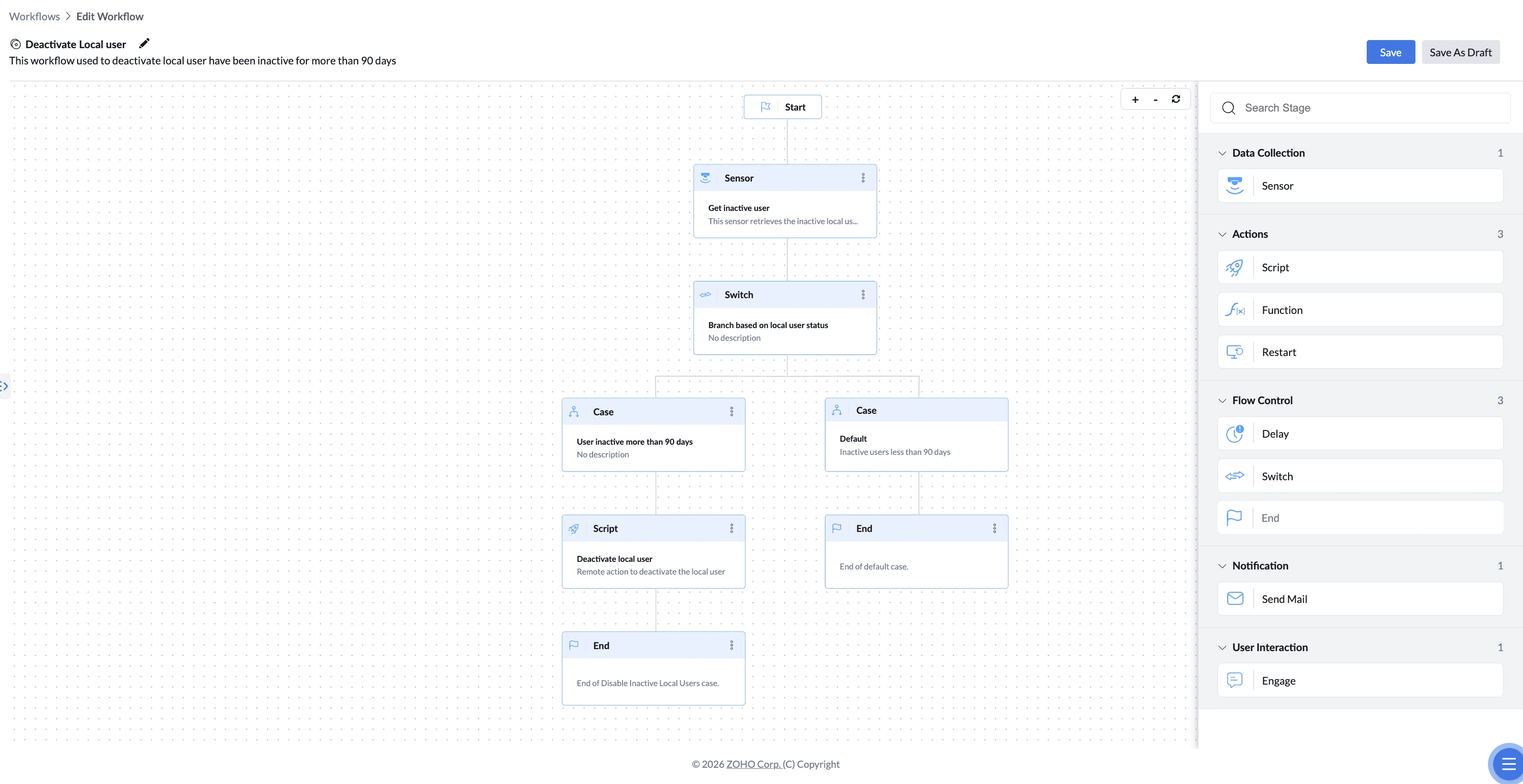
Unused local accounts sitting on endpoints are a security risk. This workflow checks when each local account last signed in. Accounts inactive for more than 90 days get disabled, and that path ends with Action Taken. Accounts still in use need nothing, so that path ends with No Action Taken — leaving a clear record of which devices had accounts disabled and which were already clean.
How to Configure
Start Stage
Nothing to configure. Start appears on the canvas automatically when you create a workflow. Connect it to your first stage.
End Stage
- Drag the End stage onto the canvas and connect it to the last stage on that path.
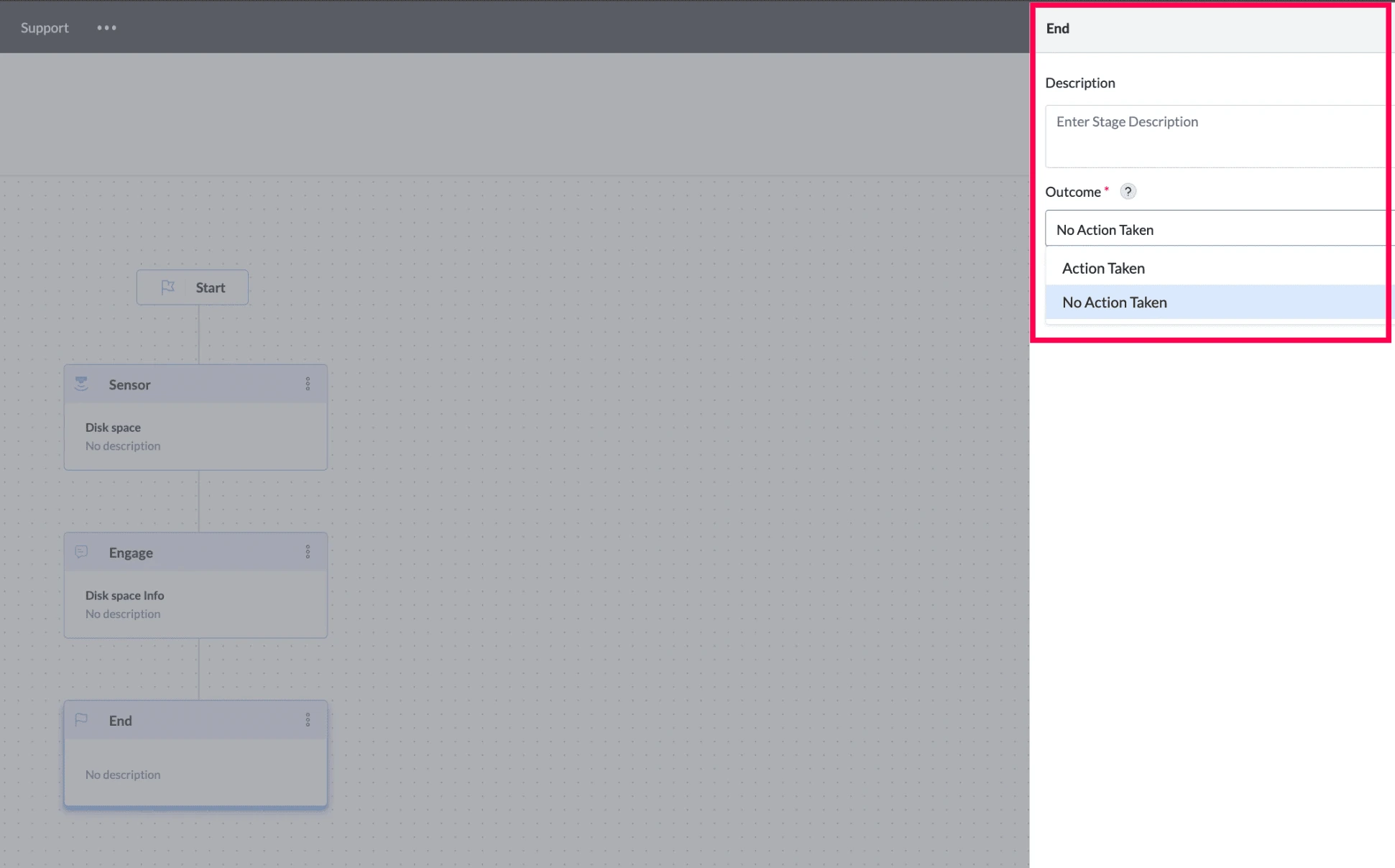
- Enter a Description (optional) — a short note such as "Disk cleaned" or "Already healthy" helps you identify this path later.
- Select the Outcome:
- Action Taken — the workflow made a change on this path
- No Action Taken — the workflow finished without making a change
- Repeat until every path in the workflow ends at an End stage.
A workflow needs at least one stage between Start and End. Connecting Start directly to End cannot be saved.
Things to Know
- Start is placed automatically, cannot be moved or deleted, and only one exists in a workflow
- The End stage has no Name field — only a Description and an Outcome
- Every path must finish at an End stage — including each Switch case and the Default case
- Add as many End stages as your workflow needs — one for each path
- The Outcome you choose appears in the device results in the Deployments module after the workflow runs, so select the one that matches what actually happened on that path