Application Crash Insight
The Application Crashes insight identifies devices experiencing application stability issues. DEX monitors crash events across all managed applications — including Microsoft Office apps, collaboration tools, browsers, system processes, and third-party software — and surfaces crash diagnostics including exception codes, application versions, and faulting modules.
This insight covers every application monitored by DEX. In your environment you will see individual insight entries for each crashing application — for example, separate entries for outlook.exe crashes, ms-teams.exe crashes, explorer.exe crashes, and so on. Each entry uses the same structure and the same set of diagnostic columns described in this document.
This insight helps administrators:
- Identify which devices are experiencing application crashes and how frequently
- Determine whether crashes are caused by a specific application version, a faulting module, or a particular exception type
- Distinguish between isolated device-specific crashes and a fleet-wide stability regression
- Prioritize remediation — whether that means updating the application, replacing a faulting DLL, or escalating to the software vendor
Trigger Conditions
The Application Crashes insight is generated when:
- An application crash event is reported by a managed endpoint.
- Criteria: All applications are monitored — there is no threshold to configure for crash detection itself.
Accessing the Insight
- In DEX Manager Plus, click DEX in the top navigation bar.
- Select Insights from the left sidebar.
- On the Insights page, locate the Application Reliability category. You will see one insight entry per application that has crashed — for example: Devices experiencing outlook.exe crashes, Devices experiencing ms-teams.exe crashes, and so on.
- Click any application crash insight to open its detail view.
Interpreting the Insight Metrics
The insight details page shows four summary cards that identify crash scale, the most common exception type, the most affected application version, and the module most frequently involved in crashes.
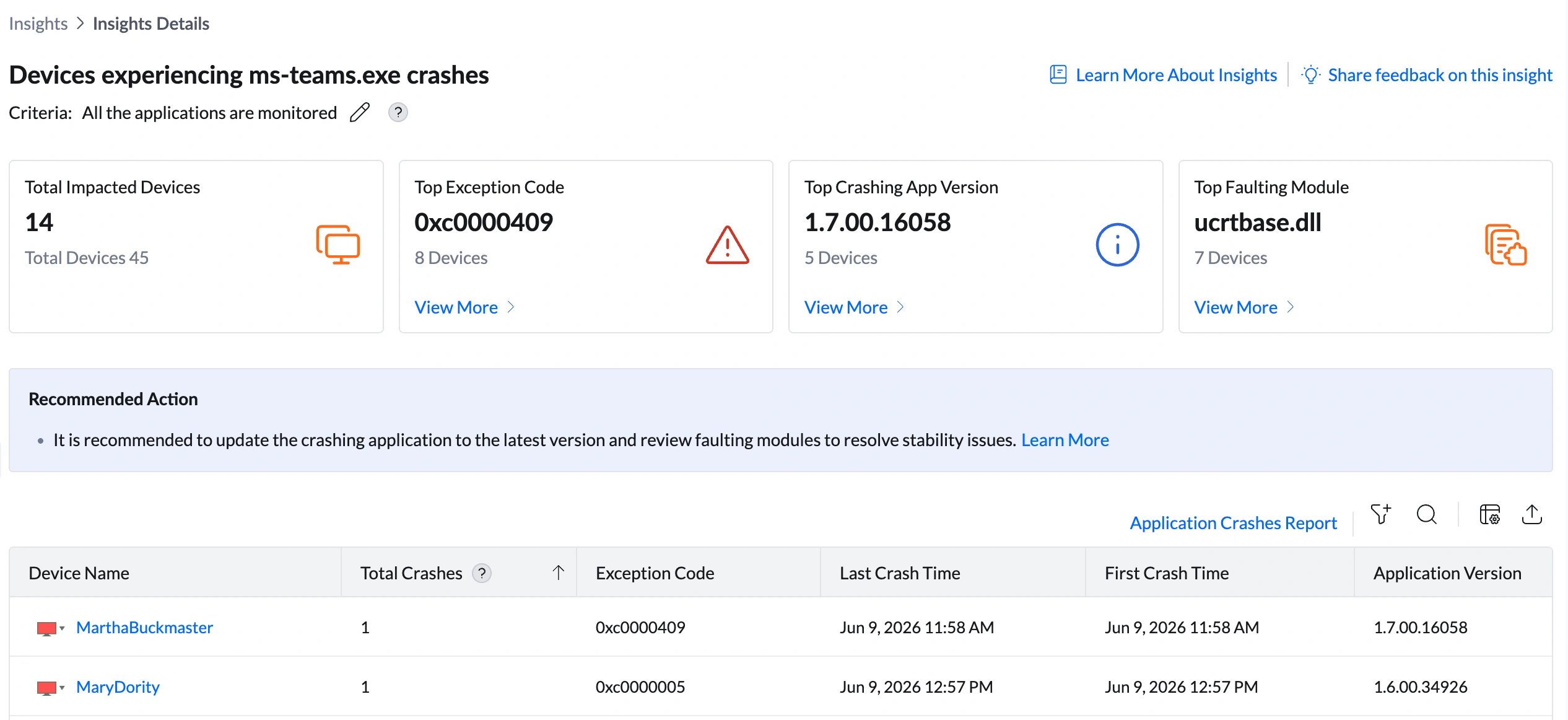
| Metric | What it shows | How to use it |
|---|---|---|
| Total Impacted Devices | Number of devices that have experienced at least one crash of this application (e.g., 14 out of 45 for outlook.exe) | Assess scope. If a large proportion of the fleet is affected, this is a widespread application stability issue requiring immediate action. If only 1—2 devices are affected, investigate those devices individually first before assuming a broader problem. |
| Top Exception Code | The Windows exception code most frequently associated with crashes of this application (e.g., 0xe0434352 — 8 devices) | Exception codes identify why the application crashed at a system level. Click View More to open the Impacted Exception Codes Summary, which shows Exception Code, Total Crashes, and Affected Devices for each code observed. The same exception code appearing across many devices confirms a consistent, reproducible crash cause — not random device-specific issues. See the Exception Code Reference section for a guide to common codes. |
| Top Crashing App Version | The application version most commonly associated with crashes (e.g., 16.0.17231.20194 — 7 devices) | Click View More to open the Impacted App Versions Summary, which shows Crashing App Version, Total Crashes, and Affected Devices per version. If crashes are concentrated in one version while devices on a different version are stable, the issue is version-specific — an update to the latest release is the most targeted fix. If crashes are spread across multiple versions at similar rates, the issue may be environmental rather than version-specific. |
| Top Faulting Module | The DLL, executable, or system module most frequently active at the time of crash (e.g., mso.dll — 6 devices) | Click View More to open the Impacted Faulting Modules Summary. The faulting module is the code component that was executing when the crash occurred. mso.dll appearing as the top faulting module confirms the crash originates within Office itself. A third-party DLL appearing as top faulting module suggests the crash is caused by an external component injecting into the application. |
Analyzing Affected Devices
The device table shows per-device crash diagnostics. This is the most technically detailed table across all DEX insights — it provides the raw information needed to reproduce and diagnose a specific crash.

Understanding the columns
| Column | What it shows | What it means for remediation |
|---|---|---|
| Total Crashes | How many times this application has crashed on that device during the monitoring period | A device with 1—2 crashes may have had an isolated incident. A device with 10+ crashes has a persistent, recurring instability problem that needs prioritized investigation. Sort this column descending to find the most severely affected devices. |
| Exception Code | The Windows exception code recorded at the time of crash (e.g., 0xc0000005, 0xe0434352) | Different exception codes indicate different crash causes. Cross-reference with the Exception Code Reference section to understand what each code means before taking action. |
| Last Crash Time | The most recent timestamp when the application crashed | Use to confirm whether the device is still actively crashing. A Last Crash Time from several days ago may indicate the issue resolved itself. A very recent Last Crash Time confirms the problem is ongoing. |
| First Crash Time | The timestamp of the first recorded crash in the monitoring window | If First Crash Time and Last Crash Time are the same, the device had a single crash event. If First Crash Time is significantly earlier than Last Crash Time, the device has been experiencing crashes repeatedly over a period of time. |
| Application Version | The version of the crashing application installed on that device (e.g., 16.0.17231.20194) | Cross-reference across devices. If most crashes occur on one version but another device on an older version is also crashing, the issue is not exclusively version-specific — investigate other factors on the outlier device. |
| Faulting Module | The DLL or executable module active at crash time (e.g., outlook.exe, KERNELBASE.dll, mso.dll) | outlook.exe as faulting module = crash within the application's own code. KERNELBASE.dll = crash in a core Windows component. mso.dll = crash in shared Office library. A third-party DLL = an add-in or external component is causing the crash. |
| Faulting Module Version | The version of the faulting module (e.g., 16.0.17328.20184 for mso.dll) | Use to determine whether the faulting module is outdated. If the faulting module version is older than the current release, updating the application or Windows may resolve the crash. |
Sorting and filtering the table
- Sort by Total Crashes descending — surfaces devices with the most frequent crashes first.
- Sort by Last Crash Time descending — identifies which devices are still actively experiencing crashes.
- Filter by Application Version — isolate devices on a specific version to confirm whether crashes are version-specific.
Exception Code Reference
Exception codes are the most diagnostic data point in this insight. The table below explains the most common codes you will encounter across all application crash insights.
| Exception Code | Name | Plain-language meaning | Most likely cause | First action |
|---|---|---|---|---|
| 0xc0000005 | Access Violation | The application tried to read or write to a memory address it was not allowed to access | Memory corruption, a bug in the application, or a third-party DLL injecting bad data into the application's memory space | Check for an application update. If the Faulting Module is a third-party DLL (add-in, antivirus hook), disable that module and test for recurrence. |
| 0xc0000409 | Stack Buffer Overrun | The application wrote more data to a memory stack than it was allocated, causing a security-triggered crash | A bug in the application or a faulting module. Windows deliberately crashes the app when this is detected to prevent exploitation. | Update the application. If the faulting module is a third-party component, remove or update it. |
| 0xe0434352 | .NET Runtime Exception | An unhandled exception occurred in the application's .NET runtime | A .NET application bug, a corrupted .NET framework installation, or an incompatible .NET version on the device | Check the Application Event Log on the device for .NET exception details. Update the application and verify the .NET framework version is current. |
| 0xe0000008 | Out of Memory | The application ran out of memory and could not allocate what it needed | Insufficient RAM on the device, a memory leak in the application, or too many processes running simultaneously | Check the device's RAM and review whether the High Memory Utilization insight flags the same device. Update the application to address potential memory leaks. |
| 0x80000003 | Breakpoint Exception | A debugging breakpoint was triggered in a non-debug environment | A debug build or diagnostic version of the application was deployed, or the application has a development artifact in production | Verify the application version deployed is the correct release build, not a debug or pre-release build. |
| 0xc0000374 | Heap Corruption | The application corrupted its own memory heap | A bug in the application, a faulty third-party DLL, or memory hardware issues on the device | Update the application. If the issue persists, run Windows Memory Diagnostic on the device via Remote Actions. |
Root Cause Investigation
Step 1 — Determine scope: fleet-wide vs isolated
| Pattern | Scope | Action |
|---|---|---|
| Same exception code across many devices with the same application version | Fleet-wide — likely a version-specific bug or regression | This is a software defect in that version. Check the application vendor's release notes for the affected version. Update to the latest version via Software Deployment. |
| Same faulting module across many devices (e.g., mso.dll, KERNELBASE.dll) | Fleet-wide — shared component issue | The shared library or DLL is faulty. Repairing or updating the application will update the faulting module. If the faulting module is from a third-party (add-in, plugin), remove or update it. |
| Crashes on 1—3 devices only, different exception codes | Device-specific — environmental issue on those devices | Investigate those devices individually. Check for corrupted application files (repair install), device-specific add-ins, or memory issues on the affected machines. |
| Crashes began at a specific date across multiple devices simultaneously | Regression from a recent change — update, deployment, or OS change | Identify what changed on that date via Software Deployment > Deployment History. A recent update may have introduced the instability — consider rolling back. |
Step 2 — Interpret the Top Exception Code
Use the exception code reference table above to identify what the crash represents. Then click View More under Top Exception Code to see how many total crashes each code has generated and how many devices are affected.
Step 3 — Check the App Version drill-down
Click View More under Top Crashing App Version to open the Impacted App Versions Summary:
- Crashing App Version — the exact version string
- Total Crashes — how many crash events occurred on that version
- Affected Devices — how many devices are on that version
Step 4 — Identify the faulting module
Step 5 — Validate with the Application Crashes Report
Remediation
| If you see this... | Do this |
|---|---|
| Same exception code (e.g., 0xe0434352) across 8+ devices on the same app version | Version-specific bug. Check the application vendor's release notes and known issues list for that version. Deploy an update to the latest stable version via Software Deployment. Monitor crash count in the Application Crashes Report after deployment. |
| mso.dll or outlook.exe as top faulting module | Core Office component fault. First try an Office repair: use Software Deployment to push an Office repair task (via the Microsoft Office Deployment Tool or a repair MSI command). If repair does not resolve it, deploy a full Office update to the latest version. |
| KERNELBASE.dll as faulting module | Windows kernel interface fault. Check Windows Update status on affected devices — a pending OS update may address the compatibility issue. Also verify the application version is compatible with the Windows version running on those devices. |
| A third-party DLL as faulting module | An add-in, plugin, or external component is injecting into the application and causing the crash. Identify which product owns that DLL, then remove or update it. For Office crashes, disable COM add-ins one by one via Application Control until the crash stops. |
| 0xc0000005 (Access Violation) on a few devices only | Device-specific memory issue. First repair or reinstall the application on those devices via Software Deployment. If crashes continue, run Windows Memory Diagnostic on the device via Remote Actions to check for RAM errors. |
| Crashes began on a specific date across multiple devices | A recent change triggered the regression. Check Software Deployment > Deployment History for updates deployed on or just before that date. If a specific update correlates, consider rolling it back or deploying a hotfix. |
| devenv.exe (Visual Studio) crashes on specific devices | Developer tool crashes are typically extension or workspace-specific. Connect via Remote Actions > Remote Desktop and ask the user to disable Visual Studio extensions one by one. Check whether a recent Visual Studio update coincides with the crash start date. |
| explorer.exe crashes | Windows Explorer crashes affect the entire desktop shell — users lose their taskbar and open windows temporarily. This is often caused by a faulty shell extension or a corrupted system file. Run: sfc /scannow via Remote Actions > Command Prompt to check for system file corruption. |
Post-Remediation Monitoring
- Return to DEX > Insights. The Total Impacted Devices count on the application crash insight should have decreased. If it has not, the remediation has not taken effect.
- Open DEX > Reports > Application Crashes Report and filter by the previously impacted devices. Confirm that Total Crashes has stopped increasing and Last Crash Time is not recent.
- If a specific application version was updated, verify the Application Version column in the device table now shows the new version for previously affected devices.
- If a faulting module was identified as a third-party add-in, confirm it no longer appears in the Faulting Module column for those devices.
- Set up an Alert (DEX > Alerts) for the affected application so you are notified if crash events resume after the fix — particularly useful after future application updates.
Frequently Asked Questions
An exception code is a hexadecimal identifier that Windows records when an application crashes. It represents the type of error that caused the termination — for example, a memory access violation, a runtime error, or a stack overflow. Exception codes are the primary diagnostic signal for identifying why an application crashed and what type of fix is needed. See the Exception Code Reference section for a guide to common codes.
The faulting module is the code component — a DLL file, executable, or system library — that was executing at the moment the application crashed. It is not always the same as the crashing application itself. For example, outlook.exe may crash because mso.dll (a shared Office library) or a third-party add-in DLL was executing faulty code. Identifying the faulting module tells you which component to update, repair, or remove.
These are often connected. When an application repeatedly fails to access a resource (network, memory, disk), it may enter a retry loop that consumes excessive CPU before eventually crashing. Devices appearing in both insights may have an underlying resource constraint driving both symptoms. Resolve the resource issue (CPU, memory, network) and the crash frequency often reduces as well.
A '--' in the Total Crashes column indicates that while the device has an associated exception code recorded, the crash count data was not available at the time of collection — typically because the crash was captured from a different telemetry source or the Windows Error Reporting data for that event was incomplete. The device is still correctly flagged as affected; the crash detail data may populate on the next telemetry cycle.
Yes. Application crashes are frequently connected to Wi-Fi Degradation (network-dependent apps crashing on unstable connections), High Memory Utilization (apps crashing due to memory exhaustion), and Disk Contention (apps timing out waiting for slow disk I/O). If the same devices appear in Application Crashes and any of these performance insights, address the underlying resource constraint first — it may resolve the crashes without requiring an application update.