End of Life Devices Insight
The End-of-Life Devices insight identifies devices that are approaching or have exceeded their recommended operational lifespan. As hardware ages and warranties expire, organizations face increasing risks — hardware failures, expired vendor support, reduced compatibility with modern software, and higher maintenance costs.
This insight gives IT administrators early visibility into aging hardware so that hardware refresh cycles can be planned proactively rather than reactively — reducing unexpected failures, unplanned downtime, and emergency procurement costs.
This insight helps administrators:
- Identify devices with warranties expiring within 90 days before vendor support coverage lapses
- Detect devices that have exceeded 5 years of operational age
- Build and prioritize a hardware refresh queue based on actual warranty and age data
- Forecast hardware replacement budgets with accurate, device-level data
- Reduce operational risk for business-critical users on aging hardware
Trigger Conditions
The End-of-Life Devices insight is generated when either of the following conditions is met:
| Condition | Default Threshold | What it means |
|---|---|---|
| Warranty expiry | Less than 90 days from today | The manufacturer warranty will expire within 3 months. After expiry, hardware repairs require out-of-pocket costs or a separate support contract. |
| Device age | Greater than 5 years | The device has been in service for more than 5 years, placing it beyond the typical enterprise hardware refresh cycle. |
Navigation: DEX > Insights > End-of-Life Devices insight > Edit icon next to criteria
Accessing the Insight
- In DEX Manager Plus, click DEX in the top navigation bar.
- Select Insights from the left sidebar.
- Locate the insight: Devices approaching or past End of Life, posing risks to security and support coverage.
- Click the insight name to open the detail view.
Interpreting the Insight Metrics
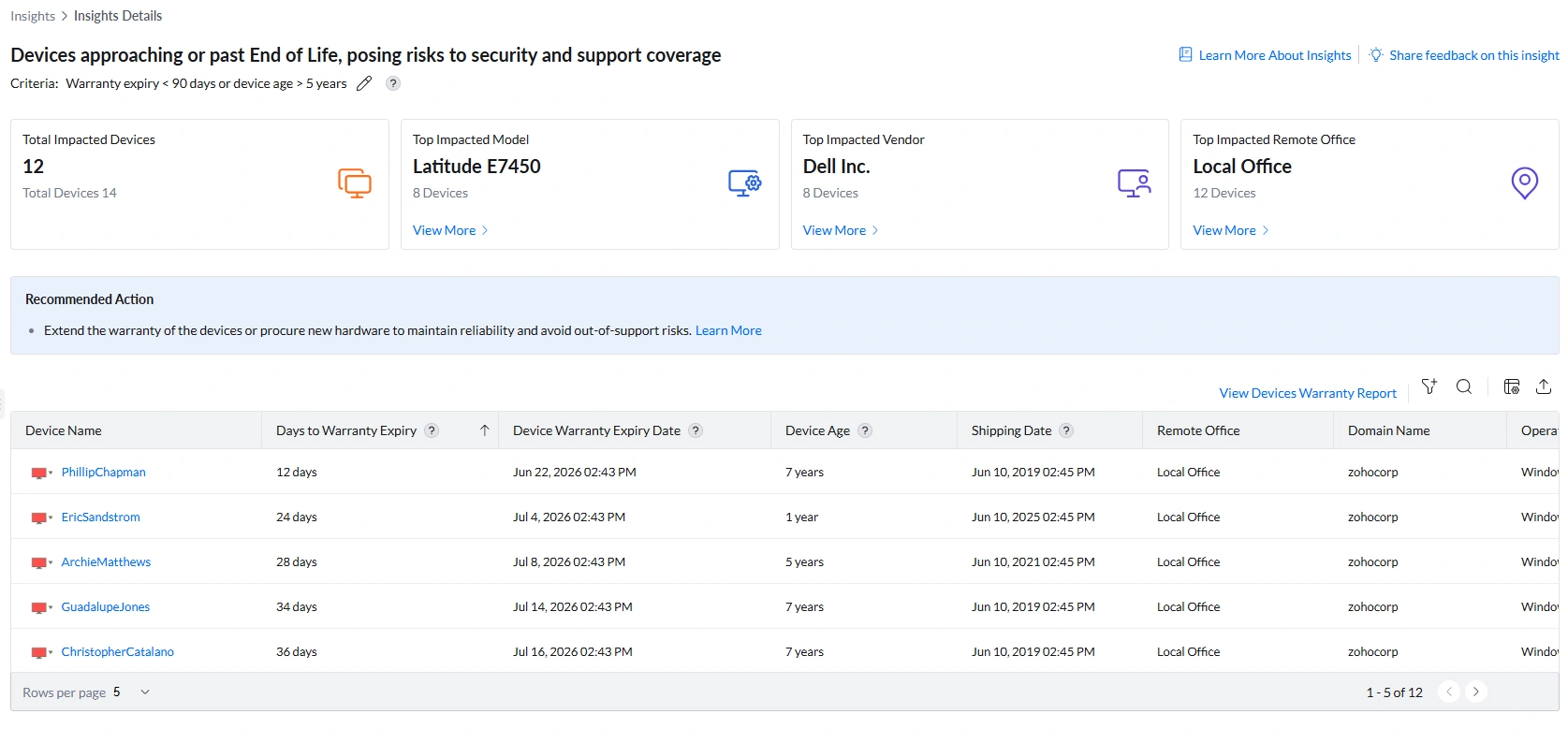
The summary bar shows four cards identifying scale, hardware model, vendor, and site location. All four have View More drill-downs.
Analyzing Affected Devices
The device table provides the lifecycle data needed to triage, prioritize, and plan replacements. With 12 devices flagged, the table drives the refresh queue.
Understanding Lifecycle Risk by Device Profile
Not all end-of-life devices carry the same risk. Use device age and warranty status together to determine the right action for each device:
Post-Remediation Monitoring
Configuring the Lifecycle Thresholds
- Navigate to DEX > Insights.
- Locate the End-of-Life Devices insight row.
- Click the edit icon (pencil) next to the criteria description.
- Update the warranty expiry window and/or device age threshold and save.
Frequently Asked Questions
Why is a 1-year-old device appearing in this insight?
Because the insight uses an OR condition — a device is flagged if either its warranty is expiring within 90 days OR its age exceeds 5 years. A device that is only 1 year old but has a warranty expiring in 24 days triggers the warranty condition. The correct action here is to extend the warranty, not replace the hardware. Always check both Device Age and Days to Warranty Expiry together before deciding on the remediation path.