Fast Startup Insight
The Fast Startup Enabled insight identifies devices where the Windows Fast Startup (Hybrid Boot) feature is active. Unlike other DEX insights that measure a performance threshold, this insight is a configuration audit — it flags devices so administrators can make an informed decision about whether Fast Startup aligns with their update management and maintenance policies.
Fast Startup is not inherently bad. It genuinely speeds up boot times by saving a portion of the OS state to disk during shutdown and reloading it on the next boot. However, this same behaviour means a shutdown is not a true full shutdown — which can prevent Windows updates, driver changes, and system configuration changes from fully applying until a restart is performed instead.
This insight helps administrators:
- Identify all devices where Fast Startup is enabled — giving full visibility into the configuration state across the fleet
- Understand which devices may not be fully applying updates or driver changes on shutdown
- Determine whether to enforce a consistent Fast Startup policy across device groups or offices
- Troubleshoot devices that are repeatedly failing to apply patches or behaving unexpectedly after shutdown
What is Fast Startup?
Fast Startup (also called Hybrid Boot) is a Windows feature that makes devices start up faster by combining elements of a full shutdown and hibernation.
| Action | What Windows does | Effect on next boot |
|---|---|---|
| Shutdown (Fast Startup ON) | Saves the kernel session and loaded drivers to a hibernation file (hiberfil.sys) on disk. User sessions are closed normally. | Boot loads the saved kernel state from disk — faster, but not a fresh OS initialization. |
| Restart (regardless of Fast Startup setting) | Performs a full OS shutdown and complete re-initialization. | Full cold boot — all updates, drivers, and configuration changes are applied cleanly. |
| Shutdown (Fast Startup OFF) | Performs a full OS shutdown — kernel and all processes terminated completely. | Full cold boot on next start — identical to a restart in terms of update application. |
Accessing the Insight
- In DEX Manager Plus, click DEX in the top navigation bar.
- Select Insights from the left sidebar.
- Locate the insight: Devices with fast startup enabled may experience ineffective restarts and delayed updates.
- Click the insight name to open the detail view.
Interpreting the Insight Metrics
The insight details page shows four summary cards. Unlike performance insights, these cards reflect configuration distribution across the fleet — not severity levels.
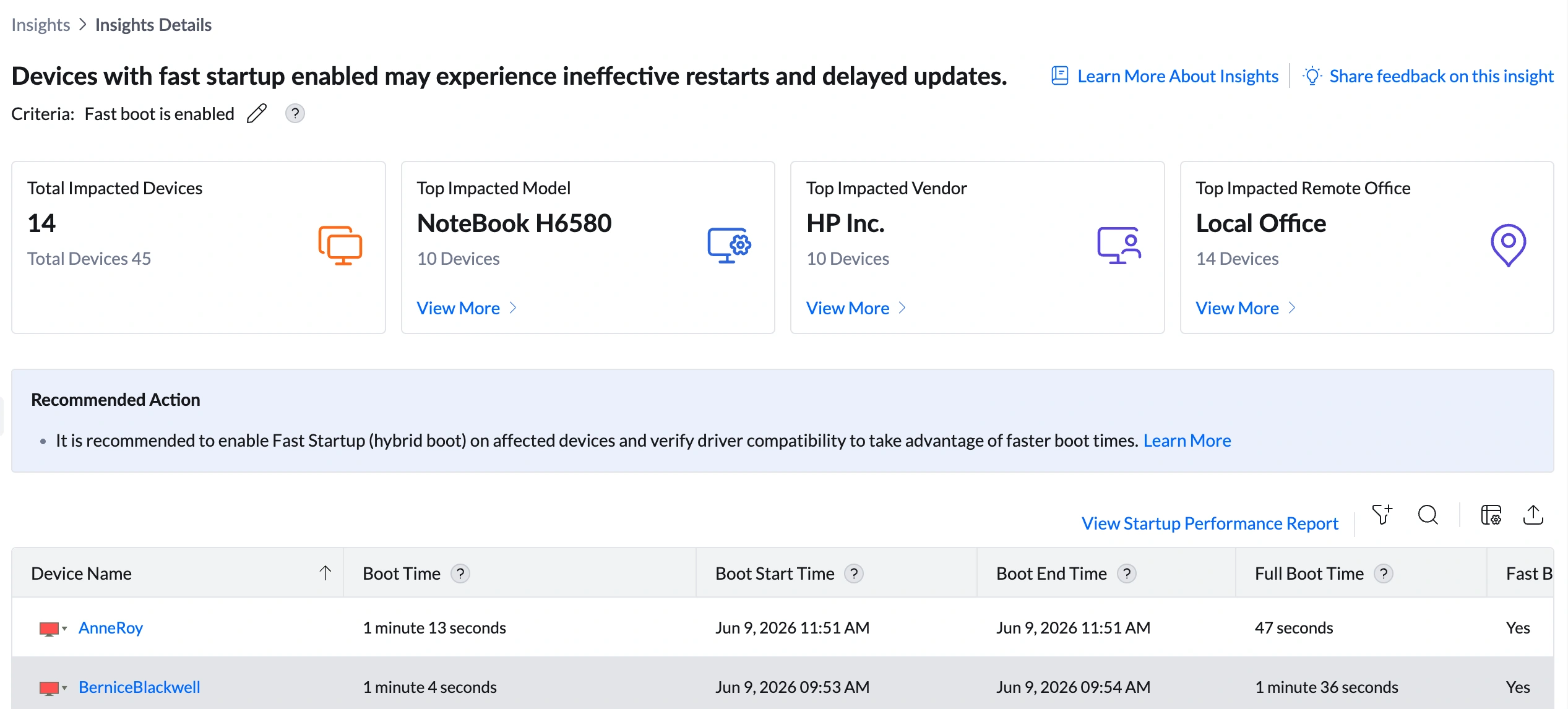
| Metric | What it shows | How to use it |
|---|---|---|
| Total Impacted Devices | Number of devices with Fast Startup currently enabled (e.g., 14 out of 45 total) | Use this to assess the configuration footprint. If 14 out of 45 devices have Fast Startup enabled and your policy requires it to be disabled, you have 14 devices that need a configuration change. If your policy permits it, this number is informational only. |
| Top Impacted Model | The device model most commonly found with Fast Startup enabled (e.g., NoteBook H6580 — 10 devices) | Click View More to open the Impacted Models Summary. If one model accounts for 71% of devices with Fast Startup enabled, that model may have Fast Startup on by default from the manufacturer or from a standard image applied at provisioning. |
| Top Impacted Vendor | The hardware manufacturer most frequently associated with Fast Startup enabled devices (e.g., HP Inc. — 10 devices) | Click View More for vendor-level breakdown. If HP Inc. devices consistently show Fast Startup enabled, check whether it is configured in the HP BIOS defaults or in the standard Windows image used for HP device provisioning. |
| Top Impacted Remote Office | The office location with the most devices having Fast Startup enabled (e.g., Local Office — 14 devices, 100% contribution) | Click View More to open the Impacted Remote Offices Summary, which shows Remote Office, Total Devices in Remote Office, Affected Devices, % of Devices Affected, and Insight Contribution %. If all affected devices are in one office, the Fast Startup configuration may reflect a site-specific image or policy rather than a fleet-wide setting. |
Analyzing Affected Devices
The device table lists every device with Fast Startup enabled, alongside boot timing data that helps assess the real-world impact of the configuration.
Understanding the columns
| Column | What to look for | How to use it |
|---|---|---|
| Fast Boot Enabled | Confirms whether Fast Startup is active on each device (all visible devices show Yes) | This column confirms the insight criterion is met. All devices in this table will show Yes — this is the filter that placed them here. |
| Boot Time | The recorded boot duration for the device (e.g., AnneRoy: 1 min 13 sec, BerniceBlackwell: 1 min 4 sec) | Use this to assess whether Fast Startup is actually helping each device. If Boot Time is already fast (under 30 seconds), disabling Fast Startup may noticeably slow down the device for the user. If Boot Time is still slow despite Fast Startup being enabled, the feature is not providing meaningful benefit — another factor is causing the delay. |
| Full Boot Time | Total startup duration including post-logon initialization (e.g., AnneRoy: 47 sec, BerniceBlackwell: 1 min 36 sec) | Cross-reference with Boot Time to understand the full startup experience. A device with fast Boot Time but long Full Boot Time is still slow to become fully usable, regardless of Fast Startup. |
| Boot Start Time / Boot End Time | Timestamps of when the boot process started and ended | Use to verify when the device was last booted. If a device was last booted many days ago, it has likely not had a full restart in that time — meaning queued updates may not have applied. |
| Collected Time | When this data was recorded | Confirms the freshness of the configuration data. If Collected Time is recent, the Fast Startup status is current. |
Deciding What to Do
This insight requires a policy decision, not a technical fix. The right action depends entirely on your organization's update management and maintenance approach.
| Organizational scenario | Recommended action |
|---|---|
| Your organization enforces regular Restart cycles (not Shutdown) for update compliance — e.g., via a restart policy pushed through Configurations | Fast Startup can safely remain enabled. Since users are regularly restarted (not just shut down), updates apply on the restart cycle regardless of Fast Startup state. No change needed — this insight is informational for your environment. |
| Users primarily shut down their devices at end of day and rarely restart explicitly | Fast Startup should be disabled. Users who shut down rather than restart will not trigger full update application cycles. Pending patches and driver updates will accumulate. Disable Fast Startup via a Configurations policy to ensure every shutdown is a full cold boot. |
| You are experiencing unexplained patch compliance failures on specific devices | Check whether those devices have Fast Startup enabled. If they do, a user shutting down rather than restarting may have prevented the patch from applying. Force a Restart on those devices and verify patch status in Threats & Patches. |
| You have a mixed environment and want to enforce a consistent policy | Use this insight to identify all Fast Startup-enabled devices and deploy a Configurations policy to set a uniform state across the fleet. Either disable it everywhere for simplicity, or enable it everywhere with a mandatory weekly restart policy. |
Remediation
Option A — Disable Fast Startup via Configurations policy (recommended for strict patch compliance)
- Navigate to Configurations > Windows > Power Settings.
- Create or edit a configuration to disable Fast Startup (Hybrid Boot).
- Apply the configuration to the device group containing the affected devices.
- Verify the policy has applied by checking the Fast Boot Enabled column in this insight — it should clear from the device table once the change takes effect and the device is restarted.
Option B — Enforce scheduled Restart cycles (recommended for environments keeping Fast Startup enabled)
- Navigate to Configurations > Windows > Power Management.
- Configure a scheduled Restart — not Shutdown — on a weekly cycle (e.g., every Friday at 6 PM, or on patch Tuesday +1 day).
- Apply to all device groups. This ensures updates apply in full on the restart cycle regardless of Fast Startup state.
Option C — Force Restart on devices with pending update failures
- Identify devices with pending patch failures in Threats & Patches.
- Cross-reference with this insight to confirm Fast Startup is enabled on those devices.
- Use Remote Actions > Restart Device to force a full restart on the affected devices.
- Verify patch application status in Threats & Patches after the restart completes.
Post-Remediation Monitoring
- If Fast Startup was disabled: Return to DEX > Insights. The device count on this insight should decrease as the configuration change is applied and devices restart. A device will exit this insight once Fast Boot Enabled changes to No.
- Verify patch compliance for previously affected devices in Threats & Patches. Confirm that updates which were pending before the restart have now applied successfully.
- If a scheduled Restart policy was applied: verify the first scheduled restart has occurred via the Boot Start Time column in the device table — a recent boot time confirms the restart ran.
Frequently Asked Questions
Is Fast Startup bad? Should I always disable it?
No — Fast Startup is not inherently bad. It is a Windows feature designed to improve user experience by reducing startup time. Whether to disable it depends on your organization's update compliance requirements. In environments where users regularly restart (rather than shut down) and patches apply reliably, Fast Startup can remain enabled without issue. The concern arises when users rely exclusively on Shutdown and never Restart, causing updates to pile up.
What is the difference between Restart and Shutdown when Fast Startup is enabled?
A Restart always performs a full OS shutdown and cold boot, regardless of Fast Startup settings — updates and driver changes apply cleanly. A Shutdown with Fast Startup enabled saves the kernel state to disk and reloads it on next boot — faster, but not a full OS reinitialization. Updates that require a full restart will not apply after a Fast Startup shutdown. This is why many IT teams prefer to enforce Restart cycles rather than relying on users to choose Restart over Shutdown.
Why does this insight show Boot Time data if it is a configuration insight?
Boot Time is included to give context for the Fast Startup configuration. If a device has Fast Startup enabled but Boot Time is still over 1 minute, the feature is not providing meaningful benefit — something else is slowing the boot. This can help prioritize devices for additional investigation under the Slow Boot Time insight. Conversely, a device with Fast Startup enabled and a Boot Time of 10—15 seconds is genuinely benefiting from the feature.
Why is Top Impacted Remote Office shown instead of storage type?
This insight replaces the storage type card with a Remote Office card because Fast Startup configuration is more likely to vary by location than by storage type. Different offices may have been provisioned with different standard images, or a specific office may have had a local IT policy applied. The Remote Office drill-down helps identify whether the Fast Startup state is a fleet-wide configuration or a site-specific one.
If Fast Startup speeds up boot, why would I disable it?
The tradeoff is boot speed versus update reliability. Fast Startup makes daily startups faster, which improves user experience. But it means that Windows Update patches, driver updates, and Group Policy changes that require a full restart may not apply after a standard shutdown. In environments with strict security patching requirements — particularly those that require patches to apply within 24—48 hours of release — the risk of delayed patch application outweighs the boot speed benefit.