Low OS Drive Space Insight
The Low OS Drive Space insight identifies devices where free space on the operating system (C:) drive has fallen below the configured threshold. The OS drive is not just for storing files — it supports critical system functions including Windows updates, application installations, temporary file creation, virtual memory operations, and system caching.
When the OS drive runs low on space, these operations begin to fail or degrade — resulting in blocked updates, slow performance, application errors, and in severe cases, OS instability.
This insight helps administrators:
- Identify devices approaching critical storage thresholds before users are impacted
- Prevent Windows Update and patch installation failures caused by insufficient disk space
- Prioritize cleanup or upgrade actions based on how critically low each device's free space is
- Deploy automated cleanup to reclaim space at scale without manual intervention
Trigger Conditions
The Low OS Drive Space insight is generated when:
- OS drive free space falls below the configured threshold. Default threshold: OS drive free space less than 25 GB.
- Threshold values can be customized based on organizational storage policies and device profiles.
Accessing the Insight
- In DEX Manager Plus, click DEX in the top navigation bar.
- Select Insights from the left sidebar.
- Locate the insight: Low OS drive space impacts update completion and device responsiveness.
- Click the insight name to open the detail view.
Interpreting the Insight Metrics
The insight details page provides information that helps determine the scale of the storage shortage, which hardware is affected, and whether a storage technology or vendor trend is driving the issue.
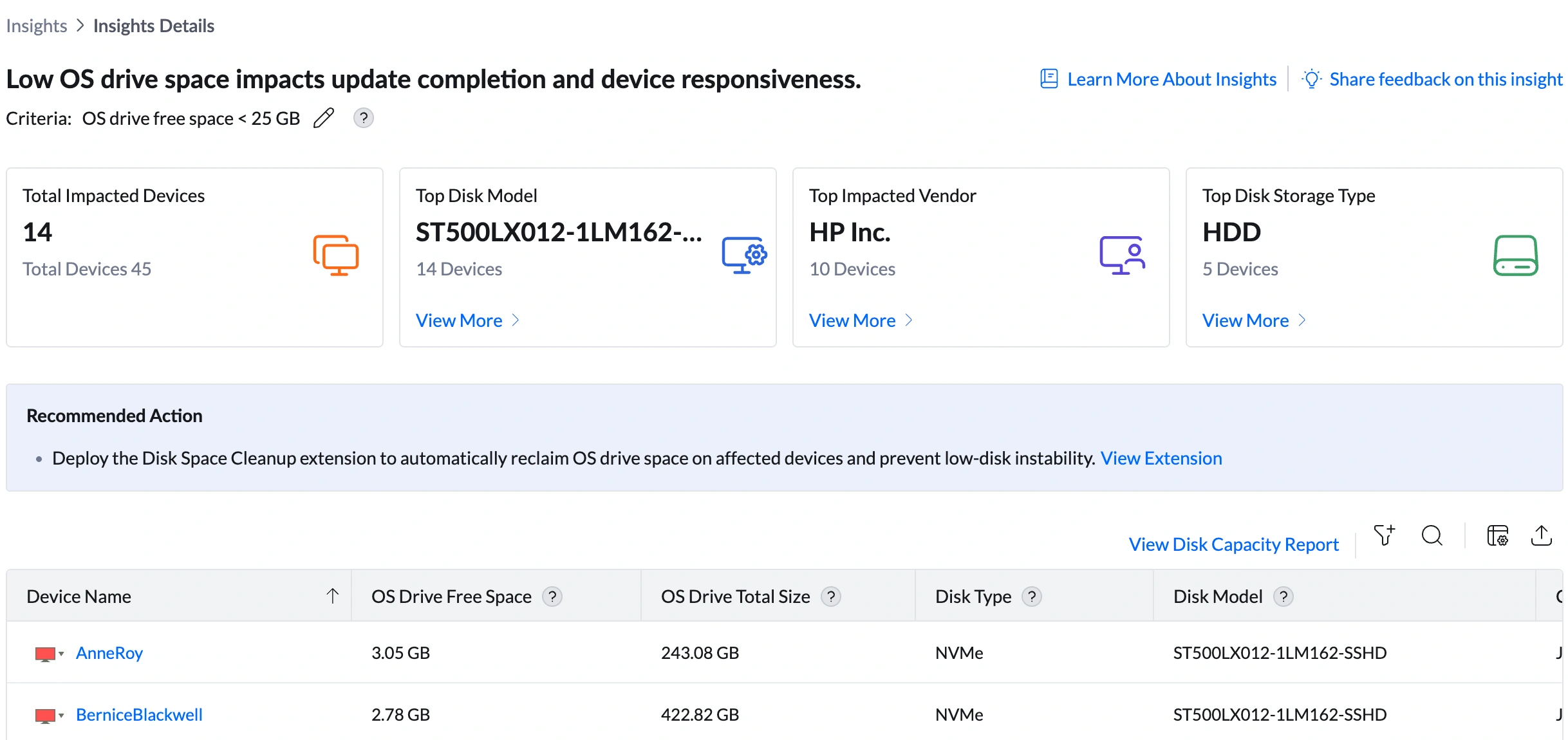
| Metric | What it shows | How to use it |
|---|---|---|
| Total Impacted Devices | Number of devices currently below the OS drive free space threshold (e.g., 14 out of 45 total) | Assess the scale. If a large number of devices are impacted simultaneously, a common cause is likely — such as a recent large Windows update consuming space fleet-wide, or a software deployment leaving behind temporary files. A gradual increase over time points to organic storage growth on individual devices. |
| Top Disk Model | The disk model most commonly found in impacted devices (e.g., ST500LX012-1LM162-SSHD) | Click View More to open the Impacted Disk Models Summary showing Disk Model, Total Devices, Affected Devices, % of Devices Affected, and Insight Contribution %. If one disk model accounts for 100% of the insight, all affected devices share that model — likely a capacity issue where that drive shipped with insufficient space for the current workload. |
| Top Impacted Vendor | The hardware manufacturer most frequently associated with impacted devices (e.g., HP Inc. — 10 devices) | Click View More to see vendor-level device counts and Insight Contribution %. HP Inc. at 71% contribution suggests that vendor may have shipped devices with smaller-than-standard OS drives as part of the hardware SKU. Cross-reference with the OS Drive Total Size column in the device table. |
| Top Disk Storage Type | The storage technology most commonly found in impacted devices (e.g., HDD — 5 devices) | Click View More to see the full breakdown by storage type. HDD devices with low OS drive space are candidates for replacement with larger-capacity SSDs — this simultaneously resolves the space issue and improves performance. Note: in this insight, storage type is less critical to the diagnosis than in Disk Contention — the issue here is capacity, not performance. The primary focus is on OS Drive Free Space and OS Drive Total Size in the device table. |
Analyzing Affected Devices
The device table lists every machine currently below the OS drive free space threshold. This table drives prioritization — the devices closest to zero free space need immediate action.
Understanding the columns
| Column | What to look for | What it means for remediation |
|---|---|---|
| OS Drive Free Space | The amount of free space currently available on the OS drive (e.g., AnneRoy: 3.05 GB, KurtStrickland: 2.11 GB, LauraStone: 1.23 GB) | Primary triage column — sort ascending to see the most critically low devices first. As a guide: 10—25 GB = flagged, cleanup recommended. 5—10 GB = urgent, block updates until space is freed. Under 5 GB = critical, OS instability risk, act immediately. |
| OS Drive Total Size | The total capacity of the OS drive (e.g., AnneRoy: 243.08 GB, BerniceBlackwell: 422.82 GB) | Provides context for the free space figure. A device with 3 GB free on a 243 GB drive has used 240 GB — this is a data accumulation problem. A device with 3 GB free on a 120 GB drive may simply have an undersized drive. The remediation differs significantly between these two cases. |
| Disk Type | The storage technology: NVMe, HDD, or SSD | HDD devices with low OS drive space are strong candidates for replacement with a larger SSD — resolving both the capacity and any latent performance issues simultaneously. NVMe and SSD devices with low space need cleanup or a larger drive, not a technology upgrade. |
| Disk Model | The exact storage model (e.g., ST500LX012-1LM162-SSHD for all visible devices) | If all affected devices share the same disk model, the drive may have shipped with insufficient capacity for the deployed workload. Escalate to procurement for a larger-capacity drive replacement in the next hardware refresh cycle. |
| Collected Time | The timestamp when the data was recorded (e.g., Jun 9, 2026 11:51 AM) | Use this to check whether devices dropped below the threshold recently (indicating a sudden event like a large update) or have been flagged for a long time (indicating gradual accumulation). |
| Remote Office | The physical location of the device (e.g., Local Office) | Helps identify if the issue is localized to a specific site — useful if a site-specific software package or local backup agent is consuming unusual amounts of disk space. |
Sorting and filtering the table
- Sort by OS Drive Free Space ascending — puts the most critically low devices at the top and drives immediate triage.
- Use the filter icon to scope the table by device group, OS version, Disk Type, or branch office.
- Use the search icon to find a specific device by name.
Root Cause Investigation
Step 1 — Determine whether it is a capacity issue or an accumulation issue
The most important first question is whether the OS drive is simply too small for the workload, or whether space has been consumed over time by accumulated files.
| Scenario | How to identify it | Remediation path |
|---|---|---|
| Drive is undersized — total capacity was never sufficient | OS Drive Total Size is small (e.g., 120—250 GB) relative to what modern Windows + applications require | Software cleanup will help temporarily but will not resolve the root cause. Escalate to hardware upgrade — replace with a larger drive or add a secondary drive for data. |
| Space has been consumed over time — the drive was adequate but has filled up | OS Drive Total Size is large (e.g., 400+ GB) but free space is critically low — most of the drive is in use | Run cleanup first to reclaim temporary, log, and cache files. Then investigate what is consuming space (Windows.old folders, large user profiles, application caches, orphaned installer files). |
| A recent event caused a sudden drop — update, deployment, or log explosion | Collected Time shows devices dropped below threshold recently, or many devices were flagged at the same time | Identify the triggering event via Software Deployment history. Clean up the temporary files left by the update or deployment. Review whether the update cleanup process completed correctly. |
Step 2 — Check disk model and vendor drill-downs
Click View More under Top Disk Model. If a single model (e.g., ST500LX012-1LM162-SSHD) accounts for 100% of contribution, all affected devices share that drive model. Check whether that model shipped with a capacity too small for the deployed application set, and whether a firmware or driver update for that model has been released that affects space reporting.
Click View More under Top Impacted Vendor to confirm vendor distribution. HP Inc. at 71% contribution suggests HP-configured devices may have shipped with smaller-than-standard OS drives as part of that hardware SKU.
Step 3 — Validate with the Disk Capacity Report
Click View Disk Capacity Report at the top right of the device table for a full per-device view:
- OS Drive Free Space and Total Size — full capacity picture per device
- Logged On User — helps identify if a specific user's activity is driving space consumption
- Collected Time — confirms when the device dropped below threshold
Remediation
Option A — Automated cleanup using the Disk Space Cleanup Extension (recommended)
The Disk Space Cleanup Extension is the fastest and most scalable way to reclaim OS drive space across all affected devices. It is available directly from the insight page.
To deploy: click View Extension in the Recommended Action banner on the insight page.
Navigation: DEX > Insights > Low OS Drive Space insight > Recommended Action > View Extension
Option B — Manual remediation by scenario
| If you see this... | Do this |
|---|---|
| OS Drive Free Space is below 5 GB on any device | Critical — act immediately. Deploy the Disk Space Cleanup Extension to that device as the first step. If cleanup does not recover sufficient space, connect via Remote Actions > Remote Desktop, open Disk Cleanup (cleanmgr.exe), and run as administrator to clean system files including Windows Update cleanup. If the drive is still critically low after cleanup, escalate to hardware upgrade. |
| OS Drive Total Size is small (under 250 GB) across most affected devices | The drive capacity itself is the root cause — cleanup will be a temporary fix only. Create a hardware upgrade plan for these devices. Prioritize by how little free space remains. For HDD-based devices, an HDD-to-SSD upgrade simultaneously resolves the capacity issue and improves overall device performance. |
| All affected devices share the same disk model (100% contribution) | This is a fleet-wide capacity issue tied to that hardware model's standard drive size. Review whether the drive size is adequate for the applications deployed to those devices. Submit a procurement request for larger-capacity drives in the next refresh cycle. |
| A recent Windows Update or software deployment coincides with devices being flagged | The update likely left behind temporary files or a large Windows.old folder. Use the Disk Space Cleanup Extension to remove these automatically, or connect via Remote Desktop and run Disk Cleanup > Clean up system files > Previous Windows installation(s). |
| HP Inc. devices account for 71% of the insight | HP hardware in the fleet may have shipped with a smaller-than-standard OS drive. Cross-reference OS Drive Total Size for HP devices in the device table. If HP devices consistently have smaller drives, raise this with your procurement team when planning the next hardware refresh. |
| A single device has critically low space while similar devices do not | The user may have stored large personal files, downloads, or application data on the OS drive. Connect via Remote Actions > Remote Desktop and open File Explorer. Check the C: drive properties and use a tool like WinDirStat or the built-in Storage Sense (Settings > System > Storage) to identify what is consuming space. |
Post-Remediation Monitoring
- Return to DEX > Insights. The device count on the Low OS Drive Space insight should have decreased. If it has not, cleanup did not reclaim enough space or the root cause was not addressed.
- Open DEX > Reports > Disk Capacity Report and filter by the previously impacted devices. Confirm OS Drive Free Space has returned above the threshold (25 GB or your configured value).
- For devices where hardware upgrade was the identified fix, track those devices in a hardware refresh queue and verify they exit the insight after the upgrade is completed.
- Set up an Alert (DEX > Alerts) targeting these devices to notify you if free space drops below the threshold again — this gives early warning before the next critical point is reached.
Configuring the Free Space Threshold
The default threshold flags devices with less than 25 GB of OS drive free space. This can be adjusted to match your organization's storage policies.
- Navigate to DEX > Insights.
- Locate the "Low OS drive space impacts update completion and device responsiveness" Insight.
- Click the edit icon (pencil) next to the criteria description under the insight name.
- Update the free space threshold value and save.
Frequently Asked Questions
Windows uses the OS drive for many background operations that are not visible to users: downloading and installing updates, creating temporary files during application use, writing system logs, storing browser and application cache, and managing virtual memory (the page file). Even if a user never intentionally saves anything to C:, these operations accumulate over time and consume space.
The Low OS Drive Space insight monitors only the OS drive (C:) because that drive supports critical system operations. The Storage Capacity Limitation insight monitors all drives — including D: drives, secondary volumes, and data partitions. A device can have plenty of space on a secondary drive but still fail Windows updates if the OS drive is full.
Yes. Windows updates — especially major feature updates — require significant temporary storage during download, extraction, and installation. Some updates require 10—20 GB of temporary space. Devices with less than 10 GB free will frequently fail to install updates, leaving them unpatched and at security risk. Keeping the OS drive above 25 GB free ensures updates can complete reliably.
As free space decreases further, the impact escalates: application launches slow down (applications cannot write temporary files), virtual memory becomes constrained (causing system slowdowns), Windows Update fails consistently (leaving devices unpatched), and in extreme cases (under 1—2 GB free) the OS may become unstable or unbootable. Low OS drive space should always be treated as a proactive maintenance task, not reactive support.
Yes. Low OS Drive Space is closely connected to Disk Contention — a nearly full drive experiences worse disk queue performance because the OS has fewer options for efficiently placing temporary files. If the same devices appear in both insights, freeing up OS drive space will also reduce disk queue length. Also review the Storage Capacity Limitation insight to confirm whether secondary drives on these devices are also approaching capacity.