Slow user Logon Insight
The Slow User Logon insight identifies devices where the time between user authentication and a usable desktop exceeds the configured threshold. Logon time is one of the most visible and frustrating performance issues for end users — it affects every employee at the start of their workday and after any lock or reconnect event.
This insight surfaces not just which devices are slow, but specifically which startup applications and services are responsible for the delay — enabling targeted, app-level remediation rather than broad device-level investigation.
This insight helps administrators:
- Identify devices where logon times are impacting daily productivity
- Pinpoint the specific startup application or service causing the largest logon delay on each device
- Distinguish between apps that simply take time to load versus apps that actively block the logon process
- Prioritize remediation based on which devices and apps contribute most to extended logon times
Trigger Conditions
The Slow User Logon insight is generated when:
- Extended logon time exceeds 30 seconds. This is measured from user authentication to desktop availability.
- Threshold values can be customized based on organizational performance expectations.
Accessing the Insight
- In DEX Manager Plus, click DEX in the top navigation bar.
- Select Insights from the left sidebar.
- Locate the insight: Devices experiencing slow user logon.
- Click the insight name to open the detail view.
Interpreting the Insight Metrics
The insight details page shows four summary cards that identify scale, hardware distribution, and the startup application contributing the most to logon delays.
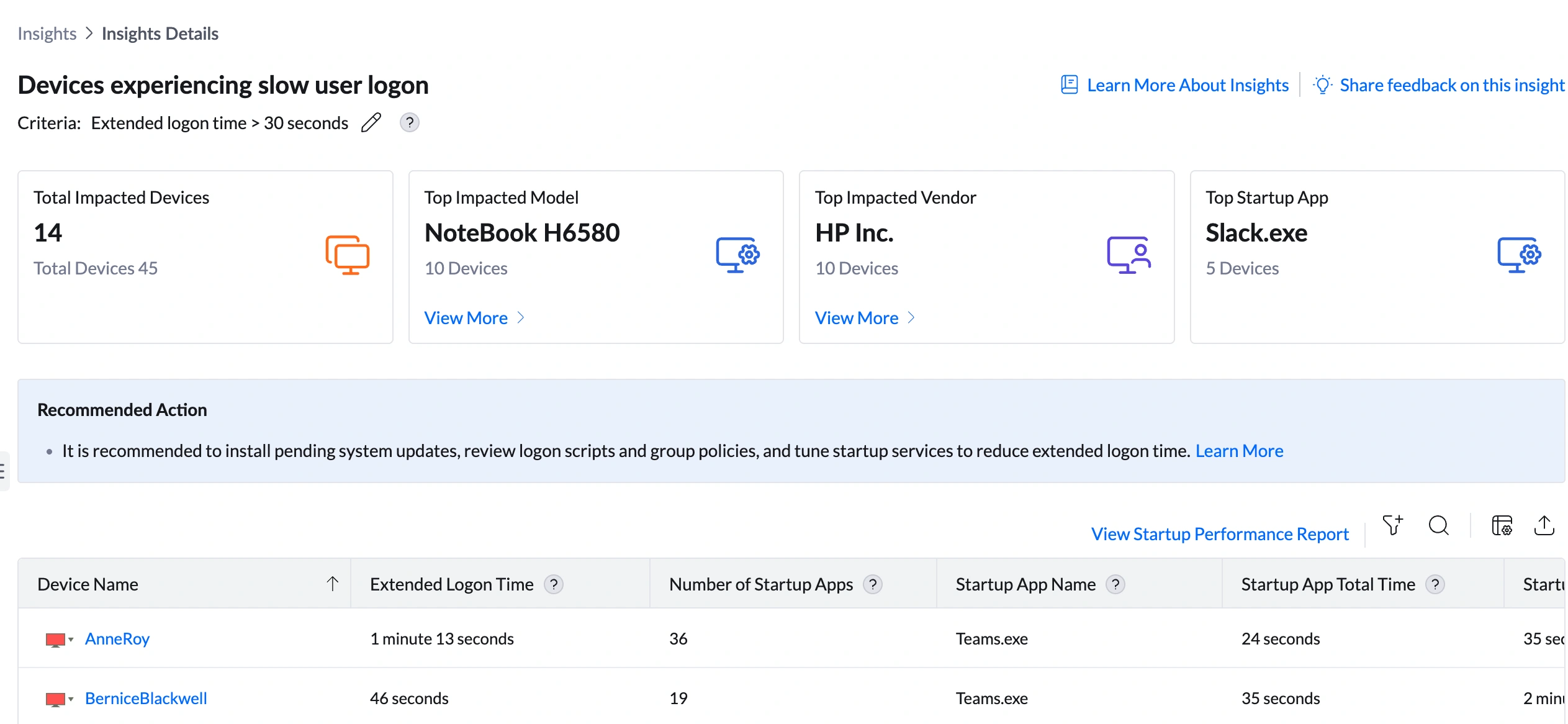
| Metric | What it shows | How to use it |
|---|---|---|
| Total Impacted Devices | Number of devices where logon time currently exceeds 30 seconds (e.g., 14 out of 45 total) | Assess the scale. If many devices are affected simultaneously — especially after a software deployment — a newly deployed application may have been added to the startup sequence. A gradual increase over time points to profile bloat, policy complexity growth, or aging hardware. |
| Top Impacted Model | The device model most commonly associated with slow logon (e.g., NoteBook H6580 — 10 devices) | Click View More to open the Impacted Models Summary showing Model Name, Total Devices in Model, Affected Devices, % of Devices Affected, and Insight Contribution %. If one model accounts for 71% of contribution, that hardware model may lack the processing speed or storage performance to handle the current startup workload efficiently. |
| Top Impacted Vendor | The hardware manufacturer most frequently associated with slow logon (e.g., HP Inc. — 10 devices) | Click View More to see vendor-level device counts and Insight Contribution %. If one vendor contributes 71% of the insight, check whether that vendor's hardware in the fleet shares a common hardware limitation (e.g., HDD-based boot drives, low RAM) that slows startup processing. |
| Top Startup App | The application most frequently responsible for extending logon time across impacted devices (e.g., Slack.exe — 5 devices) | This is your primary investigation starting point. This card identifies which single application is contributing most to logon delays fleet-wide. Per-device startup app detail is in the device table (Startup App Name, Startup App Total Time, Startup App Degradation Time columns). |
Analyzing Affected Devices
The device table shows startup performance detail for every impacted device. This is the most information-rich table across all DEX insights — it shows not just how slow the logon is, but specifically which app and service are responsible on each device.
Understanding the columns
| Column | What to look for | What it means for remediation |
|---|---|---|
| Extended Logon Time | Total logon duration for that device (e.g., AnneRoy: 1 min 13 sec, BerniceBlackwell: 46 sec, FrancisOmersa: 39 sec) | Primary triage column. Sort descending to prioritize the worst affected devices. Anything over 1 minute is severely impacting user productivity. |
| Number of Startup Apps | Total count of applications configured to launch at logon (e.g., AnneRoy: 36, FrancisOmersa: 34, BerniceBlackwell: 19) | A high startup app count (30+) is a strong signal of accumulated unnecessary programs. As a reference: 0—10 is lean. 10—20 is typical. 20—30 warrants review. 30+ almost always indicates unnecessary apps have been added to startup and should be audited. |
| Startup App Name | The specific application with the largest logon time contribution on that device (e.g., Teams.exe for AnneRoy and BerniceBlackwell, Spotify.exe for FrancisOmersa) | This is the single app to investigate first for that device. Different devices may have different top startup apps — treat each device's top app individually. |
| Startup App Total Time | How long that specific app takes to complete its startup initialization (e.g., Teams.exe: 24 sec on AnneRoy, 35 sec on BerniceBlackwell) | Shows the raw time the app consumes during startup. A long total time alone does not confirm the app is blocking logon — it may load in the background. Cross-reference with Startup App Degradation Time. |
| Startup App Degradation Time | How much time this app adds to the total logon duration (e.g., Teams.exe: 35 sec degradation on AnneRoy, 2 min 25 sec on BerniceBlackwell) | This is the most actionable column in the table. A high Degradation Time means this app is actively blocking the user from getting to their desktop. Teams.exe on BerniceBlackwell has a Total Time of 35 sec but a Degradation Time of 2 min 25 sec — it is holding up the logon process far longer than its own load time. Prioritize by Degradation Time, not Total Time. |
| Startup Service Name | The Windows service most associated with logon delay on that device (e.g., Schedule, Spooler) | Identifies background services contributing to logon time. Spooler (Print Spooler) and Schedule (Task Scheduler) are common offenders. If a service consistently appears across devices, investigate whether it can be configured to start later (delayed start) rather than at logon. |
Sorting and filtering the table
- Sort by Extended Logon Time descending — surfaces the worst affected devices immediately.
- Sort by Startup App Degradation Time descending — identifies which devices have an app actively blocking their logon, regardless of total logon time.
- Sort by Number of Startup Apps descending — identifies devices with excessive startup app accumulation.
- Use the filter icon to scope by device group, model, or branch office.
Root Cause Investigation
Content preserved as provided.
Remediation
Use the table below to match what you observe to the right remediation path. Always verify improvement using the Startup Performance Report after taking action.
Post-Remediation Monitoring
gpresult /h report.html to identify policy processing delays, or check Event Viewer > Applications and Services Logs > Microsoft > Windows > GroupPolicy.Configuring the Logon Time Threshold
Frequently Asked Questions
Startup App Total Time is how long the application takes to initialize. Startup App Degradation Time is how much of that initialization time blocks the user from accessing the desktop. An app can have a long Total Time but a low Degradation Time (it loads slowly in the background without blocking the user) — or a moderate Total Time but a very high Degradation Time (it holds a system resource that prevents desktop availability). Always prioritize Degradation Time for remediation decisions.
Microsoft Teams registers itself as a startup application by default during installation and updates. It also performs authentication and sync operations at startup that can hold system resources. Teams is one of the most common contributors to slow logon across enterprise environments. Configuring Teams to start on demand rather than at logon — or updating to the latest version — resolves the issue in most cases.
No. Spotify is a personal media application with no business justification for being in the startup sequence of a managed device. Its presence indicates either a policy gap (users can install personal software) or an application control oversight. Remove it from startup via a Configurations policy and review your Application Control policy to prevent non-business applications from running on managed endpoints.
Yes — Group Policy is one of the most common causes of extended logon times in enterprise environments. Complex policy sets, policies that require network access, or policies that apply software installations at logon can all add significant time. Group Policy processing is not currently surfaced as a column in this insight. To investigate it, use Remote Actions to connect to the device and run gpresult /h report.html, then review the policy processing times in the output.
Yes. Slow User Logon is closely connected to Slow Boot Time, High CPU Utilization, and Disk Contention. A device that is slow to boot is also often slow to log on — the same hardware limitations affect both. If a device appears in both Slow User Logon and High CPU Utilization, the startup app count may be causing a CPU spike at logon that compounds the delay.