Low Disk Space Insight
The Storage Capacity Limitation insight identifies devices where available free space on either the OS drive or a non-OS drive has fallen below the configured threshold. Unlike the Low OS Drive Space insight which monitors only the system drive, this insight covers all storage volumes on a device — giving a complete picture of storage health across the endpoint.
When storage becomes critically low on any drive, routine operations begin to fail: software installations cannot complete, application updates are blocked, temporary files cannot be written, and backup agents run out of space to store data.
This insight helps administrators:
- Identify devices approaching critical storage limits across all drives — not just the OS drive
- Distinguish between OS drive shortages (which affect system stability) and non-OS drive shortages (which affect data storage and application operations)
- Prioritize cleanup or upgrade actions based on which drive is critically low and by how much
- Deploy automated cleanup to reclaim space fleet-wide without manual intervention
Trigger Conditions
The Storage Capacity Limitation insight is generated when either of the following conditions is met on a device:
| Condition | Default Threshold | What it means |
|---|---|---|
| OS drive free space | Less than 25 GB | The system drive (C:) has less than 25 GB available — putting Windows updates, application installs, and system operations at risk. |
| Non-OS drive free space | Less than 25 GB | A secondary or data drive (D:, E:, etc.) has less than 25 GB available — putting data storage, application data, and backup operations at risk. |
Accessing the Insight
- In DEX Manager Plus, click DEX in the top navigation bar.
- Select Insights from the left sidebar.
- Locate the insight: Devices experiencing storage capacity limitations affecting system operations.
- Click the insight name to open the detail view.
Interpreting the Insight Metrics
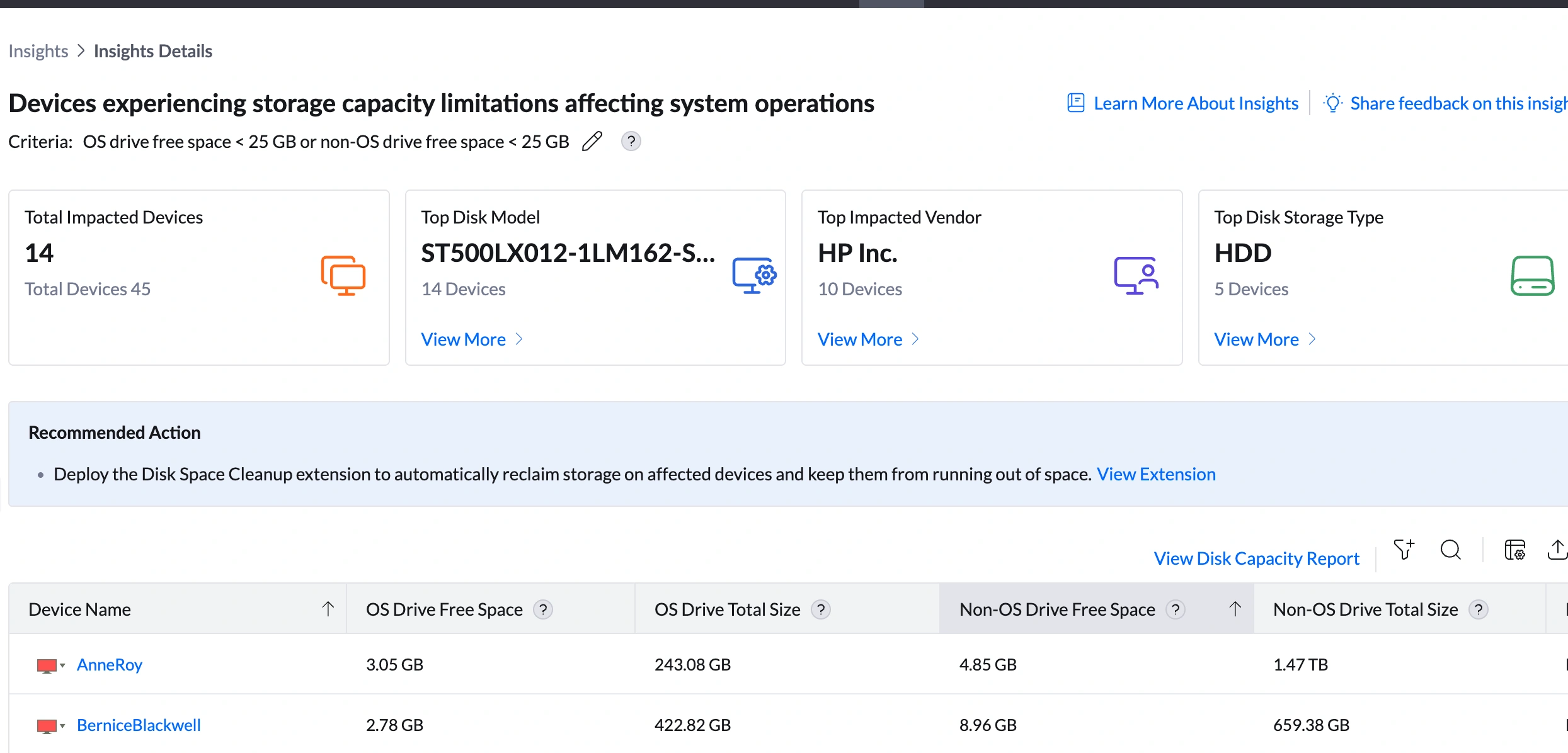
The insight details page provides summary cards that identify which hardware models, vendors, and storage technologies are most commonly associated with the storage shortage.
| Metric | What it shows | How to use it |
|---|---|---|
| Total Impacted Devices | Number of devices currently below the free space threshold on any drive (e.g., 14 out of 45) | Assess the scale. A sudden increase — especially after a large Windows update or software deployment — suggests a common event consumed significant space fleet-wide. A gradual increase points to organic data accumulation over time. |
| Top Disk Model | The disk model most commonly found in impacted devices (e.g., ST500LX012-1LM162-SSHD) | Click View More to open the Impacted Disk Models Summary showing Disk Model, Total Devices with Disk Model, Affected Devices, % of Devices Affected, and Insight Contribution %. If one model accounts for 100% of contribution, all affected devices share that drive — the drive may have shipped with insufficient capacity for the deployed workload. |
| Top Impacted Vendor | The hardware manufacturer most frequently associated with impacted devices (e.g., HP Inc. — 10 devices) | Click View More to see vendor-level device counts and Insight Contribution %. HP Inc. at 71% contribution suggests HP-configured devices may have been shipped with smaller-than-standard drives in the affected hardware SKUs. |
| Top Disk Storage Type | The storage technology most commonly found in impacted devices — in this example HDD leads at 35%, equal with NVMe at 35%, and SSD at 28% | Click View More to see the full Impacted Disk Storage Types Summary with device counts and contribution percentages. When all three types (HDD, NVMe, SSD) show 100% devices affected at roughly equal contribution, the issue is not storage-technology-specific — it is a fleet-wide capacity problem affecting all device types equally. |
Analyzing Affected Devices
The device table is where you identify exactly which drive is low on each device and how critical the situation is. This insight has four space-related columns — two for the OS drive and two for non-OS drives.
Understanding the columns
| Column | What to look for | What it means for remediation |
|---|---|---|
| OS Drive Free Space | Free space on the C: (system) drive (e.g., AnneRoy: 3.05 GB, BerniceBlackwell: 2.78 GB) | Critically low OS drive space puts Windows updates, application installs, and system stability at risk. Devices under 5 GB need immediate action. Sort this column ascending to triage OS drive issues first. |
| OS Drive Total Size | Total capacity of the OS drive (e.g., AnneRoy: 243.08 GB, BerniceBlackwell: 422.82 GB) | Cross-reference with OS Drive Free Space. A device with 2.78 GB free on a 422 GB drive has filled nearly the entire drive — a data accumulation problem. A device with 2.78 GB free on a 120 GB drive has an undersized drive. The remediation path differs significantly between the two. |
| Non-OS Drive Free Space | Free space on secondary or data drives (e.g., AnneRoy: 4.85 GB, FrancisOmersa: 4.99 GB) | Low non-OS drive space affects data storage, application data directories, backup agents, and any application configured to use the secondary drive. Devices with low non-OS space may experience backup failures or application data errors even if the OS drive is healthy. |
| Non-OS Drive Total Size | Total capacity of the non-OS drive (e.g., AnneRoy: 1.47 TB, BerniceBlackwell: 659.38 GB, FrancisOmersa: 1.46 TB) | A device with 4.85 GB free on a 1.47 TB non-OS drive has consumed nearly all of a very large drive — a significant data accumulation issue. Investigate what is stored on that drive (user files, backups, application data). |
| Disk Type | Storage technology: NVMe, HDD, or SSD | HDD devices with low space on either drive are candidates for replacement with larger-capacity SSDs. NVMe and SSD devices need cleanup or larger drives, not technology upgrades. |
| Disk Model | Exact drive model identifier (e.g., ST500LX012-1LM162-SSHD) | If all affected devices share the same model, capacity is likely the root cause — that model may have been configured with insufficient storage at procurement. |
How to triage the device table effectively
- Step 1 — Sort OS Drive Free Space ascending. Identify all devices under 5 GB — these are critical and need immediate cleanup or escalation.
- Step 2 — Sort Non-OS Drive Free Space ascending. Identify devices where secondary drives are also critically low — these may be experiencing backup failures or data write errors already.
- Step 3 — Cross-reference with Total Size columns. Determine whether each device's issue is a capacity problem (small drive) or accumulation problem (large drive, mostly full).
- Use the filter icon to scope by Disk Type to focus on HDD devices first — these are the strongest hardware upgrade candidates.
Root Cause Investigation
Step 1 — Identify which drive is triggering the insight per device
Because this insight uses an OR condition, the triggering drive differs per device. Before taking action, determine for each device whether the OS drive, the non-OS drive, or both are below threshold — the remediation differs significantly.
| Situation | Which drive to focus on | Remediation priority |
|---|---|---|
| OS Drive Free Space is below threshold, Non-OS is fine | OS drive only | High — OS drive shortage affects system stability and Windows updates. Act immediately. |
| Non-OS Drive Free Space is below threshold, OS is fine | Non-OS drive only | Medium — data drive shortage affects application data and backups. Investigate what is consuming space on the secondary drive. |
| Both OS and Non-OS drives are below threshold | Both | Critical — the device has a systemic storage problem. Run cleanup on both drives and assess whether the hardware overall is undersized. |
Step 2 — Determine cause: capacity vs accumulation
| Pattern | How to identify | Remediation path |
|---|---|---|
| Drive is undersized — capacity was never sufficient | OS Drive Total Size or Non-OS Drive Total Size is small relative to the applications or data stored on it | Cleanup buys time but will not solve the problem. Escalate to hardware upgrade — larger drive or replacement device. |
| Space has been consumed over time | Total Size is large but free space is critically low — most of the drive capacity is used | Run cleanup first. Then investigate what is consuming space (Windows.old, large user profiles, application caches, backup data, orphaned installer files). |
| A recent event caused a sudden drop | Multiple devices dropped below threshold at the same time | Identify the triggering event via Software Deployment history. Clean up temporary files left by the update or deployment. |
Step 3 — Check storage type distribution
Click View More under Top Disk Storage Type. The Impacted Disk Storage Types Summary shows Disk Storage Type, Total Devices in Disk Storage Type, Affected Devices, % of Devices Affected, and Insight Contribution %.
In this example, HDD (35%), NVMe (35%), and SSD (28%) all show 100% of their devices affected at roughly equal contribution. This means the issue is not storage-technology-specific — it is a fleet-wide capacity or accumulation problem affecting all device types equally. The focus should shift to what is consuming space, not which hardware type to prioritize.
Step 4 — Validate with the Disk Capacity Report
Click View Disk Capacity Report at the top right of the device table for a full historical view:
- OS Drive Free Space and Non-OS Drive Free Space — full picture per device for both drives
- Logged On User — helps identify if specific user activity is driving space consumption
- Collected Time — confirms when each device dropped below the threshold
Remediation
Option A — Automated cleanup using the Disk Space Cleanup Extension (recommended)
To deploy: click View Extension in the Recommended Action banner on the insight page.
Navigation: DEX > Insights > Storage Capacity Limitation insight > Recommended Action > View Extension
Option B — Manual remediation by scenario
| If you see this... | Do this |
|---|---|
| OS Drive Free Space is under 5 GB on any device | Critical. Deploy the Disk Space Cleanup Extension immediately. If cleanup is insufficient, connect via Remote Actions > Remote Desktop, run Disk Cleanup as administrator (cleanmgr.exe), and include system files cleanup. Check for and delete Windows.old folders, large Temp directory contents, and orphaned installer files. |
| Non-OS Drive Free Space is critically low while OS drive is healthy | Investigate what is stored on the secondary drive. Connect via Remote Desktop and check the drive's contents — focus on backup agent data, application data directories, user downloads, and large media files. Move data to network storage if appropriate, or increase the drive capacity. |
| Both OS and Non-OS drives are below threshold on the same device | The device has a systemic storage problem. Run automated cleanup first. If free space remains insufficient after cleanup, assess whether the device hardware overall is undersized and escalate to hardware refresh planning. |
| All three storage types (HDD, NVMe, SSD) show 100% devices affected at equal contribution | The issue is not hardware-specific — something is consuming space across all device types. Check Software Deployment history for recent large deployments, Windows Update history for major updates, and whether backup agents are filling up non-OS drives. |
| ST500LX012-1LM162-SSHD accounts for 100% of disk model contribution | All affected devices share this drive model. If its capacity is consistently too low for the deployed workload, raise this with procurement. In the next hardware refresh cycle, specify a larger-capacity drive for devices using this model. |
| HP Inc. accounts for 71% of vendor contribution | HP-configured devices may have been shipped with smaller default drives in certain SKUs. Cross-reference OS Drive Total Size for HP devices — if consistently small, escalate to hardware upgrade planning for HP devices in the fleet. |
Post-Remediation Monitoring
- Return to DEX > Insights. The device count on the Storage Capacity Limitation insight should have decreased. If it has not, cleanup did not reclaim enough space or the root cause was not addressed.
- Open DEX > Reports > Disk Capacity Report and filter by the previously impacted devices. Confirm both OS Drive Free Space and Non-OS Drive Free Space have returned above the configured thresholds.
- For devices flagged due to undersized hardware, track them in a hardware refresh queue. Verify they exit the insight after the upgrade is completed.
- Set up an Alert (DEX > Alerts) targeting affected devices with a storage threshold notification so you are alerted before the next critical point is reached.
Configuring the Storage Thresholds
Both OS drive and non-OS drive thresholds can be configured independently to match your organization's storage policies.
- Navigate to DEX > Insights.
- Locate the Storage Capacity Limitation insight row.
- Click the edit icon (pencil) next to the criteria description.
- Update the OS drive and/or non-OS drive free space threshold values and save.
Frequently Asked Questions
Why does this insight monitor both OS and non-OS drives?
Storage shortages on either drive can disrupt device operations — but in different ways. A low OS drive blocks Windows updates and system operations. A low non-OS drive blocks application data writes, backup agents, and data storage. Monitoring both gives a complete view of storage health. A device can pass the OS drive check and still be at risk if its data drive is full.
How is this different from the Low OS Drive Space insight?
The Low OS Drive Space insight monitors only the C: (system) drive. The Storage Capacity Limitation insight monitors all drives using an OR condition — a device is flagged if any drive falls below the threshold. The two insights can flag the same device simultaneously if both drives are low. Check both insights when investigating storage issues on a specific device.
A device shows low non-OS drive space but the OS drive is fine. Should I still act?
Yes. A nearly full non-OS drive can cause backup failures, application data write errors, and inability to download or save files. Users may not immediately notice the problem in their daily work, but background operations — particularly backup agents — will fail silently. Investigate what is consuming the secondary drive and remediate before it reaches zero.
All three storage types (HDD, NVMe, SSD) show 100% devices affected. What does that mean?
When all storage types are equally affected, the root cause is almost never hardware-specific. This pattern typically points to a fleet-wide event — a large Windows update, a software deployment that left behind large temporary files, or a backup agent consuming space across all device types. Check Software Deployment history and Windows Update logs around the time the devices were first flagged.
Should I review this insight alongside other insights?
Yes. Storage Capacity Limitation, Low OS Drive Space, and Disk Contention are closely connected. A nearly full OS drive causes increased disk queue activity (contention) because the OS has fewer efficient options for writing temporary files. If the same devices appear in both Storage Capacity Limitation and Disk Contention, freeing up drive space will also reduce disk queue length. Review all three together before deciding on remediation.