System Crash Insight
The System Crashes insight identifies devices that have experienced Windows stop errors — commonly known as Blue Screen of Death (BSOD) events. A stop error is a critical failure where the operating system halts completely to prevent data corruption or hardware damage. Unlike application crashes, which terminate a single program, a system crash terminates the entire OS and forces a full reboot.
This insight provides stop error diagnostics — the error name, error code, and hardware model context — to help administrators investigate the cause and determine whether a crash is an isolated incident or part of a recurring pattern across the fleet.
This insight helps administrators:
- Identify devices that have experienced OS-level crashes and may be at risk of recurring instability
- Investigate the stop error name and code to determine whether crashes are driver-related, hardware-related, or software-related
- Detect whether crashes are concentrated in a specific hardware model — suggesting a driver or firmware issue for that model
- Prioritize devices that have crashed multiple times for urgent investigation before the device fails completely
Trigger Conditions
The System Crashes insight is generated when a system crash event is detected on a managed endpoint. All crash events are surfaced regardless of frequency or type.
Accessing the Insight
- In DEX Manager Plus, click DEX in the top navigation bar.
- Select Insights from the left sidebar.
- Locate the insight: Devices experiencing system crashes.
- Click the insight name to open the detail view.
Interpreting the Insight Metrics
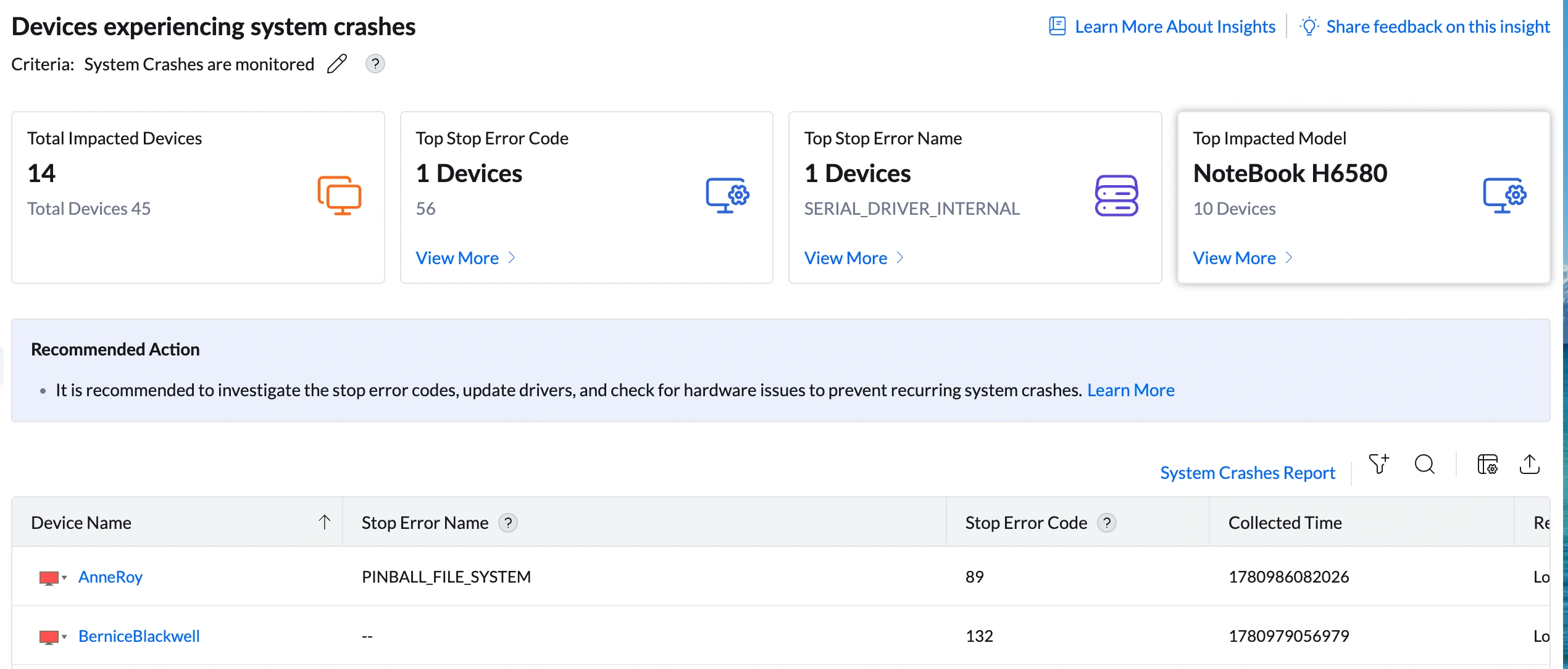
The insight details page shows four summary cards. Unlike performance insights, these cards focus on crash diagnostics rather than resource metrics — the most important are the stop error code and name, which identify the type of failure causing crashes.
| Metric | What it shows | How to use it |
|---|---|---|
| Total Impacted Devices | Number of devices that have experienced at least one system crash (e.g., 14 out of 45 total) | Assess scope. A large number affected simultaneously after a driver or OS update deployment suggests the change introduced instability. Individual devices crashing over time points to device-specific hardware degradation. |
| Top Stop Error Code | The stop error code most frequently associated with crashes (e.g., code 56 — 1 device) | Click View More to open the Stop Errors Summary, which lists all recorded stop error codes, their names, affected device counts, and insight contribution percentages. A single stop error code dominating the insight (high contribution %) indicates a specific, reproducible failure cause. In this example, 14 codes each appear at 7% contribution — indicating scattered, non-recurring crashes across many different error types, requiring a different investigation approach. |
| Top Stop Error Name | The descriptive name of the most common crash type (e.g., SERIAL_DRIVER_INTERNAL — 1 device) | Click View More to see the full Stop Errors Summary with all stop error names. Stop error names are Windows-defined strings that describe the category of failure — they are more human-readable than numeric codes and often immediately indicate the component responsible (DRIVER in the name = driver issue, FILE_SYSTEM = storage issue, MEMORY_MANAGEMENT = RAM issue). |
| Top Impacted Model | The device model most commonly associated with crashes (e.g., NoteBook H6580 — 10 devices, 71%) | Click View More to open the Impacted Models Summary. NoteBook H6580 at 71% contribution with 100% of its devices affected indicates a systematic stability problem on that model. Check whether a driver or firmware update was recently deployed to that model — a model-specific crash pattern almost always points to a driver, BIOS, or firmware issue specific to that hardware configuration. |
Analyzing Affected Devices
The device table shows crash event details per device. System crashes generate significantly less per-device data than application crashes — the OS terminates before detailed diagnostics can be captured — but what is available is highly diagnostic.
Understanding the columns
| Column | What it shows | What it means for remediation |
|---|---|---|
| Stop Error Name | The Windows BSOD name for the crash (e.g., PINBALL_FILE_SYSTEM for AnneRoy, SERIAL_DRIVER_INTERNAL for SeanIrwin) | The name is the fastest diagnostic signal. Names containing DRIVER indicate driver failures. Names containing FILE_SYSTEM indicate storage corruption or filesystem errors. Names containing MEMORY indicate RAM issues. A '--' in this column (BerniceBlackwell, FrancisOmersa) means the stop error name was not captured in the crash telemetry — the code is still available for investigation. |
| Stop Error Code | The numeric identifier for the crash event (e.g., AnneRoy: 89, BerniceBlackwell: 132, FrancisOmersa: 183, SeanIrwin: 56) | Each code maps to a specific type of OS failure. Use the code to search Microsoft's bug check code reference for detailed technical documentation and known driver/hardware causes. Different codes across devices (89, 132, 183, 56) confirms that different failure types are occurring on different devices — not a single fleet-wide root cause. |
| Collected Time | A Unix timestamp representing when the crash event was recorded (e.g., 1780986082026, 1780979056979) | Compare values across devices to identify whether crashes occurred simultaneously (suggesting a common trigger) or at different times (suggesting independent device-level issues). To convert: divide by 1000 to get Unix seconds, then use an epoch converter tool. |
| Remote Office | The physical location of the device (e.g., Local Office) | If all crashes are in one office, check whether that site had a recent infrastructure change, power fluctuation, or environmental issue — physical factors can trigger hardware-related system crashes. |
| Domain Name | The network domain the device belongs to (e.g., zohocorp) | Useful for filtering if the fleet spans multiple domains or business units. |
new Date(1780986082026) in a browser console. For example, 1780986082026 ÷ 1000 = 1780986082 seconds, which converts to a specific date and time. A human-readable date format in this column may be available in a future product release — verify with the development team.Root Cause Investigation
Step 1 — Read the pattern in the Stop Errors Summary
Click View More under Top Stop Error Code to open the Stop Errors Summary. The distribution pattern tells you the investigation approach:
| Pattern in Stop Errors Summary | What it means | Investigation approach |
|---|---|---|
| One stop error code accounts for 50%+ of contribution (dominant code) | A single, specific failure type is causing most crashes — likely a driver bug, a specific hardware fault, or an OS-level issue with a known fix | Search Microsoft's bug check reference for that specific code. If the code is driver-related, identify and update the responsible driver. If it is a known Windows issue, check for a hotfix. |
| Many stop error codes each at equal contribution — 14 codes at 7% each, as in this example | Crashes are scattered across different failure types with no single root cause. This often indicates an aging device fleet with multiple independent failure points, or a hardware health issue (failing RAM, degrading storage) manifesting as different error types depending on what it corrupts | Shift focus from stop error analysis to hardware health investigation. Run Windows Memory Diagnostic on affected devices. Check disk health via Remote Actions. Review device age and consider hardware refresh planning. |
| Driver-named stop errors dominate (e.g., DRIVER_CORRUPTED_SYSPTES, ATDISK_DRIVER_INTERNAL, BUGCODE_ID_DRIVER) | Multiple driver failures across different components | Audit driver versions on affected devices. Check whether a recent driver deployment introduced instability. Update all device drivers systematically. |
| FILE_SYSTEM-named stop errors appear | Storage subsystem failures | Run CHKDSK on affected devices via Remote Actions. Check disk health. These errors can indicate a failing or corrupt storage device. |
Step 2 — Decode the stop error names
Stop error names follow a naming convention that identifies the responsible component. Use the prefix to direct your investigation:
| Name pattern | Component responsible | First action |
|---|---|---|
| DRIVER_* or *_DRIVER_* (e.g., ATDISK_DRIVER_INTERNAL, SERIAL_DRIVER_INTERNAL, BUGCODE_ID_DRIVER, DRIVER_CORRUPTED_SYSPTES, DRIVER_USED_EXCESSIVE_PTES) | A device driver caused the crash — disk driver, network driver, serial driver, or another hardware component driver | Identify which driver is responsible from the name (ATDISK = storage/ATA driver, SERIAL = serial/COM port driver). Update or roll back that driver on affected devices via Software Deployment. |
| *FILE_SYSTEM* (e.g., PINBALL_FILE_SYSTEM, CNSS_FILE_SYSTEM_FILTER) | Filesystem or storage stack failure | Run CHKDSK /f on the OS drive via Remote Actions > Command Prompt. Check disk health. CNSS_FILE_SYSTEM_FILTER often relates to security software filesystem filters — check antivirus/EDR driver compatibility. |
| *MEMORY* or *POOL* | RAM or memory management failure | Run Windows Memory Diagnostic (mdsched.exe) via Remote Actions. If RAM errors are confirmed, the RAM module needs replacement. |
| *IRP* or *BUGCODE* (e.g., MULTIPLE_IRP_COMPLETE_REQUESTS) | Kernel I/O or driver communication failure | Often caused by a driver incorrectly handling I/O requests. Update all device drivers, particularly storage and chipset drivers. |
Step 3 — Check the model drill-down
Click View More under Top Impacted Model. If NoteBook H6580 accounts for 71% contribution with 100% of its devices affected, the model has a systematic stability problem. Investigate whether:
- A recent driver deployment for that model introduced instability
- The model's BIOS or firmware is outdated and has a known stability fix available
- Devices of that model are aging and experiencing hardware degradation (RAM, storage)
Step 4 — Correlate Collected Time values
Compare the Collected Time values across devices. If multiple devices crashed at similar timestamps, a common event triggered the crashes — a scheduled task, an update that ran overnight, or a power event. If timestamps are spread across different values, the crashes are independent events.
Step 5 — Validate with the System Crashes Report
Click System Crashes Report at the top right of the device table for historical context:
- Crash frequency over time — confirms whether crashes are accelerating, stable, or one-time events
- Stop error history per device — shows whether the same or different errors are recurring on specific devices
- Full device list — all devices with any recorded crash in the monitoring window
Remediation
| If you see this... | Do this |
|---|---|
| 14 different stop error codes each affecting 1 device at 7% contribution — scattered pattern | No single root cause. Focus on hardware health investigation. For each affected device: run Windows Memory Diagnostic (mdsched.exe) via Remote Actions, check disk health with wmic diskdrive get status, and review device age. Devices showing hardware errors should be escalated for replacement. |
| Multiple DRIVER_* stop errors across many devices | A driver across the fleet is unstable. Check whether a driver deployment recently ran across affected devices via Software Deployment > Deployment History. If a driver update coincides with crash onset, roll it back. If no recent driver change, audit driver versions and update systematically — prioritize storage, chipset, and network drivers. |
| PINBALL_FILE_SYSTEM or other FILE_SYSTEM errors | Filesystem corruption or a storage driver issue. Run CHKDSK /f /r on the OS drive via Remote Actions > Command Prompt. Also check for security software (antivirus, EDR) that uses filesystem filter drivers — these are a common cause of FILE_SYSTEM BSODs. If antivirus was recently updated, check the vendor for known BSOD issues. |
| SERIAL_DRIVER_INTERNAL on a specific device (e.g., SeanIrwin) | A serial port or COM port driver issue on that specific device. Check whether a USB-to-serial adapter or a serial port device is connected. Update the relevant driver. If no serial device is in use, the crash may be related to a security software kernel module — check antivirus driver version. |
| NoteBook H6580 accounts for 71% of crash contribution | Model-specific instability. Check HP's support site for BIOS updates, driver packs, or known stability advisories for this model. Deploy available BIOS and driver updates via Software Deployment. If crashes continue after driver/firmware updates, the hardware may be aging and these devices should enter the hardware refresh queue. |
| Crashes concentrated at similar Collected Time values | A common trigger event caused the crashes. Check whether a scheduled task, Windows Update, or power event occurred at that time. If an update is responsible, review the update package and consider rolling it back or staging future deployments more slowly. |
| A single device has crashed multiple times with different stop error codes | Multiple different crash types on the same device strongly suggests a failing hardware component — most commonly RAM or storage. Run both Windows Memory Diagnostic and CHKDSK on the device. If either returns errors, the hardware component needs immediate replacement before complete failure. |
Post-Remediation Monitoring
- Return to DEX > Insights. The device count on the System Crashes insight should decrease as the monitoring window rolls forward with no new crashes. A device that has not crashed since remediation will eventually exit the insight.
- Open DEX > Reports > System Crashes Report and filter by the previously impacted devices. Confirm no new crash events have been recorded after the remediation date.
- For devices where driver updates were deployed, verify via the System Crashes Report that the specific stop error code associated with that driver has not recurred.
- Set up an Alert (DEX > Alerts) targeting the affected devices for system crash notifications so you are immediately informed if crashes resume.
Stop Error Reference
The following stop errors are visible in the Stop Errors Summary drill-down for this insight. Use this as a quick reference when investigating specific codes.
| Stop Error Name | Code | Component | Likely cause | First action |
|---|---|---|---|---|
| SERIAL_DRIVER_INTERNAL | 56 | Serial port driver | Serial/COM port driver fault | Update serial port or USB-to-serial adapter driver. Check for connected serial devices. |
| ATDISK_DRIVER_INTERNAL | 66 | ATA/disk driver | Storage controller or disk driver failure | Update storage controller driver. Check disk health. |
| MULTIPLE_IRP_COMPLETE_REQUESTS | 68 | Kernel I/O handling | Driver incorrectly completing I/O requests multiple times | Update storage and chipset drivers. Check for recently installed drivers. |
| PINBALL_FILE_SYSTEM | 89 | NTFS filesystem | Filesystem corruption or storage stack failure | Run CHKDSK /f. Check disk health. Review filesystem filter drivers. |
| CNSS_FILE_SYSTEM_FILTER | 164 | Filesystem filter driver | Security software or filesystem filter driver failure | Check antivirus/EDR driver version. Update or reinstall security software. |
| BUGCODE_ID_DRIVER | 210 | Network/ID driver | Network adapter or identification driver failure | Update network adapter driver. Check for USB device driver conflicts. |
| DRIVER_USED_EXCESSIVE_PTES | 216 | Kernel memory paging | Driver consuming excessive page table entries — memory exhaustion | Identify offending driver. Update or remove it. |
| DRIVER_CORRUPTED_SYSPTES | 219 | Kernel memory | Driver corrupted system page table entries | Update all drivers. Run memory diagnostic. |
Frequently Asked Questions
What is a stop error (BSOD)?
A stop error, also called a Blue Screen of Death (BSOD), occurs when Windows encounters a critical failure that it cannot recover from safely. Rather than risk data corruption or hardware damage, the OS immediately halts all activity, saves a crash dump to disk, and restarts the device. Users lose all unsaved work across all open applications at the moment of the crash.
What is the difference between a stop error name and a stop error code?
The stop error name (e.g., SERIAL_DRIVER_INTERNAL) is a human-readable string that describes the category of failure. The stop error code (e.g., 56) is a numerical Windows bug check code that maps to a specific type of OS failure. Both identify the same event — the name is easier to interpret, the code is easier to search in Microsoft's documentation. Use the name to understand the component involved and the code to search for known issues and driver fixes.
Why do the Collected Time values show large numbers instead of dates?
The Collected Time column stores Unix epoch timestamps in milliseconds. These represent the number of milliseconds elapsed since January 1, 1970. To convert: divide the value by 1000 to get the Unix timestamp in seconds, then use an epoch converter tool or run new Date(1780986082026) in a browser console. For example, 1780986082026 ÷ 1000 = 1780986082 seconds, which converts to a specific date and time. A human-readable date format in this column may be available in a future product release — verify with the development team.
Does one crash mean the device is failing?
A single isolated crash does not necessarily indicate a failing device. Transient causes — a driver update, a brief power irregularity, a one-time software conflict — can cause a single crash that never recurs. The concern level rises significantly when a device crashes multiple times, crashes occur with different stop error codes on the same device (suggesting hardware instability), or the stop error code indicates RAM or disk hardware failure. Use the System Crashes Report to check whether crashes are recurring before escalating to hardware replacement.
Why are 14 different stop error codes each affecting only 1 device?
When many different stop error codes each appear on exactly one device with equal contribution percentages (7% each), it indicates that crashes are distributed across many devices with independent failure causes — not a single systemic issue. This pattern is common in aging device fleets where different devices are experiencing different hardware degradation simultaneously. The investigation focus should shift from error-code analysis to fleet-wide hardware health assessment: run memory diagnostics and disk health checks across all affected devices.
Should I review this insight alongside other insights?
Yes. System crashes are frequently preceded by or associated with other DEX insights. Disk Contention on a device that later crashes with a FILE_SYSTEM stop error suggests storage degradation. High Memory Utilization on a device that crashes with a MEMORY stop error confirms RAM pressure. Input Response Delay on a device that later crashes may indicate hardware instability progressing toward a complete failure. A device appearing in three or more performance insights simultaneously is a strong candidate for hardware replacement before it crashes again.