Step 1. WinRM Setup
Step-by-step guide to enable WinRM HTTP on the App Console server
Modifying Ideal Timeout and Connection Parameters
Run the following command below:
winrm set winrm/config/service '@{MaxConnections="2000"}'winrm set winrm/config/service '@{MaxConcurrentOperationsPerUser="2000"}'winrm set winrm/config/winrs '@{IdleTimeout="900000"}'
Step-by-step guide to enable WinRM HTTP on all DNS/DHCP servers to be onboarded
Enabling WinRM
Run the following command below:
winrm quickconfigModifying Ideal Timeout and Connection Parameters
Run the following command below:
winrm set winrm/config/service '@{MaxConnections="2000"}'winrm set winrm/config/service '@{MaxConcurrentOperationsPerUser="2000"}'winrm set winrm/config/winrs '@{IdleTimeout="900000"}'Enabling Authentication
1. Basic Authentication:
Description: Sends the username and password in plain text (Base64 encoded). Requires a secure channel (e.g., HTTPS) to protect the credentials during transmission.
Setup:
winrm set winrm/config/service/auth '@{Basic="true"}'2. CredSSP (Credential Security Support Provider):
Description: Enables delegation of user credentials from the client to the target server, allowing the server to access network resources on behalf of the user.
Setup:
Enable-WSManCredSSP -Role "Server"3. Negotiate:
Description: Uses either Kerberos or NTLM for authentication, automatically selecting the most secure protocol supported by both the client and server.
Setup:
winrm set winrm/config/service/auth '@{Negotiate="true"}'Setting up the Windows Remote Machine:
1. Enable unencrypted Communication:
winrm set winrm/config/service '@{AllowUnencrypted="True"}'2. Configure Trusted Hosts:
winrm set winrm/config/client '@{TrustedHosts="ip_address"}'Note: Enter the IP address of the host running the DDI Central Console for WinRM to treat it as a trusted host.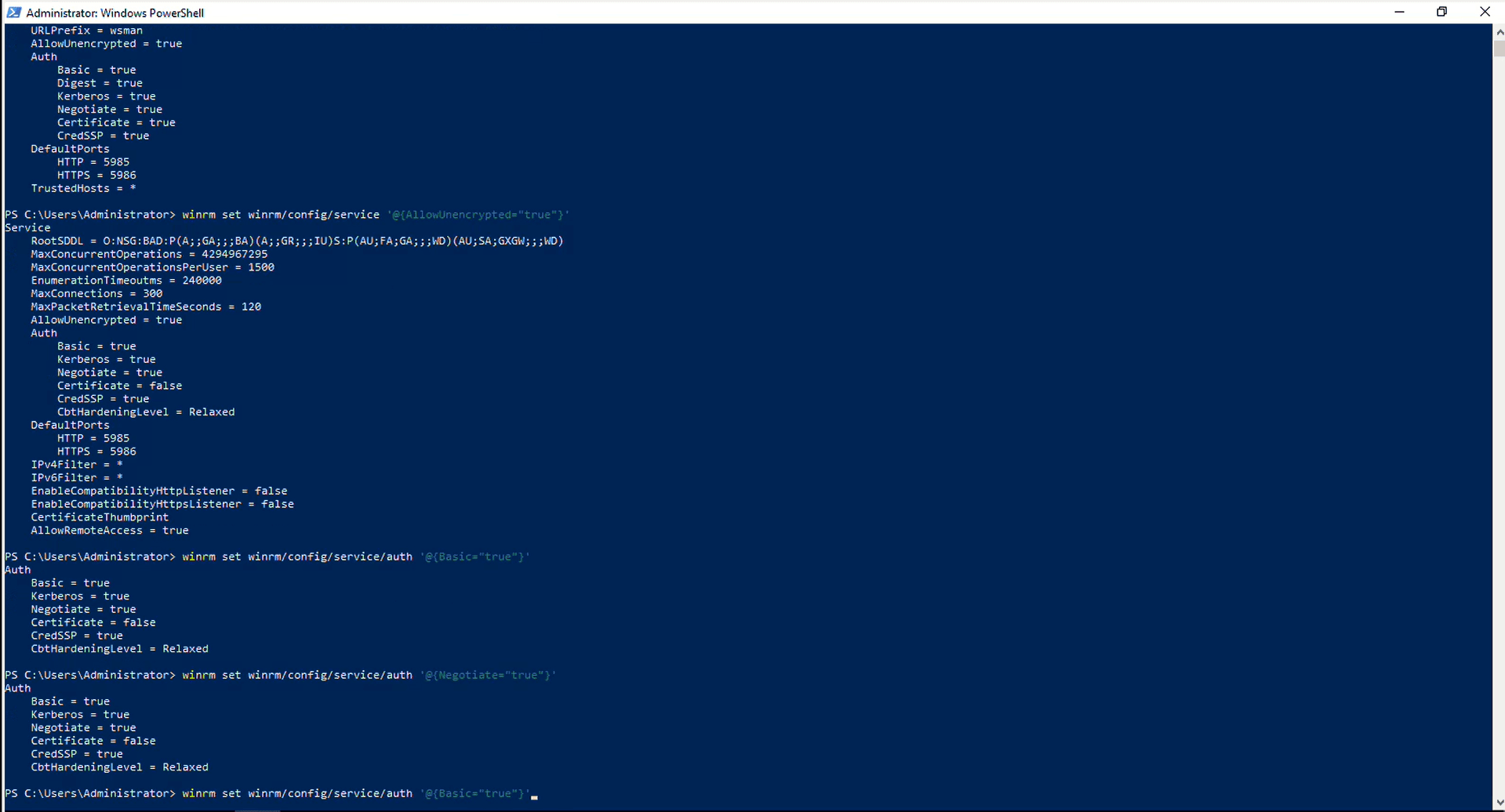
3. Restarting the WinRM Service
Restart-Service WinRMInspecting WinRM listener configuration for remote management readiness
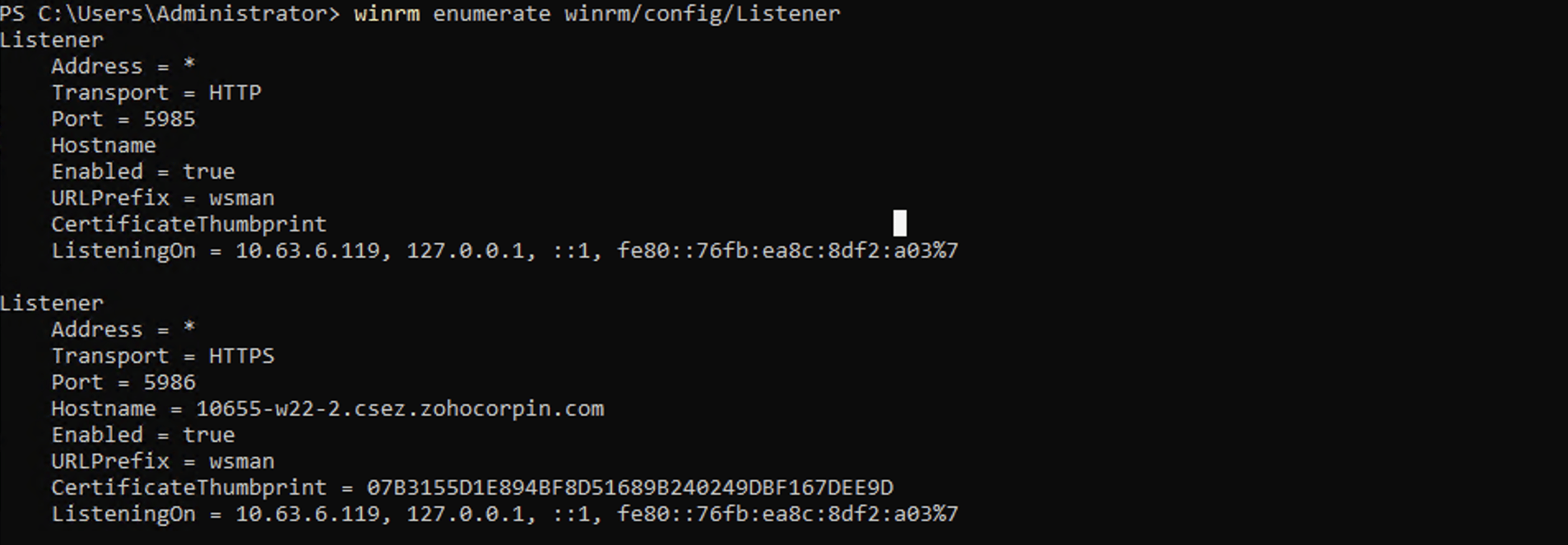
By reviewing the listener details, administrators can ensure that the correct addresses and ports are being used and check for any misconfigurations that may block remote access or cause connectivity issues.
Execute the command as shown below to ensure that the WinRM service is properly configured and enabled, which is necessary for remote management, especially while using PowerShell remoting.
winrm enumerate winrm/config/listener
Step-by-step guide to enable WinRM HTTPS on the App Console server
Modifying Ideal Timeout and Connection Parameters
Run the following command below:
winrm set winrm/config/service '@{MaxConnections="2000"}'winrm set winrm/config/service '@{MaxConcurrentOperationsPerUser="2000"}'winrm set winrm/config/winrs '@{IdleTimeout="900000"}'
Step-by-step guide to enable WinRM HTTPS on all DNS/DHCP servers to be onboarded
Modifying Ideal Timeout and Connection Parameters
Run the following command below:
winrm set winrm/config/service '@{MaxConnections="2000"}'winrm set winrm/config/service '@{MaxConcurrentOperationsPerUser="2000"}'winrm set winrm/config/winrs '@{IdleTimeout="900000"}'Enabling Authentication
1. Basic Authentication:
Description: Sends the username and password in plain text (Base64 encoded). Requires a secure channel (e.g., HTTPS) to protect the credentials during transmission.
Setup:
winrm set winrm/config/service/auth '@{Basic="true"}'2. CredSSP (Credential Security Support Provider):
Description: Enables delegation of user credentials from the client to the target server, allowing the server to access network resources on behalf of the user.
Setup:
Enable-WSManCredSSP -Role "Server"3. Negotiate:
Description: Uses either Kerberos or NTLM for authentication, automatically selecting the most secure protocol supported by both the client and server.
Setup:
winrm set winrm/config/service/auth '@{Negotiate="true"}'Setting up the Windows Remote Machine:
1. Enable encrypted Communication:
winrm set winrm/config/service '@{AllowUnencrypted="False"}'2. Configure Trusted Hosts:
winrm set winrm/config/client '@{TrustedHosts="ip_address"}'Note: Enter the IP address of the host running the DDI Central Console for WinRM to treat it as a trusted host.3. Restarting the WinRM Service:
Restart-Service WinRMVerifying the valid server certificate
Ensure that the Windows DNS/DHCP server has a valid server certificate installed. If you already have a valid certificate, follow the steps below.
If not, generate a valid certificate and get it installed. To verify the installation of a valid certificate, refer to the screenshot below:
Execute the command below, as demonstrated in the screenshot below.
Get-ChildItem -Path Cert:\LocalMachine\My Note: Copy the Thumb print value generated by the above command and store it securely.
Creating a server certificate using domain name
Incase there is no thumbprint available for the domain name, you have to create one with the following command:
$cert = New-SelfSignedCertificate -DnsName "$domain_name" -CertStoreLocation "Cert:\LocalMachine\My" -KeyExportPolicy Exportable -KeyLength 2048 -KeyAlgorithm RSA -Type SSLServerAuthentication -NotAfter (Get-Date "2042-12-31")Note: In the above command, for $domain_name, enter the domain name in double quotes (" ").Execute the following commands to enable HTTPS
New-Item -Path WSMan:\LocalHost\Listener -Transport HTTPS -Address * -CertificateThumbprint $cert.Thumbprint -ForceNote: In the above command, the * value listens on all IP address given using this Thumbprint and it is used for HTTPS communication, and for $cert.Thumbprint, enter the hexadecimal value of the thumbprint from the previous step in double quotes (" ").Enabling WinRM
Run the following command below:
winrm quickconfig -transport:httpsInspecting WinRM listener configuration for remote management readiness
By reviewing the listener details, administrators can ensure that the correct addresses and ports are being used and check for any misconfigurations that may block remote access or cause connectivity issues.
Execute the command as shown below to ensure that the WinRM service is properly configured and enabled, which is necessary for remote management, especially while using PowerShell remoting.
winrm enumerate winrm/config/listener