Steps to integrate Google CloudDNS with DDI Central
Step 1: Generating JSON Key within Google CloudDNS
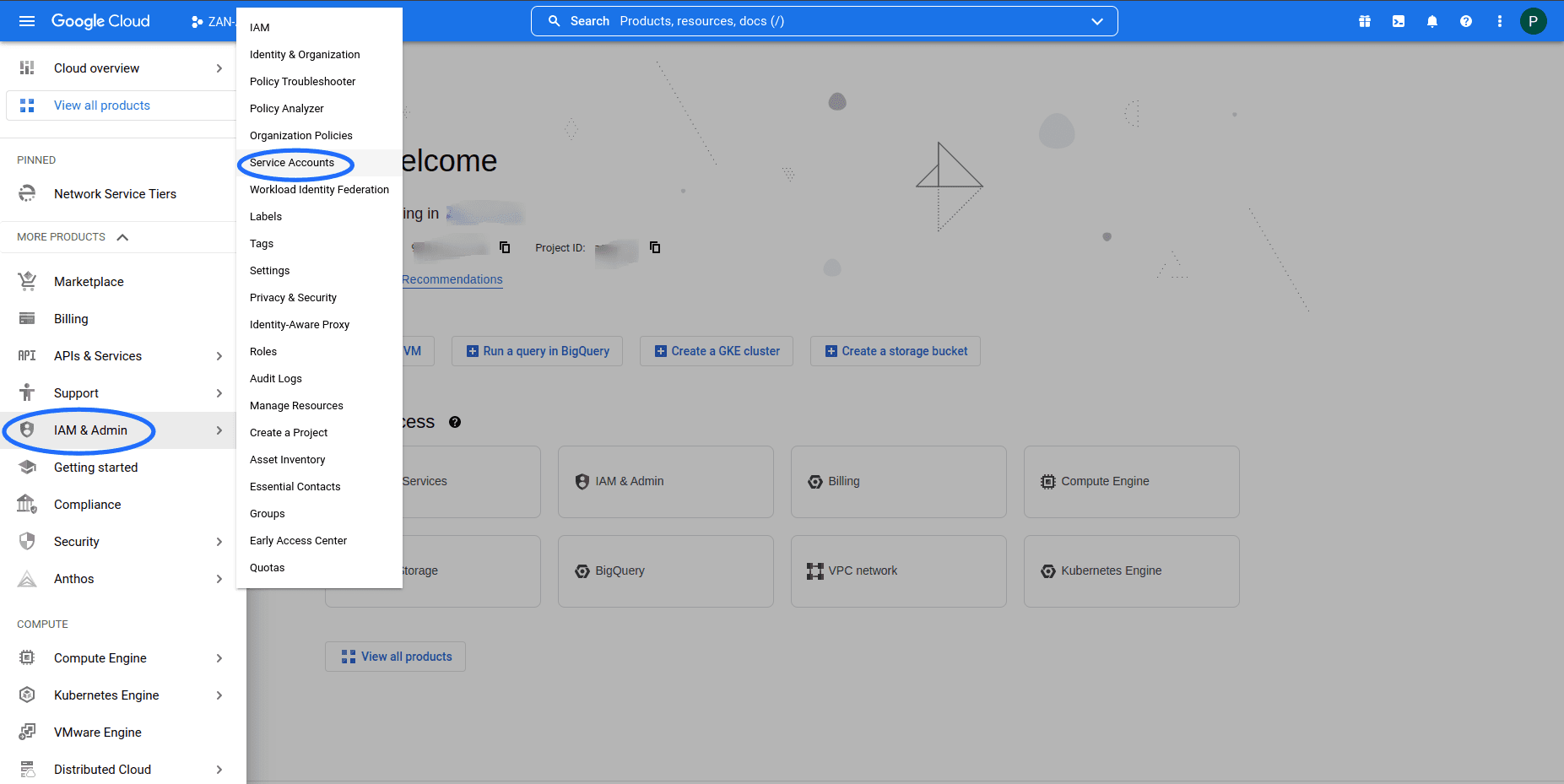
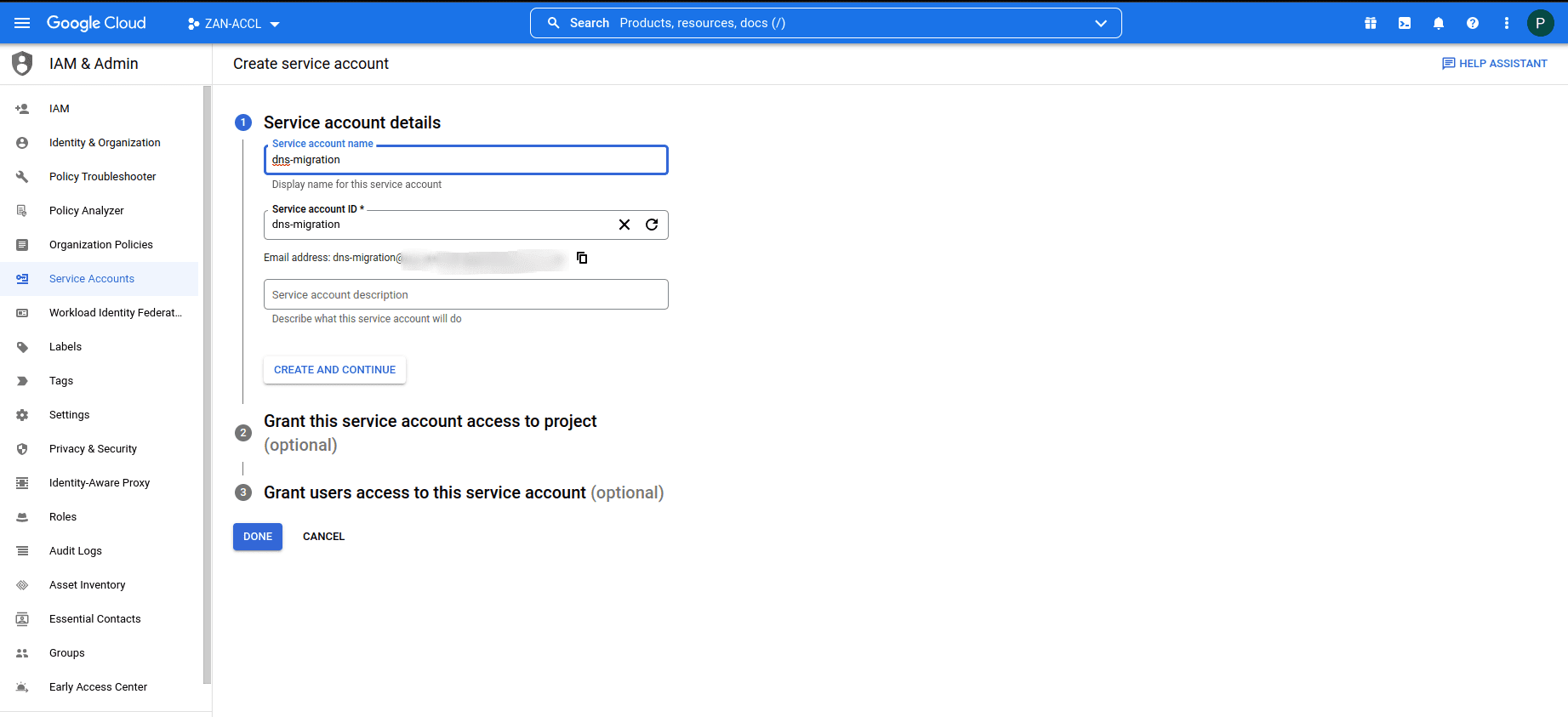
- Login into your Google cloud account and Navigate to IAM & Admin -> Service Accounts
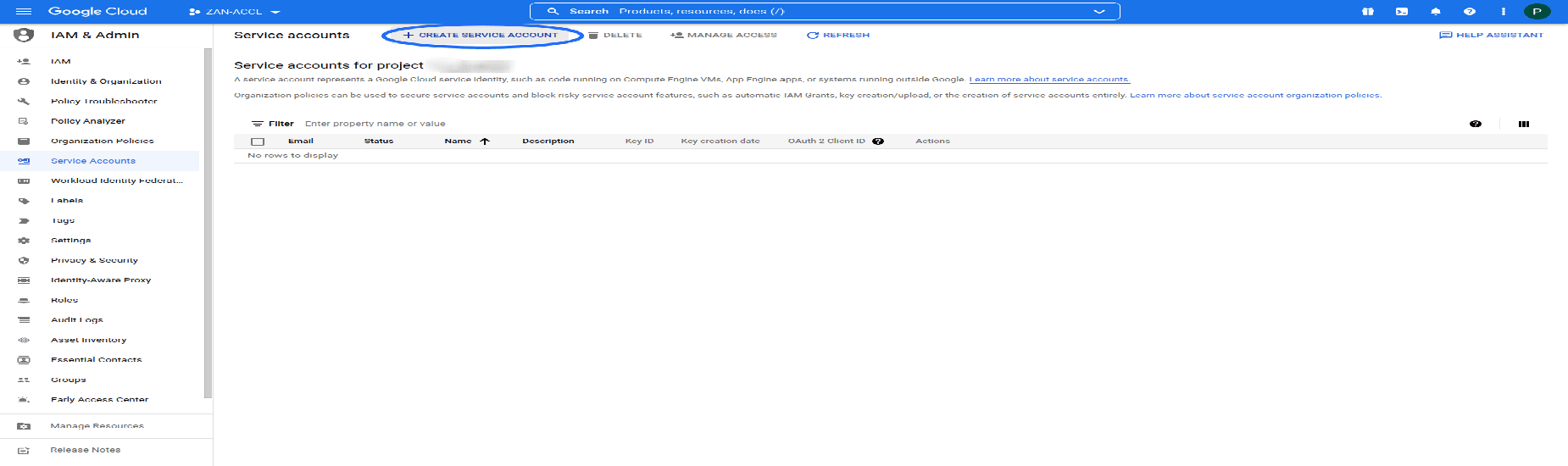
- You need a service account to generate JSON Key.
- Click on CREATE SERVICE ACCOUNT.
- Enter the required details and create a service account
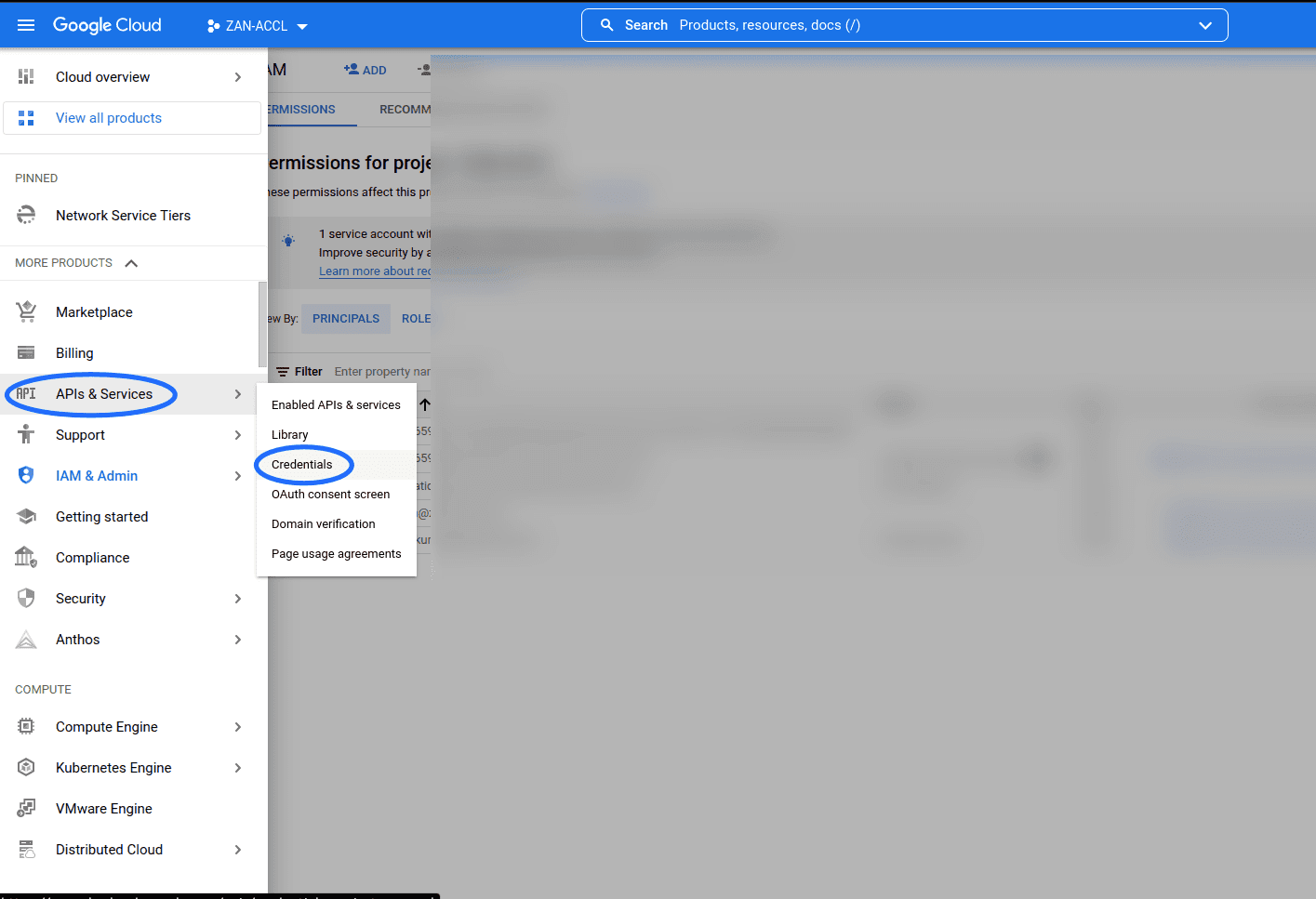
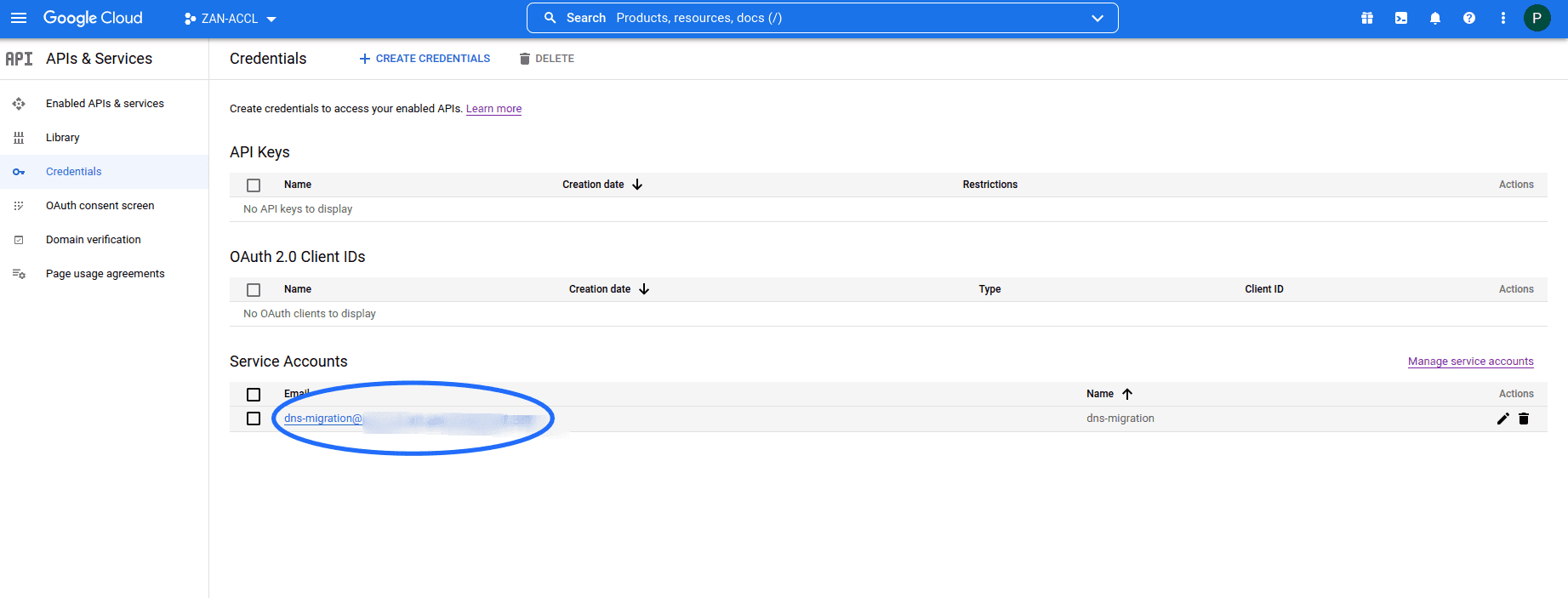
- On creating a service account, Navigate to API & Services -> Credentials.
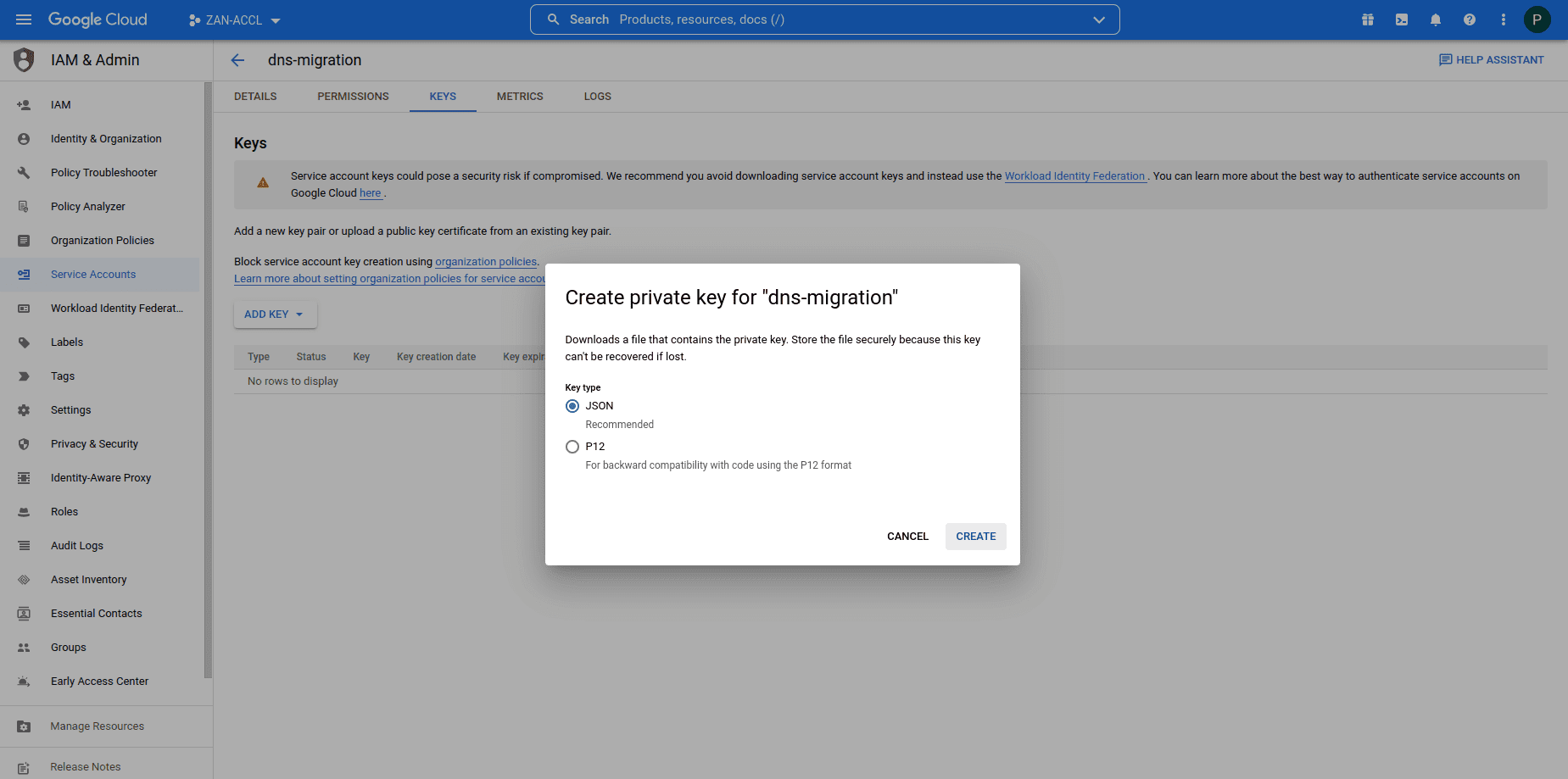
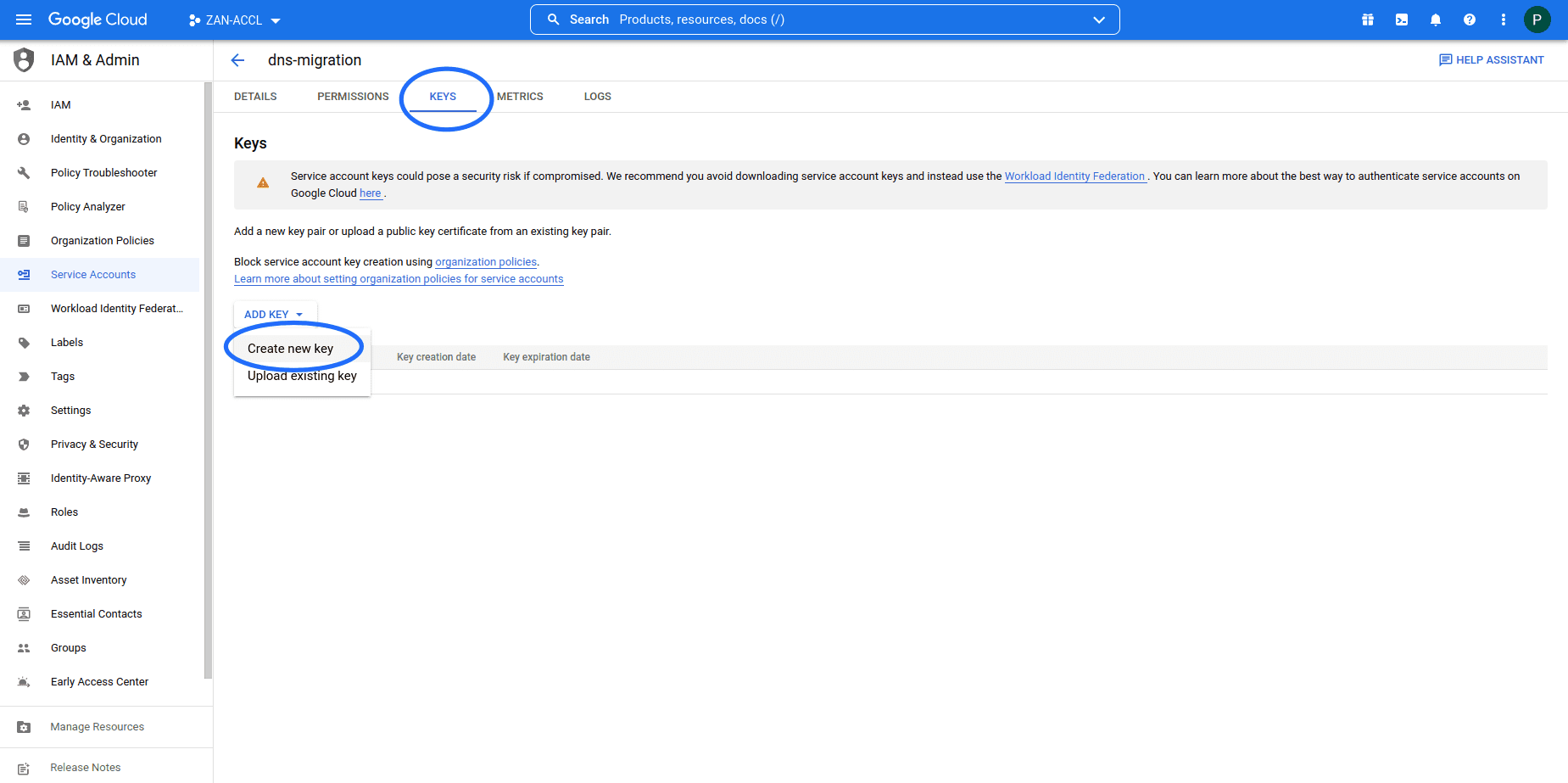
- Click on your service account and navigate to KEYS tab. Now click on ADD KEY and select Create New Key. Select Key type as JSON and click Create. The JSON Key will be downloaded.
Step 2: Configurations to be made in DDI Central
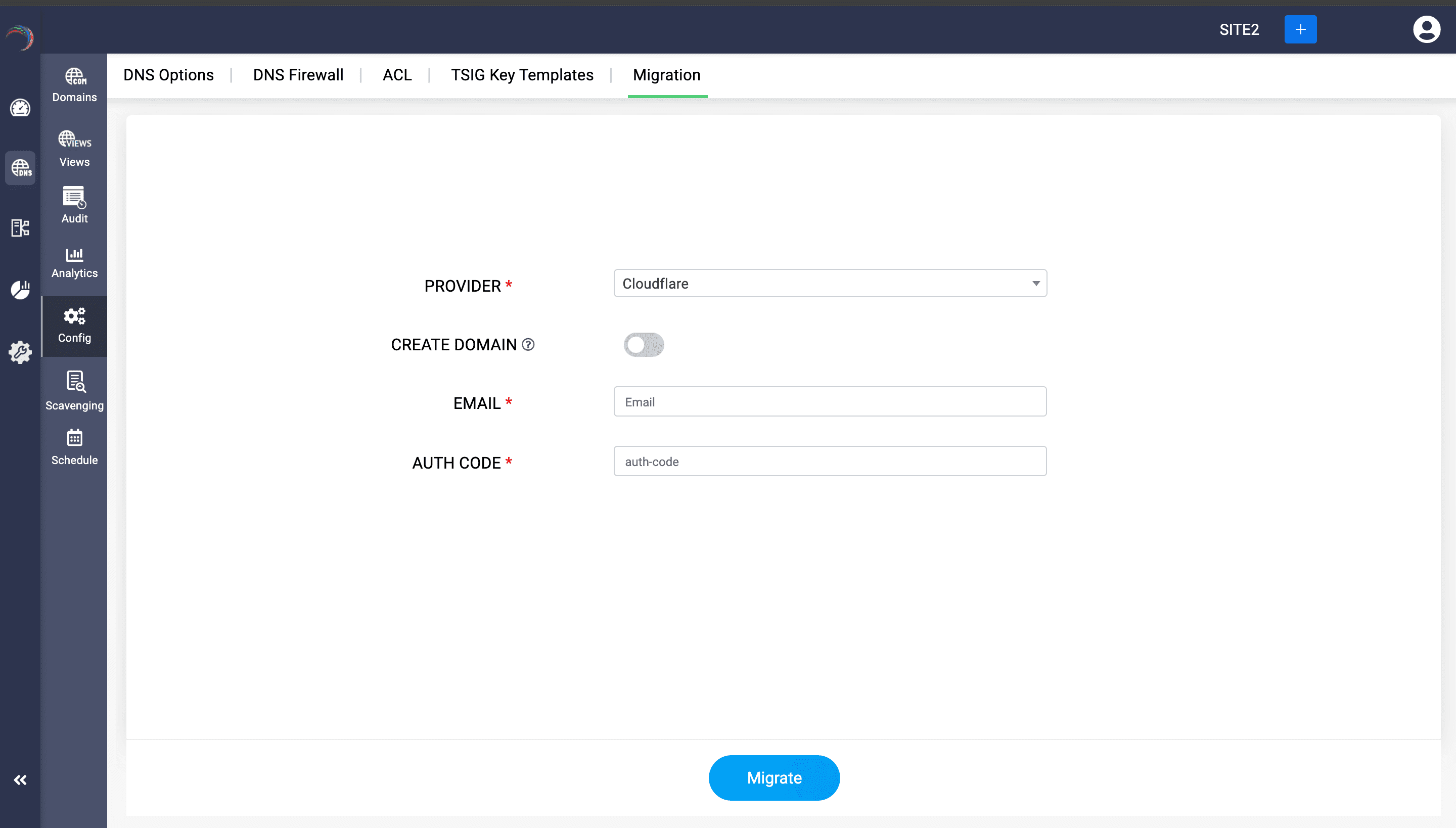
- Once you have Downloaded the JSON Key from Google Cloud , Login into DDI Central console and select the Cloud Observability cluster of your choice. Now navigate to Settings-> Profile-> Provider Profile .
- Select Google CloudDNS as the provider from the list of Providers drop-down menu.
- On successful authentication, DDI Central lists all the active domains with Google CloudDNS, select the relevant ones from the list and click Migrate.
- On successful migration, you can see all the current domains you selected with AWS before migration will be listed under the domains Page within the DNS module.
- You can further easily add and manage the configurations of zones under each domain directly using DDI central controls.
- Click through a domain name and access the DNS records associated with the zones under that domain name.