DDI Central IPAM Tower - Cluster view
A cluster is a logical grouping of IP spaces, typically mapped to its own dedicated DNS and DHCP servers. It represents an environment or any custom segmentation your network requires. While a site organizes IP resources by location, a cluster organizes them by environment, making it the right starting point when your network spans multiple parallel environments rather than just physical locations.
The Cluster View in DDI Central's IPAM Tower lets you navigate your IP inventory by these logical environment boundaries. All clusters, whether associated with a site or standalone, are visible here, giving you a complete picture of how your IP space is environmentally segmented.
Benefits:
- Navigate directly to the right environment without going through location-based hierarchy.
- Compare DNS zones, supernets, subnet counts, and utilization across environments side by side.
- Prevent accidental cross-environment IP allocation with clear environment-level guardrails.
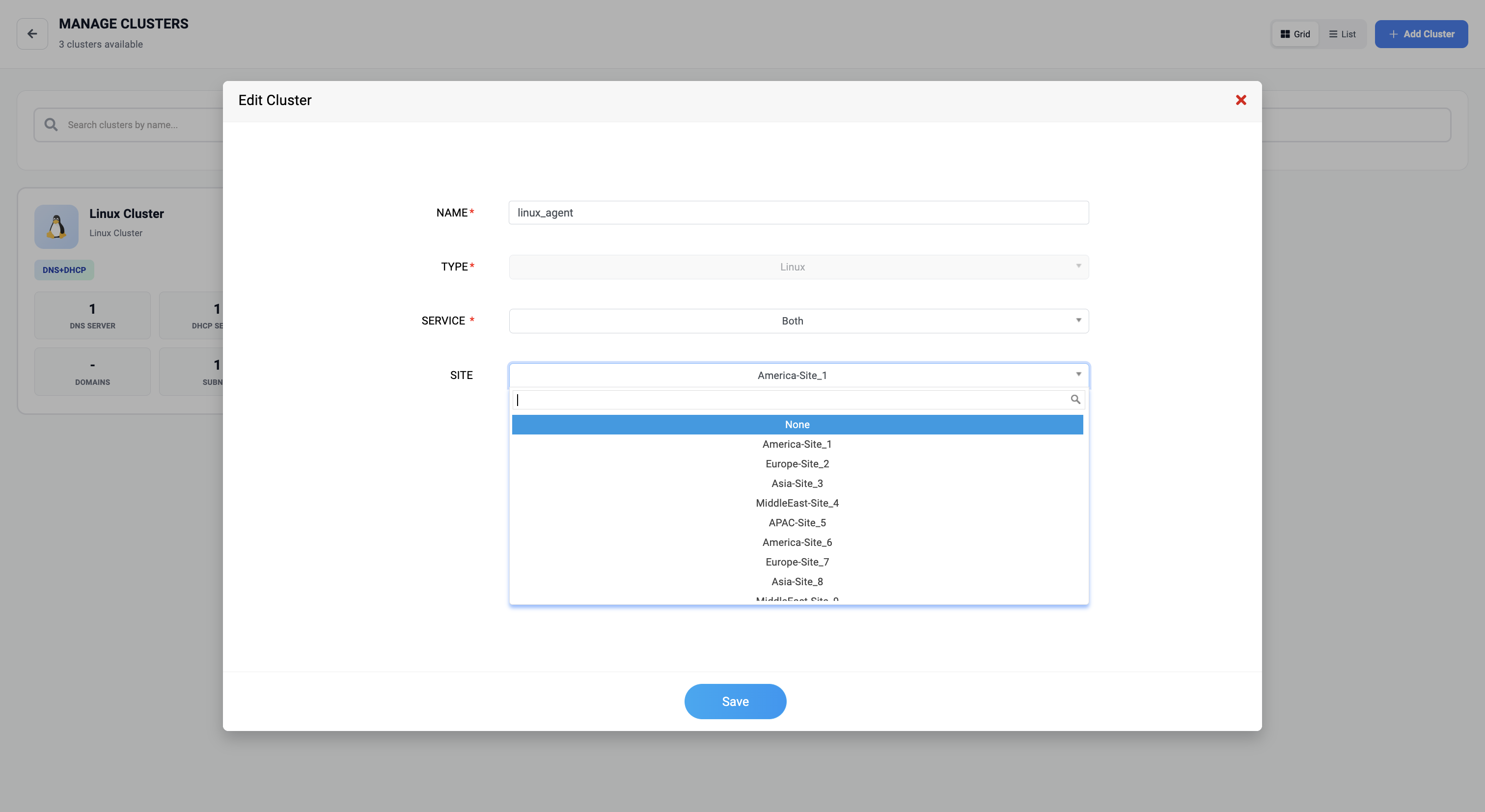
- Identify clusters that are not yet associated with any site and link them appropriately.
- Manage multi-tenant and overlapping IP space setups without confusion.
Cluster View supports three visualization modes - Table, Tree, and Cards, so you can compare environments at a glance, drill into a cluster's full hierarchy, or get a quick health snapshot of each environment as needed.
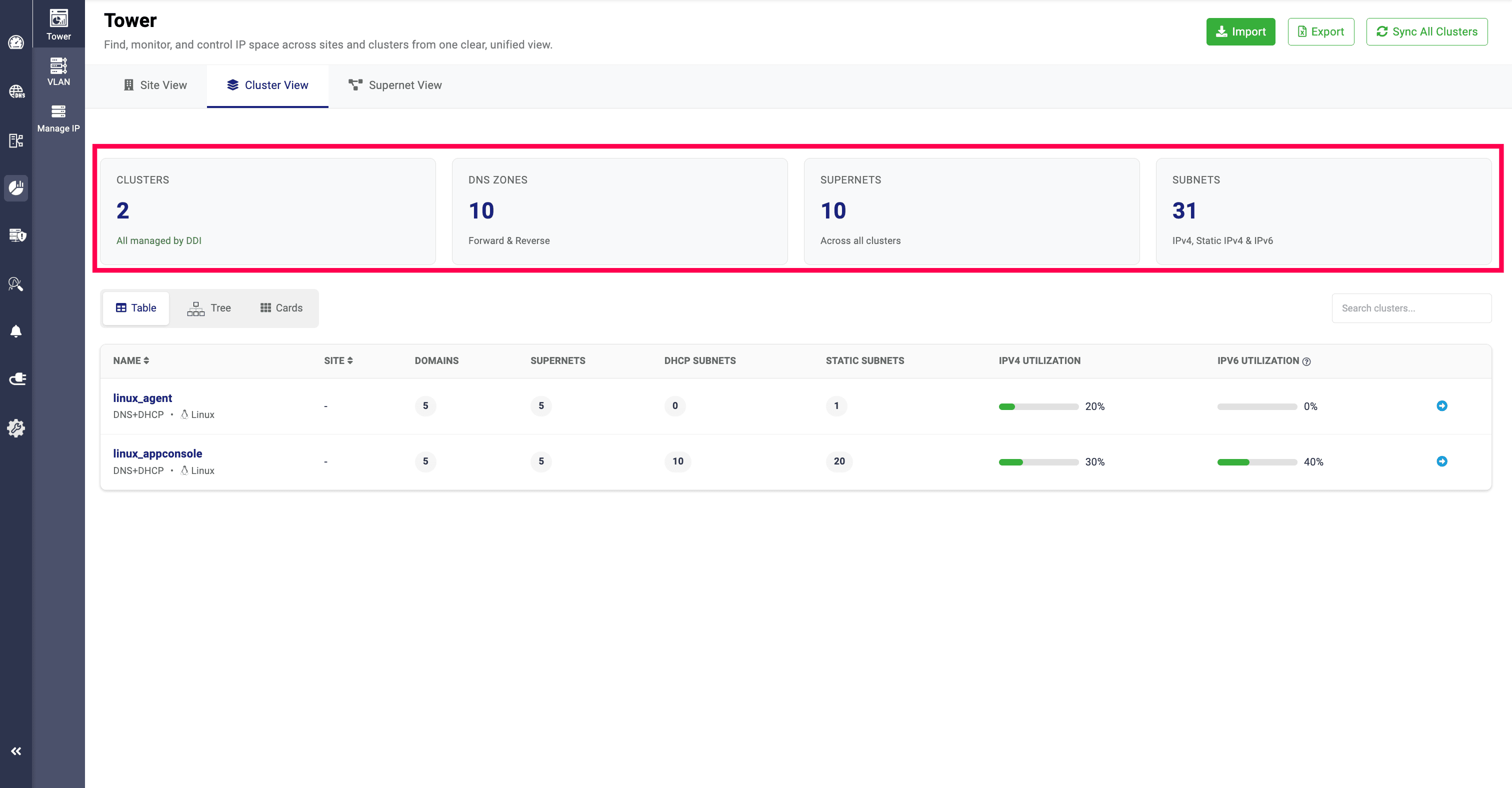
The Cluster View provides a detailed overview of the total number of clusters created and imported in DDI Central, with an indication that they are managed by DDI Central. It also displays the total number of DNS zones (both forward and reverse), the total number of supernets across all clusters, and the total number of IPv4, static IPv4, and IPv6 subnets.
All clusters in the network—whether associated with sites or not—are displayed in the Cluster View.
Cluster table view
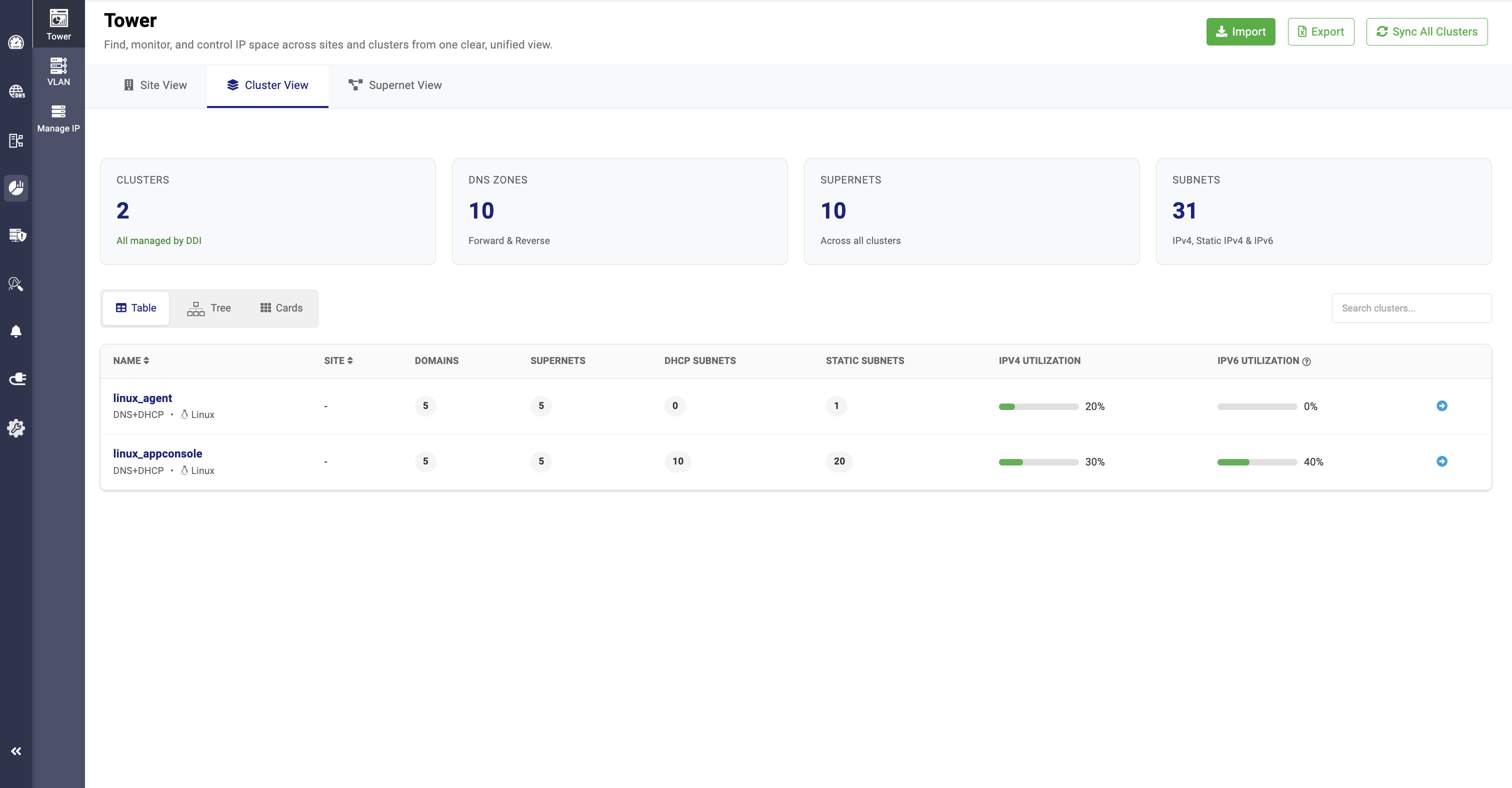
The Table View displays all clusters in the network, including their names, the services allocated to them (DNS, DHCP, or DNS + DHCP), the sites they are associated with, the total number of domains in each cluster, and the total number of supernets, subnets, and static subnets. It also shows the overall IP utilization percentage for each cluster.
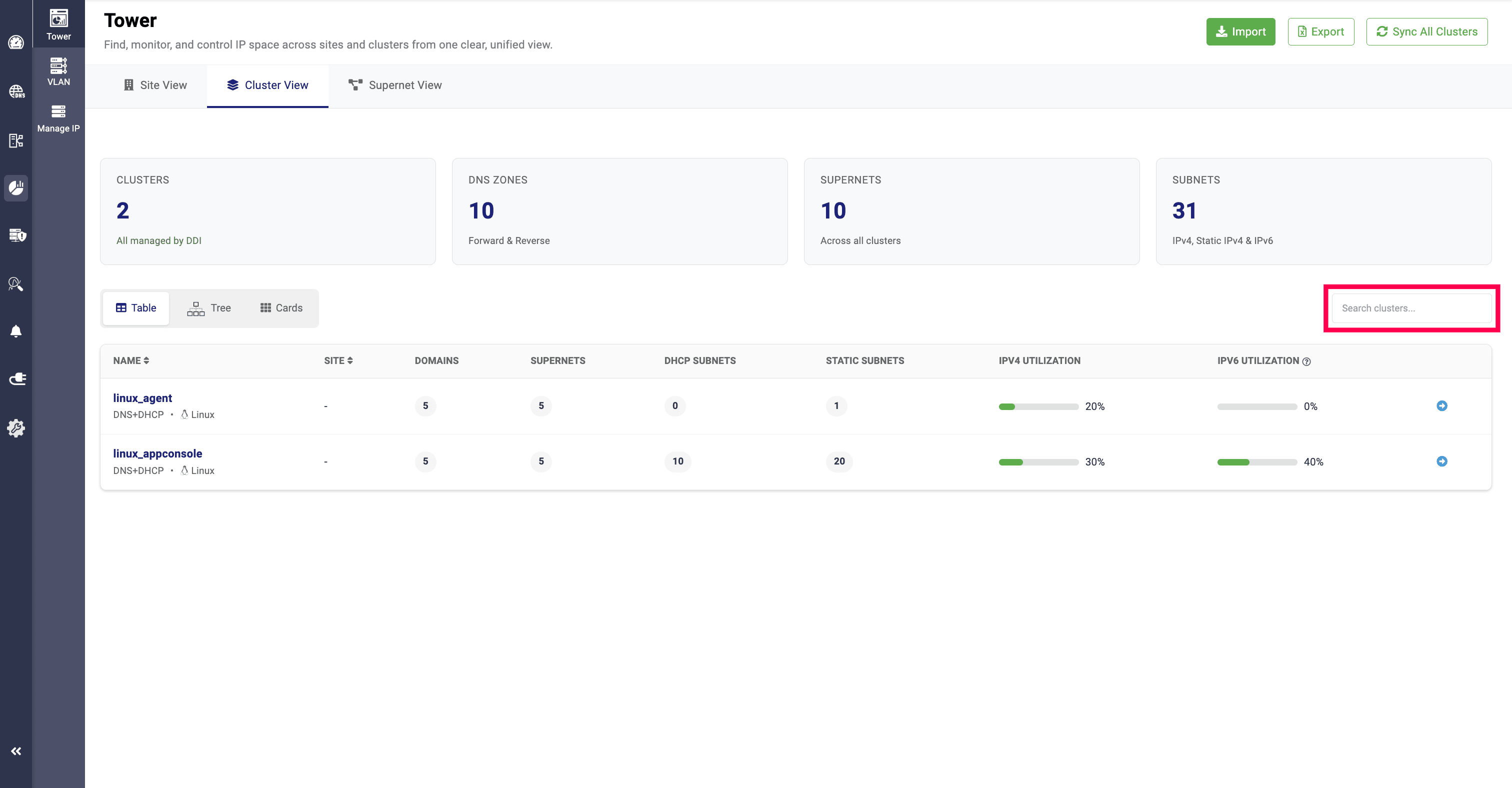
Specific clusters can be searched by entering their name in the Search Cluster field.
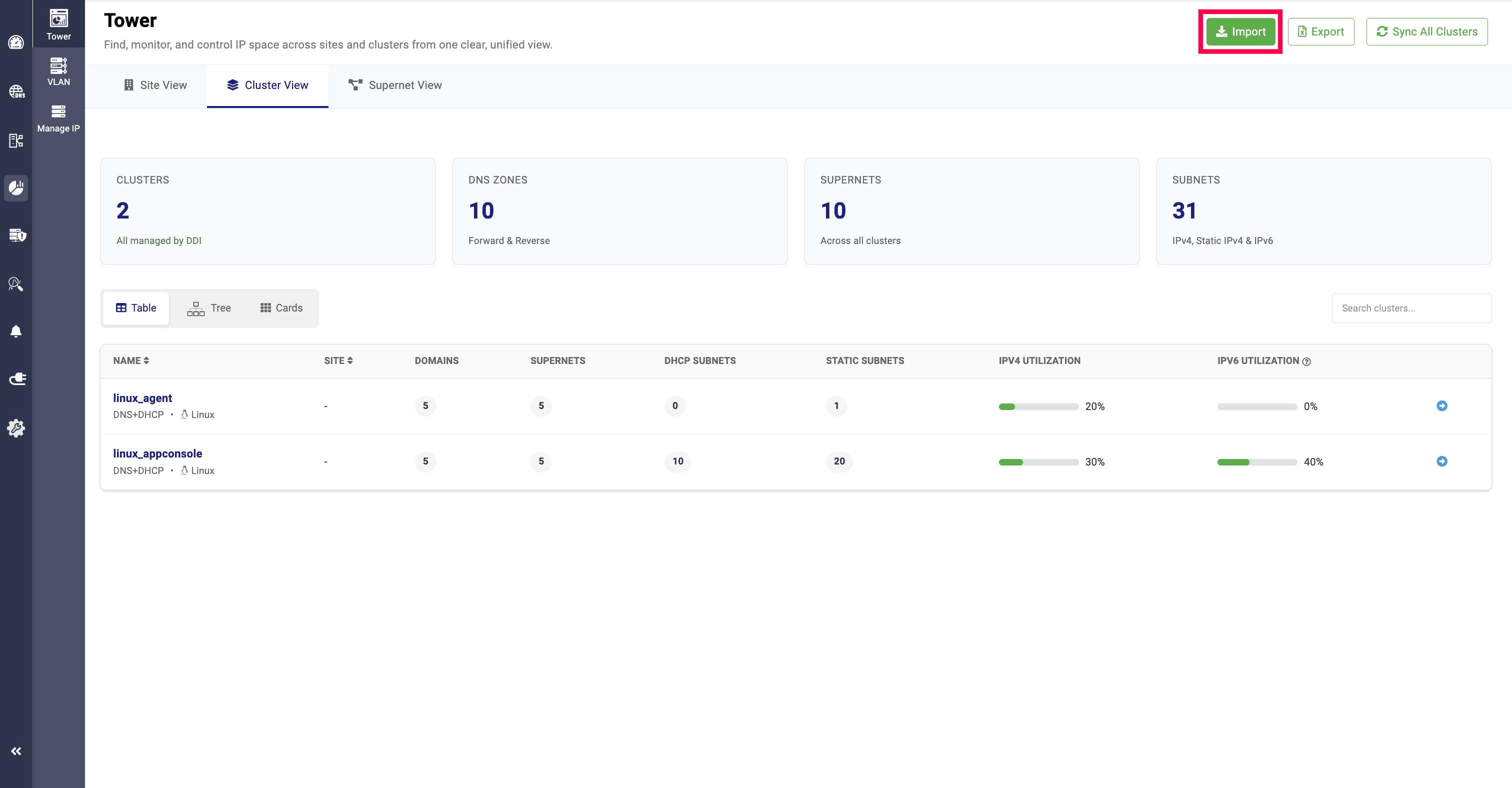
Sites, domains, clusters, supernets, subnets, and static subnets can be imported into the DDI Central application using CSV or XLSX file formats. Both unmapped DHCPv4 and DHCPv6 subnets can be imported through a CSV file. Providing static subnets in the import files is optional.
DDI Central supports XLSX file imports in two formats:
- Single-sheet import — All site, cluster, supernet, subnet, and static subnet details are provided in a single sheet.
- Multiple-sheet import — Separate sheets are created for individual sites, with the associated clusters, supernets, subnets, and static subnets organized in their respective sheets within a single file.
Here are the sample files for each type:
Import files (both CSV and XLSX formats) must include supernet and site data.
Import files should not contain special characters or duplicate entries. If present, they will be ignored during the import process.
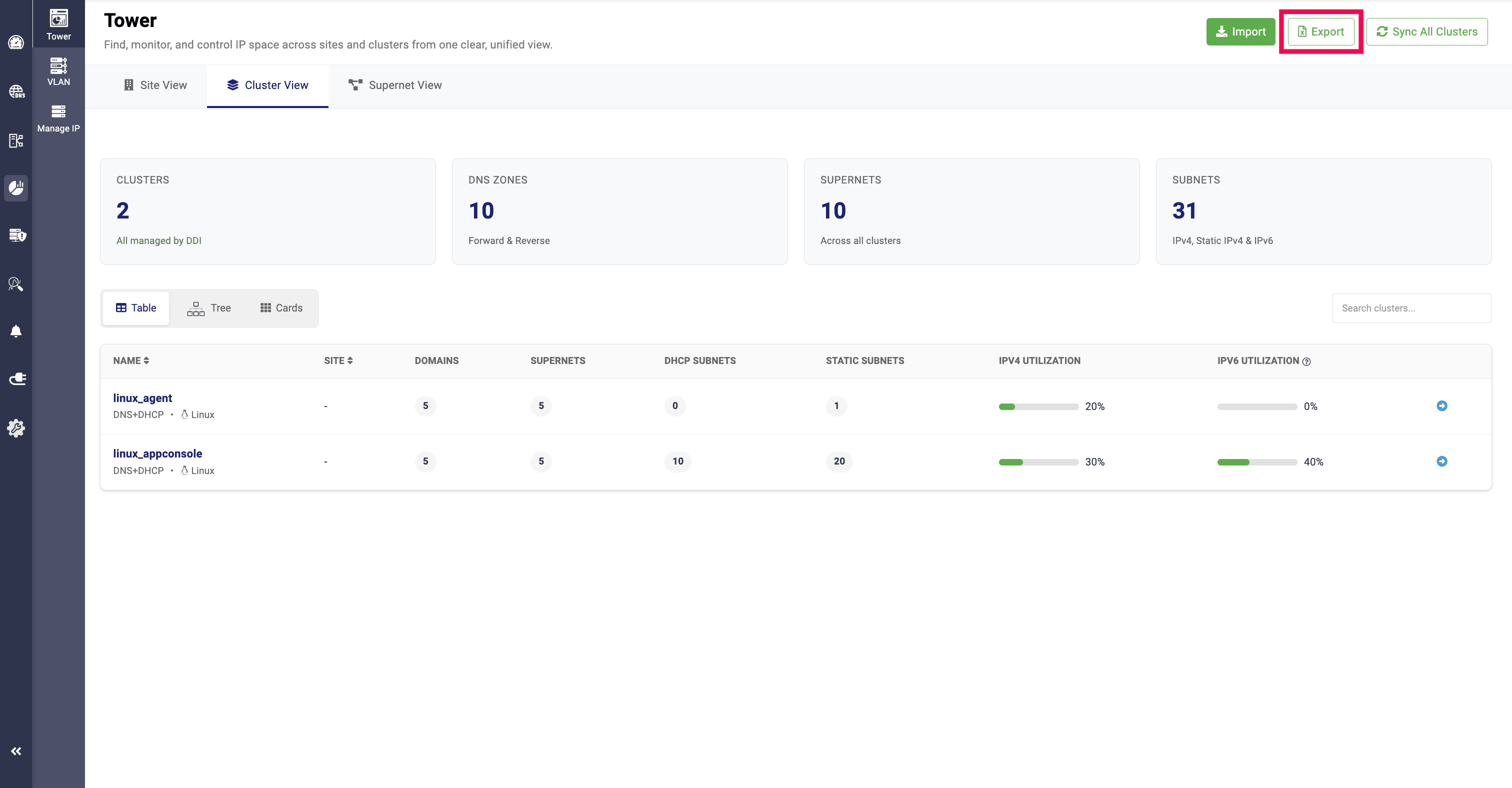
The data show in the site view can also be exported in CSV file format, by clicking on the Export option. The data will be exported in single sheet format.
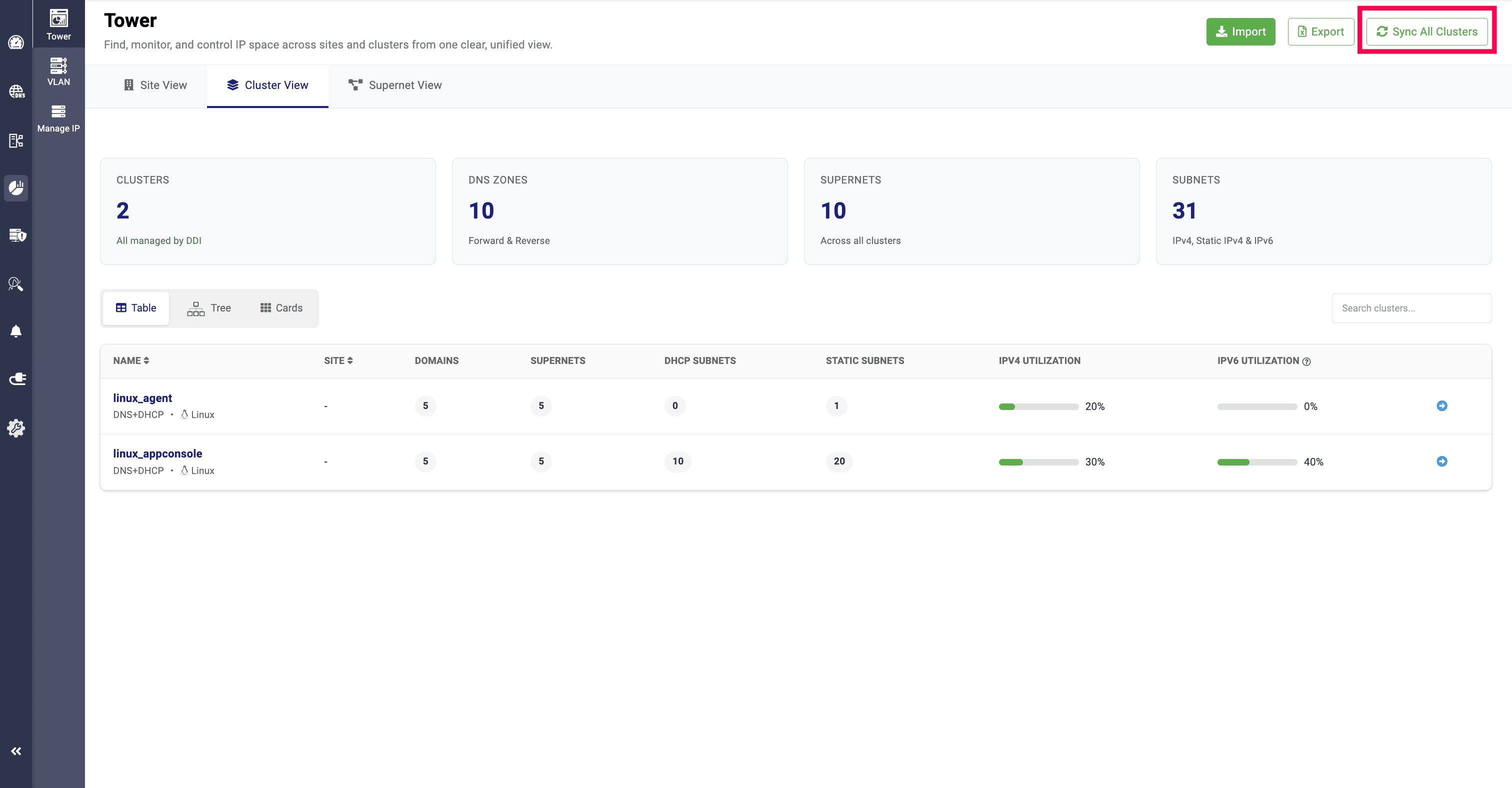
The Sync All Clusters option allows admins to synchronize data and configuration changes across all created clusters.
Cluster tree view
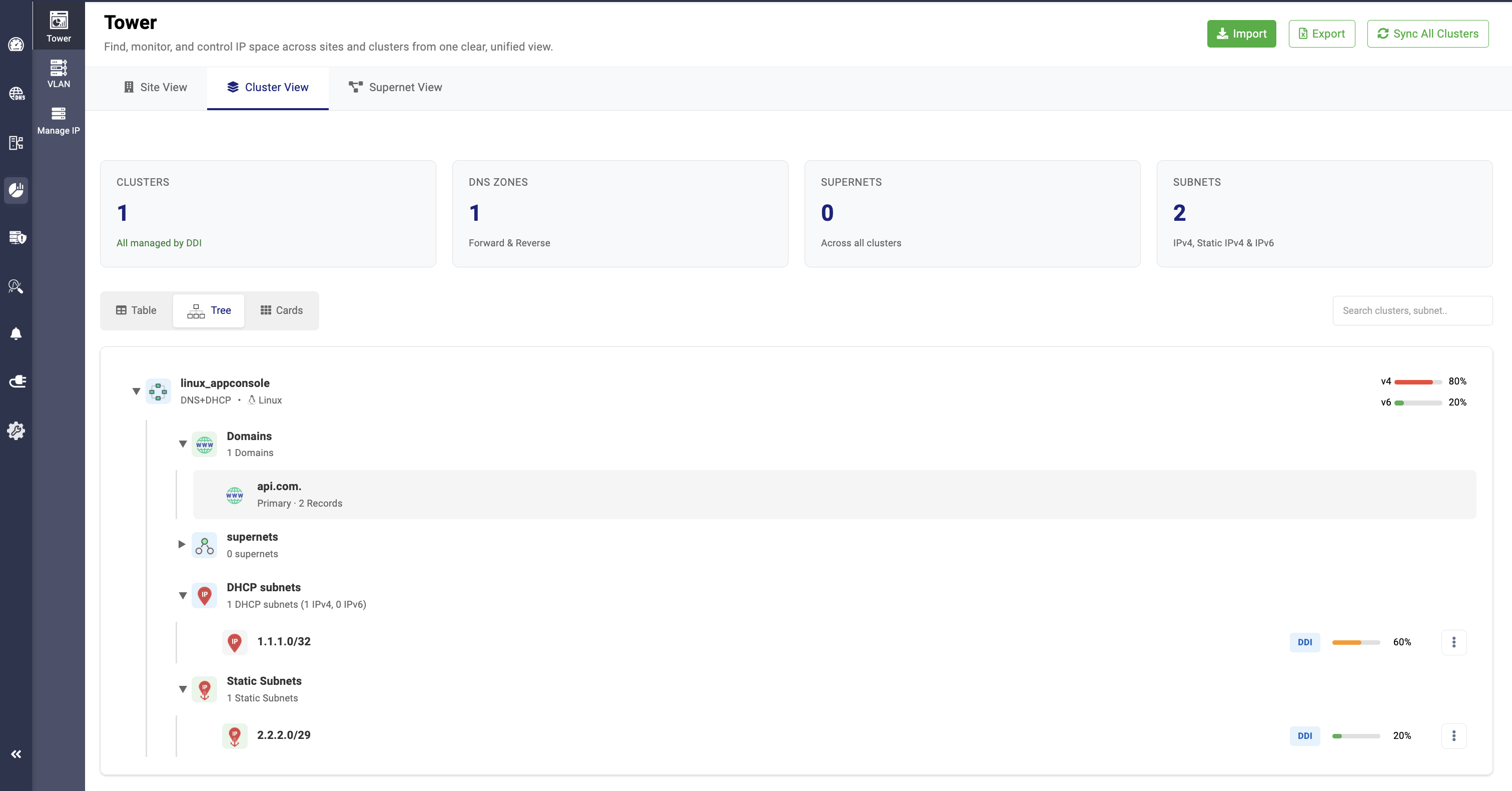
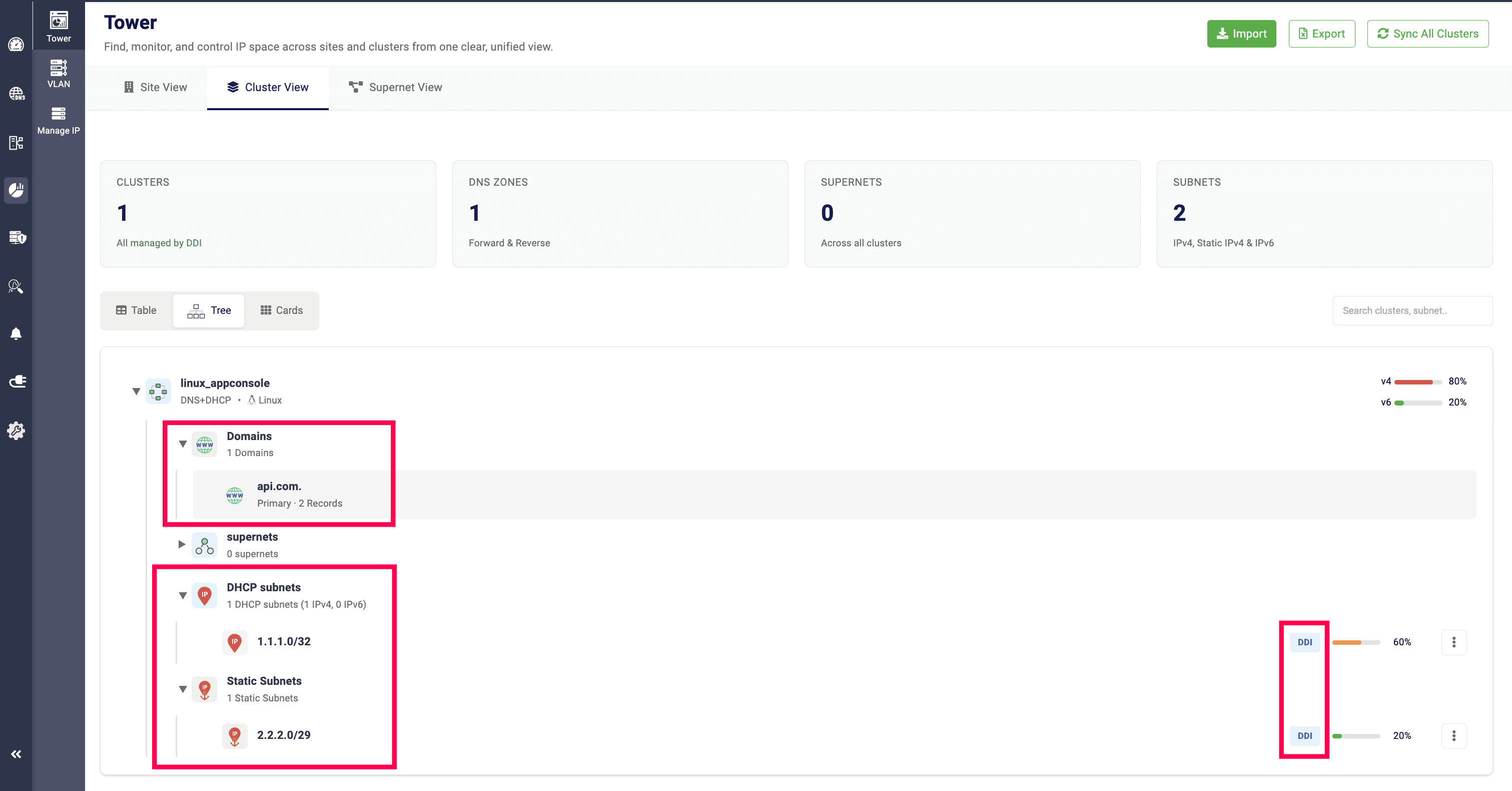
The Tree View provides a hierarchical arrangement of all added clusters, including the services allocated to them (DNS, DHCP, or DNS + DHCP), the sites they are associated with, the domains under each cluster, the supernets under the sites, and the corresponding subnets and static subnets.
Clicking on the supernets, subnets, and static subnets displays the values configured for each field.
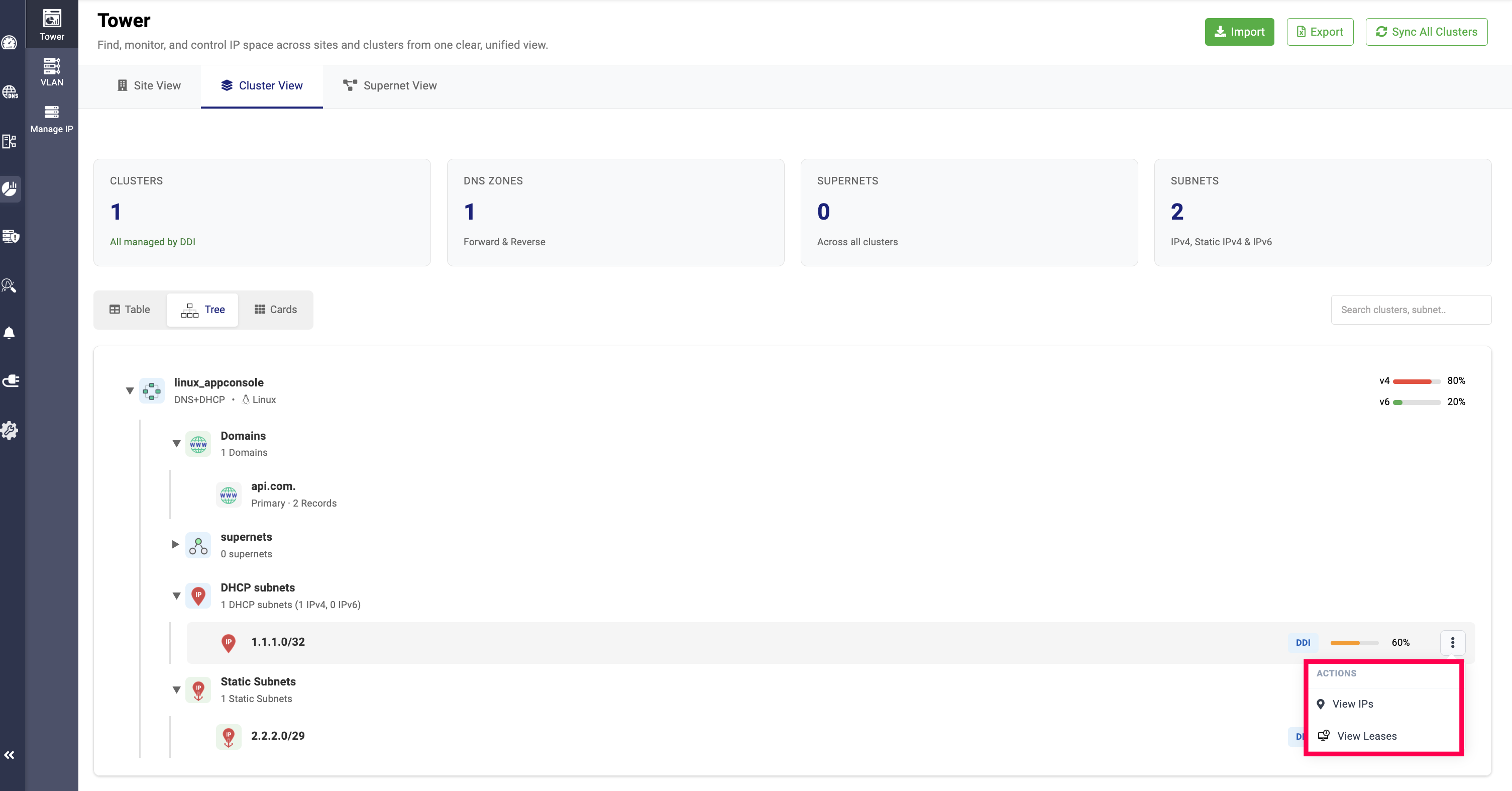
For DDI Managed subnets, you can click on the View Leases option to view the subnet's leases and lease history.
Cluster cards view
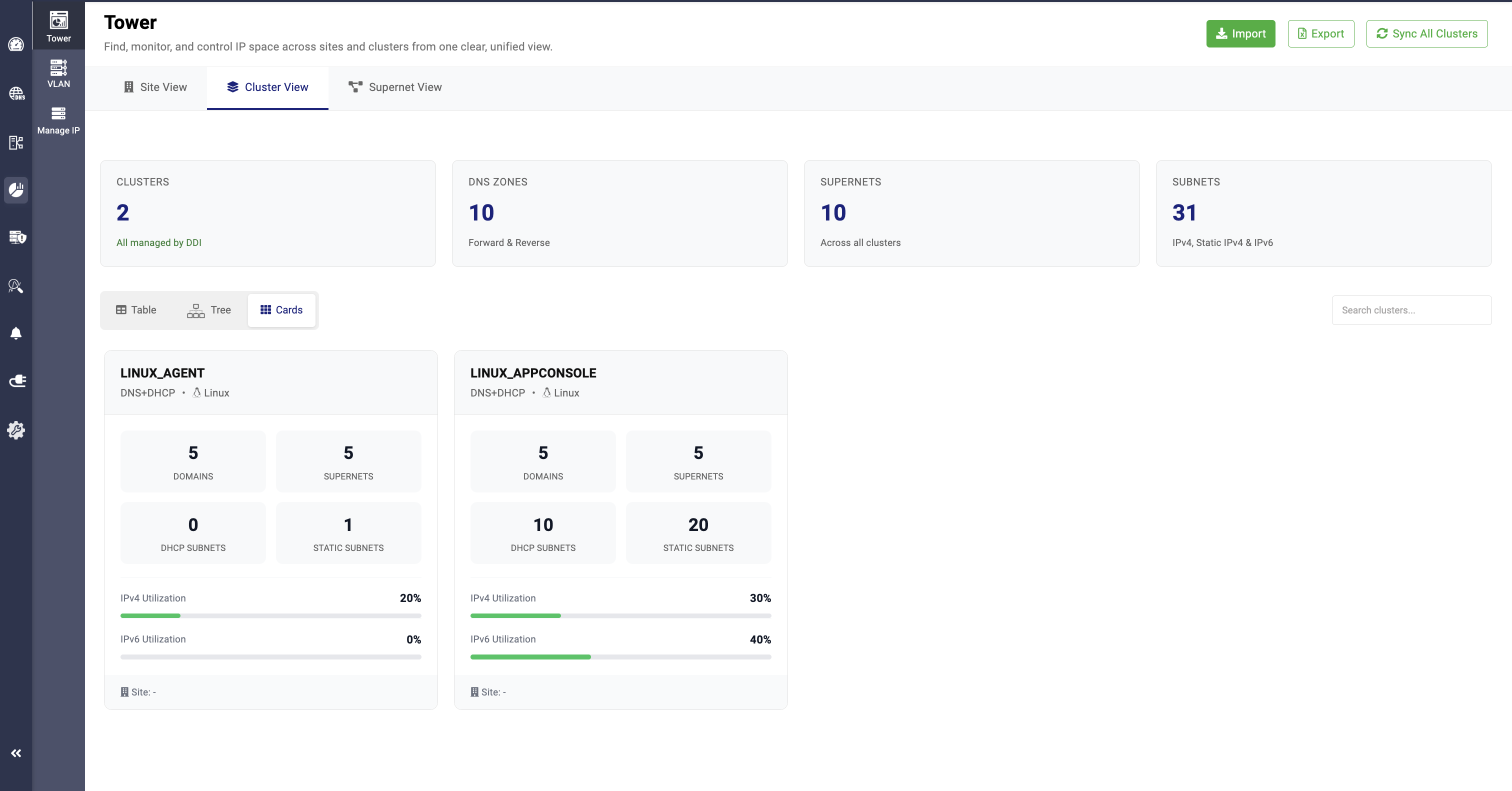
In the Cards View, network admins can get segmented visibility of the total clusters, the services allocated to them (DNS, DHCP, or DNS + DHCP), the sites they are associated with, domains, supernets, subnets, and static subnets. It also displays IP utilization and the supernet values along with their respective usage.