Managing Microsoft network IP address inventory
To visualize and take control of the IP allocations of each subnet managed by the DHCP server:
Select DHCP -> Manage IP menu from the left menu bar.
The Manage IP tab displays the following three sections:
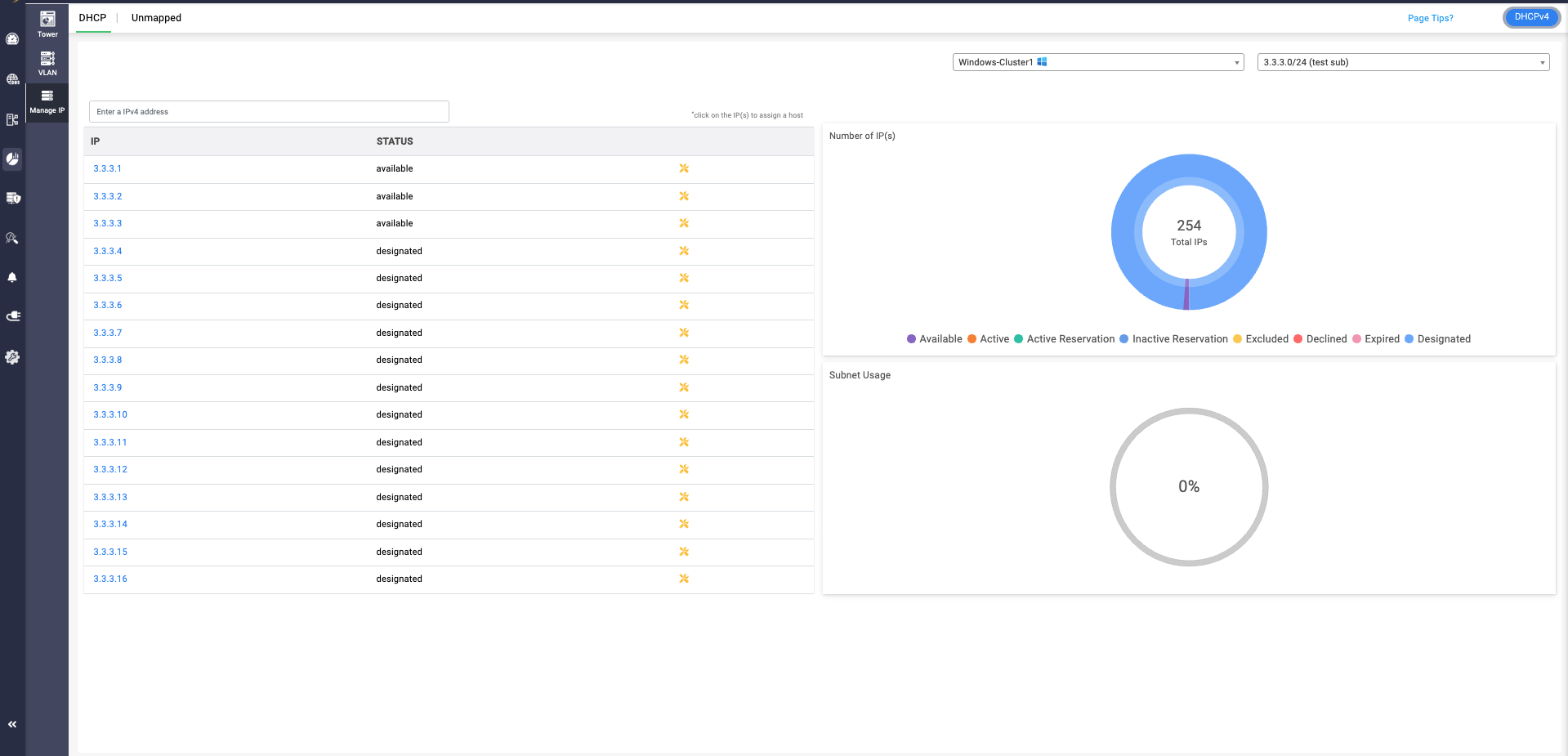
The first section - Manage IP on the left displays the list of available/free IP(s) within the subnet. Click on any desired IP from the list. This directly takes you to the Host Page. Here you can directly assign the chosen IP address to any host or client.
The second section- Number of IP (s) on the top right visually depicts the volume of IP addresses in different availability states along a doughnut plot :
- Available: IP addresses that are not currently assigned to any client and are eligible for assignment by the DHCP server.
- Active: IP addresses that are currently leased to active clients on the network through DHCP.
- Active Reservation: Reserved IPs that are currently in use, leased to clients with a matching MAC address or identifier.
- Inactive Reservation: Reserved IPs that are not actively leased, but held for a specific client or device based on MAC address or identifier.
- Excluded: IPs that have been manually excluded from dynamic allocation within the DHCP scope. These addresses will not be assigned by the server.
- Declined: IPs that were offered by the DHCP server but rejected by the client, often due to a perceived conflict or configuration issue. These are temporarily unassignable.
- Designated: IPs outside the declared DHCP pool in Linux servers or manually classified in Windows as part of DNS static records or static mappings. These are not eligible for dynamic lease provisioning.
- Expired: Leases that have expired, meaning the client has not renewed the lease and the IP is pending reallocation.
These states help administrators track IP lifecycle, usage, and conflicts across subnets—ensuring efficient IP planning and avoiding overlaps or service interruptions.
The third section-Subnet Usage, on the bottom right corner, illustrates the overall percentage of IP utilization within that subnet.
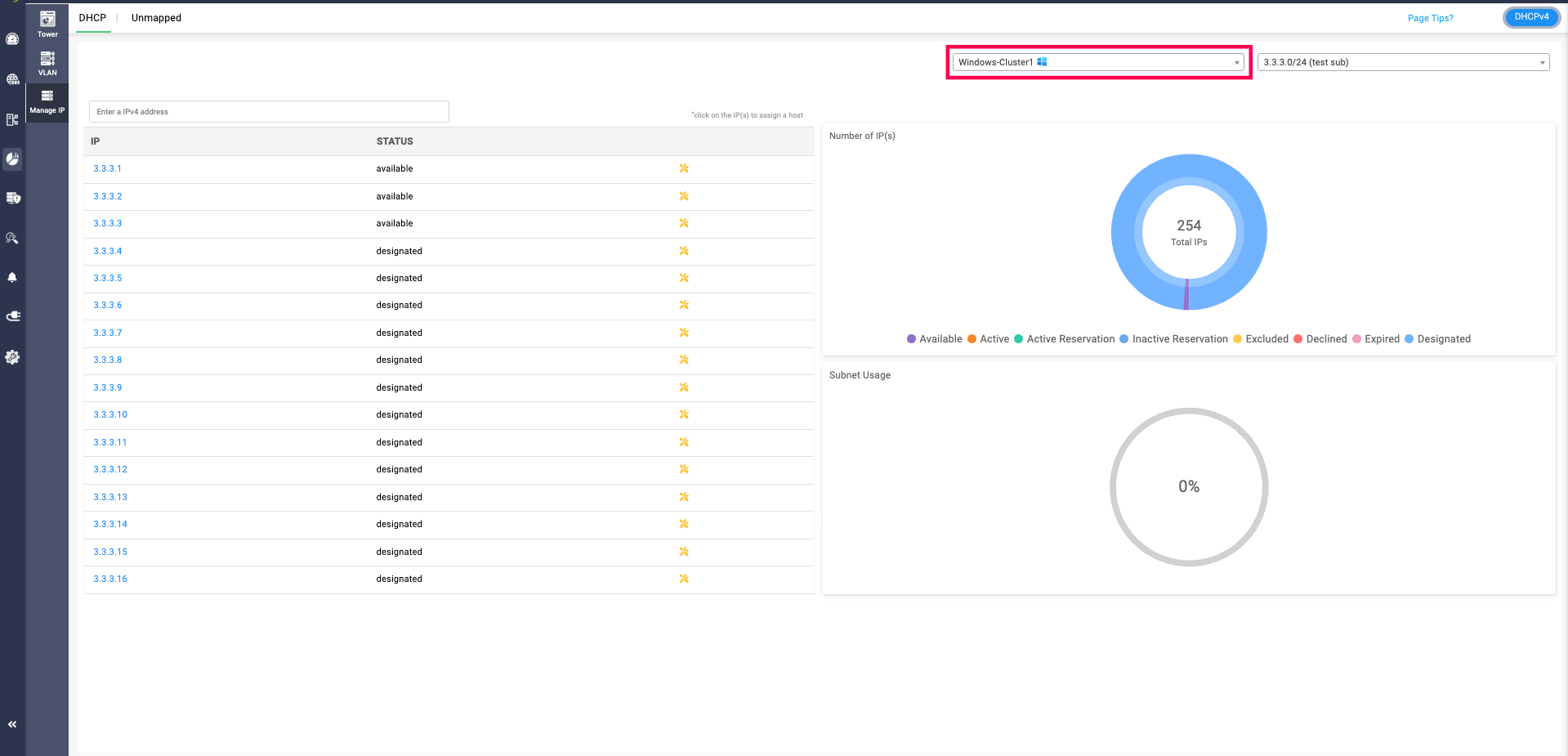
Admins can choose the desired cluster to view IP address availability and utilization via the cluster dropdown, positioned before the subnet dropdown field.
Unmapped:
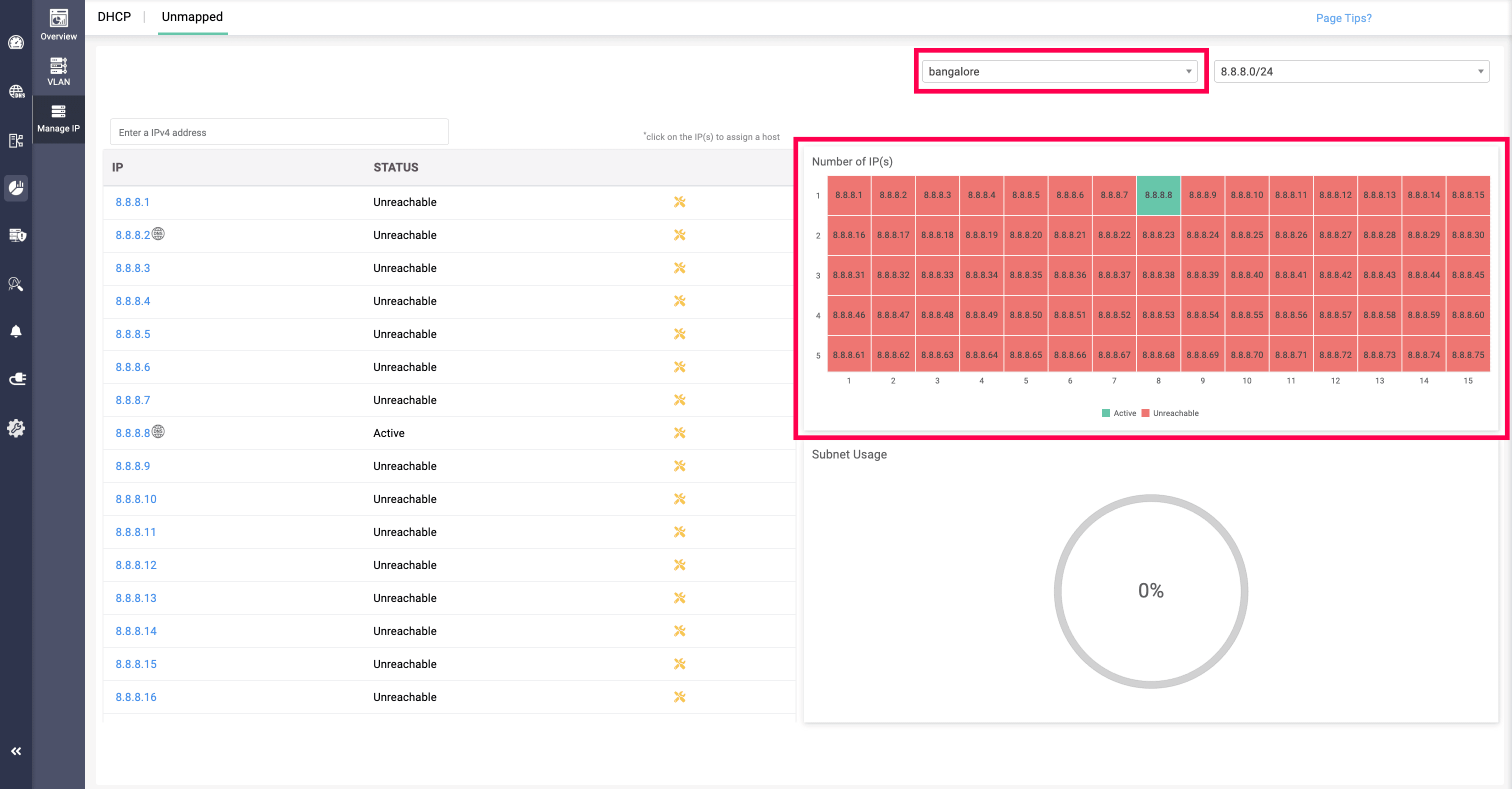
In the Unmapped section, IP addresses of subnets imported from external are displayed. Similar to the main Manage IP page, users can select the cluster and subnet using dropdown menus. Each IP address includes options such as PING, Telnet, and DNS relationship checks.
Additionally, a heat map on the right side of the page shows the number of active and unreachable IPs, providing clear visibility into the status of imported IP resources.
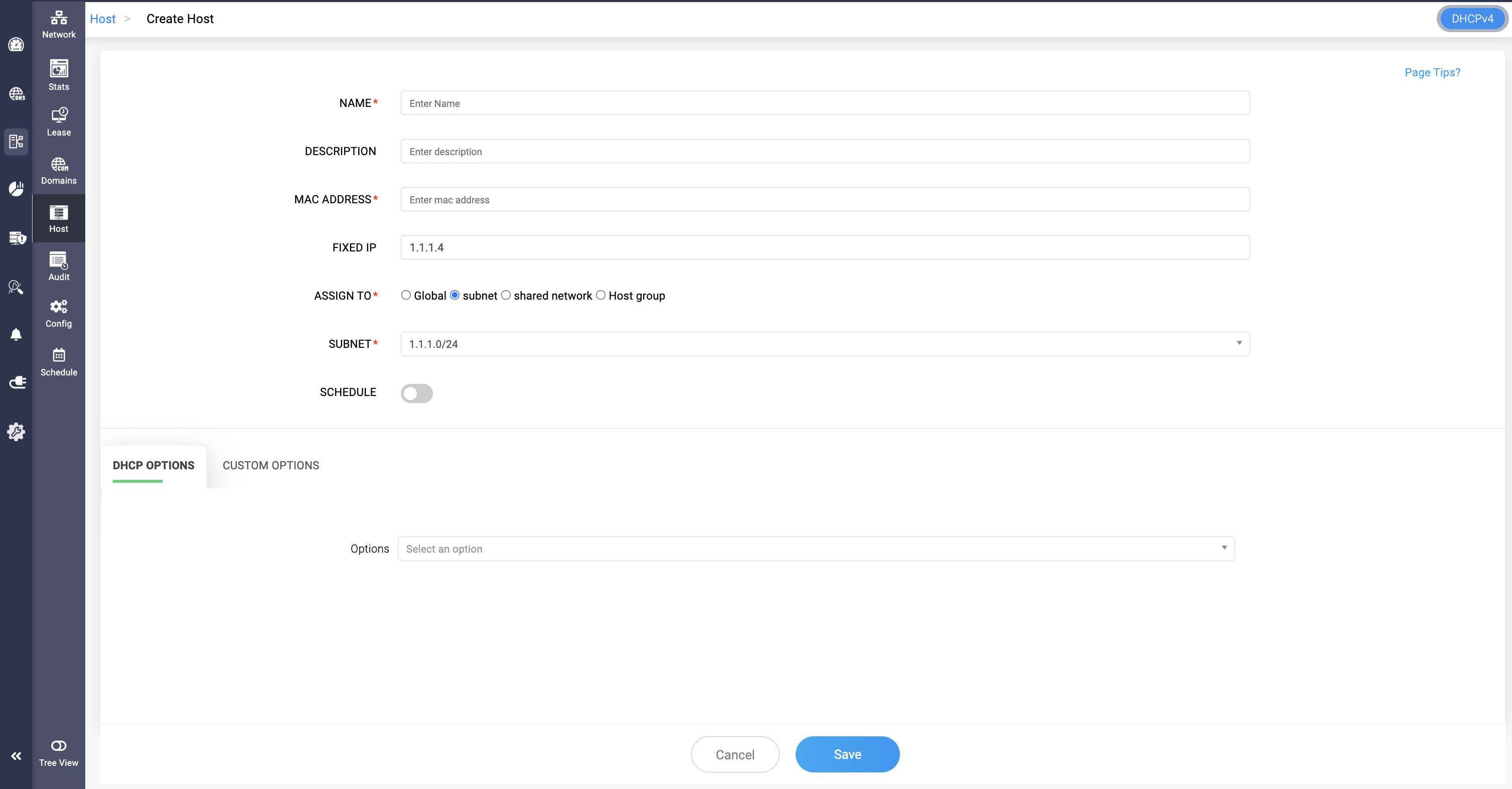
Users can click on any IP address, which directs them to Create Host page, which helps the fix that particular IP address to a certain device by provider their MAC address.
DNS Relation
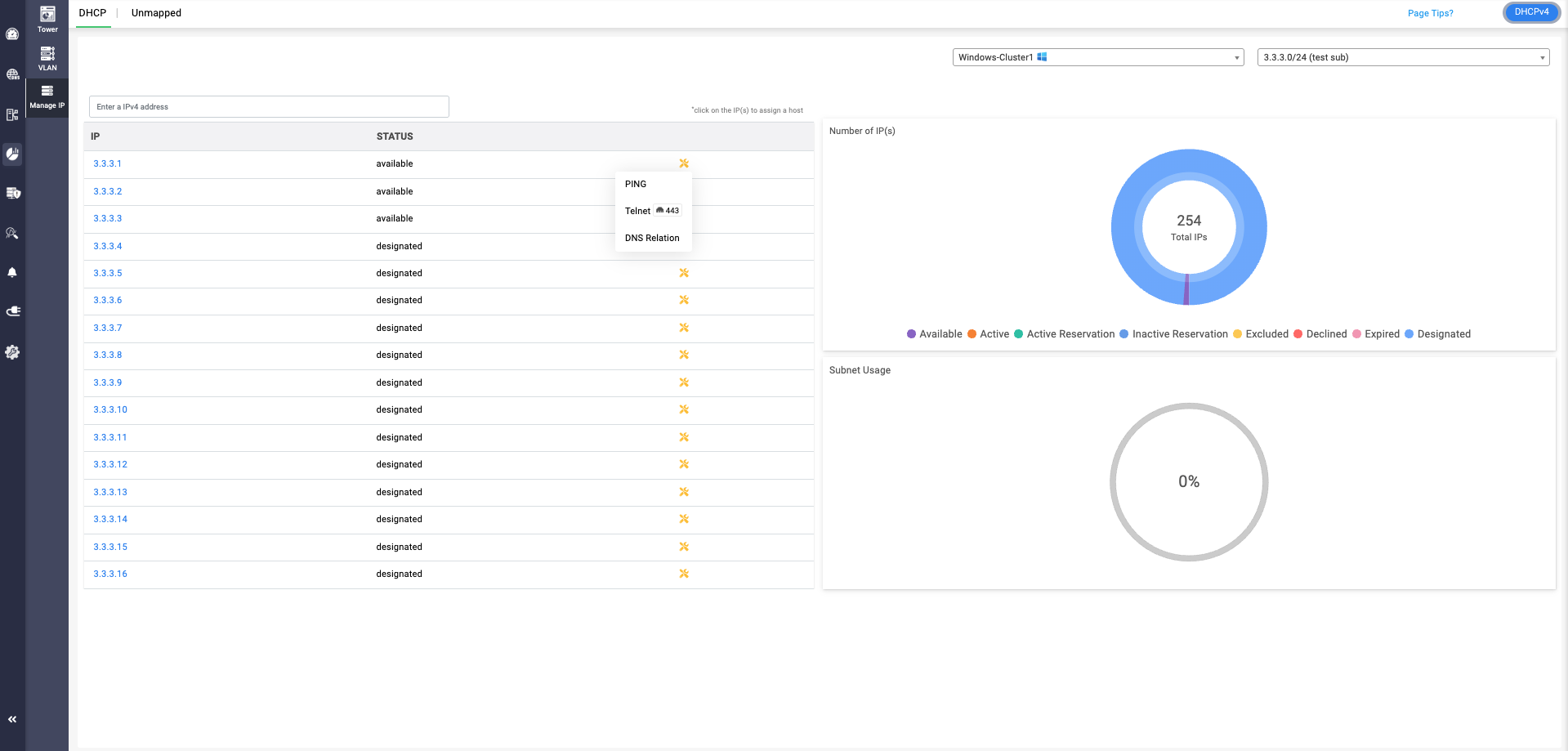
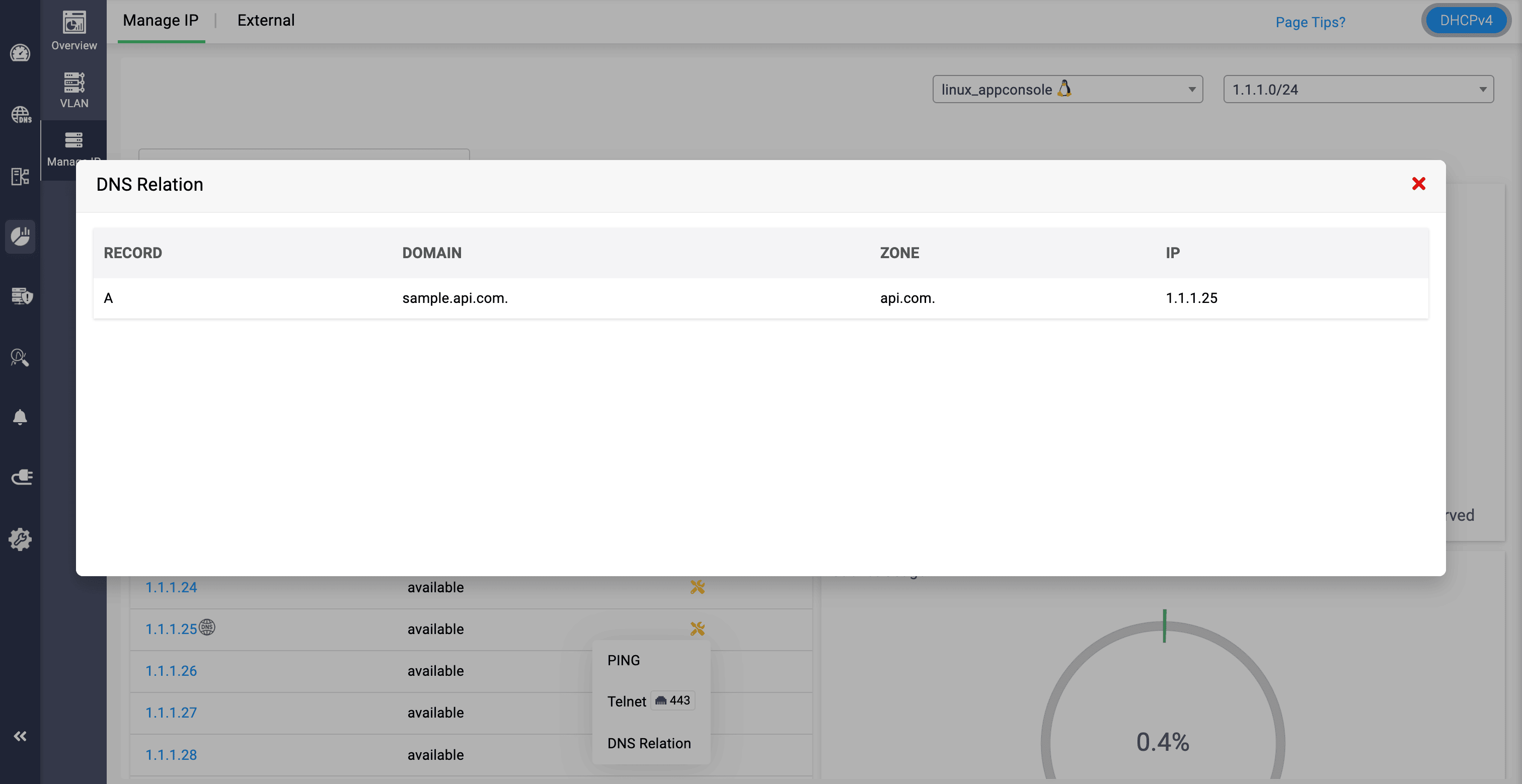
DNS relation option can be viewed along with Telnet and Ping when clicked on the yellow icon. Clicking on the DNS relation will display the the status of the IP/host, the domain associated with, the record it has been mapped, and the zone associated with the IP through the DNS relation table, helping users to have a clear visibility. Its important to note that when a PTR record is associated with the IP/Host, it will be displayed in the table, and wont be shown if there is no PTR record associated.