Navigate IPs your way
Built for: Multi-site networks, multi-tenant setups, and sites with overlapping IP spaces
Switch views instantly: Site-first or IP-space-first or Supernet-first
Zoom with full context: Site → Cluster → IP Space → Pool
See what’s changing: Real-time availability & utilization trends
Three IP lookup paths to help you find an IP faster
Every admin thinks differently. IPAM Tower offers three natural navigation paths — all leading to the same target, each optimized for a different mental model.
Site View
"Where is an IP pool used?"
Organize and navigate your IP inventory by physical or geographical location. Ideal for multi-site operations and geo-based troubleshooting.
Cluster View
"Which environment does an IP pool belong to?"
Browse by logical IP space separation with guardrails. Perfect for managing production, staging, and development environments.
Supernet View
"How is an IP pool designed?"
Drill into hierarchical parent-to-child IP breakdown. Essential for understanding capacity, fragmentation, and subnet relationships.
What is a Site?
A Site represents a physical or geographical location — a data center, campus, branch office, or cloud region. It groups all IP resources tied to that location.
- Geo-based troubleshooting — quickly isolate issues to a physical location
- Audit & compliance — know exactly which IPs are in which jurisdiction
- IP correlation — link subnets to real-world infrastructure and facilities
- Multi-site operations — manage distributed networks from one place
One Site View. Three ways to operate your IP infrastructure.
Every network investigation starts differently. Sometimes you need a global overview. Sometimes you need to trace the exact subnet hierarchy. Sometimes you need to quickly assess site health.
IPAM Tower adapts to how network teams actually work, letting you switch between three operational lenses instantly.
Table View
Get a structured overview of your entire network footprint.
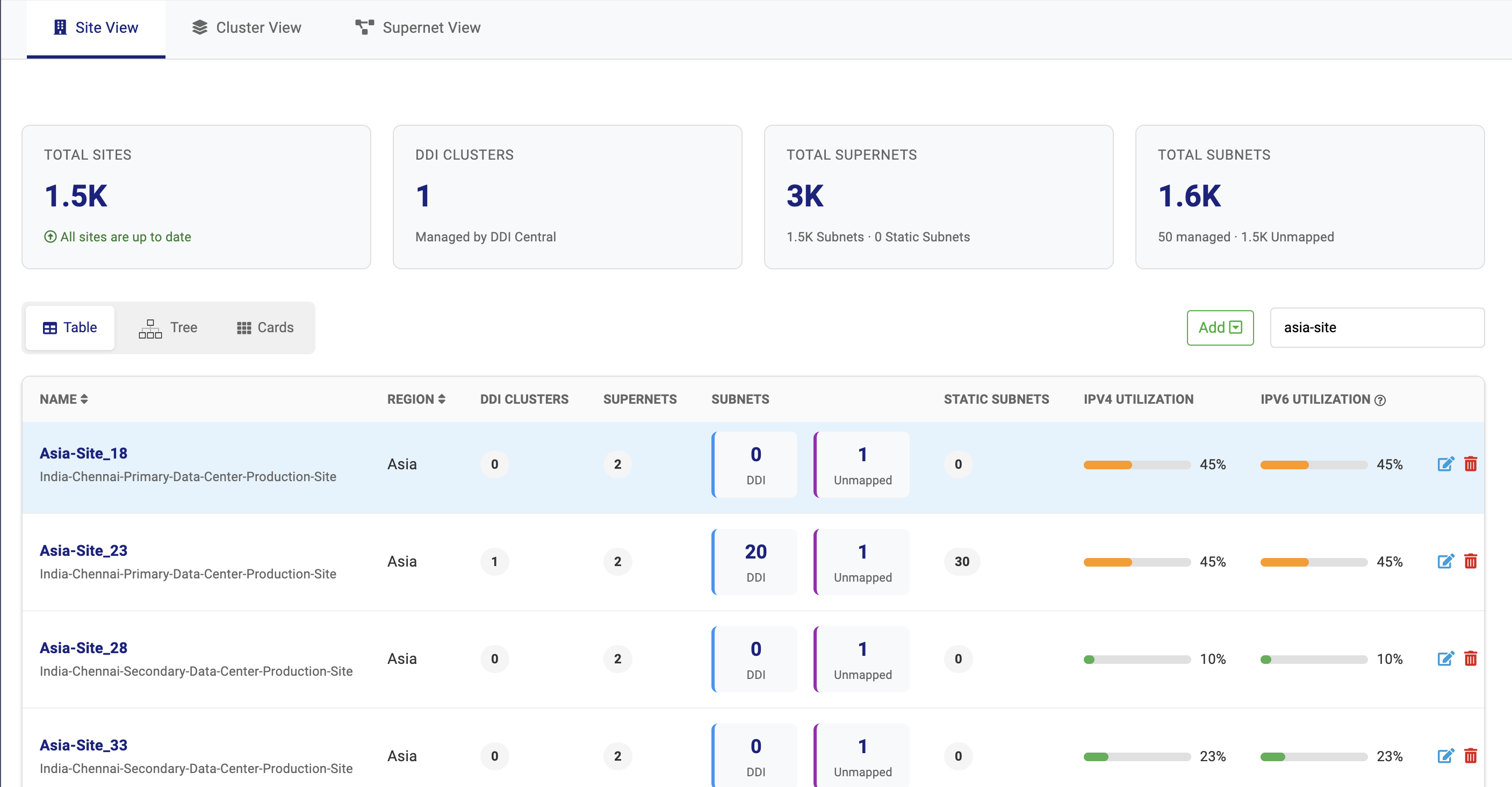
Table View lets teams compare sites side-by-side, surfacing subnet counts, cluster associations, utilization metrics, and unmapped networks in one operational dashboard.
Why it matters
- Spot IPv4 and IPv6 capacity risks instantly
- Identify the volume of delegated and unmanaged or unmapped subnets across distributed sites
- Compare DDI Central managed infrastructure distribution across regions
- Sort and prioritize sites using intelligent column sorting for Name and Region labels
Tree View
Drill down through your network architecture exactly the way it's structured.
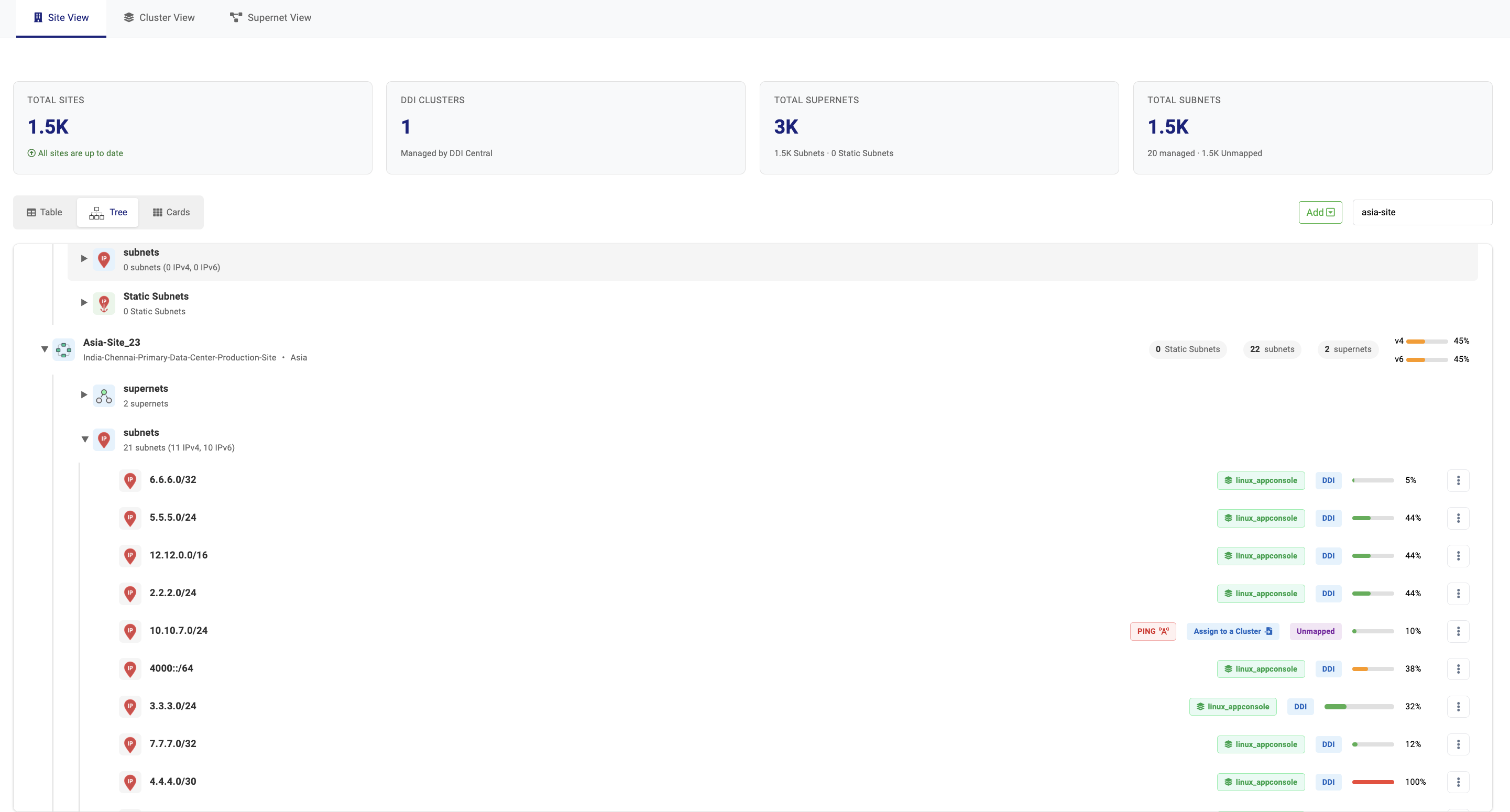
Tree View expands each site into its complete IP hierarchy: Site → Supernet → Subnet → IP operations. Admins can trace leases, DNS mappings, device associations, and query activity while running diagnostics directly from the IP inventory.
Why it matters
- Investigate IP activity with full hierarchical context
- Locate and control overlapping subnet allocations across clusters
- Search by network address to reveal all matching subnets and view their leases or IP inventory
- Activate or deactivate automated ping diagnostics without leaving IPAM to test all the IPs within the subnet
- Instantly distinguish VLAN-mapped subnets through VLAN ID badges and DDI-managed subnets through cluster name badges, so you can quickly identify whether a subnet belongs to production, testing, a data center, or another environment.
- Spot unmapped subnets within private LANs and quickly bring them under DDI Central clusters for secure and policy-based automated control
- Access and monitor the IP inventory of unmapped subnets with a single click, or remove such subnets directly when no longer needed
Cards Mode
Sometimes you just need a quick operational snapshot.
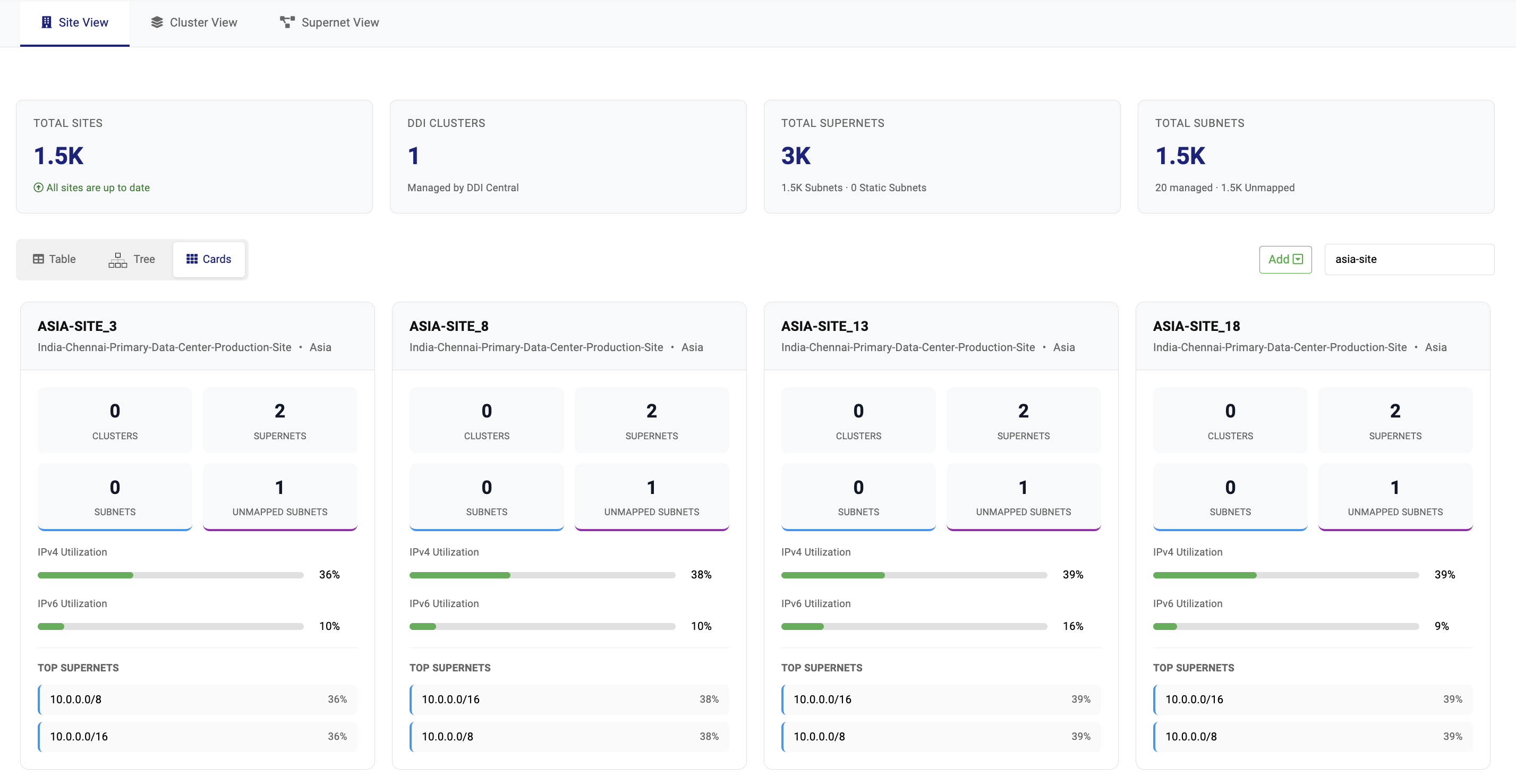
Cards Mode transforms every site into a visual infrastructure tile, summarizing subnet counts, utilization levels, cluster distribution, and top supernets. This makes it easy to scan dozens or hundreds of sites in seconds.
Why it matters
- Instantly understand subnet distribution per site
- Identify capacity risks at a glance
- Surface unmanaged address spaces
- Quickly jump into deeper analysis when needed
The result: With Site View in IPAM Tower, network teams can move seamlessly between global overview → hierarchical investigation → instant health checks — all without leaving the same operational interface.
What is a Cluster?
A Cluster is a logical grouping of IP spaces — think of it as an environment boundary. Production, staging, development, or any custom segmentation you define.
- Multiple clusters per site — A Site can have multiple Clusters at the same location
- Standalone clusters — A Cluster can exist without a Site
- Subnet-to-site linking — Subnets inside a Cluster can still be linked to a specific Site
- Guardrails — Prevent accidental cross-environment IP allocation
Cluster View: Navigate IP Space by Environment
Start from the IP space — not the location. When your network isn't just "sites and branches" but multiple parallel environments — Prod, Dev, Guest, Lab, Cloud, OT — site-first navigation breaks down fast.
A Cluster represents a logical separation of your IP space, typically mapped to its own dedicated DNS/DHCP servers — so environments can run independently, with guardrails that prevent one environment from impacting another.
With IPAM Tower, Cluster View becomes the fastest path to locate, validate, and operate on the right IP scope — especially in multi-environment, multi-tenant, or overlapping IP setups.
Table View
When the goal is broad visibility, Table View gives you a structured operational dashboard of every cluster.
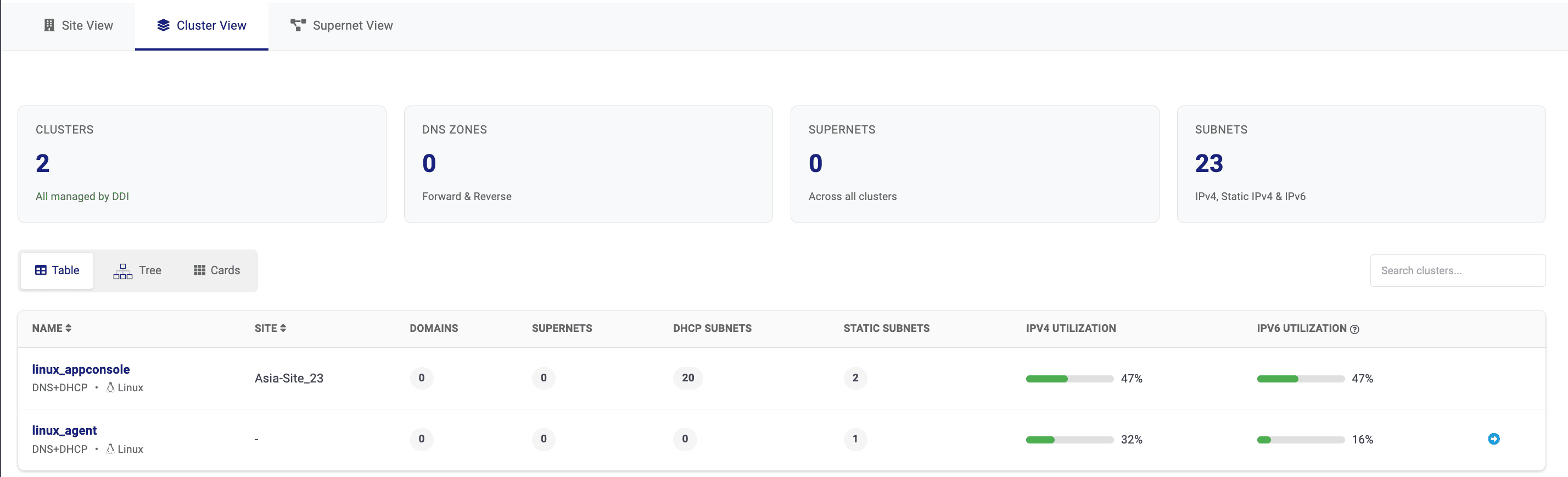
Quickly compare DNS zones, supernets, DHCP subnets, static subnet counts, and IPv4/IPv6 utilization across environments. Sort clusters by name or site, and instantly identify environments that aren't yet mapped to a location.
Why it matters
- Quickly find the right cluster by searching by cluster name or sorting intelligently by cluster name or site name
- Compare cluster health side by side
- Sort and locate clusters faster
- Detect and quickly link unmapped clusters that need site association to the relevant site(s)
- Monitor the number of Domains, DHCP governed subnets, delegated subnets, unmapped subnets, and their utilization signals from one view
Tree View
When the issue is inside a specific environment, Tree View gives you the full hierarchical path.
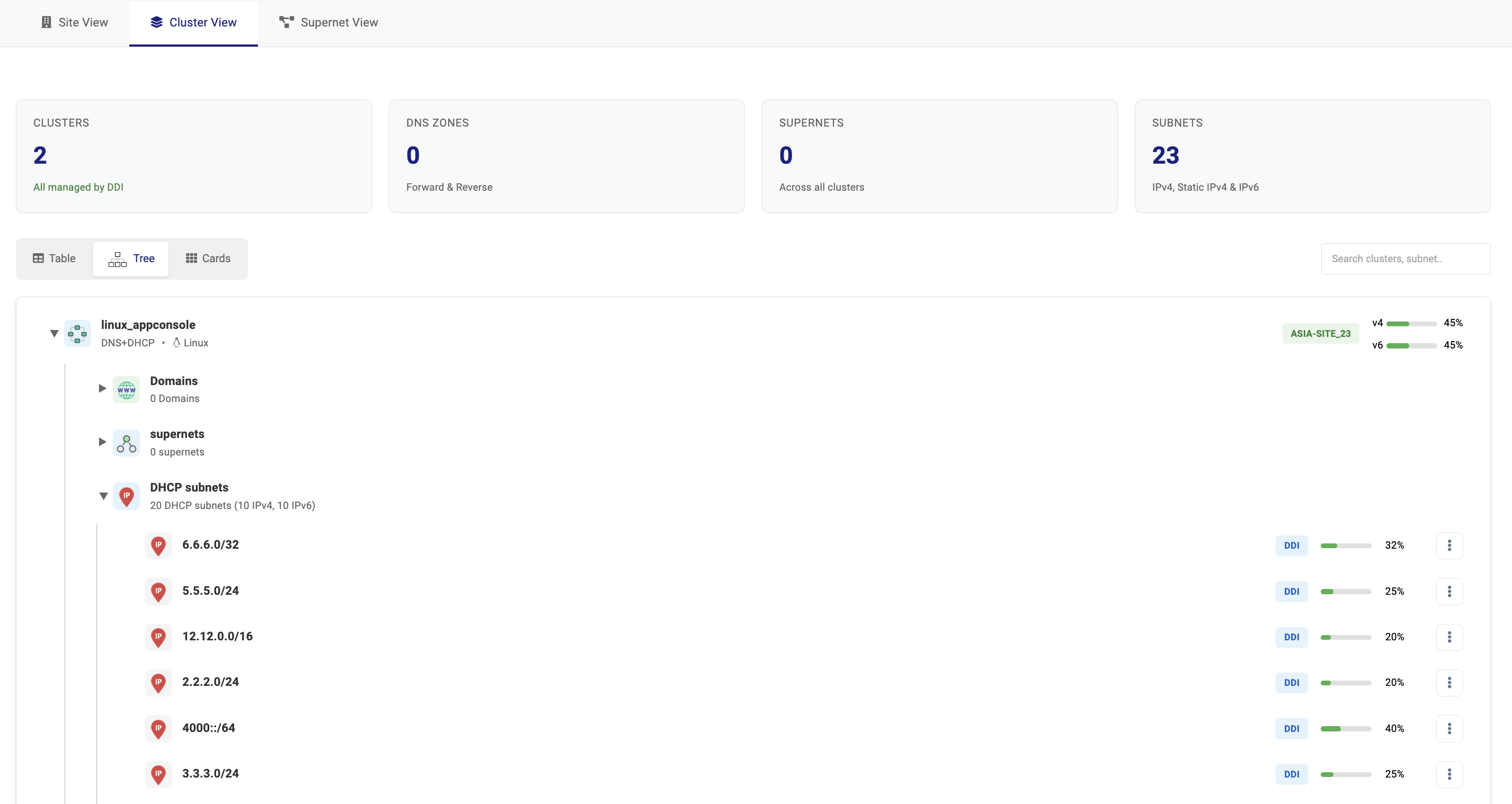
Drill down from Cluster → Domains → Supernets → DHCP Subnets → IP operations and investigate how address space is carved, where services live, and how scopes are behaving. Search for subnets by full or partial network address across clusters to quickly reveal related or overlapping ranges.
Why it matters
- Navigate the full architecture of a cluster and also identify the sites it is associated with using its site badge
- Investigate the cluster's DHCP scopes and subnet structure with context
- Quickly earch similar subnets across clusters instantly by their network address or by the cluster name
- Jump directly into IPs and lease-level workflows
Cards Mode
When you need quick situational awareness, Cards Mode turns every cluster into an operational snapshot.
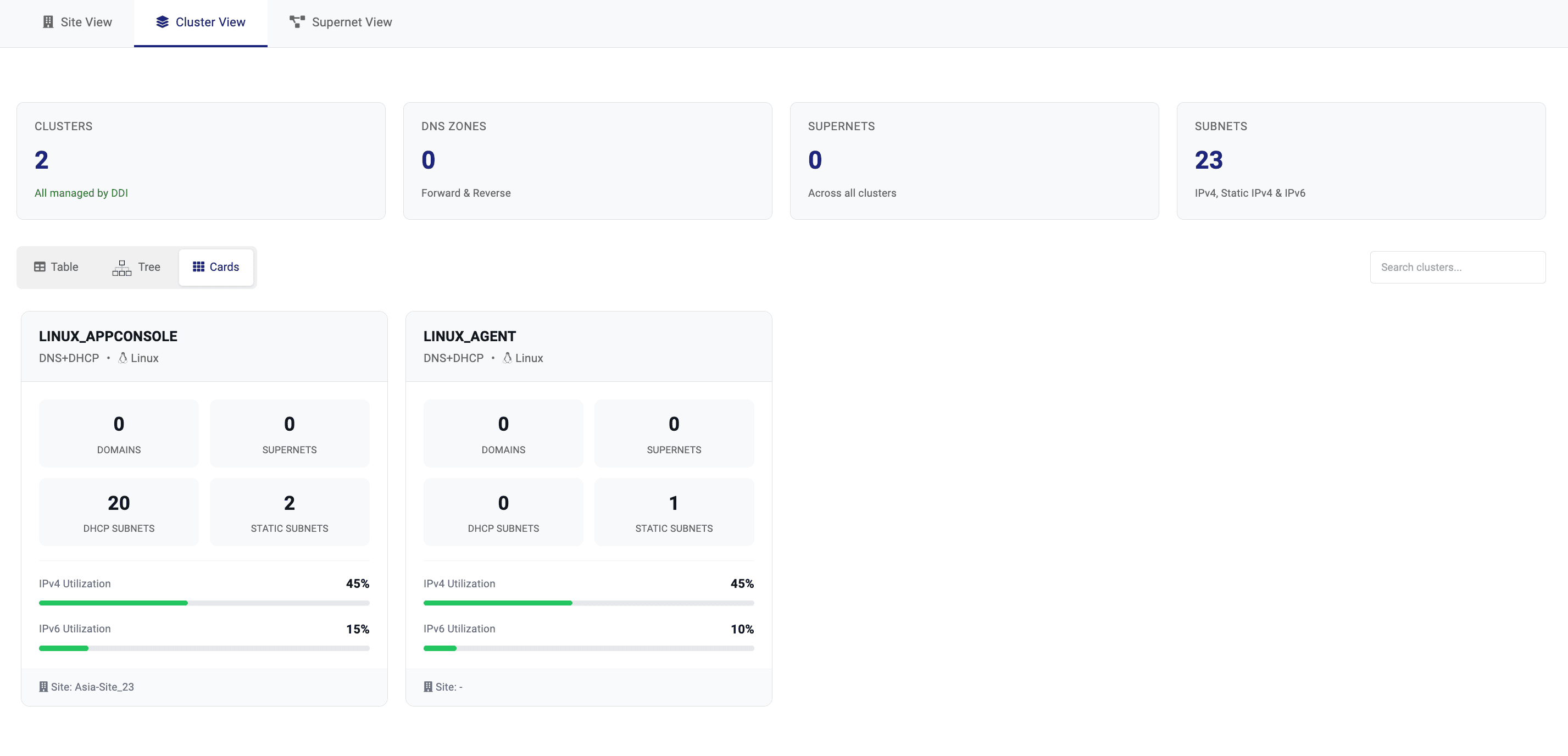
Each card highlights the essential signals of an environment — domains, supernets, DHCP subnets, static subnets, utilization levels, and site association — so teams can scan multiple clusters in seconds and immediately spot the ones that need attention.
Why it matters
- Get a fast health snapshot of every cluster
- Spot high-utilization environments quickly
- Understand service distribution without drilling down
- Prioritize the clusters that require deeper analysis
The result: With Cluster View in IPAM Tower, teams can move seamlessly between comparison → investigation → health monitoring — all within a single interface built for how network environments are actually managed.
What is a Supernet?
A supernet is a larger parent IP block that contains multiple smaller subnets within it. It gives structure to your address space—showing how networks are grouped, carved, and scaled.
For example, a block like 10.20.0.0/16 can contain many smaller subnets such as 10.20.1.0/24, 10.20.2.0/24, and so on. So instead of looking at IP space as isolated subnet fragments, a supernet helps you see the bigger address structure they belong to.
In real networks, admins often plan and reason at this level first:
- Which larger block owns this subnet?
- How is this address space carved up?
- Is there room to grow inside this parent range?
- Where exactly does this subnet sit in the hierarchy?
That is why supernets matter. They show not just what exists, but how your IP space is organized.
Supernet View in IPAM Tower turns CIDR hierarchy into a navigation path.
Instead of forcing admins to hunt subnet by subnet, it lets them start from a larger and familiar parent block and drill down naturally into the exact subnet, pool, or IP they need—without losing architectural context.
- Navigate by CIDR hierarchy, not just flat subnet lists
- See how parent blocks are carved into child subnets
- Reach the right subnet, pool, or IP faster
- Validate structure, placement, and available growth space
- Troubleshoot from address architecture down to the exact target
Turn address space into a governable asset
Sometimes they need to compare address allocations across the environment. Other times they need to trace the hierarchy of a CIDR block. And sometimes they simply need to spot capacity risks quickly.
Supernet View in IPAM Tower supports all three operational mindsets — letting teams switch instantly between different perspectives of their IP address architecture.
Three ways to understand your IP address hierarchy
Table Mode
Scan supernets across sites and clusters in a structured table view.
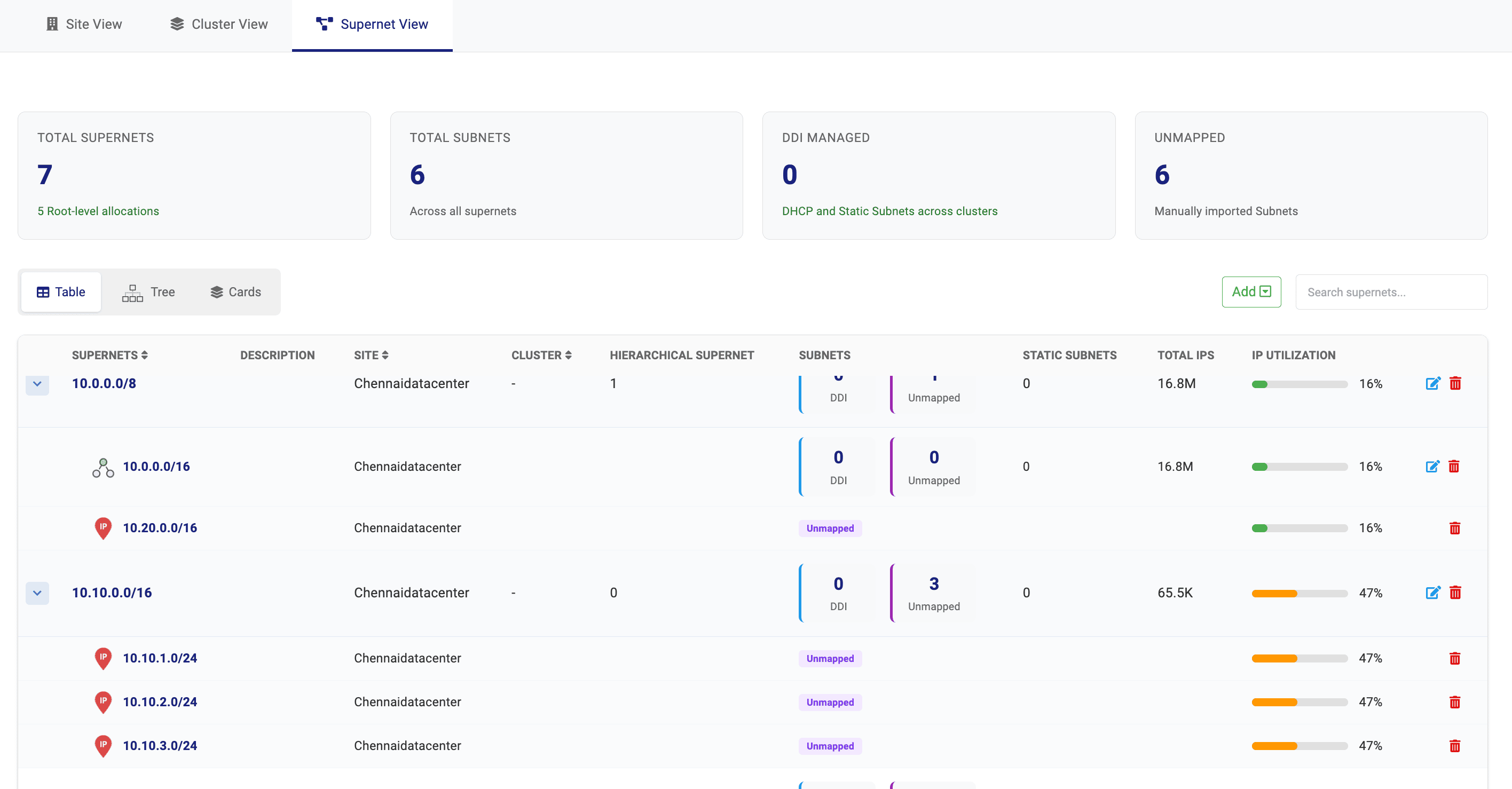
Quickly understand address utilization, subnet distribution, and allocation scale to identify fragmentation or capacity risks.
Best for
- Quickly revealing the hirarchy under each supernet and omparing address allocations across supernets
- Spotting unmapped subnets within each hierarchy, drill into their IP inventory, or remove them when they no longer need to be monitored with automated ping checks
- Sorting supernets by address, cluster name, or site name, or search by supernet address to identify the right scope faster
- Identifying underutilized or overloaded CIDR blocks
- Planning large-scale IP capacity
Tree Mode
Expand from supernet to subnet to see how address space is carved across environments.
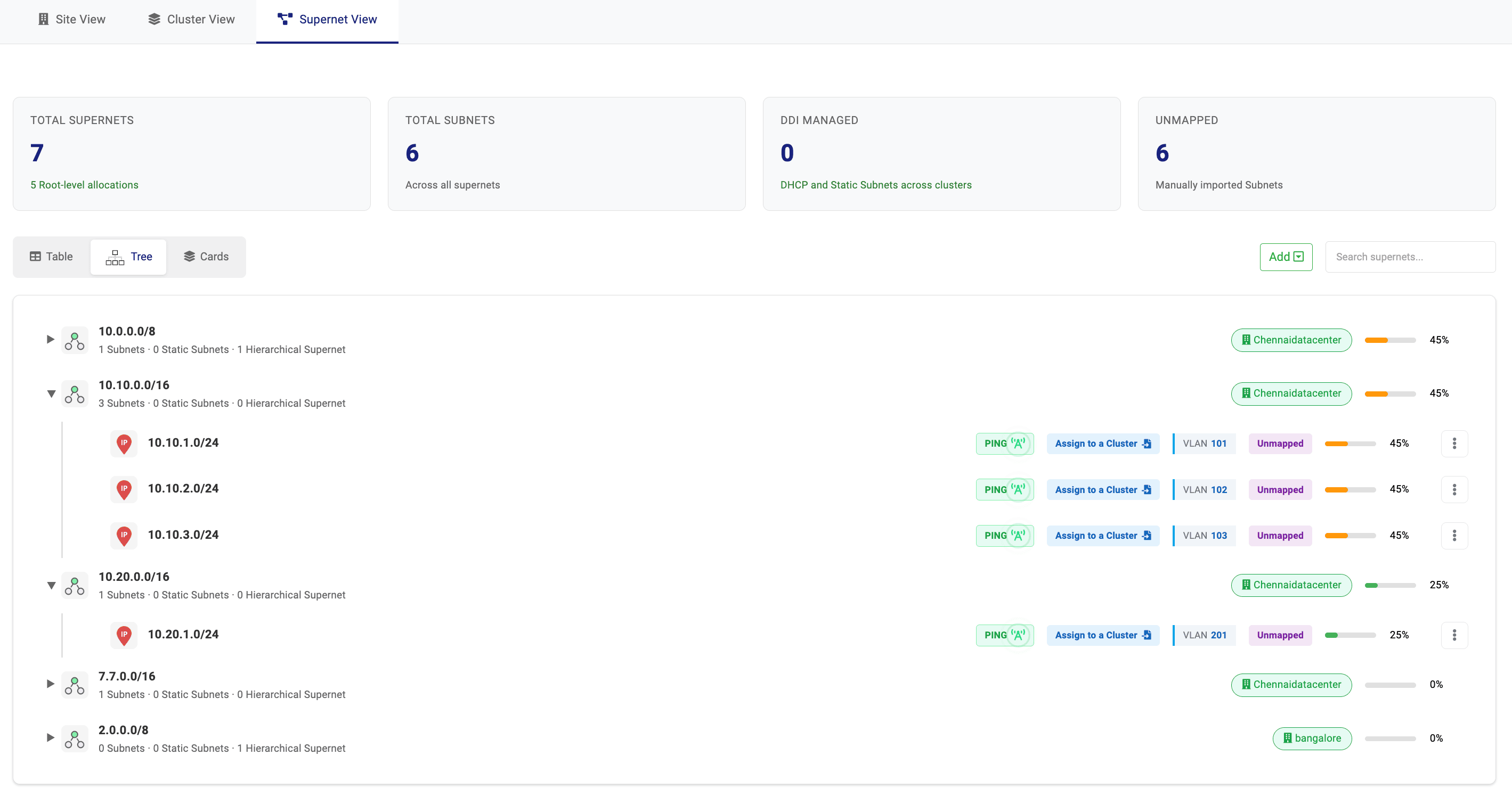
Locate the exact subnet faster, and take action in context — from connectivity validation to cluster mapping, VLAN inspection, and utilization tracking.
Best for
- Troubleshooting within a CIDR hierarchy
- Locating the exact subnet inside a larger block with full site and cluster context
- Validating address architecture across supernets and their subnet breakdowns
- Recognizing site-associated supernets and DDI-managed subnets instantly through site and cluster badges
- Running in-context subnet actions such as viewing leases, IP inventory, and IP metadata
- Bringing unlinked subnets under cluster management, or directly accessing their IP inventory or deleting them when no longer required
Cards Mode
Each supernet becomes an operational dashboard showing utilization, subnet distribution, and high-usage segments.
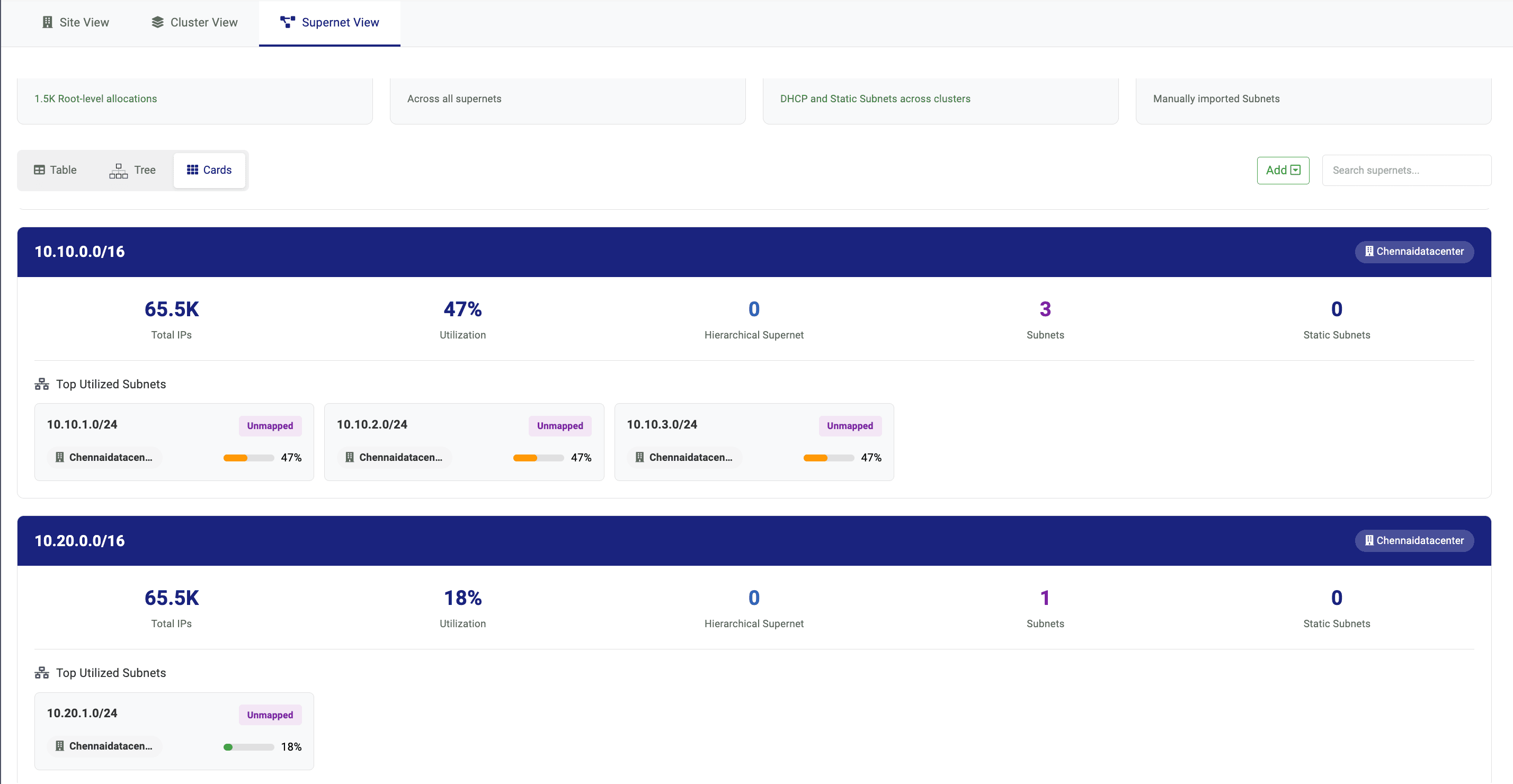
Instantly identify address blocks nearing capacity or requiring reallocation.
Best for
- Spotting capacity risks quickly
- Monitoring address utilization trends
- Identifying high-demand IP segments
The result: Your IP address space becomes easier to read, troubleshoot, and operate—from root-level CIDR blocks down to the exact subnet that needs attention.
Supernet View turns IP architecture into something teams can actually operate.
It brings together:
- Architecture clarity — understand how IP space is structured
- Operational speed — get to the right scope faster
- Risk reduction — avoid wrong-scope troubleshooting and changes
- Capacity intelligence — spot fragmentation and tight space early
Same inventory. Three ways to visualize.
Every view supports Table, Tree, and Cards modes — pick the visualization that matches your workflow.
Table Mode
Fastest way to scan and filter large inventories.
Best for: audits, comparisons, sorting, fast list operations
Why it helps
- Scan at scale: compare many sites/subnets quickly in one grid.
- Filter/sort instantly: jump to high utilization, unmapped, or problem areas.
- Operational workflow: faster bulk review and consistent reporting.
Tree Mode
Expose hierarchy—and fix mapping gaps fast.
Best for: parent-child drilldowns without losing context.
Why it helps
- Act without leaving the hierarchy: run connectivity checks, map unmapped subnets to DDI clusters, inspect VLANs, and track IP utilizations.
- Context preserved: see hierarchy while drilling down (site → supernet → subnet).
- Fewer clicks to target: expand only what matters and reach the scope faster.
- Makes structure obvious: perfect for nested blocks and mixed IPv4/IPv6.
Cards Mode
At-a-glance health—ideal for triage.
Best for: quick status checks and "what needs attention?"
Why it helps
- Instant KPIs: utilization, exhaustion risk, unmanaged/unmapped highlights.
- Triage-friendly: surface hotspots without reading rows.
- Executive/admin friendly: quick snapshot before drilling deeper.
Why IPAM Tower is different from traditional IPAM
With DDI Central IPAM Tower, every admin gains operational superpowers.
Import your IP estate faster
Bring distributed IP space into Tower using CSV or XLSX files, with support for structured onboarding across multiple sites.
Keep DDI clusters in sync
Push synchronization across all DDI Central-managed clusters to keep IP data and configuration aligned.
Export everything in one click
Download the full IPAM Tower dataset as a single CSV file for easy sharing, delivery, or offline analysis.
Reach the right pool faster
Three navigation paths converge to pinpoint the exact subnet or pool you need.
Validate and act quickly
See utilization, status, and availability in context — no tab switching.
Cut manual correlation work
Sites, clusters, and supernets linked automatically in one operational map.
Gain an IP evolution map
Track how your IP estate grows and changes over time with historical context.
Move from symptom → action
Identify an issue, locate the target, and resolve — all within IPAM Tower.
Visibility into unmapped IPs
Surface IPs that exist in your network but aren't tracked in any system.
What makes IPAM Tower different
Built for quick navigation, not just consolidation
IPAM Tower isn't a static dashboard — it's a guided operational tool designed for speed.
Three natural paths to the same target
Site, Cluster, or Supernet — whichever path matches your mental model gets you there.
Unmapped IPs in the same operational map
External and unmanaged subnets appear alongside DDI Central-managed resources.
Operator-controlled monitoring toggle
Turn monitoring on or off per subnet — you decide what gets tracked and alerted.
One map across mixed subnet types
IPv4, IPv6, DDI-managed, externally-managed — all unified in a single view.
Table / Tree / Cards in every path
Every navigation path supports all three visualization modes. No compromises.
Pinpoint → validate → act without leaving the flow
From symptom identification to resolution — no context switching, no extra tools.
From the IPAM Tower
See every IP in every site and cluster. Reach the right pool faster.
Stay on the Tower
Gain full context, control, and answers you need to troubleshoot quickly, without hopping across tools.
Ready to climb the IPAM Tower?
The vantage point that helps you see your IP operations clearly as you scale.