Adding Azure Blob Storage and Azure Files as a repository
Prerequisites
- To ensure immutability in backups, you need to create a new repository and enable the immutability feature during the repository creation process. Immutability cannot be applied to an existing repository.
- You will also need the Account Key of your Microsoft Entra account. To learn how to find the Account Key, click here.
Adding Azure Blob Storage as a repository
- Navigate to the Admin tab > Administration > Backup Repository > Cloud.
- Click the Add Repository button in the top-right corner.
- Select Azure Blob Storage from the Repository Type drop-down menu.
- Enter a name in the Repository Name field.
- Enter the Account Name and Account Key of the Microsoft Entra account.
- Enter the Root Container Name.
- Select the Azure Storage Environment based on your storage location.
Note: Metadata of the Microsoft 365, on-premises Exchange, Google Workspace, and Zoho WorkDrive backups will be stored in the default Elasticsearch node.
- Click Save.
Adding Azure Files as a repository
- Navigate to Admin tab > Administration > Backup Repository > Cloud.
- Click the Add Repository button in the top-right corner.
- Select Azure Files from the Repository Type drop-down menu.
- Enter a name in the Repository Name field.
- Enter the Account Name and Account Key of the Microsoft Entra account.
- Enter the File Share Name.
- Select the Azure Storage Environment based on your storage location.
Note: Metadata of the Microsoft 365, on-premises Exchange, Google Workspace, and Zoho WorkDrive backups will be stored in the default Elasticsearch node.
- Click Save.
Once you’ve created the cloud storage repository, you can view the following information:
- Name of the repository.
- Name of the account.
- Type of the repository.
- Status of the connected repository.
You can also perform the following operations:
Refresh repository details
To fetch the status of the connected repository, click the refresh icon  located in the Action column of the repository.
Update existing repository
Click the edit icon  under the Action column of the repository to modify the repository name and click Save.
Delete existing repository
Click the delete icon  under the Action column of the repository that you wish to delete.
- Click the Delete icon under the Actions column of the repository that you wish to delete.
Note: Deleting a configured repository will permanently delete all backup files in the repository, and you’ll not be able to perform any restorations.
Finding your Microsoft Entra account name and account key
To find the account name and account key for your Microsoft Entra account, following the steps given below:
- Open the Microsoft Entra admin center in your web browser and log in with the credentials of a user who can access the storage account.
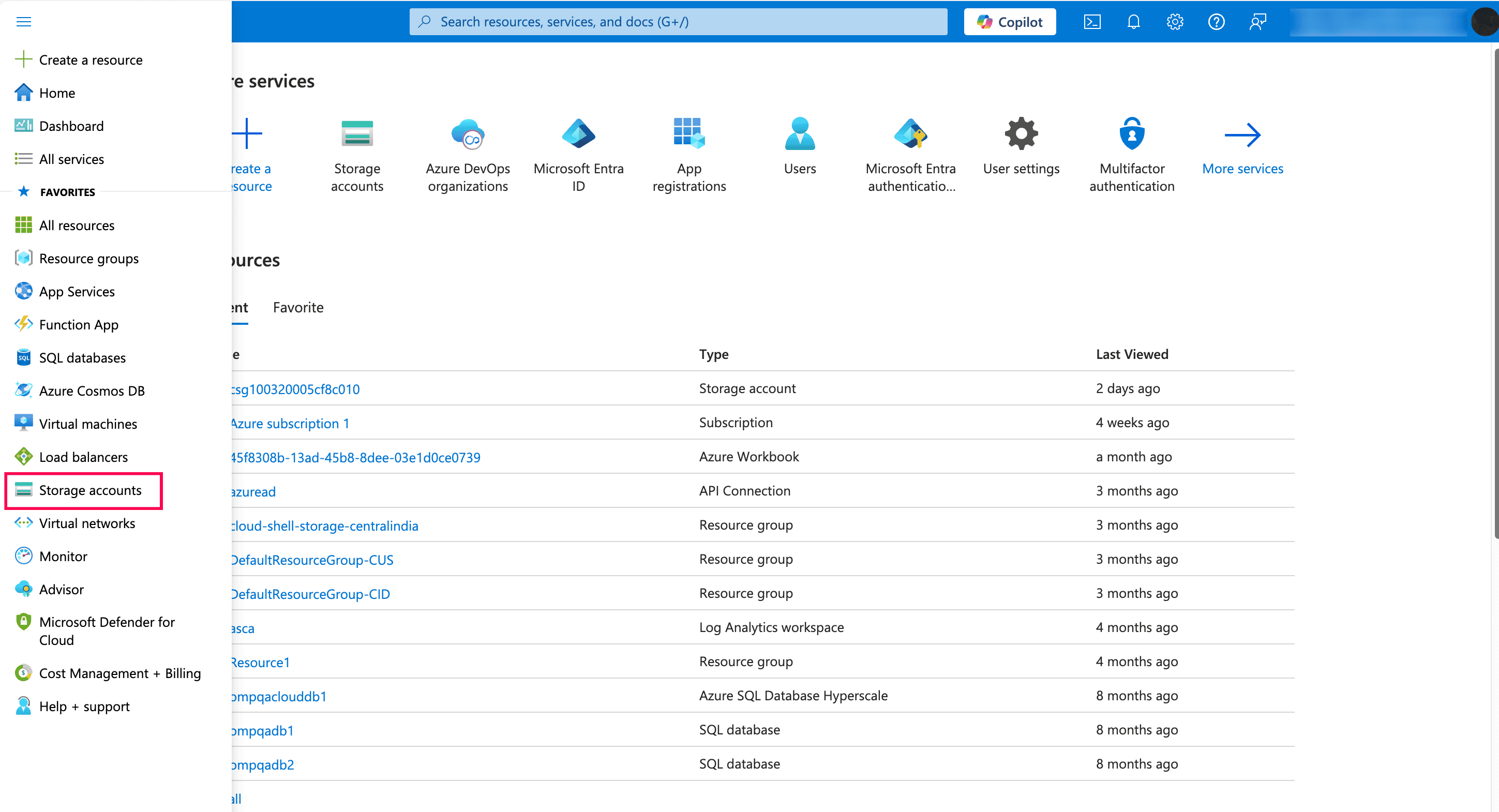
- Select Storage accounts from the Azure services.
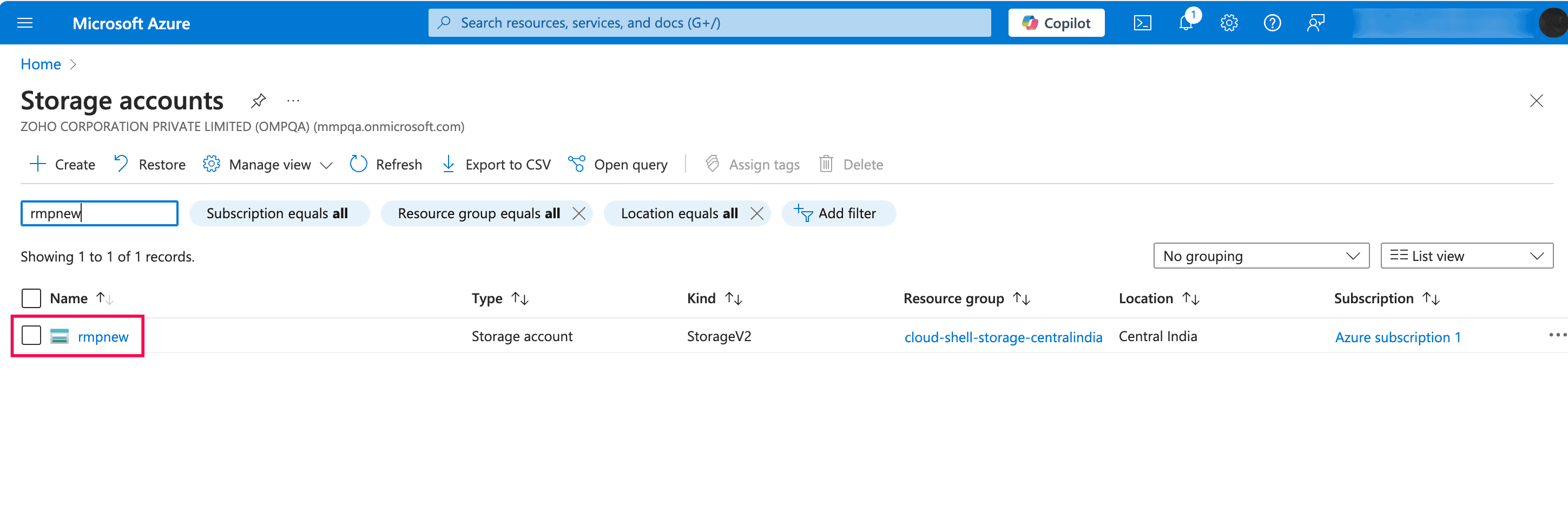
- In the screen that appears, select the storage account for which you would like to find the Account Name and Account Key. The name displayed at the top-left corner is the name of your storage account.
- Click Security + networking from the left pane and select Access keys.
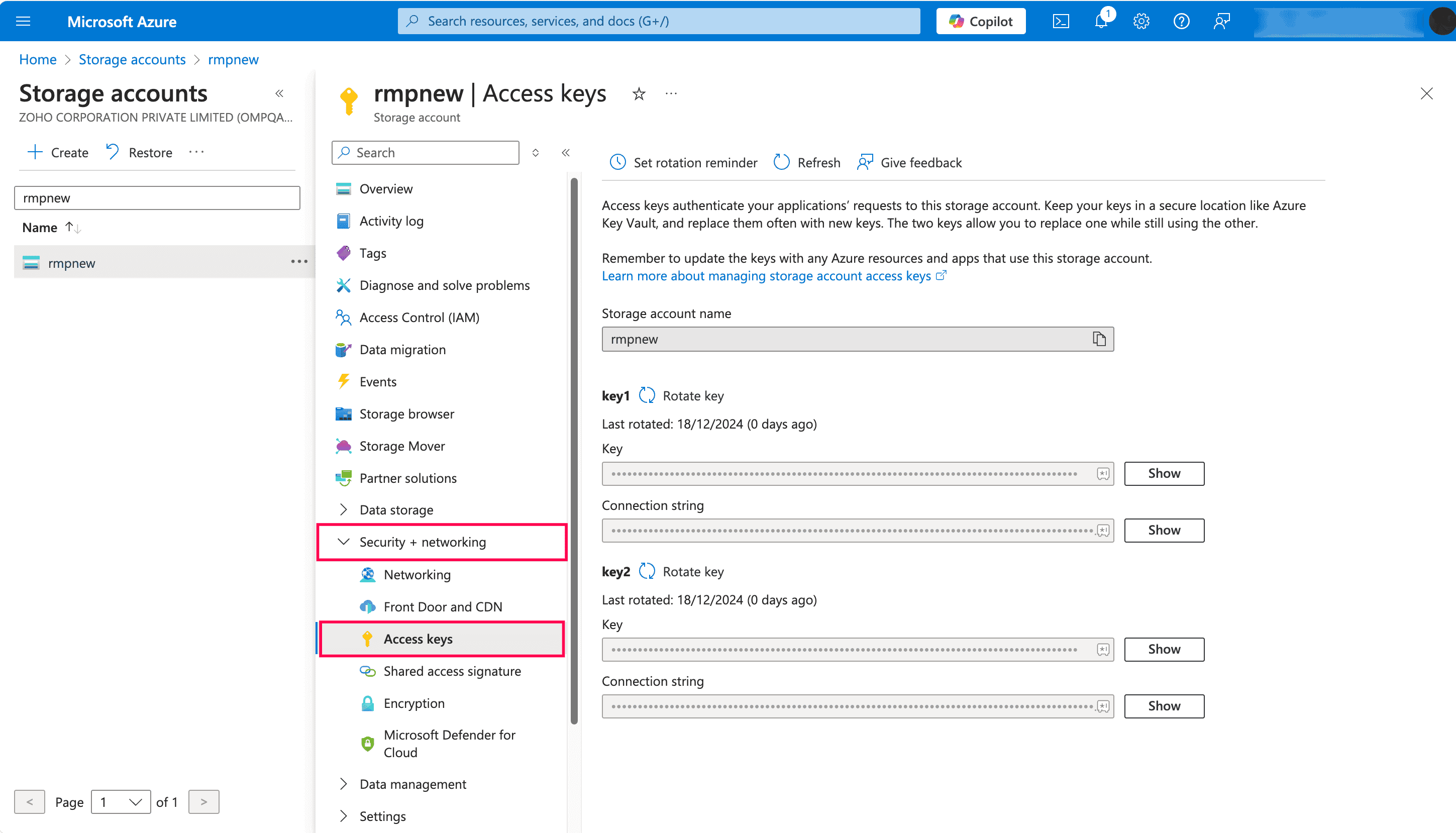
- Copy Key1 or Key2. You can use either of the keys.
- Use the Account Name and Account Key to add your Microsoft Entra account to RecoveryManager Plus.
 ADManager Plus
 ADAudit Plus
 ADSelfService Plus
 M365 Manager Plus
 Previous Topic