Creating your Access Key and Secret Access Key in IDrive e2

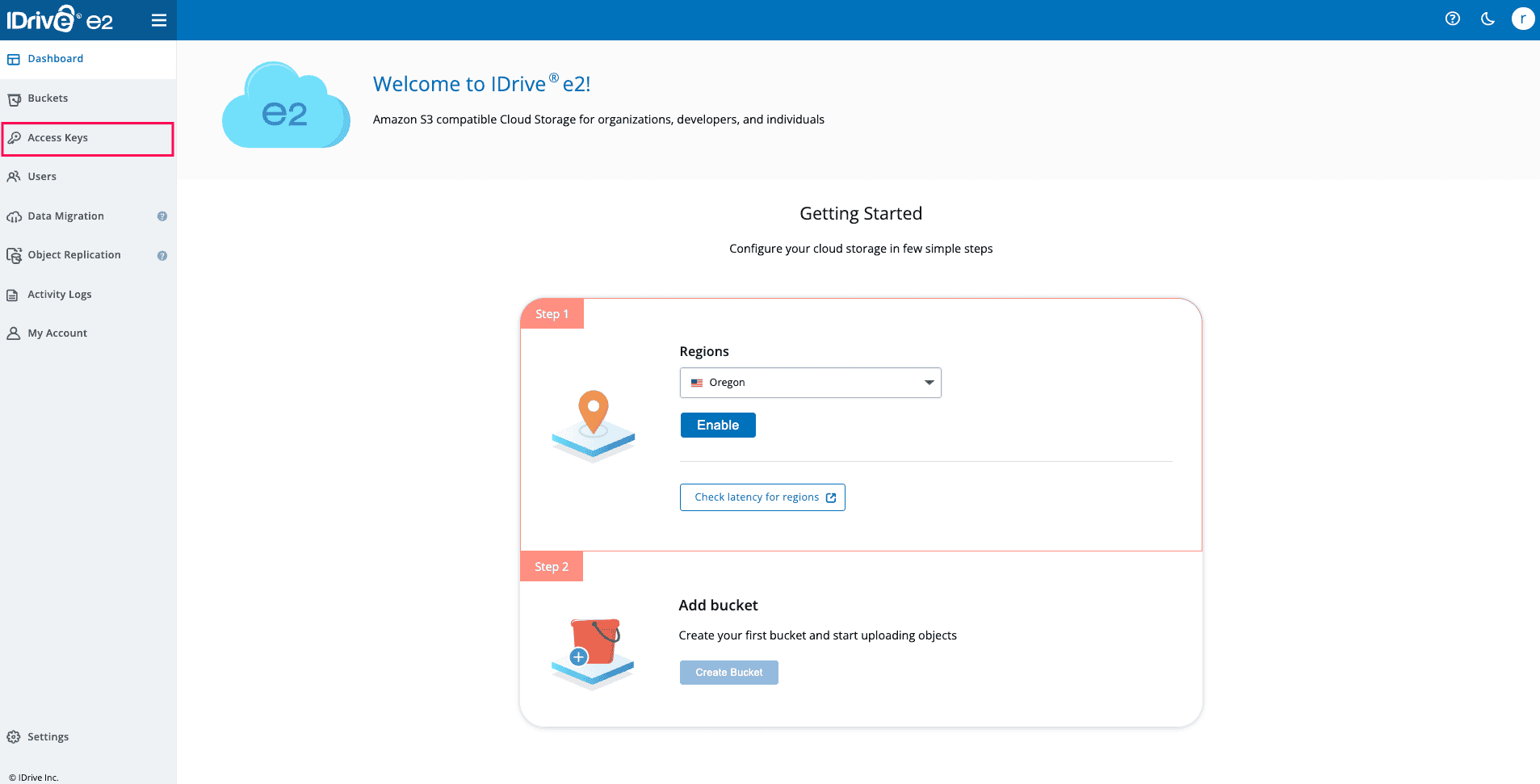
  1. Log in to your IDrive e2 account.
  2. From the left pane, select Access Keys.
  3. Logging in to IDrive e2 to create an access key

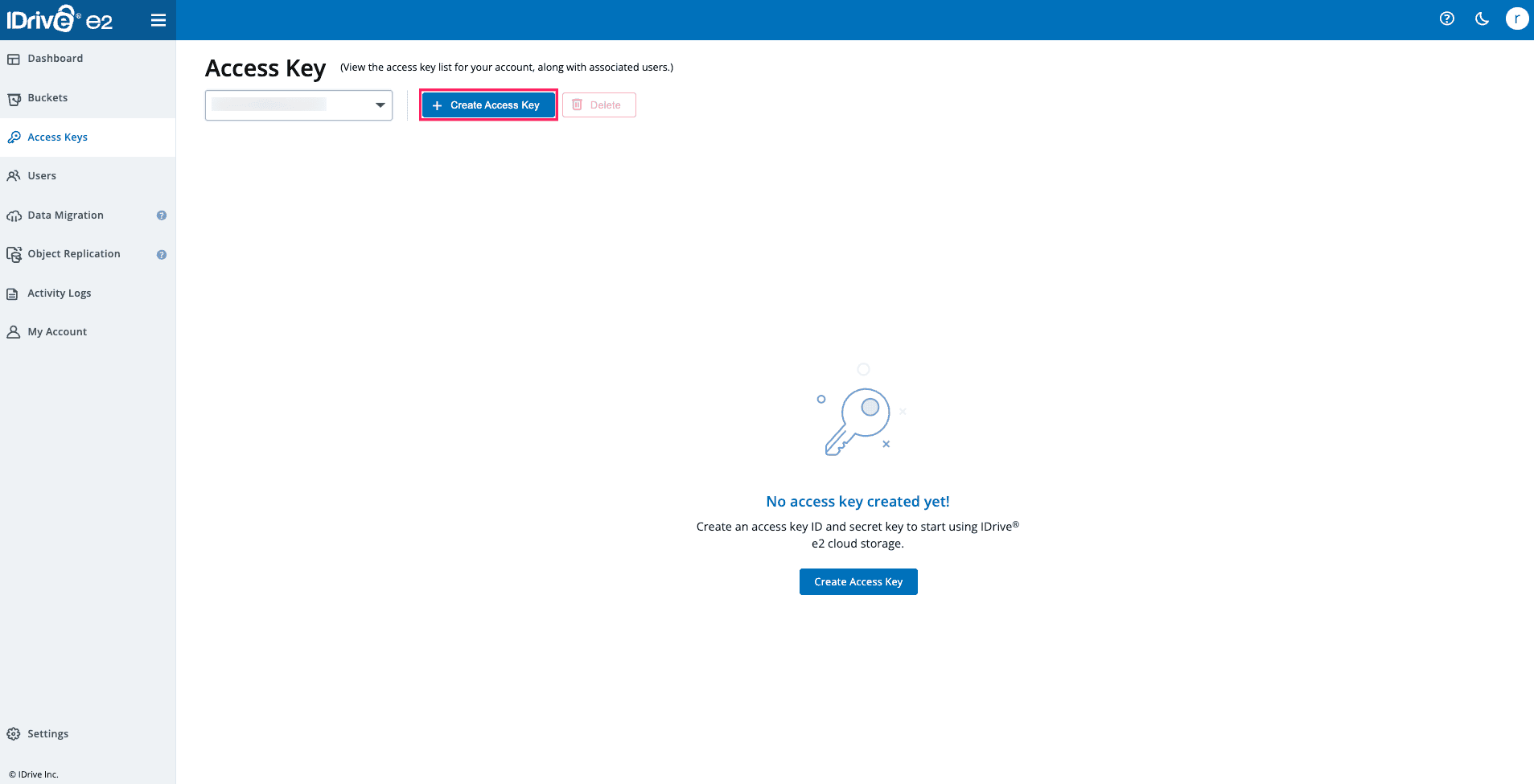
  4. Click Create Access Key.
  5. Creating access keys in IDrive e2

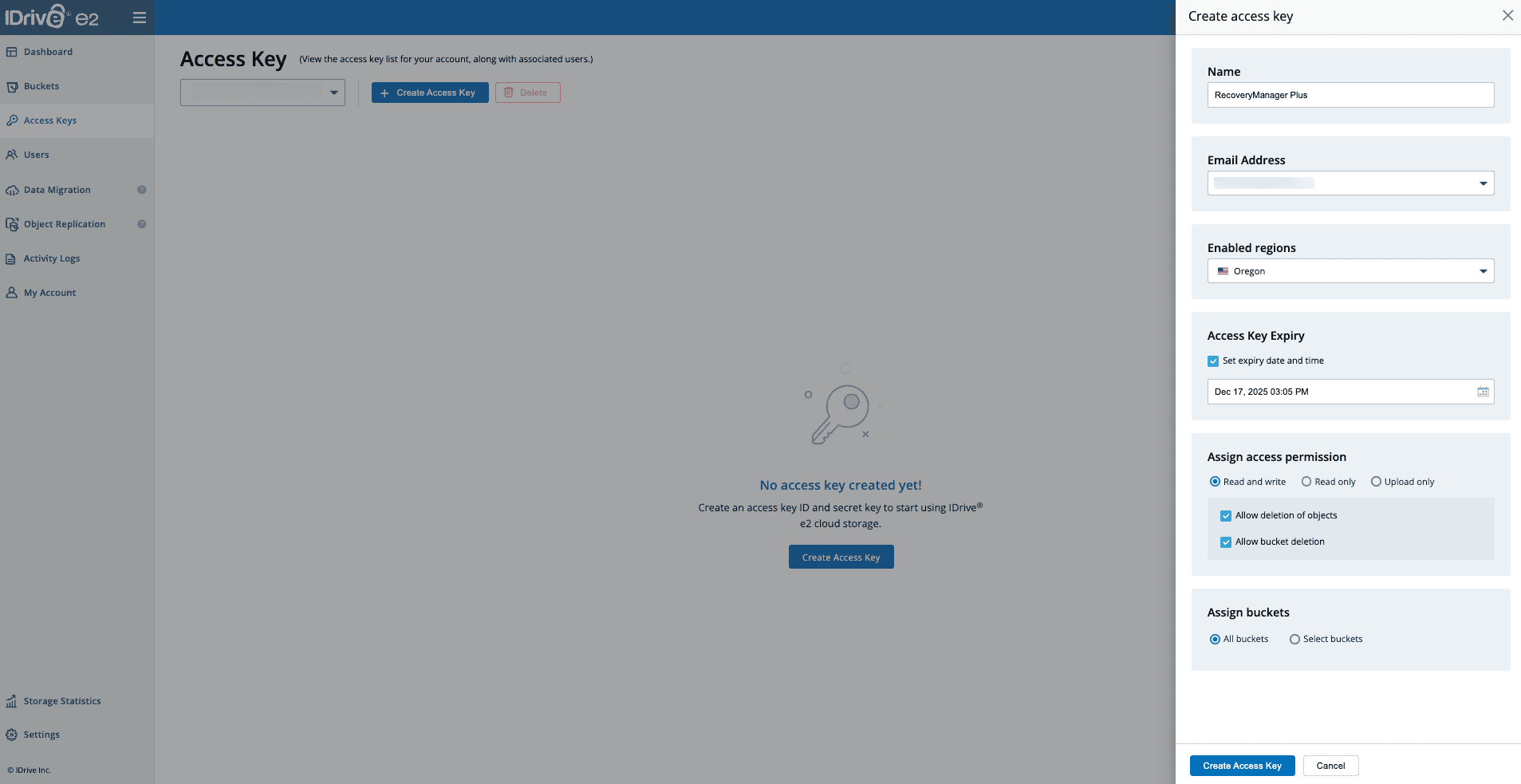
  6. In the pop-up that appears:
    • Enter a name for the access key in the Name field.
    • Select the required region in the Enabled regions drop-down menu.
    • Set the expiration date and time for the access key in the Access Key Expiry field.
    • Select Read and Write in the Assign access permission field.
    • Choose All buckets or click Select buckets to choose specific buckets in the Assign buckets field.
    • Review the details and click Create Access Key.
    • IDrive e2 access key configuration console

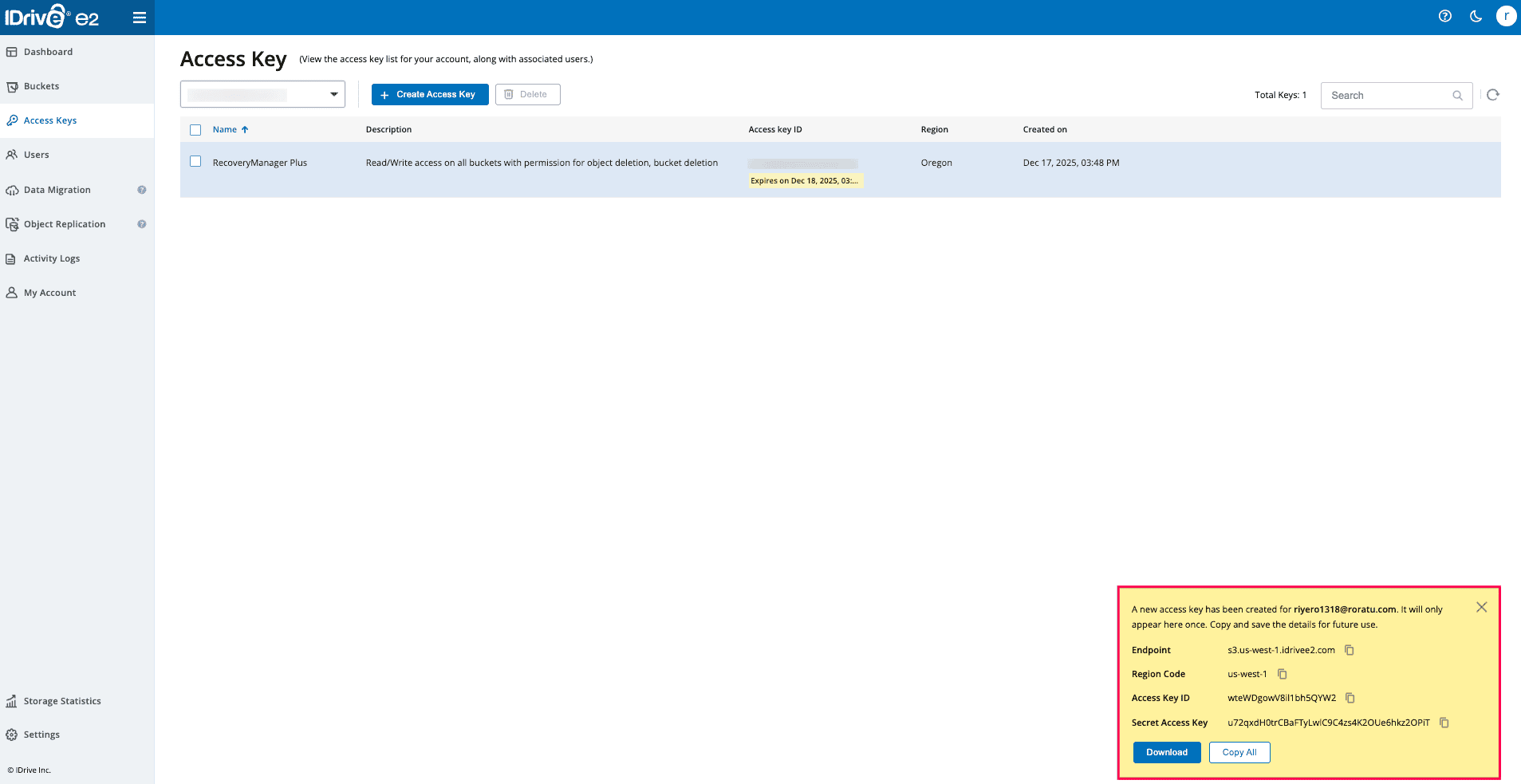
  7. Copy the Endpoint URL, Access Key ID, and Secret Access Key to set up your IDrive e2 storage account in RecoveryManager Plus.
  8. IDrive e2 access key details screen

Copyright © 2023, ZOHO Corp. All Rights Reserved.