Data Pipelines & IT Transformations
Ask Zia in Analytics Plus Cloud is your AI-powered assistant for building and managing IT data pipelines with ease. From ingesting raw logs to sharing final insights, Ask Zia enables you to complete every stage of your IT analytics workflow using simple natural language.
On this page
Build and automate IT data pipelines
With Ask Zia in Pipeline Builder, you can import data from various sources, apply transformations, and export it to different destinations. You can also schedule the pipeline using Ask-Zia.
Access the Data pipeline builder from the side navigation panel.
Choose the tables.
Click the Ask Zia icon on the top right corner of the pipeline builder.
Enter your requirement on how to build the pipeline in the command prompt.
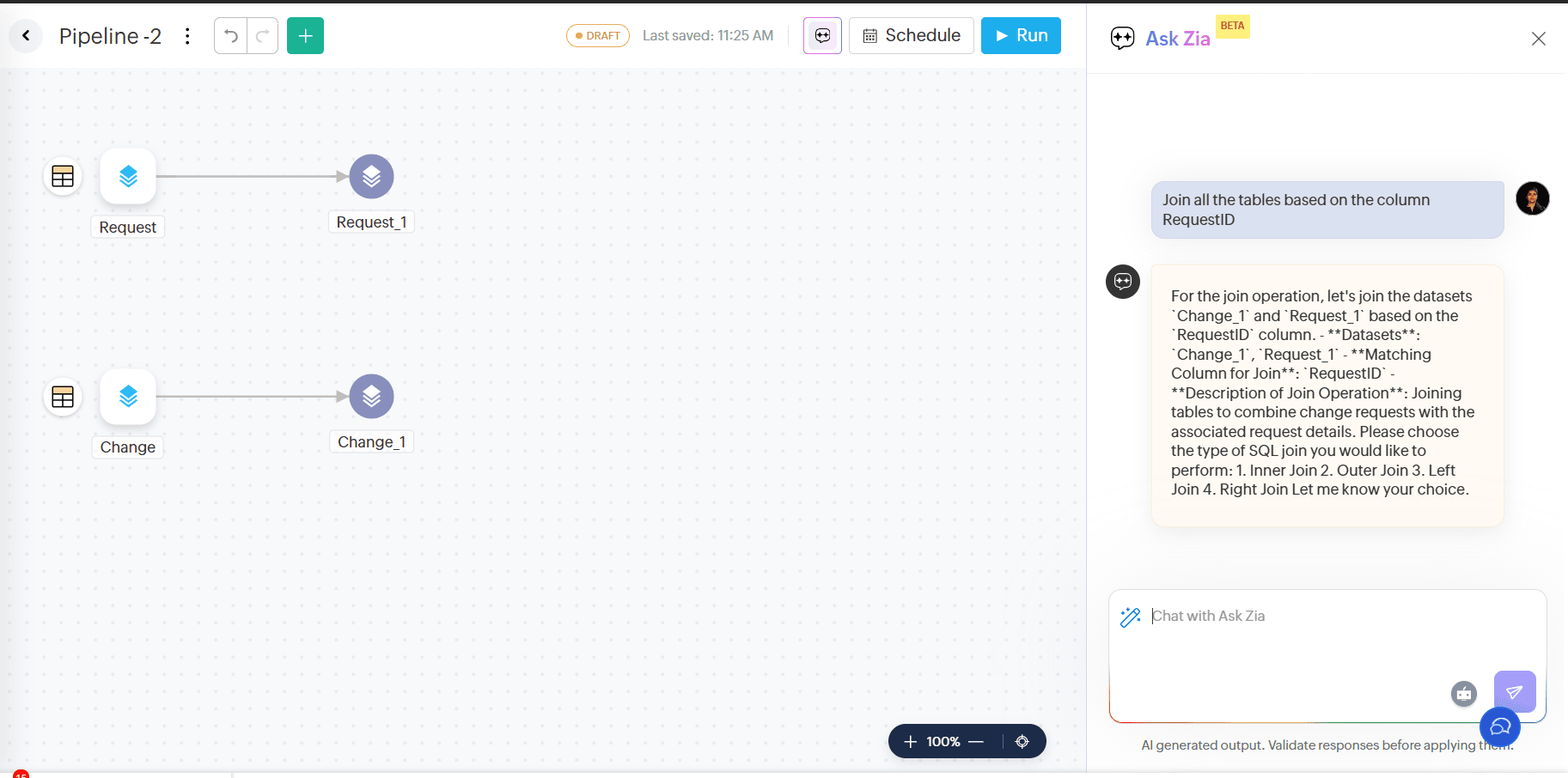
Ask Zia will prompt for any required information needed to execute the query.
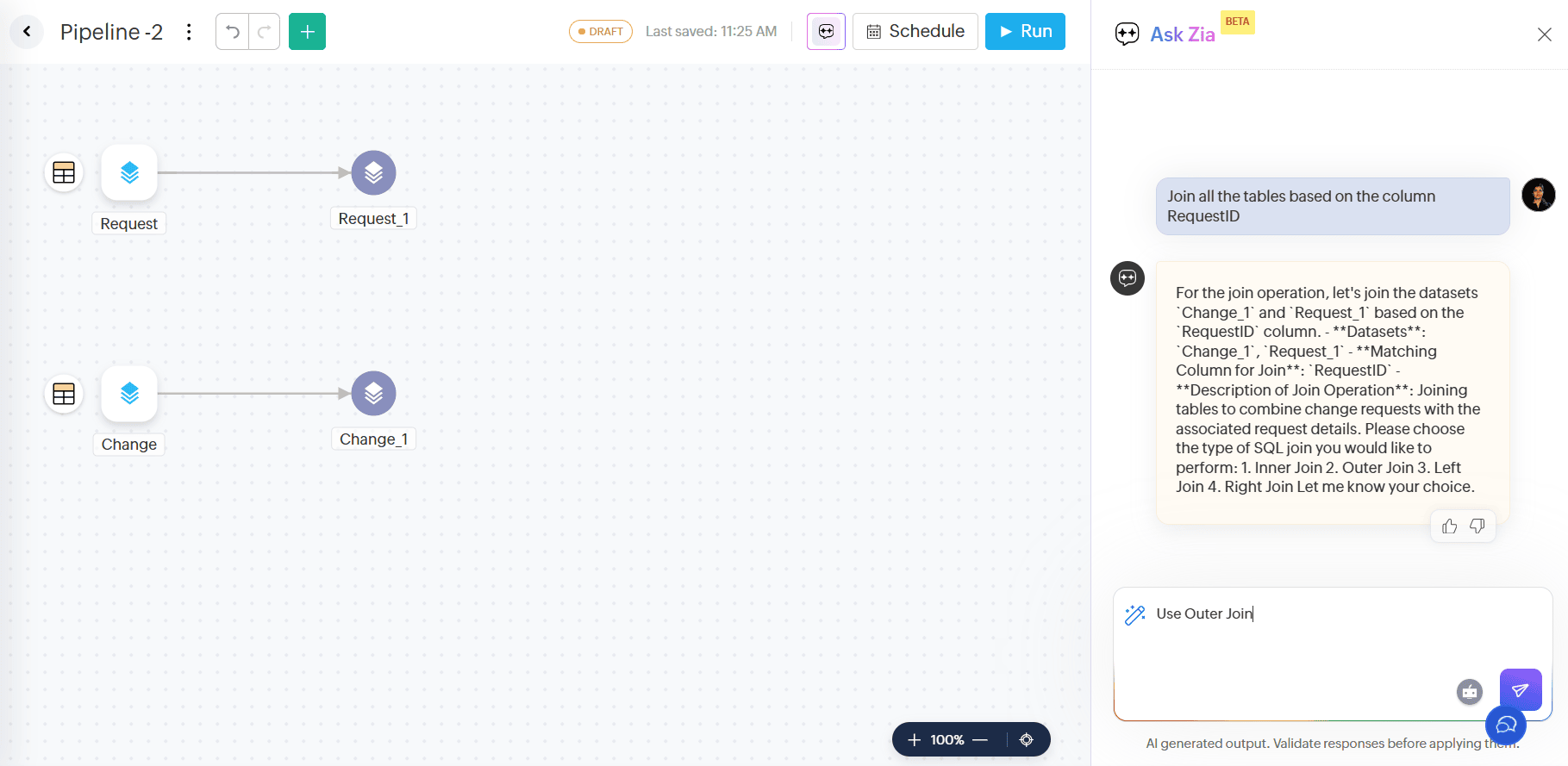
A preview of the data will be generated. Verify the data and click Apply Transform to apply the transform to the entire data.
A pipeline will be created.
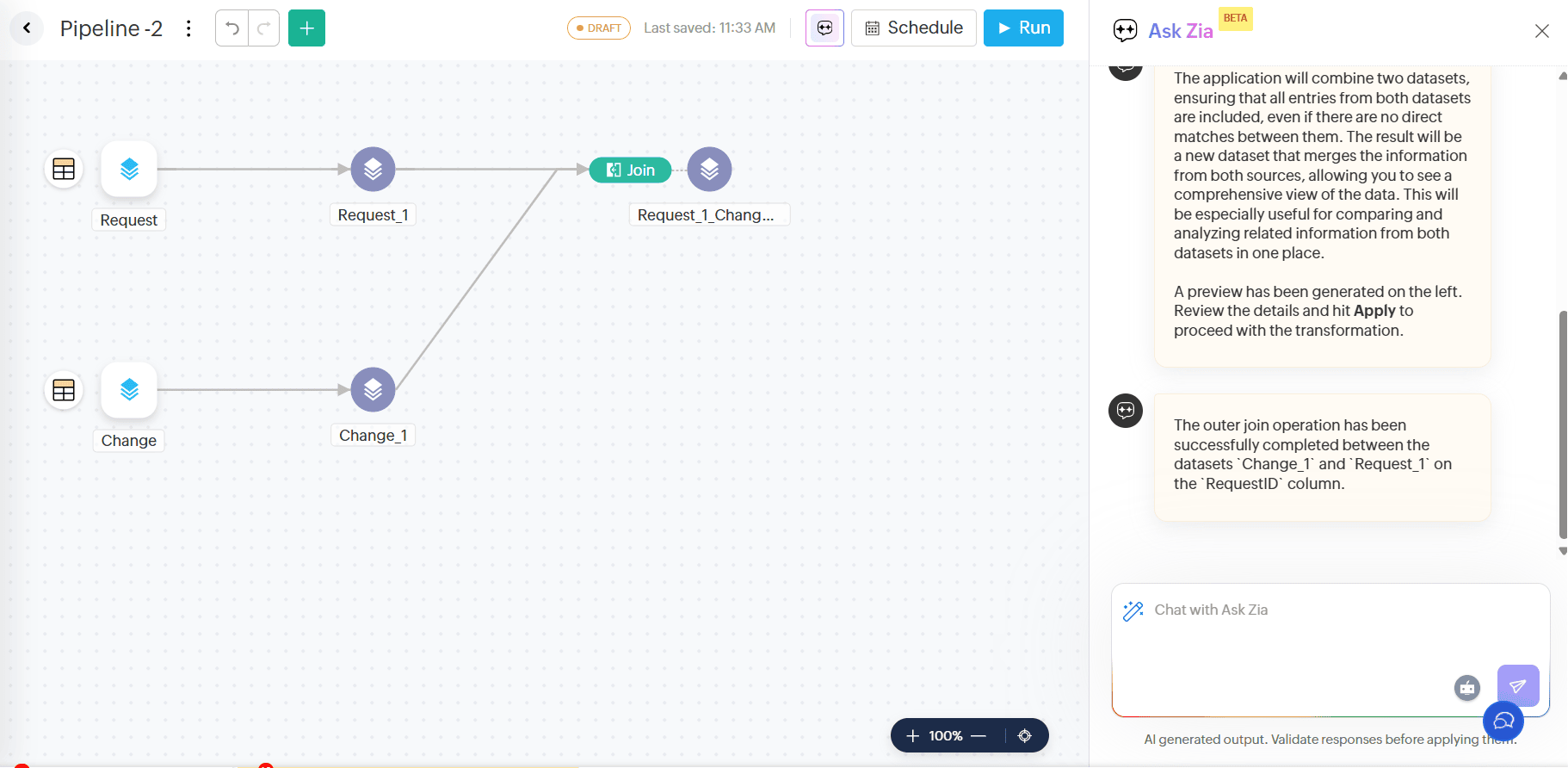
You can also schedule data pipeline execution.
Clean and transform data using examples
Transform by Example lets you quickly modify column data by providing a few example outputs. Once you enter the desired output for some cells, the rest will be auto-generated.
Access the pipeline builder from the side navigation panel.
Click More (+) > Prepare Data.
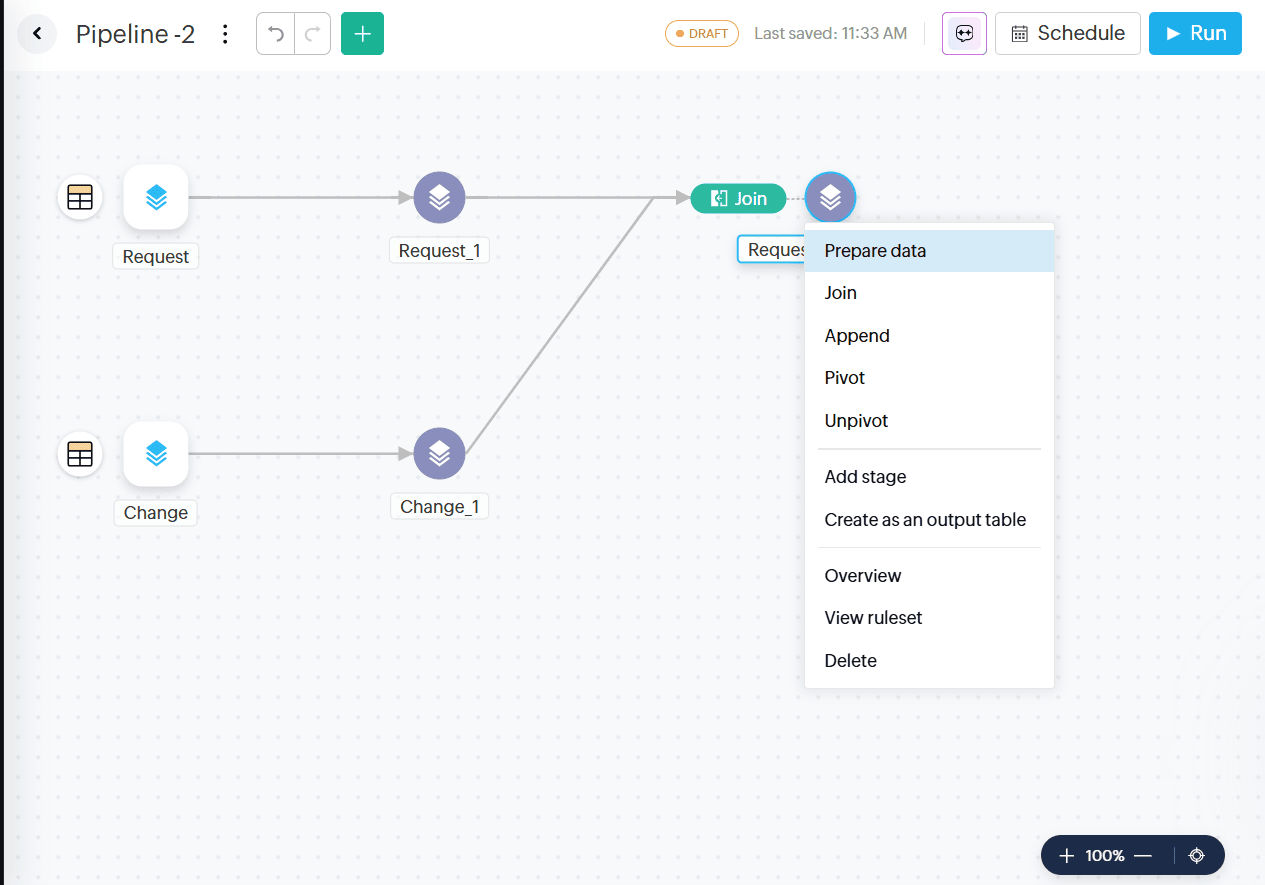
Right-click the column you want to transform and choose Transform by Example from the drop-down menu.
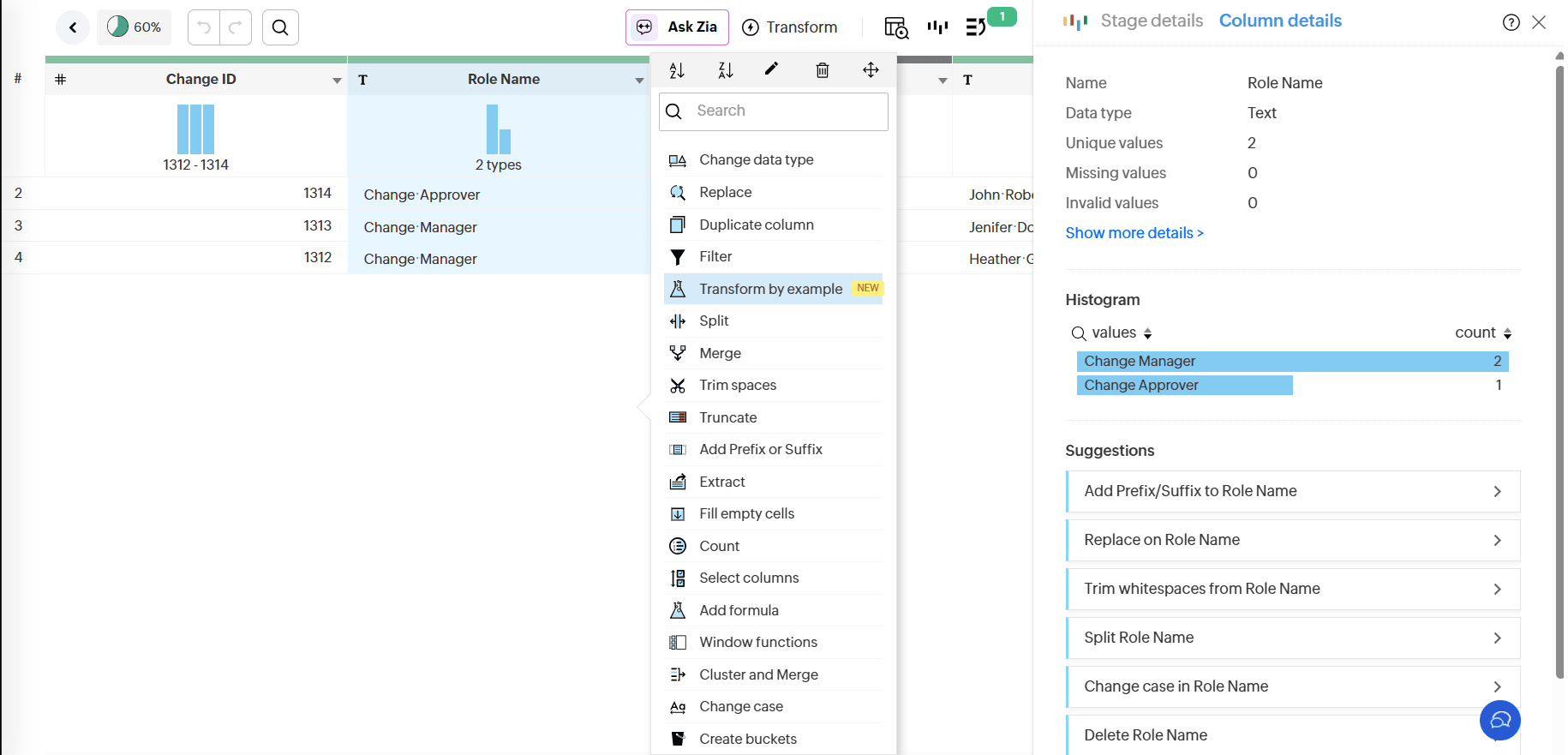
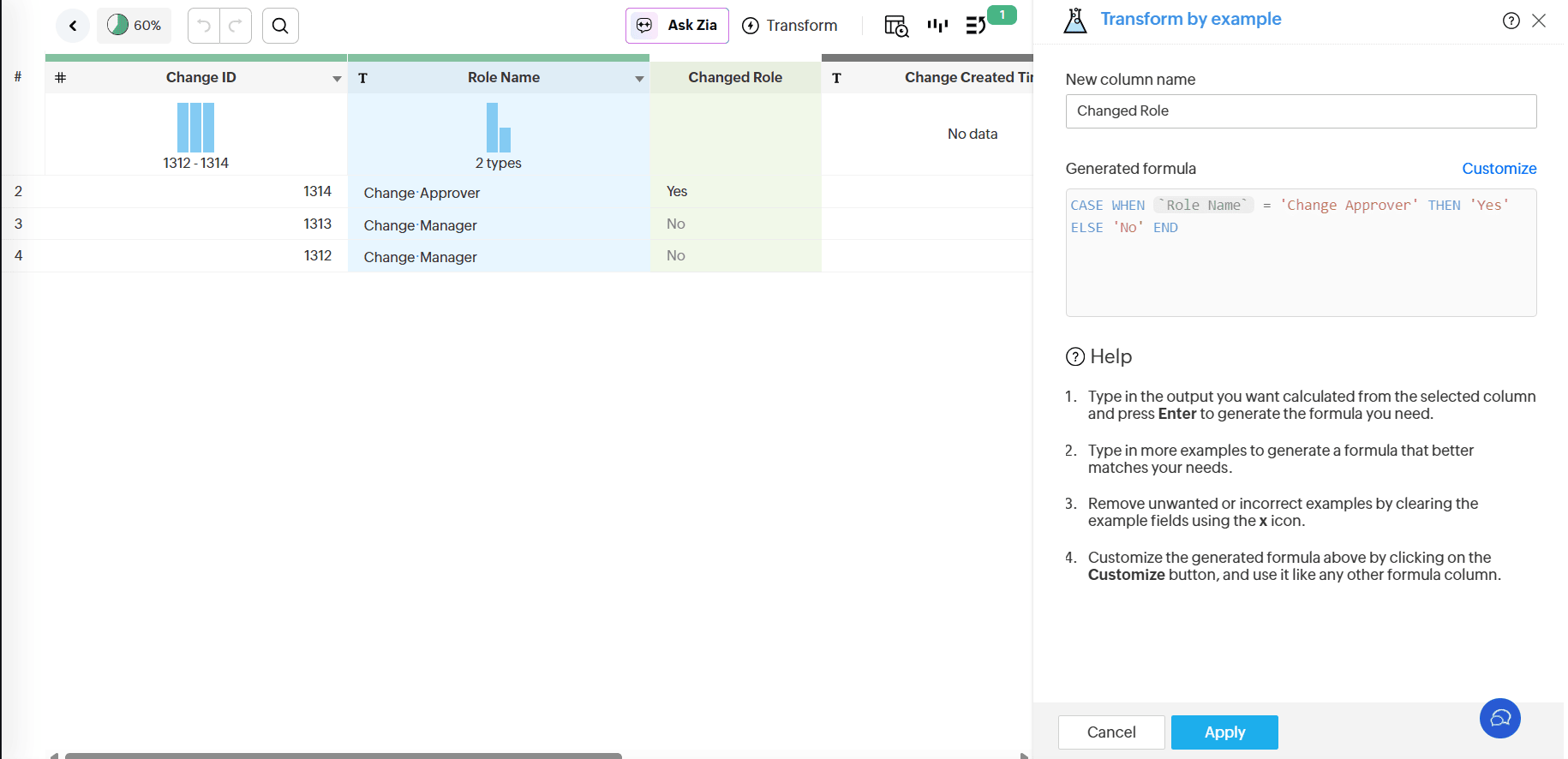
Type in the expected result in the Preview section and press Enter.
The logic or the formula required to perform the transformations is displayed in the Generated Formula section.
Specify the New Column Name.
Click Apply.
Formula Suggestions for Data Transformation
The Formula Suggestion feature lets you create calculated fields or transformations in plain language. Ask Zia will generate the required formula, which you can review and modify before applying.
From the Formula pane:
Open the table where you want to add a formula.
Click the Add icon in the toolbar and select Formula Column from the drop-down menu. The Add Formula Column pane will appear.
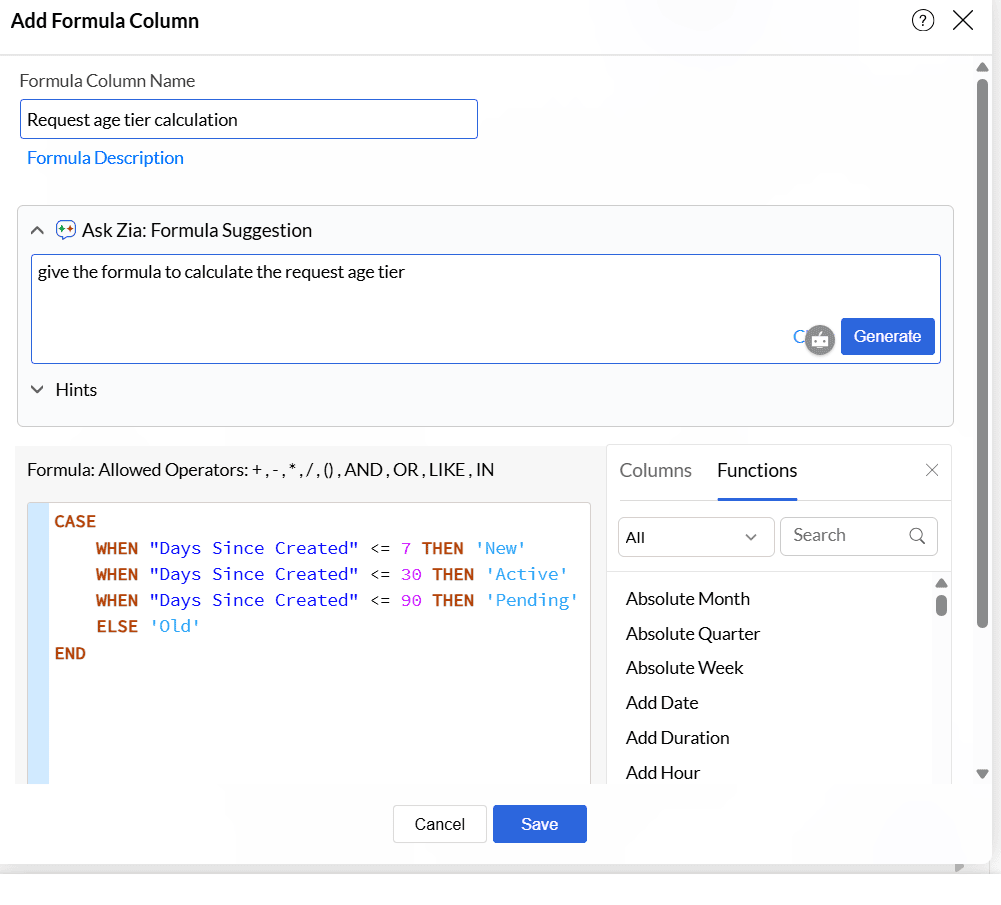
Click the Zia Formula Suggester drop-down icon and describe the formula you want to create.
The generated formula will appear in the Formula Pane. Review and edit it if necessary.
Click Apply to save the formula.
Generate SQL queries in plain language
Build complex queries by providing inputs in natural language, thus saving a significant amount of time to construct the queries.
From the Query Table Window
Click the Create icon on the side navigation panel and choose Query Table from the drop-down menu.
Click the Ask Zia - Query Suggester drop-down icon.
Describe the query you require in the prompt section.
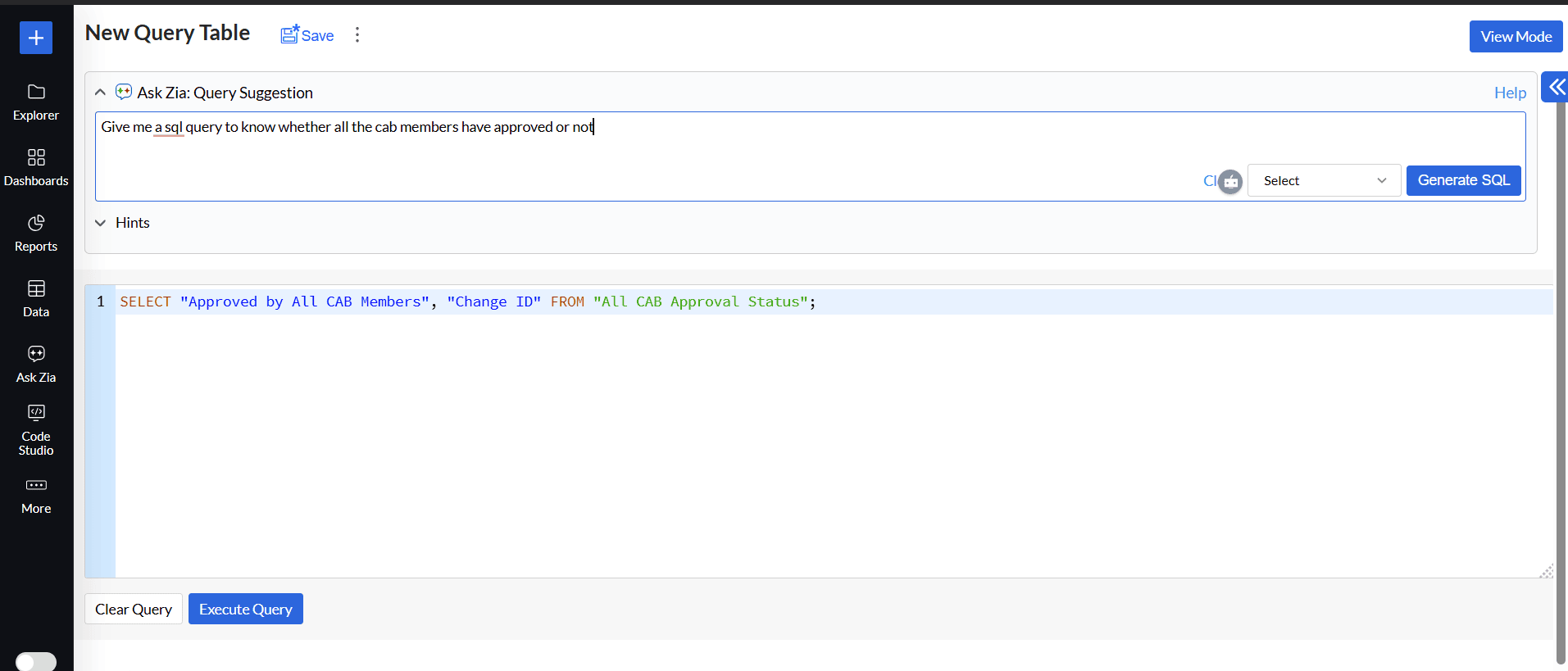
Click the Select icon drop-down to choose the table names to be used to get more accurate responses.
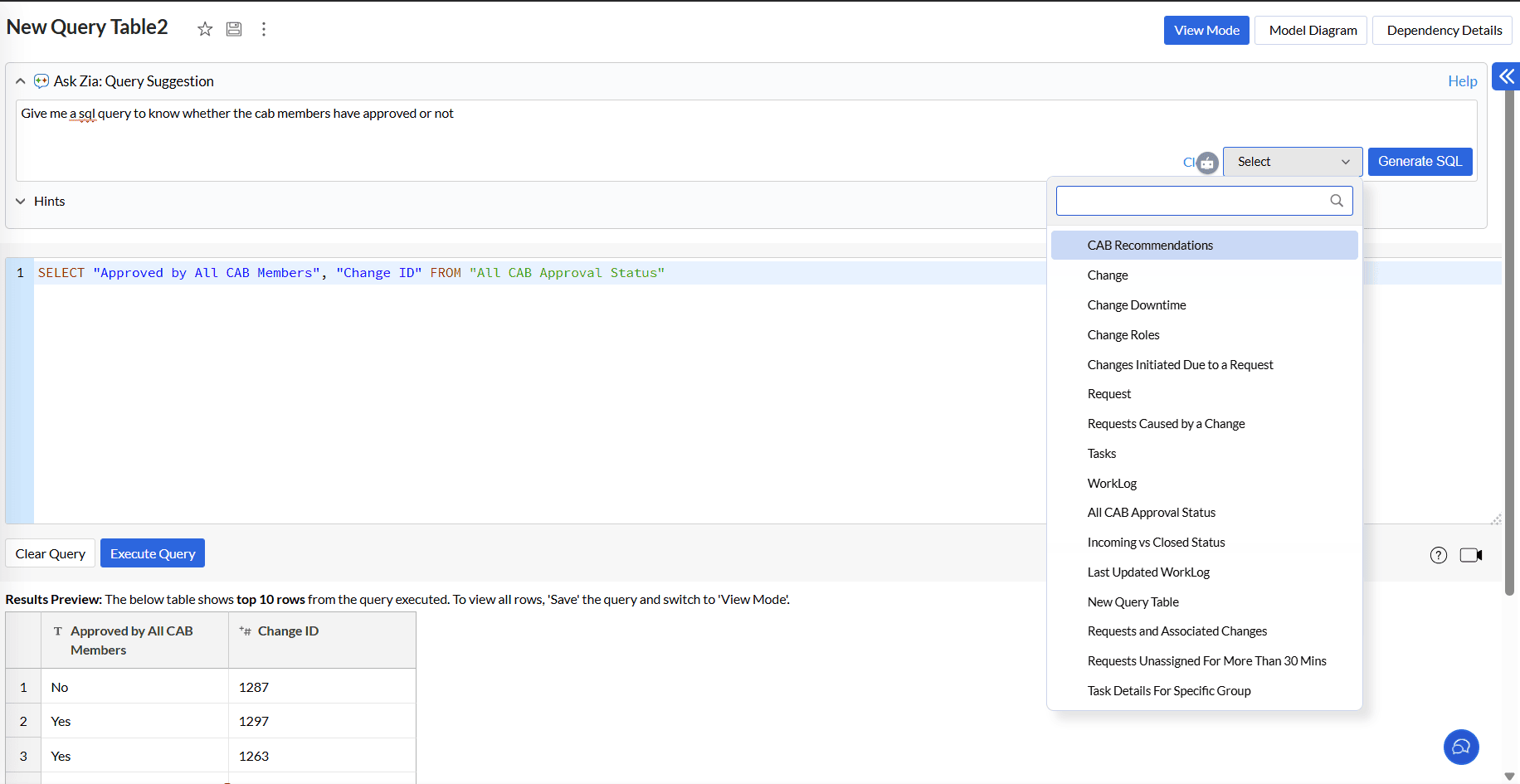
Click Generate SQL.
The query will be displayed in the Query Editor. Review and make modifications if needed. Click Execute Query.