CloudSpend for MSPs
The Customer Portal in CloudSpend helps you manage multiple customer accounts from a single place. Your customers see your own branded CloudSpend view, while you manage access, billing, and settings from the MSP master account.
Benefits of the Customer Portal
- Centralized management: Control all customer accounts from one MSP login. This keeps configuration and administration in one place and reduces manual effort.
- Branded customer experience: Each customer gets a portal that reflects your branding. You can update the logo, colors, and domain so the portal feels like part of your own platform.
- Data stays intact: Your existing billing data, budgets, licenses, and cost center mappings stay as they are after migration. Nothing gets reset or removed.
- Customer limits for better control: The default limit for creating customers is 10. This helps you manage growth in a controlled way and avoid clutter.
- Clear migration flow: Migration uses a step-based approval process. Admins receive mail confirmation links and must validate the change before the portal is enabled.
- Easy customer switching: Move between customer accounts without logging out. This saves time when checking reports, settings, or billing for different customers.
- Support for white labeling and CNAME: Add your own domain and update branding elements. This helps deliver a consistent experience across all your services.
Why should you use the Customer Portal
The Customer Portal helps MSPs manage multiple customers without juggling separate logins or fragmented data. When you handle cloud spending for different clients, each with its own billing and usage patterns, switching between accounts can become slow and error-prone. The portal brings everything under one MSP master account so you can view, manage, and support all customers from one place.
It also helps you present a consistent brand experience. Many MSPs want customers to feel like they are using the MSP’s own platform, not a third-party product. With white labeling and CNAME mapping, customers sign in through your domain and see your logo, keeping the experience familiar and professional.
The portal supports a cleaner workflow for day-to-day tasks. You can move between customer accounts with a single click, making it easier to review reports, fix configuration issues, or check on budget and cost anomalies. When onboarding new customers, the customer limit and customer management options give you predictable control over how accounts are created and maintained. 
For support teams, the portal cuts down on repetitive steps. Instead of logging in and out of multiple standalone accounts, everything is available in one dashboard. If you offer managed cloud services as part of your business, the Customer Portal lets you provide customers with a cleaner, branded, and more organized experience while keeping your internal operations easier to manage.
Who should enable the Customer Portal?
- MSPs or organizations managing cloud accounts for multiple customers who want to provide a unified, branded portal experience.
- Businesses or service providers looking to offer a fully white-labeled CloudSpend experience, allowing clients to access the portal under their own domain and branding, without any references to CloudSpend or ManageEngine.
Use case
The Customer Portal works well for teams that manage cloud spending for multiple clients and need separate views for each customer. For example, an MSP handling ten different businesses can keep each customer’s billing, budgets, and reports separate while managing everything from one place. Customers only see their own data, and the MSP sees all accounts in a single dashboard.
It also suits organizations that want to deliver a branded interface without exposing CloudSpend or ManageEngine references. A service provider can set up white labeling so that customers log in through the provider’s domain, see the provider’s logo, and experience the portal as part of the provider’s own product.
The portal is also useful when MSPs need to move quickly between customer accounts. A support engineer reviewing monthly spending for several customers can switch from one customer portal to another without logging out. This keeps troubleshooting, onboarding, licensing checks, and configuration updates simple and consistent across all customers.
White labeling and CNAME mapping in the Customer Portal
CloudSpend lets MSPs present the Customer Portal as their own product. This is possible through white labeling and CNAME mapping. These features remove CloudSpend or ManageEngine references and give customers a familiar interface for signing in. They also help MSPs keep a steady brand experience across all their services. Customers see one brand, one login path, and one support contact, conveying that the portal belongs to the MSP that manages their cloud spending.
White labeling
White labeling replaces CloudSpend branding with your company name, logo, colors, and support details. Customers only see your brand when they sign in. This lets you offer reports and dashboards as part of your service without showing the platform behind it.
For example, an MSP may want to give clients a single place to check cloud costs. Instead of sending them to a CloudSpend page, the MSP creates a branded portal that matches its site and other services. When customers sign in, the portal appears as the MSP’s own product.
CNAME mapping
CNAME mapping connects your own domain to the Customer Portal. This allows customers to use a simple and known URL such as cost.myservice.com instead of a CloudSpend address.
For instance, an MSP may want to avoid confusion for customers. Instead of sending a long CloudSpend link, the MSP maps a short domain. Customers sign in through the MSP’s site, see the same branding, and do not see the CloudSpend name anywhere in the process.
MSP Customer Portal access using a custom branded URL and CNAME mapping
MSPs using the CloudSpend Customer Portal can offer customers a fully branded login experience. Instead of sending customers to a default CloudSpend URL, you can provide a custom domain that matches your website and services. This helps strengthen your brand and gives customers a familiar entry point to view their cost reports and dashboards.
To make this work, you must map your custom domain to CloudSpend through a CNAME record in your DNS. Once the CNAME is set up, customers can open the portal using your branded URL.
How CNAME mapping works
Your custom domain must point to the CloudSpend Customer Portal domain for your region. This requires adding a CNAME entry in your DNS host. After the mapping is complete, the branded URL will open the Customer Portal with your logo and settings.
Steps to map your custom domain
- Log in to your domain control panel.
- Navigate to the section called DNS or Name Servers.
- Add a new CNAME record. Specify the custom domain. Please check the below table for mapping details related to data centers:
| United States | customer-sp.site24x7.com |
| Europe | customer-sp.site24x7.eu |
| China | customer-sp.site24x7.cn |
| India | customer-sp.site24x7.in |
| Australia | customer-sp.site24x7host.com.au |
| Japan | customer-sp.site24x7host.jp |
| Canada | customer-sp.site24x7host.ca |
| Saudi Arabia | customer-sp.site24x7host.sa |
| United Kingdom | customer-sp.site24x7host.uk |
- Enter the Time to Live (TTL) record between 30 mins to one hour. You may also leave this field in its default setting.
- Once finished, click Save to save the changes to the DNS records.
The above actions may, however, vary based on your domain registrar. If you're unable to find a way to get this updated in your DNS host, seek help from your web administrator.
Role management within a Customer Portal
Role assignments ensure that the right users have the appropriate level of access and control.
There are two primary roles supported:
- Cost Administrator
- Cost User
Cost Administrator
- Can add and manage multiple Customer Portals accounts across the organization.
- Has complete visibility in the Customer Portal.
- Holds organization admin privileges by default.
- Can assign roles to other users during Customer Portal setup.
Cost User
- Assigned access to specific Customer Portals.
- Can be granted super admin rights locally within a specific Customer Portal.
- Can only view and manage the Customer Portal and dashboards they are associated with.
- Does not have access to organization-wide settings or other Customer Portals unless explicitly granted.
Cost Administrators have full oversight and management capabilities, while Cost Users operate within restricted scopes, promoting clear boundaries and accountability in cloud cost management.
Migrating to the Customer Portal
If you are currently using CloudSpend without the Customer Portal and wish to enable it, you can migrate your organization to the Customer Portal model. Follow the steps below to complete the migration process:
Enable Multi Portal migration
- Navigate to Admin > User Management > Users > Enable Multi Portal. The Enable Multi Portal pop up screen will appear.
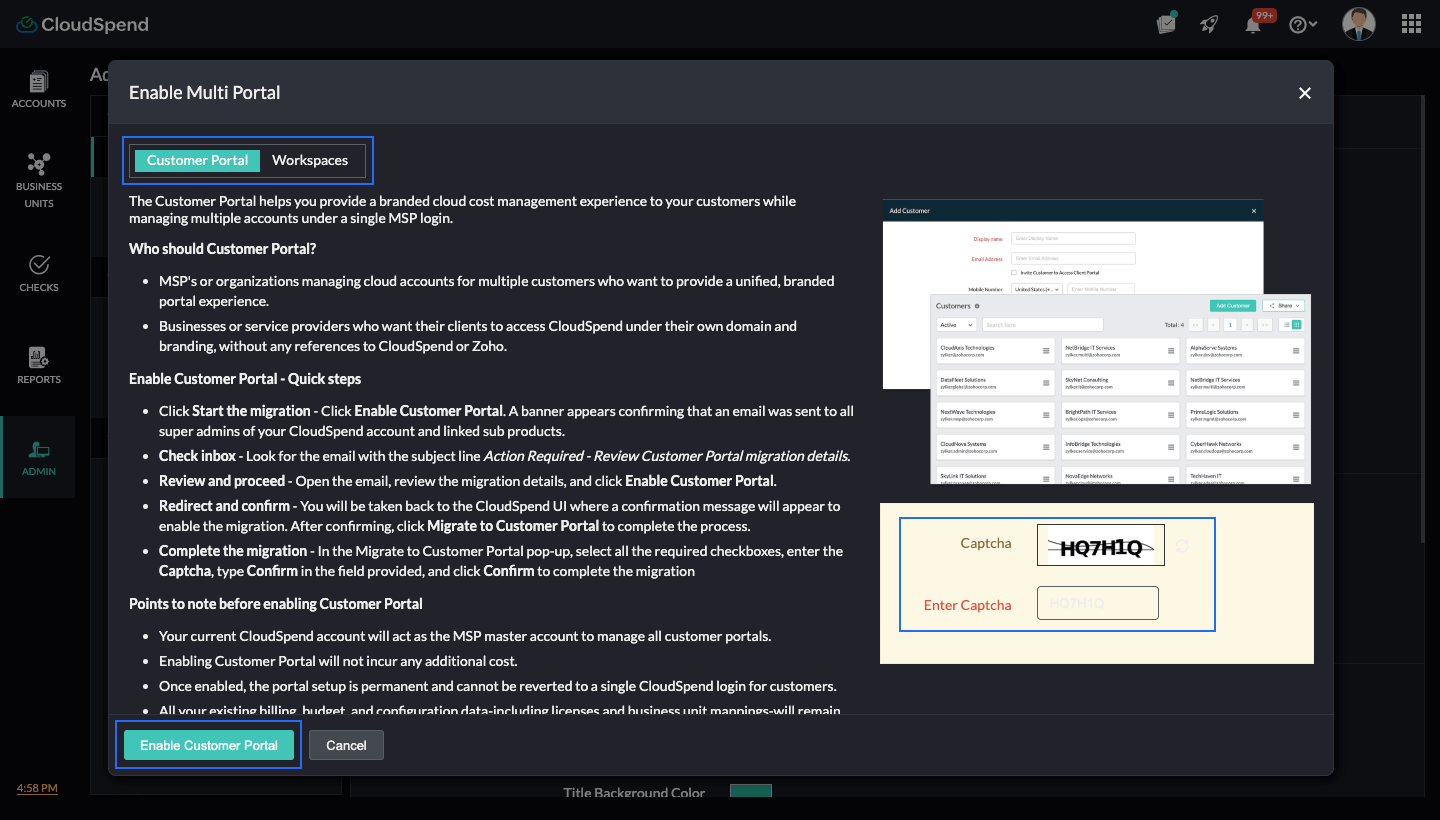
- Read and accept the Customer Portal details, enter the captcha, and click Enable Customer Portal. A banner will appear confirming that an email was sent to all super admins of your CloudSpend account and linked sub-products.
Review and confirm the migration request
- Check your inbox for an email with the subject line Action required: Review Customer Portal migration details.
- Open the email, review the migration details, and click Enable Customer Portal.
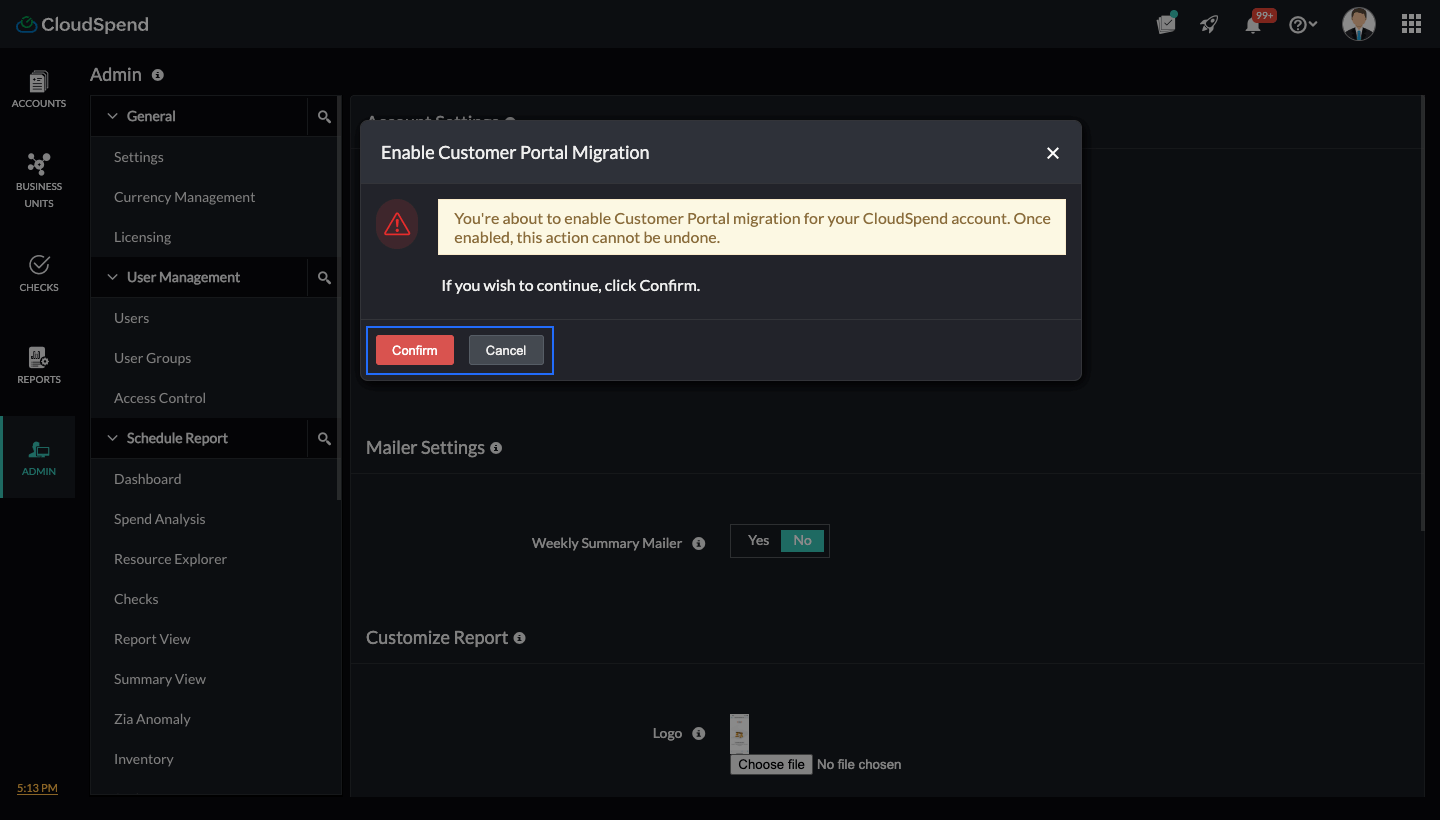
- You'll be taken back to the CloudSpend UI where a confirmation message will appear to complete the migration.
- Click Confirm to proceed with the migration.
Migrate from User Management
- Go back to Admin > User Management > Users, and click Migrate to Customer Portal. The Migrate to Customer Portal pop-up will appear.
- Select the check boxes to acknowledge the conditions and results of migration.
- Enter the Captcha, type Confirm in the provided field, and click Confirm to begin the migration.
Migration completion
- The migration process may take a few minutes depending on the size of your data.
- Once completed, your new Customer Portal will be available in the MSP tab.
- At least two admins must confirm the migration request to enable the migration. If the account has only one admin, a single confirmation is enough.
- Each customer portal is limited to 10 customers by default. Contact support to increase this limit.
Viewing the Customer Portal
To access a specific customer account, use the filter drop-down located at the top-left of the Customer Portal index page. This allows you to search for and focus on the customer account you wish to manage. Additionally, if you wish to work across multiple customer accounts simultaneously, you can open each one in a separate browser tab by clicking the desired customer account name.
Creating a Customer Portal
To create a new Customer Portal, follow the below steps:
- Login to CloudSpend and navigate to the MSP tab.
- On the MSP page, click Add Customer.
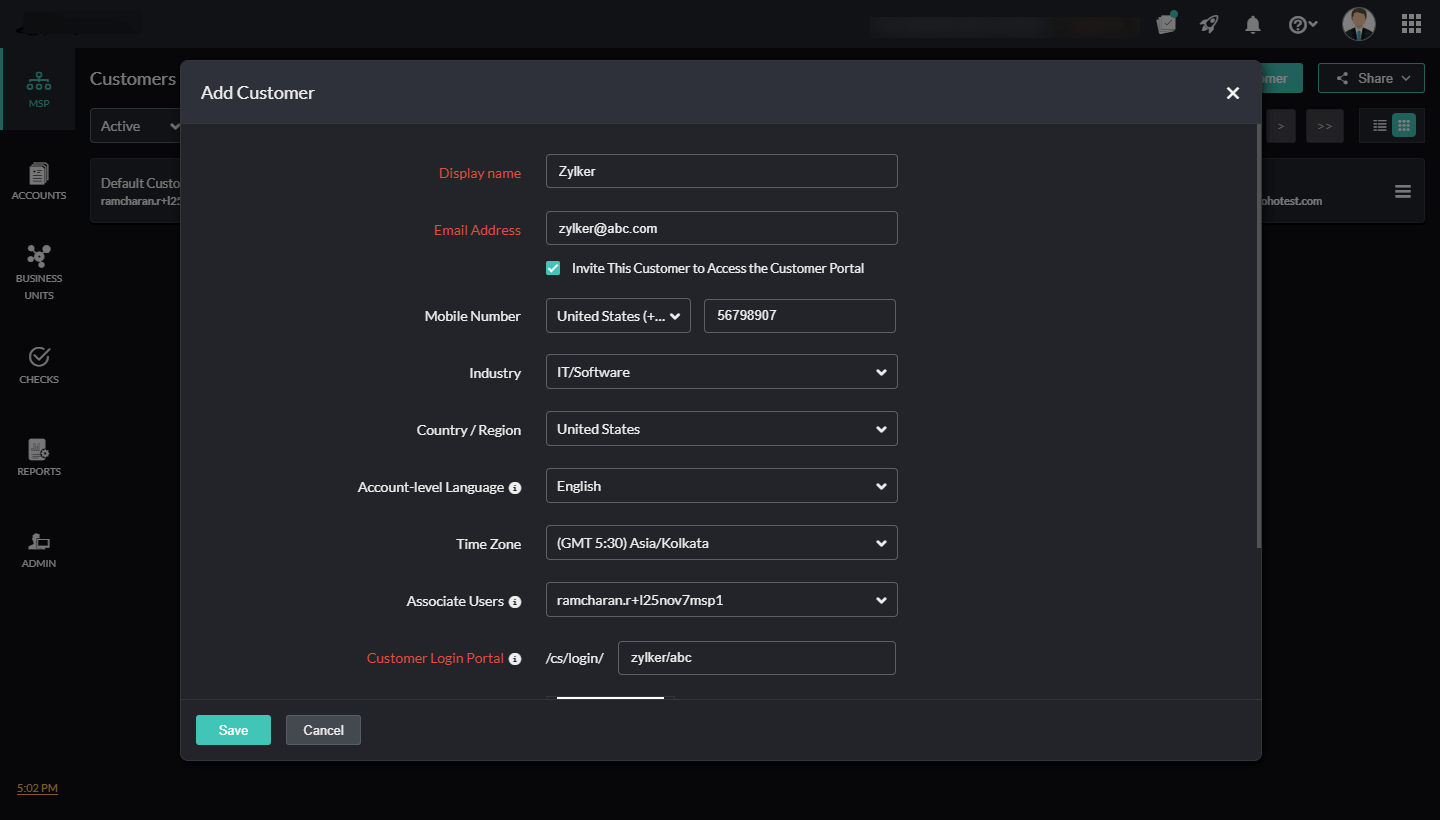
- On the Add Customer Portal page, enter the following details:
- Display name:Enter the name you want to use to identify this customer inside the Customer Portal.
- Email address:Enter the customer’s primary email address. This will be used for portal access, communication, and onboarding.
- Invite This Customer to Access Customer Portal:Enable this if you want the customer to receive a portal access invitation right away. If left unchecked, you can invite them later.
- Mobile Number:Enter the customer’s contact number. Choose the country code first, then type the number. This will be used for verification or communication if required.
- Industry: Select the industry the customer belongs to. This helps classify accounts in your MSP view.
- Country or Region:Choose the customer's location.
- Account Level Language: Select the language the customer will see when they log in to their portal. This sets their default UI language.
- Time Zone:Choose the customer’s preferred time zone. Billing periods, scheduled reports, and timestamps will follow this time setting.
- Associate Users:Select the MSP user (usually an admin or account owner) who will be linked to this customer. This helps manage responsibility and visibility for the account.
- Customer Login Portal: This shows the login path the customer will use. It is usually created automatically based on your portal settings and white labeling configuration.
- Captcha:Enter the characters shown in the captcha box.
- Click Save.
Once saved, you can view the customer account you created on the Customer Portal page.
Customer Portal Settings
The CustomerPortal Settings page lets you configure core identity and branding details for your master MSP account. These settings define how the portal appears to customers, what domain they access, and how your MSP’s contact information is displayed. It helps maintain a consistent branded experience across all customer portals and ensures that communication and login details align with your preferences. You can view the Portal Settings page from, Admin > General section.
- Name:The primary administrator or account owner’s name. This will be used for identification within the portal.
- Company Name:The MSP’s organization name. This will appear in customer-facing views and in certain communication templates.
- Custom Domain:The domain or URL customers will use to access the portal. This is part of white labeling and helps remove CloudSpend default URLs while giving customers a branded domain to log in through.
- Logo:The logo displayed on the customer portal. Uploading a custom logo helps align the portal with your branding.
- Sender Email: The email used to send alerts, onboarding mails, notifications, and customer communication. This ensures that all outgoing mails appear to come from your organization.
- Mobile Number:A contact number linked to the MSP account. This may be used for verification or as a reference in communication settings.
- Country / Region:The MSP’s location. This may influence localization preferences and general account defaults.
- Account-level Language: The default language for the portal interface. This will be the primary UI language for the MSP account.
- Time Zone: The default time zone for all timestamps, scheduled activities, budget resets, and report timings.
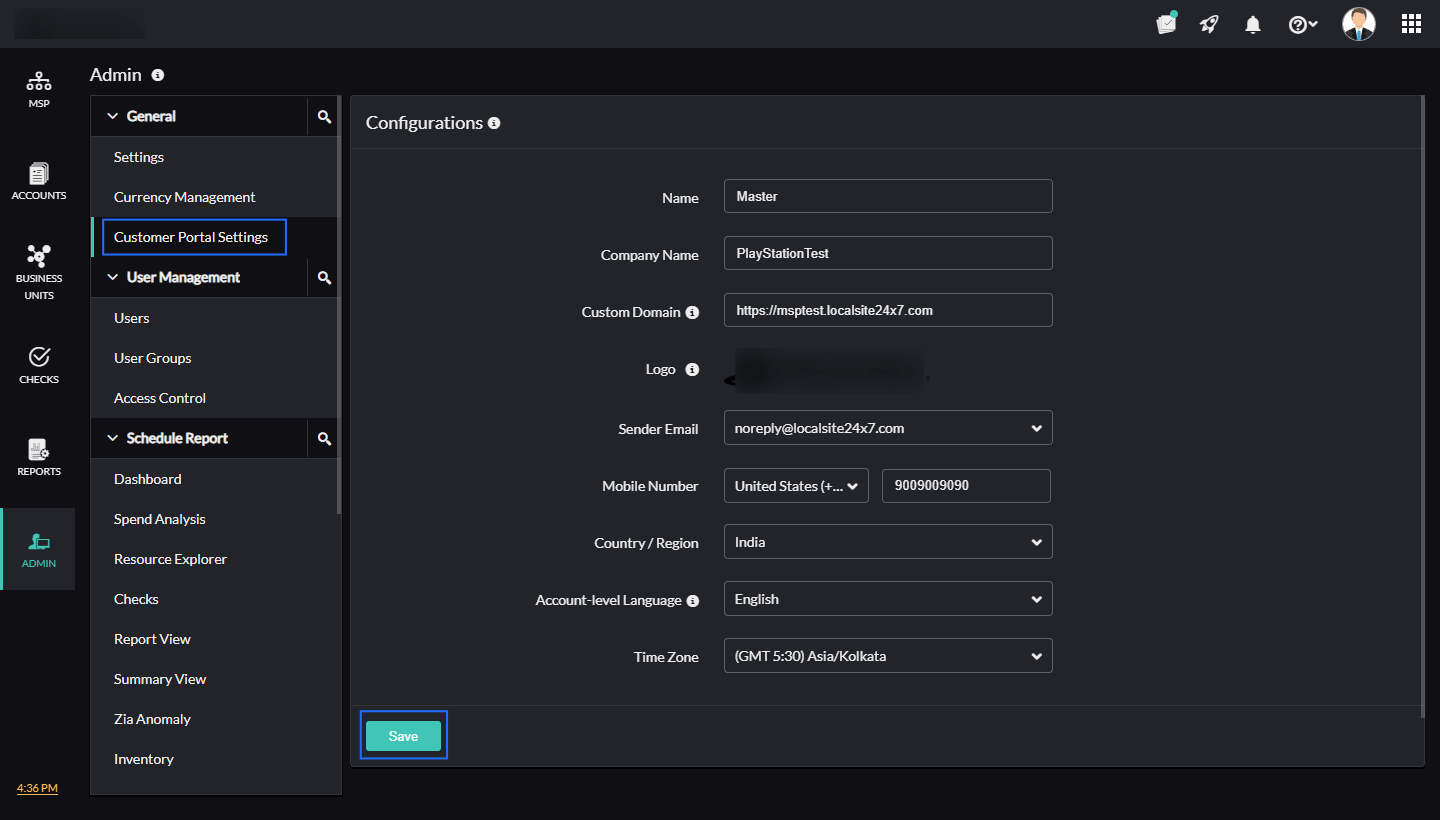
Once you apply the changes, click Save.
Editing customer details in the Customer Portal
To edit customer details:
- On the Customers page, click the hamburger icon next to the respective customer's name.
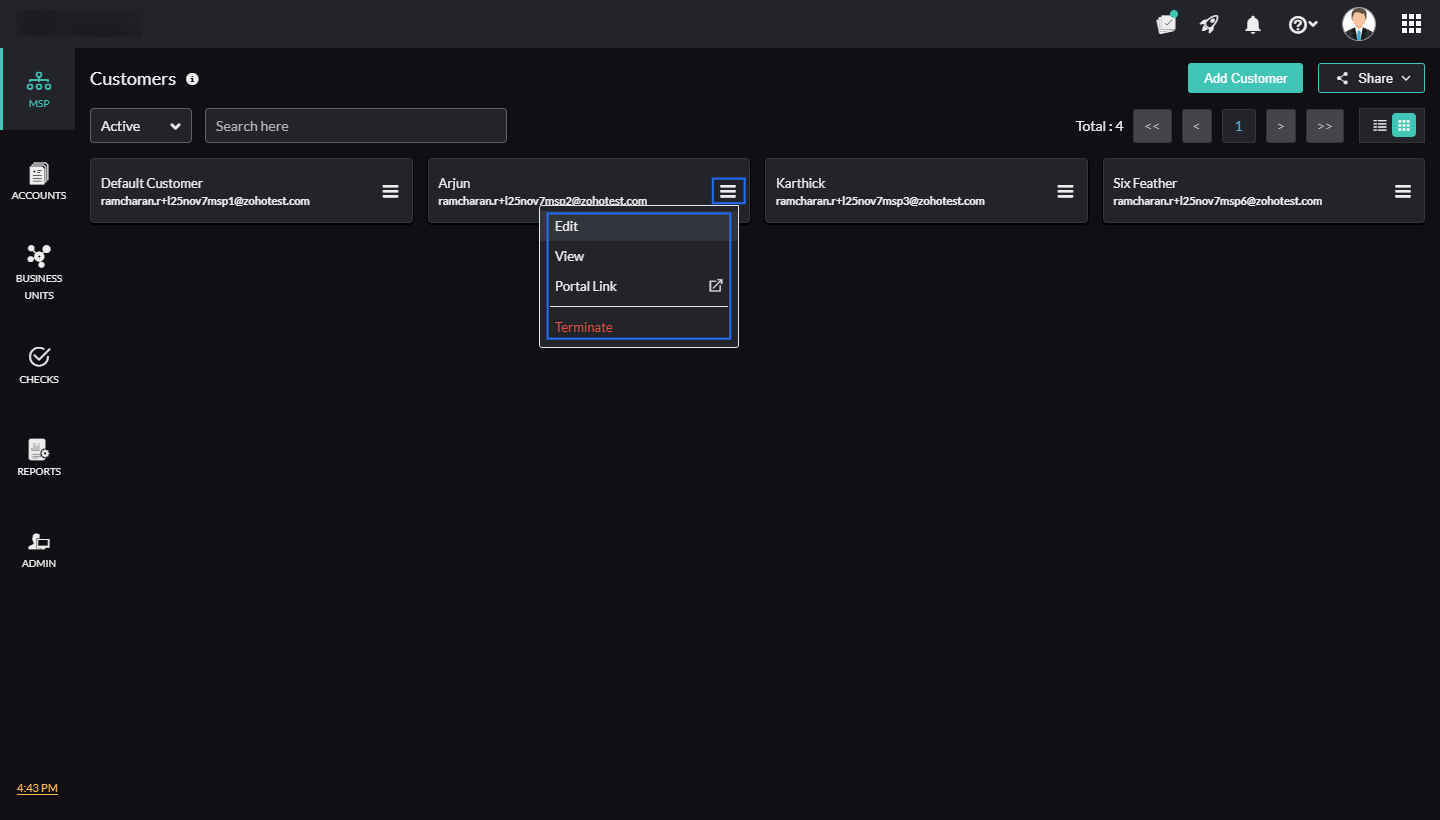
- On the Edit Customer page, make the required changes and click Save.
Accessing a customer's portal through the portal link
The Portal Link option appears for customers who have portal access enabled. This link is the direct login URL for that specific customer’s portal. When an MSP adds a customer and chooses to allow portal login, CloudSpend generates a unique login path for that customer under the MSP’s domain or custom domain.
Selecting Portal Link opens this login URL in a new tab. You can share this link with the customer if they need quick access to their portal or if they did not receive the invite mail. This link always points to the customer’s own login page and is tied to the branding, domain, and settings configured in the CustomerPortal Settings section. It helps MSPs quickly verify the customer’s portal setup and guide customers during onboarding.
To access the Portal Link:
- On the Customers page, click the hamburger icon next to the customer name.
- Select Portal Link to open the customer’s portal login page and provide the necessary credentials to access the customer's portal.
Terminating a customer
To terminate a customer:
- On the Customers page, click the hamburger icon next to the respective customer account name.
- Select Terminate or on the Edit Customer page, click Terminate Customer.
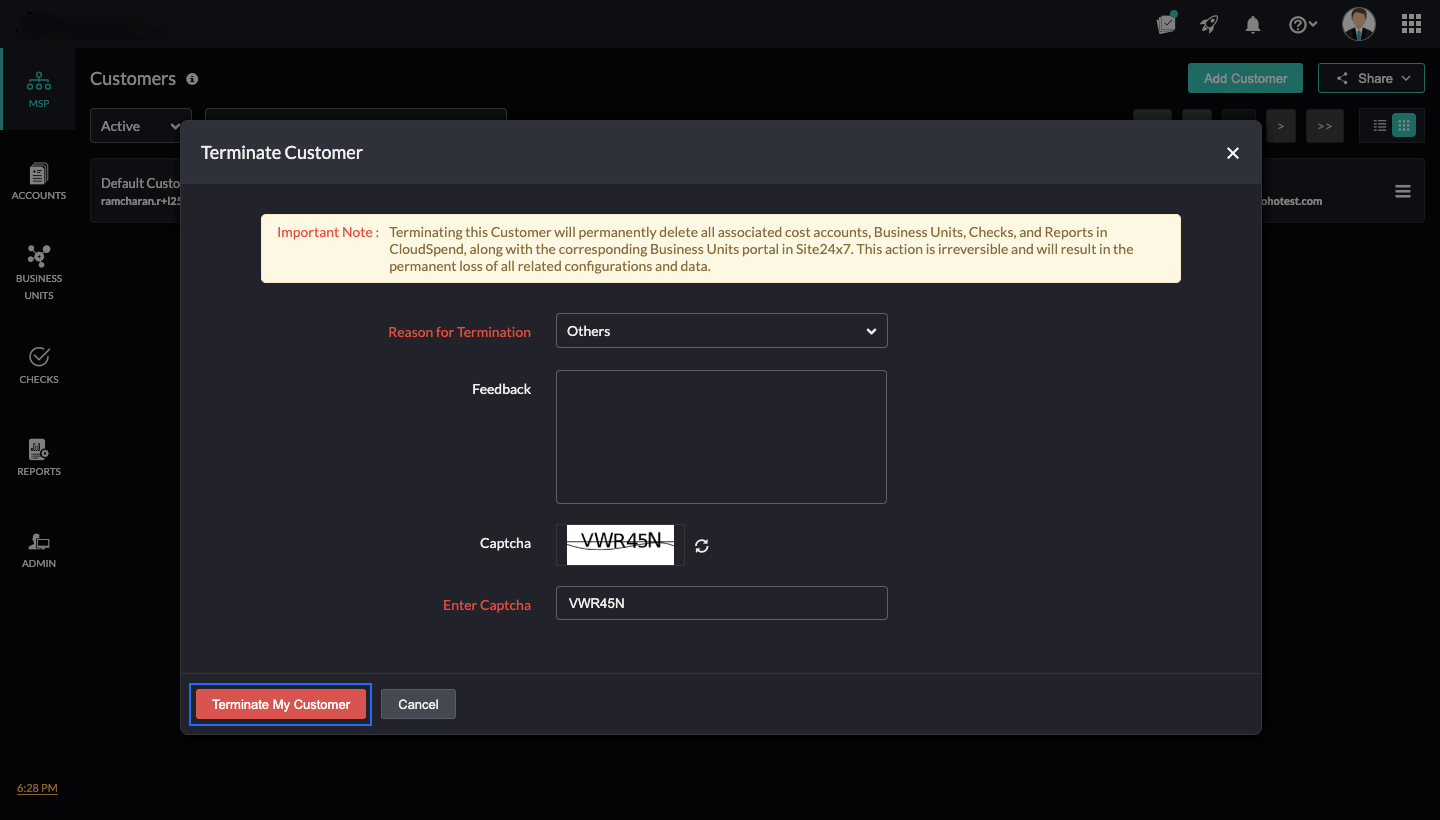
- In the Terminate Customer Portal pop-up, enter the following details:
- Reason for Termination:Select the reason for terminating the customer portal.
- Feedback: Share any comments or suggestions related to the termination.
- Enter Captcha:Enter the displayed captcha text for verification.
- Click Terminate My Customer Portal to permanently delete the selected customer account.
- Click Cancel to exit the dialog without taking any action.
Switching between customer accounts
You can switch between customer accounts from any module page in CloudSpend. By default, you'll start in your default customer account.
To switch to another customer account:
- Click the customer account drop-down at the top-right of the page.
- Select the customer account you wish to switch to.
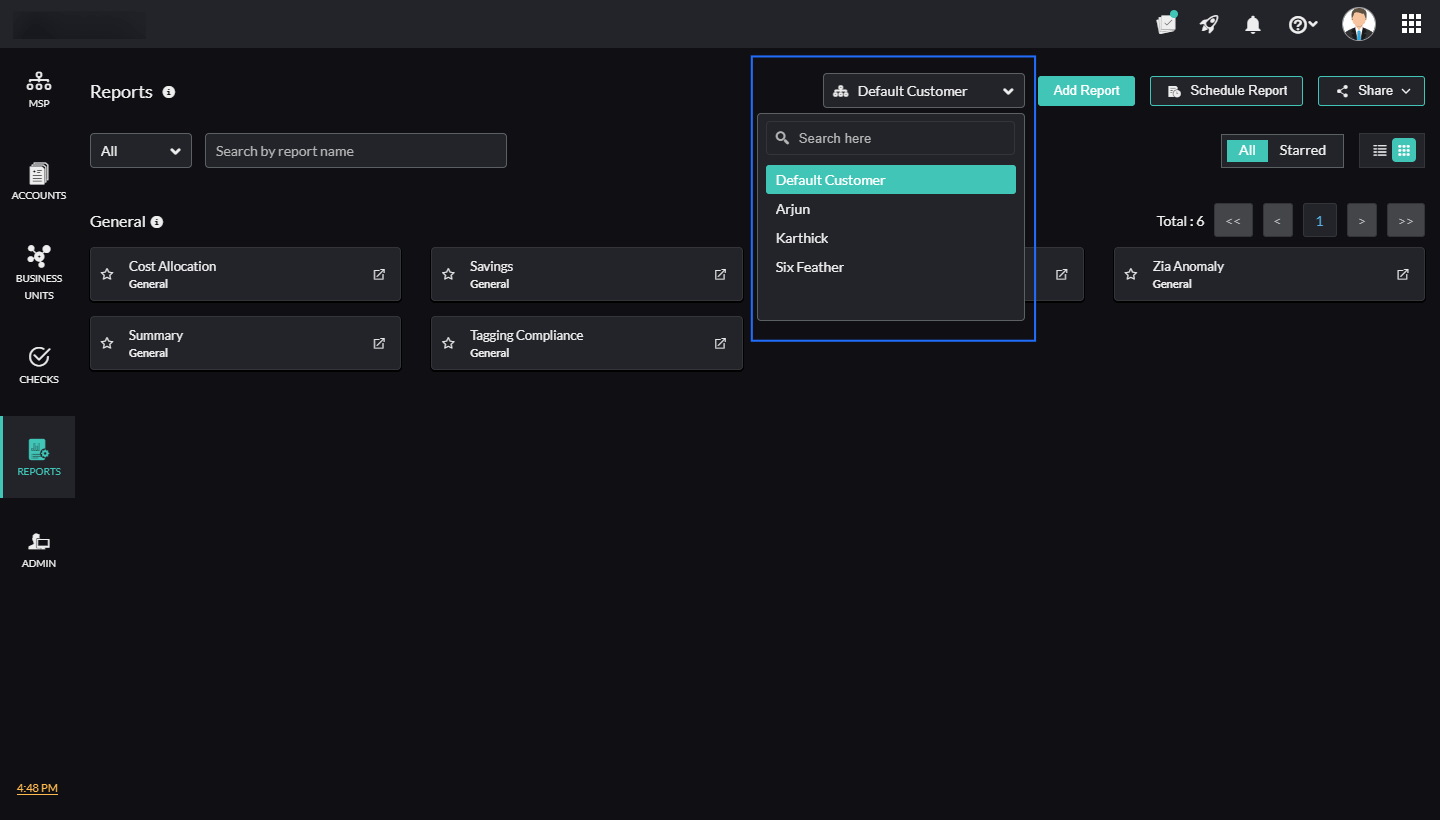
- You will be instantly switched to the selected customer's account, without leaving your current page.
Customer accounts from Site24x7 are not shown in CloudSpend
If you are an MSP using Site24x7 and you already have customer accounts set up there, you will notice that these accounts do not appear in the CloudSpend Customer Portal. This is an expected behavior.
CloudSpend does not currently sync or import customer accounts that already exist in Site24x7. Even if your MSP account is linked across both products, the Customer Portal in CloudSpend will only show the customer accounts you create inside CloudSpend. This setup keeps the two systems separate. Any customer you create or manage in CloudSpend remains independent from the ones you have in Site24x7.
Related topic