Governance Checks
Governance Checks is a compliance and resource management feature in CloudSpend. It helps you identify and manage non-compliant resources across your cloud accounts. As your environment expands across multiple clouds, keeping resources aligned with internal policies becomes harder. Governance Checks gives you a clear way to monitor compliance, maintain visibility, and ensure that every resource meets your organizational standards.
Overview
Governance Checks monitor your cloud resources and highlight anything that does not meet the compliance conditions you define. When a resource falls outside those conditions, it is marked as non-compliant. You can review the full compliance history for each governance check, including the reason for every failure, so you understand exactly what went wrong and when it occurred.
The feature shows how many times each governance check has been violated and lists all resources that are currently non-compliant. This gives you a complete view of past compliance gaps and ongoing issues that need attention. You can also set a threshold for every governance check. When the number of non-compliant resources goes beyond the value you set, CloudSpend alerts you. This helps you respond on time instead of discovering compliance issues later in billing or audit reviews.
Benefits of Governance Checks
- Improved compliance: Governance Checks continuously review your cloud resources and highlight anything that does not meet your compliance conditions. This helps you maintain a clean and governed environment.
- Reliable operational and cost data: By identifying non-compliant resources early, Governance Checks ensure your reports and cost insights stay accurate and trustworthy.
- Faster remediation: Get a direct list of non-compliant resources, which removes manual searching and helps teams resolve issues quickly.
- Timely alerts: You can set thresholds for each governance check. When non- compliant resources exceed the defined limit, CloudSpend alerts you so you can act before the issue affects audits or financial reports.
Use cases
Correcting non-compliant compute resources
A team deploys new compute instances, but some do not meet the conditions defined in the governance check for their environment or region. Governance Checks mark those instances as non-compliant. The team updates them to meet the required standards and restores accurate reporting.
Identifying non-compliant storage resources
During a deployment, new storage buckets appear that do not match the compliance conditions set in a governance check. These are immediately flagged as non-compliant. The non-compliant count crosses the alert threshold, and the team is notified. They update the resources to bring them back into compliance before billing begins.
Maintaining compliance across multi-account setups
A company running several cloud accounts follows strict internal governance policies. When new resources fail to meet the conditions defined in the governance checks, CloudSpend flags them as non-compliant. The operations team fixes the issues and keeps the environment aligned with audit expectations.
Supporting accurate budgeting and cost reviews
A finance team depends on compliant resource data for department wise cost tracking. When a few resources fall out of compliance, the cost reports become unreliable. Governance Checks catch these resources early so budgeting and financial reviews remain accurate.
Configuring Governance Checks
To configure governance checks for Accounts, Cost Centers, and Reports follow the steps mentioned in the below sections.
Accounts
You can set one or more governance checks in your cost account.
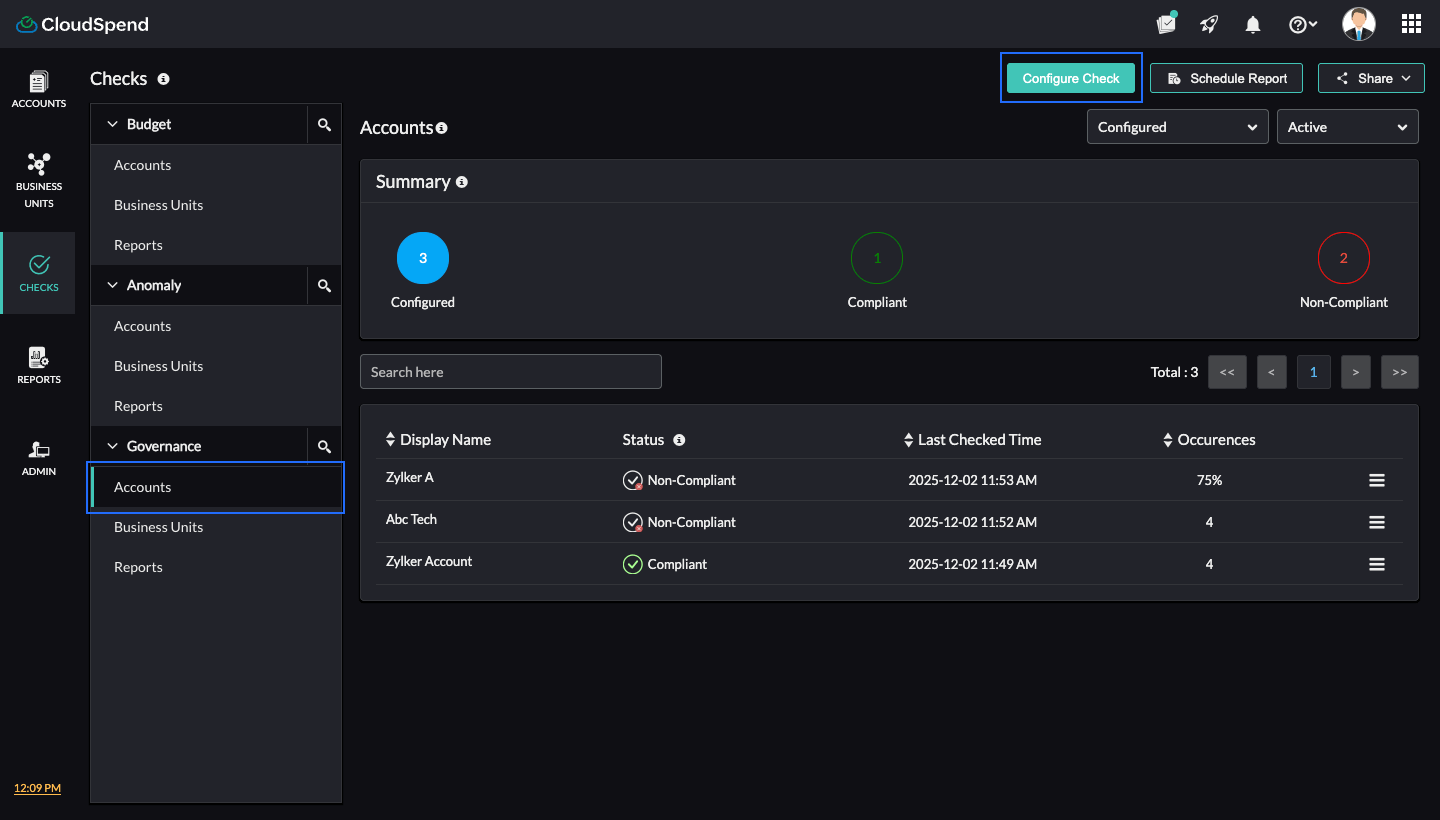
To configure governance check for your cost accounts:
- Go to the CloudSpend console.
- In the left navigation pane, choose Checks , and then select the Governance > Accounts tab.
- Click Configure Check and complete the following steps:
Step 1: Basic Details
- In the Basic Details page, enter the Display Name for the new governance check.
- Governance Profile: Select the applicable check. Governance Profiles are reusable across multiple checks. If you wish to create a new profile, click Add to open the Add Governance Profile dialog box. To edit a profile, click Edit. After you make the necessary changes, click Save.
- In the Add Governance Profile dialog box, enter the following details:
- Display Name: Enter a display name for the new governance check.
- Report Type: Choose Accounts.
- Accounts: Select the applicable account.
- Add Label: Enter the label key and label value.
- Click Next.
- In the Configure Tag Validation section, specify the tag values and logical conditions that determine compliance. Each row represents a tag condition. Example:
- Row 1: Tag key compute with value instance-1
- Row 2: Tag key date with value aug25
- Row 3: Tag key goog-resource-type with value networking.googleapis
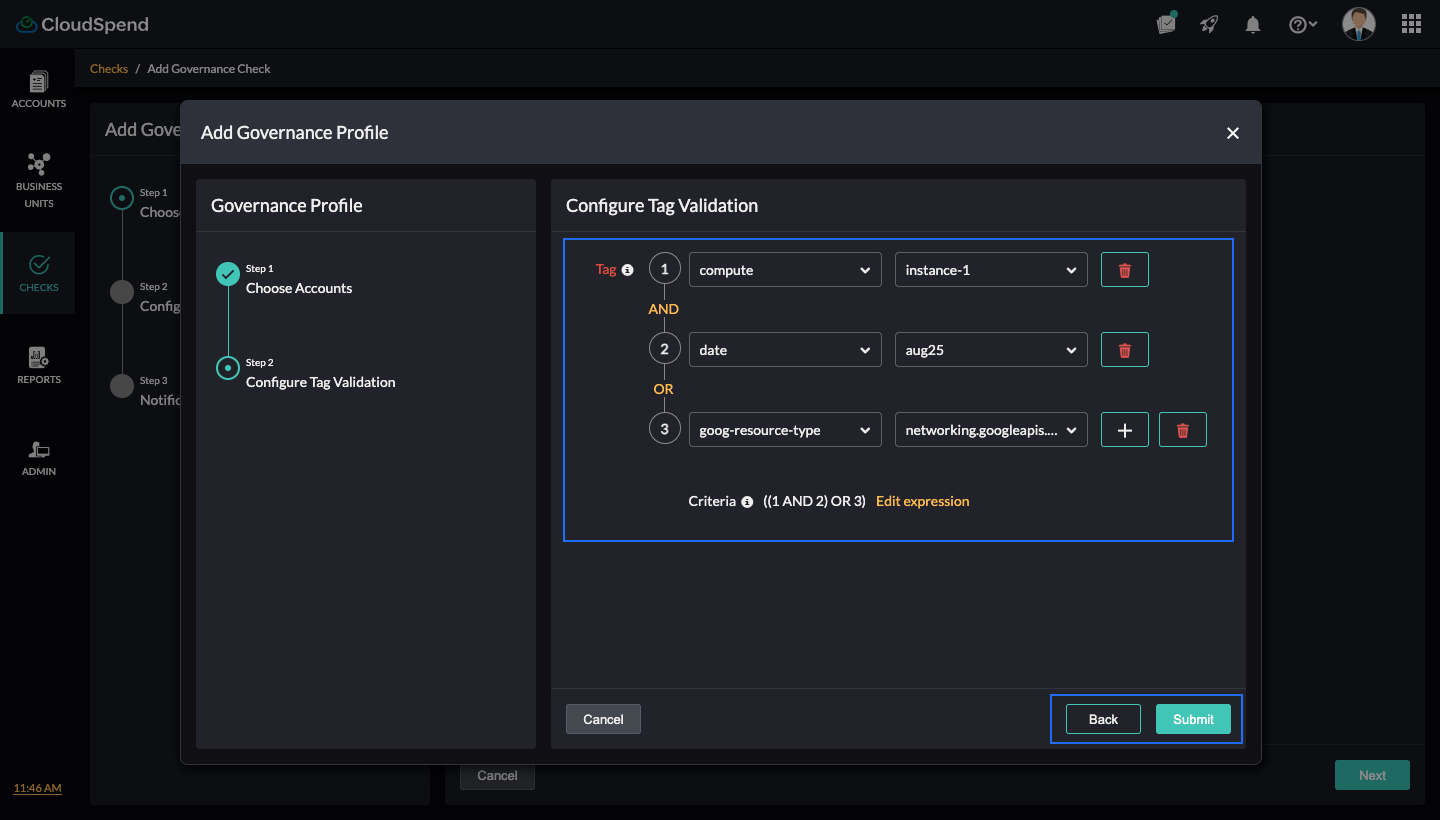
- Logical Operators (AND/OR) : You can chain multiple conditions using AND/OR. In this example, the criteria are: ((1 AND 2) OR 3) as shown in the image. This means, a resource is compliant if it has both the first and second tag conditions OR it has the third condition.
- Click the add icon + to add another tag condition. Click the delete icon to delete a condition.
- Edit Expression: Fine-tune or manually edit the logical expression combining conditions.
- Click Submit to create the Governance Profile.
- Add Label: Enter the label key and label value.
- Click Next to proceed to step 2.
Step 2: Configure Details
- In the Configure Details page, enter the following details:
- Period: The duration over which governance check is evaluated. Governance checks run on a monthly window so that resources marked non‑compliant in one month but fixed in the next do not conflict with each other. Only Monthly is supported for governance checks.
- Unit: Choose how you want to measure non‑compliant resources for this check. Count tracks the number of untagged resources, while Percentage tracks the percentage of total resources that are untagged.
- Non-compliance Threshold:The threshold value at which a governance check sends alerts when the count or percentage of untagged (non-compliant) resources exceeds the configured value. Enter your desired value.
- Click Next to proceed to step 3. To go back to the previous page, click Back.
Step 3: Notification Settings
In the Notification Settings page, select the applicable notification profile and click Submit. If you wish to add a new notification profile, click Add.
You can view the newly configured governance check by navigating to Governance > Accounts.
Cost Centers
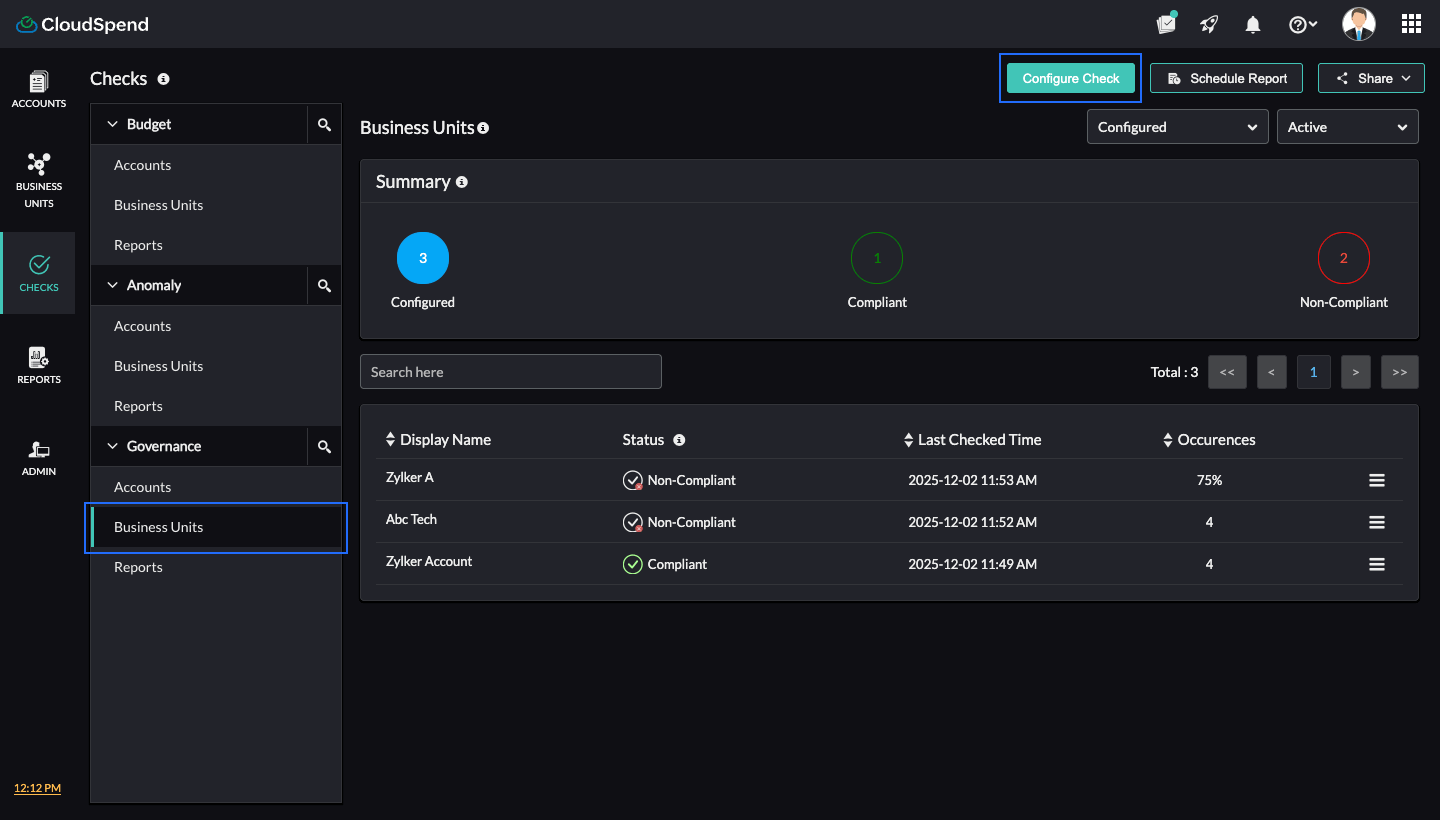
To configure governance checks for your Cost Centers:
- Go to the CloudSpend console.
- In the left navigation pane, choose Checks, and then select Governance > Cost Centers.
- Click Configure Check and complete the following steps:
Step 1: Basic Details
- In the Basic Detailspage, enter the Display Name for the new governance check.
- Governance Profile: Select the applicable check. Governance Profiles are reusable across multiple checks. If you wish to create a new profile, click Add to open the Add Governance Profile dialog box. To edit a profile, click Edit. After you make the necessary changes, click Save.
- In the Add Governance Profile dialog box, enter the following details:
- Display Name: Enter a display name for the new governance check.
- Resource Type: Choose the Cost Center.
- Cost Centers: Select the applicable cost centers.
- Add Label: Enter the label key and label value.
- Click Next.
- In the Configure Tag Validation section, specify the tag values and logical conditions that determine compliance. Each row represents a tag condition.
- Logical Operators (AND/OR): You can chain multiple conditions using AND/OR. In this example, the criteria are: ((1 AND 2) OR 3) as shown in the image. This means, a resource is compliant if it has both the first and second tag conditions OR it has the third condition.
- Click the add icon + to add another tag condition. Click the delete icon to delete a condition.
- Edit Expression: Fine-tune or manually edit the logical expression combining conditions.
- Click Save to create the Governance Profile.
- Click Next to proceed to step 2.
Step 2: Configure Details
- In the Configure Details page, enter the following details:
- Period: The duration over which governance check is evaluated. Governance checks run on a monthly window so that resources marked non‑compliant in one month but fixed in the next do not conflict with each other. Only Monthly is supported for governance checks.
- Unit: Choose how you want to measure non‑compliant resources for this check. Count tracks the number of untagged resources, while Percentage tracks the percentage of total resources that are untagged.
- Non-compliance Threshold: The threshold value at which a governance check sends alerts when the count or percentage of untagged (non-compliant) resources exceeds the configured value. Enter your desired value.
- Click Next to proceed to step 3. To go back to the previous page, click Back.
Step 3: Notification Settings
In the Notification Settings page, select the applicable notification profile and click Submit. If you wish to add a new notification profile, click Add.
You can view the newly configured governance check by navigating to Governance > Cost Center.
Reports
To configure governance checks for your Reports:
- Go to the CloudSpend console.
- In the left navigation pane, choose Checks , and then select Governance > Reports.
- Click Configure Checks and complete the following steps:
Step 1: Basic Details
- In the Basic Details page, enter the Display Name for the new governance check.
- Governance Profile: Select the applicable check. Governance Profiles are reusable across multiple checks. If you wish to create a new profile, click Add to open the Add Governance Profile dialog box. To edit a profile, click Edit. After you make the necessary changes, click Save.
- In the Add Governance Profile dialog box, enter the following details:
- Display Name: Enter a display name for the new governance check.
- Resource Type: Choose Reports.
- Reports: Select the applicable reports.
- Click Next.
- In the Configure Tag Validation section, specify the tag values and logical conditions that determine compliance. Each row represents a tag condition.
- Logical Operators (AND/OR): You can chain multiple conditions using AND/OR. In this example, the criteria are: ((1 AND 2) OR 3) as shown in the image. This means, a resource is compliant if it has both the first and second tag conditions OR it has the third condition.
- Click the add icon + to add another tag condition. Click the delete icon to delete a condition.
- Edit Expression: Fine-tune or manually edit the logical expression combining conditions.
- Click Save to create the Governance Profile.
- Add Label: Enter the label key and label value.
- Click Next to proceed to step 2.
Step 2: Configure Details
- In the Configure Details page, enter the following details:
- Period: The duration over which governance check is evaluated. Governance checks run on a monthly window so that resources marked non‑compliant in one month but fixed in the next do not conflict with each other. Only Monthly is supported for governance checks.
- Unit: Choose how you want to measure non‑compliant resources for this check. Count tracks the number of untagged resources, while Percentage tracks the percentage of total resources that are untagged.
- Non-compliance Threshold: The threshold value at which a governance check sends alerts when the count or percentage of untagged (non-compliant) resources exceeds the configured value. Enter your desired value.
- Click Next to proceed to step 3. To go back to the previous page, click Back.
Step 3: Notification Settings
In the Notification Settings page, select the applicable notification profile and click Submit. If you wish to add a new notification profile, click Add.
You can view the newly configured governance check by navigating to Governance > Reports.
Governance dashboard
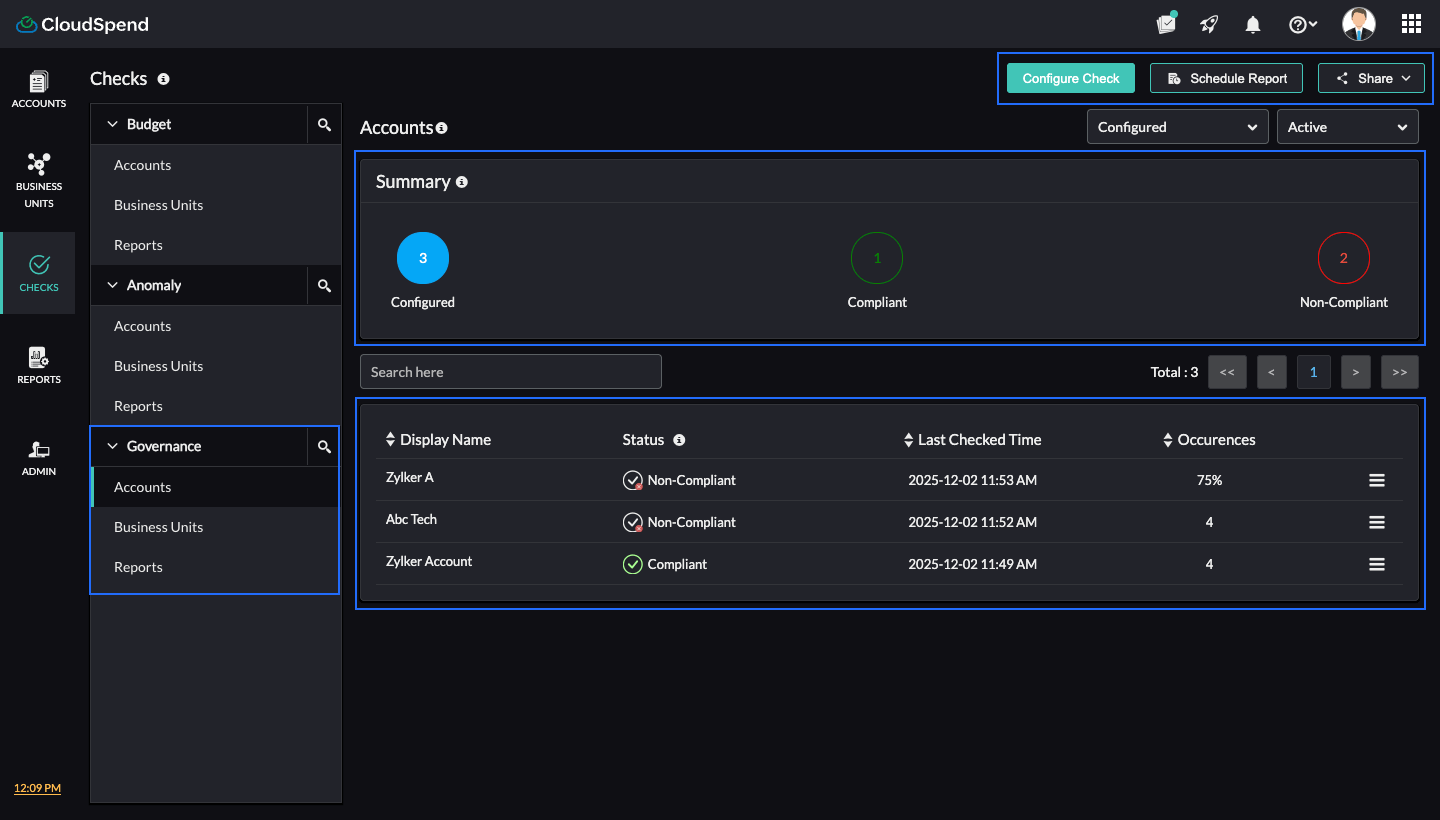
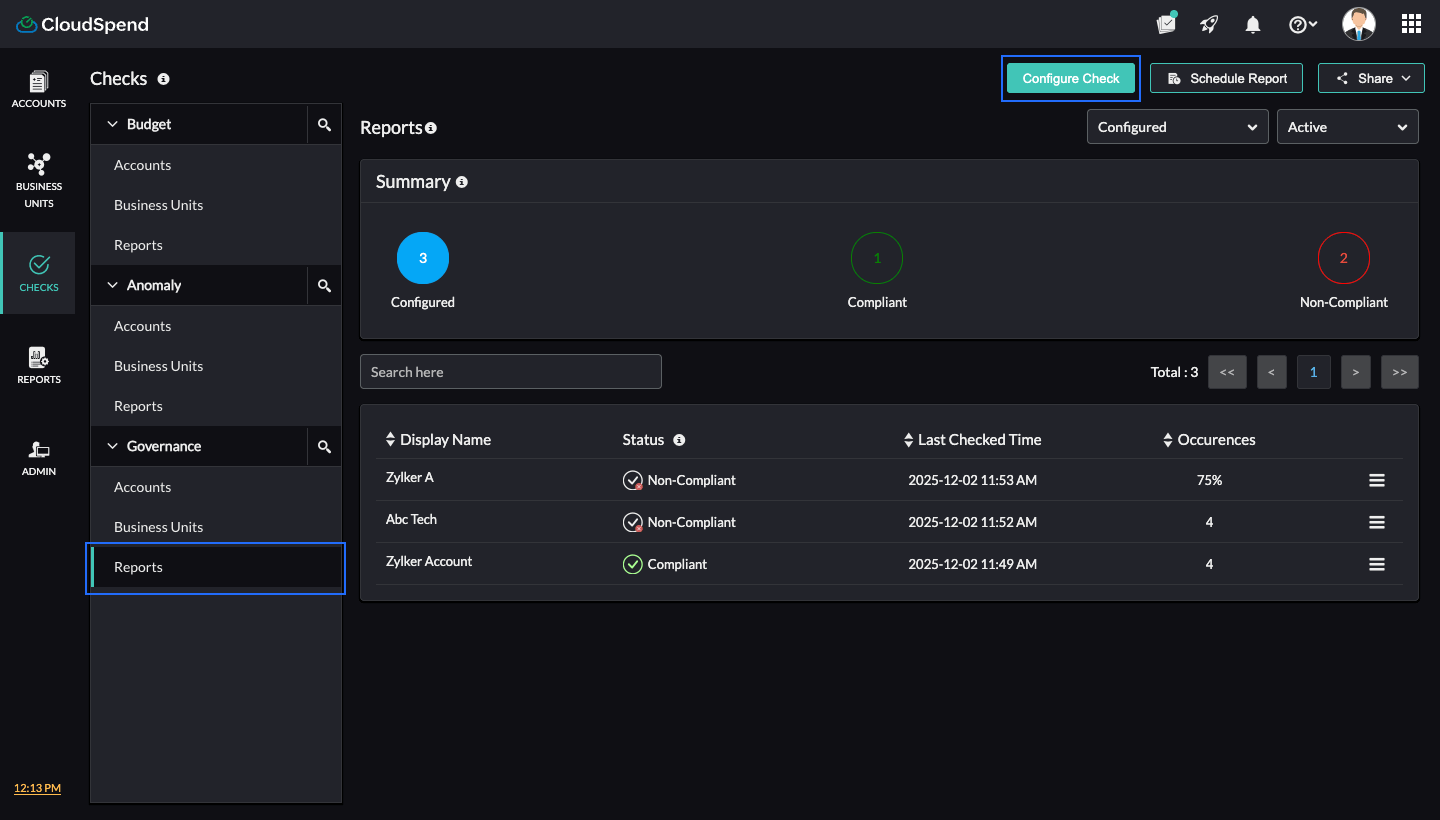
This page gives you a quick view of all governance checks configured in your CloudSpend account. You can view the configured checks, what their status is, and when they were last checked. Click Configure Check to create a new governance check. To schedule report for governance checks on a recurring basis, click Schedule Report. To share the dashboard data with other users, click Share.
Summary
The summary at the top shows three values.
- Configured shows the total number of governance checks created.
- Compliant shows how many checks currently have no violations.
- Non-Compliant shows how many checks detected violations in the latest evaluation.
This helps you understand the overall compliance state at a glance.
List of Governance Checks
Each row represents a single governance check. The table includes these fields.
- Display Name:The name you assigned to the governance check. Selecting it opens the detailed view for that check.
- Status:Indicates the compliance status of a resource based on the configured governance check. A green tick means compliant, a tick with a red cross means non‑compliant.
- Last Checked Time:The most recent time CloudSpend evaluated the check.
- Occurrences:Shows the count or percentage of non-compliant resources detected during the last evaluation.
Governance Details page
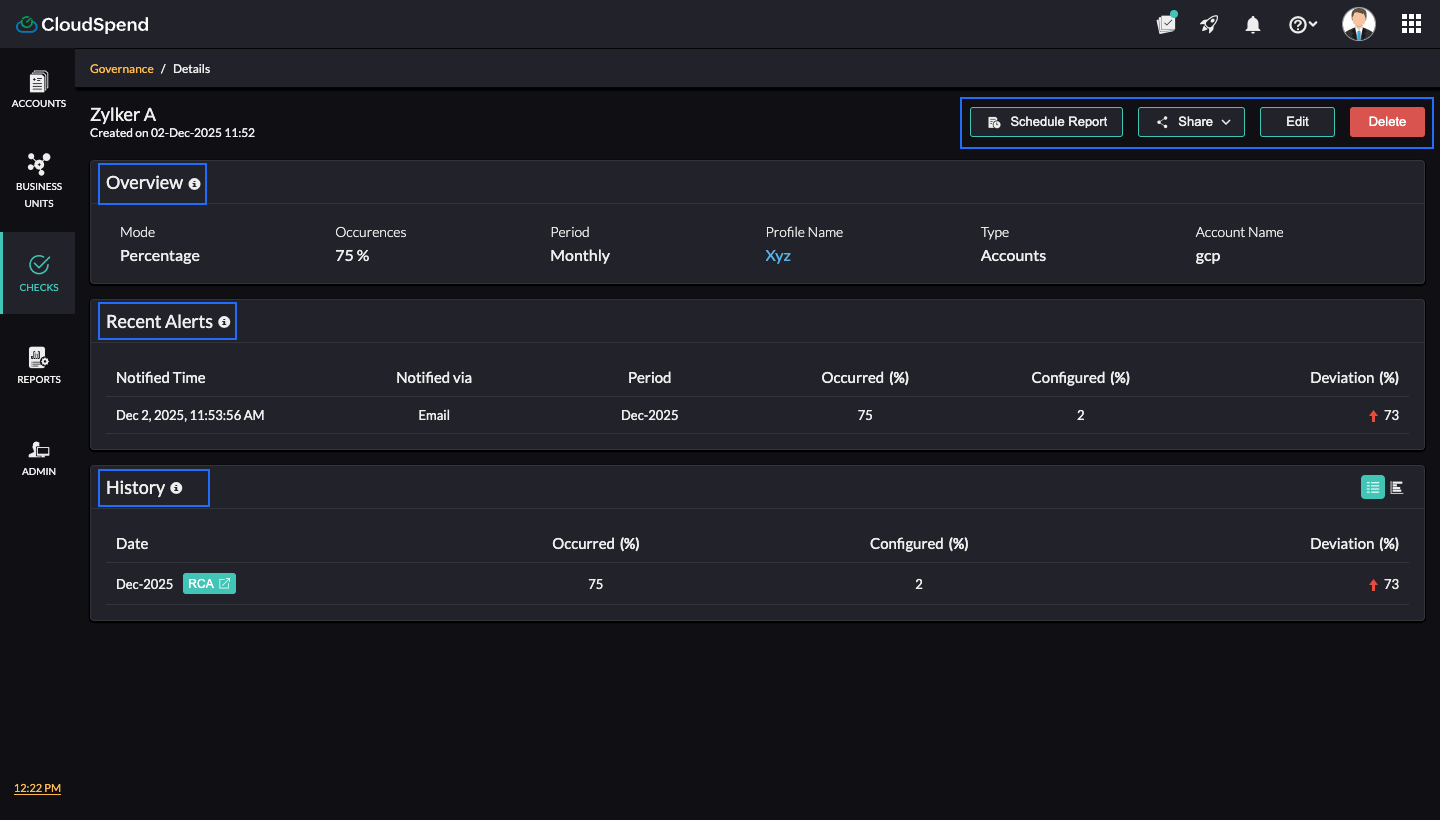
This page shows the status of a specific governance check that you created in CloudSpend. It summarizes how the check behaved during the selected period, how many violations occurred, and when alerts were triggered.
Overview
The Overview section gives a quick summary of how the governance check is configured and how it performed. You can view the following details:
- Mode: Shows whether the check is measuring Count or Percentage.
- Occurrences: View how many non-compliant resources were detected during the selected period.
- Period: Displays the evaluation frequency such as Monthly.
- Profile Name: The governance profile applied to this check. Clicking it opens the Configured Tags page, where you can view the tags associated with the profile.
- Type: Shows what category the check belongs to, such as Accounts.
- Account Name : Shows the cloud account or organization on which the check is applied.
You also see actions like Edit, Delete, Share, and Schedule Report, which help you manage and distribute the results.
Recent Alerts
This section lists the most recent compliance alerts sent for this check.
It shows the time the alert was sent, the notification channel, the evaluation period, the number of non-compliant resources found, the configured compliance value, and the deviation count. The deviation helps you quickly see how far the environment moved away from the configured value.
History
This section shows how the check behaved over previous periods. For each period, you see the number of non-compliant resources detected, the configured compliance value, and the deviation count.
Each entry contains a link to the RCA page for deeper analysis. Clicking RCA takes you to the RCA.
Root Cause Analysis (RCA) page
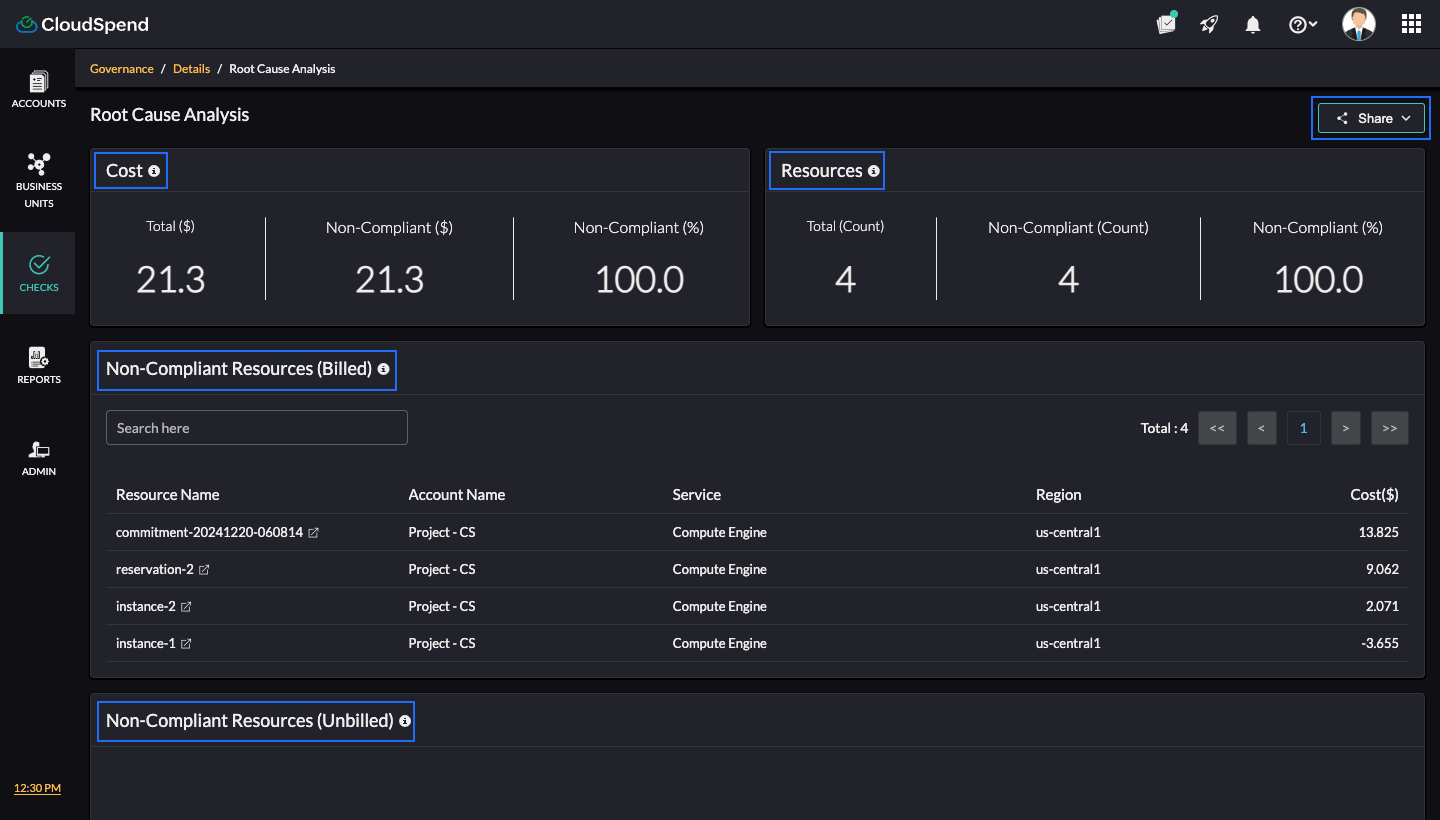
The RCA page gives you a detailed breakdown of how a specific governance check has performed. It highlights the extent of non compliance, the associated cost impact, and the list of affected resources. This helps you understand the scope of the issue and decide what needs to be corrected.
Cost section
This section shows the cost impact of the governance check.
- Total ($) shows the total cost of all resources evaluated under this governance check.
- Non-Compliant ($) shows the cost of resources that failed the governance check.
- Non-Compliant (%) shows what percentage of the total cost is from non-compliant resources.
This area helps you understand how much of your spend is tied to non-compliant resources.
Resources section
This section shows the resource count impact.
- Total (Count) shows the total number of resources evaluated.
- Non-Compliant (Count) shows how many of them are non-compliant.
- Non-Compliant (%) shows the percentage of affected resources.
This tells you how widespread the compliance issue is.
Non-Compliant Resources (Billed)
This table lists all non-compliant resources that contribute to your cloud bill. For each resource, you can see the resource name, account name, service, region, and cost.
This helps you pinpoint exactly which billed resources are failing the governance check and how much they cost. Click the desired resource from the Non-Compliant Resources (Billed) section to view the resource inventory details of that particular resource. You can view the resource trend, resource details, and tag associated with the resource in the Resource Inventory page.
Non-Compliant Resources (Unbilled)
This section works the same way as the billed list but focuses on resources that do not currently generate cost. These may include newly created resources or items that are not yet billed because they fall under reservations, savings plans, or other applied discounts. Seeing them early helps you fix compliance issues before they affect reporting or future bills.
Access governance insights through AI
Instead of reviewing governance checks and compliance status manually, you can retrieve the same insights through your AI assistant when Zoho MCP is connected. This helps you quickly understand which resources are compliant, where violations exist, and how they impact cost and operations.
Here is what you can pull through the AI:
- Overall compliance summary: Ask for the total number of configured checks, along with how many are compliant and non compliant. This reflects the summary section at the top of the page.
- Non compliant resources: Retrieve the list of resources that failed governance checks, including details such as account, service, region, and associated cost.
- Violation counts and occurrences: Identify how many times a governance check has been violated and how many resources are currently non compliant.
- Cost impact of non compliance: Understand how much of your cloud spend is coming from non compliant resources, including total cost and percentage impact.
- Historical compliance trends: Analyze how governance checks have behaved over time, including past violations and deviations from configured thresholds.
- Recent alerts and deviations: Retrieve details of recent alerts triggered when non compliant resources exceeded defined limits, including when the alert was triggered and the deviation value.
- Root cause insights: Get a breakdown of why a governance check failed, including affected resources and their contribution to cost. This mirrors the RCA view, which highlights non compliant resources and their impact.
Sample prompt: Which governance checks are currently non compliant and what is their cost impact?
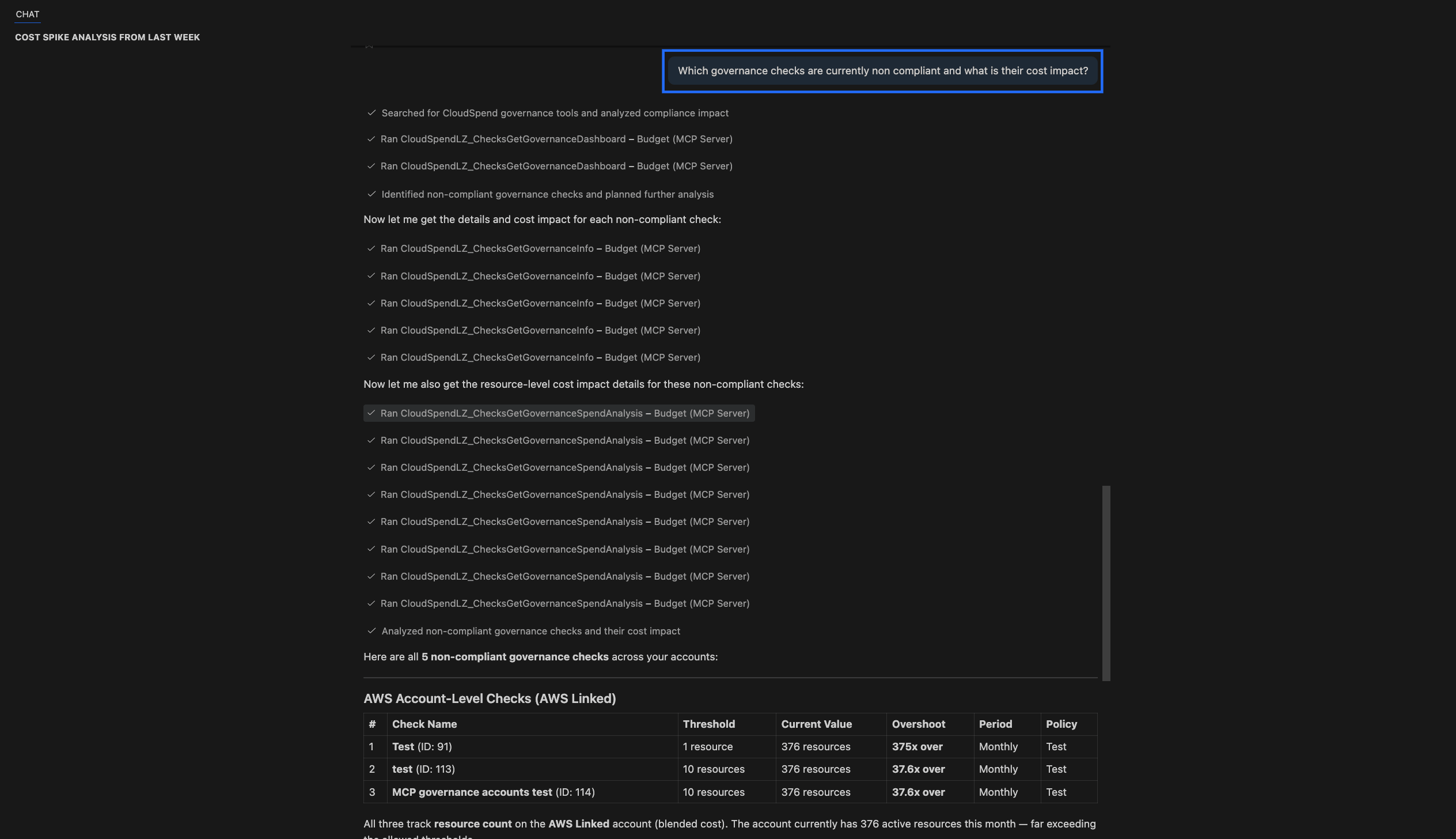
What AI returns: The AI identifies all governance checks that are currently non compliant and groups them by scope, such as account level and cost center level. It presents details including check name, configured threshold, current value, and the extent of the violation.
It also explains the context behind the violations, such as resource counts exceeding defined limits, and highlights the associated cost impact, including current spend and forecasted spend where available.
In addition, the AI shows how these violations have changed over time by summarizing historical trends, indicating whether non compliance is persistent or increasing. It concludes with a summary of the overall impact and may include suggested actions to help reduce violations and optimize costs.