Tagging Compliance report
The Tagging Compliance report helps you identify untagged resources and track their cost impact across your cloud accounts. It provides both auto-generated and custom reports to ensure your resources follow the tagging standards set by your organization. By providing detailed visibility into compliance gaps, the report helps you understand the direct financial impact of untagged resources.
CloudSpend provides the following report types:
- Custom reports: Create reports based on your own tagging rules for specific accounts and cost centers.
- Auto-generated reports: Predefined reports for AWS, Azure, and GCP that highlight untagged resources by key attributes such as region, service, subscription, or billed account and more.
- When you create a custom report, it will be shown as disabled initially in the Tagging Compliance page. The report takes some time to generate and will be enabled automatically once it is ready.
- When you add a tag key and tag value to a resource, if the resource does not have that exact tag combination, it will be considered as untagged.
Benefits of the Tagging Compliance report
You can leverage the following benefits with the Tagging Compliance report:
- Enhanced visibility: Instantly identify resources that are missing required tags, giving you a clear picture of your tagging coverage.
- Cost impact analysis: Understand the financial consequences of untagged resources by seeing the associated cost. This is crucial for accurate cost allocation and chargeback models.
- Standardized governance: Enforce consistent tagging policies across all your cloud providers (i.e., AWS, Azure, and GCP), ensuring a unified approach to resource management.
- Time savings: The auto-generated reports save you time by providing immediate insights, while custom reports give you the flexibility to track specific policies without manual data gathering.
- Proactive management: Schedule regular checks to detect untagged resources early, preventing small inconsistencies from becoming major compliance issues.
Why use the Tagging Compliance report?
Tagging compliance is critical for accurate cost allocation and governance. By using the Tagging Compliance report, you can:
- Ensure resources are properly tagged for chargeback or showback.
- Avoid cost mismanagement caused by untagged resources.
- Support internal audits and governance policies.
- Optimize cloud costs with better tracking of cost centers, projects, or teams.
Use cases
- Imagine a finance team that needs to prepare monthly cost reports for leadership. They rely on tagging to assign costs to cost centers, but untagged billed resources create gaps in reporting. By using the Untagged Resources (Billed) view in the Tagging Compliance report, they can quickly identify and allocate those costs to the right departments.
- A cloud administrator managing multiple AWS and Azure accounts may struggle to enforce organizational tagging rules. With CloudSpend’s auto-generated reports, they can monitor compliance by service or region and ensure all new resources follow the tagging standards set by IT.
- For a project manager handling a short-term migration project, tracking costs is critical. By creating a custom Tagging Compliance report, they can filter compliance data for just that project’s resources and keep budgets under control.
- Governance teams often need to prepare for internal or external audits. Using the Untagged Resources (Unbilled) view, they can detect gaps before billing cycles close, reducing the risk of compliance issues and ensuring smoother audit readiness.
Tagging Compliance report view
The Tagging Compliance report page provides a detailed overview of tagging compliance across AWS, Azure, and GCP environments, facilitating effective resource governance and cost management based on entities such as Service, Region, Location, Billed Accounts, Subscriptions, and Projects. The attached image below illustrates the main features and navigation options of this page, which are outlined below.
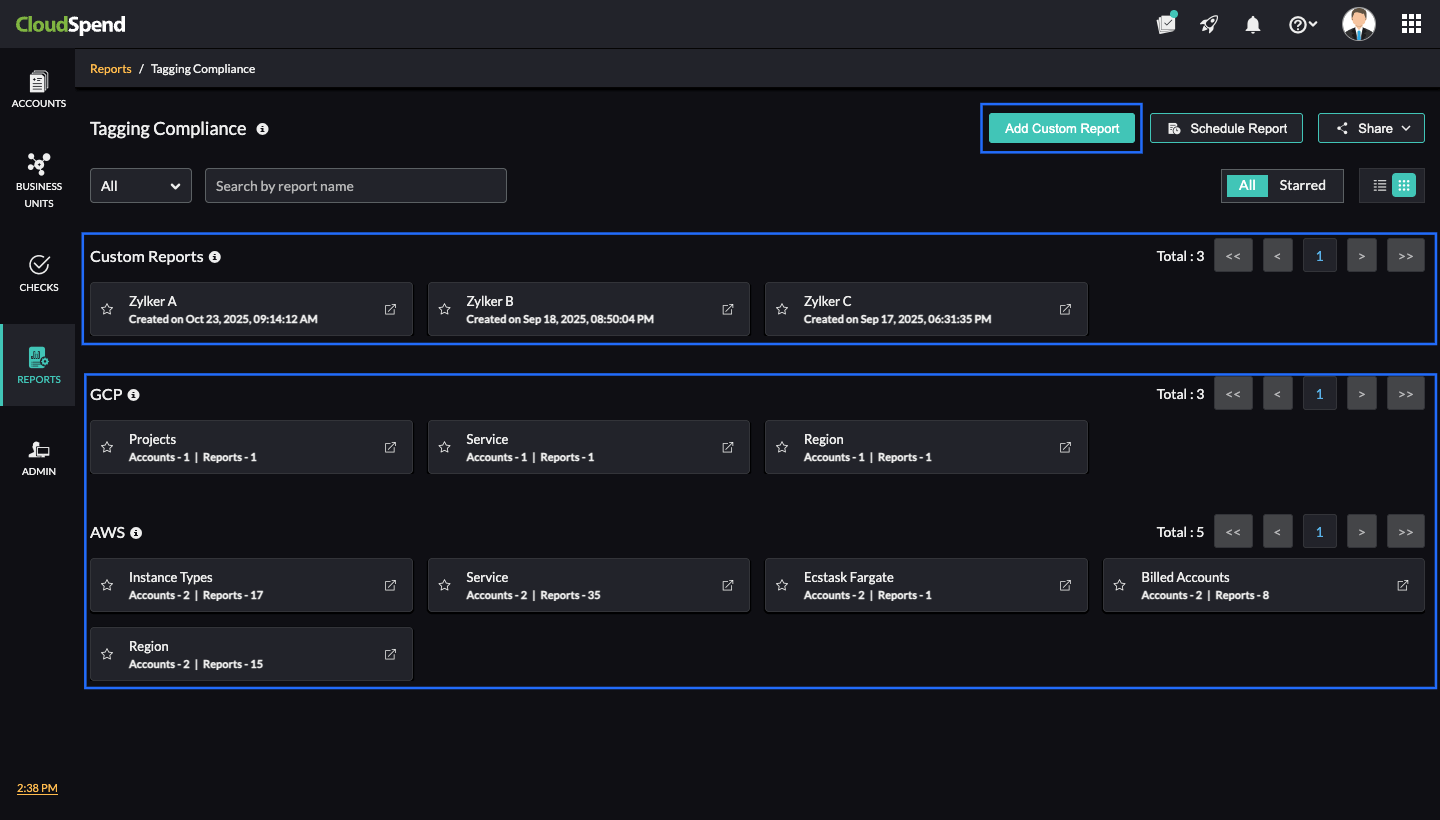
The top of the page includes a search box, enabling you to filter specific compliance reports by name for quick access. Configure automated delivery by scheduling reports and share them for collaborative compliance monitoring using the Schedule Report and Share options at the top-right section.
Custom reports
This section displays the existing custom tagging compliance reports. These are user-created reports, each showing the creation timestamp, making it easy to track and manage custom compliance initiatives.
You can create new custom tagging compliance reports using unique tagging rules that address organization-specific tagging needs by clicking the Add Custom Report button at the top-right section.
Auto-generated reports
Auto-generated compliance reports are available for different cloud types, with report categories varying by provider. Depending on the selected cloud, reports are available for categories such as Service, Billed Account,Region, Location, Subscription, and Project and more. Each category displays the number of associated accounts and generated reports, helping you understand coverage, identify areas needing attention, and track overall tagging compliance.
Compliance data for a cost account is visible only when an auto-generated report exists for that account.
Untagged Resources view
From the Tagging Compliance Report page, when you select a report type, you are taken to the Untagged Resources view for that selection. By directly associating cost with untagged resources, the report helps you prioritize remediation efforts based on financial impact.
The example shown below displays the AWS Region view. Similarly, you can view reports for Service and BilledAccount in AWS, as well as their equivalents in Azure (Location, Subscription, Service ), and GCP (Project, Service, Region ).
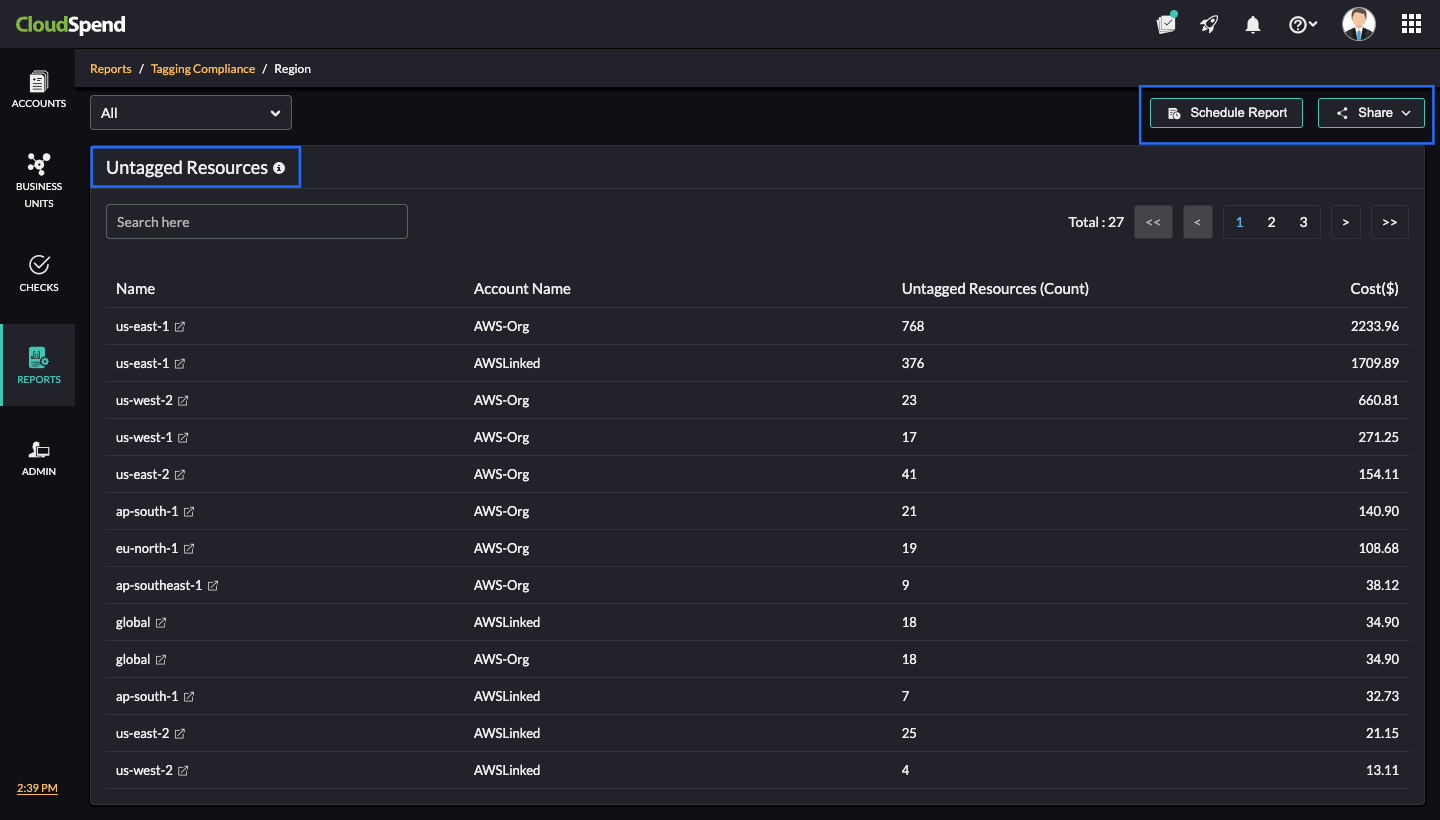
In the attached screenshot, the report is displayed by Region for an AWS account and you can view the following details:
- Filter drop-down: At the top, you can filter the report by a specific region or view all regions.
- Search bar: Lets you search for a particular region.
- Name: The AWS region name (e.g., us-east-1, us-west-2).
- Account Name: The associated cloud account (e.g., AWS-Org).
- Untagged Resources Count: The number of resources in that region that are missing required tags. For instance, in us-east-1, 768 untagged resources are identified.
- Cost ($): The total cost of the untagged resources for the region. For example, in us-east-1, the untagged resource costs USD 2233.96.
- Schedule Report: Schedule the report to be generated and sent automatically at defined intervals.
- Share: Share the report with stakeholders as PDF or email.
In this example, from the Untagged Resources page, you can click any region. This takes you to a detailed breakdown of untagged resources within that region.
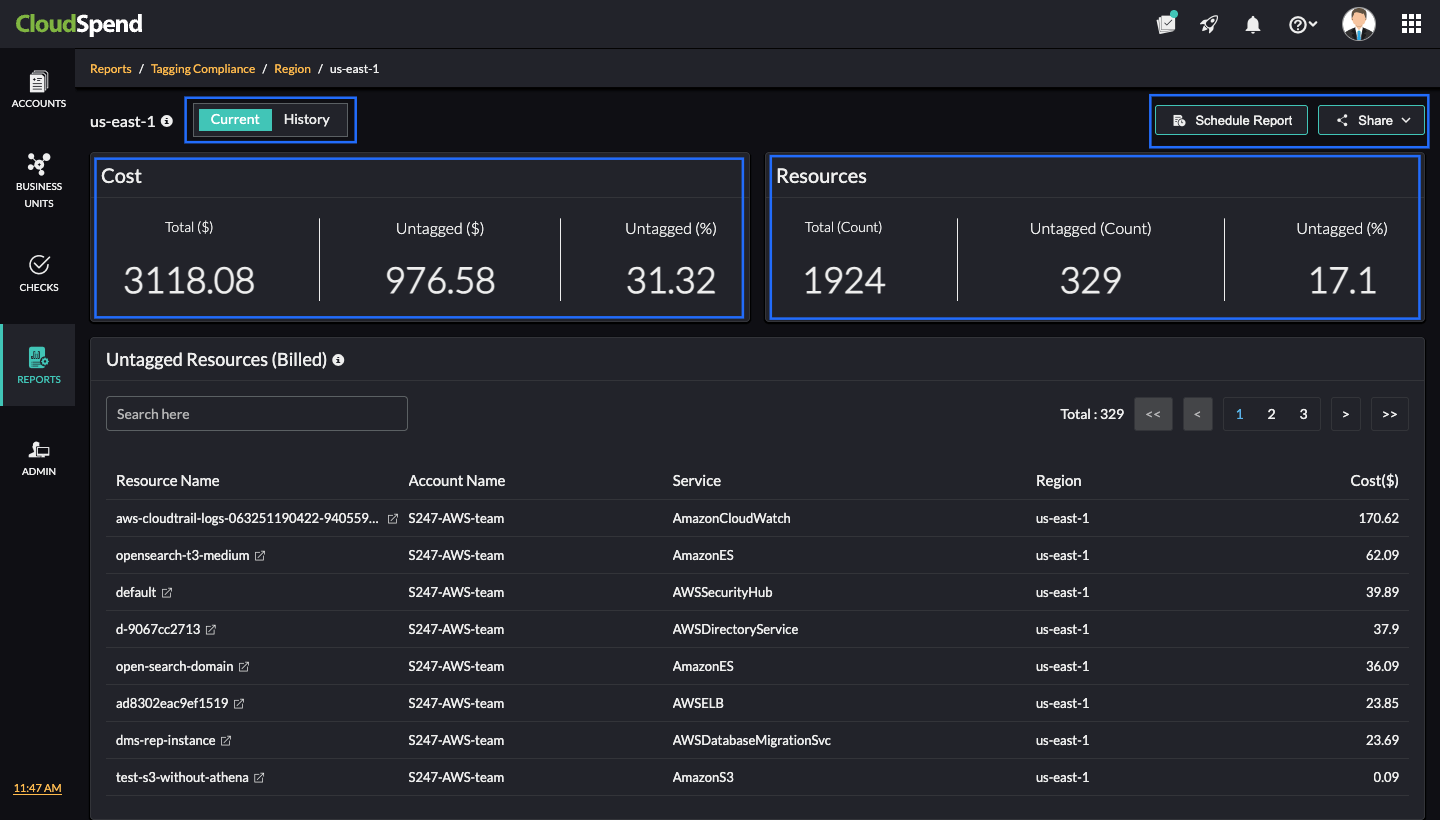
You can toggle the views on this page. The Current view gives you a detailed breakdown of untagged resources within that region. The History view lets you download the historical data (if available) for the Billed and Unbilled resources.
You can also schedule the report to be generated and sent automatically at defined intervals and also share it with collaborators as a PDF or email.
Current view
The screenshot above shows the us-east-1 region for AWS. At the top, the page displays the following summary metrics for both cost and resource counts.
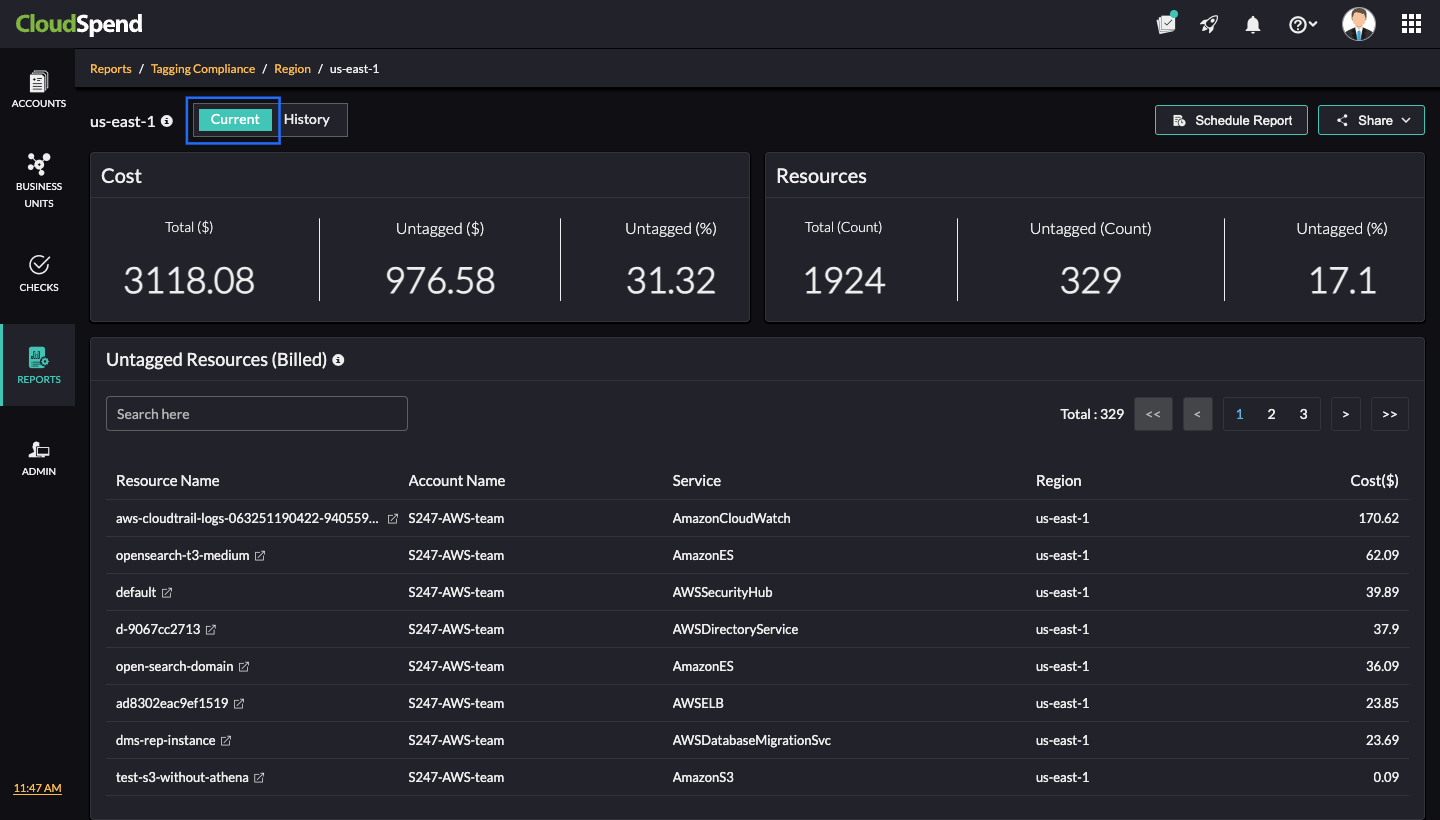
The Cost card provides the following details:
- Total: Overall cost of all resources in the region.
- Untagged: Cost of untagged resources.
- Untagged %: Percentage of total cost attributed to untagged resources.
The Resources (Count) card provides the following details:
- Total: Number of resources in the region.
- Untagged: Number of untagged resources.
- Untagged %: Percentage of resources without tags.
In the above example, the total regional cost is $3118.08 with $976.58 tied to untagged resources, which is 31.32% of the total. Out of 1,924 resources, the total untagged is 329 or 17.1%.
Untagged Resources (Billed)
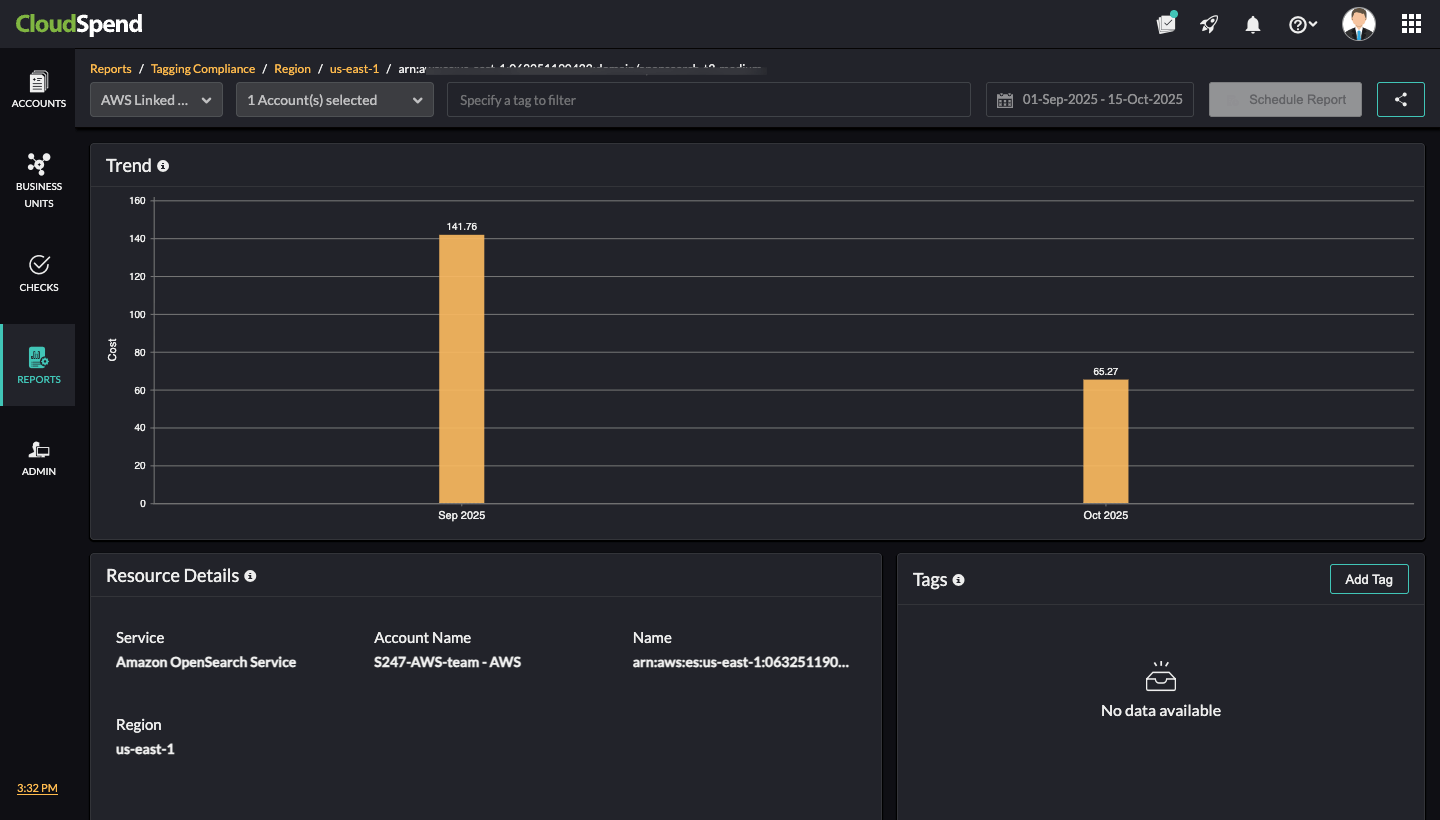
The table lists all billed untagged resources in that region. It includes:
- Resource Name: The specific resource identifier.
- Account Name: The cloud account under which the resource exists (e.g., S247-AWS-team-AWS).
- Service: The AWS service the resource belongs to (e.g., Amazon OpenSearch Service).
- Region: The AWS region (e.g., us-east-1).
- Cost ($): The cost attributed to each untagged resource.
Click the desired resource from the Untagged Resources (Billed) section to view the resource inventory details of that particular resource. You can view the resource trend, resource details, and tag associated with the resource in the Resource Inventory page.
Untagged Resources (Unbilled)
The Untagged Resources (Unbilled) table lists all unbilled untagged resources in that region.
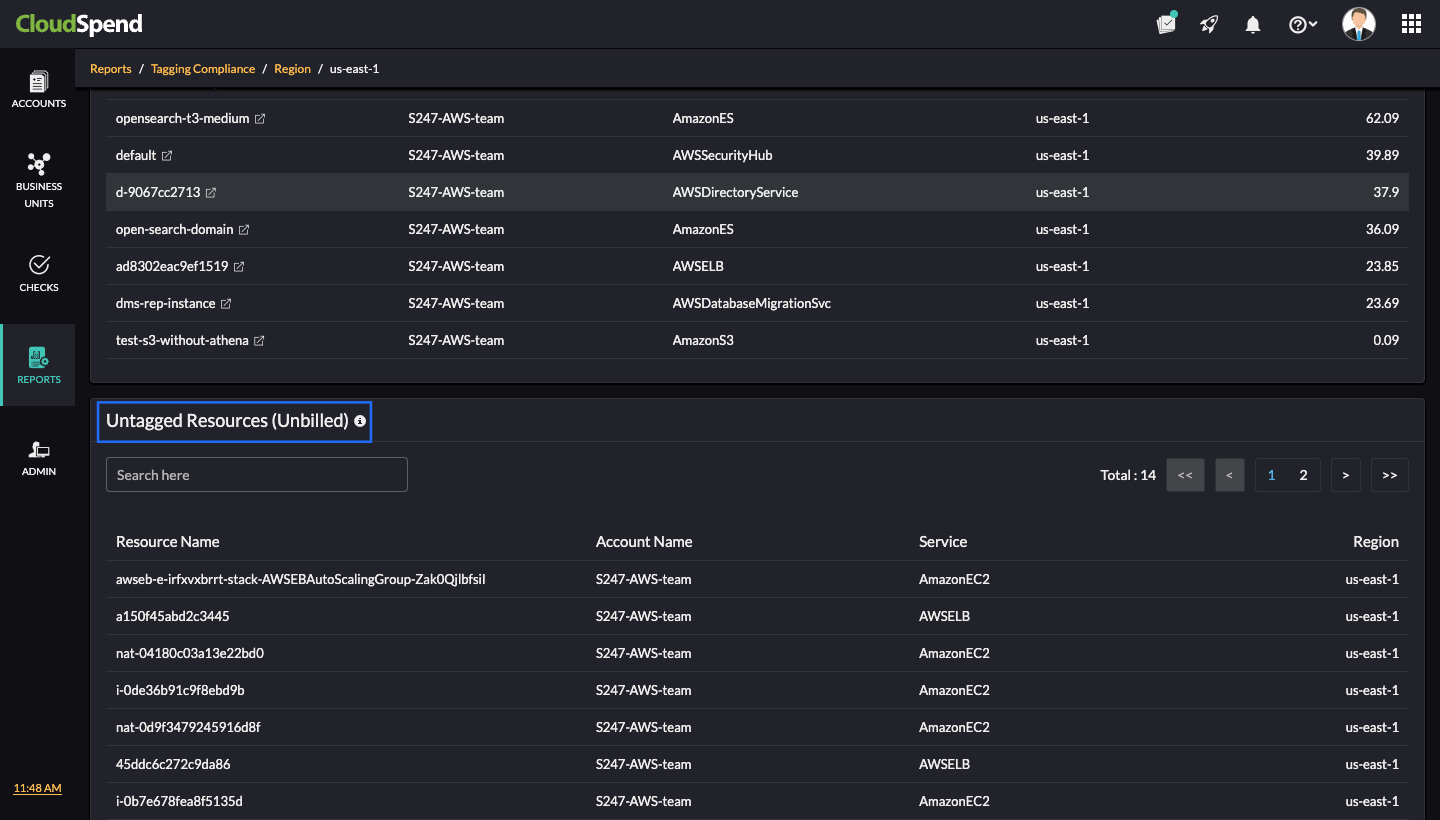
It includes:
- Resource Name: The specific resource identifier.
- Account Name: The cloud account under which the resource exists (e.g., S247-AWS-team).
- Service: The AWS service the resource belongs to (e.g., AmazonEC2, AWSELB).
- Region: The AWS region (e.g., us-east-1).
This detailed breakdown lets you pinpoint exactly which untagged resources are driving costs. By associating costs directly with resources, you can prioritize remediation where it has the most financial impact.
History view
The History view allows you to download previously generated data for both billed and unbilled resources.
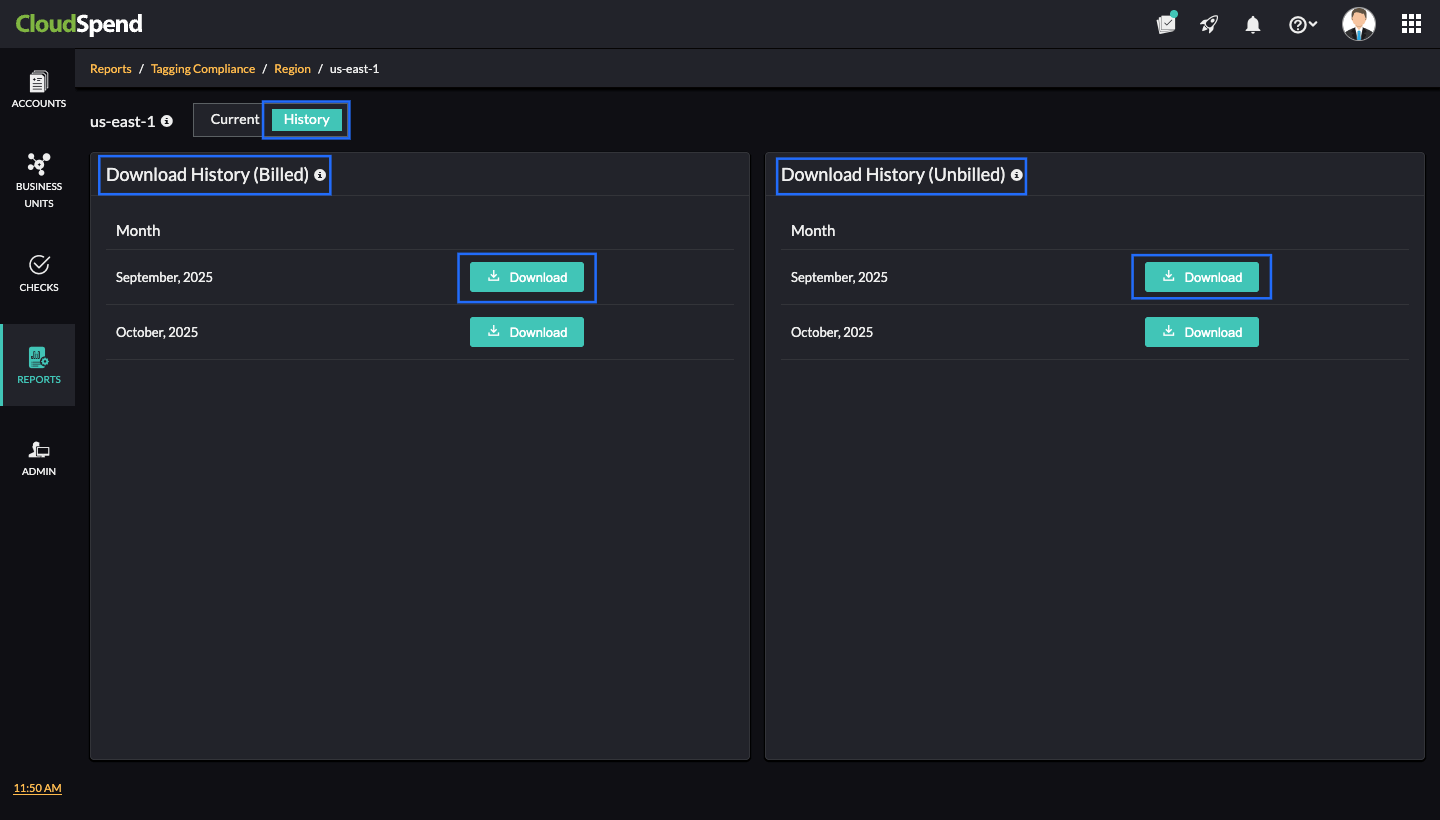
- Download History (Billed): Lists the months for which historical billed resource data is available. For each month, click Download to retrieve the data.
- Download History (Unbilled): Lists the months for which unbilled resource data is available. For each month, click Download to retrieve the data.
- Selecting a month shows data from the first to the last day of that month.
- The download options are not available for free users.
- You can download historical billed resource data for up to 12 months from the report’s creation date.
The History view helps you analyze past compliance trends, compare month-over-month changes, and maintain records for audit or governance needs.
Adding a Tagging Compliance report
To add a Tagging Compliance report, follow these steps:
- Go to Reports > General > Tagging Compliance.
- Click Add Custom Report.
- In the Choose Accounts section, enter the following details:
- Display Name: Enter the display name.
- Report Type: Select the report type. The available options are Accounts and Cost Centers.
- Accounts: Select the applicable cost accounts or cost centers.
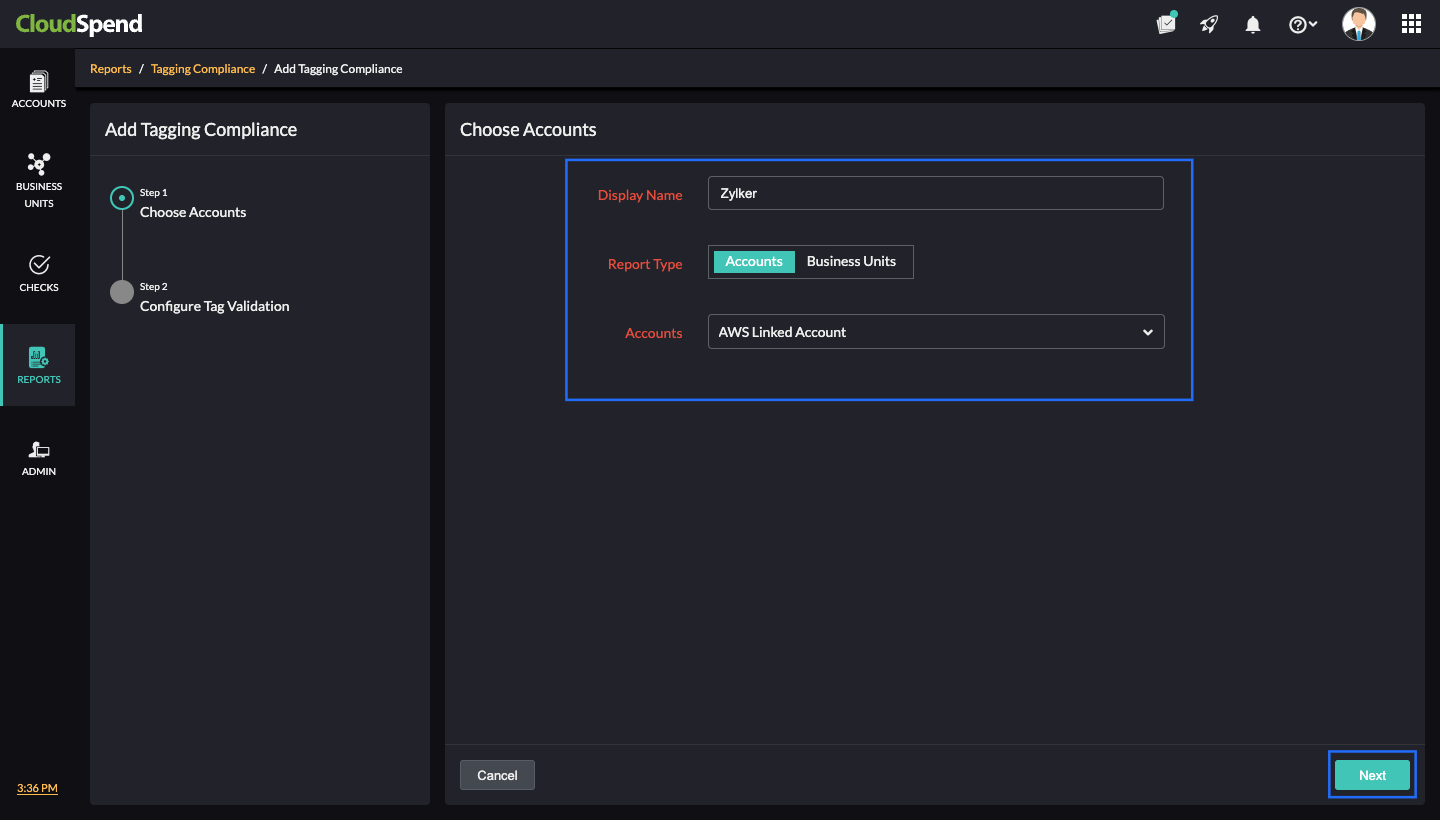
- Click Next.
- In the Configure Tag Validation section, specify the tag values and logical conditions that determine compliance.
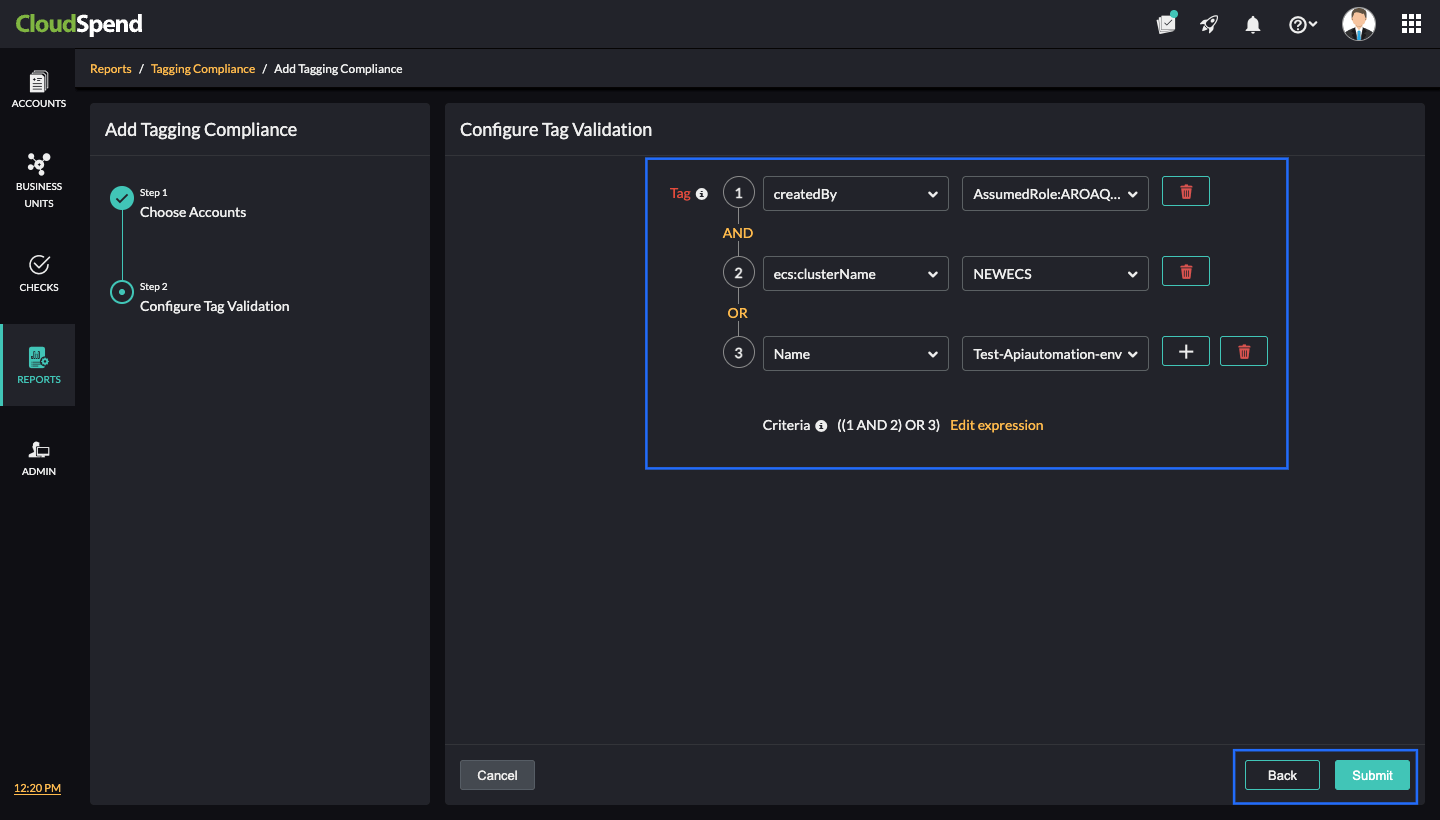
- Tag: Each row represents a tag condition. Learn more. Example:
- Row 1: Tag key createdBy with value AssumedRole:AROAQ
- Row 2: Tag key ecs:clusterName with value NEWECS
- Row 3: Tag key Name with value Test:Apiautomation-env
- Logical Operators (AND/OR): You can chain multiple conditions using AND/OR. In this example, the criteria are: ((1 AND 2) OR 3) as shown in the image. This means, a resource is compliant if it has both the first and second tag conditions OR it has the third condition.
- Click the add icon + to add another tag condition. Click the delete icon to delete a condition.
- Edit Expression: Fine-tune or manually edit the logical expression combining conditions.
- Tag: Each row represents a tag condition. Learn more. Example:
- Click Submit.
The above steps will create a Tagging Compliance report based on the tag keys and values you define. Once configured, CloudSpend checks your selected accounts against these rules to identify resources that do not meet the tagging criteria.
Note: When you open a custom report, it directly takes you to the detailed breakdown of untagged resources within the selected entity unlike the auto-generated report.
Tag validation use case
When you set tag validation in the Tagging Compliance report, you can define one or more tag conditions using AND or OR logic.
For example, let’s say you’re working with a cost account or cost center named Zylker. While setting up tag validation for this account, you might define tag combinations like:
- environment: production
- owner: finance
You can then combine these tag rules using logical conditions such as:
- AND condition: The resource must have both environment:production and owner:finance tags to be considered compliant.
- You might apply this when you want to ensure that all production resources owned by the finance team are properly tagged for accountability and cost allocation. If a resource in the Zylker account is missing either one of these tags, it will be marked as untagged in the report.
- OR condition: The resource must have either environment: production or owner:finance .
- You might use this when tagging practices differ across teams but you still want partial coverage. For example, if some teams use the environment tag while others use the owner tag, either tag being present would meet your tagging requirement. If neither tag is found, the resource will again be listed as untagged.
- You can also combine AND and OR conditions for more specific checks. For instance:
- (environment:production AND owner:finance ) OR costcenter:12345 This means that the resource must either belong to the production environment under Finance or be tagged with a specific cost center. If resources in the Zylker account don’t satisfy any part of this condition, they’ll be shown as untagged resources in the Tagging Compliance report.
In short, the tag validation setup helps you enforce your organization’s tagging policies. Resources that don’t meet these defined conditions are treated as untagged, allowing you to identify gaps and improve tag consistency across accounts.
Scheduling a report
To schedule a Tagging Compliance report, follow the below steps:
- Select the required Tagging Compliance report to be scheduled.
- Click Schedule Report .
- In the Configure Details page, enter the following details:
- Name: Enter the report name.
- Type: Select the report type. The available options are Report View , Category , and Resources. Learn more.
- Select the reports you want to generate. The available options depend on the Type you selected above.
- If you select Report View, the Reports field will not be available.
- For Category, choose the relevant cloud service from the drop-down and then select the desired report category. This option is applicable only for auto-generated reports.
- AWS: Service, Billed Account, or Region
- Azure:Location, Subscription, or Service
- GCP:Project, Service, or Region
- For Resources, choose the cost account to generate auto-reports, then select the applicable category (i.e., Region, Service, or Linked Account ), and finally, pick the specific resources. For custom reports, all available reports will be listed. Select the ones you want from the list.
- Report Format: Select the required report format. The available options are PDF and CSV.
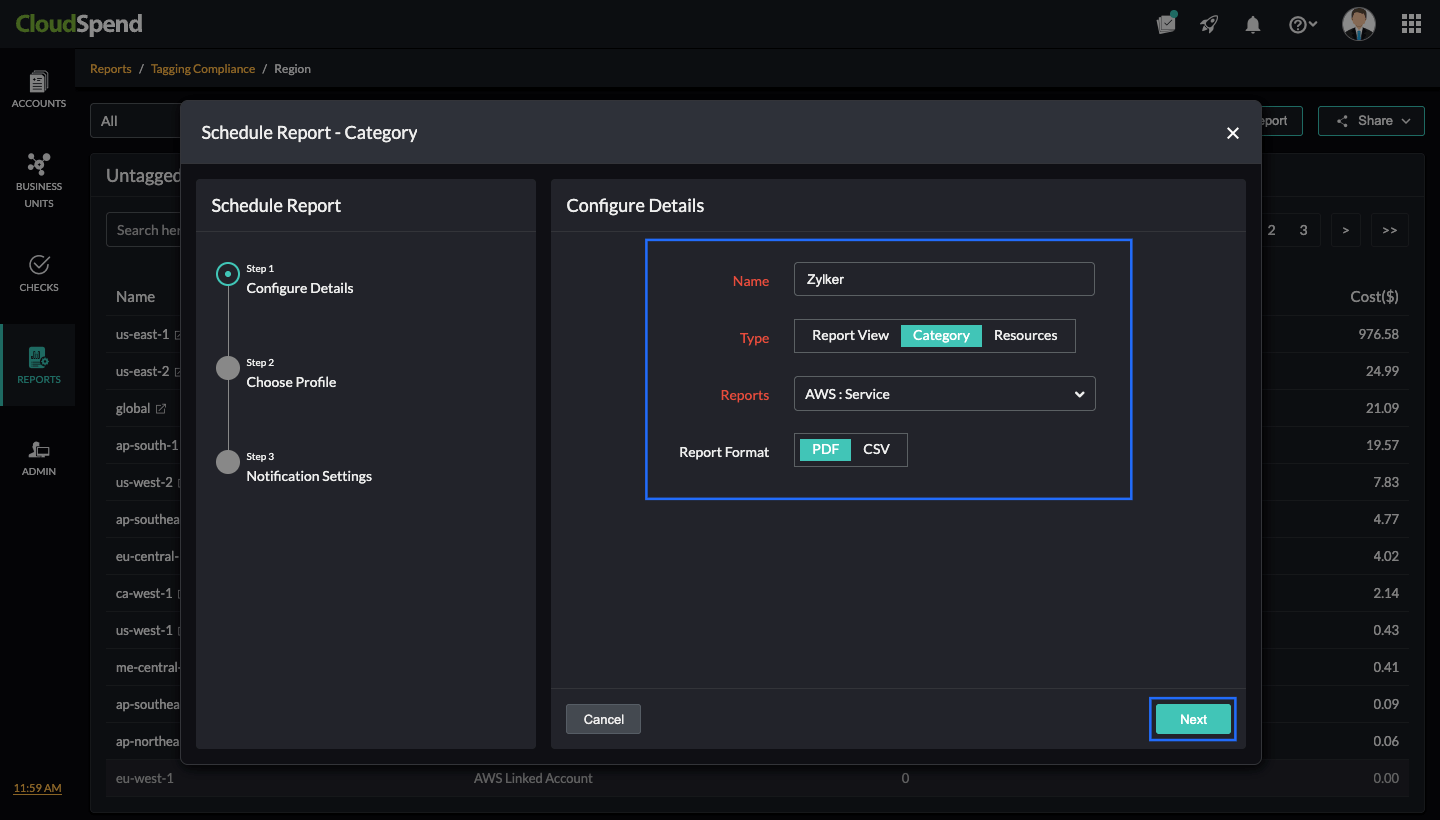
- Click Next.
- Select the Report Profile. If you wish to create a report profile, click Create Profile.
- Click Next, and in the Notification Settings page, enter the below details:
- Notify via: Select Users or User Groups to get notified about the report.
- Email Report: Select the email address to which the report is to be delivered.
- Click Save.
Report types
While scheduling a tagging compliance report, you can schedule the following report types:
Report View
You can schedule a tagging compliance report directly from the Tagging Compliance page view. This page lists all available tagging compliance reports, including both auto-generated reports (for AWS, Azure, and GCP) and custom reports created by users.
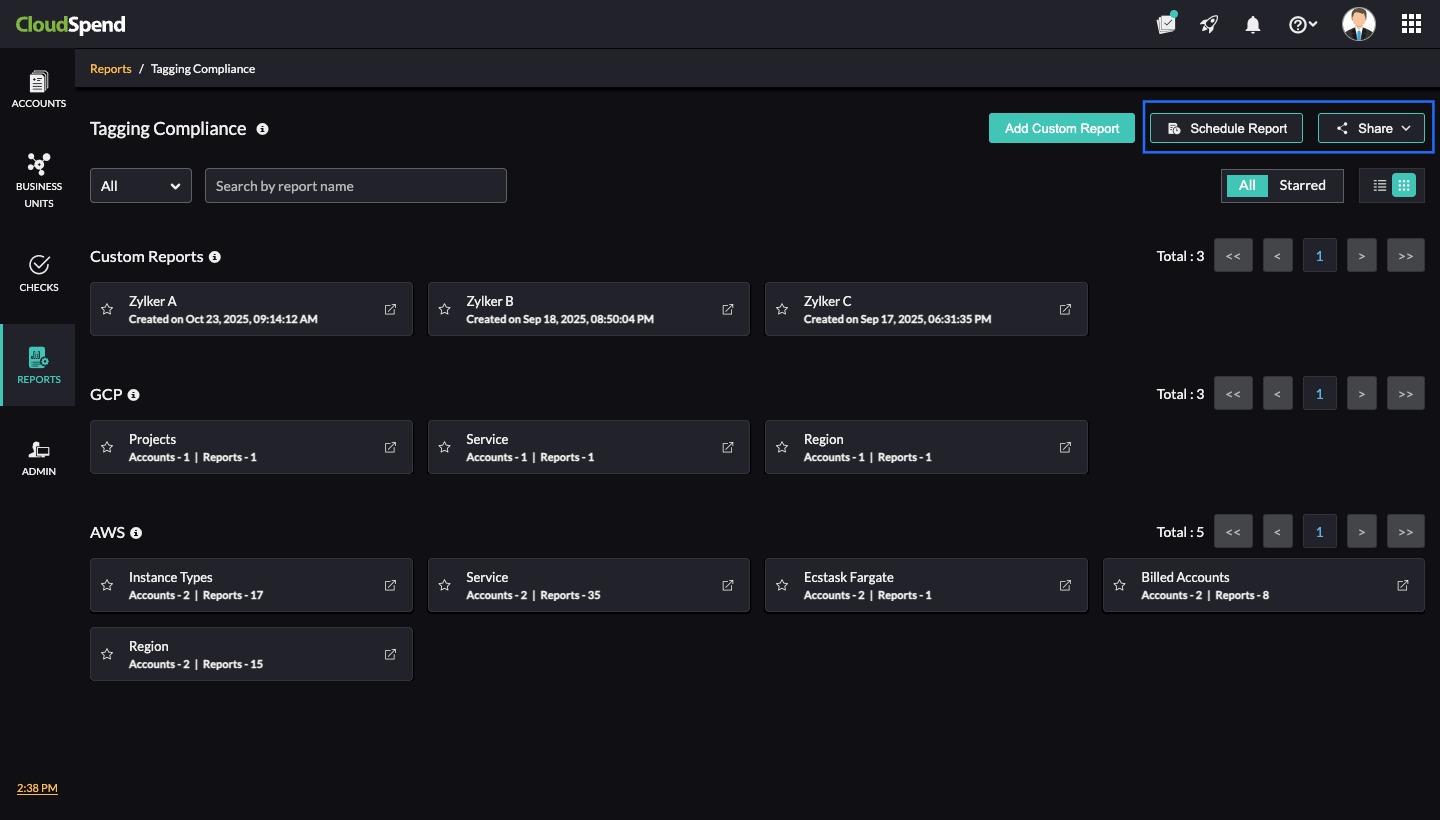
From this view, click Schedule Report to set up automated delivery of the Report View page at regular intervals. This helps you stay updated on resource tagging compliance without manually generating reports each time. Scheduled reports ensure you always have the latest compliance data for your accounts, categorized by cloud provider and report type.
Category
You can schedule tagging compliance reports directly from the category-level report view. When you select Category as the report type, choose the desired cloud provider in the Reports field, followed by the category, such as Service, Billed Account, or Region etc. for the applicable cloud type.
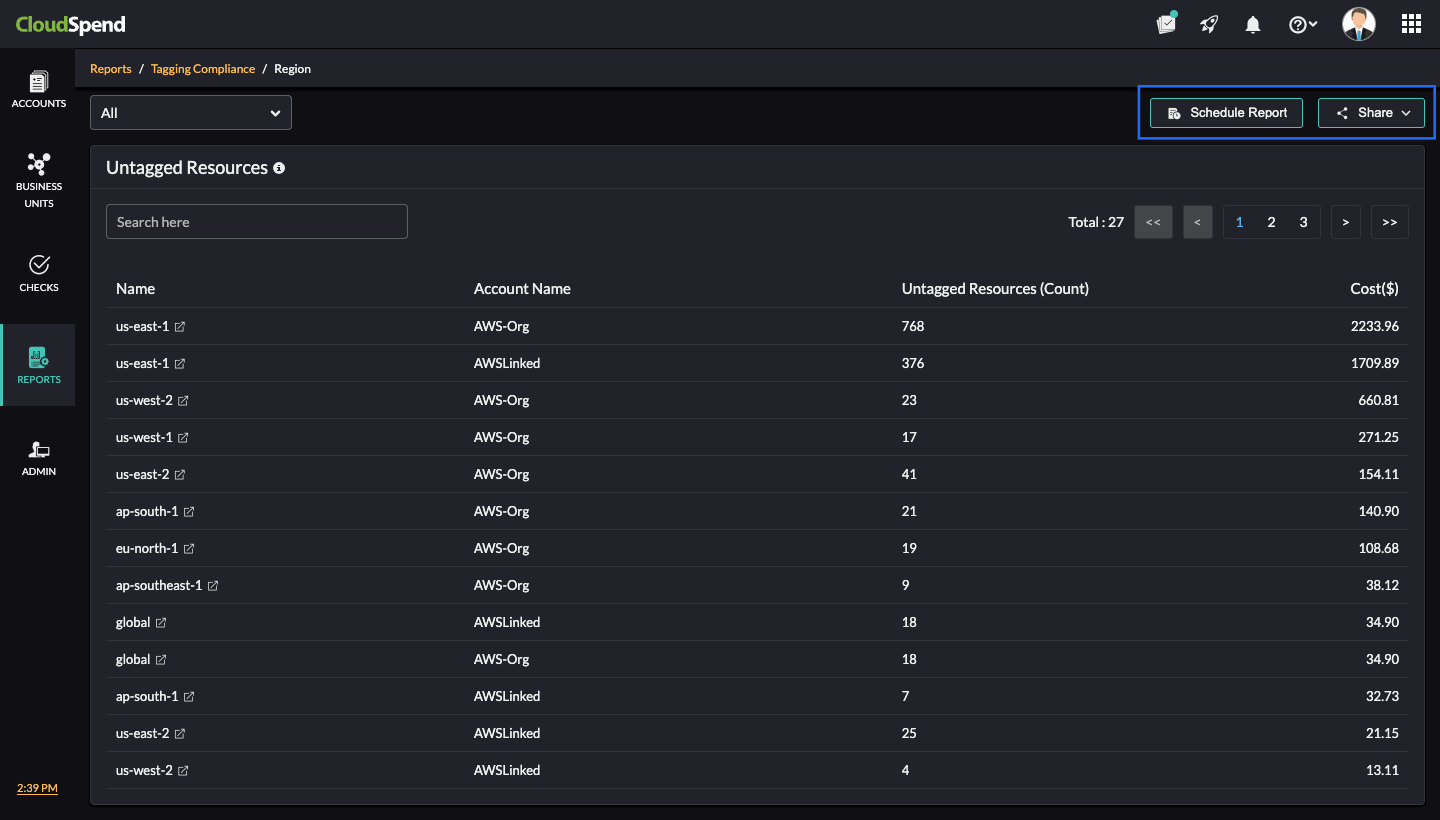
The image above shows the Region category in AWS cloud. This view lists all untagged resources for the selected cloud category along with their associated costs. From here, click the Schedule Report button to generate and deliver updated compliance reports at regular intervals, helping you track and manage untagged resources efficiently.The Category view available only for auto-generated reports.
Resources
You can schedule tagging compliance reports directly from the resources-level report view. When you select Resources as the report type, first choose the cost account to generate the auto-reports. Then select the applicable category such as Region, Service, or Linked Account, and pick the specific resources you want to include.
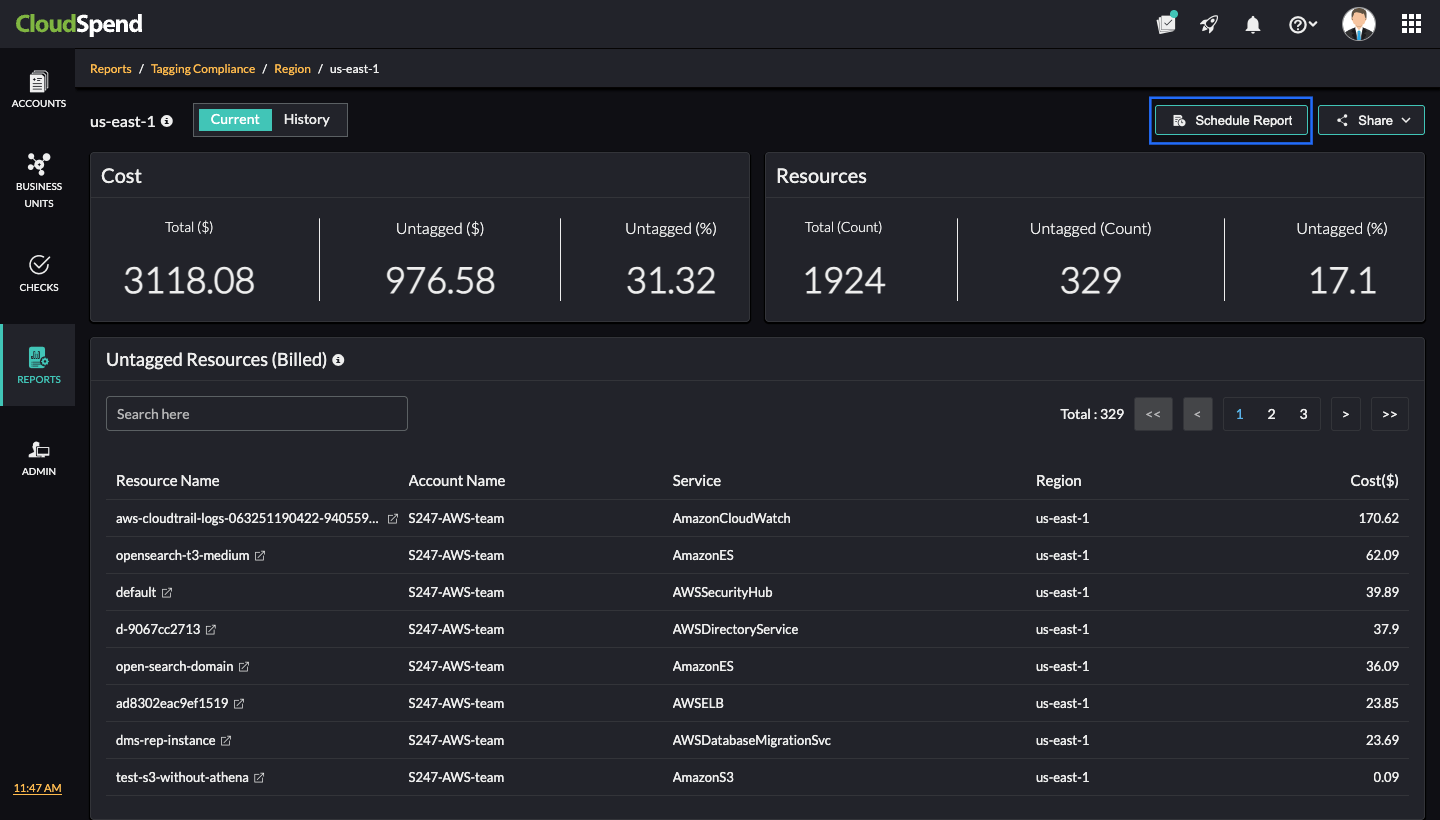
The image above shows the resources listed under the Region category for the AWS cloud. This view displays detailed cost and compliance data for each untagged resource under the selected category. From here, you can click the Schedule Report button to generate and send updated tagging compliance data at regular intervals. Scheduling reports at the resource level helps you stay on top of specific untagged resources and their cost impact without running the report manually each time.