How to integrate HaloPSA with Endpoint Central MSP
Overview
HaloPSA is a professional services automation (PSA) software designed primarily for managed service providers (MSPs). It is a centralized platform for managing all business operations within an MSP or IT department. Kindly note that this integration is available from build 11.4.2535.0.
Benefits of Integrating HaloPSA with Endpoint Central MSP
- Automated Workflows & Faster Resolution — Requests from Endpoint Central MSP flow directly into HaloPSA as tickets, ensuring no issue is missed and resolution is quicker.
- Accurate Client Mapping — Device management data syncs with HaloPSA customers/sites and compliance reporting without manual effort.
- Scalability & Client Trust — Integration streamlines operations, reduces engineer workload, and delivers transparent endpoint health reports, helping MSPs scale efficiently while strengthening client confidence.
Customer Mapping
After the integration is set up, you will need to map each client in HaloPSA to its corresponding customer in Endpoint Central MSP.
On the HaloPSA side
- Create a custom field
- Navigate to: Configuration → Asset Management → Asset Fields.
- Create a custom field named
customer_name.
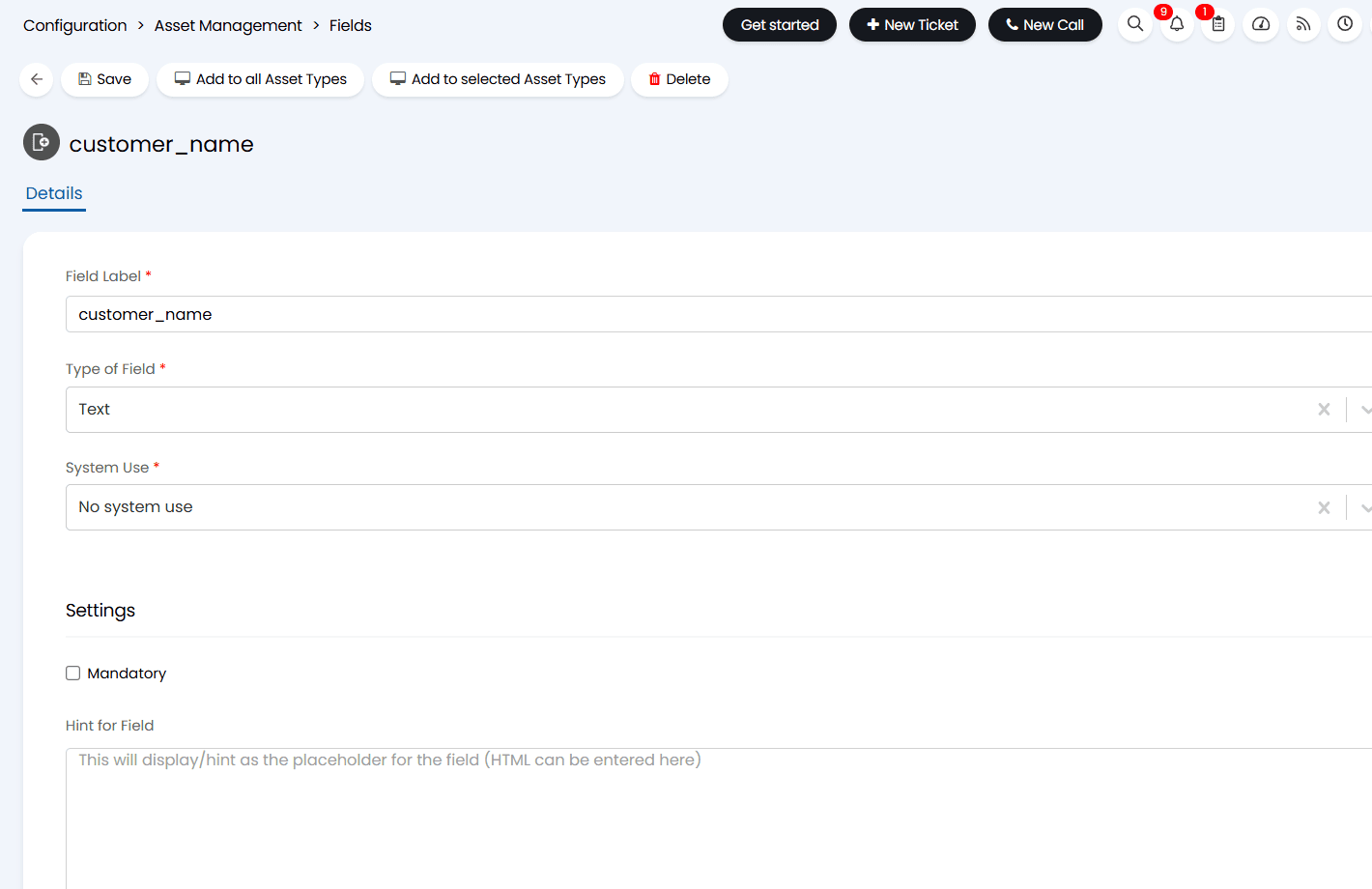
- Ensure these options are selected:
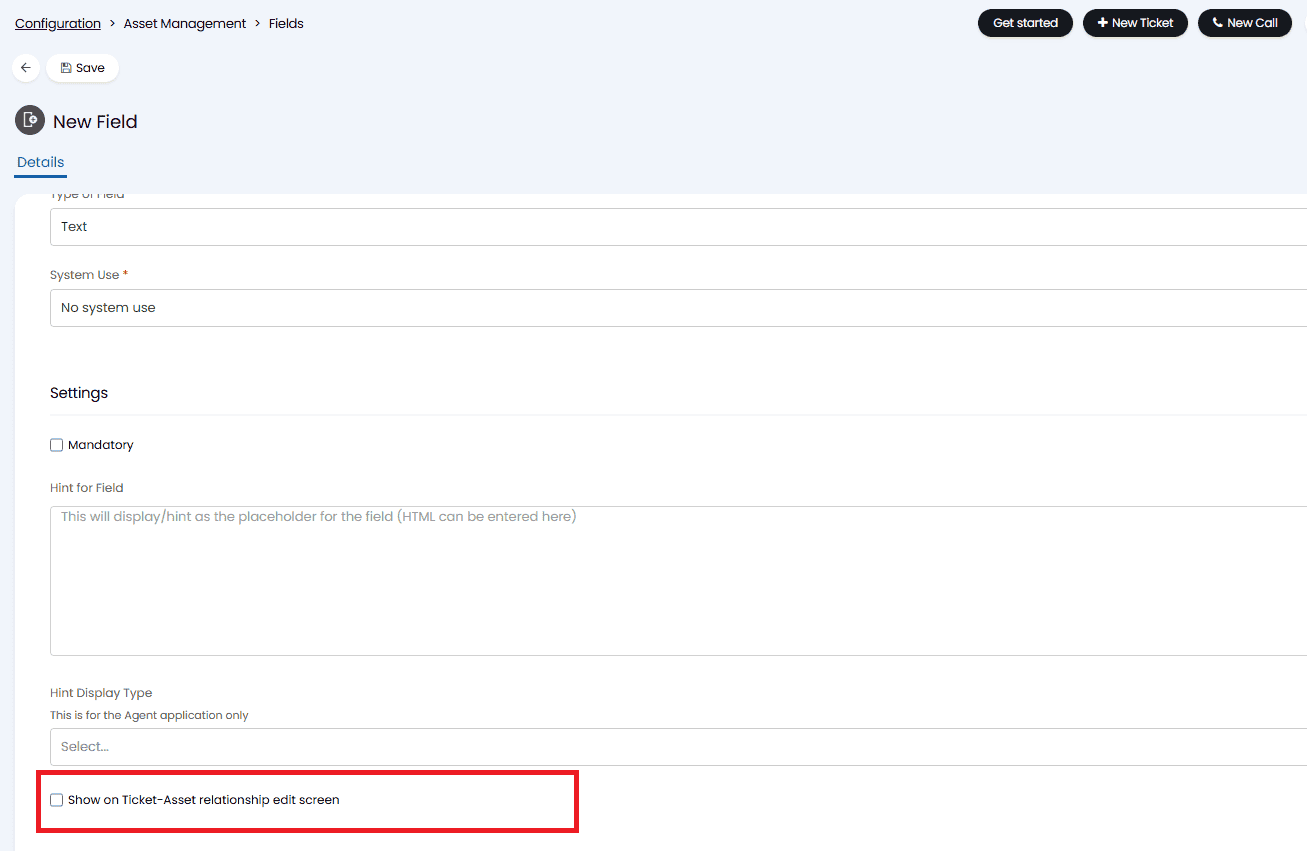
- Show on Ticket-Asset relationship Edit Screen
- Assign to all Asset Types
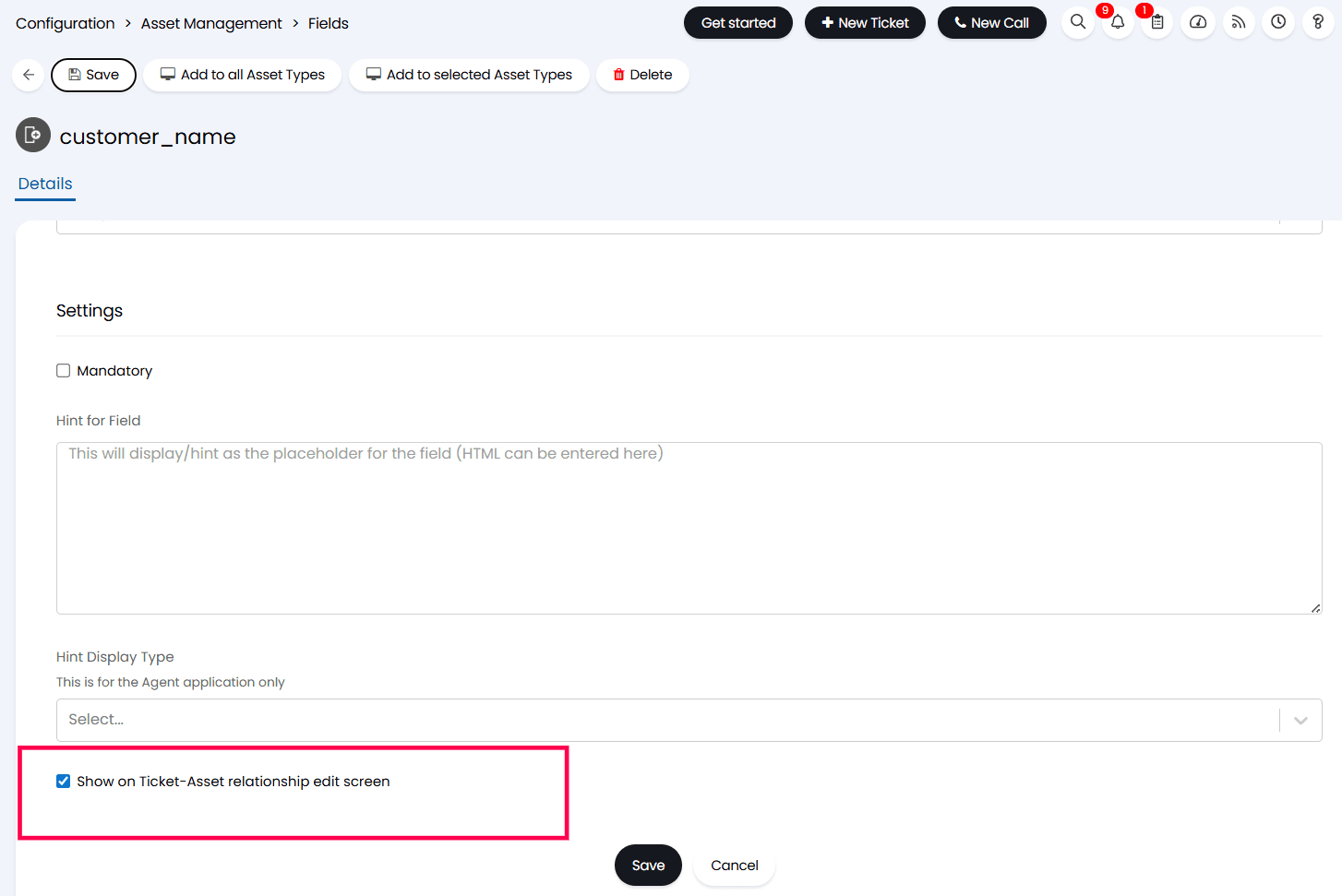
- Set up site mapping rules
- Navigate to Configuration → Integrations → ManageEngine Endpoint Central → Select Integration Profile → Sites tab.
- Add site rules to define where asset data should be posted.
- Use the criterion: Customer Name equals HaloPSA Customer Name.
ExampleThe Endpoint Central MSP's customer "My Org" would be mapped to the HaloPSA client named "My Org".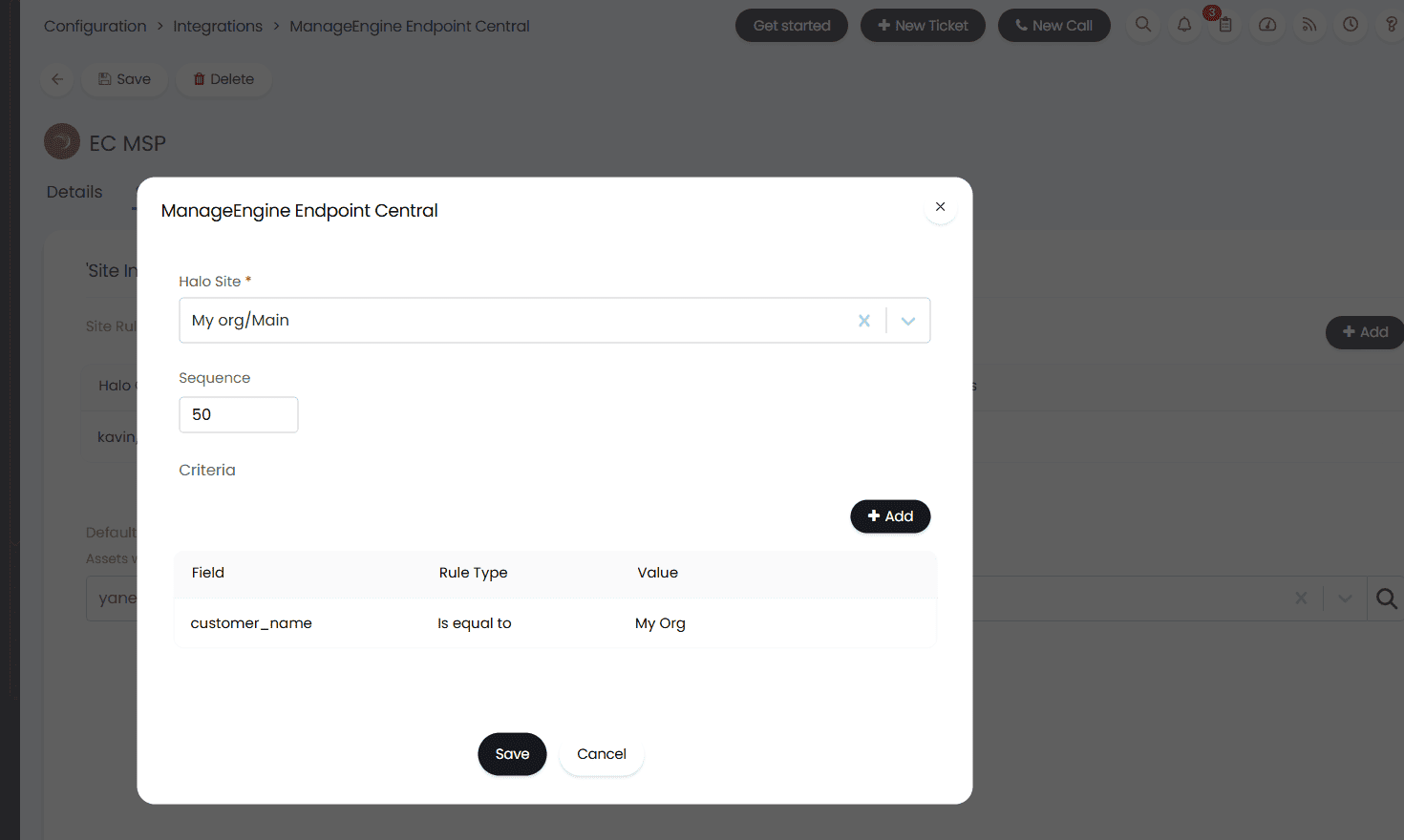
Configure asset mapping
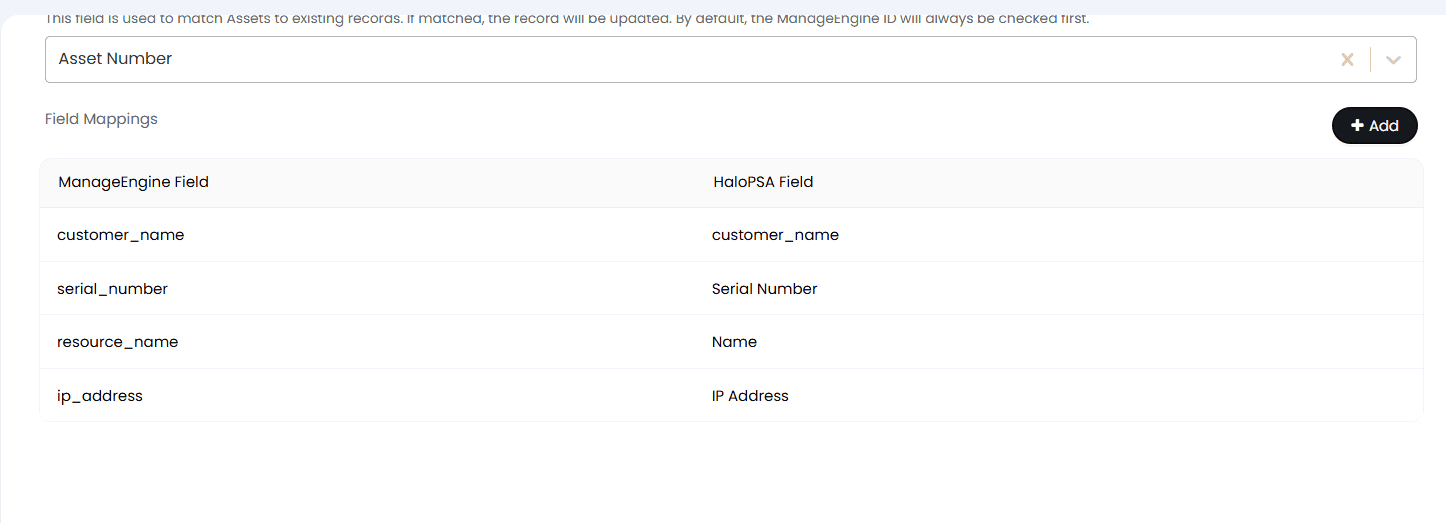
- Navigate to the Assets tab and map your Endpoint Central MSP fields to the corresponding Halo PSA fields.
- The
customer_namefield is sufficient to fetch and map computer details. Optionally mapserial number,computer name, andIP addressfor easier identification and reference during import. This ensures assets from Endpoint Central MSP are correctly synced and mapped to the customer in Halo PSA.
- Create a new application for integration
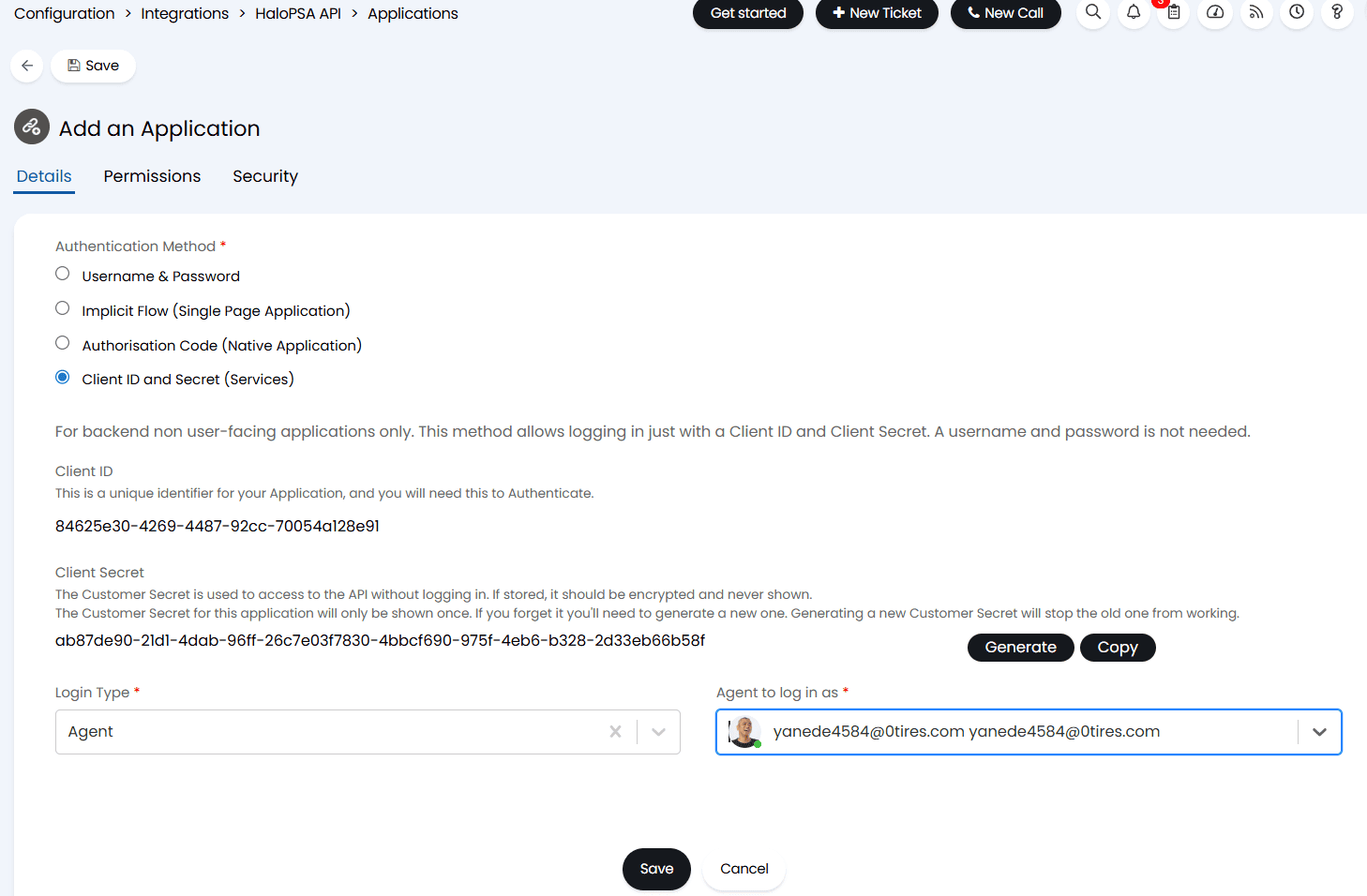
- Navigate to Configurations → Integrations → HaloPSA API → View Applications → New.
- Create a new application and set Authentication Method to Client ID and Secret (Services).
- Save the Client ID and Client Secret as they will be required during the integration setup in Endpoint Central MSP.
- Set application permissions
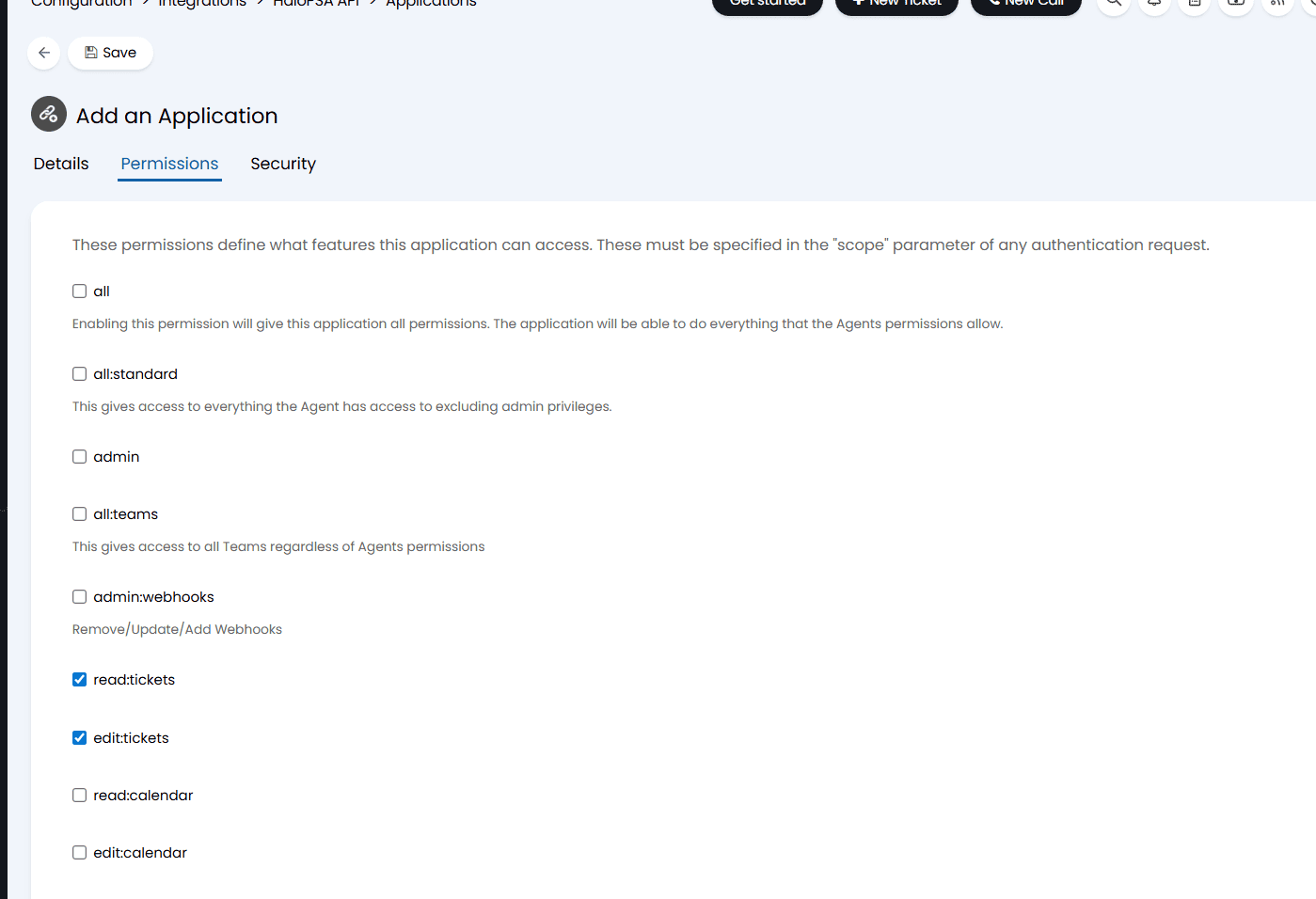
- In the Permissions section for the application you just created, enable the following:
- Customer Read
- Tickets Read and Write
- Assets Read
- In the Permissions section for the application you just created, enable the following:
Map serial number for ticket creation
- In the Asset Mapping section of the Endpoint Central MSP integration, map the Serial Number field. This allows Endpoint Central MSP to create tickets and link them to the corresponding asset using its serial number.
On the Endpoint Central MSP Side
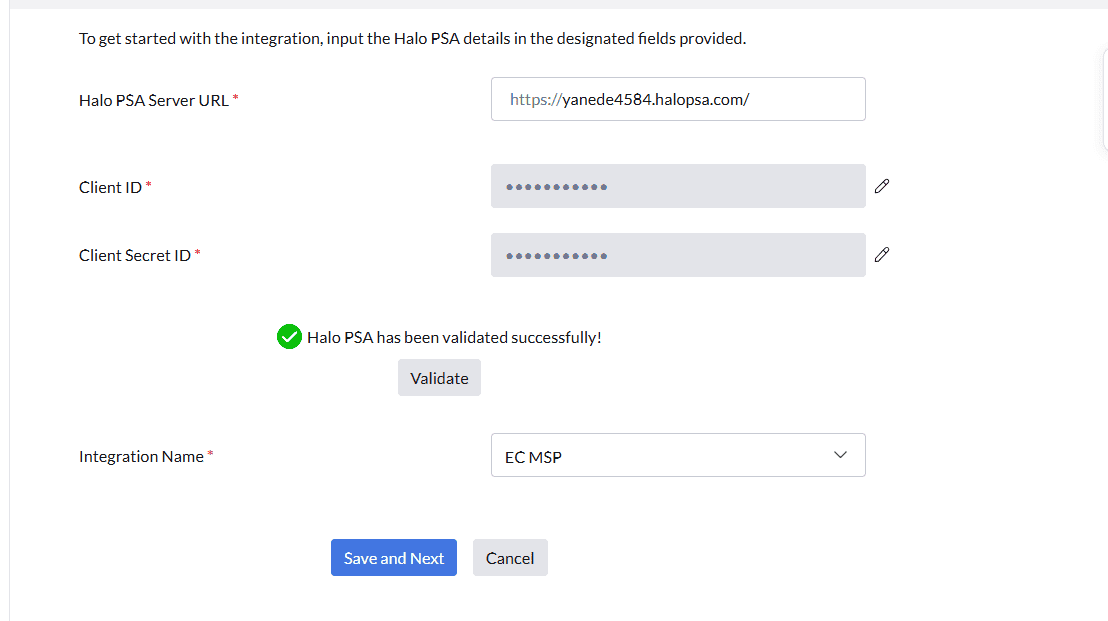
- Navigate to Admin → Integrations → Halo PSA Settings.
- Enter the Server URL, Client ID, and Client Secret obtained from the HaloPSA side.
- Click Validate. The integration name, which is the name given in the HaloPSA console when creating the Endpoint Central MSP integration, will be fetched only after successful validation of the Client ID and Client Secret. This action fetches the integration details created in HaloPSA for asset sync.
- Click Save and Next.
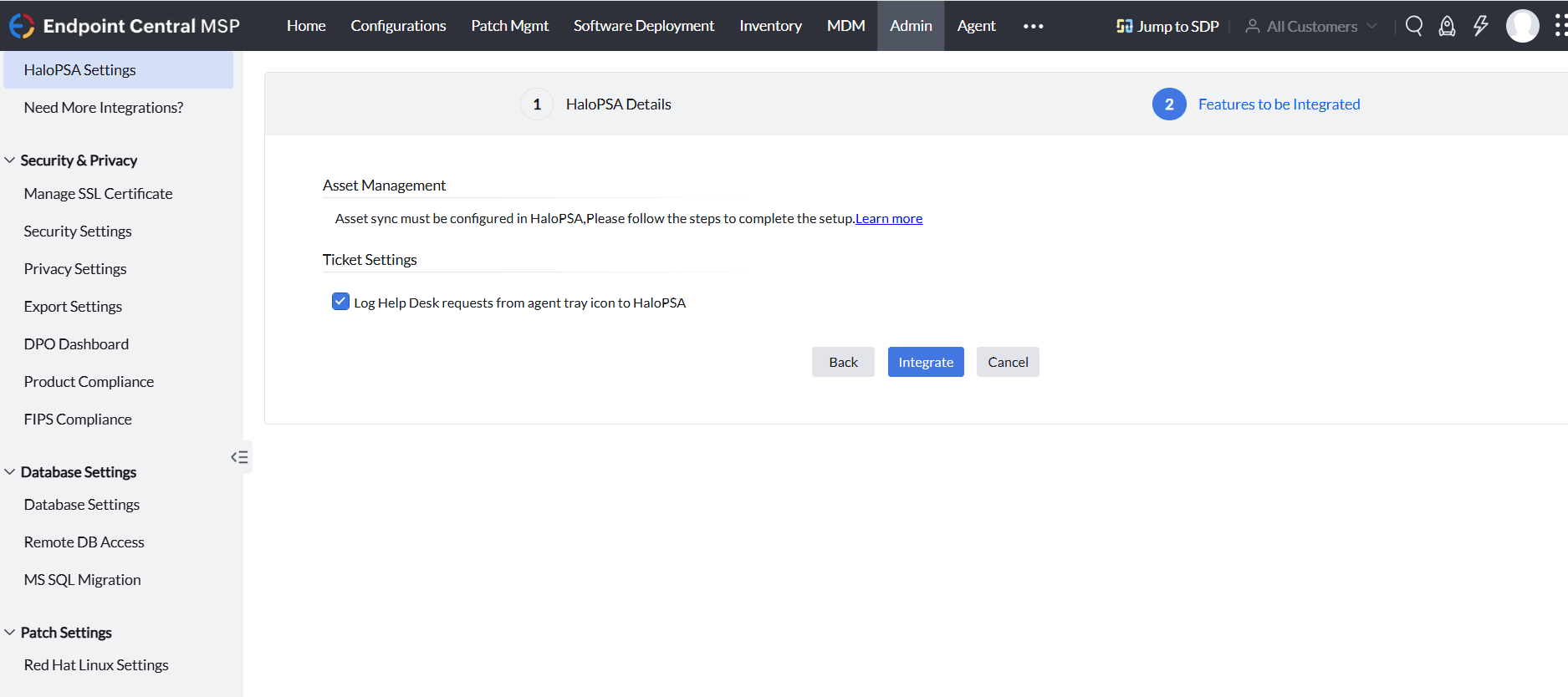
Features to be integrated
Once the integration is saved, to configure the asset sync kindly follow the steps mentioned in the document.
Ticket Settings
Select the checkbox "Log helpdesk requests from agent tray icon to HaloPSA" such that help desk tickets raised from Endpoint Central MSP automatically flow into HaloPSA.
This helps unify service requests so technicians can track, respond, and resolve issues from a single console.
Customer Mapping Sync
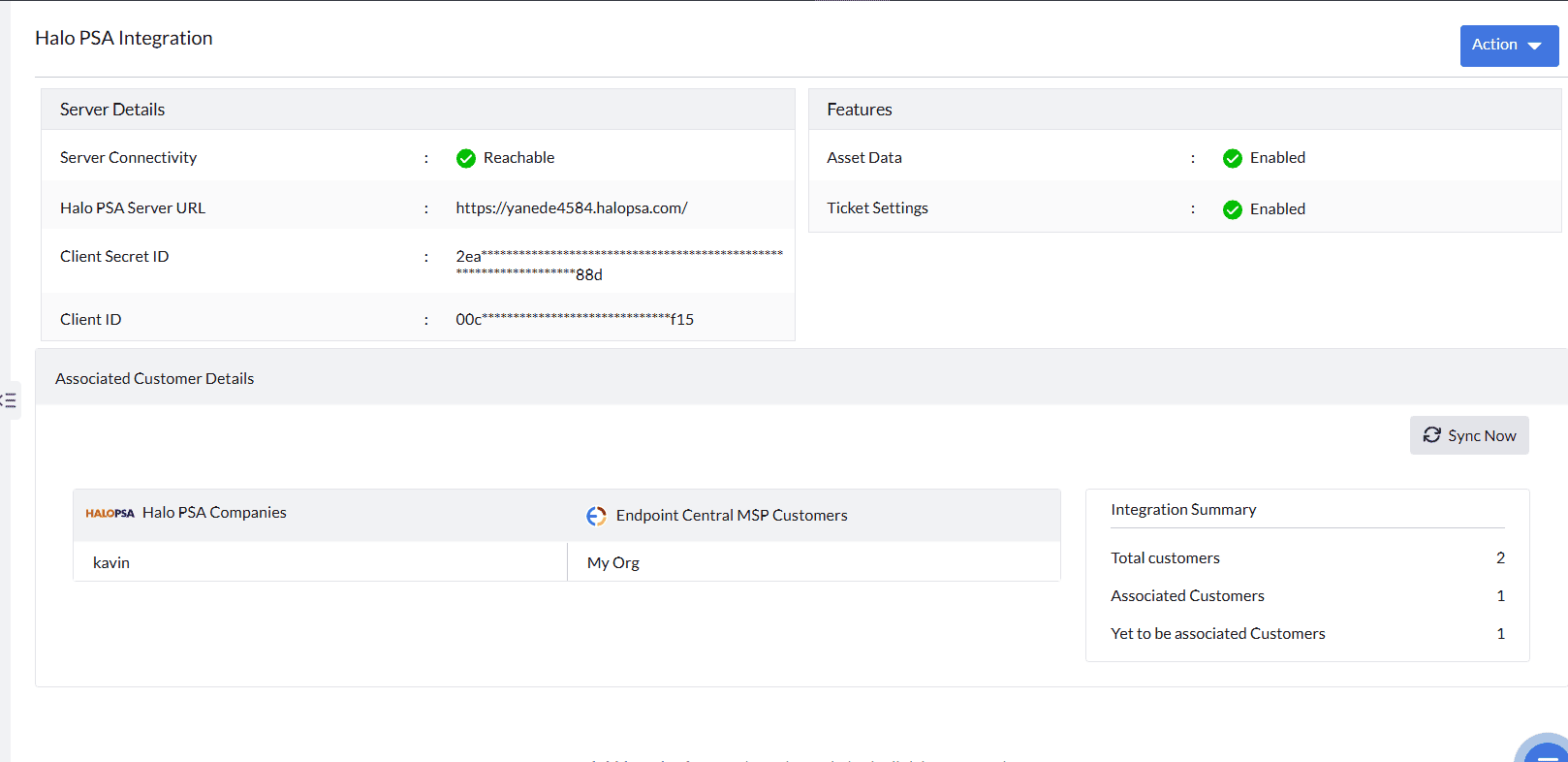
Once integrated, customer mapping from HaloPSA will now automatically sync with Endpoint Central MSP. You can also trigger a manual sync from the Endpoint Central MSP's HaloPSA Integration Summary page using the "Sync now" option.
You can update the URL, Client ID, and Client Secret in the "Modify" section if needed.
Once these steps are completed, the integration will allow for customer mapping and asset posting, as well as ticket creation (for on-premises setups)
If you face any issue, while integrating HaloPSA with Endpoint Central MSPrefer here.