Predefined Reports
Predefined reports summarize patch and vulnerability management in your network. The report families include patch reports, system reports, Self Service Portal (SSP) reports and Automate Patch Deployment (APD) reports. These reports can be accessed directly through the web console. To access pre-defined reports, navigate to Threats & Patches → Reports → Predefined Reports. If the Vulnerability Management add-on is not licensed, the module is named Patch Management.
For a scheduled zero-day vulnerability report with available patch details, follow Schedule Reports. Use the Vulnerability Report family where that module is available; it is separate from the patch report list below.
Patch Reports
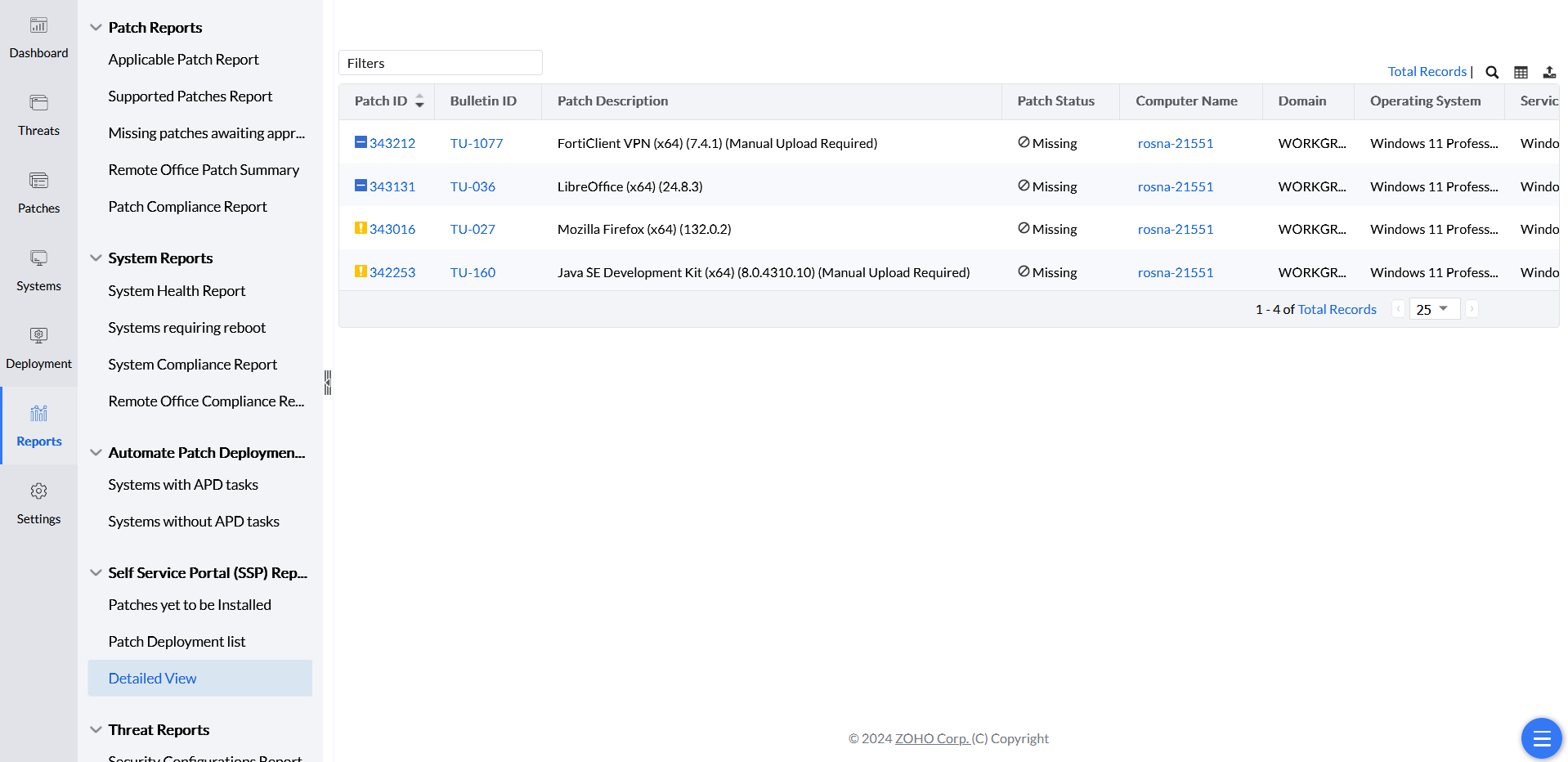
In Patch Manager Plus, open Patches > Detailed View. Other product interfaces can use Patch Mgmt or Threats & Patches as the patch-module name.
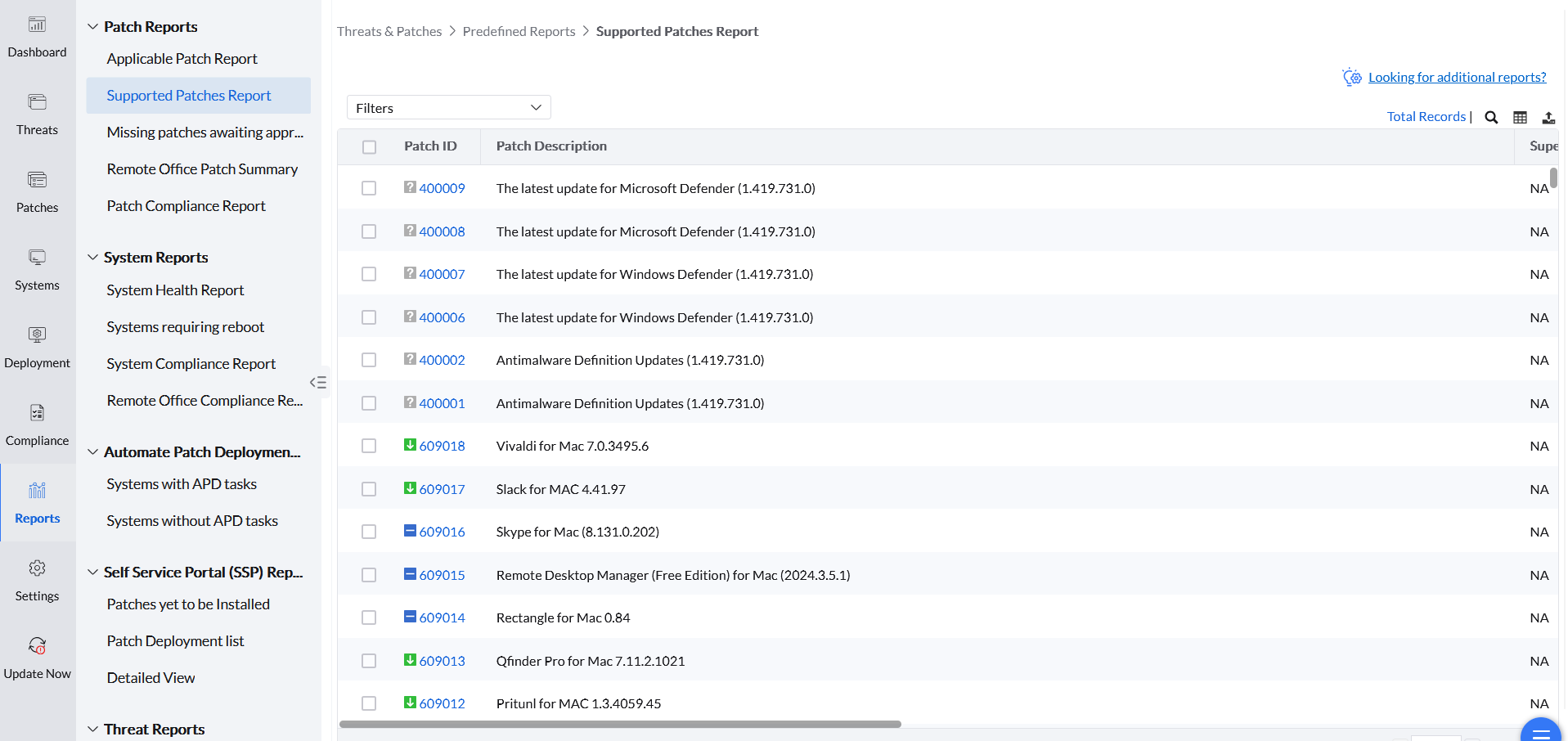
For a package-size estimate, open Supported Patches and use Size (in KB). Use the column chooser if the column is hidden. Package size does not equal total endpoint or WAN traffic. Dependencies, language files and the distribution path can change the transferred amount.
If a KB filter returns no records, compare the exact update in Supported Patches. Check the selected category, applicable platform and latest successful patch scan. For a definition update, compare the definition version as well as the KB or Patch ID. An empty result alone does not mean that the vendor has not released the update. Check Patch Database synchronization and follow patch-visibility troubleshooting if the expected records remain absent.
To check a cataloged application version and release date, open Threats & Patches → Patches → Supported Patches and search the application in Patch Description. Use Column Chooser to display the version and Release Date fields available in that view. Release Date is the vendor release date, not the installation time. For a missing version or architecture, see patch availability checks.
Use Detailed View when the report must identify the computer associated with each patch. Apply the required Custom Group filter, then use the column chooser near the search option to enable Computer Name before exporting the results. Enable Logged On Users when the report also needs the logged-on user details.
To combine results from multiple deployment tasks or custom groups, add a separate Deployed Using or Custom Group criterion for each required value, apply the filter, and export the consolidated Detailed View. The Deployed Using column identifies whether a patch was deployed through an APD task, Manual Deployment, or another deployment task.
Filter Detailed View by the required Patch Status to report installed or missing patches. By Patches shows each computer's installed and missing patch counts; Detailed View lists the individual patches.
To include installed and missing updates, select both values in the Patch Status criterion and apply the required computer operating-system scope. Keep a release-date or custom-group criterion only when the report requires that restriction. Review the criteria and sample rows before exporting. Inventory and scope changes can change the row count.
The Installed Date field is available only for patches deployed through Endpoint Central MSP; the report does not combine an earlier patch and its replacement with both installation dates in one view.
Reports contain data only for computers that are currently managed. Computers deleted from the console are not included because their data is no longer retained.
The Patch Reports provides you with detailed information about the vulnerable systems in your network and the patch details to fix the vulnerability. To include superseded Windows patches retained through N-1 in report views, enable N-1 patching. For configuration and retention details, see N-1 patching. It provides data on the following:
Create a filtered security patch report
For a machine-scoped severity report, filter Detailed View for the required computers and severities. For critical threats, open the relevant threat or patch view and inspect its affected systems. These views answer different questions. They do not reproduce a single custom grid that combines every zero-day and severity count.
To manage a saved filter, open its available Edit, rename or Delete action. Save a changed name and verify that the intended criteria are still applied before exporting. Available actions depend on your permissions and the filter’s ownership or sharing settings; the action icon can differ between views.
To review failed patch deployments, open the deployment Detailed View, filter Deployment Status to Failed, and export the results. Review Remarks for each computer and patch to identify the reported failure reason.
A failed-deployment report lists recorded failures. It does not account for every target still waiting to execute. For delayed targets, use the APD System View or the manual task's Execution Status. Check contact, scheduling, download and policy conditions for that target.
To report security patches installed for a custom group, navigate to Threats & Patches → Patches → Detailed View, create a filter, apply it, and export the results.
- Select a Custom Group. Dynamic groups are not supported for this filter.
- Set Patch Status to Installed.
- Set Patch Type to Security. To limit by the computer's operating system, use Operating System under Computer. Operating System (Patch) filters by the patch's operating system, not the computer's.
- Set Deployed Date to the required date range when you need patches deployed through Endpoint Central MSP.
The Deployed Date filter includes only patches deployed through Endpoint Central MSP. An empty Deployed Time or Deployed Using column means the patch was not deployed through Endpoint Central MSP, so those machines are dropped when Deployed Date is applied. Deployed Using shows which task installed the patch. Other useful audit columns include Approved Time, Approved By, Deployed By, Reboot, and Patch Uninstallation. Use Release Date to select patches by vendor release period; it does not identify when those patches were installed.
For an installation audit, use installation or deployment dates rather than the patch release date, and check which deployment sources the report covers. Installed Patches visibility depends on the selected report, filters, managed computers and retained installation records. There is no universal three-month or 90-day history limit for every installed patch. N-1 settings control the availability of retained superseded patches; they do not define a fixed history window for all installations.
If the standard report does not cover the required period or fields, use the Query Reports workflow and ask Support for a query appropriate to the reporting requirement and product database. A query cannot recover records that have already been removed.
For example, to list critical patches released more than 15 days ago, add Severity → equal → Critical and Release Date → Before n Days → 15, and then apply the filter.
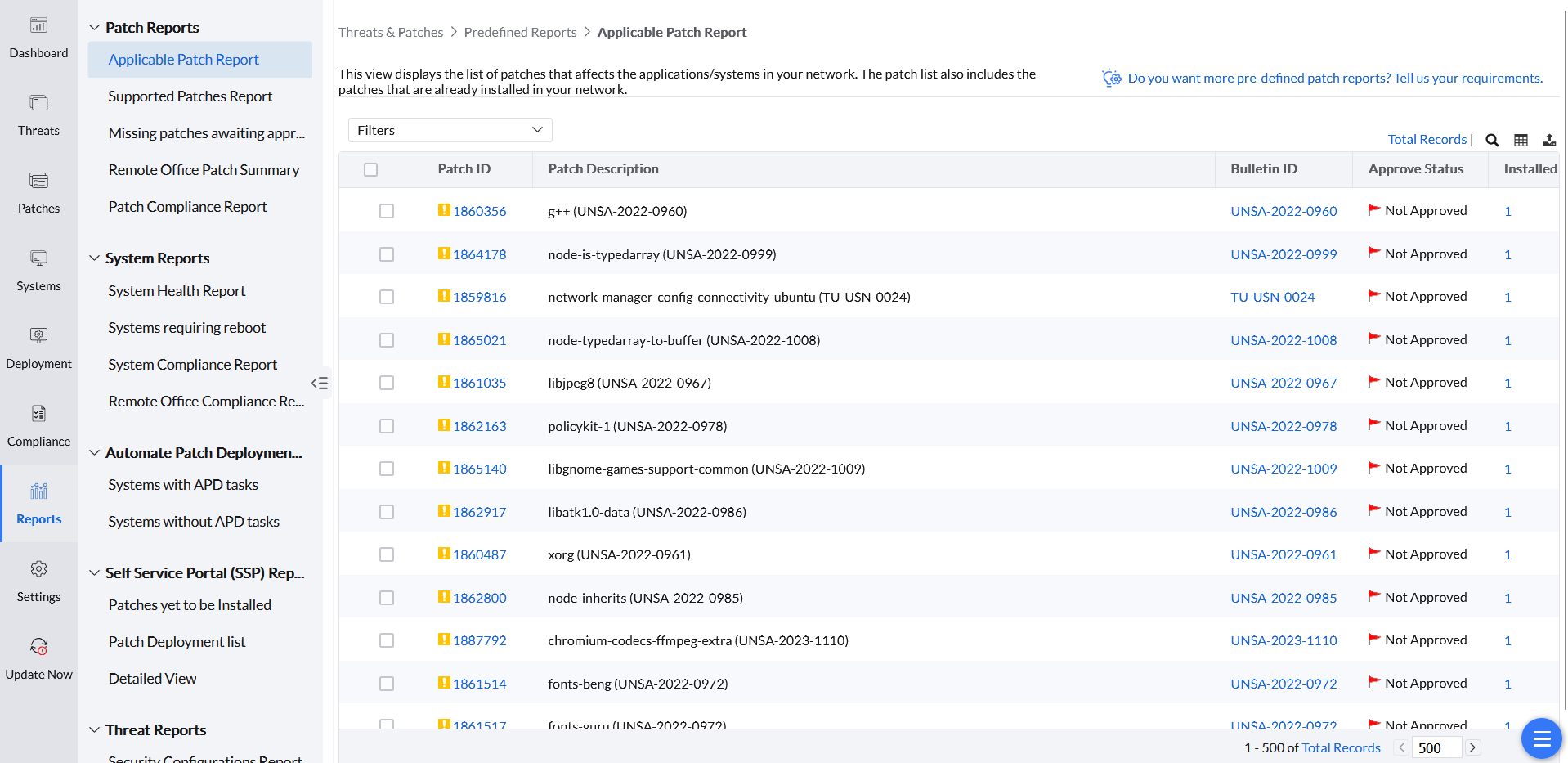
- Applicable Patches Report: This report displays the list of patches that are ready to be deployed to your managed network. This report includes patches that are previously deployed as well. It provides you with the details of the patches that are applicable to your network and the affected systems. By default, it lists the details of the patches released in the current month. You have an option to select a different period or to specify a custom period and generate the report. The detailed information of reports is as follows:
- Patch ID: A unique reference ID in Endpoint Central MSP for every patch.
- Bulletin ID: The advisory article provided by the vendor, which contains information about the vulnerability and patch availability. Clicking this option will lead you to the Bulletin Details view, which provides more info about the Bulletin and the vulnerability.
- Patch Name: The name of the patch. Clicking this option will lead you to the Patch Details view, which provides more details about the patch.
- Severity: Determines the importance of the patch. These severity ratings are as per the bulletin or advisory information. The product does not change this value. Install or decline the patch if you do not want it counted in compliance.
- Affected Systems: Refers to the total count of the systems that require this patch to be installed. This also includes the systems where the patch has already been installed.
- Installed Systems: Refers to the count of the systems where the patch has been installed.
- Missing Systems: Refers to the count of the systems that do not have the patches installed yet.
- Supported Patches Report: The Supported Patches Report provides the details of all the patches supported by Endpoint Central MSP released by the vendor websites irrespective of whether these patches have a relation to your network or not. The Supported Patches Report will be of absolute use when you plan to upgrade the systems in your network by installing the latest applications/ updates available for the application. Some patches appear only in this view, not under Applicable Patches. Deploy those patches from Supported Patches.
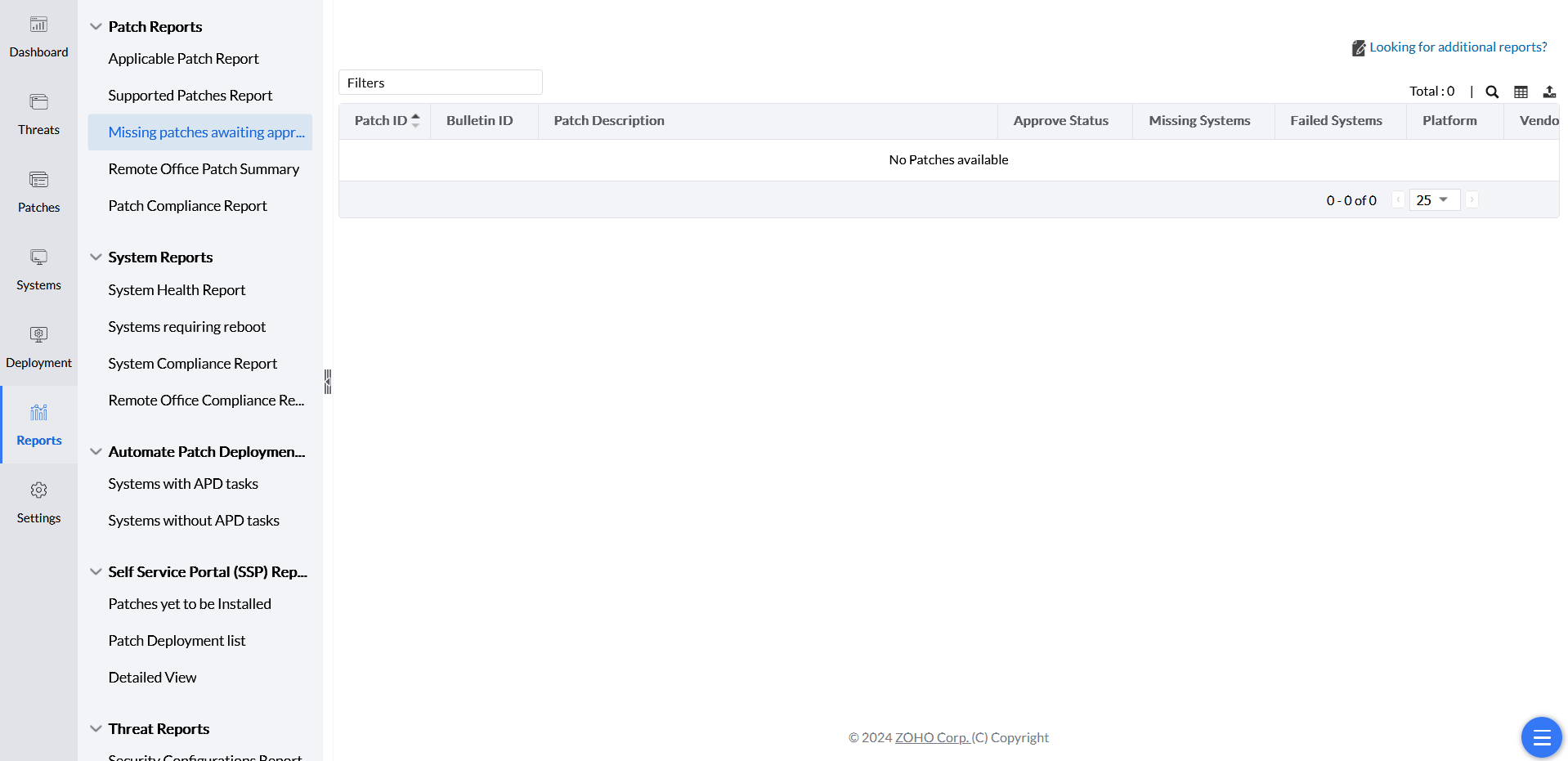
- Missing Patches Awaiting Approval: The Missing Patches Report will list down all missing patches and requires approval for deployment.
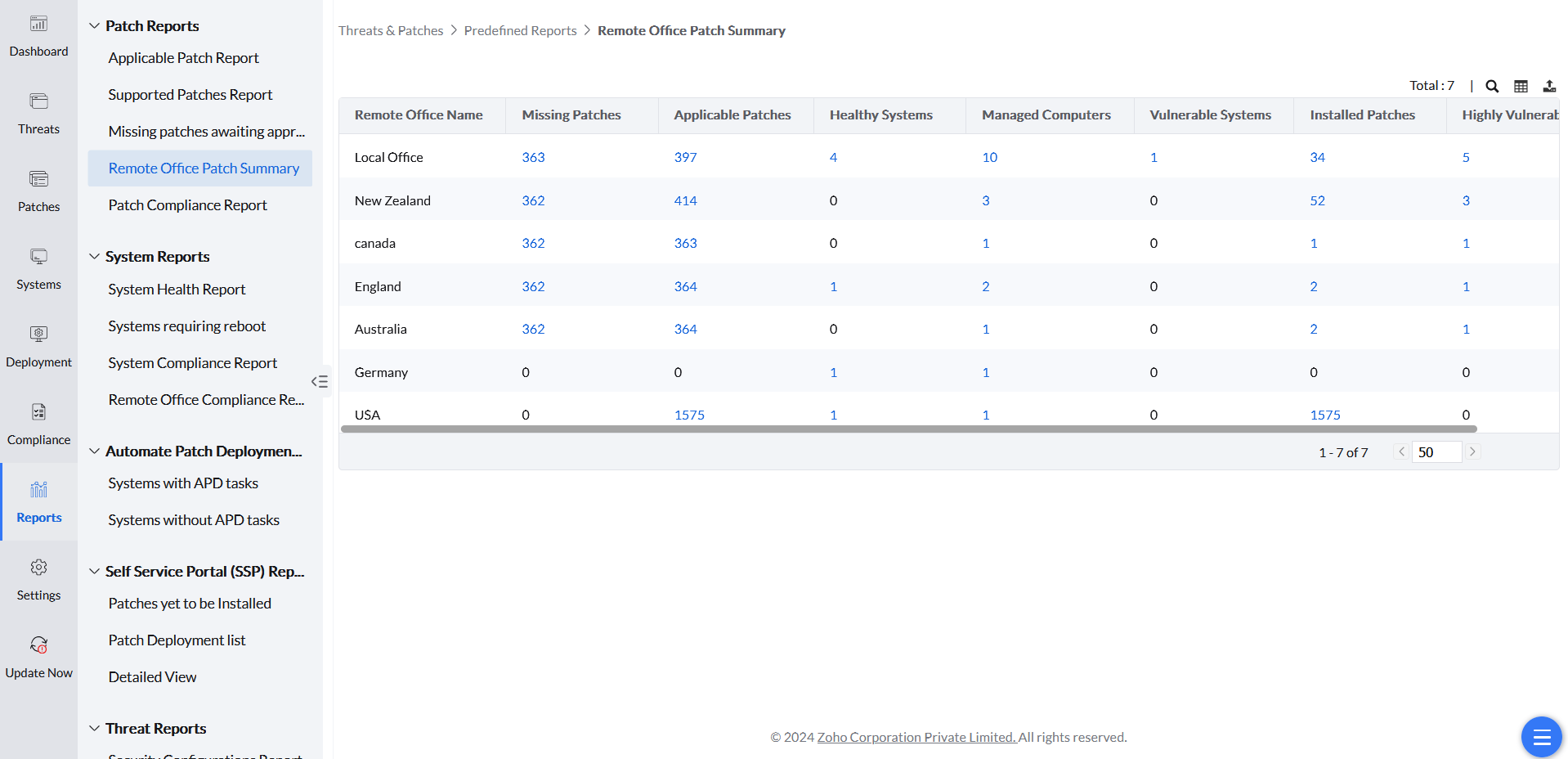
- Remote Office Patch Summary: The Remote Office Patch Summary gives an overview of the managed computers, highly vulnerable/vulnerable/healthy systems, applicable/missing/installed patches in the remote offices of the enterprise.
- Patch Compliance Report: This report displays a comprehensive patch-level deployment summary along with its compliance status. The compliance settings can be configured to adjust the percentage to mark a patch as compliant.
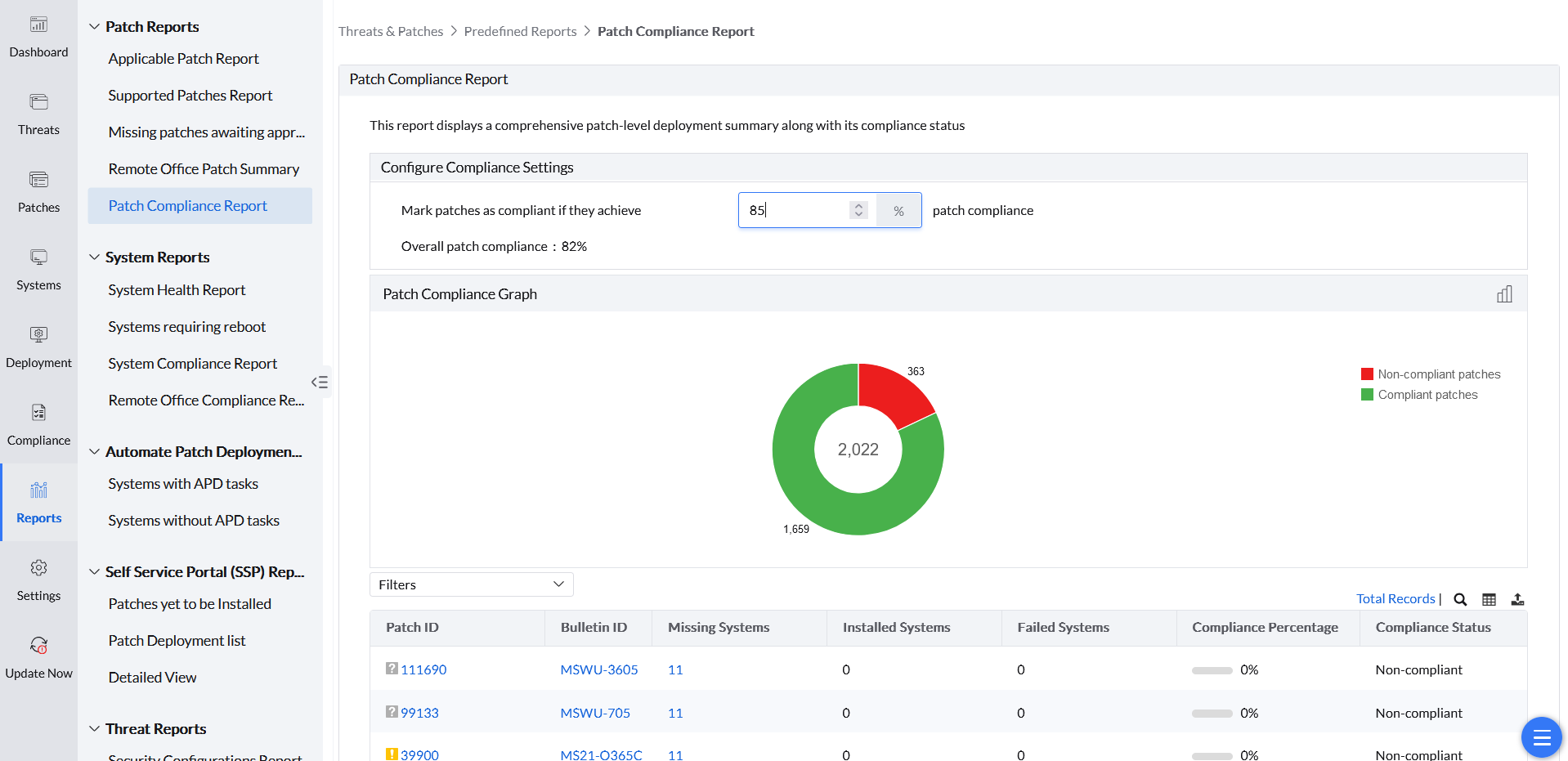
To exclude computers that have not contacted the server since a selected cutoff, edit the Patch Compliance Report filter. Add Last Contact Time → After and choose the cutoff date. Combine it with required Branch Office or Patch Type criteria using AND. Apply the filter and review its scope before export. Only computers whose contact time is after the selected date are included. Update a fixed cutoff for later audits.
System Reports
For scan status and scan timestamps, export the filtered Systems → Scan Systems table. Use Export near Total Records where the control is available to your account. Follow on-premises patch scanning or Cloud patch scanning. This export does not calculate deployment completion or average vulnerability-remediation time; use the appropriate deployment view or vulnerability report.
The System Reports provides you a complete summary about the managed systems in the enterprise. Report data is retained for computers that remain managed in Endpoint Central MSP; reports cannot be generated for computers deleted from the managed scope.
Patch compliance and BitLocker compliance are separate report families and cannot be combined into one predefined report. For encryption status, use BitLocker Audit & Reports.
The following reports can be generated under the System Reports:
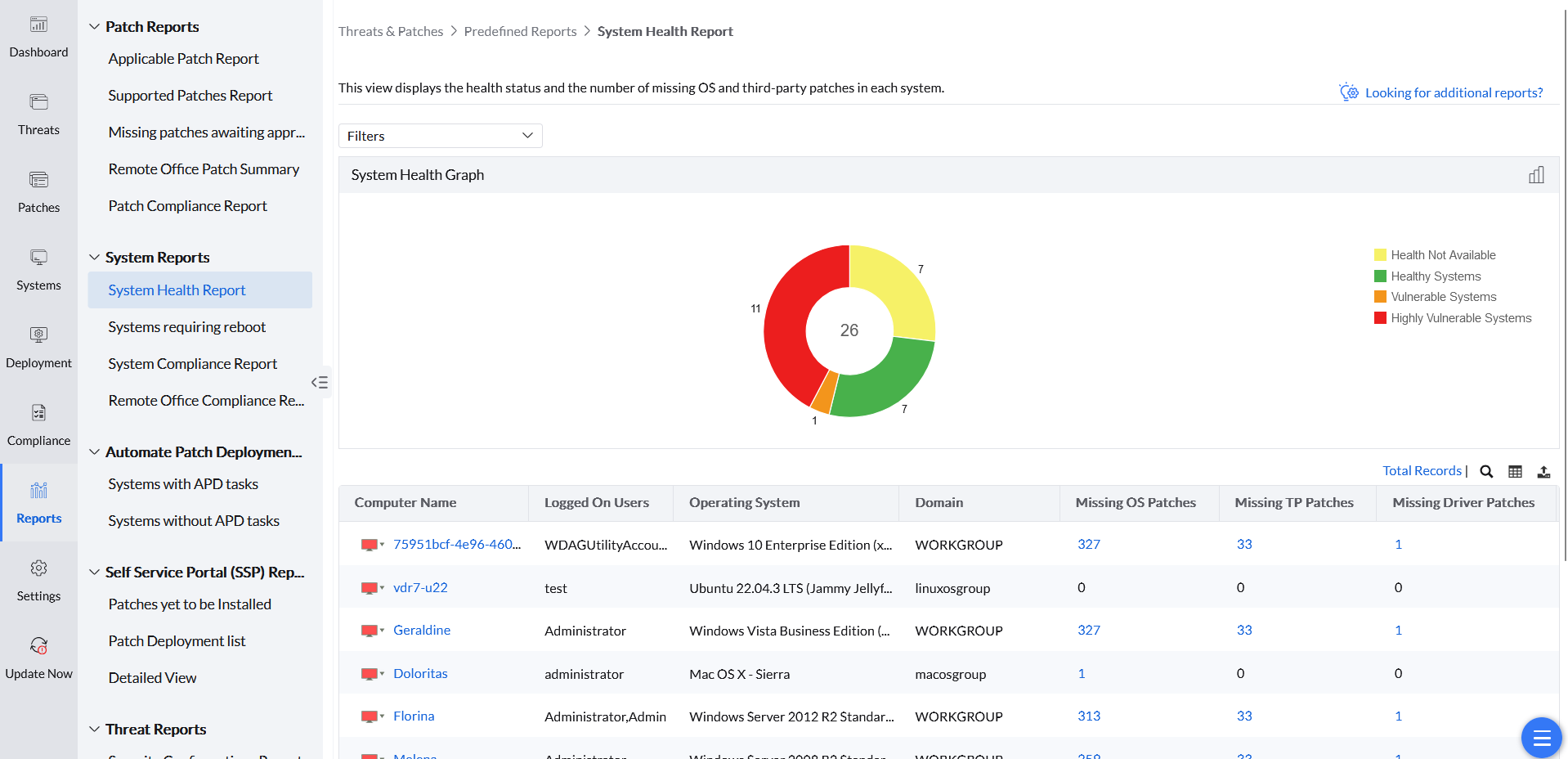
- System Health Report: This report displays the health status and the number of missing OS and third-party patches in each system.
To filter Highly Vulnerable Systems by computer, open Systems → Health Summary → Highly Vulnerable Systems. Do not put quotation marks around the Computer Name value. For a few computers, add one Computer Name / like filter row per name and join the rows with OR, not AND. For many computers, create a Static Custom Group and, in the same view, set the filter to Custom Group / equal / the group name. Use that filter on the report or view; do not open the Custom Groups page to review missing patches.
- System requiring reboot: This report will list down all the systems in which reboot is required for installing the patches deployed.
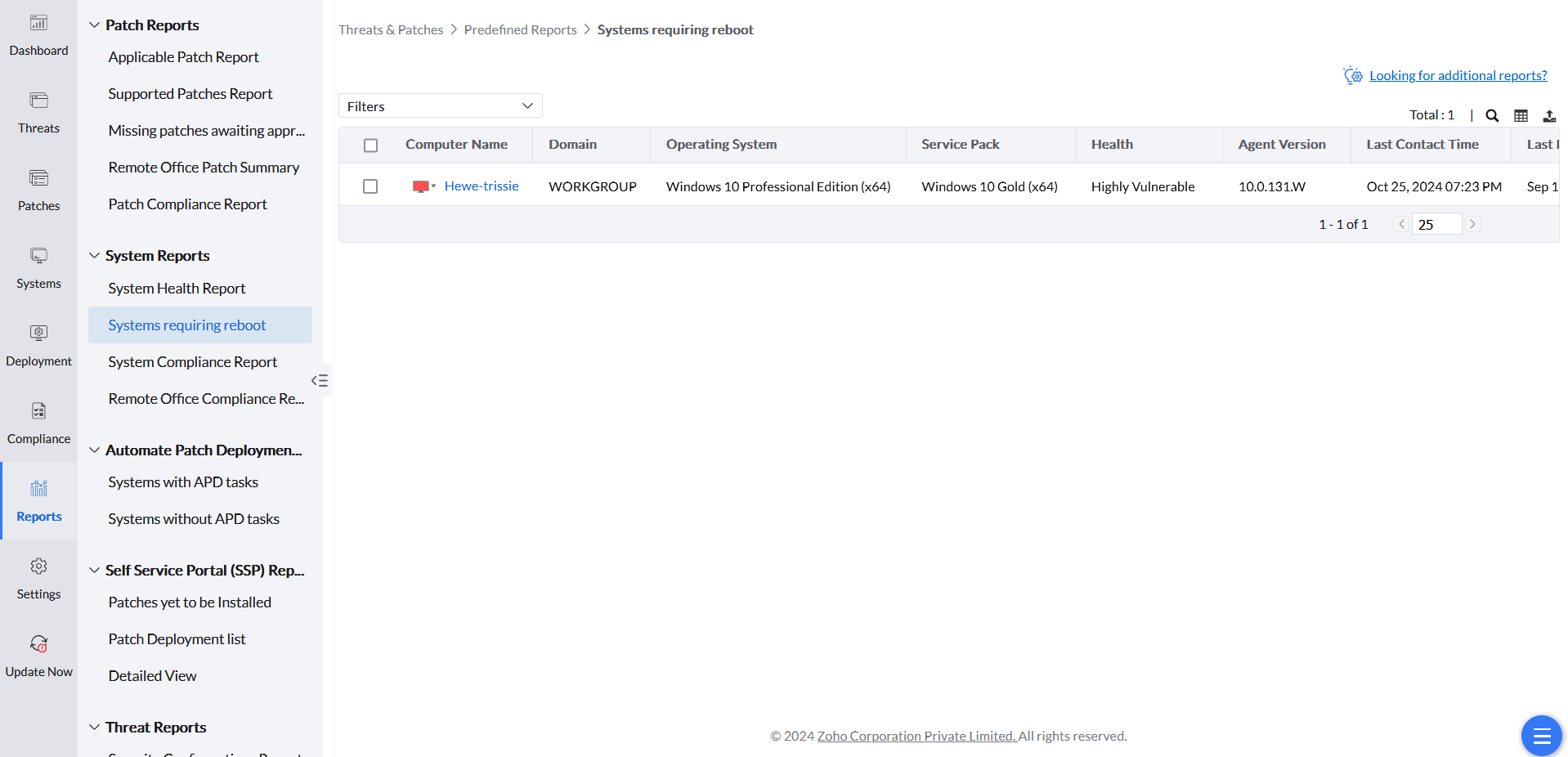
Use the latest successful patch scan when reviewing this current-state report. A manual task can retain an older Reboot Pending execution remark after a later restart. See current state and execution history.
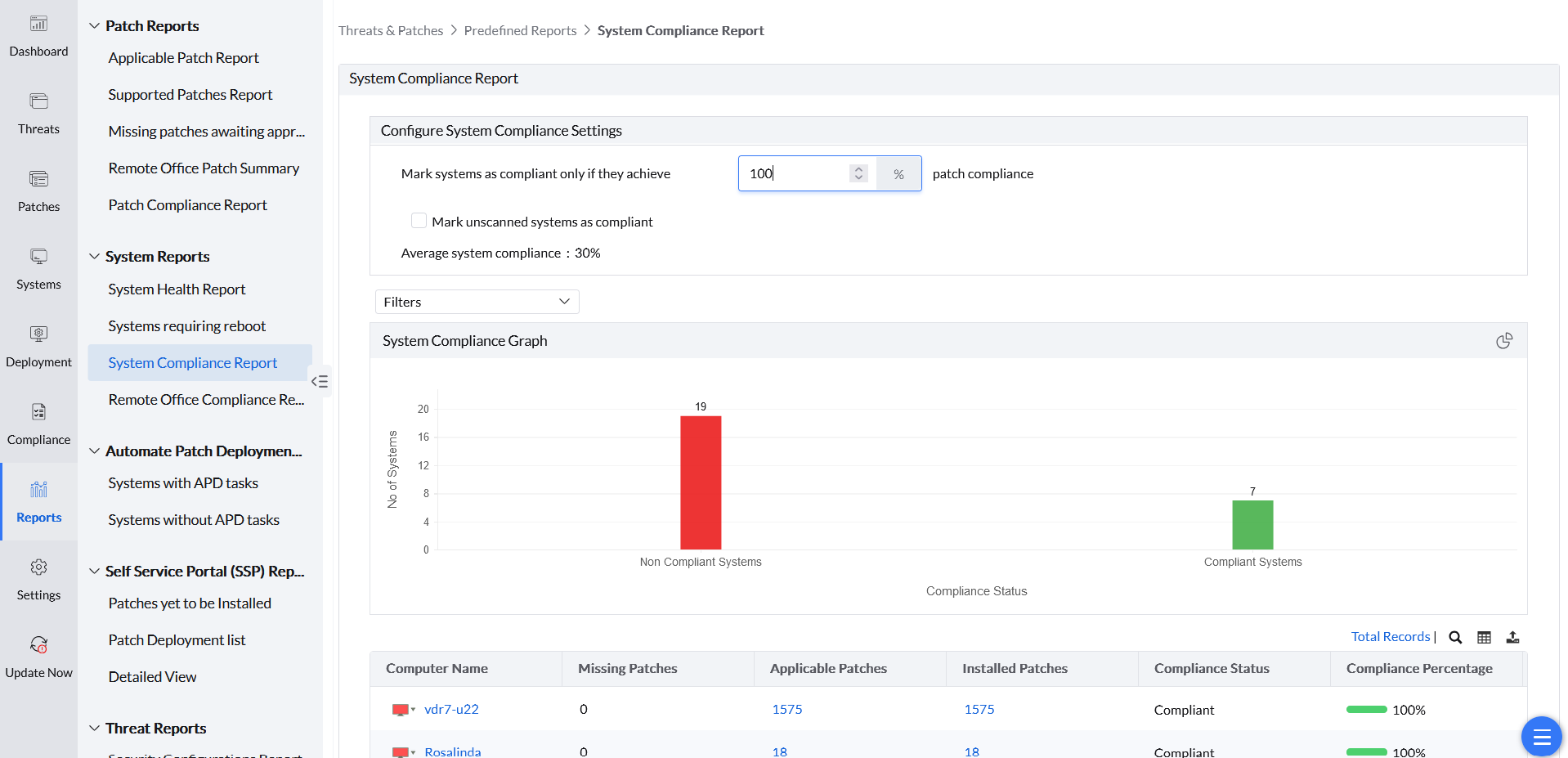
- System Compliance Report: This report lists the compliance status of all systems in the enterprise. In Configure Compliance Settings, set Mark systems as compliant if they achieve a patch compliance of to the required percentage and Mark systems as non-compliant if they have not been scanned in the last to the required number of Day(s). Both settings apply. A computer scanned within the configured day window can still be Non-compliant if its patch compliance is below the required percentage. Setting patch compliance to 100% means the applicable patch count must equal the installed patch count; therefore, all missing patches must be installed. To generate the report for patches released within a date range, open System Compliance Report, create a filter, set Release Date to the required range, apply the filter, and export the report.
Join filter conditions with AND when every condition must match, such as an approval status and an approval date range. Use OR only when either condition should match; otherwise, records outside the required date range can be included because they satisfy the other condition.
Enable N-1 only when the report requires retained superseded patches. It can reduce current compliance and does not recreate a historical snapshot or recover discarded records. Select the required date field and available records, then review the scope before exporting. See N-1 patching.
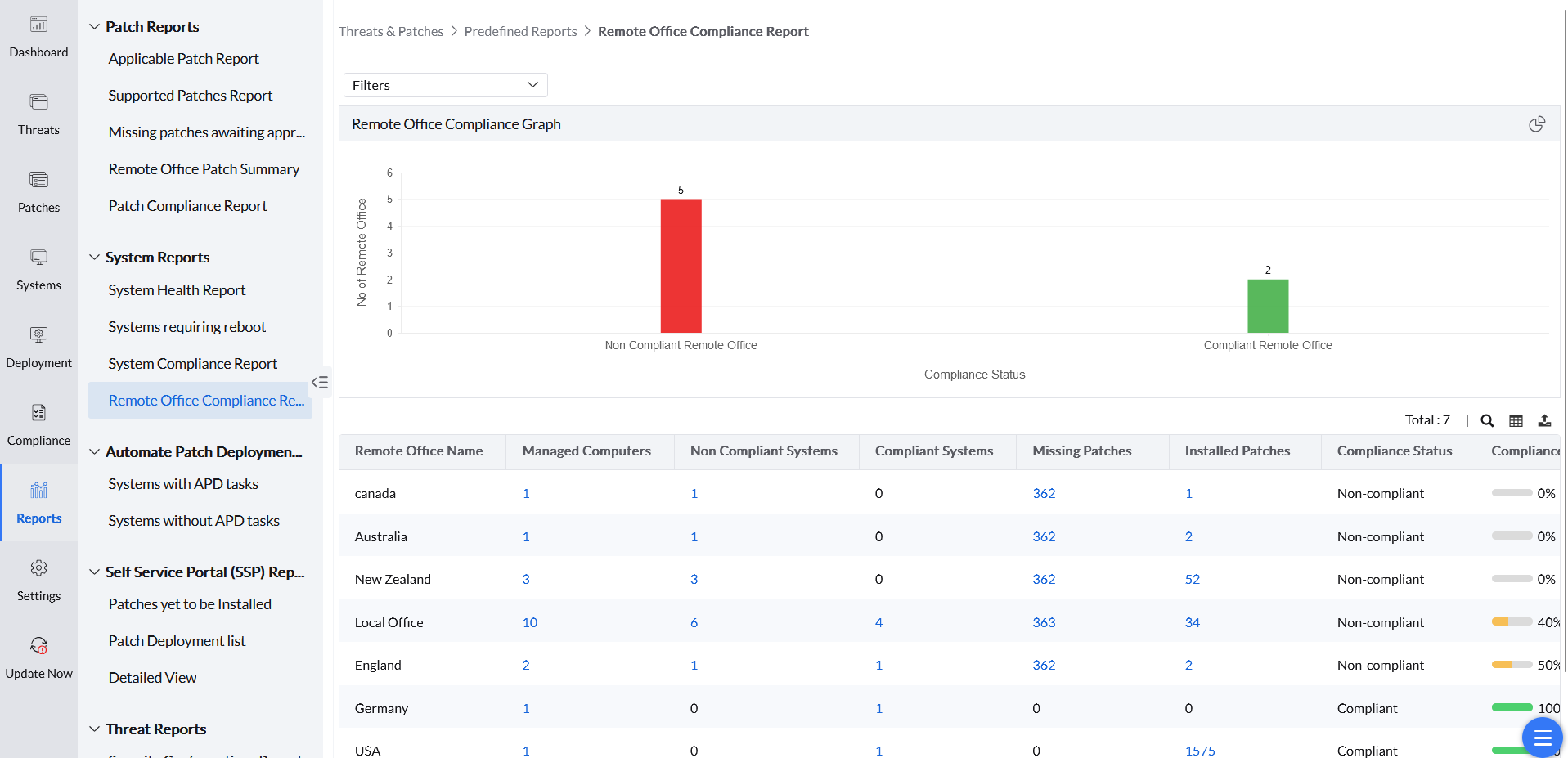
- Remote Office Compliance Graph: This report will list down the compliant status of all the systems in the remote offices managed by the enterprise.
Automate Patch Deployment (APD) Reports
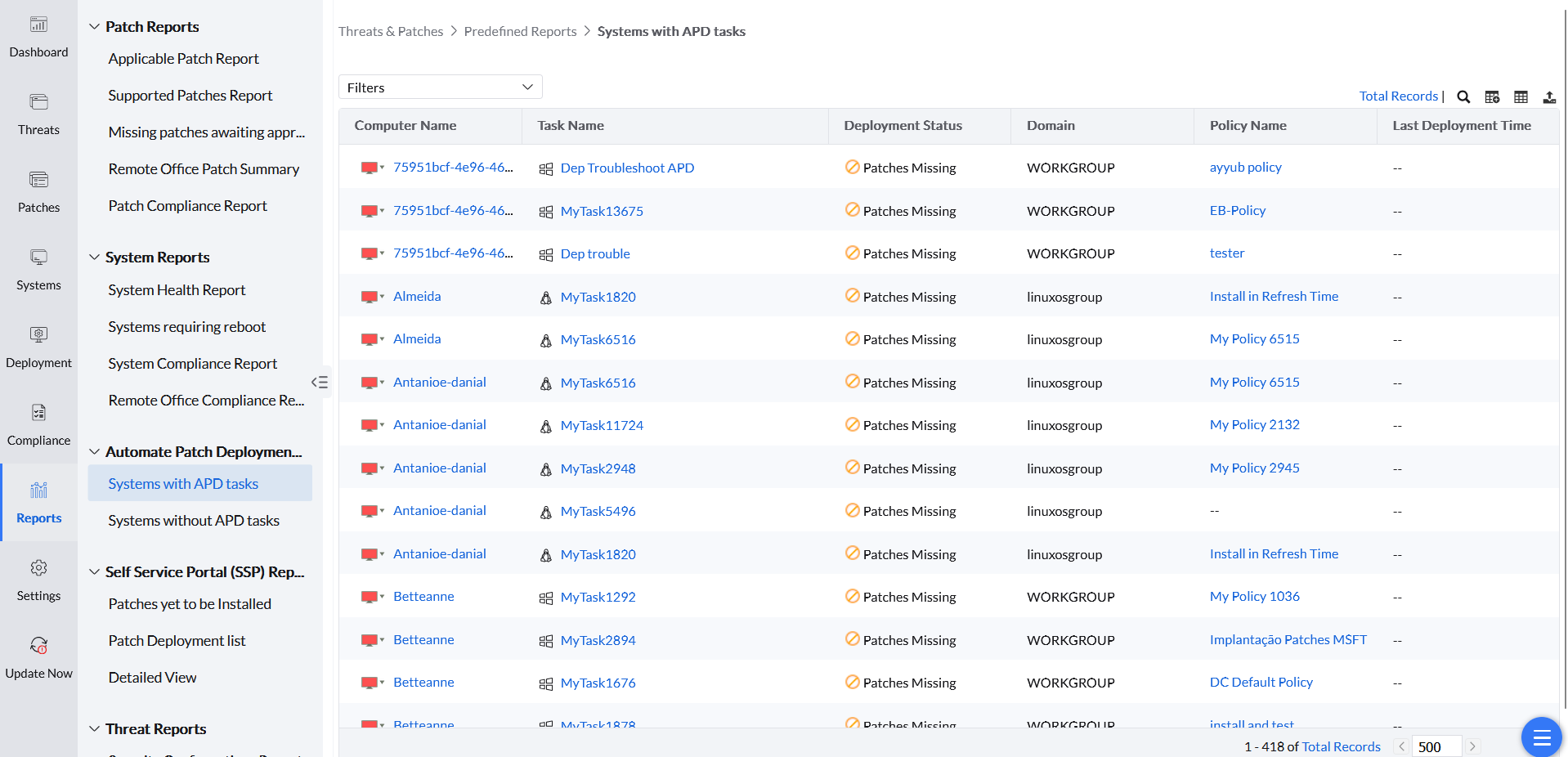
- Systems with APD tasks: This report provides information on all the managed systems which have active Automatic Patch Deployment (APD) tasks.
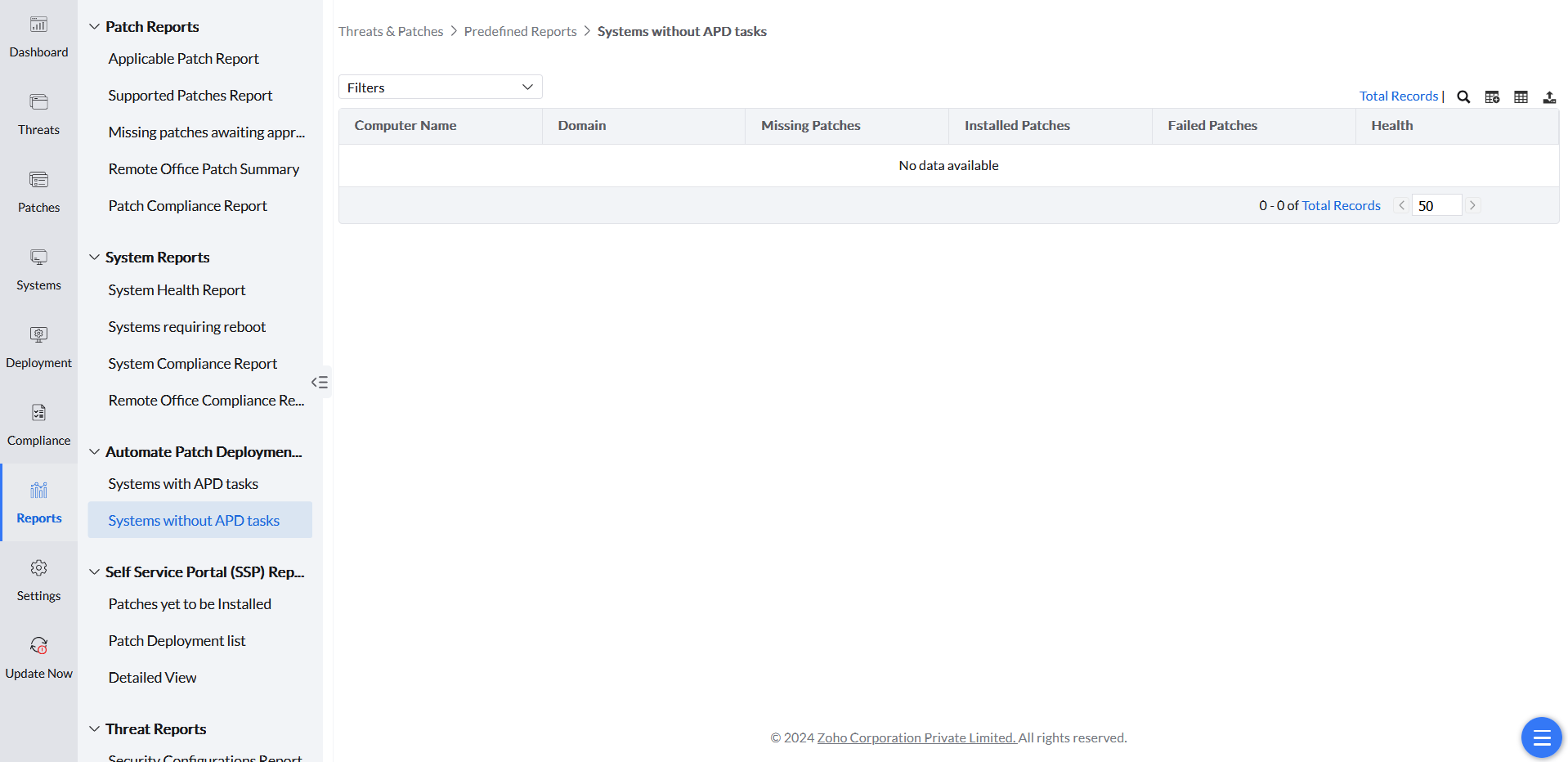
- Systems without APD tasks: This report provides information on all the managed systems which do not have any Automatic Patch Deployment (APD) tasks.
Self-Service Portal (SSP) Reports
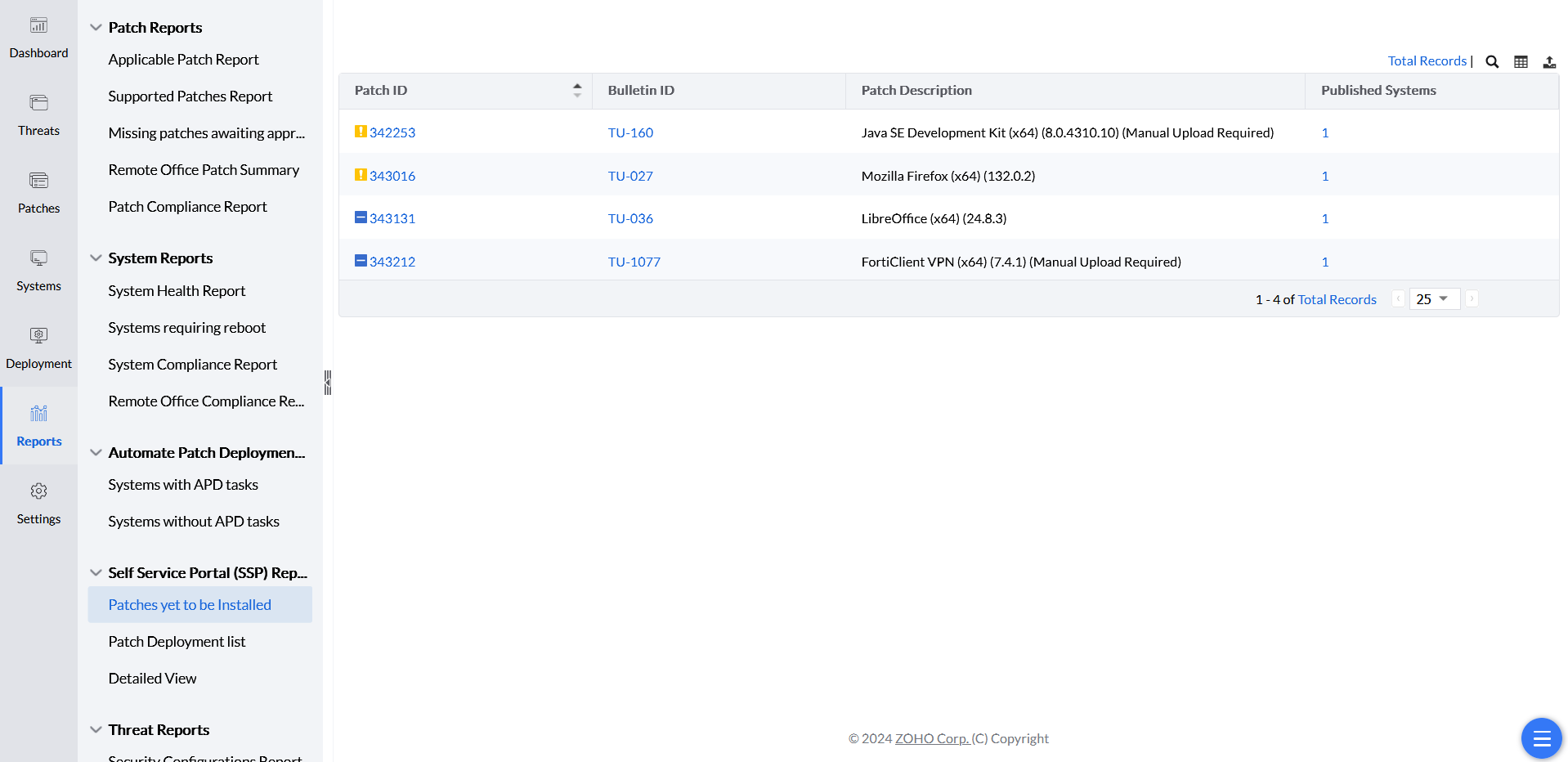
- Patches yet to be installed: This report will list down all the patches available in the Self-Service Portal and is awaiting installation.
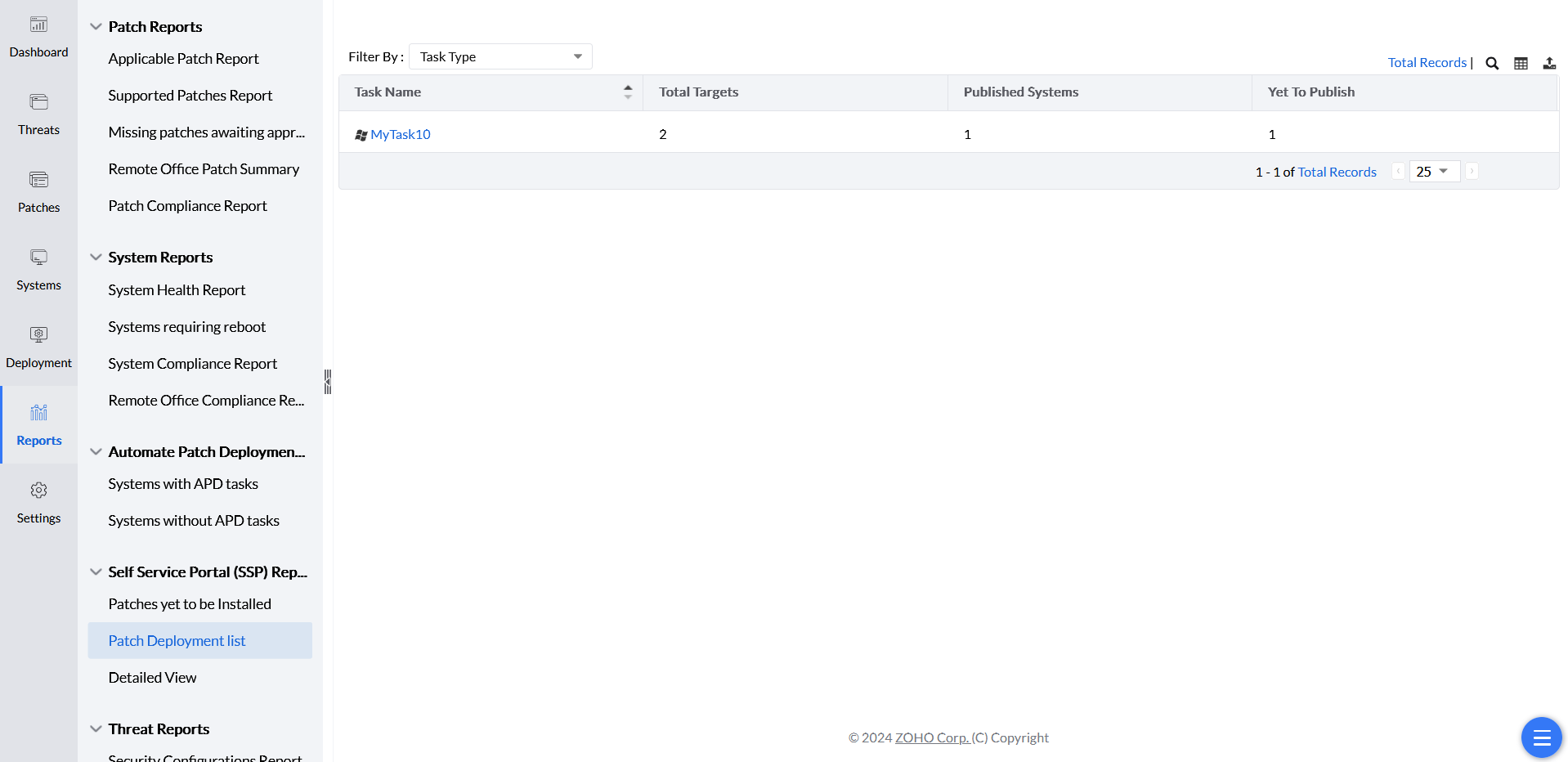
- Patch Deployment list: This report will list the configuration through which patches are published to the Self-Service Portal.
- Detailed View: This report lists all the details of the patches which are published to the Self-Service Portal.