Creating authoritative zones for Microsoft DNS servers using DDI Central
To create authoritative zones for Microsoft DNS servers using DDI Central:
- Get into the DNS module. Select the Domains menu.
- On the Domains page, You can create a new domain using the Add Domain button or import domains in bulk using the Import button in the top right corner.
Add Domain
On clicking the Add Domain button, the Create Domain page appears as shown below:
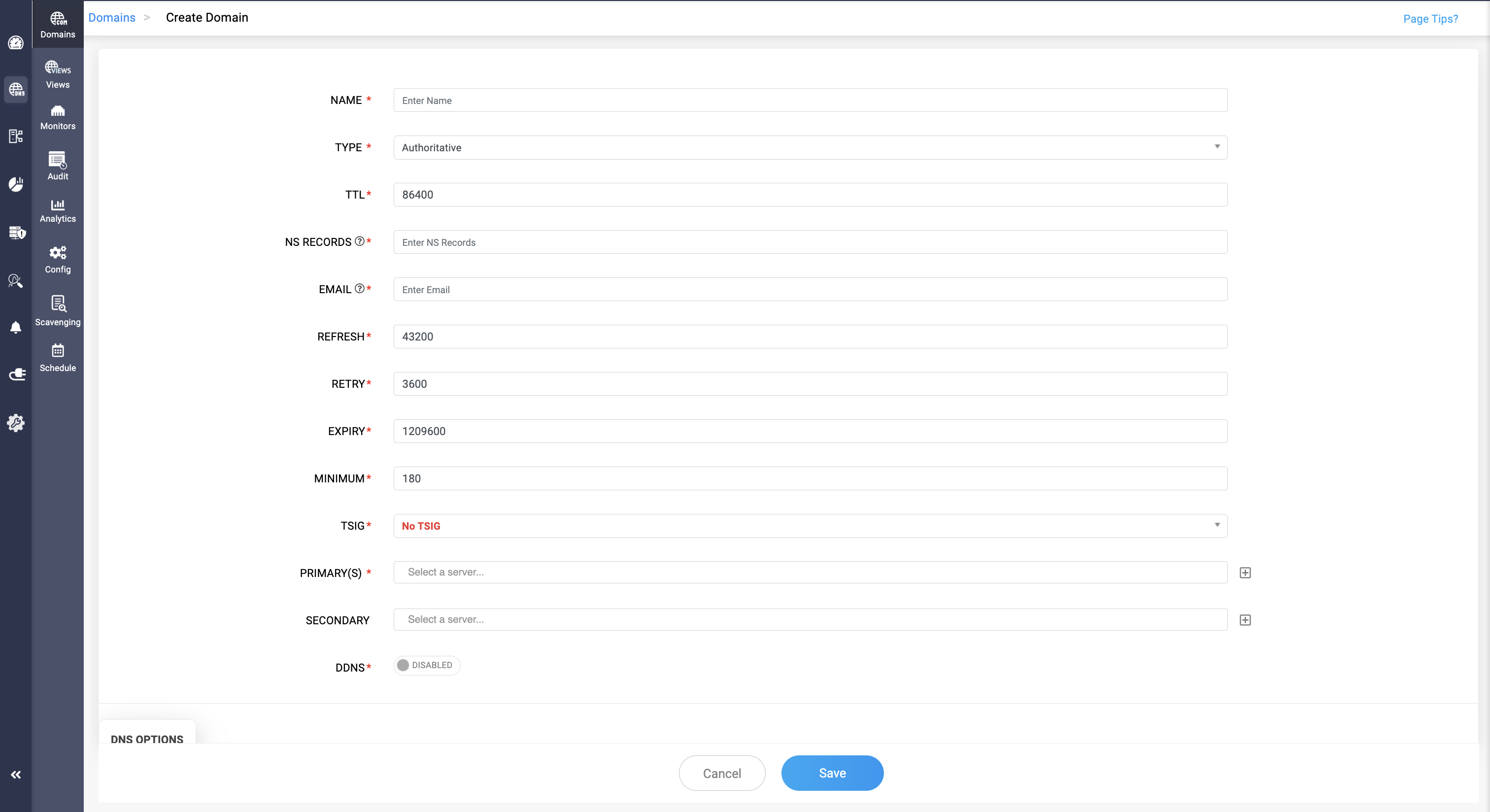
In the Create Domain page enter the value for the fields based on the descriptions below:
- NAME: Name the new domain name you wish to create or manage.
- TYPE: Select the type of DNS zone. DDI Central offers three types of Zones: Authoritative, Forward and Response Policy Zones (RPZ). Now select Authoritative. Authoritative: This type indicates that the DNS server has the authority to answer queries for the specified domain with authoritative data. This means it holds the actual DNS records, such as A records, MX records, and so on, for the domain. It is the definitive source for information about that domain, and its answers are considered official.Note: Type of the domain once chosen cannot be updated. To update the type of the domain delete the domain and re-configure it.
- TTL (Time to Live): Specifies the resolving servers how long to cache information about the domain before querying for it again. Specified in seconds, and the default value is set to 86400.
- NS RECORD: Enter the IP of the nameserver that has the authority to resolve queries and providing responses to queries for this domain.Note: It has become common practice for users to enter a nameserver that bears the same name as the domain under which it is configured. DDI Central now requires users to establish an appropriate A or AAAA record that can provide an authoritative answer for the nameserver before allowing it to be used with the domain name. For example, when configuring the domain 'clouddns.com' with a nameserver such as 'ns1.clouddns.com', DDI Central prompts you to first create an authoritative address record, either A or AAAA, for 'ns1.clouddns.com' within the domain.
- EMAIL: Enter the email address of the domain administrator or the personnel responsible for managing the DNS zone.
- REFRESH: Specified in seconds, tells secondary nameservers how often to check with the primary nameserver for updates.
- RETRY: Incase the secondary nameserver fails to reach the primary, this value specifies how long it should wait before retrying.
- EXPIRY: Determines the duration, in seconds, for which a secondary nameserver will attempt to contact the primary nameserver. After this period, if no response is received, the secondary nameserver will consider the data stale and cease responding to queries with it.
- MINIMUM: Specifies the minimum TTL that tells the resolving servers how long to remember that a particular record does not exist.
- TSIG: Transaction Signature is a security protocol used to secure zone transfer operations. "No TSIG" indicates that no transaction signature will be used.
- PRIMARY: Specifies the primary DNS server for the zone. In a primary-secondary setup, the primary server is where the zone records are originally created and managed.
- SECONDARY: Specifies secondary DNS servers. These servers get their zone data from the primary server through zone transfers.
SCOPE LIST: Enter a scope name and click the blue add(+)b button in the right end after each entry to create a Zone Scope for the domain name.
Note: Define only as many zone scopes as necessary to meet your network's requirements. Regularly review and clean up unused or redundant zone scopes.
More on Zone Scopes in Microsoft DNS here.
DDNS: Dynamic DNS automatically creates records and updates records with IP address that are leased out via a designated DHCP servers.
- Use the toggle to enable or disable DDNS by opening the domain name in edit mode here as required.
Click Save button at the bottom to create or update the domain with the specified parameters, while Cancel would discard any changes made.
Note: The DNS domains can be managed and unmanaged by clicking on the icons next to Edit, and Delete. Domains that are exceeding the limit that's given in their licensing can be unmanaged. Click here to learn more.Import Domains
ME DDI Central enables you to bulk import records into DDI Central console using the Import button on the top right corner.
On clicking the Import button, the Import Domains window appears on screen.
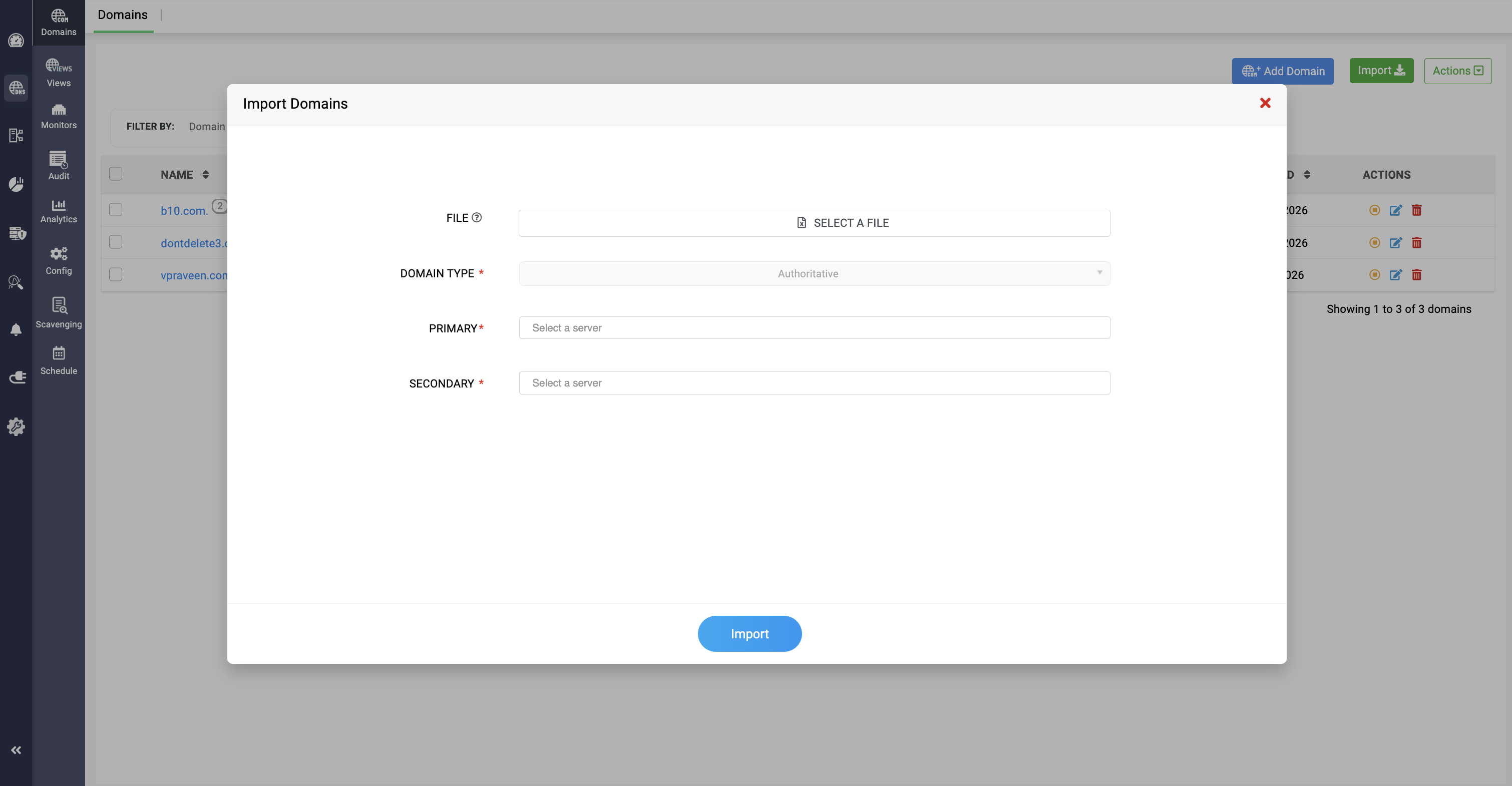
On the Import Domains window, enter the values for the following fields:
- ZIP FILE: Upload the ZIP file containing domain information in a specific format required by the system.
- TYPE: Specify the type of DNS zone being imported. The default option shown is Authoritative, indicating that the data being imported is for an authoritative DNS zone. Authoritative DNS zones are responsible for containing the DNS records for a particular domain.
- PRIMARY: Select one or more master DNS servers. The master server would be the primary source of data for the zones being imported and would handle DNS queries and updates.
- SECONDARY: Similar to the MASTER(S) field, select one or more slave (or secondary) DNS servers. Slave servers receive zone data from the master server and serve as backups to handle queries if the master is unavailable.
- VIEW: Select a DNS view by its name to provide different information to different sets of clients based on some pre-defined criteria. For example, you might have an "internal" view for clients on your local network and an "external" view for clients on the internet.
- Import Button: Once all fields are filled out and you are ready to import the domain data, click the Import button to initiate the import process.
The two methods discussed above can help you create authoritative zones.