DDI Central OpManager Nexus integration
Similar to DDI Central - Endpoint Central integration, OpManager Nexus integration allows network admins to have a visual summary over device details and IP address availability. Here are the features come in DDI Central with OpManager Nexus integration:
OpManager Nexus Device status
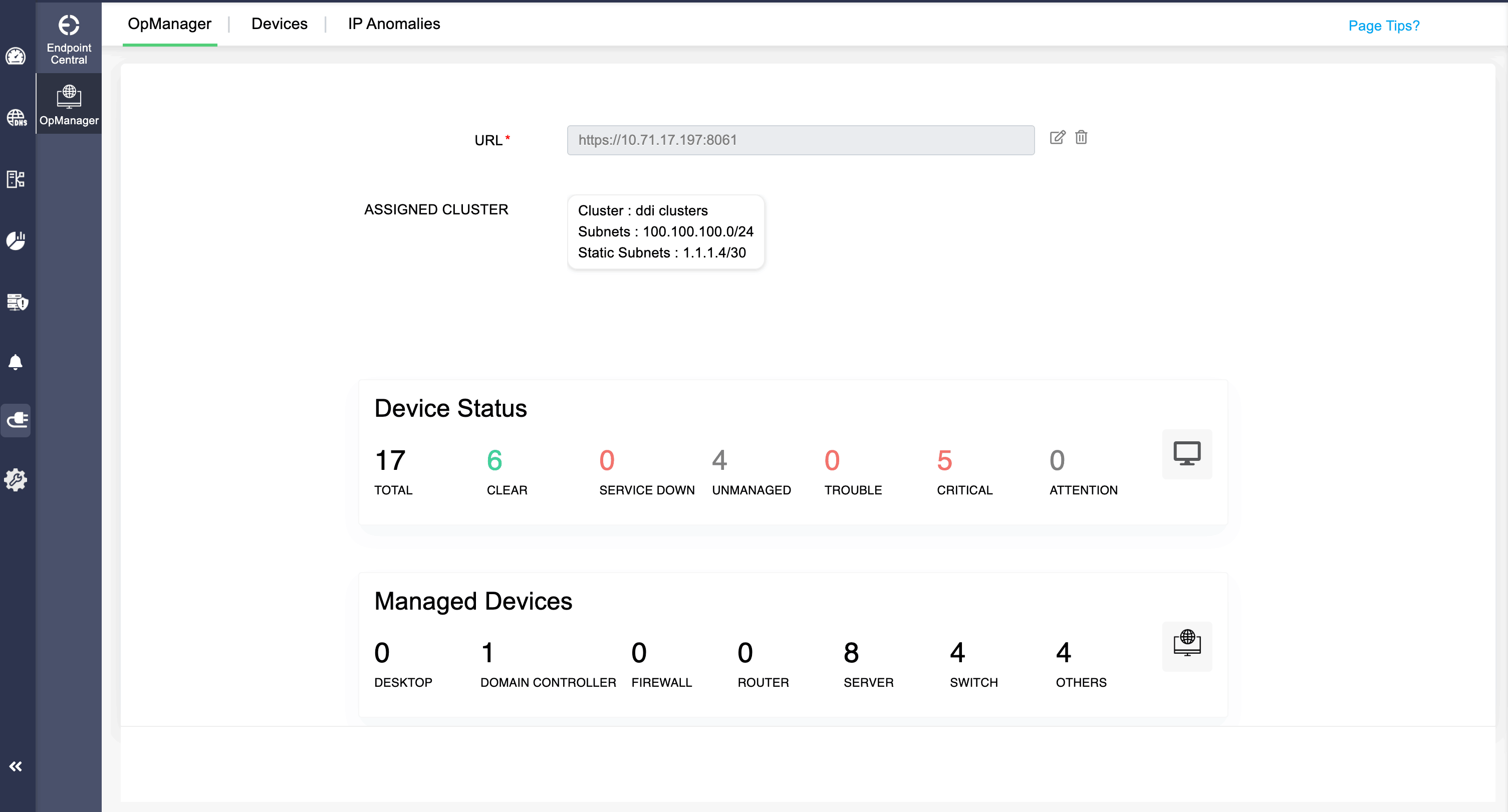
Clicking on the Integrations>OpManager shows a data insights over the number of managed devices connected through DHCP lease and their status.
On top, you can view the URL for the OpManage application, and cluster to its assigned. In the Assigned Cluster section, you can view the cluster name, subnets, and static subnets.
Device details
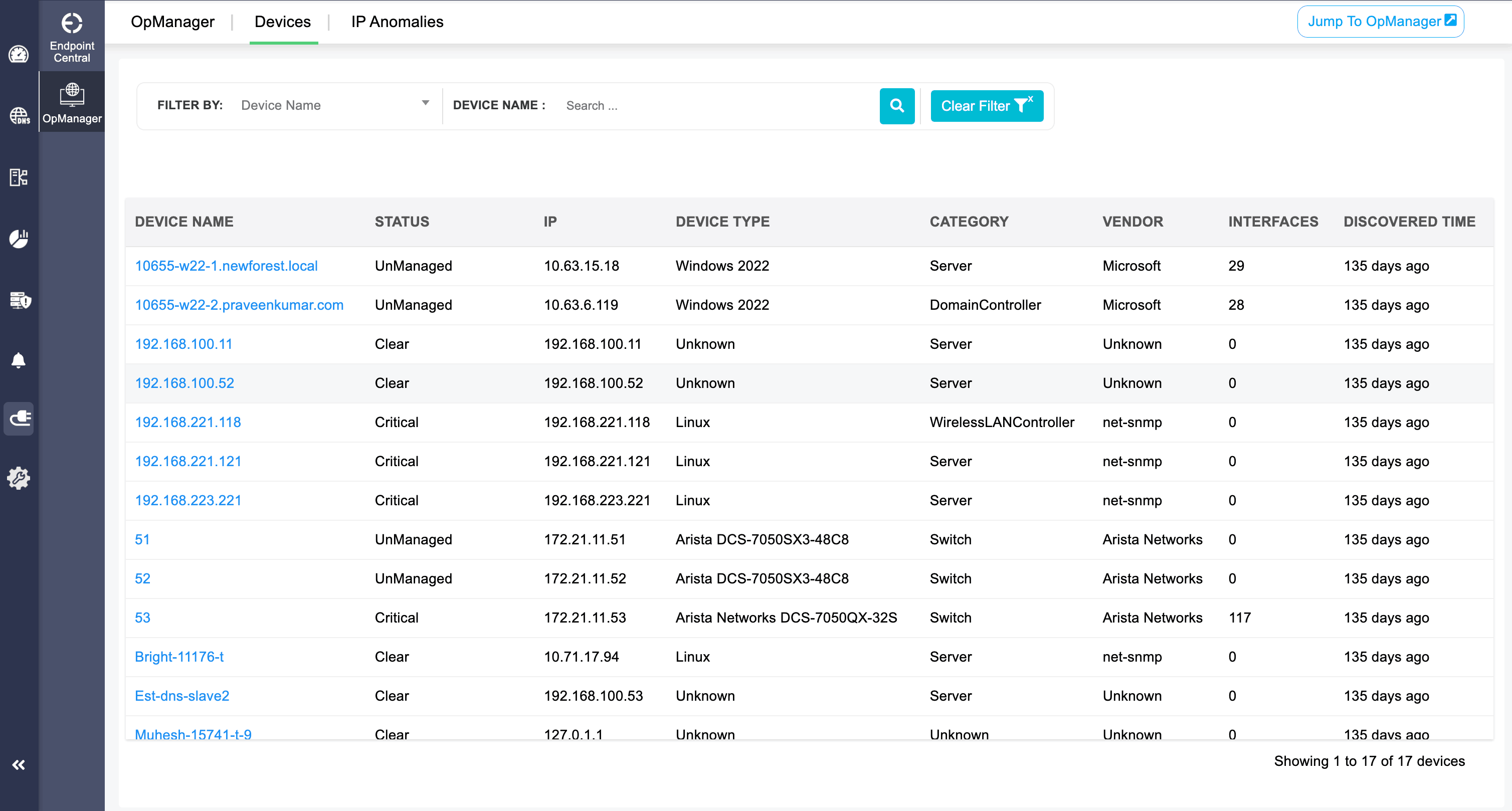
When clicking on the OpManager Nexus section>Devices, you can view all the devices associated with OpManager Nexus listed, with their device information such as status, type, IP, category, vendor, interfaces, and last discovered time.
Device summary
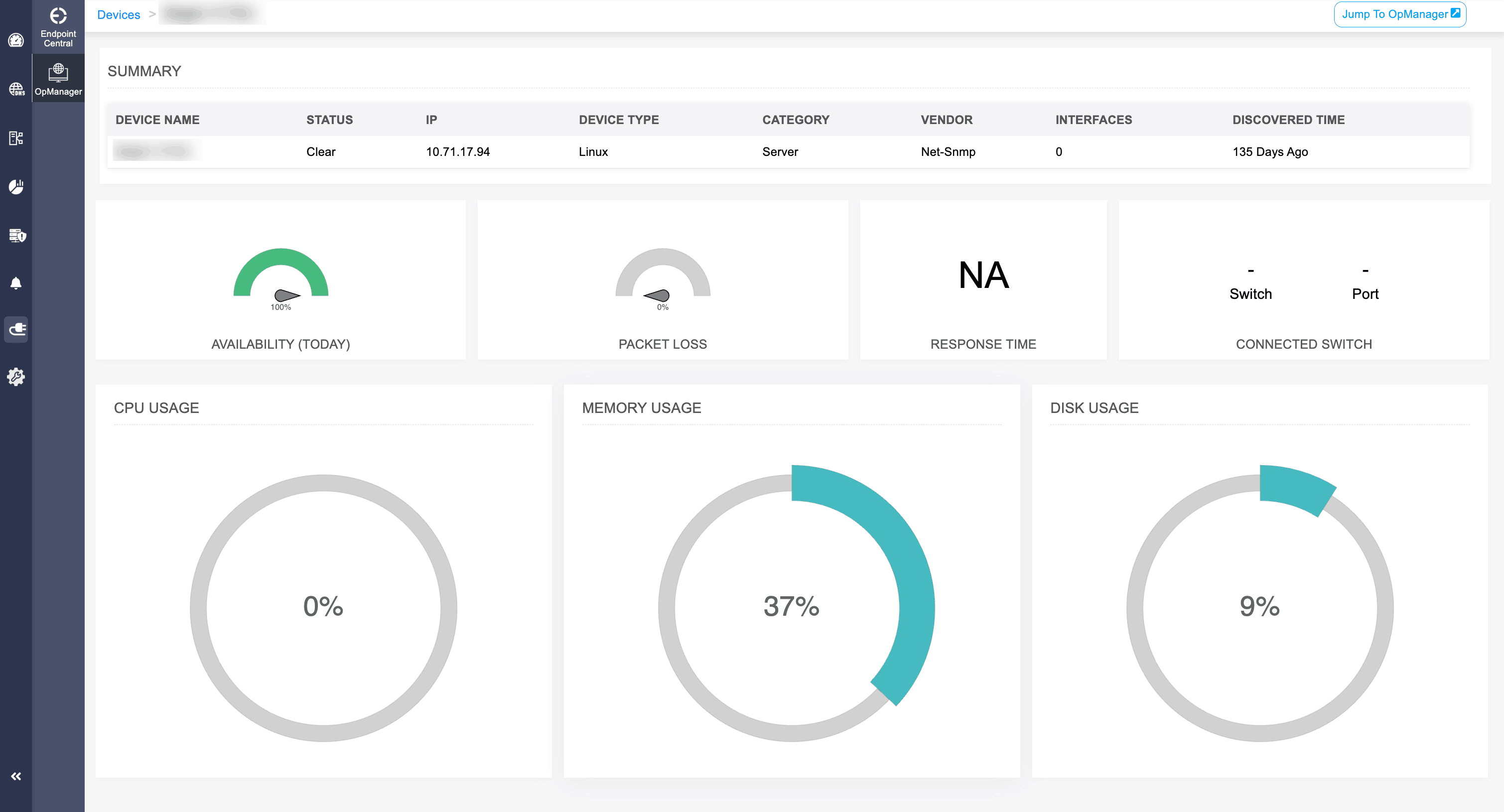
In the OpManager Nexus dashboard, you can view the device detail summary, including device name, type, status, IP address leased, and discovered time.
It also showcases the availability, packet loss, response time, connected switch, CPU usage, Memory Usage, and Disk Usage.
Availability
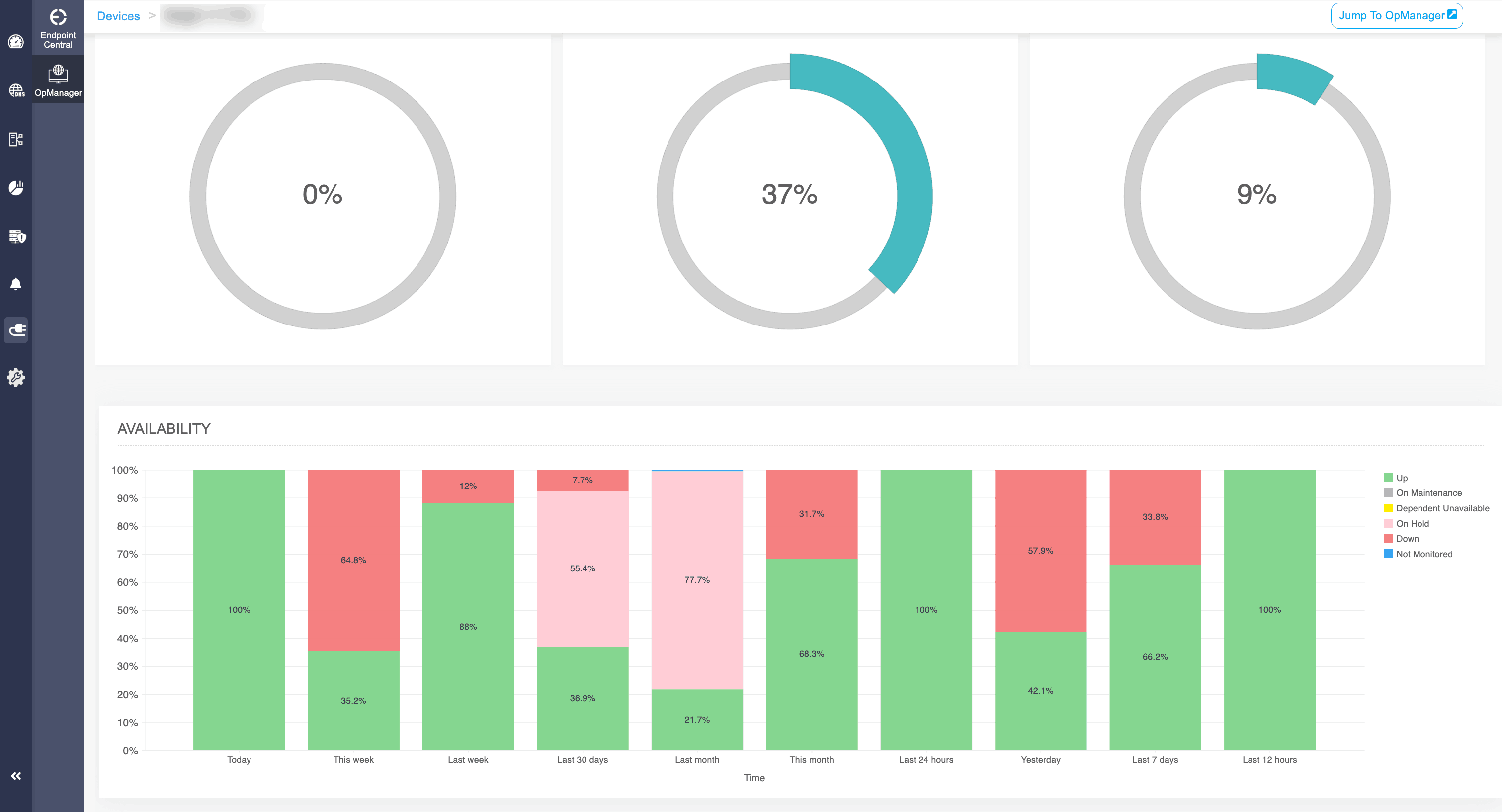
The availability section displays a graph showing the status of the device in the following time periods. The status varies based on the following:
- Up - The device is active and utilizing the IP address.
- On Maintenance - The device is under a downtime and will be moved to an unmanaged state and going through the maintenance process.
- Dependent Unavailable - The device's dependent device(s) is down or unavailable.
- On Hold - The device is being manually moved to the 'Unmanaged' state.
- Down - The device is under 'Down' or not available state.
- Not Monitored - The device is not under any monitoring and surveillance.
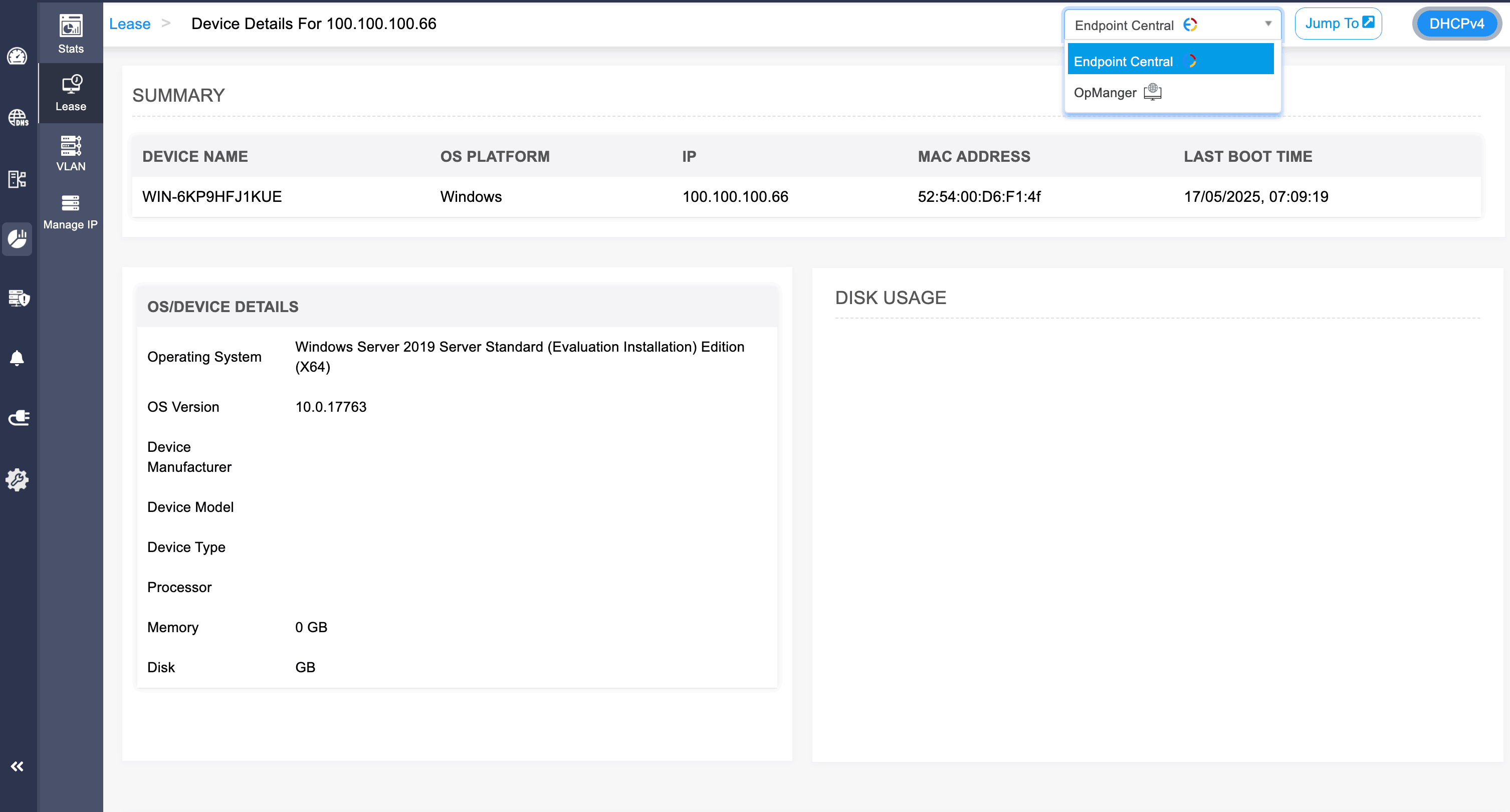
IP Anomalies
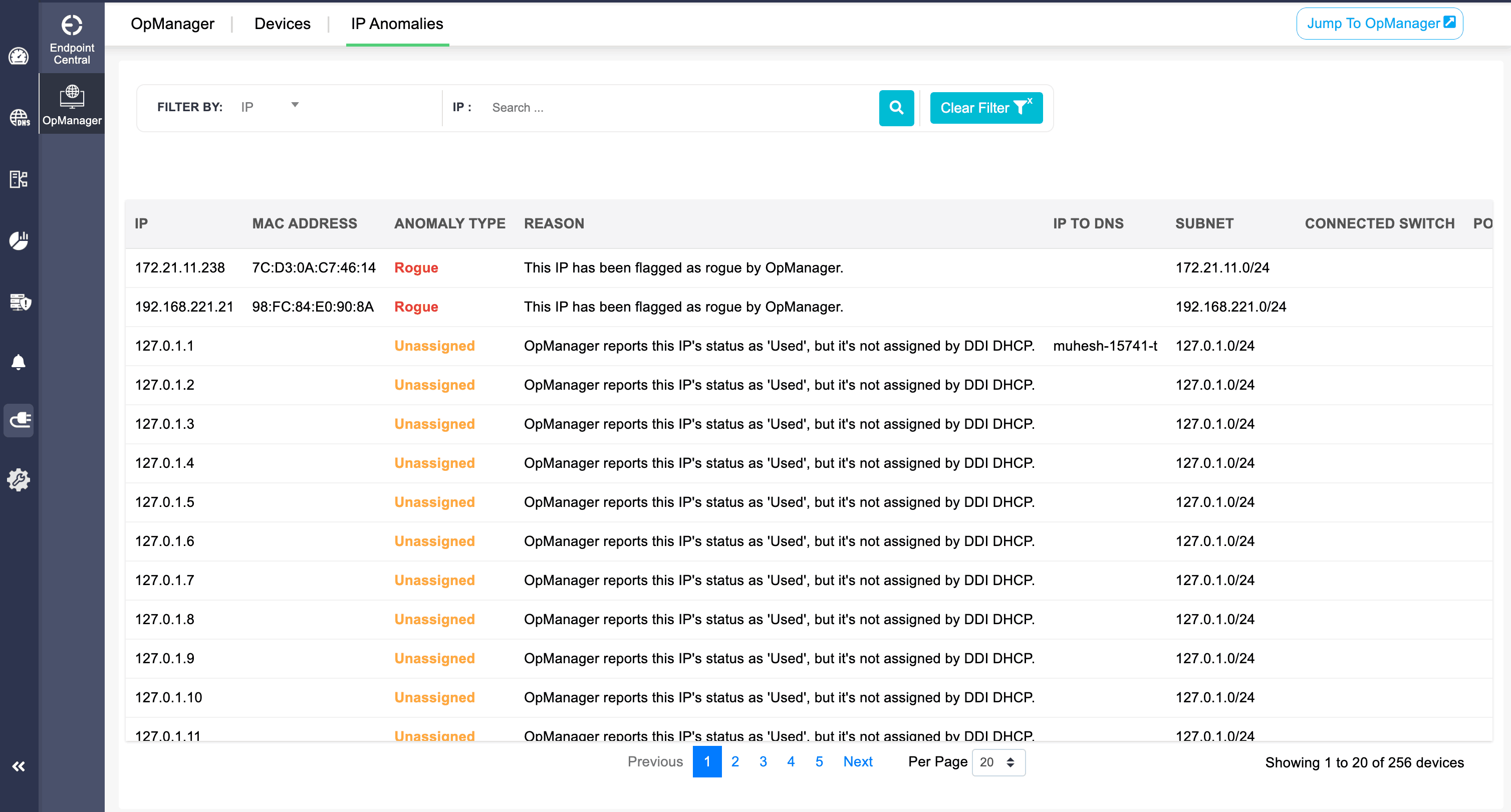
Rogue IP address
The anomaly type "Rogue" is shown in the table when OpManager Nexus detects and flags an unauthorized IP address as Rogue. Once identified, the IP is marked as rogue, and this status is displayed in the tabular view.
Unassigned IP address
When an IP address in OpManager Nexus appears to be in "used" status, but its not under any lease or host reservation in DDI Central, it will be marked as "Unassigned" in the anomaly type.