Record monitoring
DDI Central's record monitoring feature allow network admins to monitor the health and status of their organization's DNS records, ensuring whether the records hosted in the server are up or down, and switching to the backup DNS record when all the active records go down. This ensures that your DNS service remains uninterrupted, resulting in increased availability and response rate.
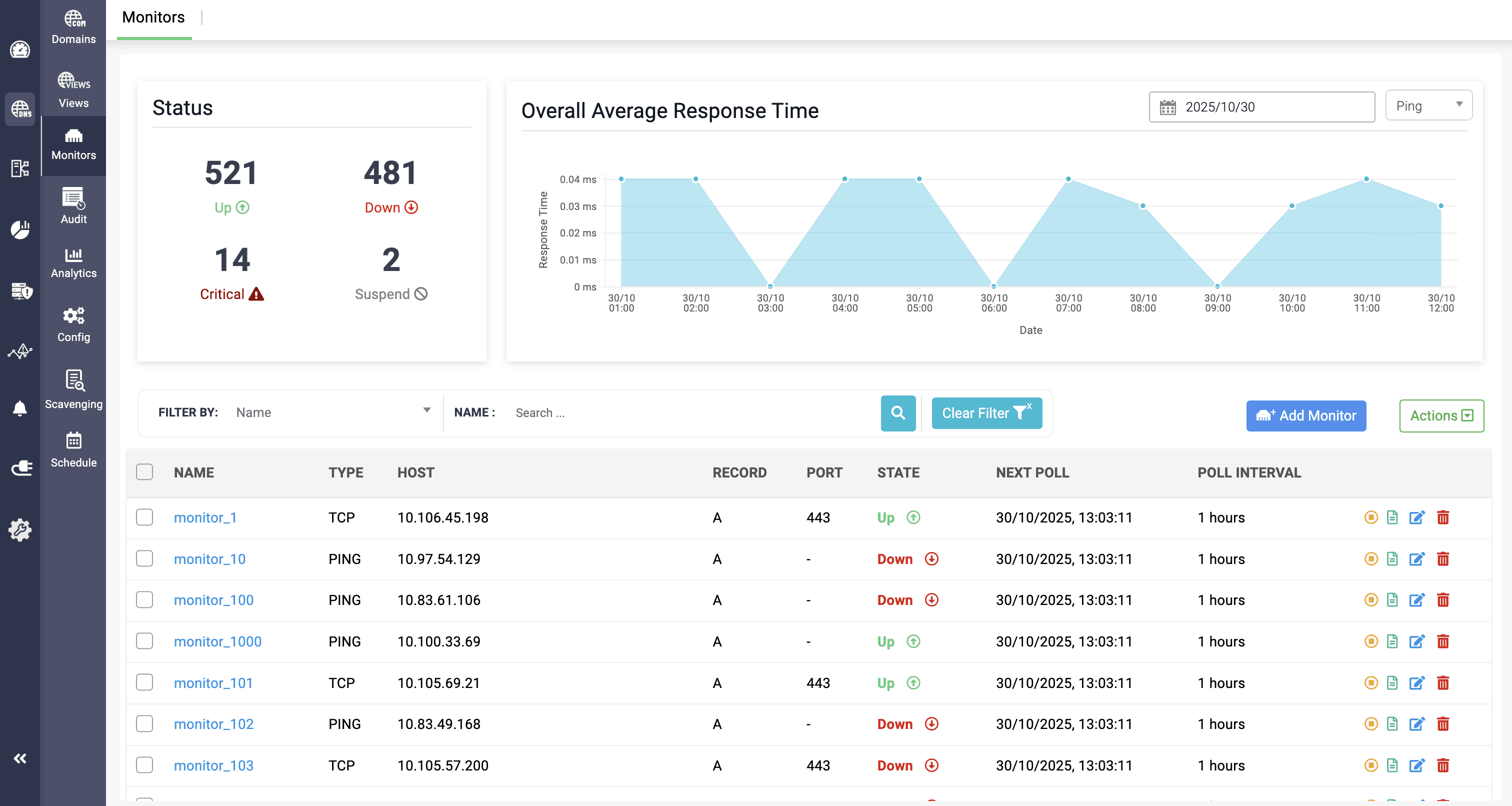
Record monitoring can be accessed by clicking through DNS>Monitors.
Admins can gain a clear visibility over the number of hosts and their status:
- UP: The host is active and consistently providing DNS resolution services. It responds quickly whenever pinged by the monitor.
- DOWN: The host is not providing services on the network and did not respond to the total number of pings configured in the monitor.
- CRITICAL: The host did not respond to the initial ping request sent by the monitor.
- SUSPEND: The host has been temporarily suspended from providing DNS resolution services.
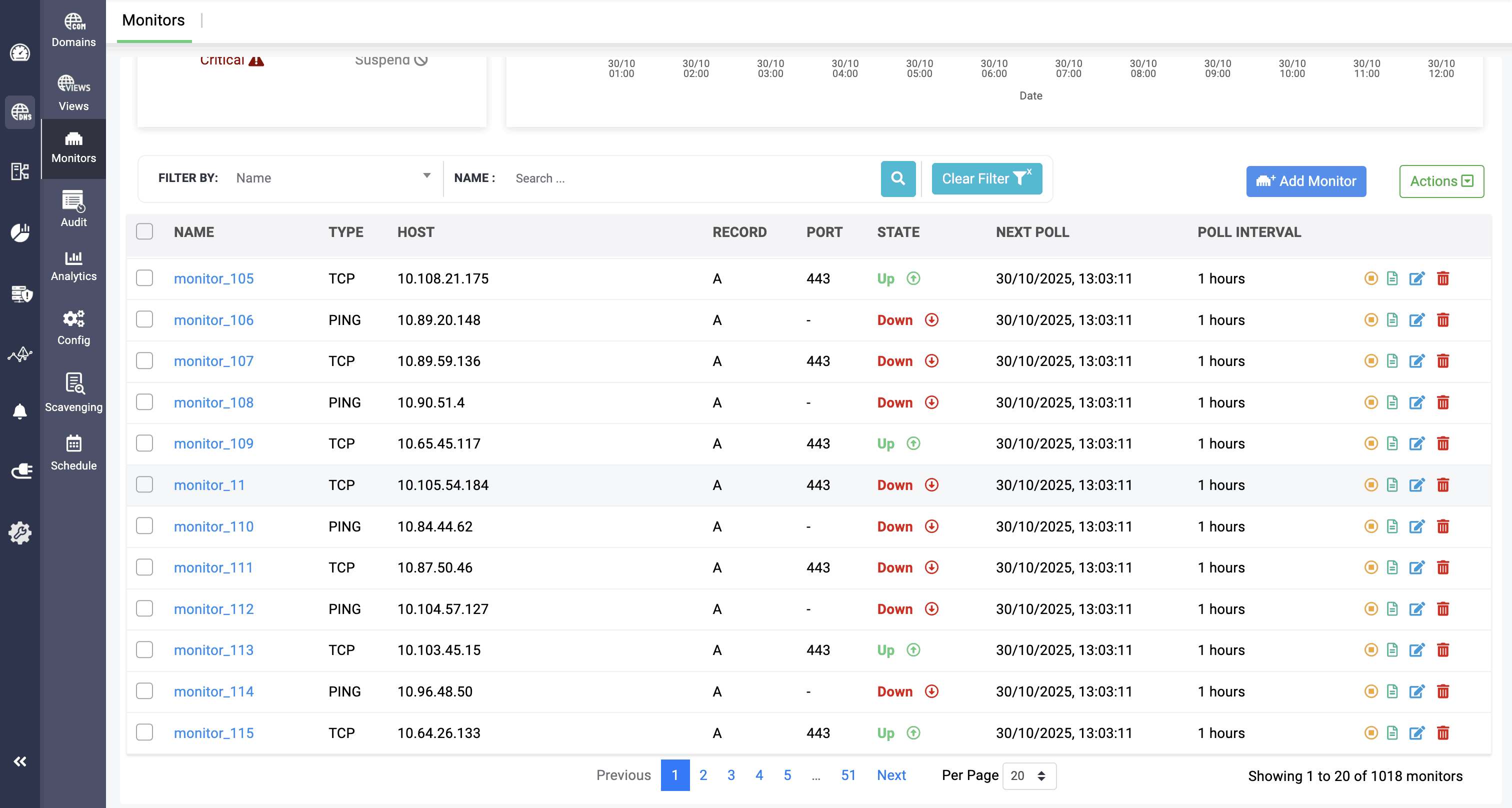
They can also view the average response time and a tabular column displays detailed of the monitor details, such as name, type, host, record, post, state, next poll and poll interval.
The servers that need to be suspended can be done by clicking on the yellow icon, and the same can be done for resume the servers to continue their service.
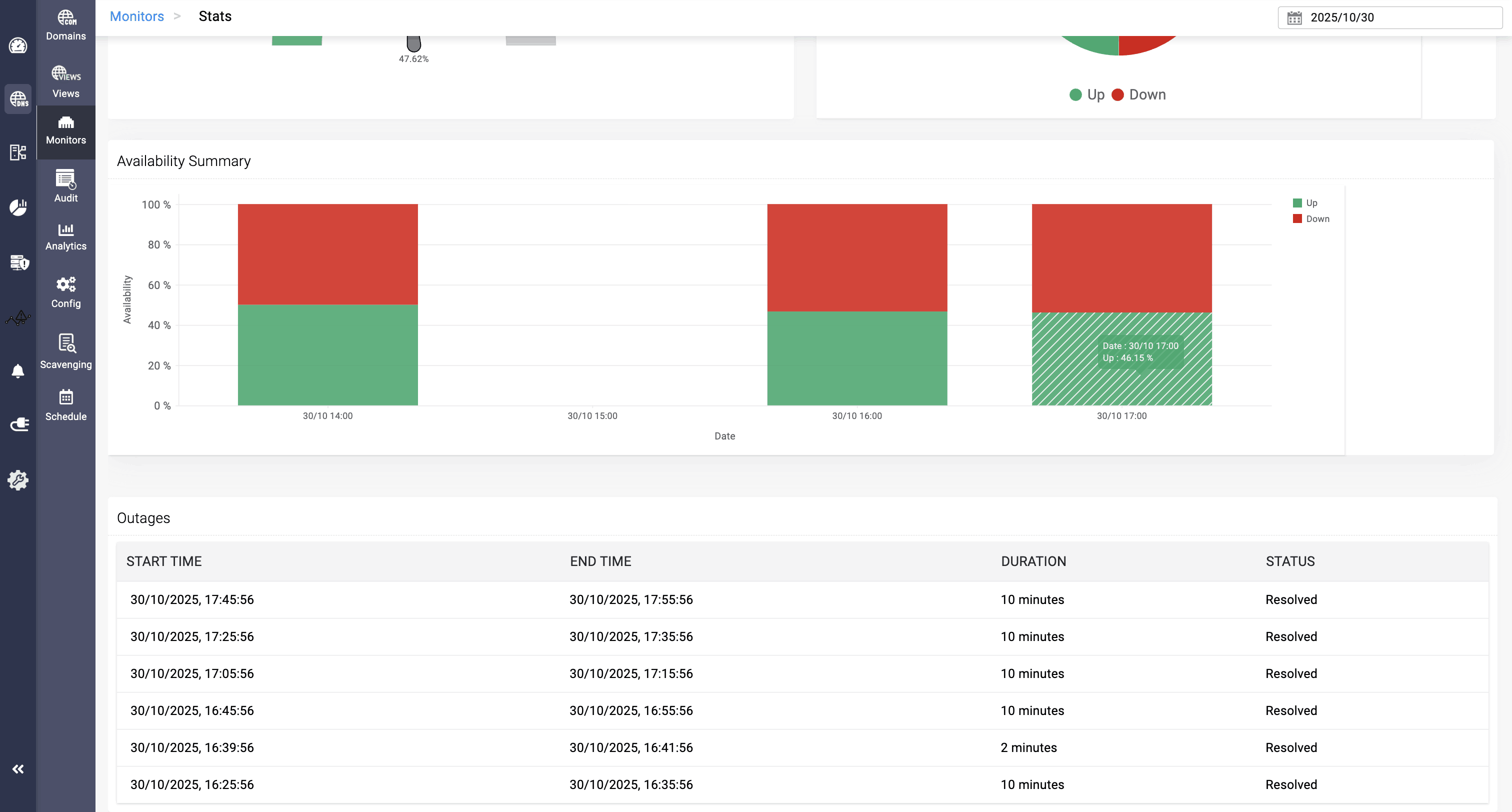
Clicking inside a specific monitor provides visual snapshots over the average response rate, overall availability, polling summary, and availability summary, all providing insights on the domain's status and availability in the network.
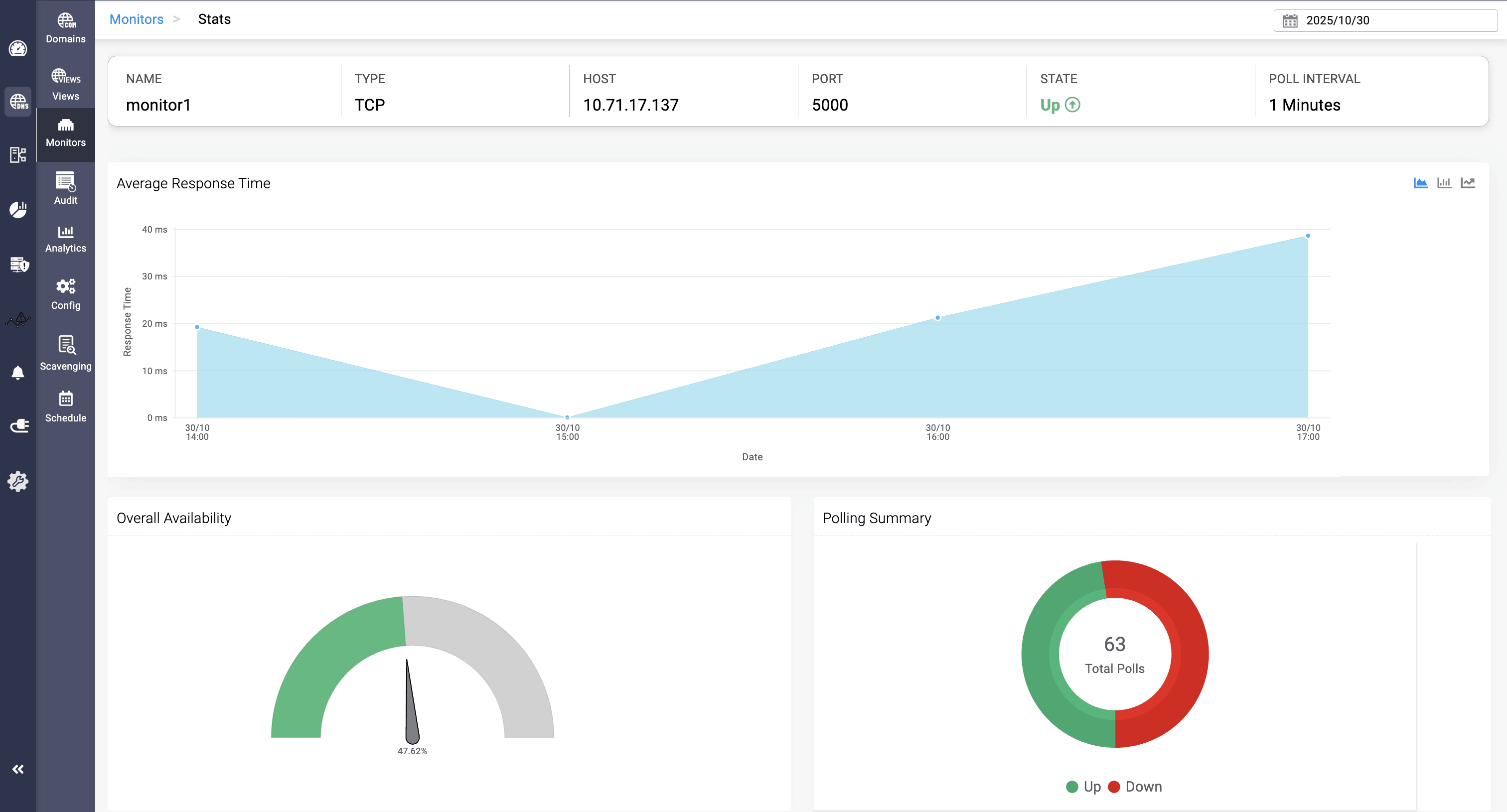
At the top section, a small table shows the details of the monitor clicked, including the host, port, state, and polling interval.
And, at the bottom, another table which showcases the outage details of the domain hosted, that including outages' start time, end time, duration of the outages, and their current status.
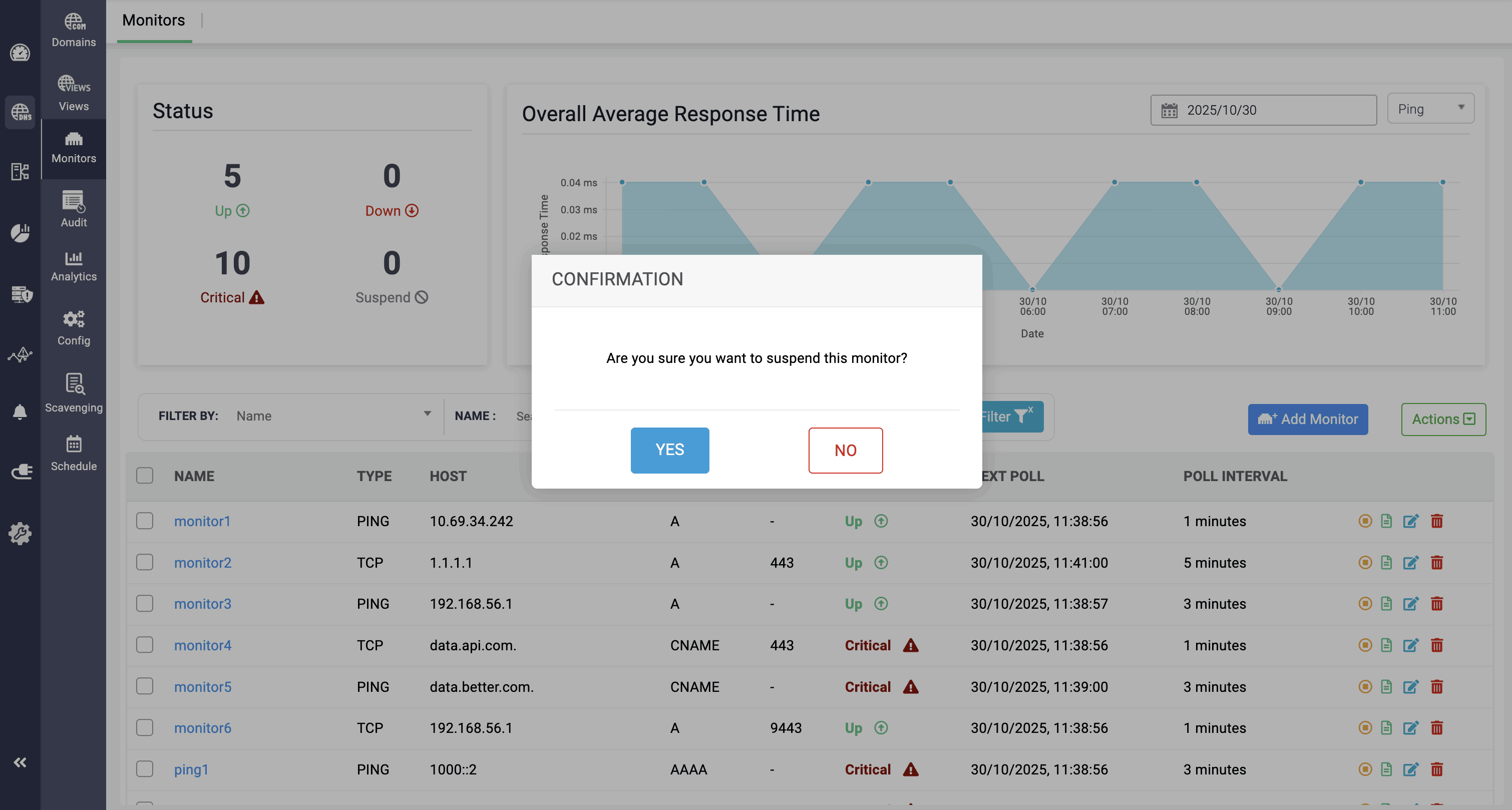
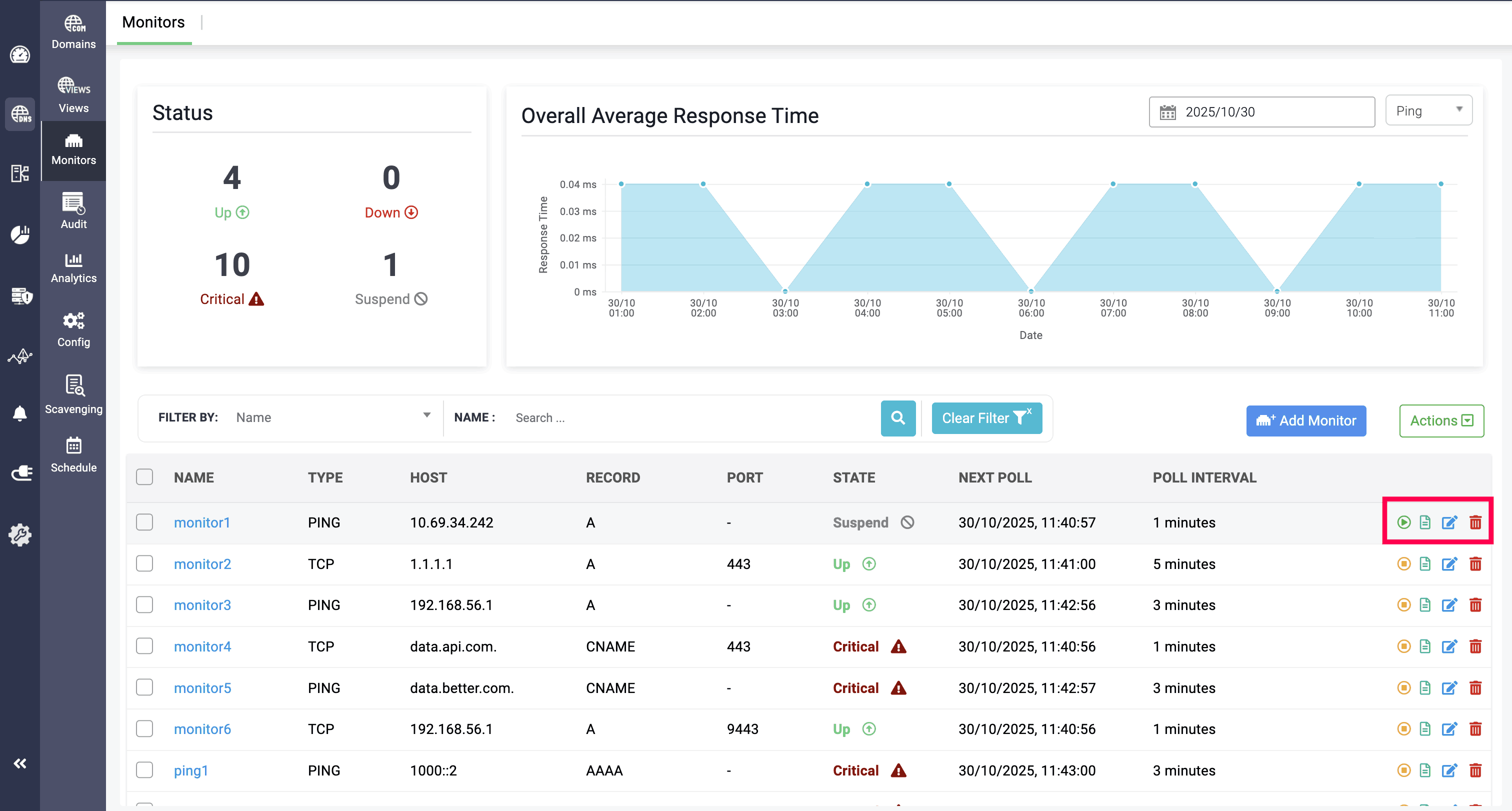
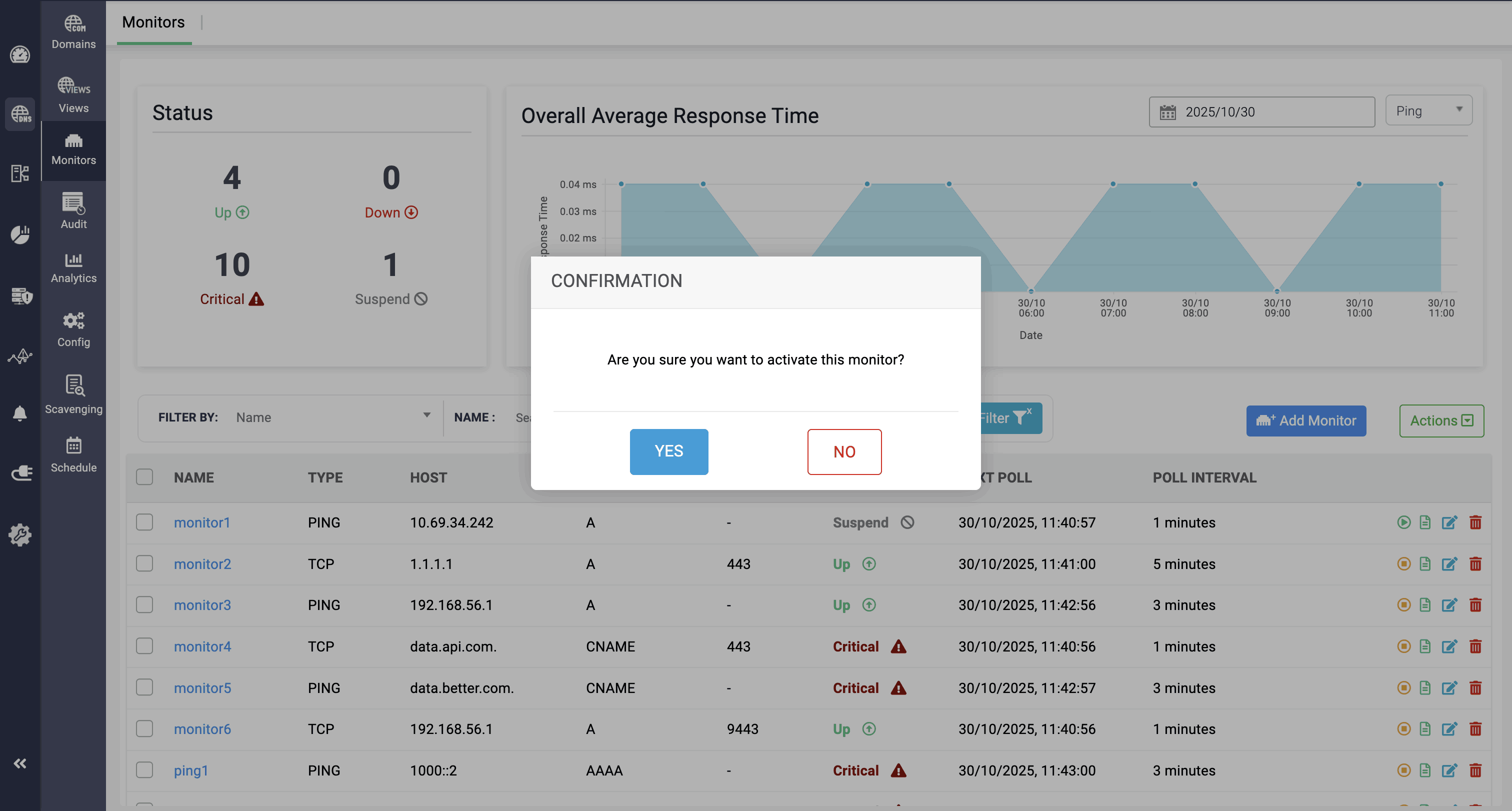
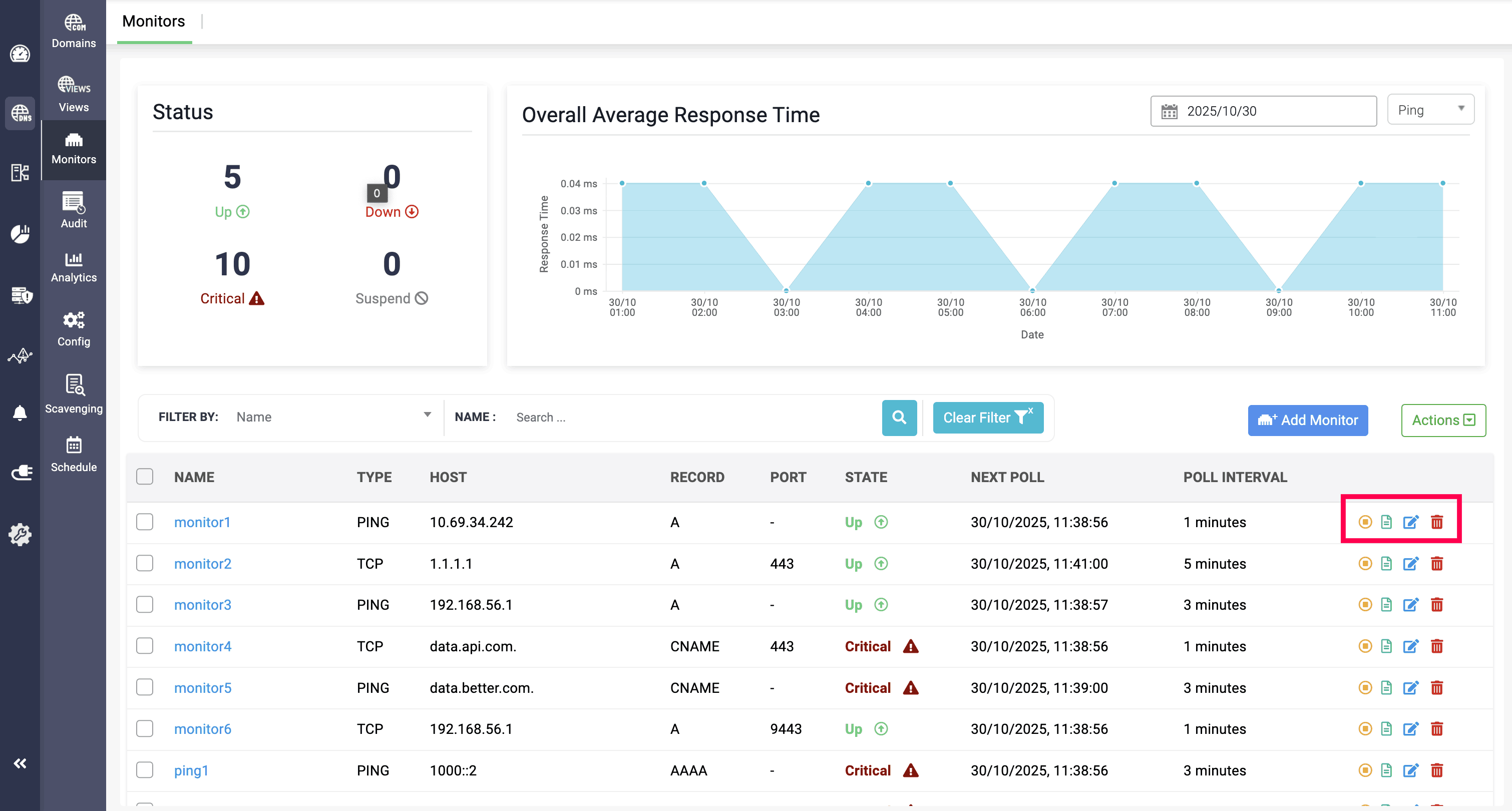
Clicking on the Suspend icon will allow admin to suspend the selected monitor from monitoring the host. The suspended monitor can be resumed for monitoring by clicking on Resume icon.
Creating a monitor
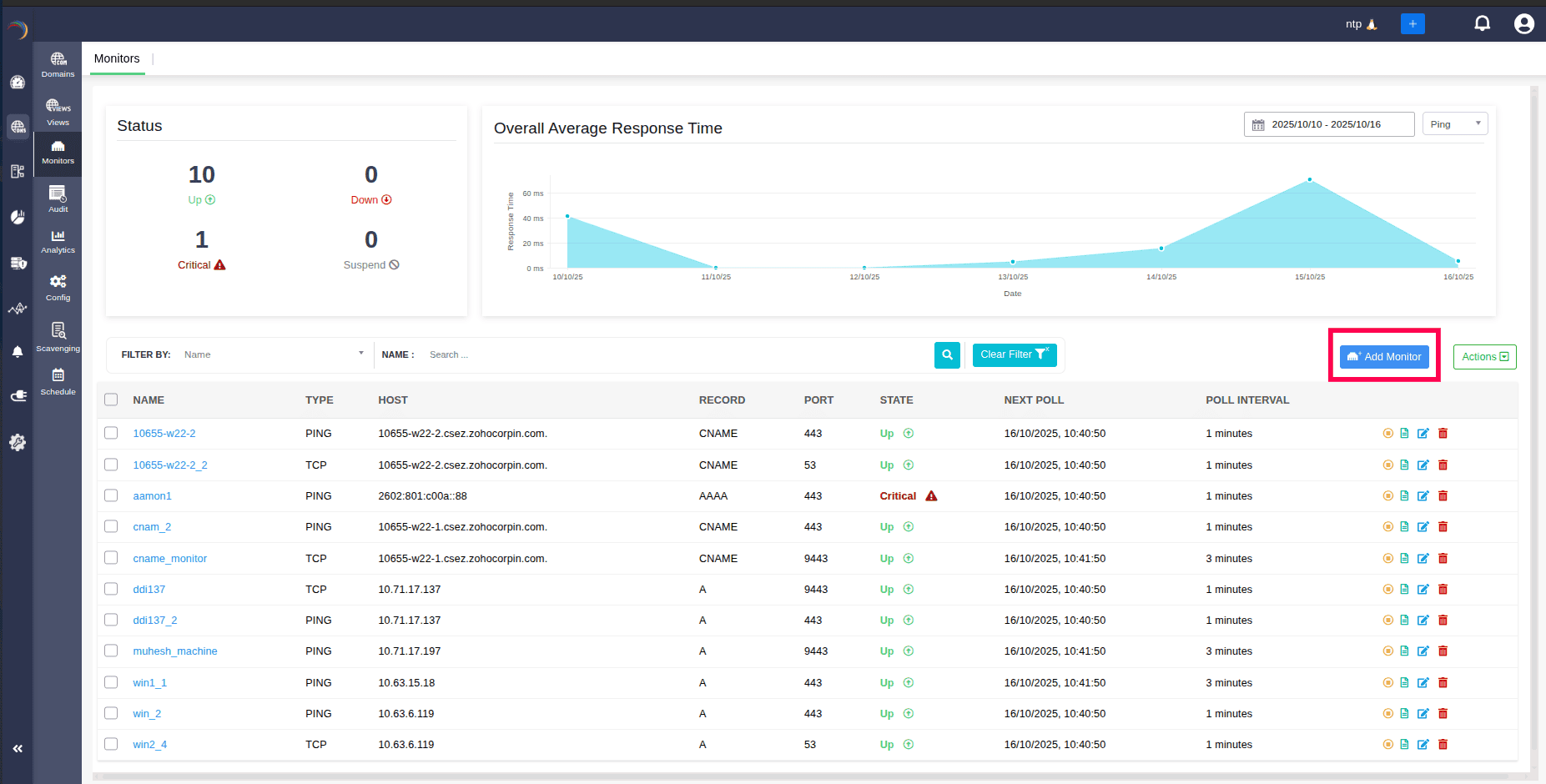
A new monitor can be created by clicking on the Add Monitor icon, which provides several fields to fill in details:
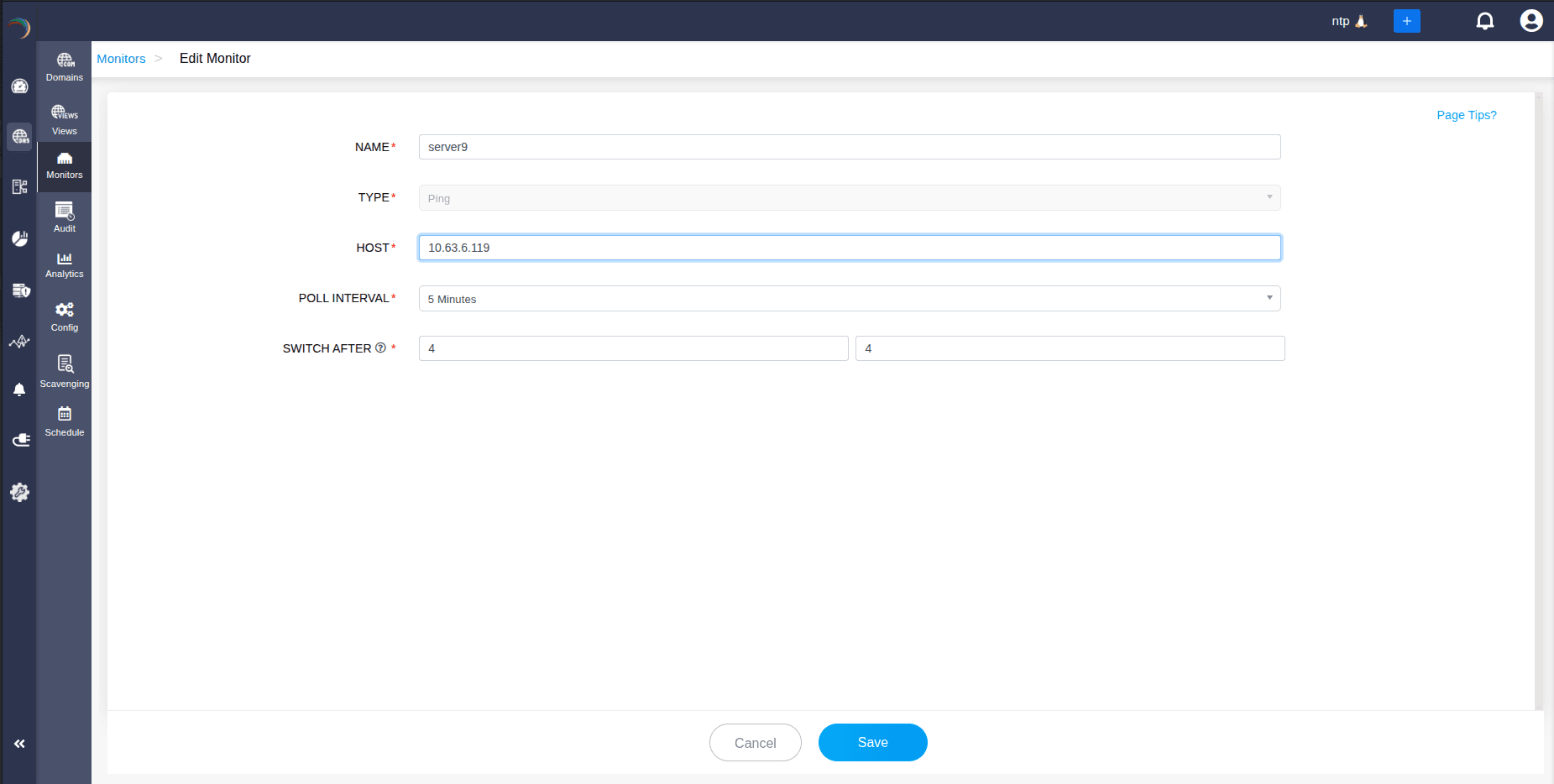
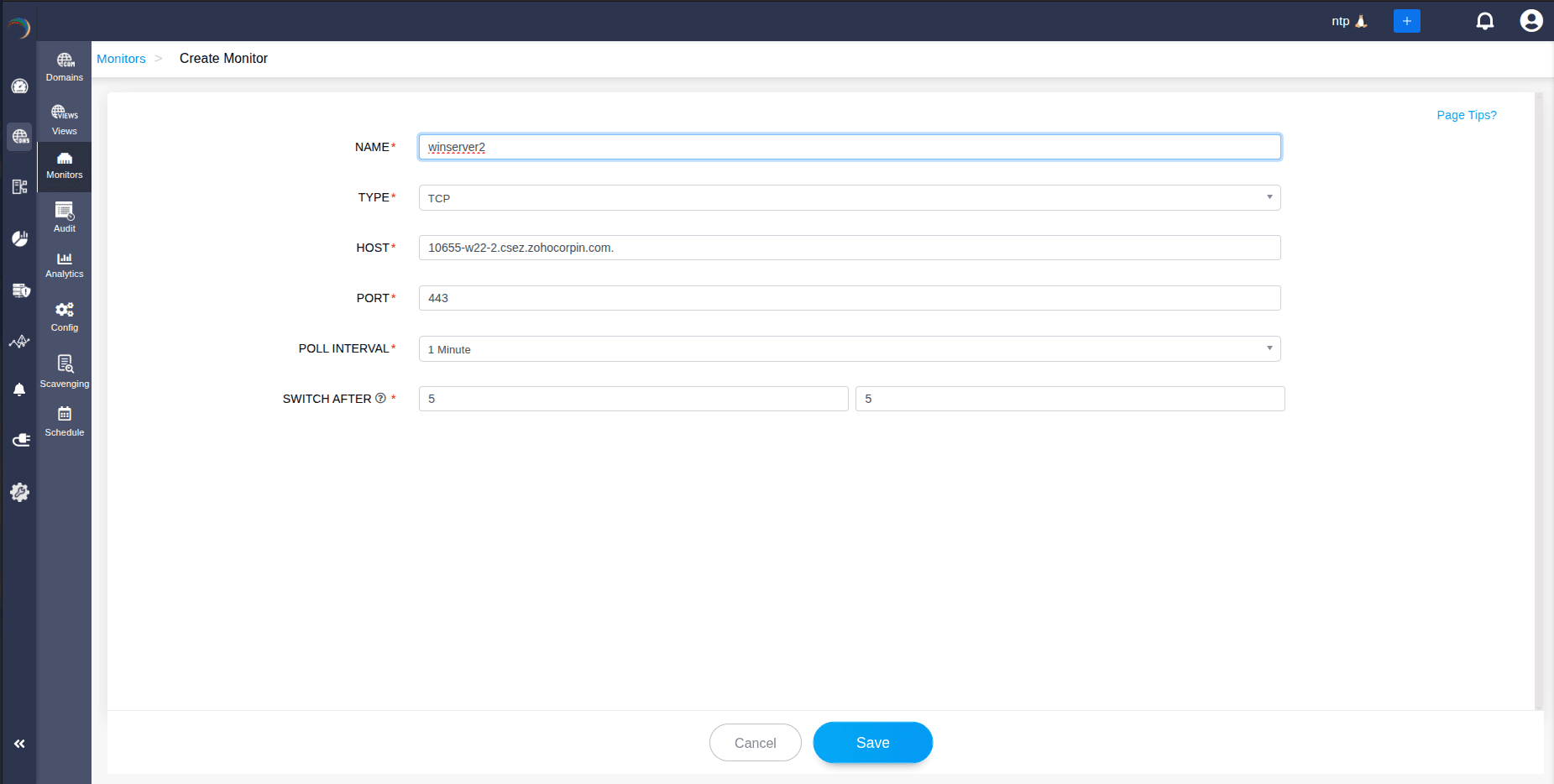
- NAME: Provide the name of the monitor to be created.
- TYPE: Select the type of the monitor. There are two types of monitor:
- PING: checks whether a device is reachable on the network by measuring response time.
- TCP: checks whether a specific service/port on that device is available and accepting connections.
- POLL INTERVAL: Provide the time interval for the monitor to poll the record for checking its availability.
SWITCH AFTER: This field helps setting the number of polling to be sent by the monitor before concluding that the record is down, and switch to the backup record for service continuity.
There are two different field boxes for this field. Enter number of polling failures before switch is where you provide the polling interval value to confirm the DNS record is down before switching to the backup record. Enter number of polling successes before switch is where you provide the polling interval value to confirm the DNS record is up before switching it back as the active record.
Associating monitors with a record
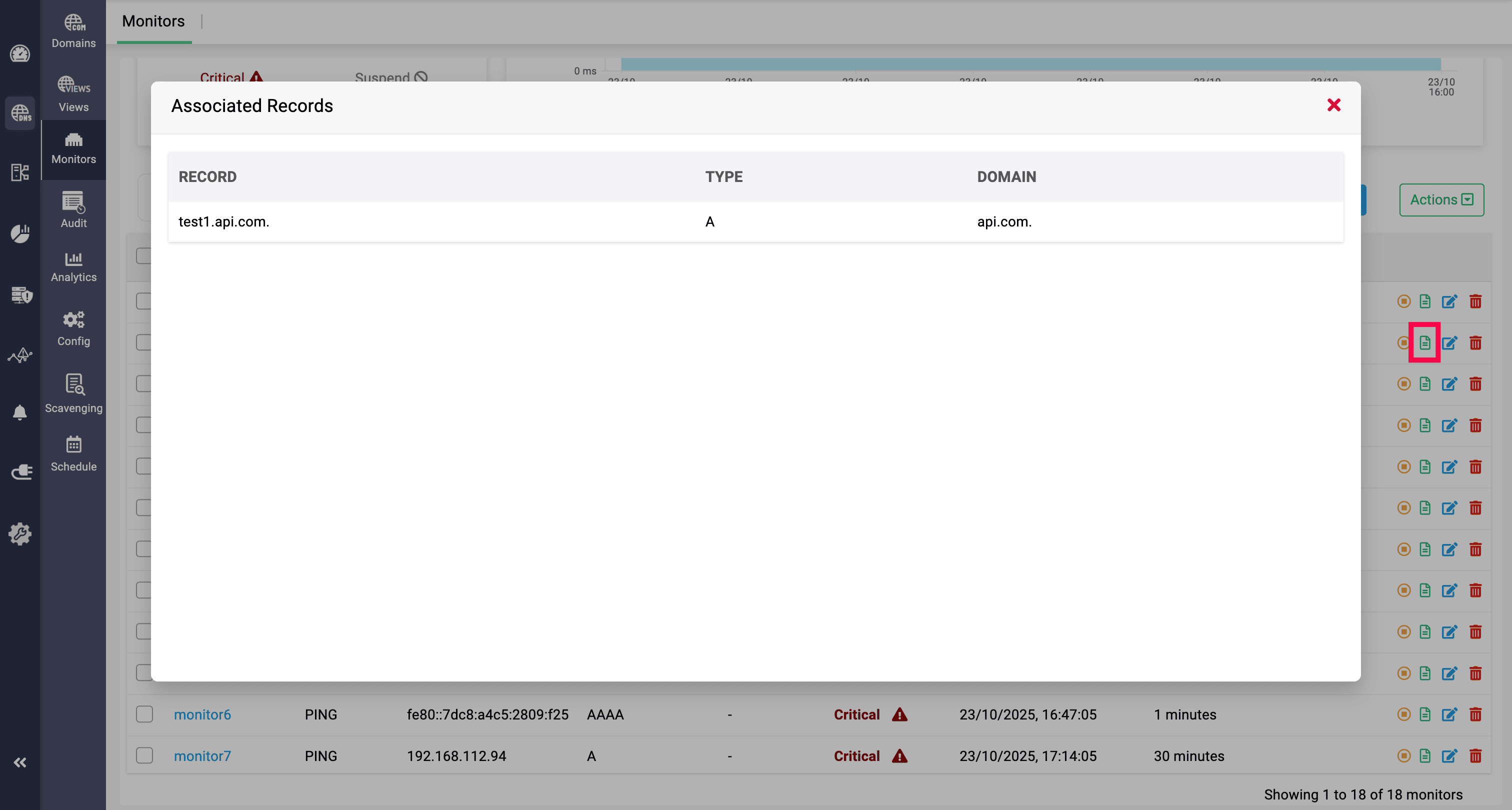
Clicking on the Associated Records icon will shows the records that are associated with the selected monitor.
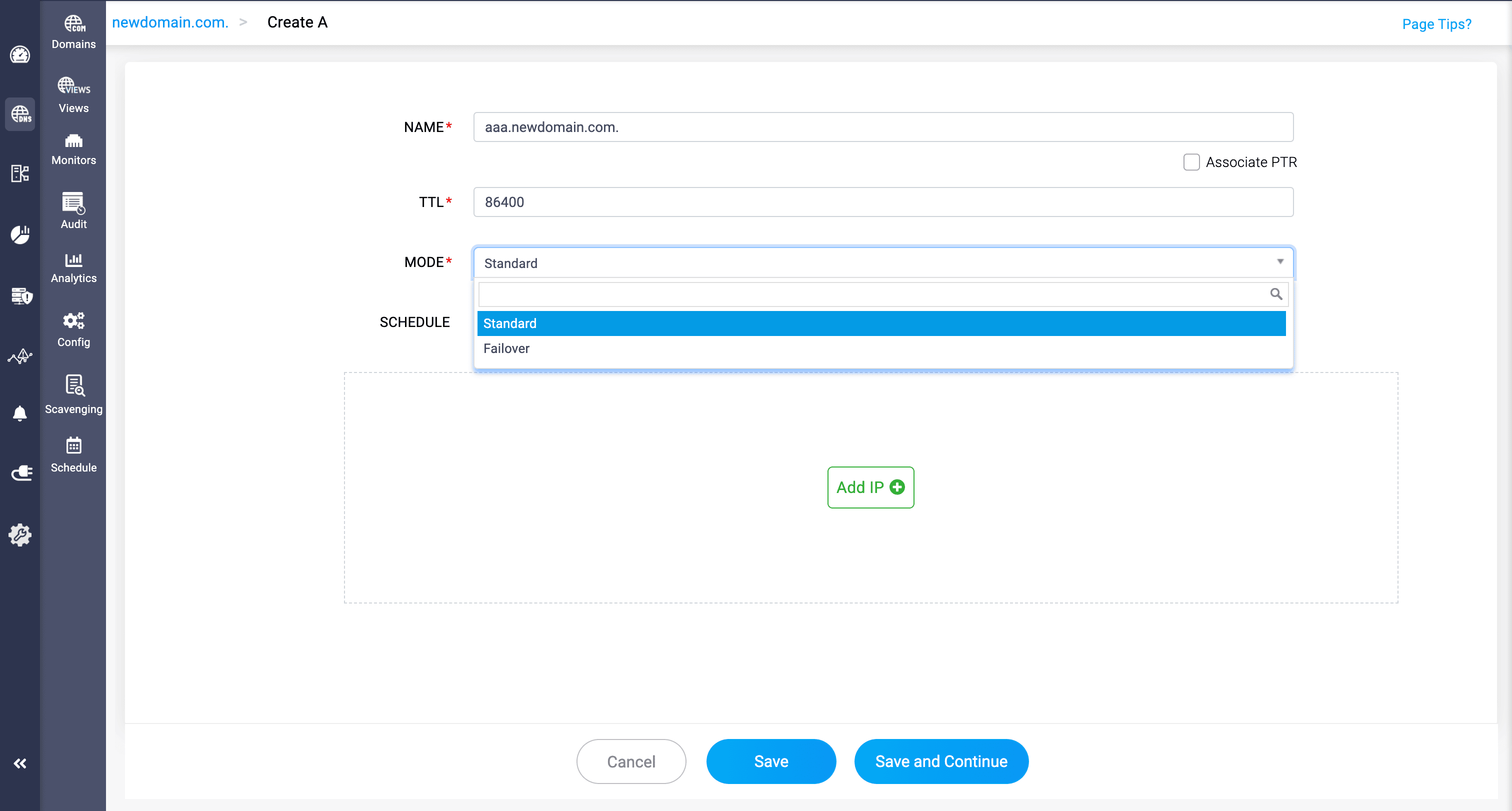
When new DNS records are created by clicking on (+) icon in the domain, admin should select the Mode of the record in the dropdown field, which has two options:
- Standard: The standard mode specifies no special configurations and simply serves the IPs configured for a record.
- Failover: The failover mode requires to provide alternative IP for the domain, which then be used as backup during failover, when the active IP goes down.
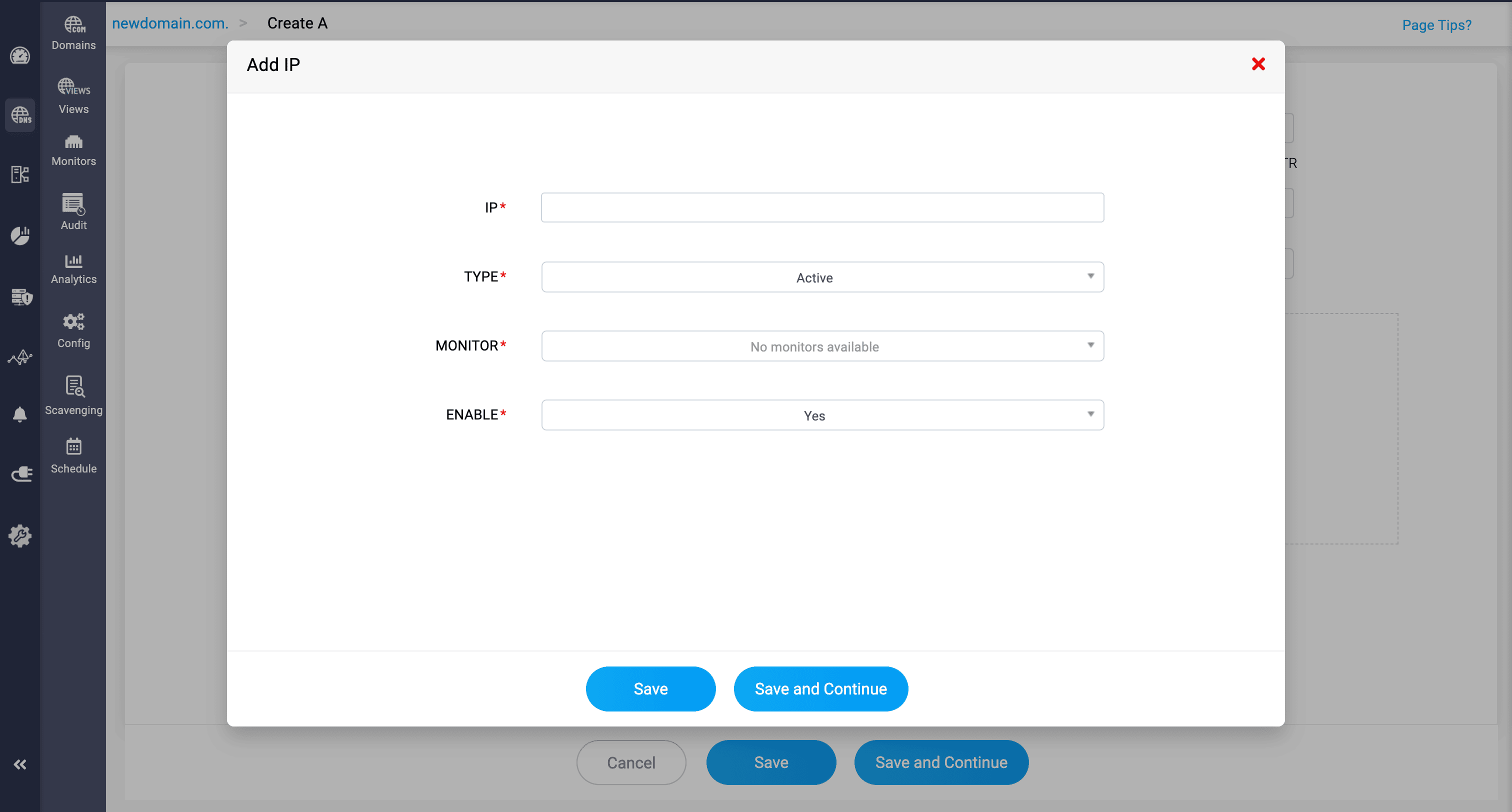
Clicking on Add IP after selecting failover mode will show the following fields to provide details:
- IP: Provide the IP address to be used for resolving the domain.
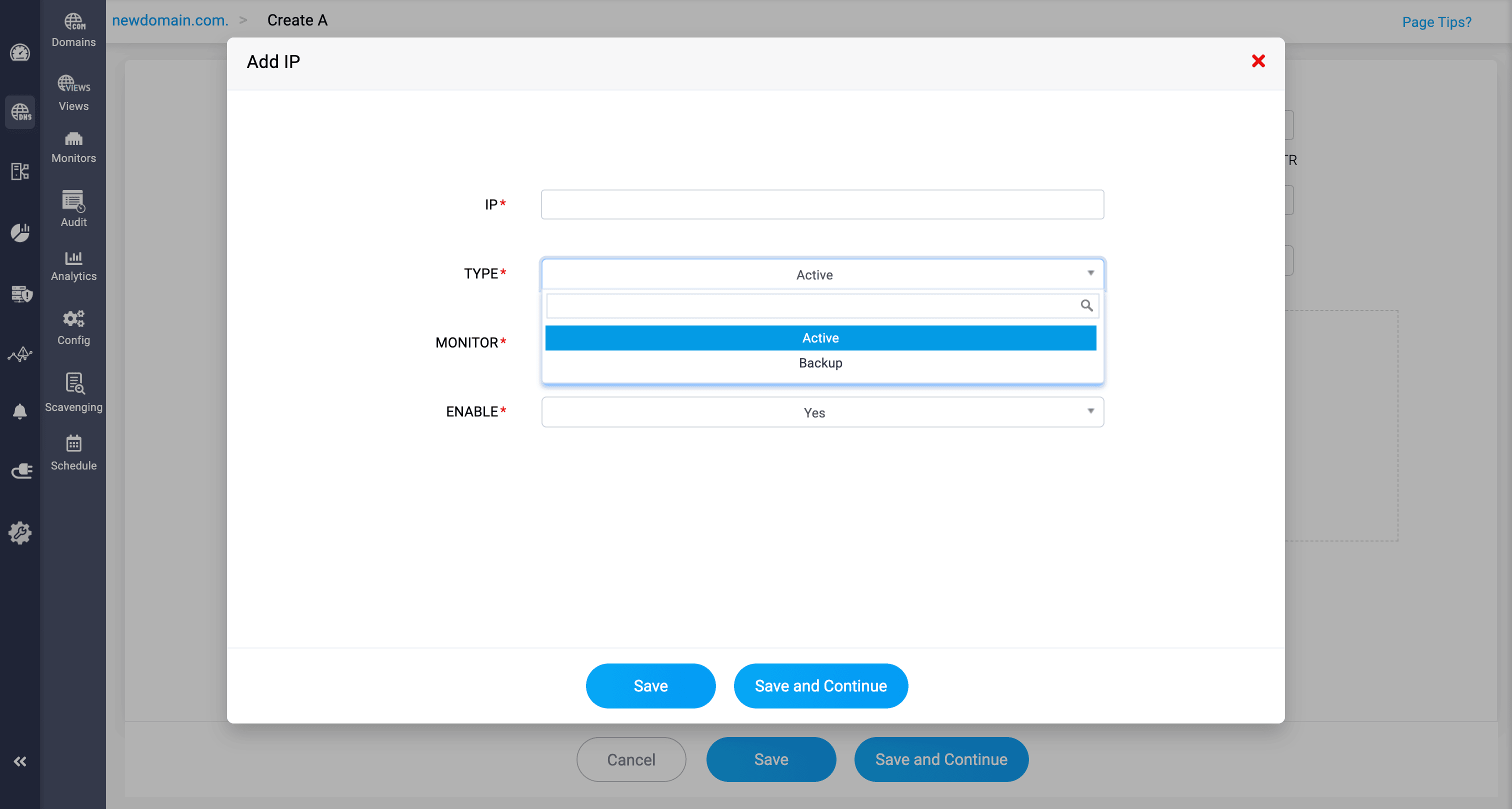
- TYPE: Select the type of the IP, there are two options in the dropdown field:
- Active: This options allows the IP to act as the primary one to serve during DNS query resolution.
- Backup: This options allows the IP to act as the backup on to serve during failover situation.
- MONITOR: Select the monitor you want to record to be associated.
- ENABLE: Admins can enable/disable this record from serving for DNS resolution.
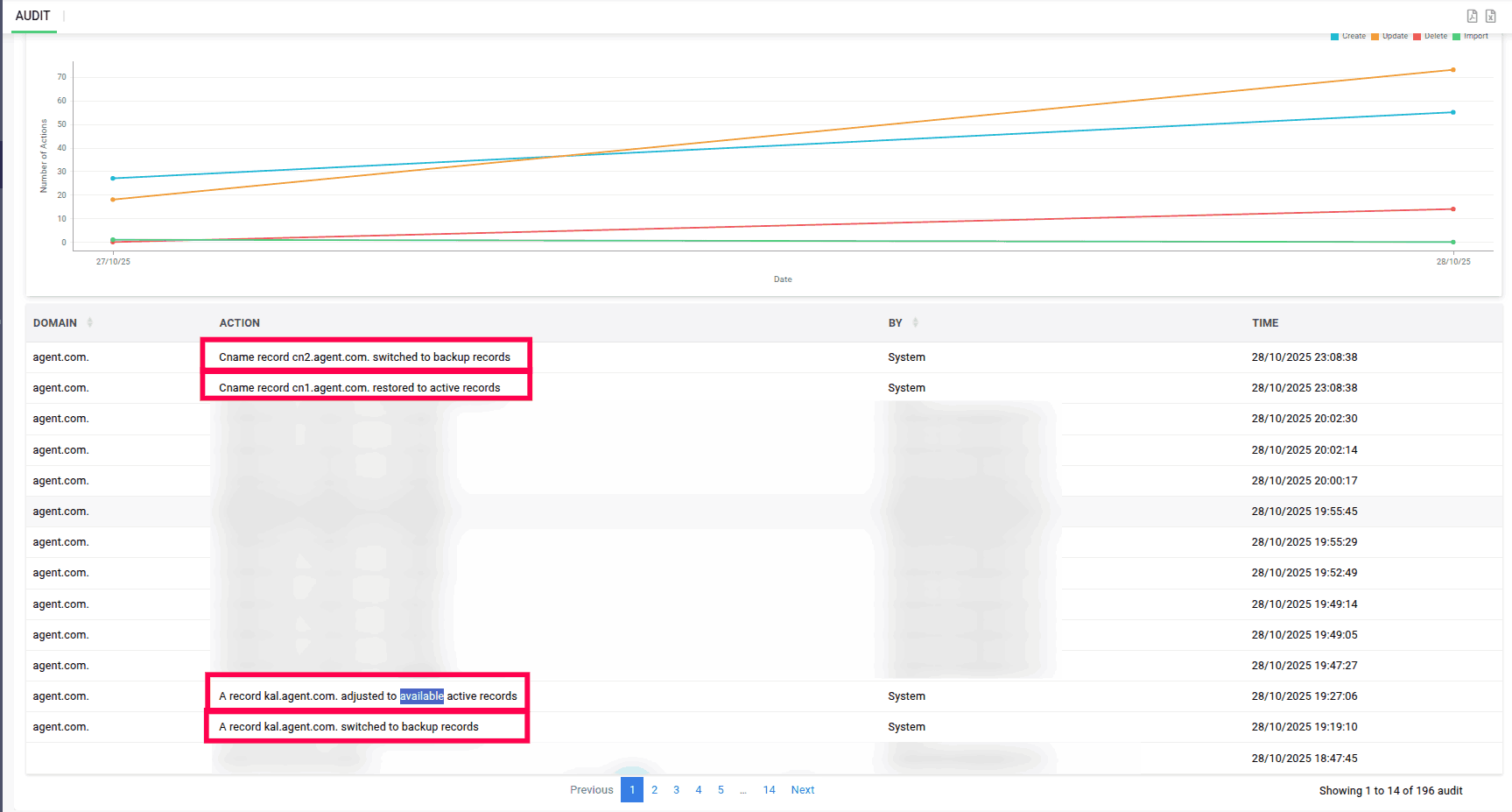
Whenever the active-backup record switch occurs in the domain, those changes will be auditted and reflected in the DNS Audit page as switched to backup records and restored to active records messages, with the details of who made the switches, and date and time.
The adjusted to available active records message will be shown when the record has 2 or more active records, and switch occurs within the active records when one goes down.
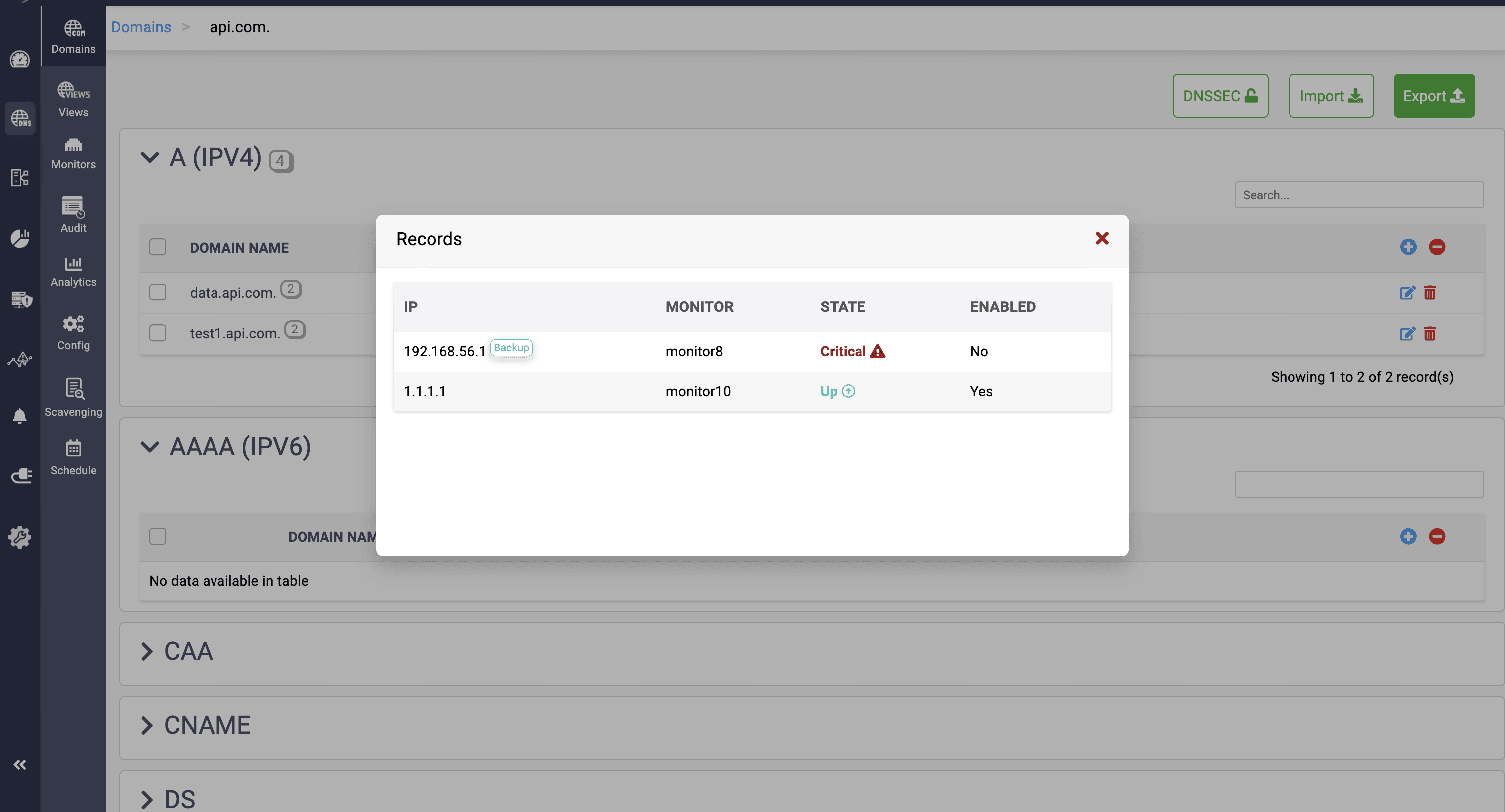
Clicking on a specific record in the zone will showcase the details of the IP, monitors associated, state of the host, and whether the record is enabled or disabled from serving for DNS query resolution.