Customizing the IDSecurity Agent
The IDSecurity Agent supports several optional device-level customizations through a JSON file named customizations.json. Using this file, you can adjust the agent's authentication behavior, personalize the MFA prompt, control logging, and set operating-system-specific options. The sections below explain how to apply the file and describe the parameters you can set. You can also use the json builder tool below to interactively create your json file and download it directly from here.
How to configure
You can apply customizations.json in either of these ways:
- At deployment, during installation or upgrade: place customizations.json in the same folder as the installer. The installer detects the file and picks it up automatically.
- After installation: the active customizations.json is located at <InstallationPath>/conf. Edit it there with Local Administrator (root on Linux) privileges.
The installed file is located at:
- Windows: C:\Program Files\ManageEngine\Identity360 Cloud IDSecurity Agent\conf\customizations.json
- macOS: /Library/ManageEngine/Identity360 Cloud IDSecurity Agent/conf/customizations.json
- Linux: /opt/ManageEngine/Identity360CloudIDSecurityAgent/conf/customizations.json
Parameters reference
The following parameters apply to all platforms, except where a section is marked platform-specific.
Authentication and MFA
| Key | Type | Default | Notes |
|---|---|---|---|
bypass_on_connection_error |
boolean | true |
Applies to AD/Entra-joined devices only. Whether to bypass MFA when the agent cannot reach Identity360, for example when the device is offline because of no internet or other connectivity issues. |
UI and personalization
| Key | Type | Default | Notes |
|---|---|---|---|
title |
string | ManageEngine IDSecurity Agent |
Title text shown in the MFA prompt window and the CLI. Customize it to display your organization name. |
Logging
| Key | Type | Default | Notes |
|---|---|---|---|
log_level |
string | INFO |
INFO or DEBUG. Use DEBUG for troubleshooting; leave it at INFO in production. |
log_path |
string | <InstallPath>/logs |
Directory for active log files. Must be an absolute path. On Windows, use a double backslash (\\) as the separator. |
log_archive_path |
string | <InstallPath>/logs/archive |
Directory for rotated (archived) log files. Must be an absolute path. On Windows, use a double backslash (\\) as the separator. |
log_rotation_max_size |
string | 50 |
Maximum size, in MB, of a log file before it is archived. Allowed range is 10 to 50 MB. |
Windows-specific parameters
| Key | Type | Default | Notes |
|---|---|---|---|
webclient_favicon_path |
string | <InstallPath>\resources\favicon.ico |
Favicon shown in the agent's MFA webview. Must be an absolute path. Only an .ico file is supported. Standard size is 32x32 pixels (minimum 16x16, maximum 256x256). |
webview_width |
number | 0 (runtime default) |
Width, in pixels, of the MFA prompt window's content area. Minimum 830 pixels; maximum is the width of the primary display, which adjusts to the screen resolution. Example: on a 1920x1080 display, valid values range from 830 to 1920. |
webview_height |
number | 0 (runtime default) |
Height, in pixels, of the MFA prompt window's content area. Minimum (if set explicitly) 563 pixels; maximum is the height of the primary display. Example: on a 1920x1080 display, valid values range from 563 to 1080. |
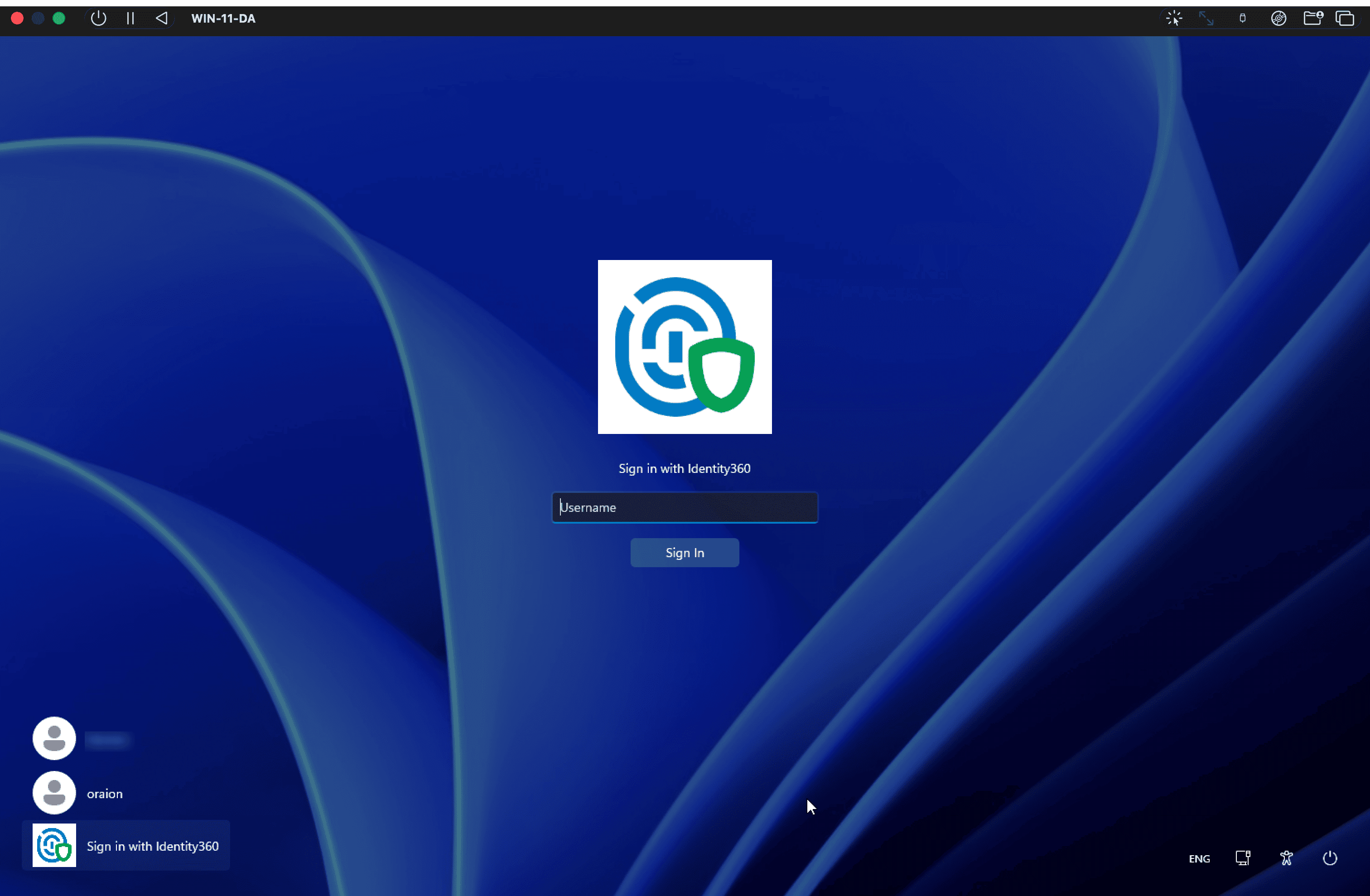
custom_signin_tile_bitmap_path |
string | <InstallPath>\resources\favicon_bmp.bmp |
Applies to Identity360-joined devices only. Image used on the custom tile added to the sign-in screen for Identity360-joined machines. Only a .bmp file is supported. Standard size is 128x128 pixels (minimum 96x96, maximum 256x256). |
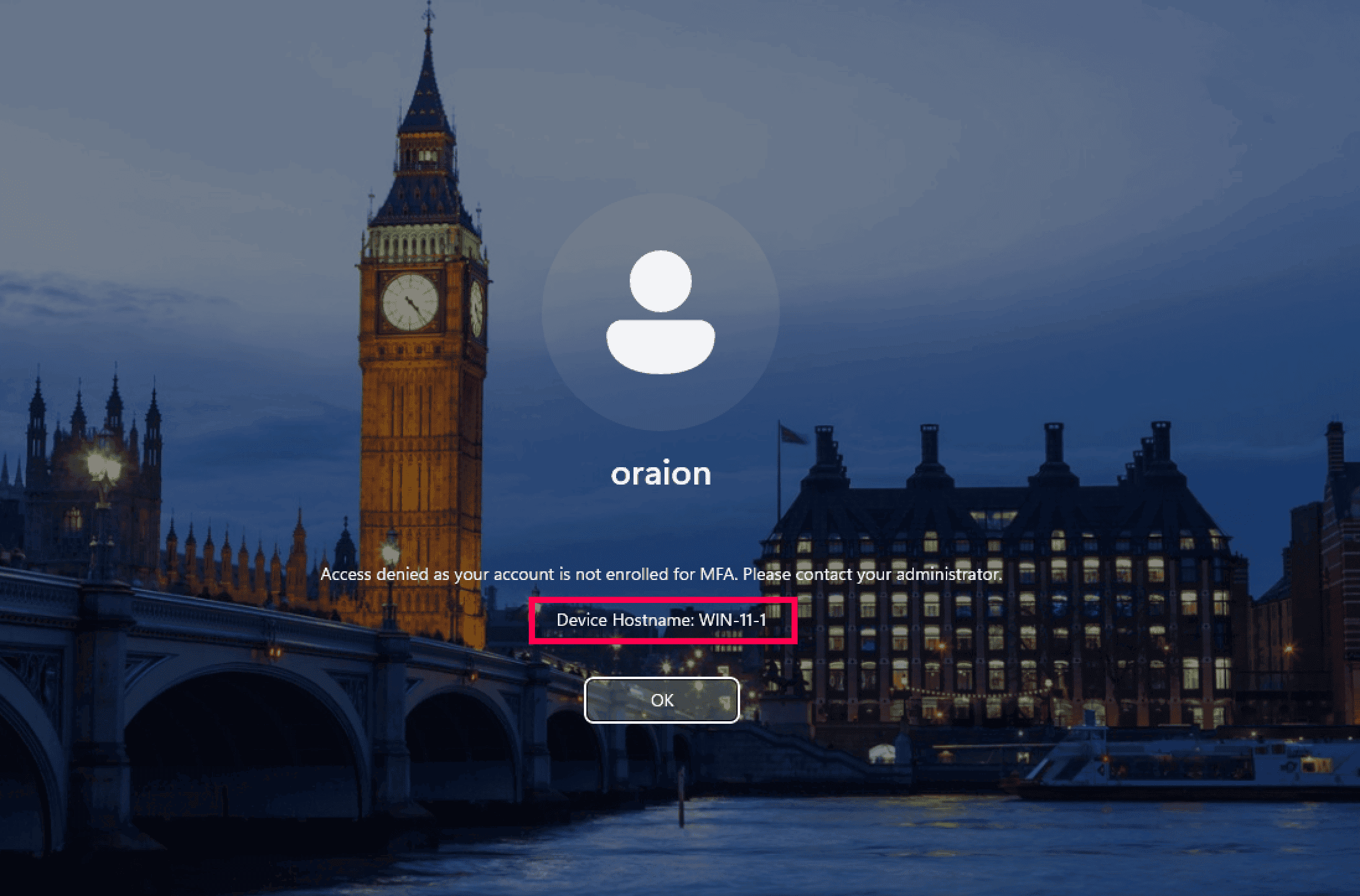
show_device_name_in_errors |
boolean | false |
When true, MFA error messages include the device's hostname, which helps IT admins troubleshoot device-specific errors. |
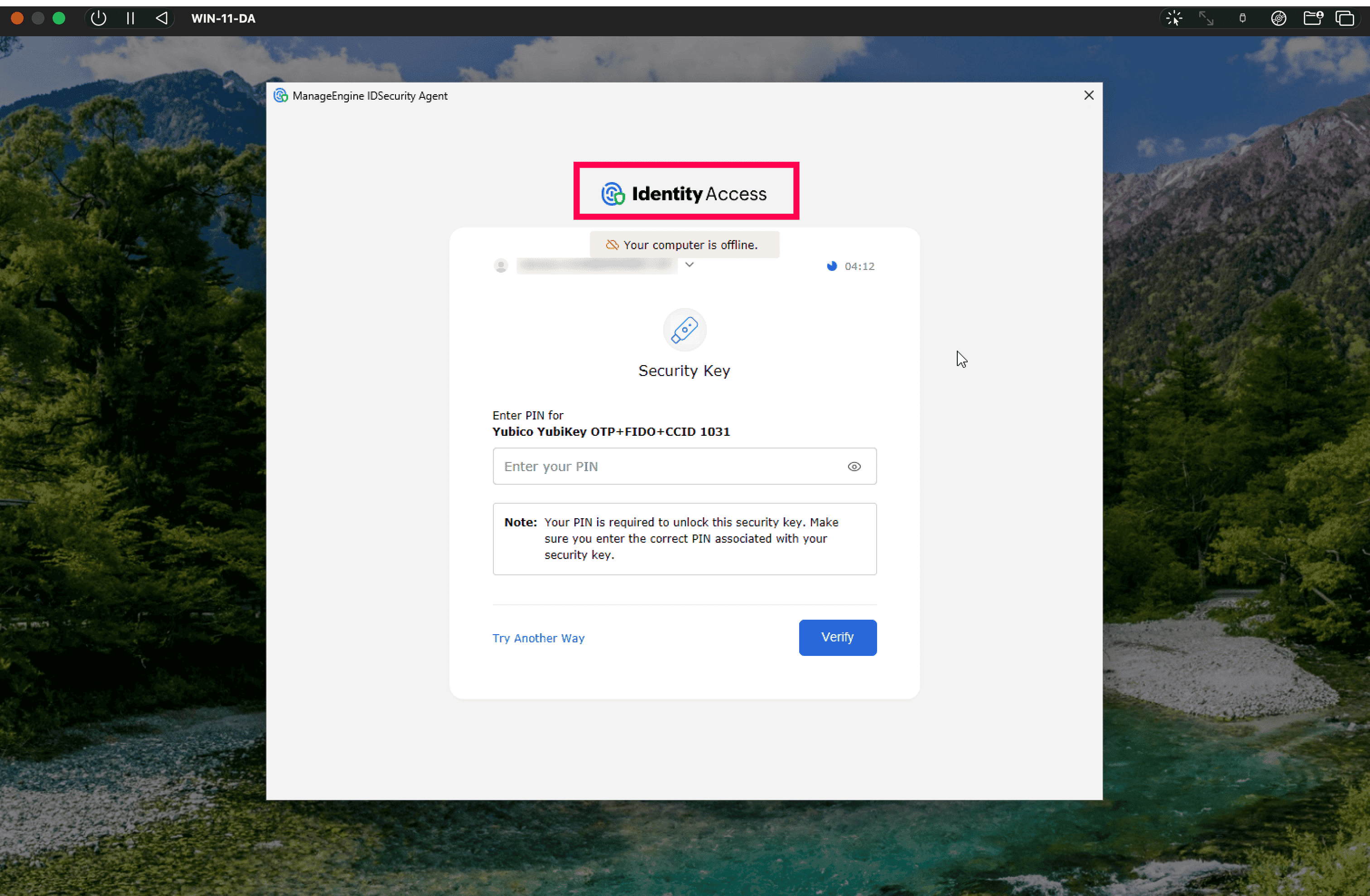
offline_mfa_logo |
string | id-access.png (built-in logo) |
Absolute path to a PNG image shown on the offline MFA screen. Height must be between 26 and 100 pixels. Only .png is supported. If the file is unreadable, too small, not a PNG, or outside the height range, the agent falls back to the built-in logo. |
whitelisted_urls |
array of strings | login.microsoftonline.com, microsoft.com, accounts.google.com, duosecurity.com |
Additional domains the webview is allowed to load during MFA, on top of the built-in defaults shown at left (which support the primary authentication methods and the Duo Security authenticator). A configured SAML authenticator IdP is added automatically during installation. |
macOS-specific parameters
| Key | Type | Default | Notes |
|---|---|---|---|
webview_width |
number | 0 (runtime default) |
Width, in pixels, of the MFA prompt window's content area. Minimum 830 pixels; maximum is the width of the primary display, which adjusts to the screen resolution. Example: on a 1920x1080 display, valid values range from 830 to 1920. |
webview_height |
number | 0 (runtime default) |
Height, in pixels, of the MFA prompt window's content area. Minimum (if set explicitly) 563 pixels; maximum is the height of the primary display. Example: on a 1920x1080 display, valid values range from 563 to 1080. |
offline_mfa_logo |
string | built-in default |
Absolute path to a PNG image shown on the offline MFA screen. Height must be between 26 and 100 pixels. Only .png is supported. If the file is unreadable, too small, not a PNG, or outside the height range, the agent falls back to the built-in logo. |
whitelisted_urls |
array of strings | login.microsoftonline.com, microsoft.com, accounts.google.com, duosecurity.com |
Additional domains the webview is allowed to load during MFA, on top of the built-in defaults shown at left (which support the primary authentication methods and the Duo Security authenticator). A configured SAML authenticator IdP is added automatically during installation. |
The following keys are read only during installation and are discarded afterward. They are not written into the installed conf/customizations.json:
| Key | Purpose |
|---|---|
INSTALLATION_KEY |
The installation key the agent uses to enroll with your Identity360 tenant. Mandatory; installation fails if it is not specified. |
admin_username |
Local administrator username. Used once during silent installation to grant the agent's service account a FileVault Secure Token. Mandatory for silent Identity360-joined installs. |
admin_password |
The corresponding administrator password. Mandatory for silent Identity360-joined installs. |
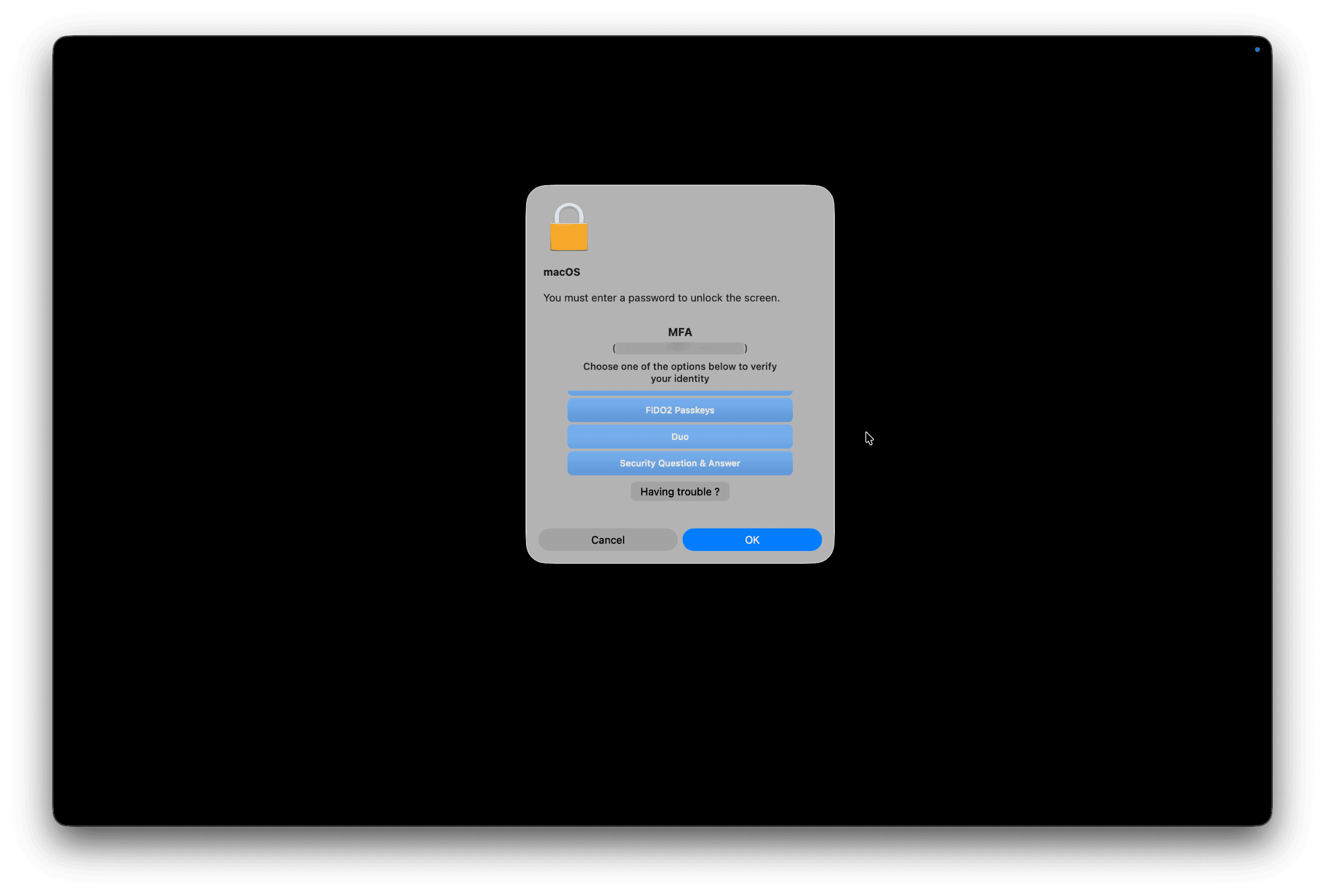
lock_screen_authentication |
Applied at install time (not at runtime), macOS only. When the agent controls unlock-screen authentication, macOS shows only a username field on the unlock screen, with two limitations: the screensaver is not shown (a blank screen appears instead), and the unlock dialog times out after about 30 seconds, so if authentication takes longer it fails and restarts from the beginning.
|
Linux-specific parameters
| Key | Type | Default | Notes |
|---|---|---|---|
pam_prompt_type |
string | placeholder |
Controls how the agent renders informational text at graphical login, screen unlock, and privilege elevation. Values are info, placeholder, or both (described below). Terminal scenarios (SSH, sudo/su, and other TTY) are not affected by this key. |
default_domain |
string | empty |
Applies to AD-joined devices only. Set this to the AD domain the device is joined to, to avoid domain-lookup failures on Linux platforms that do not provide a domain name when users log in with just the sAMAccountName instead of the full UPN. |
PAM prompt types
- placeholder (default): All MFA prompts and text are placed inside the text box's placeholder. QR codes are not supported in this mode, which matters for authenticators such as SAML, Duo Security, or mobile device passkeys, though the Magic Link short URL can still be used. Best suited to short prompts, such as time-based OTPs.
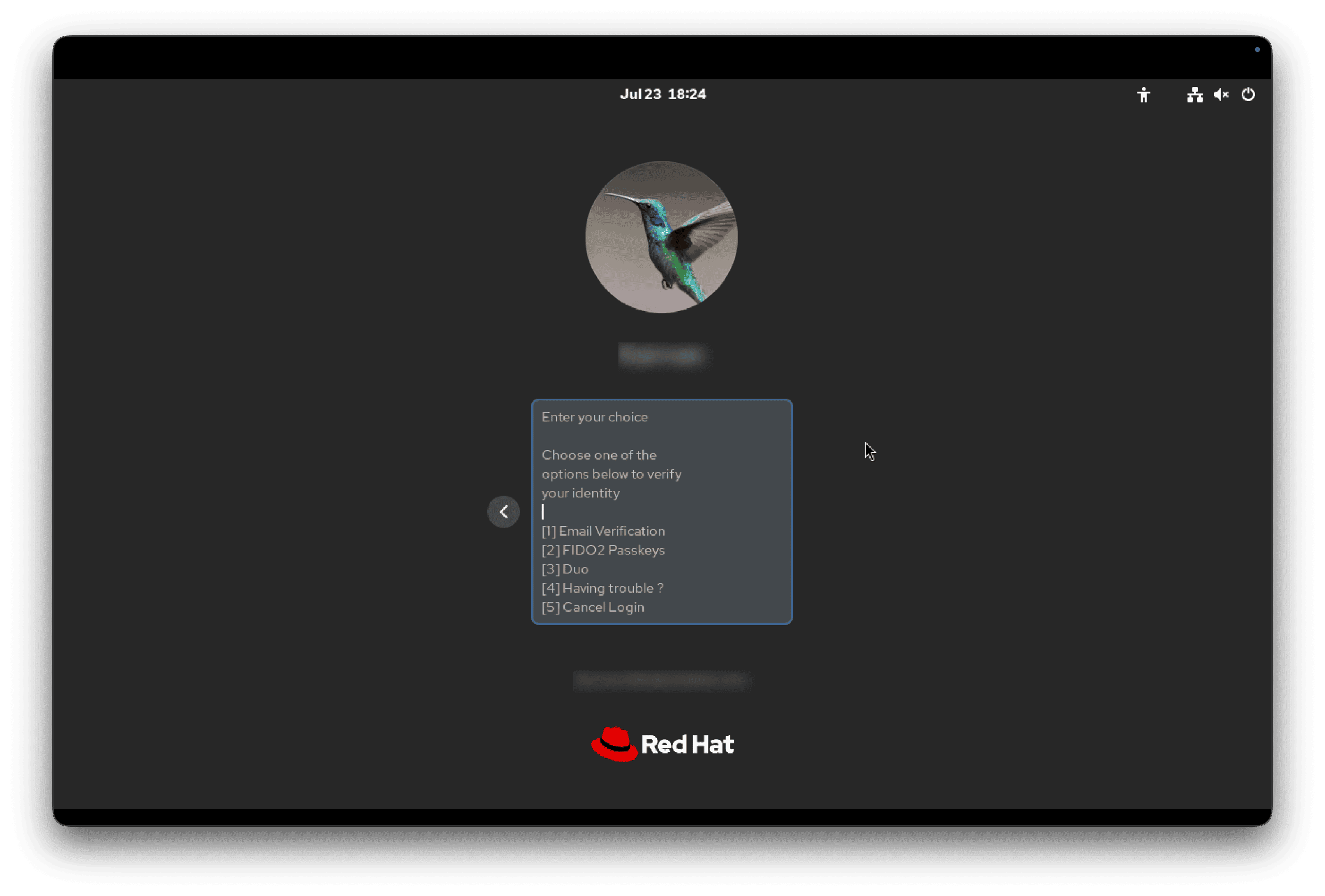
Fig 5: placeholder mode, with the prompt shown inside the text box. - info: All MFA prompts and text are shown below the text box as information. The drawback is that the text is erased when the user starts typing and is not shown again, which can confuse users or make them forget the options.
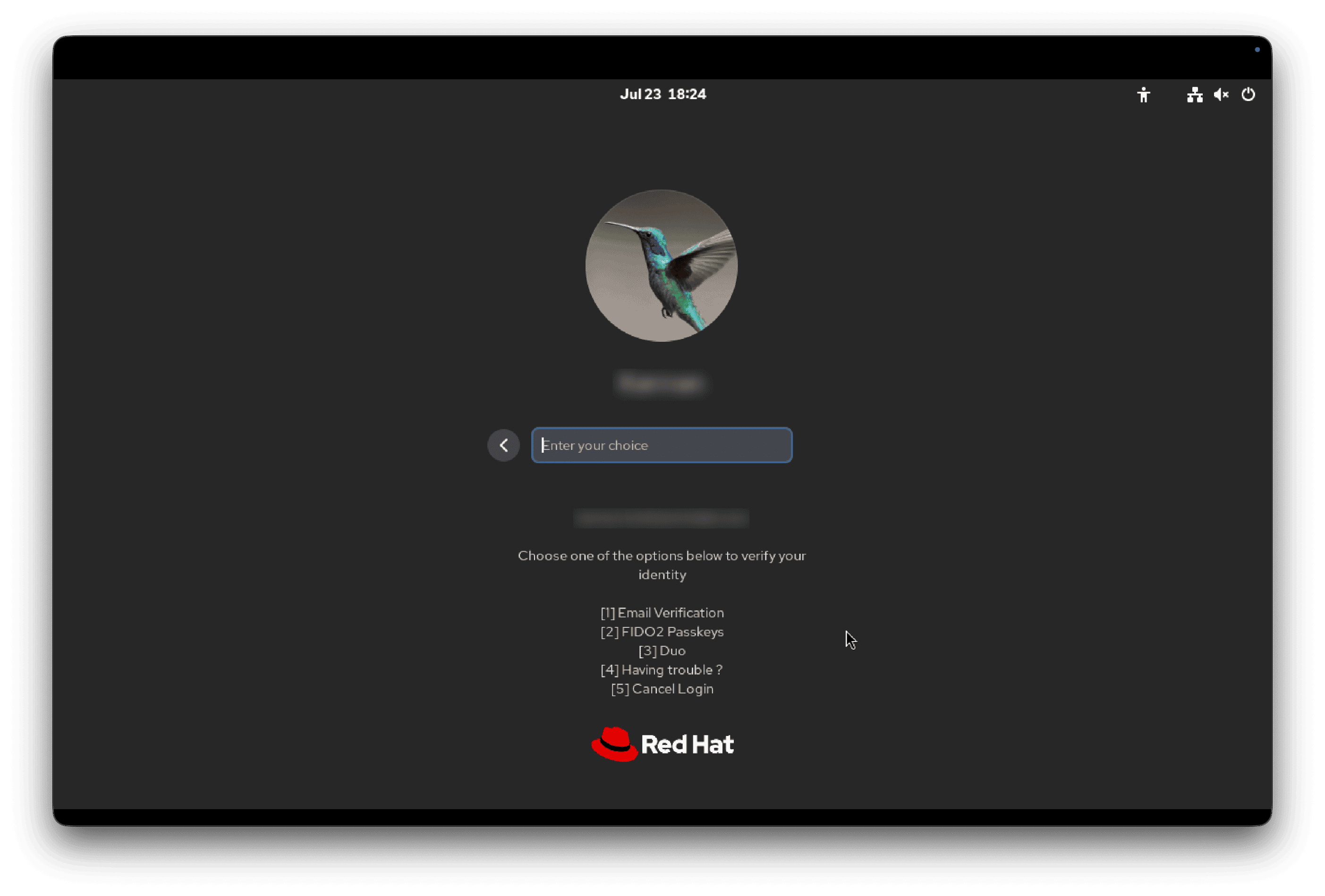
Fig 6: info mode, with the options listed below the text box. - both: MFA prompts and text appear both inside the text box's placeholder and as information below it. This balances the drawbacks of the other modes, but makes the login screen more crowded and can look duplicated. Prefer this when you have longer text, such as long security questions.
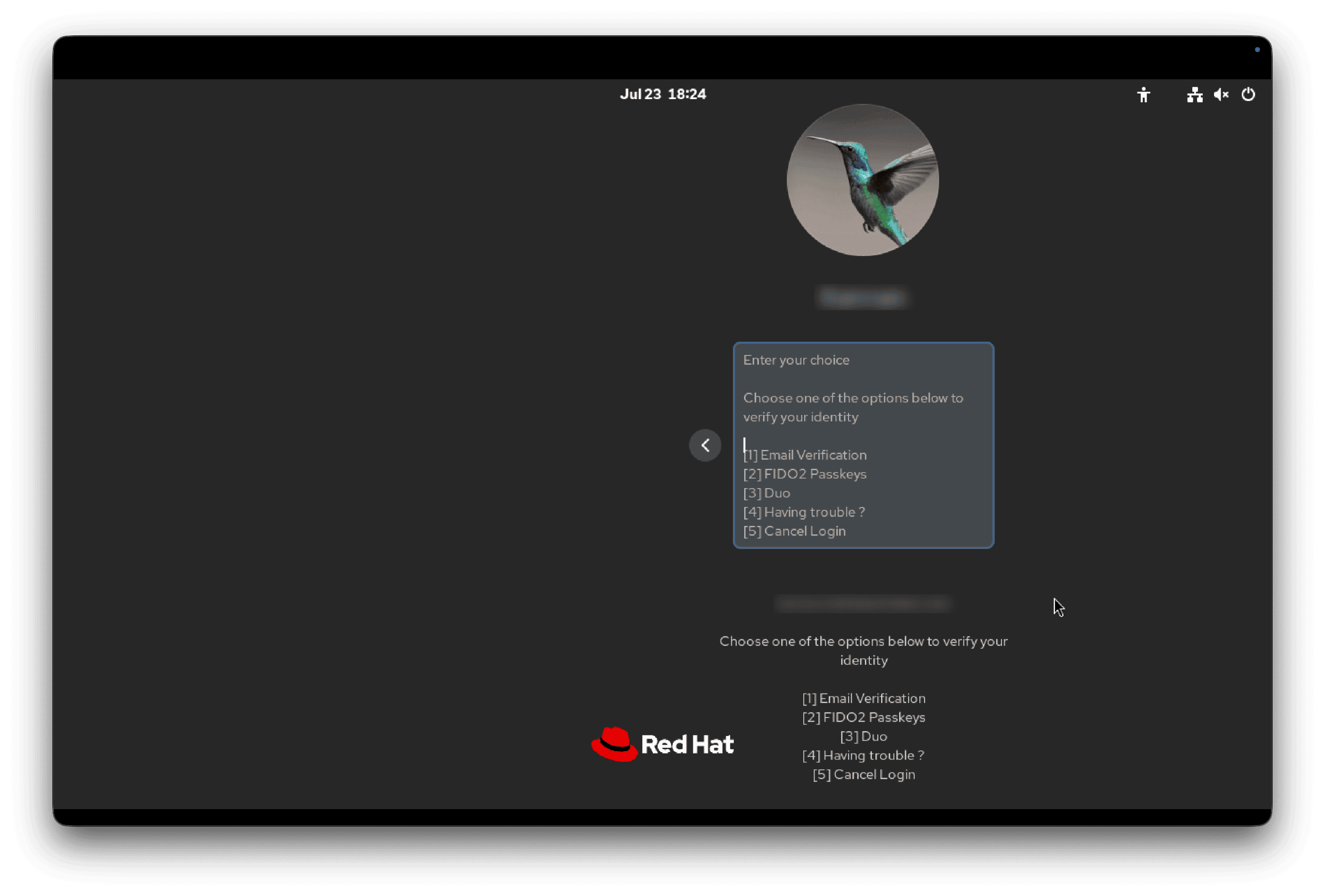
Fig 7: both mode, with the prompt inside the text box and repeated below it.
Samples
Windows sample
Refer to the common and Windows-specific parameters above to understand the usage before you use this sample.
{
  "log_archive_path": "C:\\Program Files\\ManageEngine\\Identity360 Cloud IDSecurity Agent\\logs\\archive",
  "log_level": "INFO",
  "log_path": "C:\\Program Files\\ManageEngine\\Identity360 Cloud IDSecurity Agent\\logs",
  "log_rotation_max_size": "50",
  "title": "IDSecurity Agent",
  "webclient_favicon_path": "C:\\Program Files\\ManageEngine\\Identity360 Cloud IDSecurity Agent\\resources\\favicon.ico",
  "whitelisted_urls": [
    "login.microsoftonline.com",
    "microsoft.com",
    "accounts.google.com",
    "duosecurity.com"
  ],
  "bypass_on_connection_error": "true",
  "offline_mfa_logo": "id-access.png"
}
macOS sample
Refer to the common and macOS-specific parameters above to understand the usage before you use this sample.
{
  "webview_width": 0,
  "webview_height": 0,
  "log_path": "/Library/Logs/Identity360 Cloud IDSecurity Agent",
  "log_archive_path": "/Library/Logs/Identity360 Cloud IDSecurity Agent/archive",
  "log_rotation_max_size": "50",
  "log_level": "INFO",
  "title": "IDSecurity Agent",
  "whitelisted_urls": [
    "login.microsoftonline.com",
    "duosecurity.com",
    "accounts.google.com",
    "microsoft.com"
  ],
  "bypass_on_connection_error": true,
  "pam_prompt_type": "both",
  "mfa_scenarios": 0,
  "lock_screen_authentication": true,
  "offline_mfa_logo": "id-access.png"
}
Linux sample
Refer to the common and Linux-specific parameters above to understand the usage before you use this sample.
{
  "log_level": "INFO",
  "log_path": "/opt/ManageEngine/Identity360CloudIDSecurityAgent/logs",
  "log_archive_path": "/opt/ManageEngine/Identity360CloudIDSecurityAgent/logs/archive",
  "log_rotation_max_size": "50",
  "title": "IDSecurity Agent",
  "bypass_on_connection_error": "true",
  "mfa_scenarios": "0",
  "pam_prompt_type": "both",
  "whitelisted_urls": [
    "login.microsoftonline.com",
    "duosecurity.com",
    "accounts.google.com",
    "microsoft.com"
  ]
}
Build your customizations.json
Instead of creating the json file manually in a text editor you can use the json builder tool below. Choose your OS, add the attributes you need, set their values, then copy or download a ready-to-use customizations.json.
Add a key
Target OS
Common (all platforms)
Windows only
Included keys
{}