IDSecurity agent
- IDSecurity Agent installed successfully, but MFA is not prompted
- Access is being denied for a user after installing IDSecurity Agent
- A blank screen appears during the Windows MFA process
- Troubleshooting error codes
The following errors may arise with the IDSecurity Agent. Follow the solutions provided to resolve them:
IDSecurity Agent installed successfully, but MFA is not prompted
This error may occur due to various scenarios. Follow the steps outlined below to resolve the issue:
- Cause: Agent authorization failure. Check for the error codes IDS-4101, and IDS-4102 in the installer log at C:\Program Files\ManageEngine\Identity360 Cloud IDSecurity Agent\logs to confirm the cause.
- Cause: Missing or expired MFA license.
- Cause: MFA isn't enabled for Windows machines or in advanced settings.
- Cause: User not found in Identity360.
- Cause: Trust this device option enabled; user might have trusted the device.
- Cause: When you have enabled the Skip MFA for offline machines setting found at MFA for Endpoints > Advanced, users whose devices lack internet connectivity—and thus are unable to reach Identity360—will not be prompted for MFA.
Solution: Reinstall the agent with the correct installation key.
Solution: Please purchase the MFA and SSO license component in our store or renew the expired license by contacting sales@manageengine.com.
Solution: Confirm that MFA is enabled for machines at Applications > Multi-factor Authentication > MFA for Endpoints > MFA for Windows machines, and for specific MFA scenarios in advanced settings located at Applications > Multi-factor Authentication > MFA for Endpoints > Advanced.
Solution: Ensure that the User Principal Name (UPN) of AD or Azure AD users matches the primary email address of the corresponding Universal Directory user to link the account for MFA verification.
Solution: To prevent users from trusting their device, either disable the option located at Applications > Multi-factor Authentication > Advanced > MFA Settings > Allow users to trust their machines or adjust the time for clearing trusted devices to enforce MFA.
Solution: Ensure a stable internet connection is available for user machines to reach Identity360.
Access is being denied for a user after installing IDSecurity Agent
This error may occur due to the following scenarios. Follow the steps outlined below to resolve the issue:
- Cause: Access is denied because the user either hasn't enrolled or is only partially enrolled to fulfill the configured MFA requirements, and the setting found at MFA for Endpoints > Advanced > Deny machine login for partially enrolled users is enabled.
- Cause: When you have disabled the Skip MFA for offline machines setting found at MFA for Endpoints > Advanced, users whose devices lack internet connectivity and thus are unable to reach Identity360 will not be prompted for MFA.
Solution: Temporarily disabled the setting to allow users to enroll promptly during Windows login and various activities—such as UAC, RDP, or unlocking Windows machines instantly—and then disable it once enrollment is completed.
Solution: Ensure a stable internet connection is available for user machines to reach the Identity360 portal.
A blank screen appears during the Windows MFA process
Cause:
- The Identity360 URL is not added as a trusted site in Internet Explorer.
- Cookies are not enabled in Internet Explorer on the user's system.
Solution:
- Follow the steps here to add the Identity360 URL to the list of trusted sites in Internet Explorer.
- Follow the steps here to enable cookies in Internet Explorer.
Listed below are the solutions for enabling cookies and adding the Identity360 URL to the trusted sites list in Internet Explorer.
- Download PsTools on the machine facing the issue.
- Open the Command Prompt and run the command psexec.exe -s -i "C:\Program Files (x86)\Internet Explorer\iexplore.exe.".
- Internet Explorer will open. (Note Internet Explorer is the only browser that supports the following troubleshooting, regardless of any other browsers installed on the user's system.)
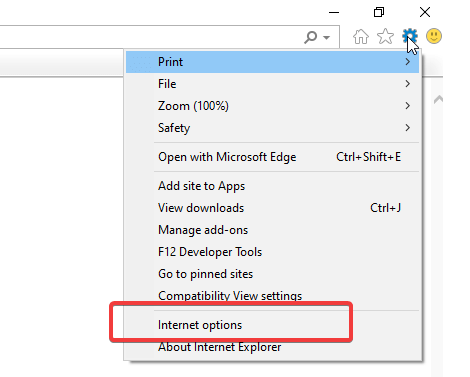
- Go to Settings and select Internet options.
- In the Internet Options window, go to the Privacy tab. Under Settings, select the Advanced button.
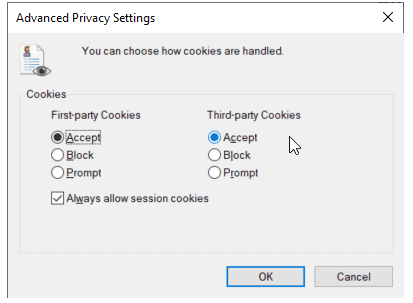
- In the Advanced Privacy Settings window, select the Accept radio button under both First-party Cookies and Third-party Cookies.
- Select OK and close the Advanced Privacy Settings window.
- Click Sites under Settings in the Internet Options window.
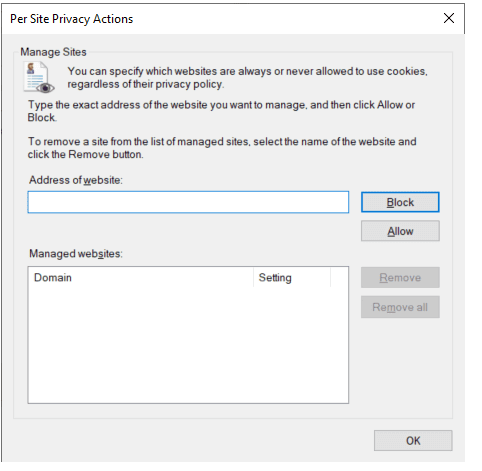
- In the Per Site Privacy Actions window that opens, enter Identity360's URL (https://id360.manageengine.com/) in the Address of website field and click Allow.
- Press OK to close the Per Site Privacy Actions and Internet Options windows.
Solution:
Adding the Identity360 URL to intranet/trusted sites.
- Download PsTools on the machine facing the issue.
- Open the Command Prompt and run the command psexec.exe -s -i "C:\Program Files (x86)\Internet Explorer\iexplore.exe.".
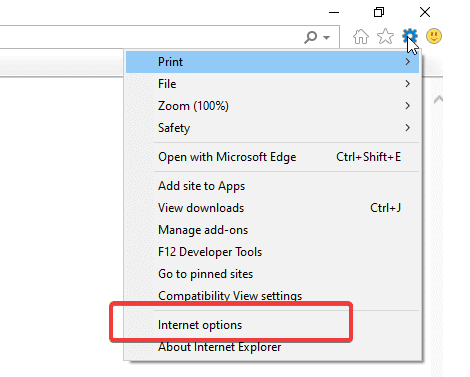
- The browser will open. Now go to Settings and select Internet options.
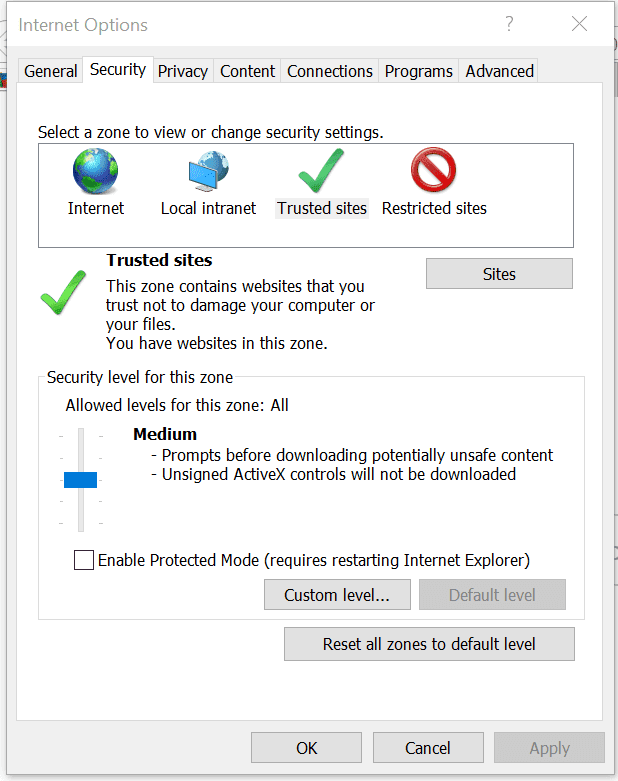
- In the Internet Options window, go to the Security tab and select Trusted sites in the Select a zone to view or change security settings field.
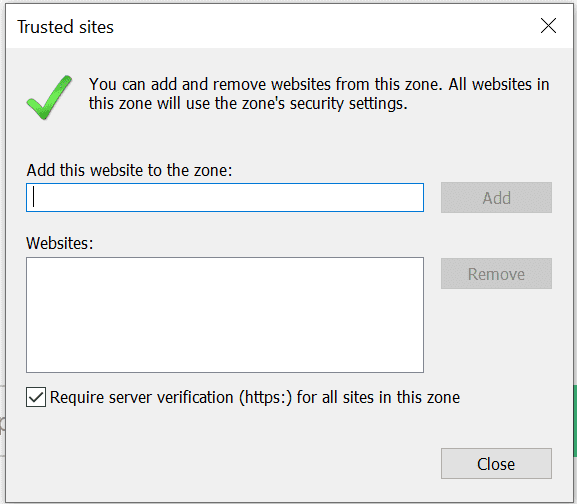
- Click Sites below the Select a zone to view or change security settings field to open the Trusted sites window.
- In the Trusted sites window, type in the URL of the Identity360 application in the Add this website to the zone field, then click Add.
These steps should ensure that there are no further issues in displaying the MFA prompt.
Troubleshooting error codes
The error codes listed below can be found within the log files located at C:\Program Files\ManageEngine\Identity360 Cloud IDSecurity Agent\logs. For logs related to agent installation, please refer to Installerlog.log, while for other logs, refer to IdsAgent-Common.log. If you require additional assistance with different error codes, kindly reach out to our support team.
| Error code | Description | Resolution |
|---|---|---|
| IDS-4000 | The user machine cannot reach the Identity360 portal. This code is logged when the IDSecurity Agent encounters an unexpected error. | Kindly reach out to the support team at identity360-support@manageengine.com, providing the IDSecurity Agent's logs located at C:\Program Files\ManageEngine\Identity360 Cloud IDSecurity Agent\logs, along with the timestamp of the error occurrence and any relevant screenshots. |
| IDS-4101 | The user machine cannot reach the Identity360 portal. This code is logged when IDSecurity Agent authorization fails due to an invalid or old installation key being used after generating a new one. | Get the valid or updated installation key from the Identity360 portal at Applications > Multi-factor Authentication > Install IDSecurity Agent > Step 2, and attempt to reinstall the agent. |
| IDS-4102 | The user machine cannot reach the Identity360 portal. This code is logged when MFA is bypassed due to an unexpected failure in API authorization with Identity360. | Please attempt to reinstall the agent. If the problem persists, please contact the support team at identity360-support@manageengine.com. Provide the IDSecurity Agent's logs located at C:\Program Files\ManageEngine\Identity360 Cloud IDSecurity Agent\logs, along with the timestamp of the error. |
| IDS-4104 | The user machine cannot reach the Identity360 portal. This code may occur when MFA is bypassed due to an unexpected failure in verifying the user password through Windows APIs. | Kindly reach out to the support team at identity360-support@manageengine.com, providing the IDSecurity Agent's logs located at C:\Program Files\ManageEngine\Identity360 Cloud IDSecurity Agent\logs, along with the timestamp of the error. |
| IDS-4105 | The user machine cannot reach the Identity360 portal. This code appears when the access token expires and authentication is bypassed. | Please reach out to the support team at identity360-support@manageengine.com, providing the IDSecurity Agent's logs located at C:\Program Files\ManageEngine\Identity360 Cloud IDSecurity Agent\logs |
| IDS-4106 | The user machine cannot reach the Identity360 portal. In such cases, user access would either be denied, or MFA would be bypassed depending on whether the setting found at MFA for Endpoints > Advanced > Skip MFA for offline machines is enabled or disabled. | Ensure a stable internet connection is available for user machines to reach the Identity360 portal. |
| IDS-4107 | The user machine cannot reach the Identity360 portal. This code is logged when an attempt to establish a secure HTTPS connection with the Identity360 portal fails due to an SSL certificate issue.
Or This error code is triggered during agent installation if the device setup information is incorrect. |
Please reach out to the support team at identity360-support@manageengine.com.
Or Please ensure that you install the agent on machines that run only the operating systems supported by the IDSecurity Agent as per this list. |