Key Manager Plus Agent
Key Manager Plus enables users to discover and manage certificates deployed across their network through an agent. This lightweight agent can be installed on the remote machine, especially those not directly connected to the server where Key Manager Plus is hosted, to perform the certificate-related operations seamlessly.
Additional Detail
Although the agent communicates with the Key Manager Plus server over HTTPS, SSL certificate validation is skipped. As a result, the Agent does not verify the server’s SSL certificate to confirm its authenticity.
This guide provides step-by-step instructions for installing and managing the Key Manager Plus agent on Windows-based remote systems.
- Prerequisites
- Downloading and Installing the Key Manager Plus Agent
- Managing the Key Manager Plus Agents
1. Prerequisites
Before installing the agent on a server that will communicate with Key Manager Plus, confirm the following requirements are met:
| Requirement | Details |
|---|---|
| Network Connectivity | Ensure that firewall rules permit the required traffic on the ports used by the CA (typically TCP 135 and the RPC dynamic port range for Microsoft CA, or as applicable for third-party CAs). |
| Service Account Permissions | The Key Manager Plus agent service runs as a Windows service. If the agent needs to interact with Active Directory Certificate Services (ADCS) or perform discovery on remote systems, it should run under a domain service account with: Read access to the target CA server and its certificate templates. Permissions to enumerate and request certificates (where applicable). Local administrator rights on the endpoint where the agent is installed. |
| Key Manager Plus Server Access | The agent server should have outbound network connectivity to the Key Manager Plus server on the configured port (default: 6565 for HTTPS) so that the agent can register, send heartbeats, and report results. |
| Administrator Privileges | The user performing the installation should have local administrator rights on the target machine to install and start the agent as a Windows service. |
2. Downloading and Installing the Key Manager Plus Agent
Additional Details
- From build 6680 onwards, it is no longer necessary to install agents on the CA server to manage SSL certificates. Instead, agents can be installed on any server, provided it has network connectivity to the required CA server.
- From build 7030 onwards, agents can be installed using a standalone executable through a guided installation wizard. Additionally, administrators can deploy agents to multiple Windows endpoints simultaneously using Windows Group Policy Objects (GPO). For detailed installation instructions, refer to this document.
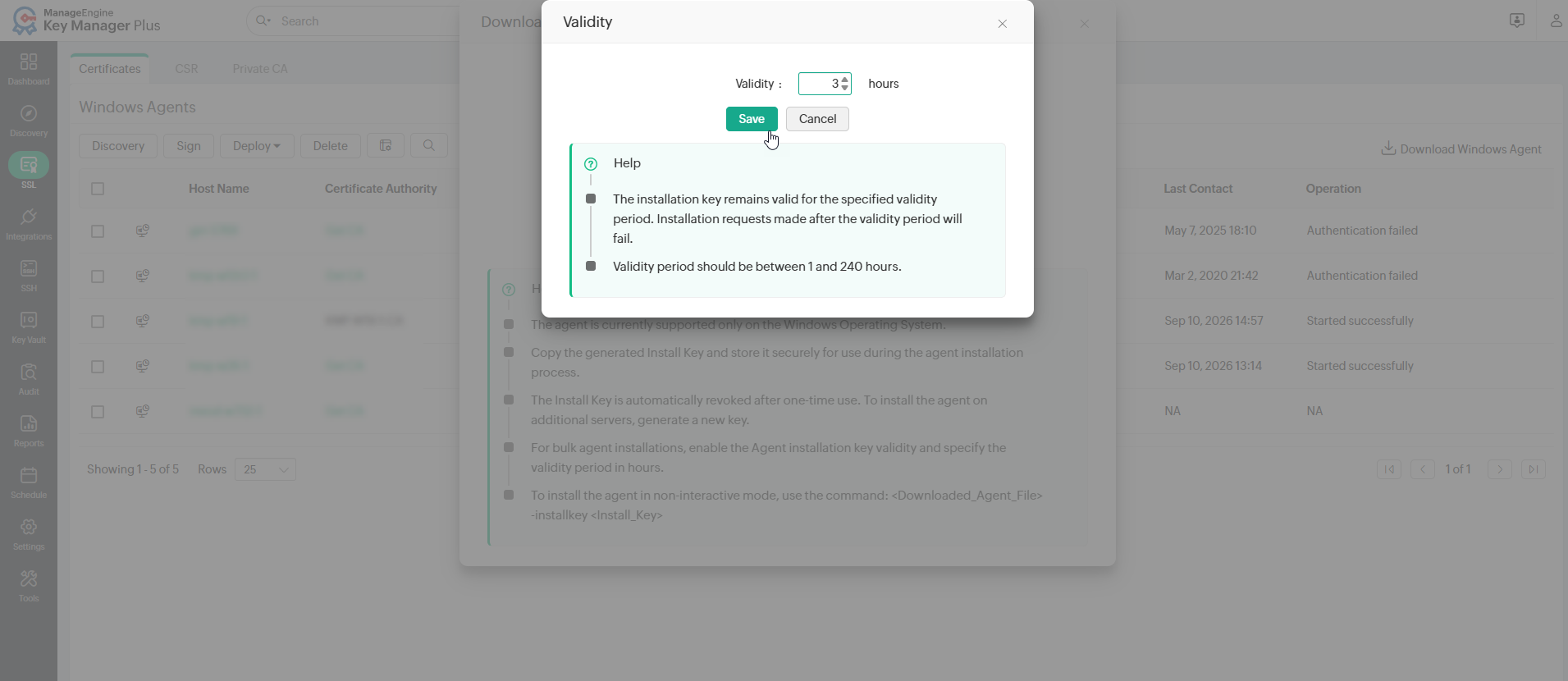
- From build 7150 onwards, you can configure a validity period for the installation key, allowing the downloaded Key Manager Plus agent to be installed on multiple machines using the same installation key. Additionally, administrators can install agents in bulk on Windows servers in non-interactive mode using the following command:
<Downloaded_Agent_File> -installkey <Install_Key>
Best Practice
It is recommended to download the Key Manager Plus agent by accessing the Key Manager Plus web interface from the target server on which the agent is to be installed.
To download and install the agent on the target server, follow these steps:
- Navigate to Discovery >> Agents >> Download Windows Agent. You can also download the agent from SSL >> Windows Agent >> Download Windows Agent.
- From the Download Windows Agent window that opens, enter the server name, IP address, or Fully Qualified Domain Name (FQDN) of the Key Manager Plus server that the agent should communicate with.
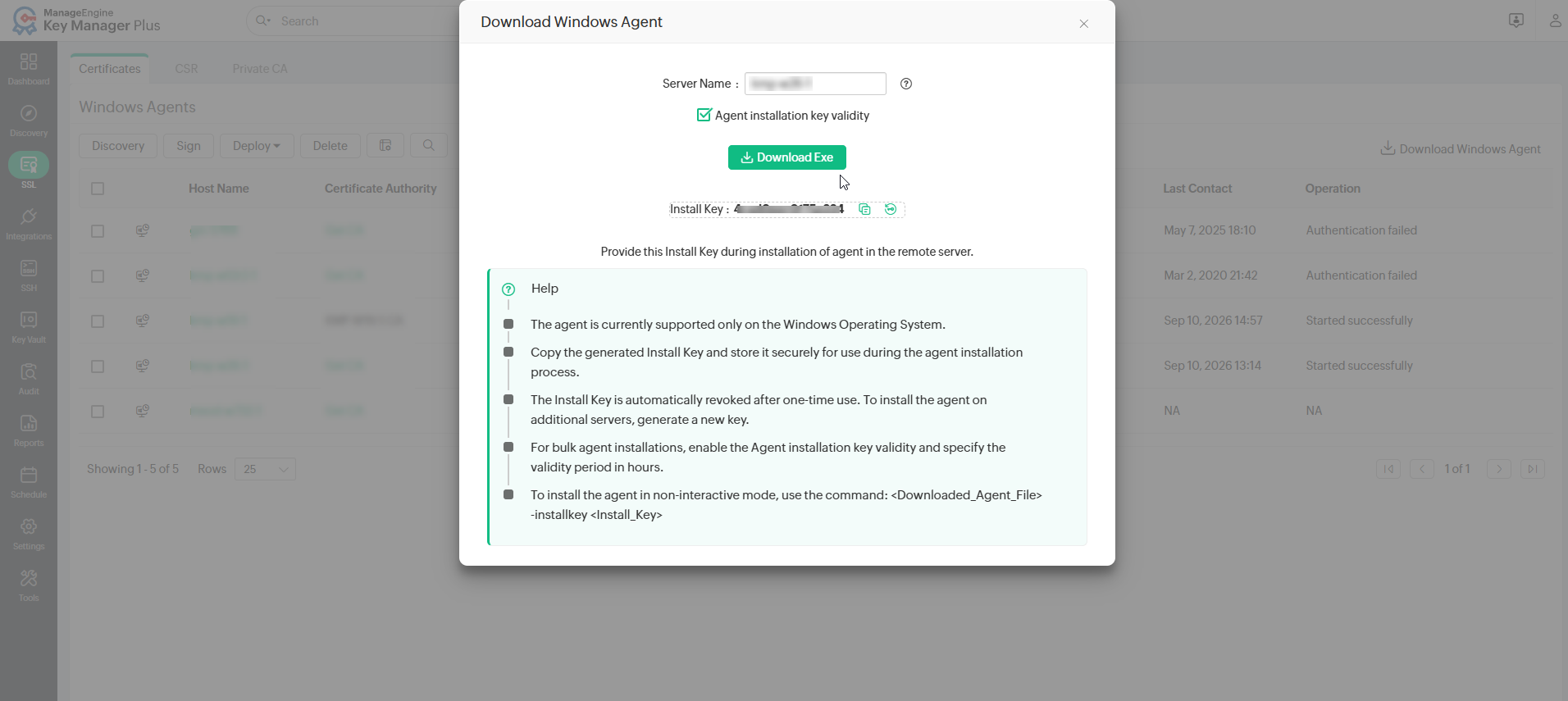
- Copy the Install Key and save it as you may need it during the agent installation process.
- Click the Download button to download the agent file. The downloaded executable file or ZIP package already contains the necessary configurations needed to perform the required operations. Just ensure the account in the server in which the agent is installed has sufficient privileges to perform certificate discovery.
- For bulk agent installations, enable the Agent installation key validity checkbox and specify the validity period (in hours) for the installation key. This allows you to install the downloaded Key Manager Plus agent on multiple machines using the same installation key until the validity period expires.
Additional Detail
For builds prior to 7150, the Install Key will be automatically revoked after a single use. To install the agent on another server, you should generate a new Install Key from the Key Manager Plus server and use it during the next installation.
- For builds prior to 7030, follow these steps to install the agent as a Windows service:
- Copy the ZIP file downloaded from the Key Manager Plus server to the target remote server where the agent is to be installed.
- Unzip the file and place the extracted contents in a secure, unshared directory to ensure safe handling of installation files.
- Open Command Prompt with administrator privileges. Navigate to the agent installation directory and execute the following command to install the agent:
AgentInstaller.exe install <Install Key>
Replace <Install Key> with the actual Install Key that was securely stored earlier.
- Execute the following command to start the agent as a Windows service:
AgentInstaller.exe start
- Execute the following command to stop the agent:
AgentInstaller.exe stop
- Launch the downloaded executable agent file with the administrator's permission.
- In the installation wizard that opens, click Next to continue.
- Check the default agent installation directory and click Next.
- Enter the copied agent Install Key and click Next.
- Once the agent installation is completed, click Finish.
Upon successful installation, any previously installed agent in the endpoint (KMPAgent) will be removed and the new agent will get started automatically. You can verify the new agent version in the Key Manager Plus web interface under the SSL >> Windows Agents section, displaying the relevant endpoint details. If the agent does not appear in the Windows Agents section after installation, follow the steps below to troubleshoot and reinstall:
- Open Command Prompt with administrator privileges and navigate to the folder where the agent is installed. For example: C:\Program Files\ManageEngine\KMPAgent
- Execute the following command:
Installer.exe setserverconfig
- Execute the following command to configure the server IP details for the agent:Replace 99.99.99.99 with the IP address of the server where the agent is installed.
Installer.exe setserverconfig serverip 99.99.99.99
- If the problem persists, remove the agent installer and perform the installation again.
3. Managing the Key Manager Plus Agents
Key Manager Plus enables administrators to monitor and manage the agents deployed across various remote systems, providing detailed insights into agent activity and performance. To manage Key Manager Plus agents:
- Navigate to SSL >> Windows Agents.
- In the window that appears, you will see a list of all Key Manager Plus agents installed on remote machines. For each agent, the following details are displayed:
- Host Name - The name of the remote Windows machine where the Key Manager Plus agent is installed.
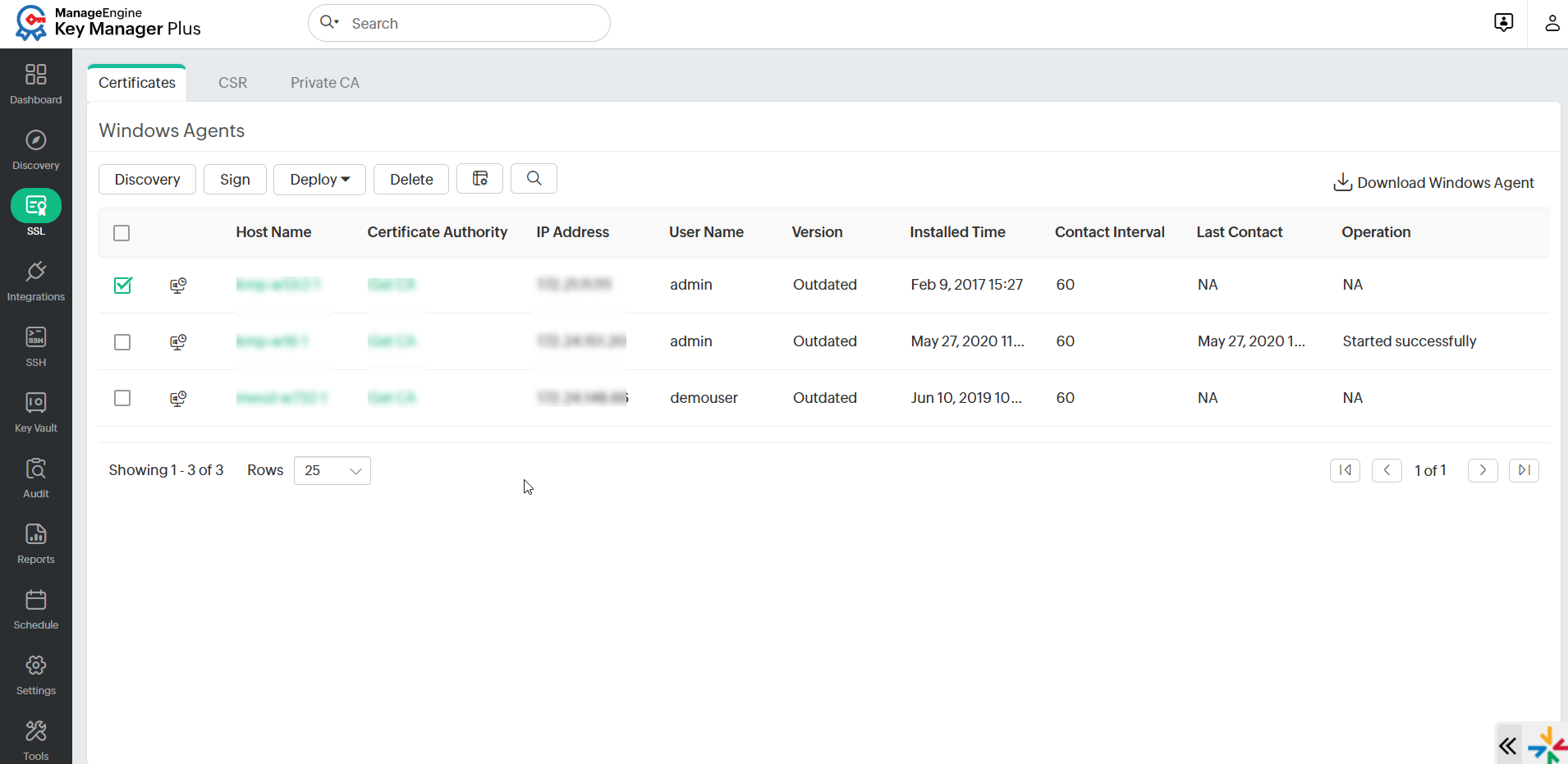
- Certificate Authority - The Certificate Authority column indicates the CA servers that the agent is associated with or can communicate with.
- IP Address - The IP address of the remote machine where the agent is installed.
- User Name - The account under which the agent service is running.
- Version - The version of the Key Manager Plus agent installed on the endpoint.
- Installed Time - The date and time when the agent was installed.
- Contact Interval - The configured interval at which the agent communicates with the Key Manager Plus server.
- Last Contact - The date and time when the agent last communicated with the Key Manager Plus server.
- Operation - The status of the last certificate-related operation executed by the agent (discovery, signing, deployment, etc.).
- Host Name - The name of the remote Windows machine where the Key Manager Plus agent is installed.
- By clicking the icon beside the agent from the list, you will get the following details:
- Discovery History - A log of all certificate discovery operations performed by the agent, including the discovery method, timestamp, and operation status.
- Deployment History - A record of all certificate deployment operations performed through the agent, including the target server, deployment type, timestamp, and deployment status.
- MSCA Sign History - A log of all Certificate Signing Requests (CSRs) submitted and signed through a Microsoft Certificate Authority (MSCA) by the agent, including the certificate template used and the timestamp.
- MSCA Renewal History - A record of all certificate renewal operations performed through the agent against a Microsoft Certificate Authority, including the certificate renewed, certificate authority, template, timestamp, and status.
- To remove an agent from the list, select the desired agent and click Delete from the top menu. In the pop-up confirmation dialog box, click OK to remove the agent.
To learn how to discover, sign, and deploy certificates using agents, refer to this document.
Additional Detail
To fetch the Certificate Authority (CA) name of the certificates deployed on the Windows servers (where Key Manager Plus server is running), click Get CA under the Certificate Authority column beside the required agent. This triggers the agent to retrieve the CA name.