Integration with Service Desk Plus' CMDB
Key Manager Plus provides the option to integrate with ManageEngine Service Desk Plus' CMDB. This integration enables you to export SSL certificate details from KMP's repository to Service Desk Plus' CMDB thereby allowing administrators to monitor the usage, expiry and other aspects of SSL certificate life-cycle management across the organization from Service Desk Plus interface.
1. How does this integration work?
To export SSL certificates from Key Manager Plus to Service Desk Plus' (SDP) CMDB, you have to provide the server details where SDP instance is running and the user account details (technician key). Once the integration takes effect, a new parent CI type and a corresponding child CI type will be created in Service Desk Plus which will house all the certificates exported from KMP's repository. You can also export SSL certificates from Key Manager Plus into an already existing CI type in SDP by appropriately mapping the certificate attributes to that of the existing CI. Exporting certificates into CMDB renders visibility over SSL environment and allows administrators manage all IT assets from a single, central repository.
2. Creating CI type in Service Desk Plus' CMDB
To integrate Key Manager Plus with the CMDB in ServiceDesk Plus (SDP) or ServiceDesk Plus On-Demand (SDP OD), you must either create a new CI Type or use an existing one to export certificates from the Key Manager Plus repository. This section outlines the steps to create a new CI Type in both SDP and SDP OD environments.
2.1 ServiceDesk Plus' CMDB
- Navigate to Settings >> ServiceDesk Plus in Key Manager Plus interface.
- Under Server Configuration tab, provide the details of the server in which SDP is running and the technician key.
( Note : The technician key should be generated from SDP's interface and the user account for which the key is generated should have SDAdmin privilege in SDP. For more details about the key generation, click here )
- Click Save. A pop up message appears confirming the update of SDP server details.
- Switch to CMDB tab and click 'enable' beside Certificate Sync option.
- You can either choose to create a new CI type in SDP or export certificates into an already existing CI type.
- To create a new CI type, select Create new CI type option, provide a name for the CI type and an optional parent CI name. By default, child CI type KMP_SSL is created under the parent CI type Key Manager Plus. You can choose to modify the names according to your requirements.
- Click Save. A new CI type in created in SDP's CMDB consisting of the following attributes: Common name, DNS name, signature algorithm, organization, certificate from date, expiry date, key size, key algorithm, creation time and description. All the SSL certificates from Key Manager Plus' repository is exported to SDP's CMDB.
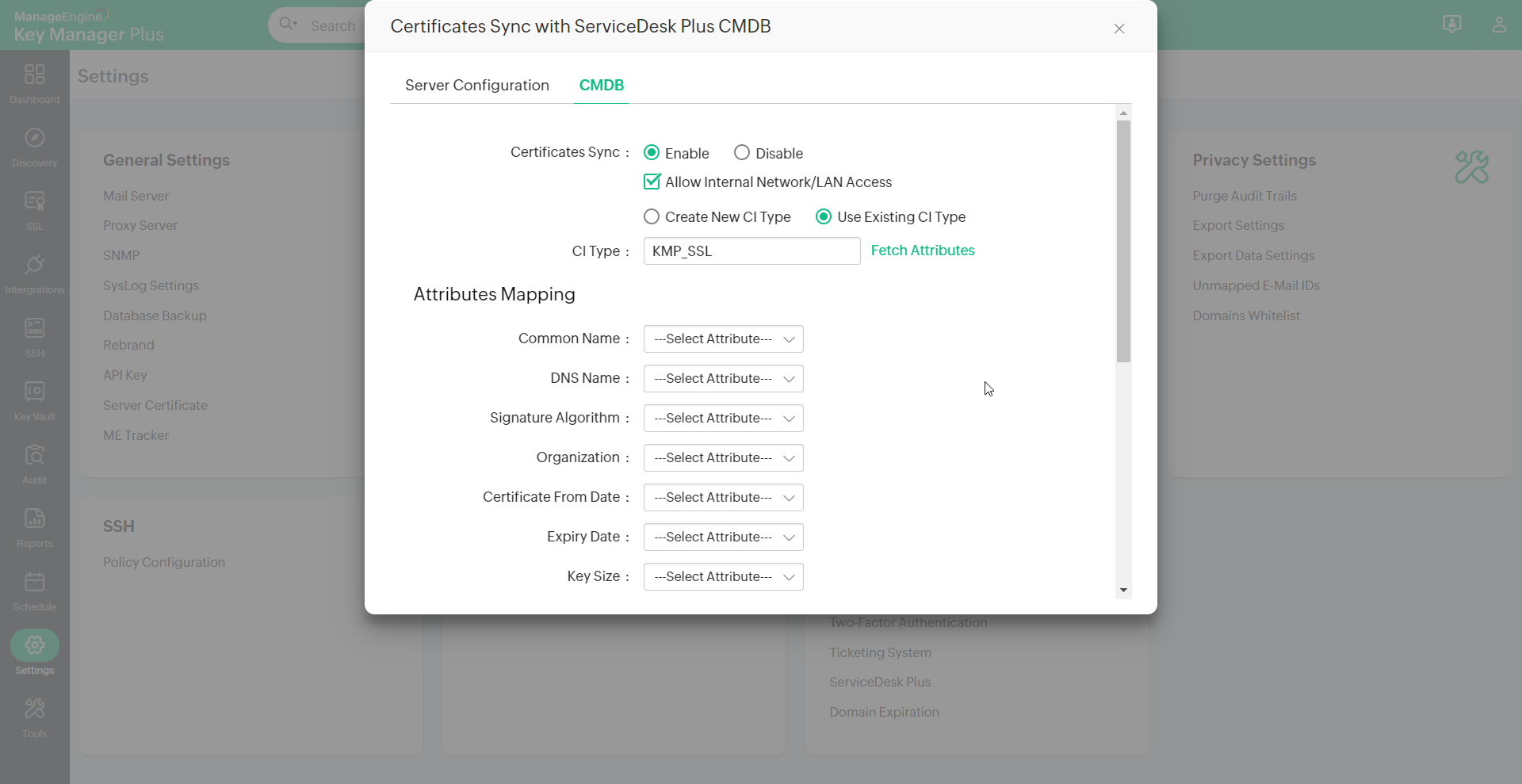
- To export certificates into an already existing CI type in SDP, select Use existing CI type option and specify its name.
- Click Fetch attributes fetch the attributes of the existing CI type.
- You then have to map the certificate attributes available in Key Manager Plus (common name, DNS name etc.,) with the attributes of the chosen CI type by choosing appropriate options from the Select attribute drop-down.
- After the mapping is done, click Save. All the certificates from Key Manager Plus' repository is exported to SDP's CMDB.
2.2 ServiceDesk Plus On-Demand's CMDB
- Navigate to Settings >> Other Settings >> ServiceDesk Plus in the Key Manager Plus interface.
- On the window that appears, under the Server Configuration tab, select ServiceDesk Plus On-Demand, and provide the necessary credentials such as the Data Center, Client ID, Client Secret, and Grant Token.
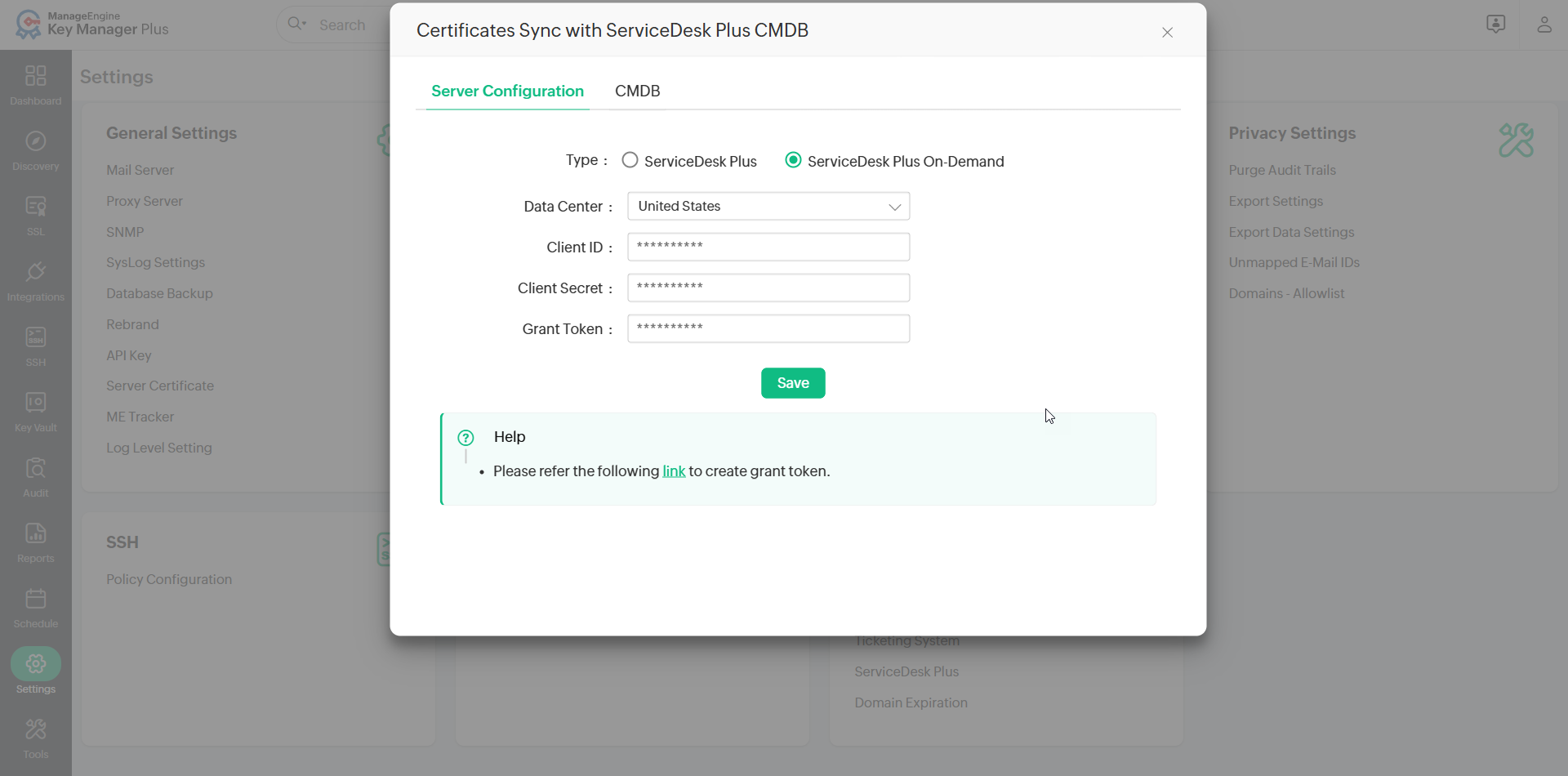
- Click Save to confirm and save the configured server details.
- On the confirmation pop up that appears, click Confirm to acknowledge that you agree to share the certificate details with the configured ServiceDesk Plus On-Demand helpdesk.
- Switch to the CMDB tab, click the Enable button beside the Certificate Sync option, and select ServiceDesk Plus On-Demand.
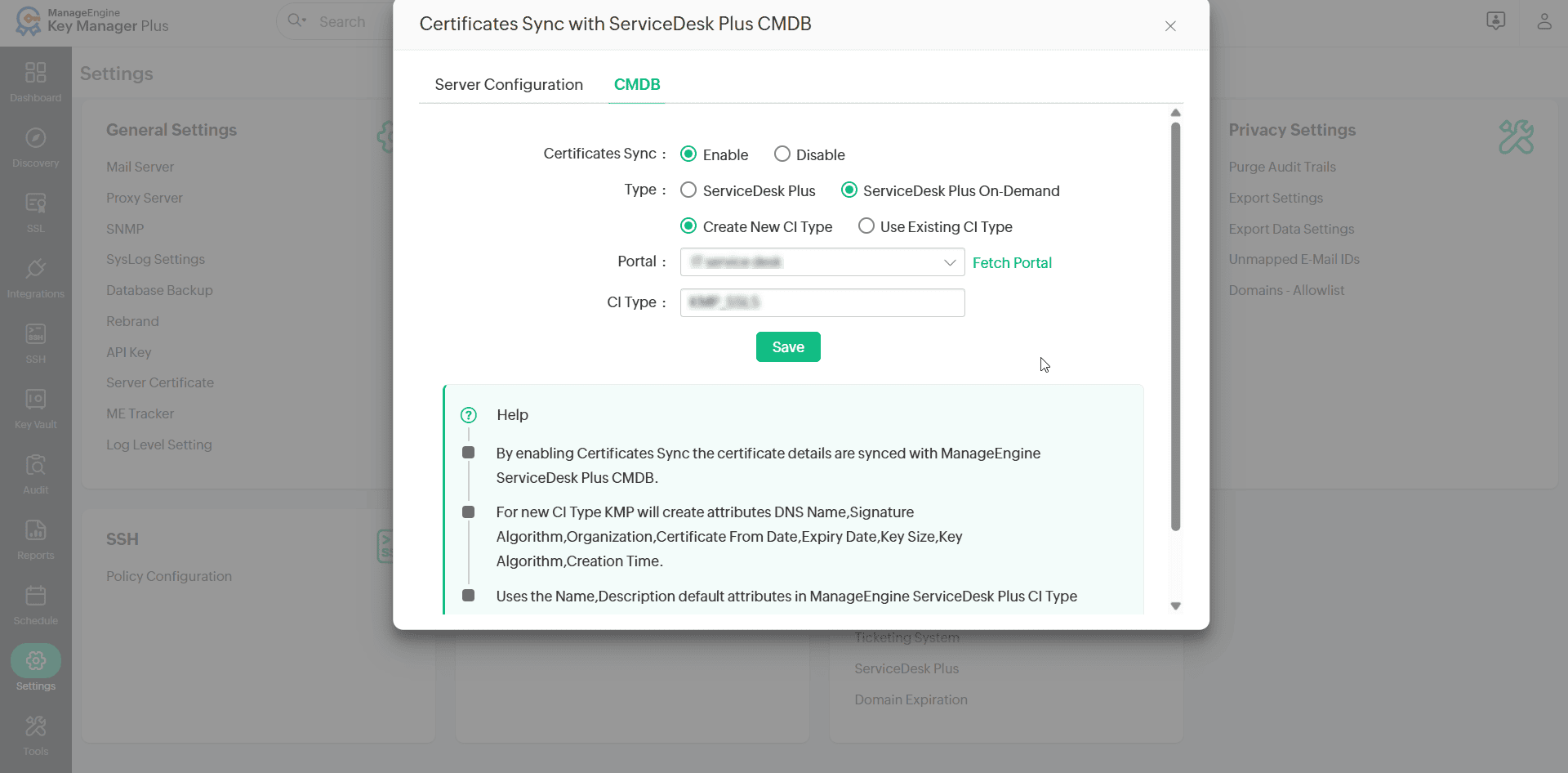
- Click the Fetch Portal button to fetch the available portal from your ServiceDesk Plus Cloud environment and select a desired portal from the displayed options.
- You can either choose to create a new CI type in SDP OD or export certificates into an existing CI type. To create a new CI type, select the Create New CI Type option and provide a name for the CI type. The CI type KMP_SSL is created by default. You can choose to modify the name according to your requirements.
- Click Save to save the configured changes. A new CI type will be created in SDP OD's CMDB consisting of the following attributes: Common name, DNS name, signature algorithm, organization, certificate from date, expiry date, key size, key algorithm, creation time, and description. All the SSL certificates from the Key Manager Plus repository will be exported to SDP OD's CMDB.
- To export certificates to an existing CI type in SDP OD, select the Use Existing CI Type option, fetch and select the desired portal from the displayed options by clicking on the Fetch Portal button, and select the desired CI Type.
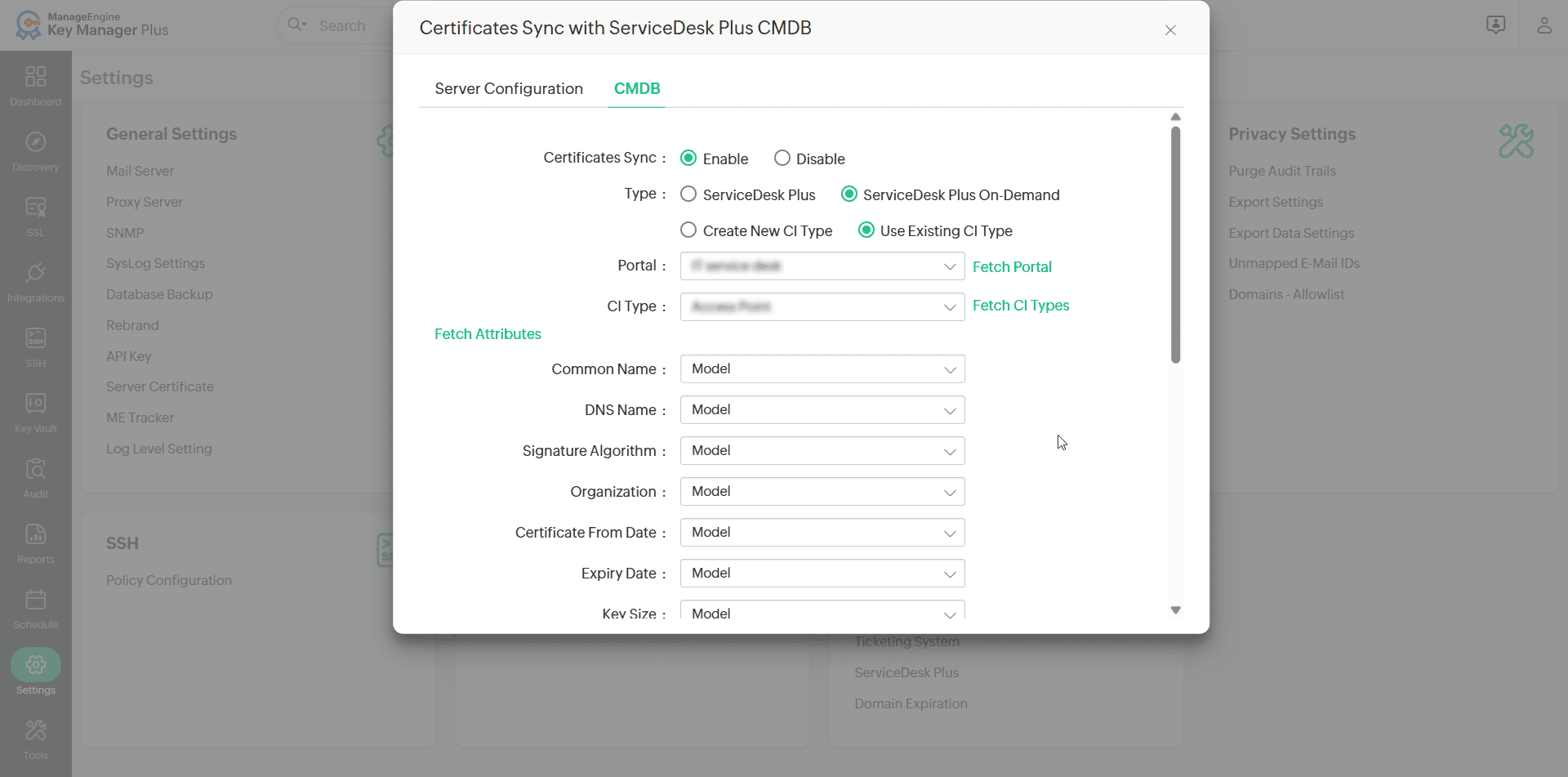
- Click the Fetch Attributes button to fetch the attributes of the existing CI type.
- You then have to map the certificate attributes available in Key Manager Plus (common name, DNS name, etc.) with the attributes of the selected CI type by choosing the appropriate options from the Select attribute drop-down.
- Click Save after mapping the attributes. All the certificates from the Key Manager Plus repository will be exported to SDP's CMDB under the selected CI type.
Note:
- The Client ID, Client Secret, and Grant Token should be generated from the Zoho API Console by creating a Self Client for your ServiceDesk Plus On-Demand environment. Click here to learn about the detailed steps to generate a grant token using the self client.
- The user account for which you are generating the Grant Token should have SDAdmin privilege in SDP OD.
- Ensure the attributes on the ServiceDesk Plus On-Demand CMDB are of String datatype.
3. Enabling Certificate Sync
To enable certificate synchronization with SDP's CMDB,
- Navigate to Settings >> ServiceDesk Plus in Key Manager Plus interface.
- Switch to CMDB tab and click 'enable' besides Certificates Sync. All certificates in Key Manager Plus' repository are synced with SDP's CMDB. Also, certificates that are added to Key Manager Plus in future are automatically exported to SDP's CMDB.
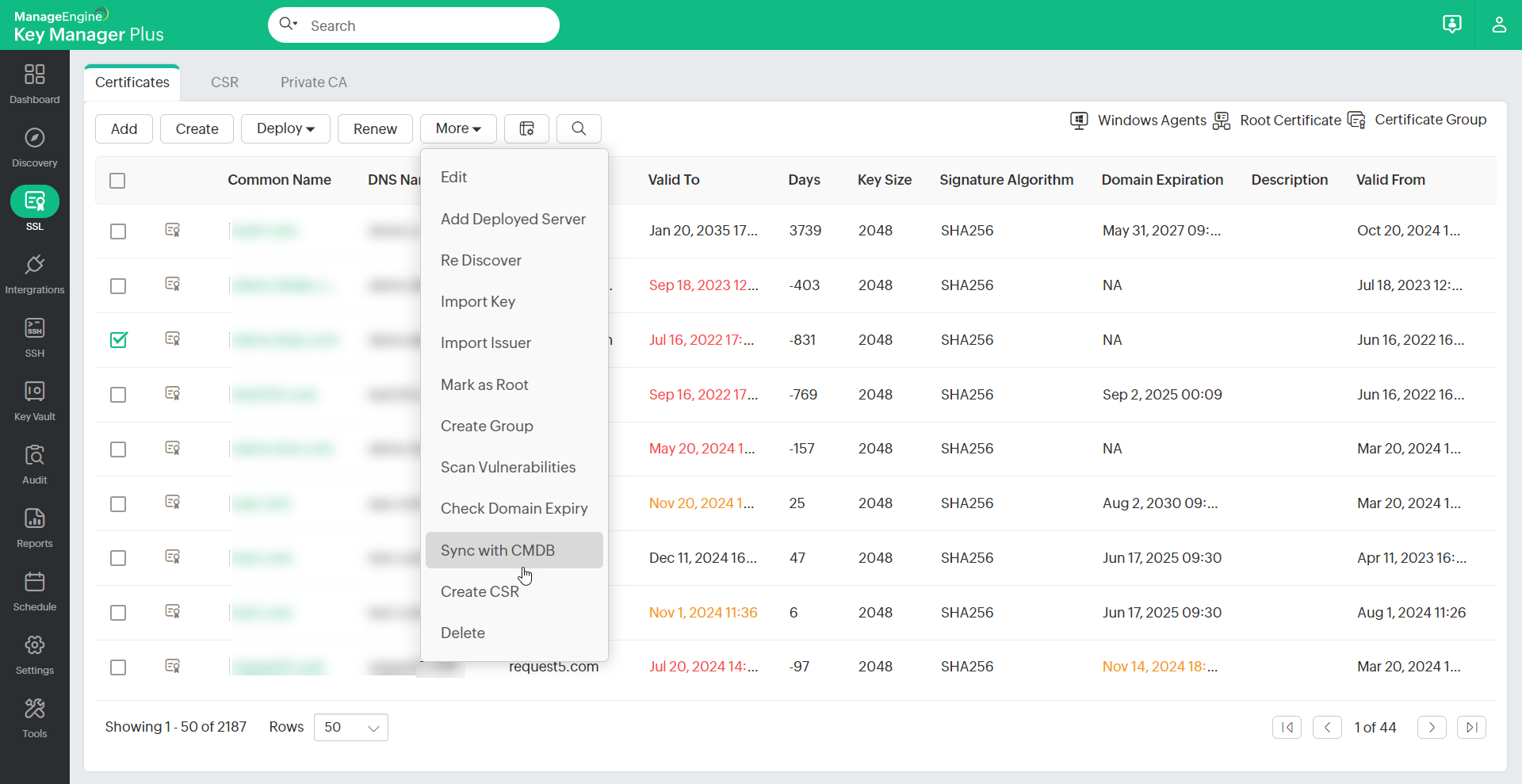
In addition, you can choose to sync certificates manually whenever you want.
- Navigate to SSL >> Certificates tab.
- Click Sync with CMDB from More top menu. All the certificates in KMP's repository are synced with SDP CMDB.
4. Deleting Certificates from CMDB
Similarly, when you delete unwanted certificates from Key Manager Plus' repository, the certificate gets deleted from SDP's CMDB also.
- Navigate to SSL >> Certificates tab.
- Select the certificate(s) that you wish to delete. Click Delete from More top-menu.
- A pop-up appears asking you to confirm the deletion of certificate from CMDB also.
- Enable the check-box and click OK. The selected certificates are deleted both from Key Manager Plus and SDP's CMDB.