Installing SSL Certificate for Key Manager Plus Server
Key Manager Plus operates as an HTTPS service and requires a valid SSL certificate issued by a trusted Certificate Authority (CA), with the common name matching the hostname of the server on which it runs. By default, Key Manager Plus uses a certificate that comes bundled with the product. Since this certificate is not issued by a trusted CA, browsers will display a security warning when users attempt to access the Key Manager Plus server, requiring them to verify the hostname manually and force the browser to accept the certificate.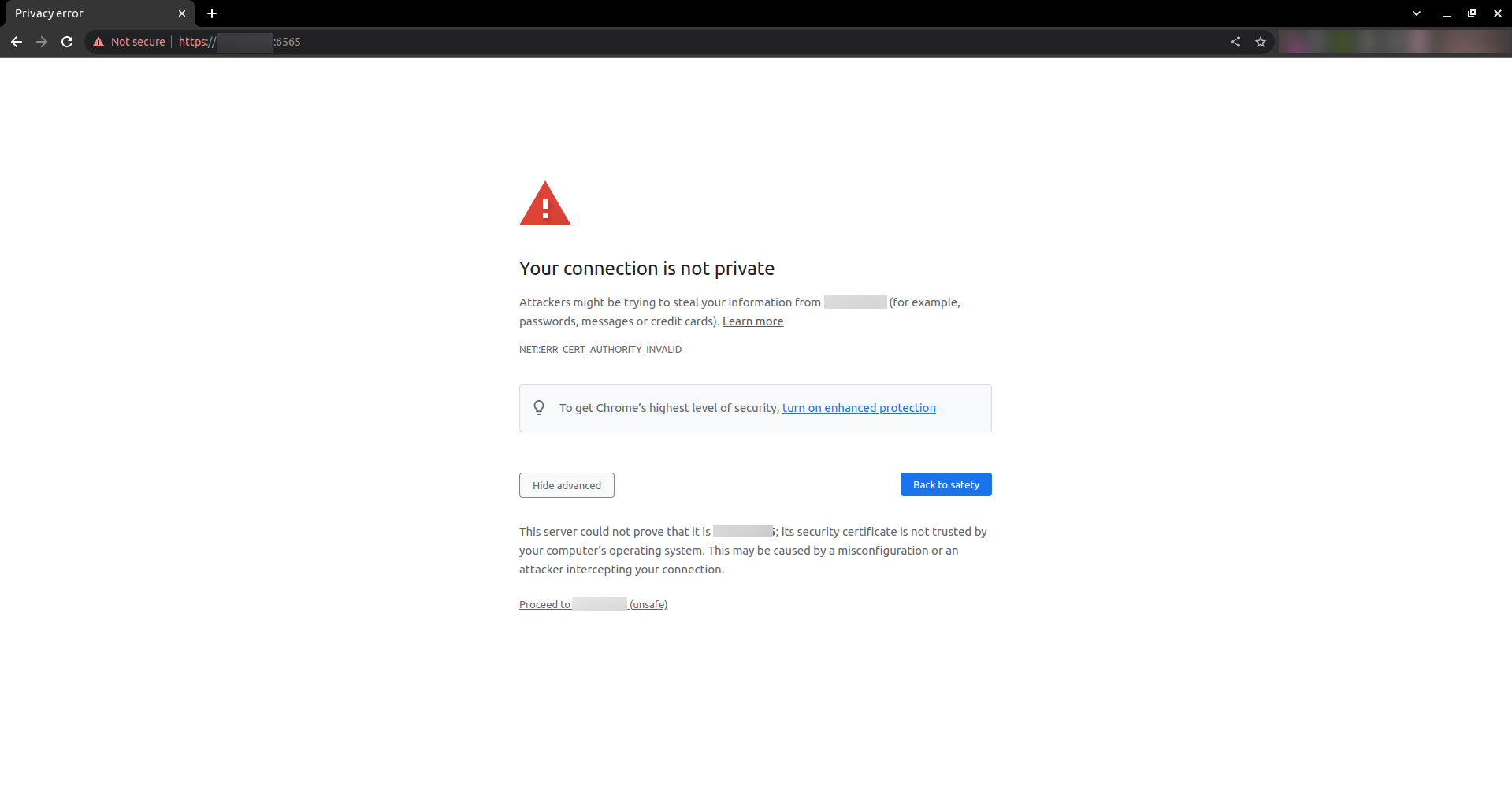
To establish the server’s identity, secure communication between the browser and the Key Manager Plus server through encryption, eliminate browser security warnings, and ensure automatic trust verification, you should upload a valid CA-signed certificate. This can be done in the following ways:
1. Uploading a Certificate from the Key Manager Plus Repository
If you have already consolidated a CA-signed certificate in the Key Manager Plus repository, you can directly upload it to the server. Follow the steps below:
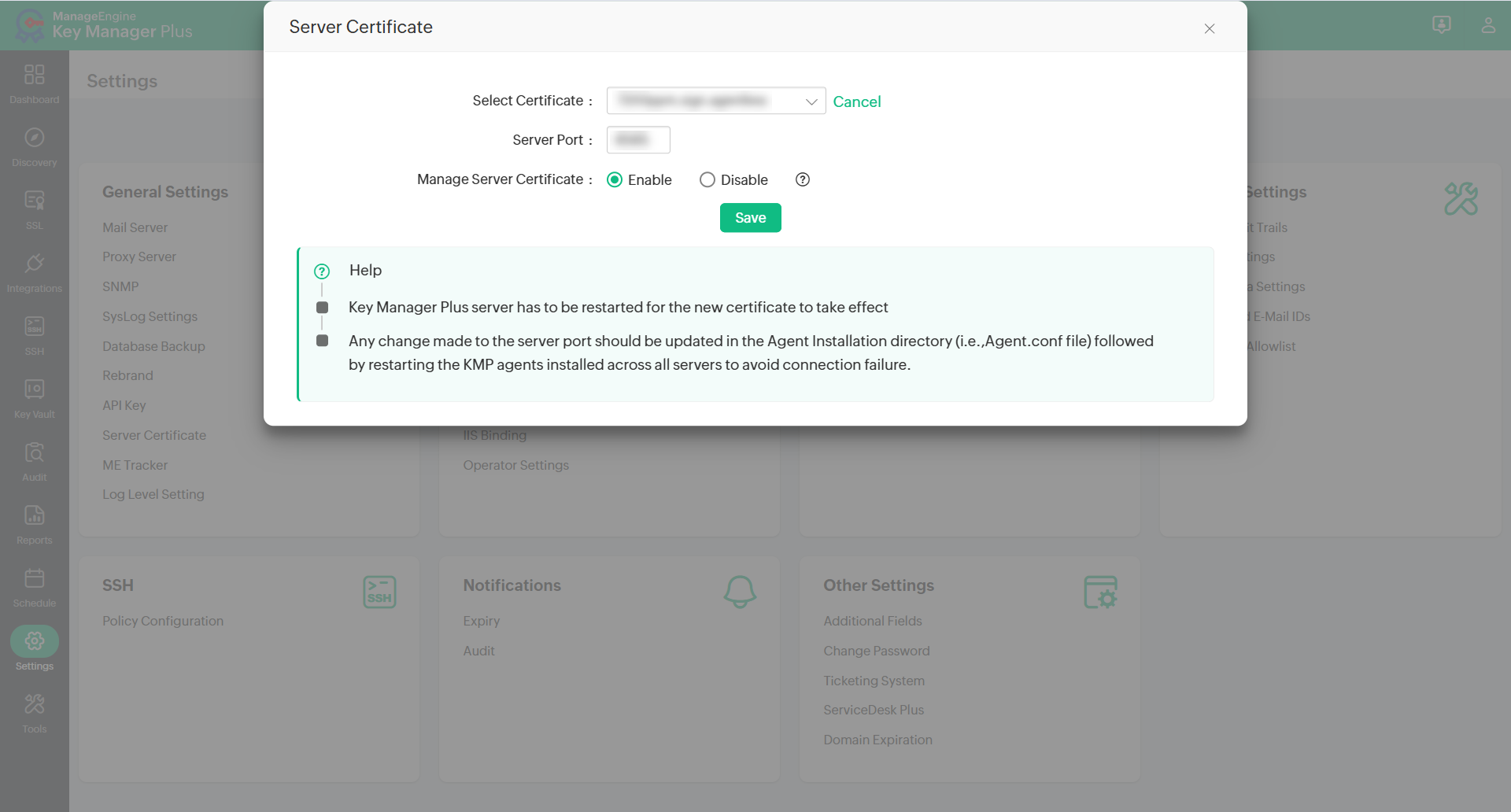
- Navigate to Settings >> General Settings >> Server Certificate.
- Click Existing Certificate beside the Select Certificate box and select the required certificate from the dropdown.
- If you want to change the default Key Manager Plus server port, enter the new port number in the Server Port field.
- To manage the Key Manager Plus server certificate for expiry notifications and other requirements under the SSL tab, enable the Manage Server Certificates option.
- Now, click Save and restart the Key Manager Plus server for the certificate to take effect.
- Only certificates for which the private key is stored in Key Manager Plus will be listed when you click Existing Certificate.
- If the uploaded certificate is a self-signed certificate, browsers may not recognize it and may display security warnings.
Additional Details
2. Uploading a Certificate from the Local System
Follow the steps below to upload a CA-signed certificate from your local system to the Key Manager Plus server:
- Navigate to Settings >> General Settings >> Server Certificate.
- Click Browse and select the certificate file from your local system.
- If the certificate is in .keystore, .p12, .pkcs12, or .jks format, you will be prompted to enter the keystore password.
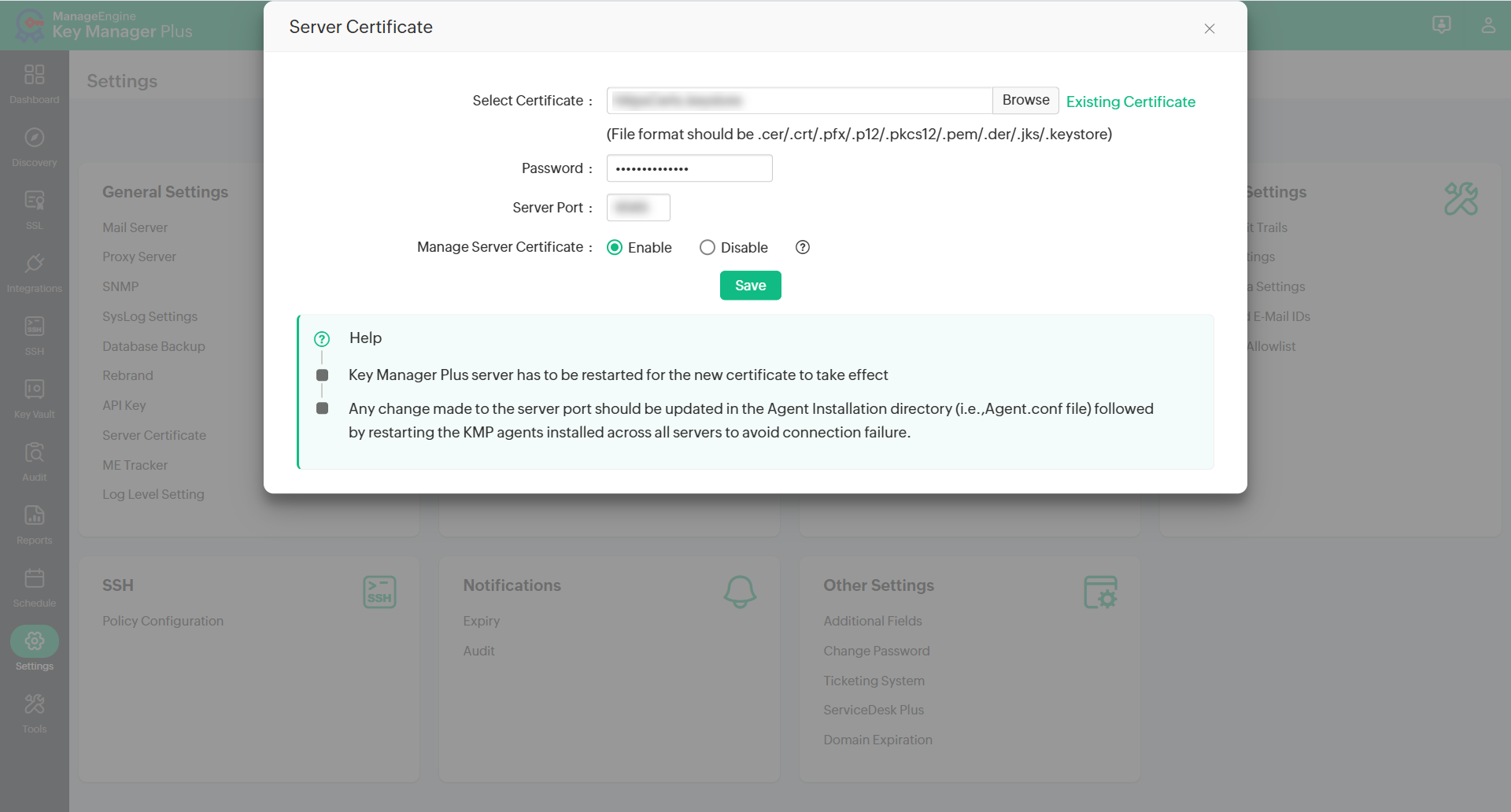
- For all other formats, you will be prompted to provide the private key file (server.key). You will then be prompted to upload the intermediate certificate. You can upload multiple intermediate certificates by clicking the + button. If no intermediate certificate is provided, Key Manager Plus will attempt to detect it automatically.
- If the certificate is in .keystore, .p12, .pkcs12, or .jks format, you will be prompted to enter the keystore password.
- Click Save to import the certificate to the Key Manager Plus server.
- Restart the Key Manager Plus server for the certificate to take effect.
Additional Detail
If the intermediate certificate is not provided and Key Manager Plus is unable to detect it automatically, browsers may not recognize the certificate and security warnings may be displayed.
3. Uploading a Microsoft CA Signed Certificate
You can request and sign a certificate from the Microsoft Certificate Authority (CA) within your network and install it on the Key Manager Plus server. Refer to the following resources for detailed instructions:
- Click here to learn more about creating a CSR in Key Manager Plus.
- Click here to learn more about signing a CSR with the Microsoft CA.
Once the signed certificate is available in SSL >> Certificates, use the Existing Certificate option and follow the steps in section 1 to upload it to the server.
4. Requesting and Uploading a New Trusted CA Certificate
You can request a new certificate from a trusted third-party CA and upload it to the Key Manager Plus server. Click here to learn more about raising certificate requests and adding the issued certificates to the Key Manager Plus repository.
Once the certificate is procured and consolidated in the Key Manager Plus repository, refer to this section for steps to upload it to the server.
Additional Detail
Before uploading, Key Manager Plus validates the certificate against the following criteria: certificate-private key match, expiration date, revocation status, certificate chain, and Certificate Authority (Java trust store). If any mismatch or issue is detected, a confirmation prompt will appear. You can proceed with the upload, but browsers may not recognize the certificate and security warnings may be displayed.