Database Backup and Disaster Recovery
Key Manager Plus provides built-in database backup capabilities and comprehensive disaster recovery procedures to help organizations protect their data and ensure business continuity. Regular backups allow administrators to quickly recover from data loss or system failures by restoring backed-up data to the Key Manager Plus database. This document covers the following topics in detail:
1. Configuring Database Backup
Key Manager Plus provides an option to schedule periodic database backups directly from the web interface. Follow the steps below to configure database backup:
- Navigate to Settings >> General Settings >> Database Backup.
- Enter the following details:
- Recurrence Type - Select Day, Weekly, or Monthly to define how frequently backups should run.
- Run backup every - Specify the interval at which backups should be executed.
- Backup Time - Set the time (in HH:MM format) at which the backup should run automatically.
- Maintain latest - Specify the number of backup copies to retain. Select None to keep all backups, or choose a number between 1 and 35 to limit retention.
- Destination Directory - Specify the directory path where backup files should be stored.
- Send Email Notification - Enter one or more email addresses (separated by commas) to receive backup notifications.
- Click Save to apply the configuration.
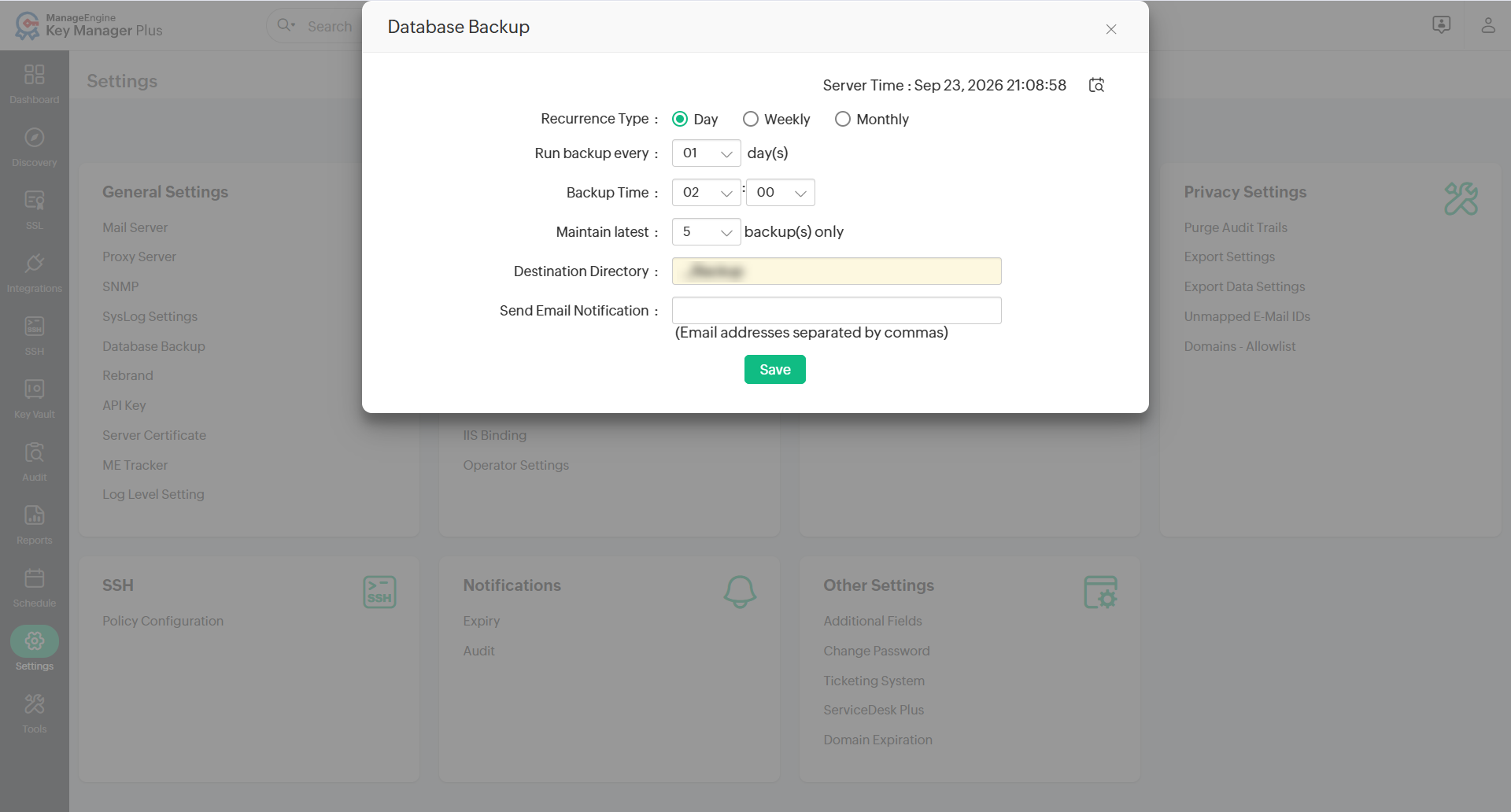
Once configured, backups will be generated automatically based on the defined schedule.
Additional Detail
All database backup activities are recorded for auditing purposes. To view audit details such as backup time, status, and execution results, click the Backup Audit icon in the top-right corner of the Database Backup page.
2. Restoring Data
In the event of a disaster or data loss, you can restore backed-up data to the Key Manager Plus database. The restoration process ensures that all encrypted data is retrieved and reloaded into the Key Manager Plus database, helping organizations quickly resume normal operations.
Caution
- Stop the Key Manager Plus server before attempting to restore data. If restoration is performed while the server is running, it may lead to data corruption.
- Data backed up from Key Manager Plus running on Windows can be restored only on Windows.
Follow the steps below to restore the backed-up data:
- Navigate to the <Key-Manager-Plus-Installation-Directory>/bin folder.
- Execute the script for your operating system (for build versions 5600 and above):
- Windows: restoreDB.bat <backup_file_name> -p<Key_path>
- Linux: sh restoreDB.sh <backup_file_name> -p<Key_path>
Enter your backup file name in .ezip format. The backup file and the pmp_key.key file should be located in the same folder under the same path on the Key Manager Plus server. The backed-up contents will be restored to the Key Manager Plus database.
- Navigate to the <Key-Manager-Plus-Installation-Directory>/conf folder and edit the manage_key.conf file to specify the location of pmp_key.key (the AES 256 encryption master key). Key Manager Plus requires this key to be accessible with its full path when starting up. After a successful startup, the key is no longer needed, and the device storing the key can be taken offline.
Additional Details
- If your build is version 5510 or below, specifying the key path is not necessary when executing the restoration scripts. For Windows, execute restoreDB.bat <backup_file_name>. For Linux, execute sh restoreDB.sh <backup_file_name>.
- During restoration, ensure that the build version of the target system matches the build version from which the backup was taken. For example, if the backup was created in build version 5600, the target build should also be version 5600.
- When specifying the location of the encryption master key in the manage_key.conf file during restoration, ensure you correctly point to the location of the pmp_key.key file from the build from which the backup was taken.
3. Restoring Data in an MS SQL Server
For instance with MS SQL cluster as the backend database, Key Manager Plus uses MS SQL Server's encryption mechanism to secure its data. The encryption master key is stored in the <Key-Manager-Plus-Installation-Directory>/conf folder as masterkey.key.
Best Practice
For enhanced security, it is recommended to move the masterkey.key file to a secure location during MS SQL installation and use it when performing disaster recovery.
Follow the steps below to restore data in an MS SQL Server:
- Install a new instance of Key Manager Plus with MS SQL Server as the backend database. This new instance will be used to restore the backup. Ensure the MS SQL Server instance is configured with SSL by following the SSL configuration steps in the MS SQL Server setup guide.
- Copy the Key Manager Plus backup file from the original SQL Server. By default, the backup file is located in the <MSSQL-Installation-Directory>/Backup folder and follows this naming format: pmpbackup_pmpversion_backupdate-time.bak (For example: pmpbackup_6400_110721-1159.bak). Click here to learn more about taking backups of your Key Manager Plus data.
- Launch SQL Server Management Studio and connect to the Database Engine on the machine where the backup will be restored.
- Right-click on Databases and select Restore Database from the menu.

- In the Restore Database window, select Device under the Source and click the [...] button to browse and select the Key Manager Plus backup file.
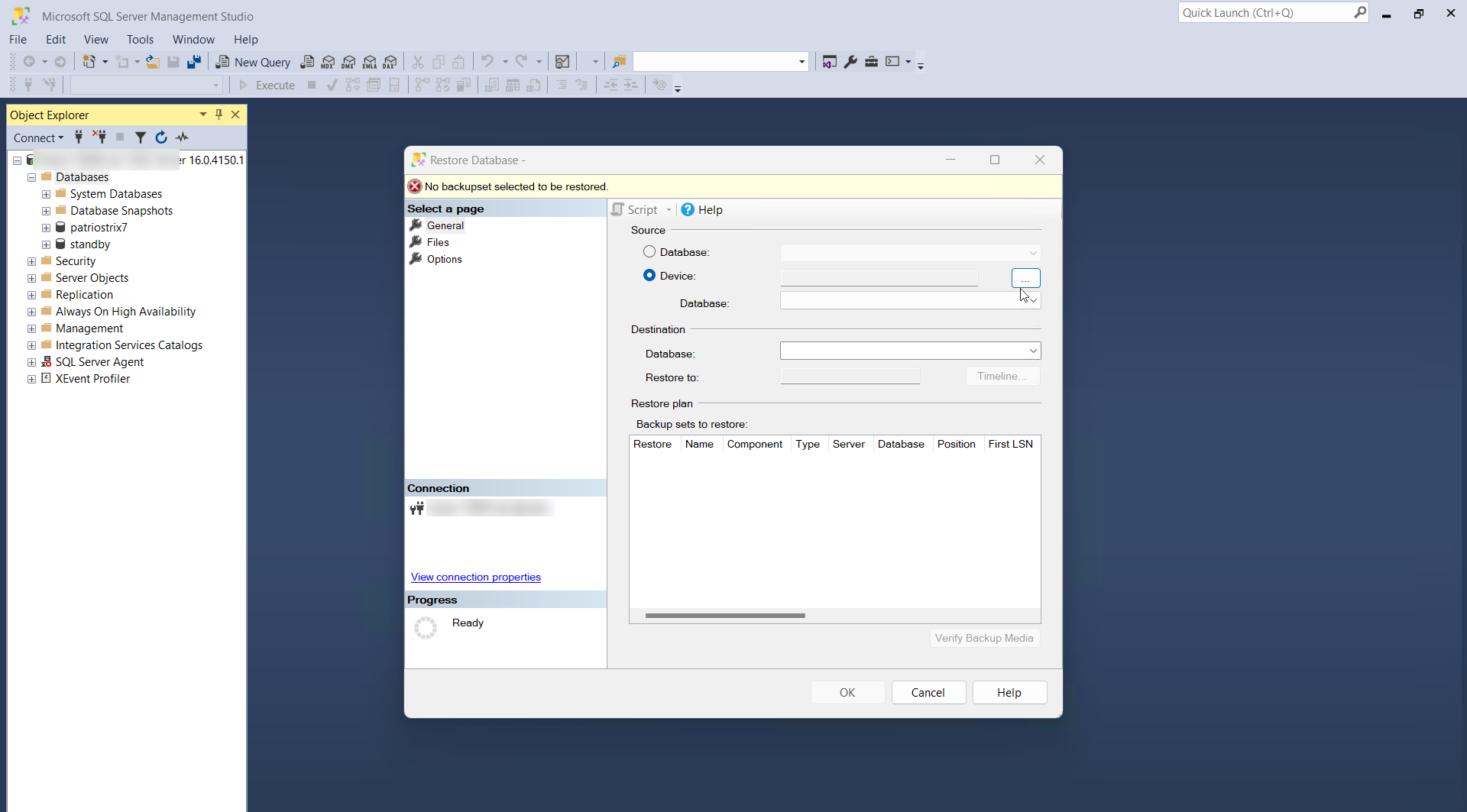
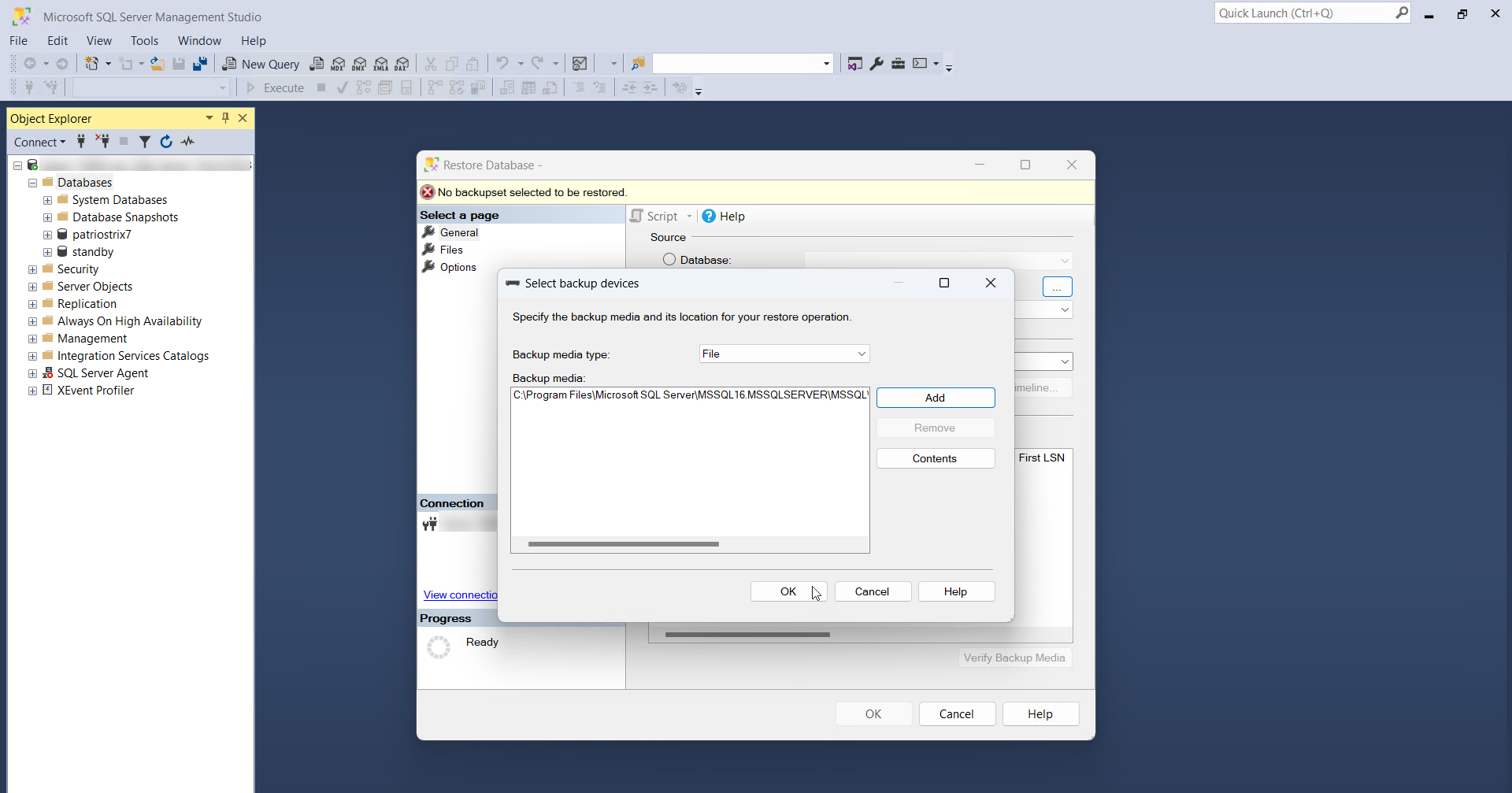
- In the Select backup devices pop-up, choose File as the Backup media type and click Add.
- In the Locate Backup File window, select the Key Manager Plus backup file and click OK.
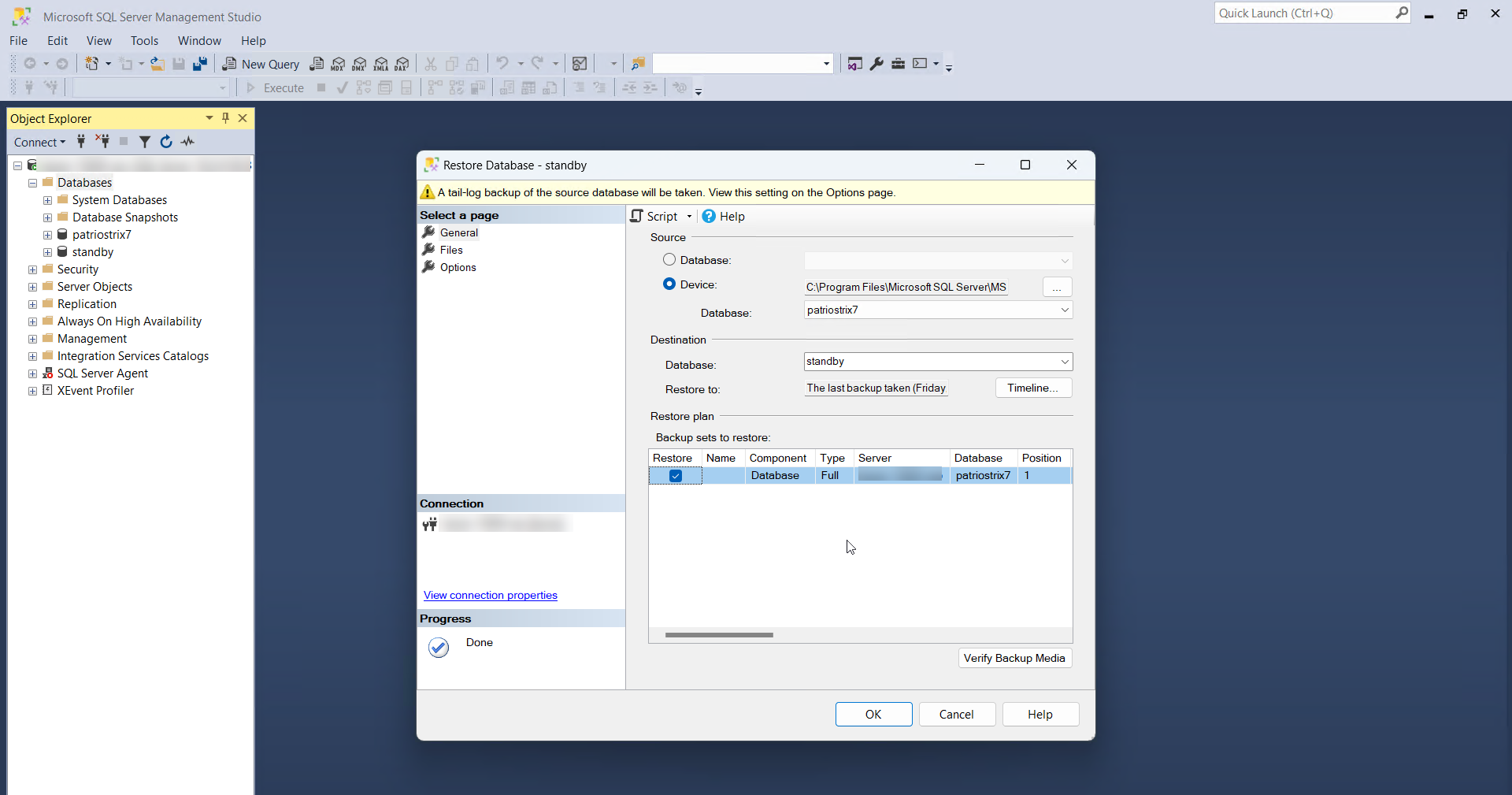
- In the Restore Database window, select the database where the backup is to be restored and specify it in the To database field. Under Select the backup sets to restore, choose the appropriate Restore column and click OK. Upon completion, a status window will confirm the successful restoration.
- Restore the master key. By default, the encryption master key is stored in the <Key-Manager-Plus-Installation-Directory>/conf directory as masterkey.key. If the file was moved to a secure location, retrieve it and copy the password from the masterkey.key file.
- Connect to the SQL Server where the backup has been restored. Open Microsoft SQL Server Management Studio, connect to the Database Engine, and execute the following queries to decrypt the data:
use <name_of_the_restored_database>;
OPEN MASTER KEY DECRYPTION BY PASSWORD = '<master_key_password>';
alter master key regenerate with encryption by password = '<master_key_password>';
For example:
use pki;
OPEN MASTER KEY DECRYPTION BY PASSWORD = 'secret';
>alter master key regenerate with encryption by password = 'secret'; - Navigate to <Key-Manager-Plus-Installation-Directory>/conf folder and edit the manage_key.conf file to specify the location of pmp_key.key (the encryption master key). Key Manager Plus requires this key to be accessible when starting up. Once the server starts successfully, the key file is no longer needed, and the device storing the key can be taken offline.