
Reverse proxy in Log360 MSSP
Last updated on:
In this page
Overview
A reverse proxy is a proxy service that handles requests from customers, forwards them to the necessary servers, and subsequently delivers the servers' responses to the customers without revealing the identity of the servers. Log360 MSSP comes bundled with a reverse proxy server to prevent hackers from finding out, accessing, or exploiting the critical data that it holds.
Whenever a user requests access, the URL is forwarded to the respective servers based on the customers' context path in the URL. The end user will not know the details of the servers from which they are accessing the resources.
- This document applies to both Log360 MSSP and EventLog Analyzer Distributed environments. Existing EventLog Analyzer Distributed customers who have upgraded to the latest version will experience the same features, configuration options, and User-Interface behavior described in this page. Terminology may vary between products, but the function remains identical.
- Log360 MSSP supports only context-based reverse proxy.
- The hostname of the Log360 MSSP server will serve as the hostname for the customers' servers when reverse proxy is enabled.
Enable/disable reverse proxy
Log into the Log360 MSSP console as an administrator. Navigate to the Settings tab, scroll down, and click on Reverse Proxy listed in General under System Settings.
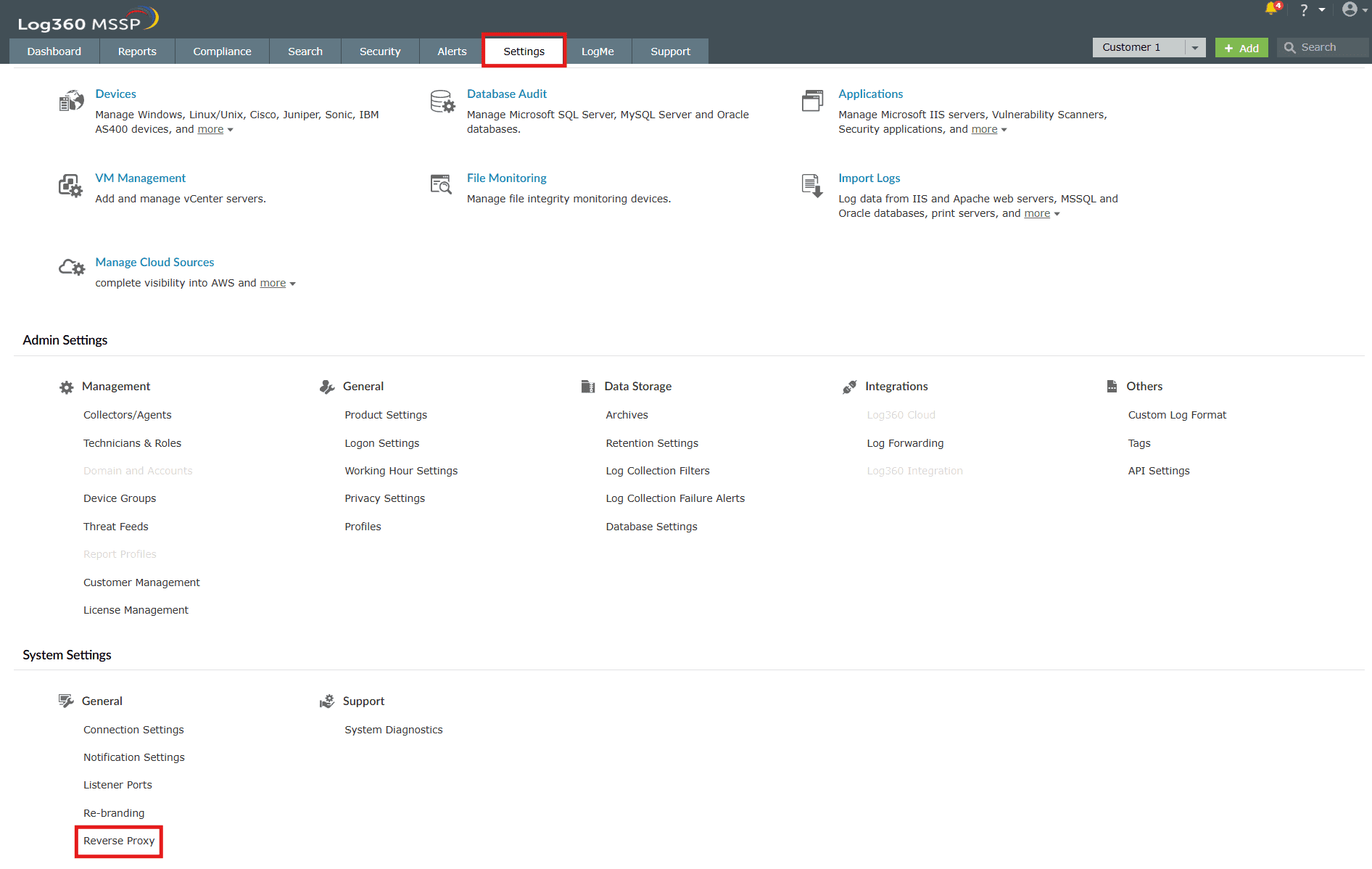
To enable reverse proxy:
- Enable Reverse Proxy by ticking the currently empty checkbox, which is highlighted below.
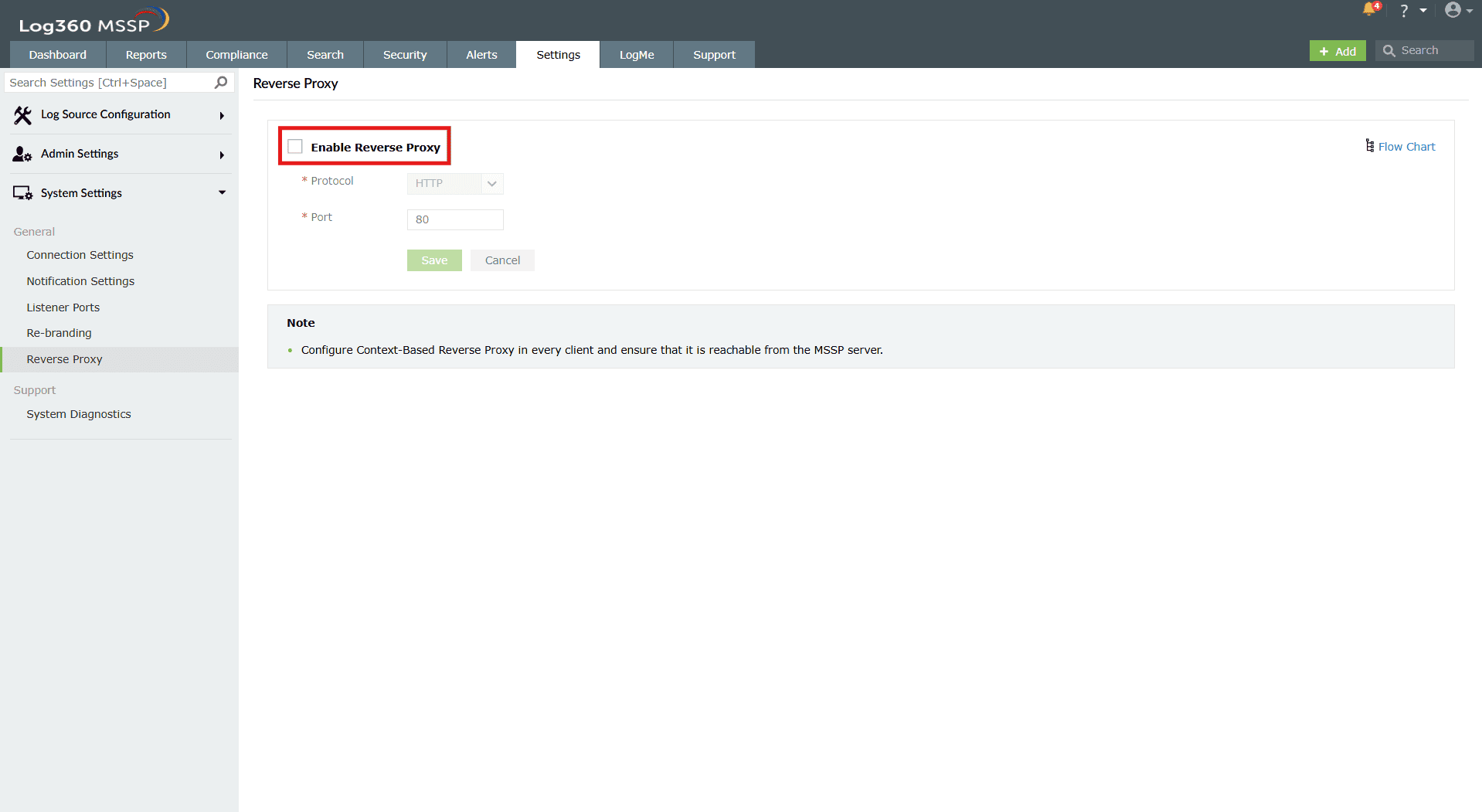
Image 2: Enabling reverse proxy in Log360 MSSP - Upon ticking the checkbox, the Port fields become available for editing. Select the required port number. Make sure the port number is not used by other applications.
- Click on the Save button.
- Upon successful completion of the action, the below pop-up appears.

To disable reverse proxy:
- Disable reverse proxy by ticking the currently filled checkbox, which is highlighted below.
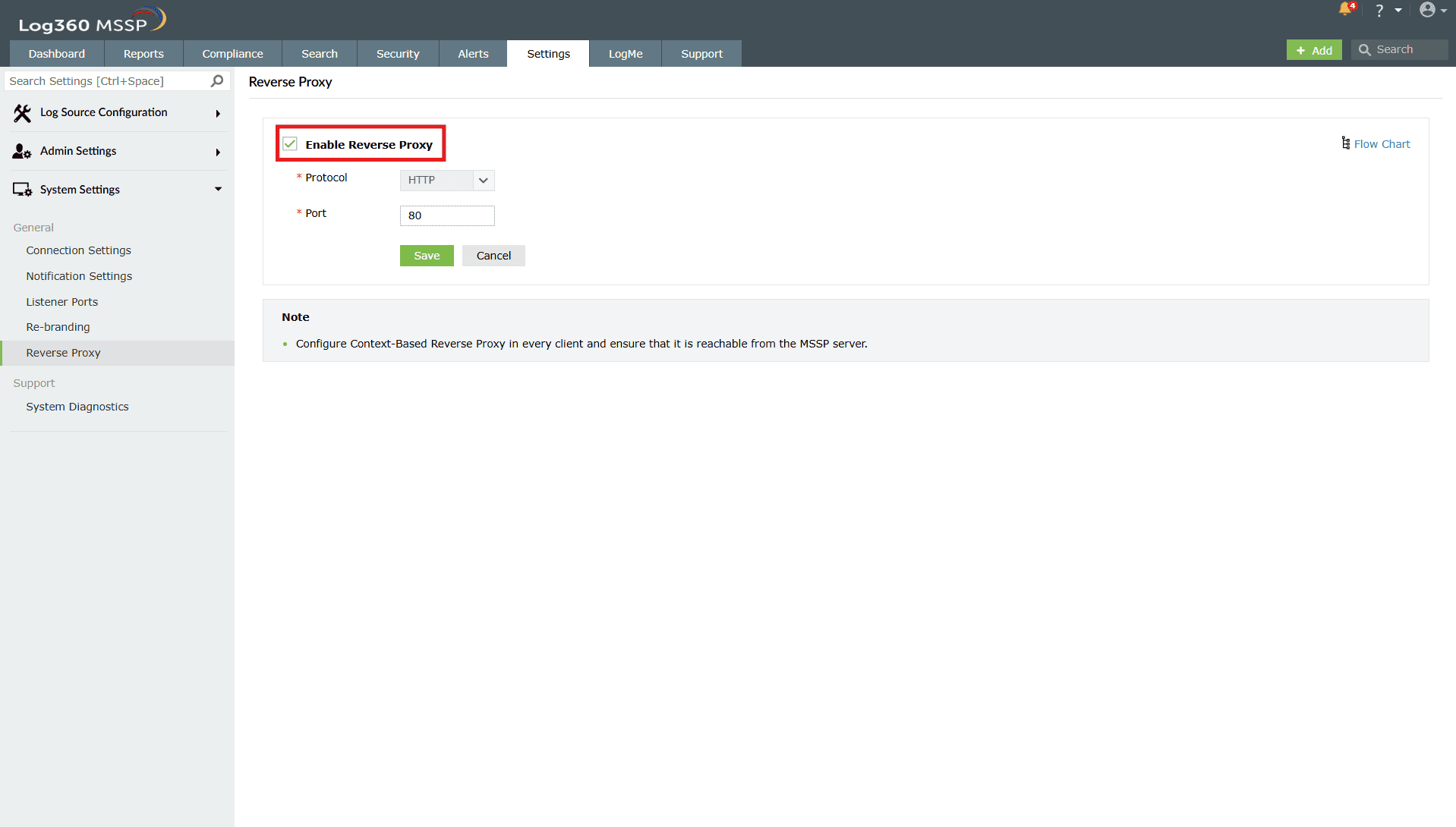
Image 3: Disabling reverse proxy in Log360 MSSP - Upon unchecking the checkbox, the Port fields instantly become unavailable for editing, indicating that the reverse proxy has been disabled successfully.
Read also
This document covered how to configure and manage reverse proxy in Log360 MSSP. For more security and integration-related capabilities, refer to: