
Updating playbook credentials
Last updated on:
In this page
Overview
To ensure successful playbook execution across your infrastructure, credentials for supported devices must be securely configured within the product. You can set global or device-specific credentials for Windows, Linux, and major firewall vendors. Some integrations, like ADManager Plus and SNMP Traps, require additional setup to enable action-based responses.
Only users with admin privileges can manage playbook credentials.
Updating playbook credentials
Pre-requisites to update playbook credentials:
- You can automate playbooks on Windows, Linux, and Cisco devices. But in order to perform this action, you must have administrative privileges.
- The credentials of these devices must also be updated in Log360 for seamless execution of the playbooks.
Accessing playbook credentials
- In the product console, navigate to the Alerts tab. Click on the More tools icon present at the top-right corner of the page as highlighted in the below image.
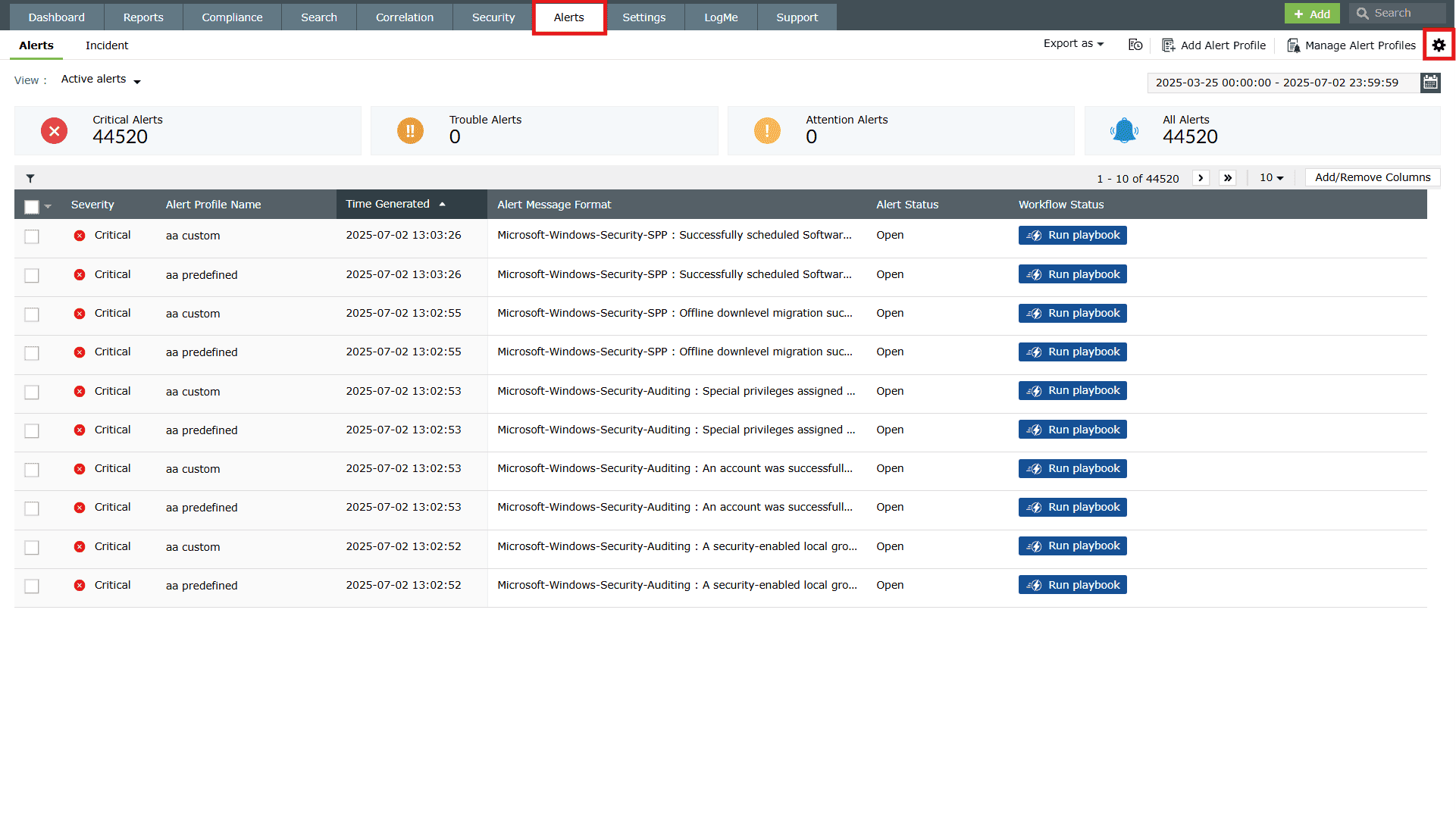
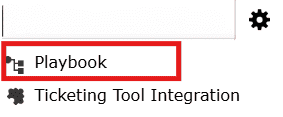
Image 1: More tools icon present in the Alerts tab - Click on Playbook to open the Manage Playbook page.
- Click on the Playbook Credentials present in the Manage Playbook page.
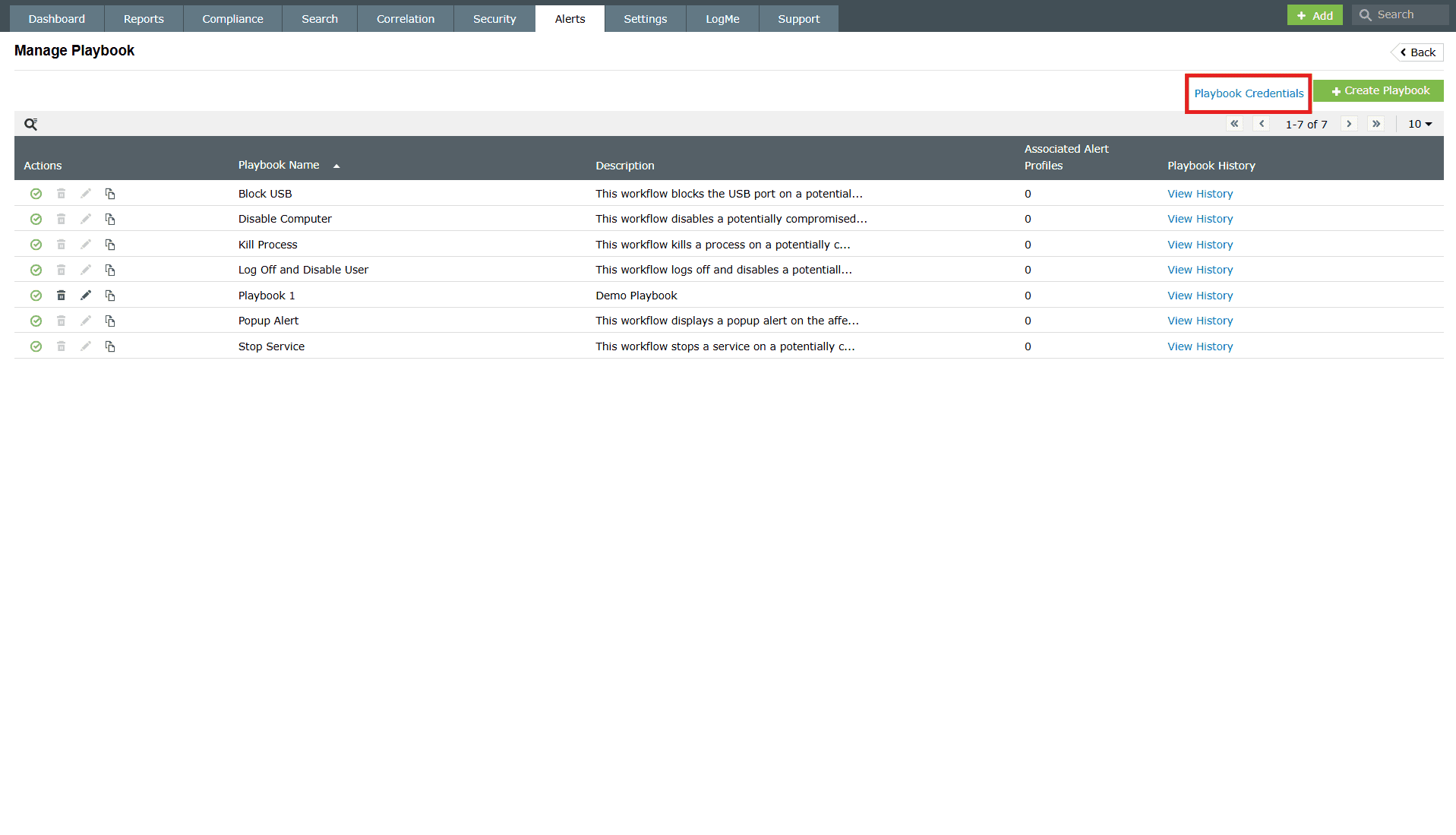
Image 2: Playbook credentials in the Alerts tab - When you click on Playbook Credentials, a pop-up appears to Edit Credentials.
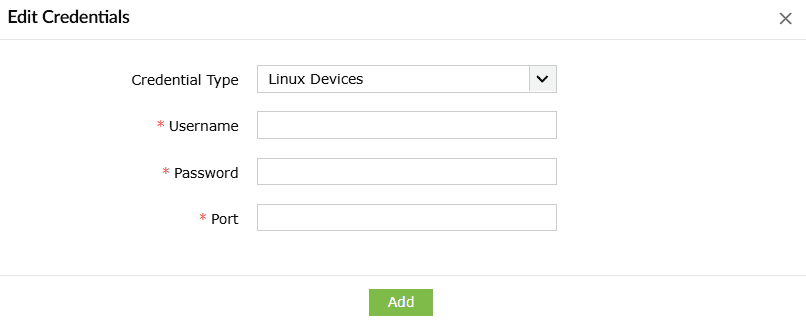
- Based on the device types, choose the Credential Type from the drop-down as shown below.
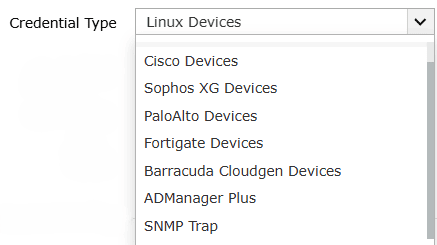
Continue reading to understand the step-by-step device specific guide to update playbook credentials.
To automate playbooks in Windows devices:
If the Windows devices have already been added to the product, playbooks can be executed by using the device credentials or the domain credentials of the devices. So, you need not manually update credentials for Windows devices.
To automate playbooks in Linux devices:
You can configure a set of common credentials for executing playbooks on all Linux devices.
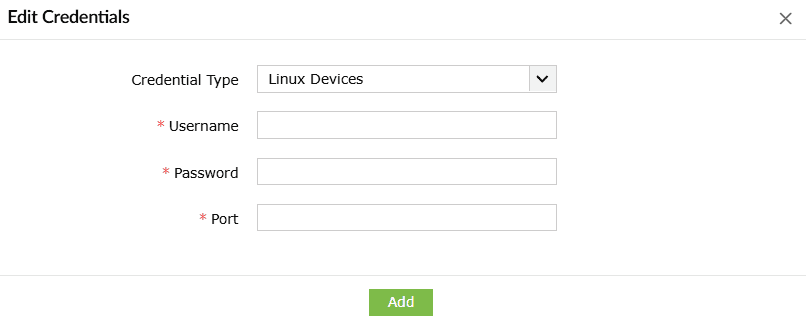
- Enter the Username, Password, and Port number.
- Click on Add to store and use these credentials to execute playbooks on all Linux devices.
To automate playbooks in Cisco devices
You must configure the REST API agent in the Cisco firewall to execute playbooks by following the steps given in this link. (The Cisco REST API supported versions are listed here).
You can configure a set of common credentials for executing playbooks in all Cisco devices as elaborated below:
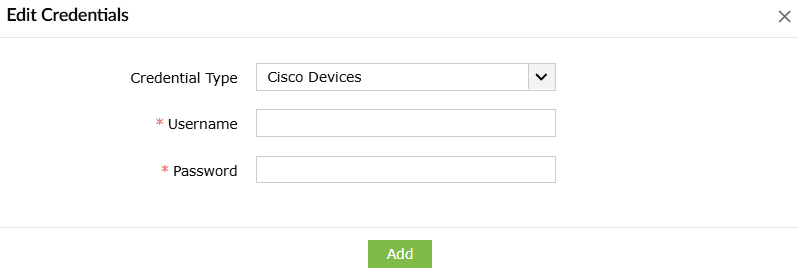
- Enter the Username and Password.
- Click on Add to store and use these credentials to execute playbooks on all Cisco devices.
If the common credentials do not work for certain Cisco Devices
You need to configure the credentials for those devices by following the steps given below:
- In the product console, navigate to Settings → Devices.
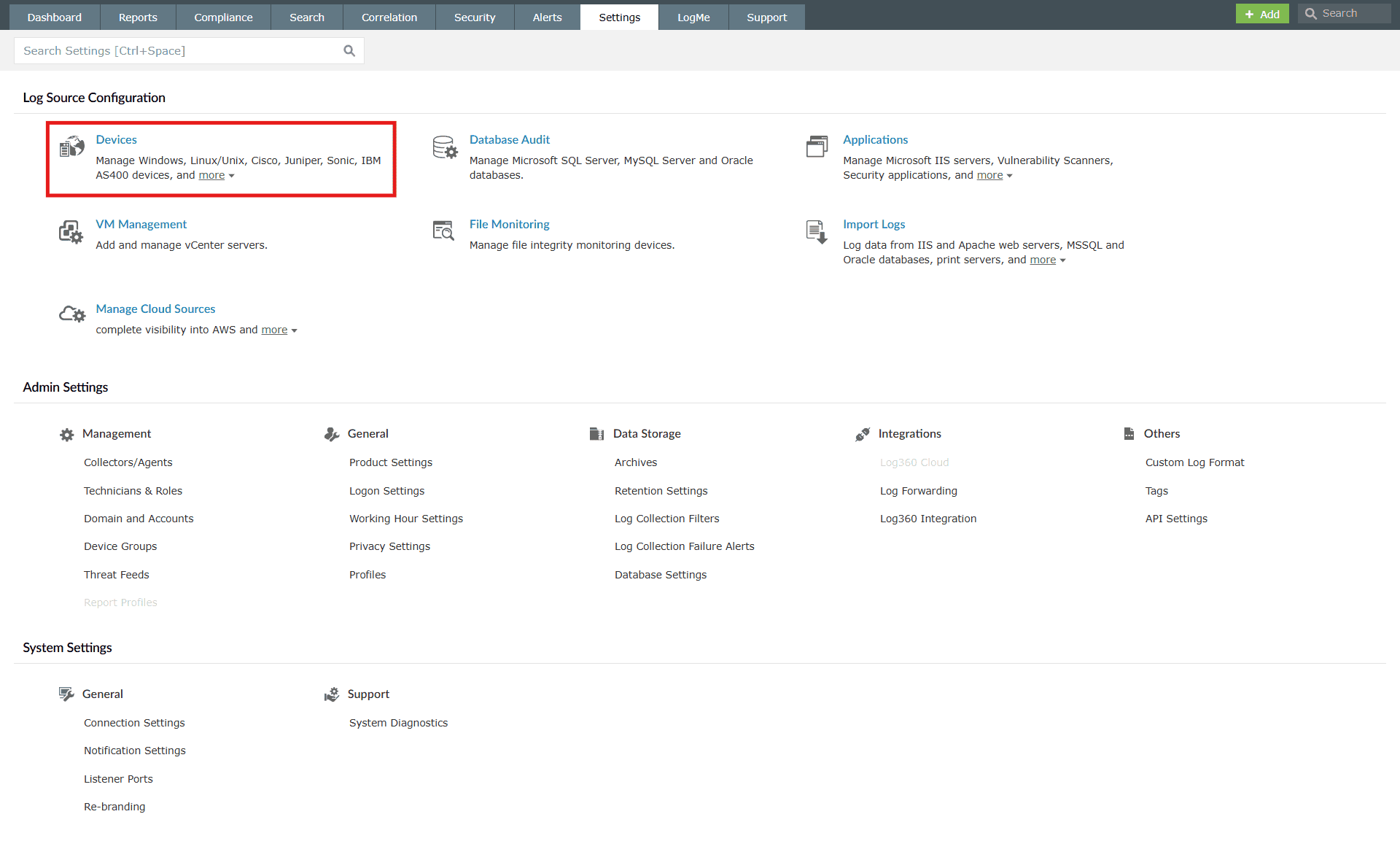
Image 3: Device settings via the Settings tab - Go to the Syslog Devices tab and hover your mouse pointer near the device on which you want to execute playbooks and click on the Edit icon.
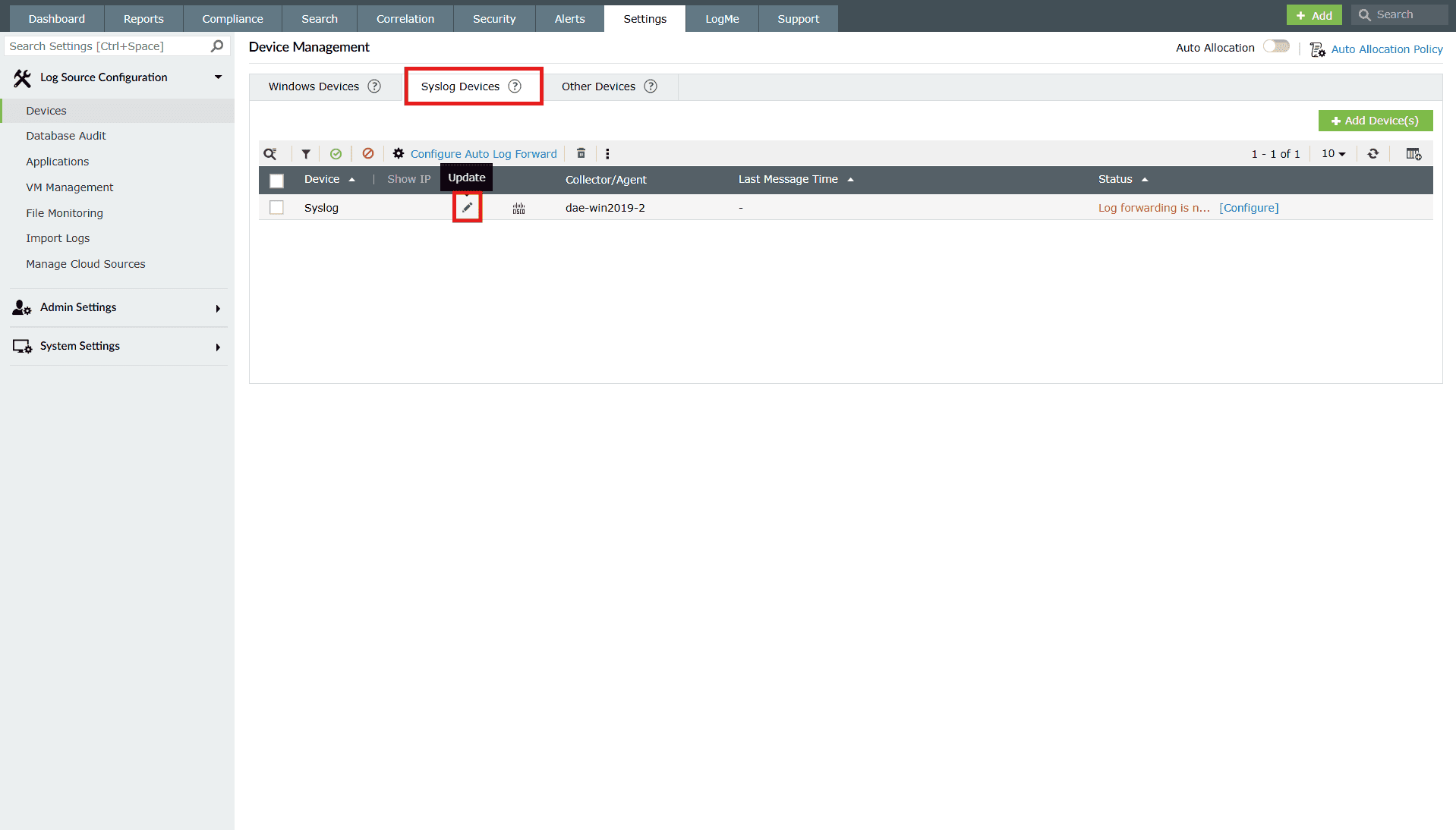
Image 4: Update Syslog device settings via the Settings tab - In the Update Device pop-up menu, click on Advanced.
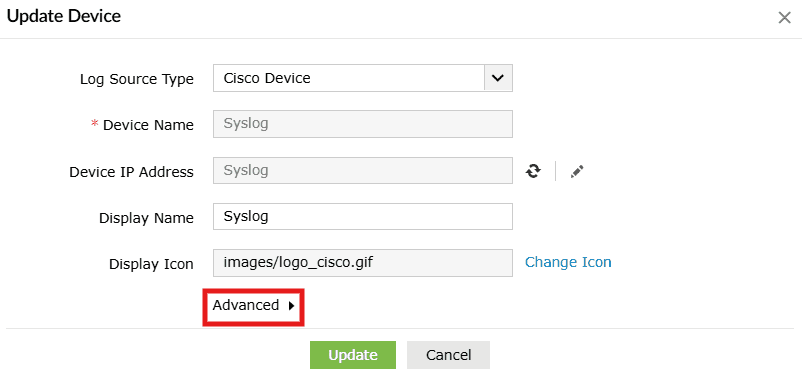
- Select the Configure REST API Credentials check box.
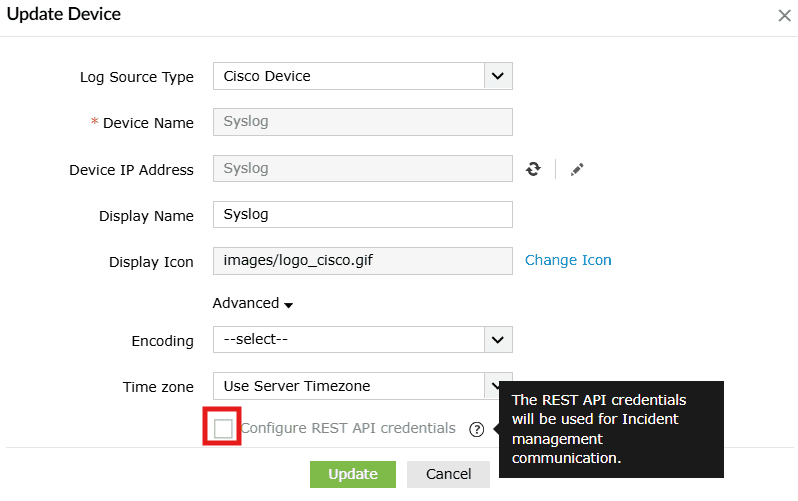
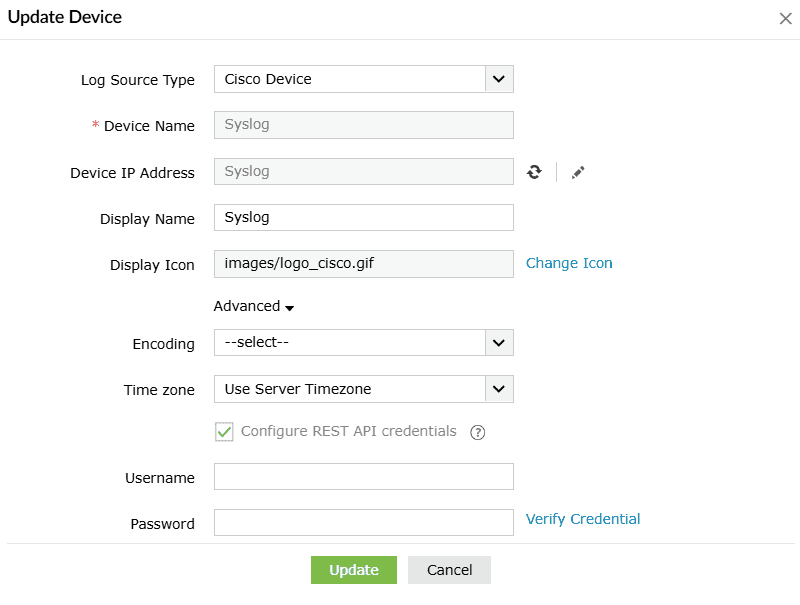
- Enter a Username and Password and click on Verify Credential to send a REST API call to the Cisco device to verify if the credentials are valid. Once the verification is complete, click on Update to store and use the specified credentials for executing playbooks.
To automate workflows in Fortigate devices
In order to generate an API token to execute playbooks on Fortigate devices, you need to create a new REST API Admin on your device using the steps given below:
Phase 1: Create Administrator profile
- Navigate to System from the sections listed on the left in the dashboard.
- Click on the Admin Profiles under the System section.
- Click the Create icon to start creating a new admin profile.
- You will see the New Admin Profile window open.
- Enter an appropriate name for your admin profile.
- Select access control permissions for different functionalities between None, Read, Read/Write or Custom.
- Select Read/Write for both Policy and Address options under Firewall Option.
- Click OK to create your new admin profile
Phase 2: Create a REST API Admin and generate an API key
- Navigate to System from the sections listed on the left in the dashboard.
- Select Administrators under the System section.
- Click on the Create New icon.
- Select the REST API Admin option.
- You will see the New REST API Admin window open.
- Enter an appropriate username for your REST API admin profile.
- Select your previously created Administrator Profile from the drop-down menu.
- Click on OK to confirm your New REST API Admin.
- Once you are done with this process, the system will automatically generate a new API key, which will be displayed only once.
- Copy the generated API key before shutting it down.
After this process, You can configure a set of common credentials for executing playbooks in all Fortigate devices by following the steps given below:
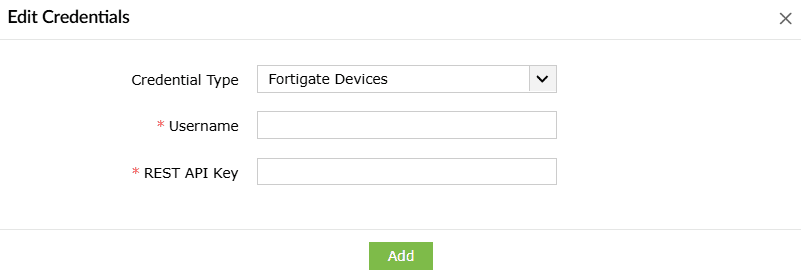
- Enter the Username and the REST API Key.
- Click on Add to store and use these credentials to execute playbooks on all Fortigate devices.
To automate playbooks in PaloAlto devices
Pre-requisites:
To execute playbooks successfully, API access should be enabled by following the steps given below.
Phase 1:
- Choose an Admin Role profile.
- Navigate to Device → Admin Roles and either pick an existing role or set up a new one.
Phase 2:
- Define the permissions available for the selected admin role.
- Open the XML API section.
- Turn on or off specific XML API capabilities like Report, Log, and Configuration.
- Click OK to apply and save your changes.
Phase 3:
Assign the configured admin role to the desired administrator account.
Please note that the required permissions for the user under XML API are:
- Configuration
- Operational Requests
- Commit
You can configure a set of common credentials for executing playbooks in all PaloAlto devices by following the steps given below:
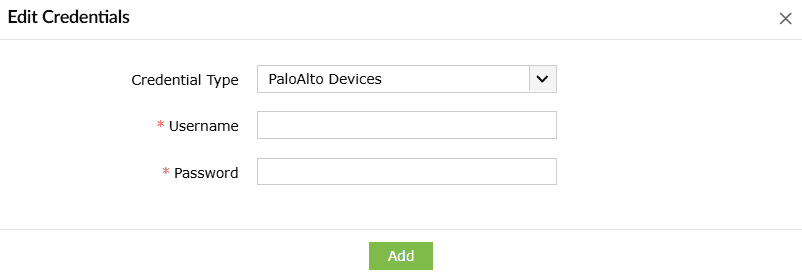
- Enter the Username and Password.
- Click on Add to store and use these credentials to execute playbooks on all PaloAlto devices.
To automate playbooks in SophosXG devices
You must configure the encrypted password to execute playbooks on SophosXG devices. You can generate the encrypted password using the steps given below:
Phase 1: Create an administrator profile
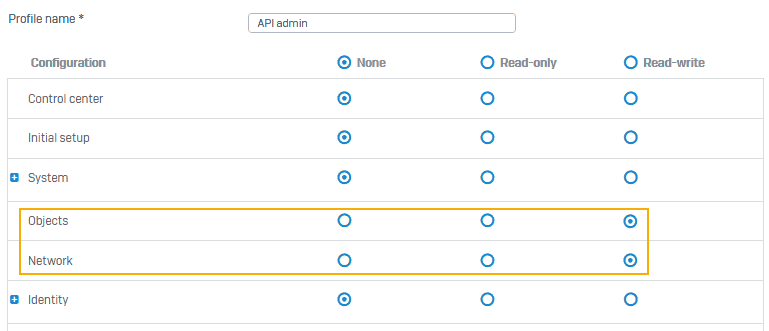
Log in to your Sophos application and create an administrator profile with read-write permission for objects and network.
- Go to Profiles > Device access and create an administrator profile with specific rights.
- Click Save.
Phase 2: Create an administrator
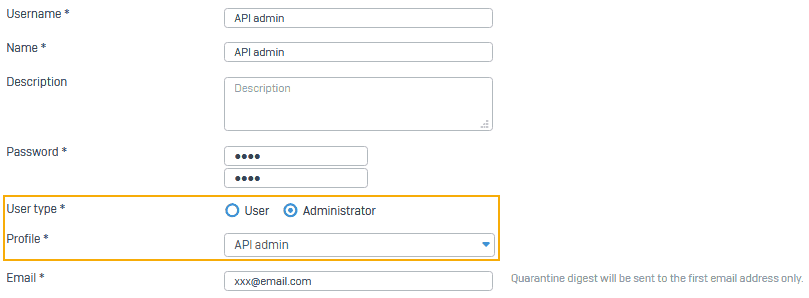
- Create a user and add the administrator profile.
- When you add a user with the API administrator profile, you can limit the administrator's rights based on the profile. Alternatively, you can use an existing administrator account.
- Go to Authentication > Users and click Add.
- Set User type to Administrator.
- Select the API administrator profile created in step 1.
- To allow access for a specific time, select the Access time.
- To allow access only from specific IP addresses, select an option for Login restriction for device access.
- Click Save.
Phase 3: Allow API access
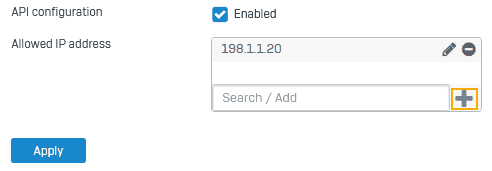
Turn on API configuration and allow API access from the administrator's IP address:
- Go to Backup and firmware > API.
- Select API configuration.
- For Allowed IP address, enter the IP address from which you'll make the API request and click the add icon.
- Click Apply.
Phase 4: To generate encrypted password
- Log in to advanced shell in the firewall.
- Execute the following command:
-aes-128-cbc-tool -k Th1s1Ss1mPlygR8API -t 1 -s <password>-
- Copy the password and use it in the API configuration.
The product will continue to support Sophos XG devices up to SFOS v19.0.
If you wish to integrate with newer versions of Sophos XG, please contact us. We can make the necessary adjustments in the database to accommodate the new API credentials mechanism.
All Sophos-related actions will continue to be supported.
After generating the encrypted password, you can configure a set of common credentials for executing playbooks in all SophosXG devices by following the steps given below:
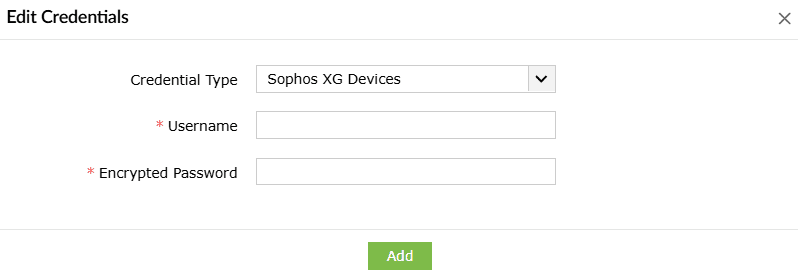
- Enter the Username and Encrypted Password.
- Click on Add to store and use these credentials to execute playbooks on all SophosXG devices.
To automate playbooks in Barracuda CloudGen devices
In order to execute playbooks in Barracuda CloudGen devices, you need to create an X-API Token using the steps given below:
Phase 1: Enable the REST API for HTTPS
- Navigate to CONFIGURATION > Configuration Tree > Box > Infrastructure Services > REST API Service.
- Click the Lock button to enable editing.
- In the HTTP interface section, enable the HTTPS interface option.
- Specify the port number you'd like to use for API requests in the HTTPS Port field.
- (Optional) To allow API requests through management IPs rather than the loopback address, enable the Bind to Management IPs setting.
- Click New Key to generate a private key of your preferred key length, or import your existing key.
- Click Ex/Import to either generate a self-signed certificate or upload an already existing one.
NOTE Ensure that the certificate’s common name matches the URI of your API request. For instance, if you're sending a request to https://CGF1.example:8443, the common name in the certificate should be CGF1.example.
Phase 2: Create an administrator profile for REST API authentication.
To authenticate with the REST API, a user account with the required privileges must exist, either in the Control Center for centrally managed firewalls or directly on the individual firewall for standalone setups. This user must hold the Manager role in both scenarios.
If you need a read-only user, you can duplicate the Observer role under the Control Center’s Administrative Roles section, enable the Access to REST API option, and then create a new user under CC-Admin with this custom role assigned.
Phase 3: Create an X-API Token for authentication.
- Navigate to CONFIGURATION > Configuration Tree > Box > Infrastructure Services > REST API Service.
- Select Lock to begin editing.
- From the left-hand panel, choose Access Tokens.
- Click the + icon in the Access Tokens area.
- Provide a name for the new token and click OK to proceed.
- In the window that appears, click Generate New Token.
- Specify the Admin username that will be used for authentication.
- Set the validity period in days under the Time to live field.
- Click OK to finalize and create the token.
After finishing the process, you can configure a set of common credentials for executing playbooks in all Barracuda CloudGen devices by following the steps given below:
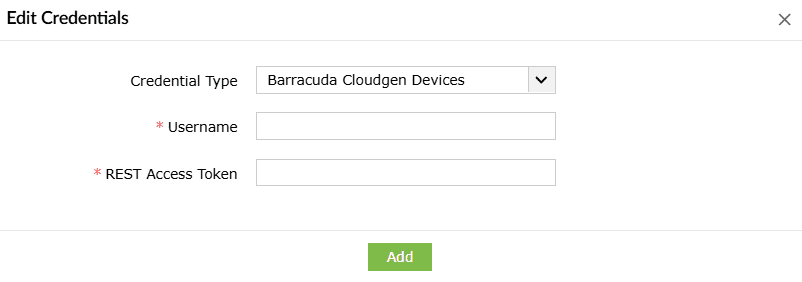
- Enter the Username along with the generated REST Access Token.
- Click on Add to store and use these credentials to execute playbooks in all Barracuda CloudGen devices.
Automating playbooks in ADManager Plus
ADManager Plus , an IGA solution with hybrid Active Directory management, reporting, and automation capabilities, must be integrated with Log360 for the successful execution of response playbooks. The list of actions that can be added to the playbook are called playbook blocks. These actions include:
- Enabling, disabling, updating, and deleting a user
- Enabling, disabling, and deleting a computer
- Resetting a user's password
- Adding to, and removing users from a group
Only after the integration is complete can any of these actions be carried out.
You can set up an integration in the product to execute actions via ADManager Plus. Here are the steps:
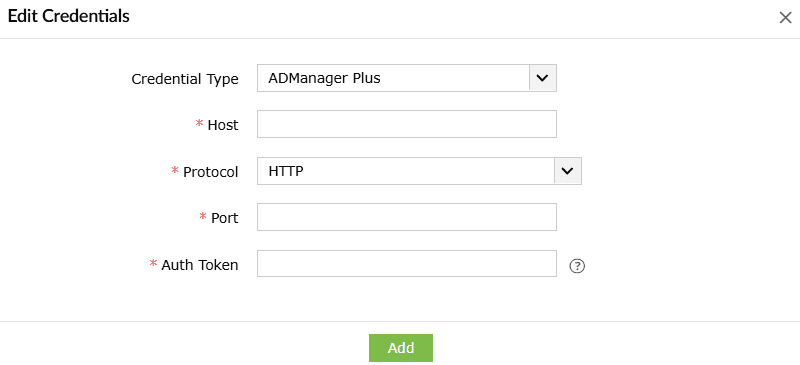
- After selecting the credential type as ADManager Plus, fill in the required details about the Host, Protocol, Port and Auth Token.
- Click on Add, to integrate ADManager Plus with the product.
Automating playbooks in SNMP TRAP
To automate all SNMP Trap playbooks, you can configure a common credential by following these steps:
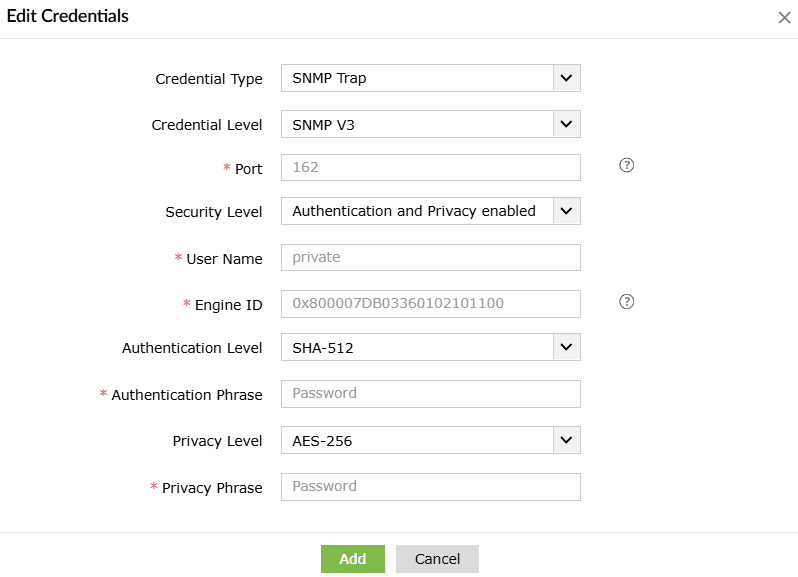
- After choosing SNMP Trap as the credential type, enter the SNMP credential.
- Click Add to save. This credential will now be used to execute all SNMP Trap playbooks.
NOTE Refer to the port management page for details on how to update credentials.
Read also
This document elaborated on a simple and step-by-step guide on how to update playbook credentials. If you're building workflows, explore how to create custom playbooks and assign device actions.