☰
Related Products
 ADManager Plus
 ADAudit Plus
 ADSelfService Plus
 M365 Manager Plus
The license delegation feature helps effectively manage the Microsoft 365 licenses delegated to technicians. You can limit license usage by technician, domain, and virtual tenant.
Technician-based: Admins can delegate selective licenses to a technician and limit the technician's usage count. For example, if the admin has delegated 15 Exchange Online licenses to technician A, then technician A cannot assign more than 15 Exchange Online licenses to users.
Domain-based: Admins can delegate selective licenses for a domain and limit their usage count for the domain. For example, if the admin has allocated 10 Microsoft Sway licenses to domain A, then a technician cannot assign more than 10 Microsoft Sway licenses for the users in domain A.
Virtual-tenant-based: Admins can delegate selective licenses for a virtual tenant and limit their usage count for the virtual tenant. For example, if the admin has allocated 10 Power BI licenses to virtual tenant A, then a technician cannot assign more than 10 Power BI licenses to the users in virtual tenant A.
Eg: For a license technician-based delegation, the limit is 10 and the limit for virtual-tenant-based is 50. If that technician used all the count on the virtual-tenant, there will be 0 licenses remaining for Technician and 40 for the virtual-tenant. Here this technician can't assign this license even though the virtual-tenant has 40 remaining.
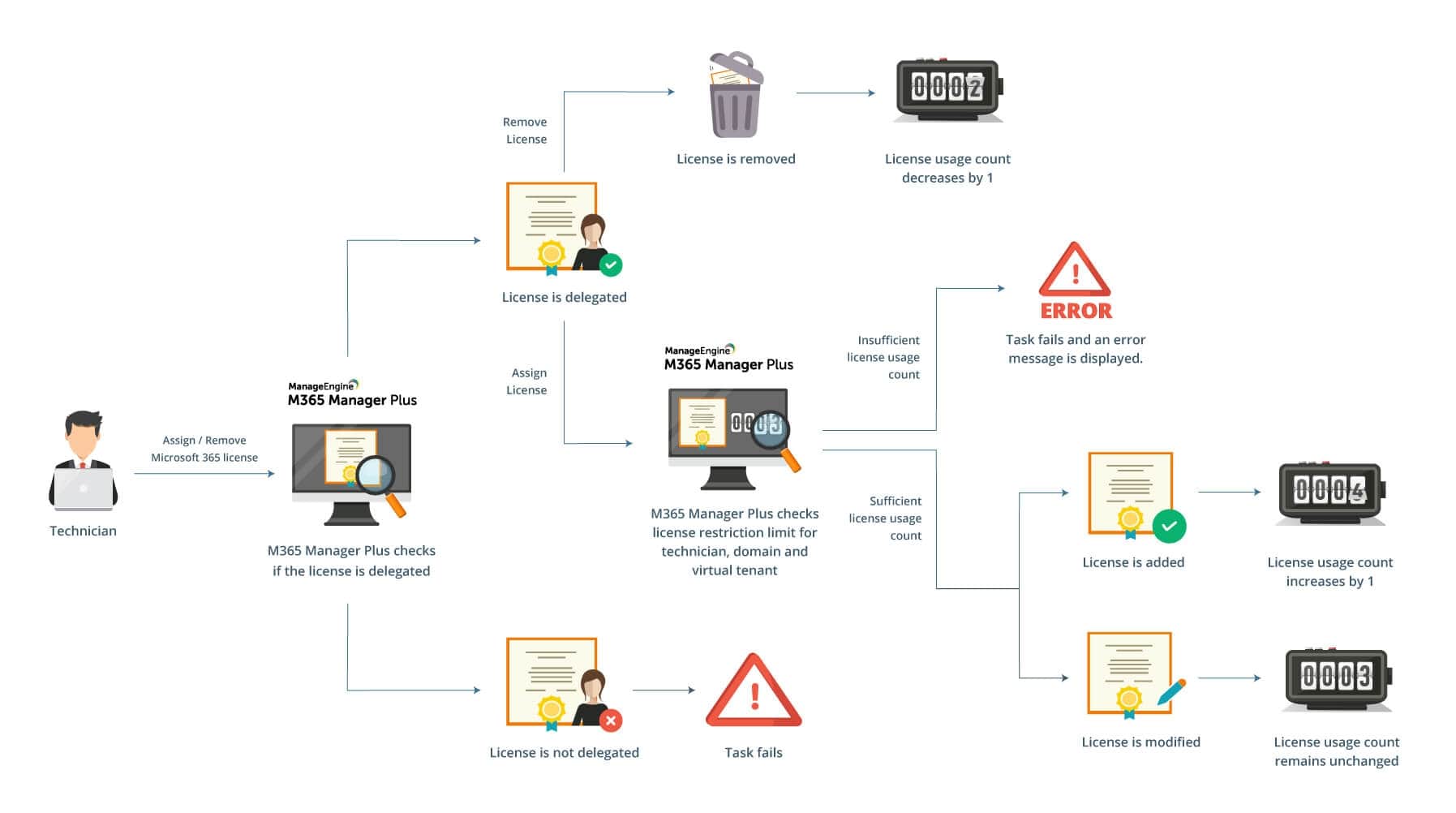
With only a limited amount of licenses delegated to a virtual tenant in M365 Manager Plus, they are bound to run out of them sooner or later. When they do run out, they cannot assign any more Microsoft 365 licenses.
You can configure a license quota notification for your virtual tenant that can alert your technicians when a set number of licenses remain in the threshold assigned to the virtual tenant. This notification informs technicians to contact their admins to update their virtual tenant's license thresholds.
Note: You need to create your own Virtual Tenant to set up license quota notifications.
Follow these steps in the M365 License Delegation tab to configure license quota notifications.
 edit icon under the Actions column corresponding to the notification quota to be modified,
 delete icon under the Actions column corresponding to the notification quota to be deleted, and
 enabled icon under the Actions column to disable the quota and the
  disabled icon to enable the quota.
Copyright © 2023, ZOHO Corp. All Rights Reserved.
 Previous Topic