Last updated: October 7, 2026
Customize ManageEngine MDM Self Service app
This page explains how to customize the ManageEngine MDM Self Service app across iOS, Android, and Windows platforms. Administrators can configure security settings to detect and remove jailbroken or rooted devices, manage how the Self Service app is distributed and displayed on enrolled devices, set up Device Access Recovery Keys, rebrand the app with custom logos and names, and choose between Immediate and Periodic communication modes to suit the organization's network environment.
iOS - Security Settings
On Identifying Jailbroken devices
Jailbroken devices give users additional capabilities which render the devices unsafe for enterprise use. To prevent the misuse of critical information, corporate data must be removed from such devices. MDM identifies Jailbroken devices during enrollment and during every scan. Upon detecting a Jailbroken device, the enrollment fails or the device is removed from management if it was previously managed.
Distributing ManageEngine MDM app to managed iOS devices
ManageEngine MDM app is required to detect jail-broken devices, distribute documents, remotely view device screens and track the location of managed devices. The option "Distribute ManageEngine MDM Self Service app to managed iOS devices" is enabled by default and ensures the ManageEngine MDM app is installed on all managed iOS devices. You can also configure the mail template for distributing the app, if needed. Also, the ManageEngine MDM app can be used for securing E-mail attachments as explained here.
Note: If users have not logged into their iTunes accounts on the devices, the ManageEngine MDM app will be available in the App Catalog. Users should enter their iTunes credentials to complete app installation. Once the ManageEngine MDM app is installed, the App Catalog will be removed from the devices.
Android
To manage Android devices, you need to configure ManageEngine MDM Self Service app settings. The app is installed in all the managed Android devices.
Note: After enrollment, ManageEngine MDM Self Service app will be auto approved in the Play Store and updated automatically if the default conditions are met.
You can customize the following:
Security Settings
Play Integrity Compliance
After enrollment and during periodic checks, MDM checks whether the device is rooted. When Wipe device when rooted is enabled, MDM removes the device's managed apps and corporate data, while leaving personal data and accounts intact. This wipe action is available only for rooted devices.
Profile Settings
Every time you distribute a profile with policies and restrictions to some devices, the end user is notified to accept the Policy. This can be customized by specifying a time limit for the end user to accept the policy. If the policy is not installed within the specified time, then the policy is moved to Violated Policies. If the user accepts the policy, then it is moved to Imposed Polices. If Passcode policy has been distributed to the devices and passcode has not been set according to the configured policy by the time specified, then all the apps except the ManageEngine MDM Self Service app, Settings and the Launcher app are disabled in the device. After the user sets the passcode, the disabled apps would be enabled. This is to protect corporate data when a corporate policy has been violated.
Managing ManageEngine MDM Self Service app
You can customize the ManageEngine MDM Self Service app settings by allowing users to remove app, hiding the app from managed devices, etc.
- Allowing user to remove ManageEngine MDM Self Service app
- Hiding ManageEngine MDM Self Service app on device
- Recovery Key
Allowing users to remove ManageEngine MDM Self Service app
If the user removes ManageEngine MDM Self Service app from the device, the device becomes unmanaged. This means that the IT Admin can no longer manage the user's device since ManageEngine MDM Self Service app is mandatory for device management. In case you still want to allow users to remove the ManageEngine MDM Self Service app, you can also configure a warning, which is displayed whenever the user attempts to remove the ManageEngine MDM Self Service app. This is not applicable for devices provisioned as Personally-Owned Work Profile (BYOD, or previously Profile Owner)(Work Profile).
You can restrict users from removing the ManageEngine MDM Self Service app. This is supported for Android devices running 5.0 or later versions and the device should be provisioned as Fully Managed (COSU and COBO, or previously Fully Managed (COSU and COBO, or previously Device Owner)). For devices enrolled via DEP, users can be restricted from removing ManageEngine MDM Self Service app as explained here.
Hiding ManageEngine MDM Self Service app on device
You can choose to hide the ManageEngine MDM Self Service app on the managed device. In this case, users cannot open ManageEngine MDM Self Service app to access the App Catalog on the app. Hence, they will not be able to download apps distributed to the App Catalog.
Usually, when a device is unmanaged, the ManageEngine MDM Self Service app present in the device can be easily removed by the users manually. The data including all profiles and apps is removed automatically. But in some cases, if you remove a device from management when ManageEngine MDM Self Service app is hidden on a device, the app may not be removed from the device, due to certain server connectivity problems. To avoid such issues, you can consider the following:
NOTE: Hide ManageEngine MDM Self Service app is not applicable for Samsung devices running 10.0 or later. For these OS versions, it is recommended to enroll via Full Device Management (Fully Managed (COSU and COBO, or previously Fully Managed (COSU and COBO, or previously Device Owner))) and Company-Owned Work Profile (WPCO/COPE, or Company-Owned Work Profile (WPCO/COPE, or Workspace Managed)) (Personally-Owned Work Profile (BYOD, or previously Personally-Owned Work Profile (BYOD, or previously Profile Owner))).
Now, use Device Access Recovery Key to disable Device Administrator rights for ManageEngine MDM Self Service app and then remove it.
Device Access Recovery Key
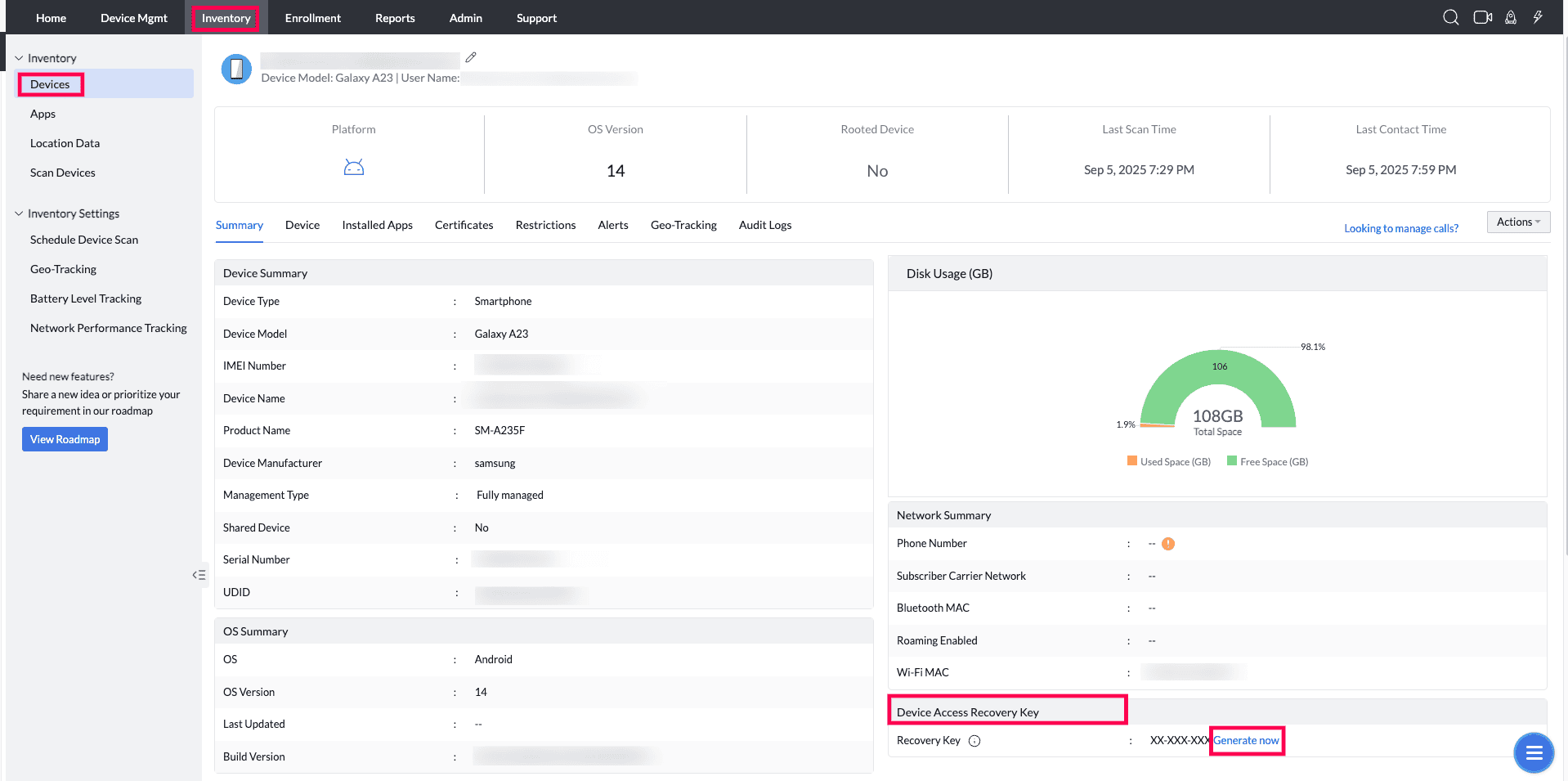
Revoke Administration Password has been enhanced as Device Access Recovery Key. MDM provides a recovery key to regain access and revoke management on devices that are offline or unresponsive. This key acts as a secure backup when standard authentication methods fail. Follow the steps mentioned below to create a Recovery Key:
- On the MDM console, navigate to Inventory->Devices->Click the Device Name to open the device details->On the Summary Page->Device Access recovery Key. Click the Generate Now option to Generate the Recovery key.
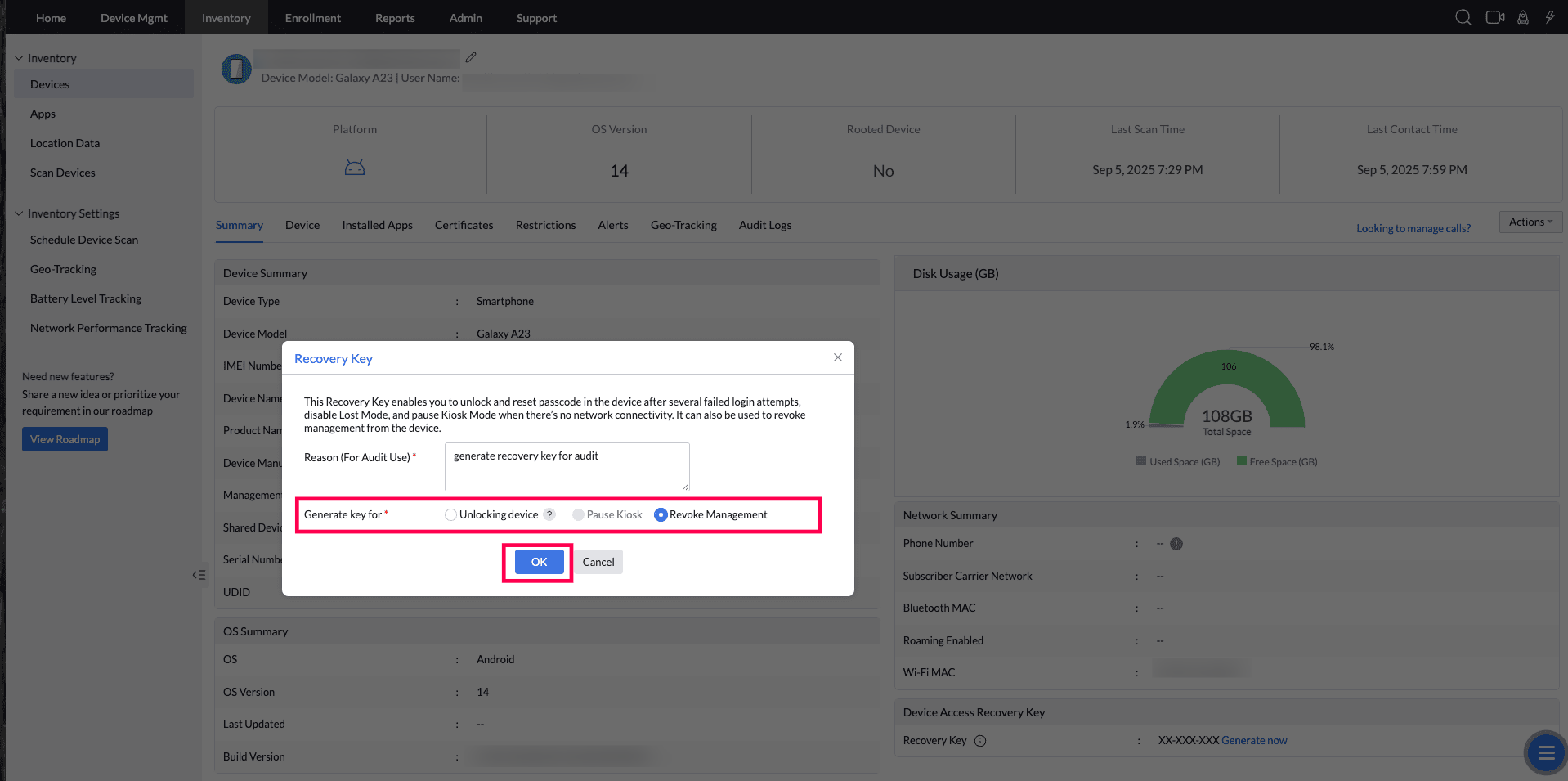
- Select the Recovery Key type and provide the additional details alick "OK" to generate the key.
- A Recovery Key will be generated. The generated recovery key remains time-bound and secure. Each key is unique to the device and expires after this period.
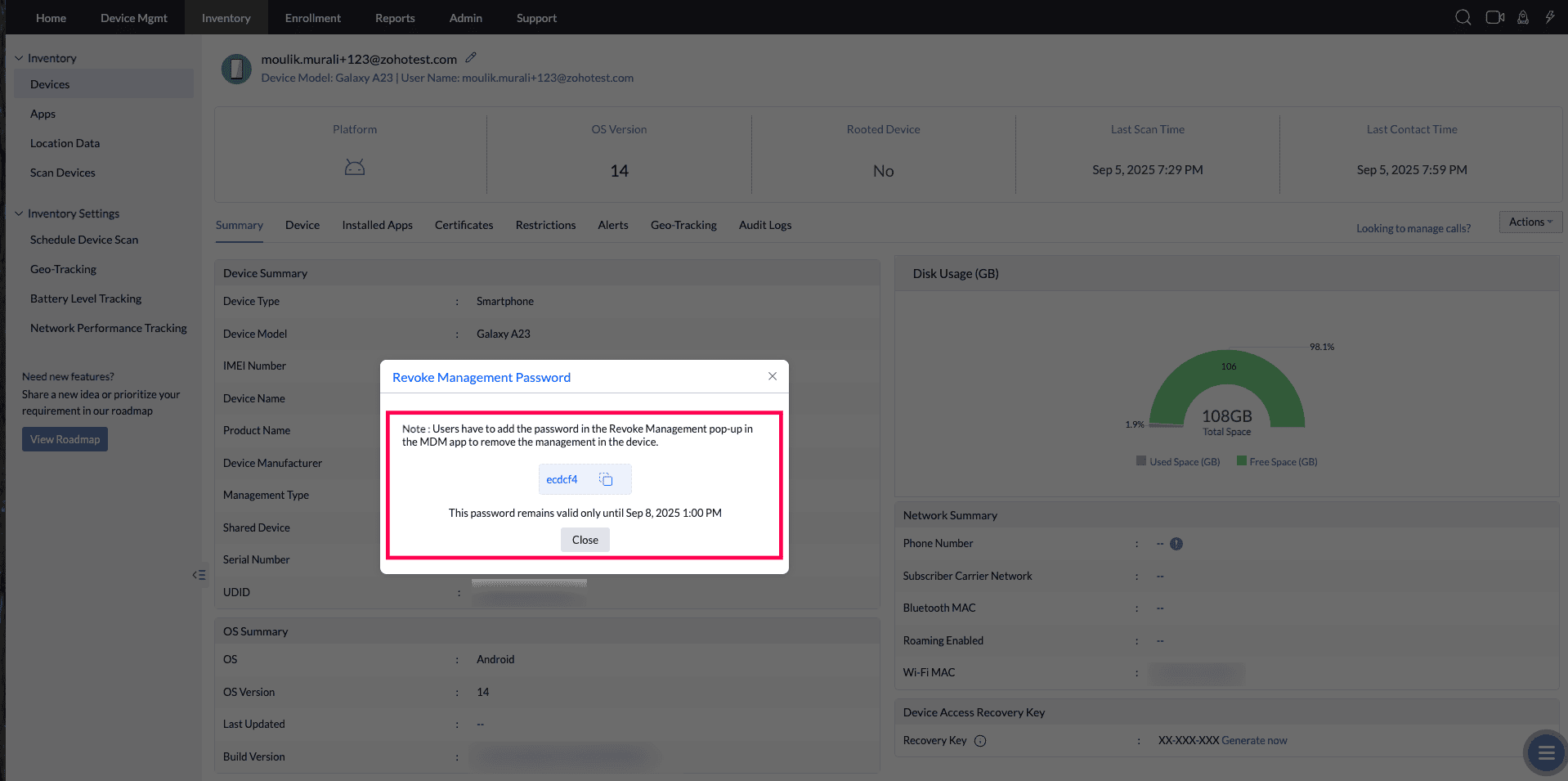
To enter the "Device Recovery Key" on the device, first Click the ManageEngine MDM Self Service app icon and click four times on the top pane where the app name is visible. A Password Prompt dialog box appears where the password can be entered. For detailed information, visit our Device Access Recovery Key guide. If the ManageEngine MDM Self Service app is hidden, refer to these steps, to know how to Recovery Key.
Rebranding ManageEngine MDM Self Service app
If you want to use your enterprise's logo as the icon for ManageEngine MDM Self Service app or rename the ManageEngine MDM Self Service app, then you can use this feature. ManageEngine MDM Self Service app can be re-branded, the display name of the app can be renamed, app icon can be modified and even the startup screen image can be customized. Follow the steps mentioned below to rebrand the ManageEngine MDM Self Service app:
- On the web console, navigate to the Admin tab and ClickRebranding
- Here you can change the logo displayed on the Server and the website that you need to link.
- To make app-related changes, Click the Enrollment tab and select ManageEngine MDM Self Service app from Android in the left pane.
- Here you can change the app logo, app name and the app's startup screen.
On Samsung devices, the MDM logo can be customized both on the launcher and within the MDM app. On non-Samsung devices, customization is limited to within the MDM app.
The ManageEngine MDM Self Service app is now re-branded based on your preferences.
Configuring Mode of Communication
You can choose one of the following modes of communication to enable efficient communication between your MDM server and managed mobile devices.
Immediate Mode
You can choose this mode of communication when you have uninterrupted internet access for server-device communication. All communications between the MDM server and managed mobile devices will occur instantly via Firebase Cloud Messaging(FCM).
On selecting 'Immediate mode', you should choose either Google Play Store or MDM Server to download the ManageEngine MDM Self Service app which is required during device enrollment.
- It is recommended to download ManageEngine MDM Self Service app from the Google Play Store.
- You can choose to download ManageEngine MDM Self Service app directly from MDM Server in circumstances when access to Google Play Store is restricted or when the device is not registered and does not have a Google Account linked to it.
Periodic Mode (Enroll devices within the corporate network/Wi-Fi)
Periodic mode is an alternative to Immediate Mode and is the preferred mode of communication between the MDM server and mobile devices, when there is limited public internet access within your organization, or if there is no access to Google apps and/or services. In this mode the managed mobile devices communicate with MDM Server once every 60 minutes, hence it is not possible to carry out on-demand actions such as remote lock, complete wipe etc. immediately.
On choosing this option, the ManageEngine MDM Self Service app which is required for device enrollment, can be downloaded by default, only from the MDM Server.
- It is recommended not to switch between Immediate mode and Periodic mode frequently, to avoid problems in communication between the server and managed mobile devices.
- When you switch from Periodic mode to Immediate mode as the preferred mode of communication, it is necessary to check if there is internet access and that the mobile devices are registered with Google i.e., they have a Google Account linked to them.
Download Mode of ManageEngine MDM Self Service app
As a part of enrollment, every device would have downloaded the ManageEngine MDM Self Service app. The ManageEngine MDM Self Service app can be downloaded from the Google Play Store or MDM Server. You can choose to configure the mode by which the download should take place. You can configure this mode by following the steps mentioned below:
- On the web console, click Enrollment
- Under Android click ManageEngine MDM Self Service app
- Under distribute ManageEngine MDM Self Service app settings, choose the mode, for the users to download ManageEngine MDM Self Service app. You can choose to download the App either from the Google Playstore or from MDM Server.
- Click Save Changes
If you choose Periodic mode, you will have to ensure that the server is reachable at port 8020/9020, for the users to initiate download.
You have successfully configured the download mode for ManageEngine MDM Self Service app.
Windows
Allowing user to delete MDM Workspace account
In case the user no longer requires the device or leaves the organization, it is necessary to remove all your enterprise details from the mobile device. When this option is enabled, users can delete the ManageEngine MDM Workspace account on the device.
If you allow users to delete ManageEngine MDM Workspace account from the device, the device becomes unmanaged on deleting the account. Hence, it is recommended to disable this option.
Communication Type
You can choose one of the following modes of communication to enable efficient communication between your MDM server and managed mobile devices.
Immediate Mode
You can choose this mode of communication when you have uninterrupted internet access for server-device communication. All communications between MDM server and managed mobile devices will occur instantly via Windows Notification Service (WNS).
Periodic Mode (Enroll devices within the corporate network/Wi-Fi)
Periodic mode is an alternative to Immediate Mode and is the preferred mode of communication between MDM server and mobile devices, when there is limited public internet access within your organization or if the organization has strict security standards. In this mode the managed mobile devices communicate with MDM Server once every 60 minutes, hence it is not possible to carry out on-demand actions such as remote lock, complete wipe etc. immediatelyIn this mode the managed mobile devices communicate with MDM Server once every 60 minutes, hence it is not possible to carry out on-demand actions such as remote lock, complete wipe etc. immediately.
- It is recommended not to switch between Immediate mode and Periodic mode frequently, to avoid problems in communication between the server and managed mobile devices.
- When you switch from Periodic mode to Immediate mode as the preferred mode of communication, it is necessary to check if there is Internet access.
If you allow users to delete ManageEngine MDM Workspace account from the device, the device becomes unmanaged on deleting the account. Hence, it is recommended to disable this option.
Frequently Asked Questions
1. Can I rebrand the ManageEngine MDM Self Service app with my company logo?
Yes. In the Self Service app settings on the MDM console, you can upload a custom logo and specify a custom app name so the app appears with your organisation's branding on enrolled devices.
2. What happens when a user removes the ManageEngine MDM Self Service app from their device?
The device becomes unmanaged. The MDM administrator can no longer push profiles, apps, or policies to that device. To prevent this, you can disable the option that allows users to remove the Self Service app from their devices.
3. Can I hide the ManageEngine MDM Self Service app on managed devices?
Yes. You can choose to hide the Self Service app on managed devices. However, note that if the app is hidden when the device is unenrolled, the app may not be automatically removed from the device.
4. What communication modes are available for the Self Service app?
The Self Service app supports two communication modes: Immediate mode, where the app connects to the MDM server as soon as a change is made, and Periodic mode, where the app checks in at regular intervals. Periodic mode is recommended when devices access the MDM server over a WAN or slow network.