Last updated: August 14, 2026
Web Shortcuts
Web Shortcuts (also known as Web Clips) in Mobile Device Manager Plus enable IT admins to create URL shortcuts on managed Android devices, minimizing user effort to access frequently used resources such as intranet portals. Admins can configure the display name, icon, browser type (restricted or unrestricted access), screen orientation, copy-paste permissions, and cache settings. Web Shortcuts can also be integrated with Kiosk mode for single-purpose devices, and multiple shortcuts are automatically grouped into a dedicated folder on the device.
Web Shortcuts or Web Clips is used for creating shortcuts of URLs on managed Android devices. Web Shortcuts display the content of the linked URL. The main advantage of using Web Shortcuts is the time saved by ensuring minimal user action is required to access the content in the URLs. IT admins can create shortcuts to URLs and place these web shortcuts on the device's screen similar to an app.
Web Shortcuts can generally be used in the following scenarios:
- Frequently accessed URLs such as intranet resources of an organization can be made into Web Shortcuts to ensure easy accessibility.
- Web Shortcuts can be used in cases where the user needs to regularly access specific URLs, to use certain web resources.
- Web Shortcuts can be configured with Kiosk if the only purpose of the managed device is to display the contents of a URL.
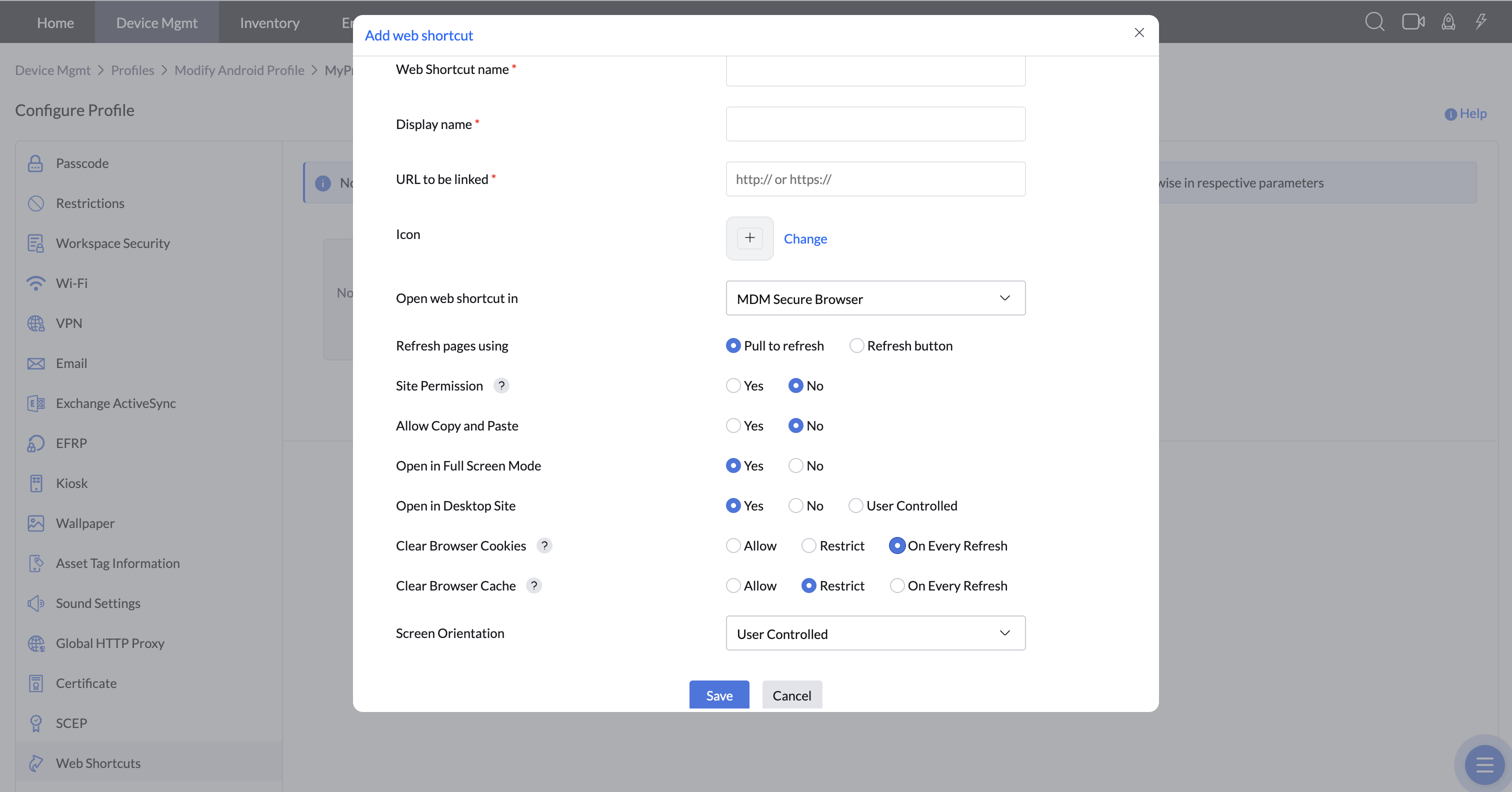
| PROFILE SPECIFICATION | DESCRIPTION |
|---|---|
| Web Shortcuts Name | The name to be displayed for the Web Shortcut in the device. |
| Display name | The name to be displayed for the Web Shortcut in the device. By Default it takes the Web Shortcuts Name. |
| URL to be linked | The URL whose contents are to be displayed when the Web Shortcut is opened. Dynamic variables can also be used in URL. Note: 1. You can add a maximum of 15 web shortcuts per policy. 2. All the http URLs will be loaded in Chrome Custom Tab and not Web View for security reasons. However, https URLs will be loaded in Web View. 3. In the URL to be linked field, one can provide "tel:" followed by numbers to open the dialer app with the number. |
| Icon | Provide the image to be displayed as the icon for the Web Shortcut. |
| Open Web Shortcuts in | This option allows you to select the browser for displaying Web Shortcut content. Choosing the browser with restricted access ensures users can only view the linked URL and its associated content without modifying the primary address. This restriction prevents navigation to other web resources and blocks browser-related actions, enhancing security. In contrast, displaying the Web Shortcut in a non-restricted browser allows users to freely edit the URL. For better control and security, it is recommended to use the restricted access browser option for Web Shortcuts. Note: For a Camera app to launch successfully from a MDM Secure Browser, the ManageEngine MDM Self Service app (previously ManageEngine MDM app) must have explicit Camera permission. To enable, on the MDM console, navigate to Device Management → App Repository → search for 'ManageEngine MDM Self Service' → Permissions → Camera. Distribute the ManageEngine MDM Self Service app on the device from the MDM admin console. |
| Note: The following settings applies only for web shortcuts configured in MDM Secure Browser. | |
| Refresh pages using | This allows the administrator to select from two options, either Pull to refresh or the Refresh button for users to refresh their browser pages. This can be configured only when Browser with restricted access is enabled. |
| Site Permission | Enable this option to automatically grant the permissions required by the web shortcuts provisioned. |
| Allow copy and paste | Allow/Restrict copy-paste functionality in web shortcuts. |
| Open Web Shortcut in Specific App | Launches web shortcuts in a designated app. |
| Open in Full Screen Mode | Displays web shortcuts in full-screen mode. |
| Open in Desktop Site | Loads web shortcuts in desktop view. |
| Allow user to clear cache | Allow/Restrict user from clearing cache. |
| Allow user to clear cookies | Allow/Restrict user from clearing cookies. |
| Screen Orientation | This option lets you lock the device in the required orientation. You can choose from User Controlled, Portrait or Landscape. Note: For Android 16 and above, screen orientation restrictions are no longer enforced on displays with device width ≥ 600dp. Orientation is now user-controlled by default. Learn more |
Web Shortcuts Behavior on Devices
- Profile Associated with a Device: Once a profile is published and associated with a device, A web shortcut is created on the device. The shortcuts appear in the device’s default browser. While creating the Profile if "Browser with restricted access" has been configured then on the device the shortcut will appear.
- Web Shortcuts with Kiosk Mode: By default, shortcuts are displayed in the "Browser with restricted access". If a browser app is provisioned under Kiosk (multi-app), shortcuts will appear there instead.
Multiple Web Shortcuts: If Multiple Web Shortcuts are created, then A folder named "Web Shortcuts" is automatically created on the device. All web shortcuts from the profiles are grouped inside this folder.
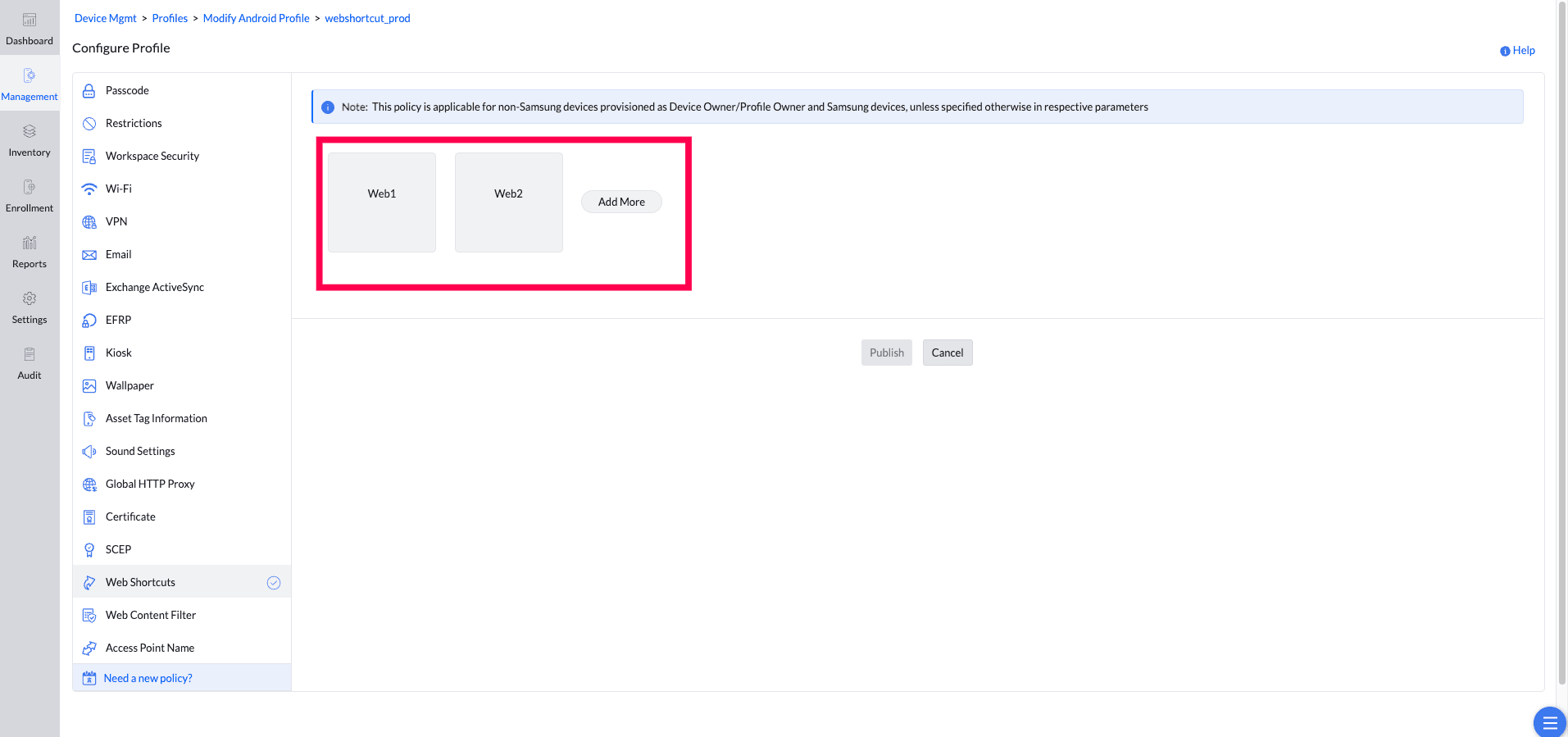
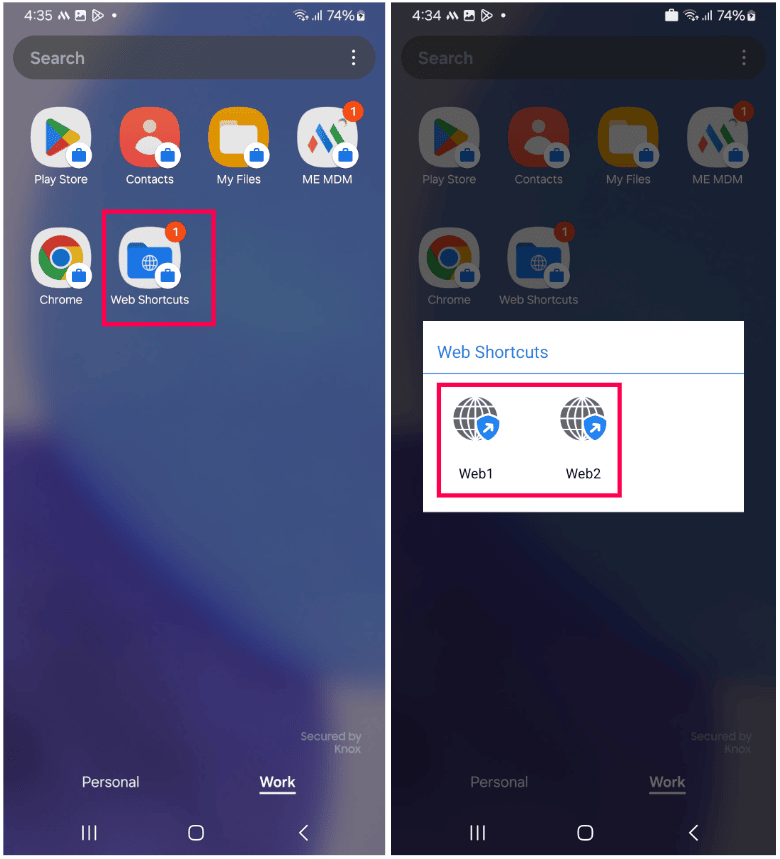
- If an end user needs to add a web shortcut to their device's home screen, they must long-press on the web shortcut icon and select the "Add to Home Screen" option. This will create a quick-access shortcut for easy navigation.
Frequently Asked Questions
How can I upload an image on the website using a device managed with a Web-shortcut profile?
When uploading an image, you will see two options:
- Upload from File Manager: Select an image directly from your device’s storage.
- Capture from Camera: Take a photo using the device’s camera and upload it. If your browser has restricted access, the "Capture from Camera" option requires camera permission for the Self Service app (previously ME MDM app). To enable navigate to Device Management → App Repository → search for 'ManageEngine MDM' → Permissions → Camera.
- Why does the Secure Browser redirect HTTP URLs to Chrome Custom Tabs instead of loading them within the WebView?
The Secure Browser in ManageEngine Mobile Device Manager Plus is designed with specific security restrictions regarding mixed content. While HTTPS URLs load successfully within the embedded WebView, HTTP URLs are not supported directly in the WebView due to these security constraints. Instead, when an HTTP URL is encountered, the system automatically redirects the request to a Chrome Custom Tab to ensure safe rendering. This is expected behavior and not a malfunction. To verify this, configure an HTTP URL within the secure browser profile; you will observe that it opens in Chrome Custom Tabs rather than the WebView.