Last updated: July 24, 2026
Security policy restricts use of Smart Switch
Problem
End user is attempting to set up the Samsung Smart Switch app on Samsung Legacy Device Admin devices; the error message "Security policy restricts use of Smart Switch" is displayed. This prevents the app from functioning as expected.
Cause
This issue arises because Samsung Smart Switch is primarily designed for personal use. When used in an enterprise setting with Samsung Legacy Device Admin devices, security policies configured through MDM can restrict its operation. These restrictions are due to the app’s inability to align with certain enterprise-level compliance policies unless explicitly configured.
Resolution
To resolve this issue, ensure that Samsung Smart Switch is properly configured and approved through Managed Google Play with the necessary Managed App Configuration settings. Follow the steps below:
Pre-requisite:
Before proceeding, ensure the following pre-requisites are met:
- The MDM must be integrated with Managed Google Play.
- Verify that the devices support Samsung Smart Switch.
- Smart Switch app must be enabled to run in the Managed App Configuration.
Steps to Add and approve Samsung Smart Switch in MDM App Repository
- Navigate to the Device Mgmt->App Repository.
- Click on +Add App->Play Store App->Search for the Samsung Smart Switch app.
- Click on "Select" and click Save&Sync button to add the app to the app repository.
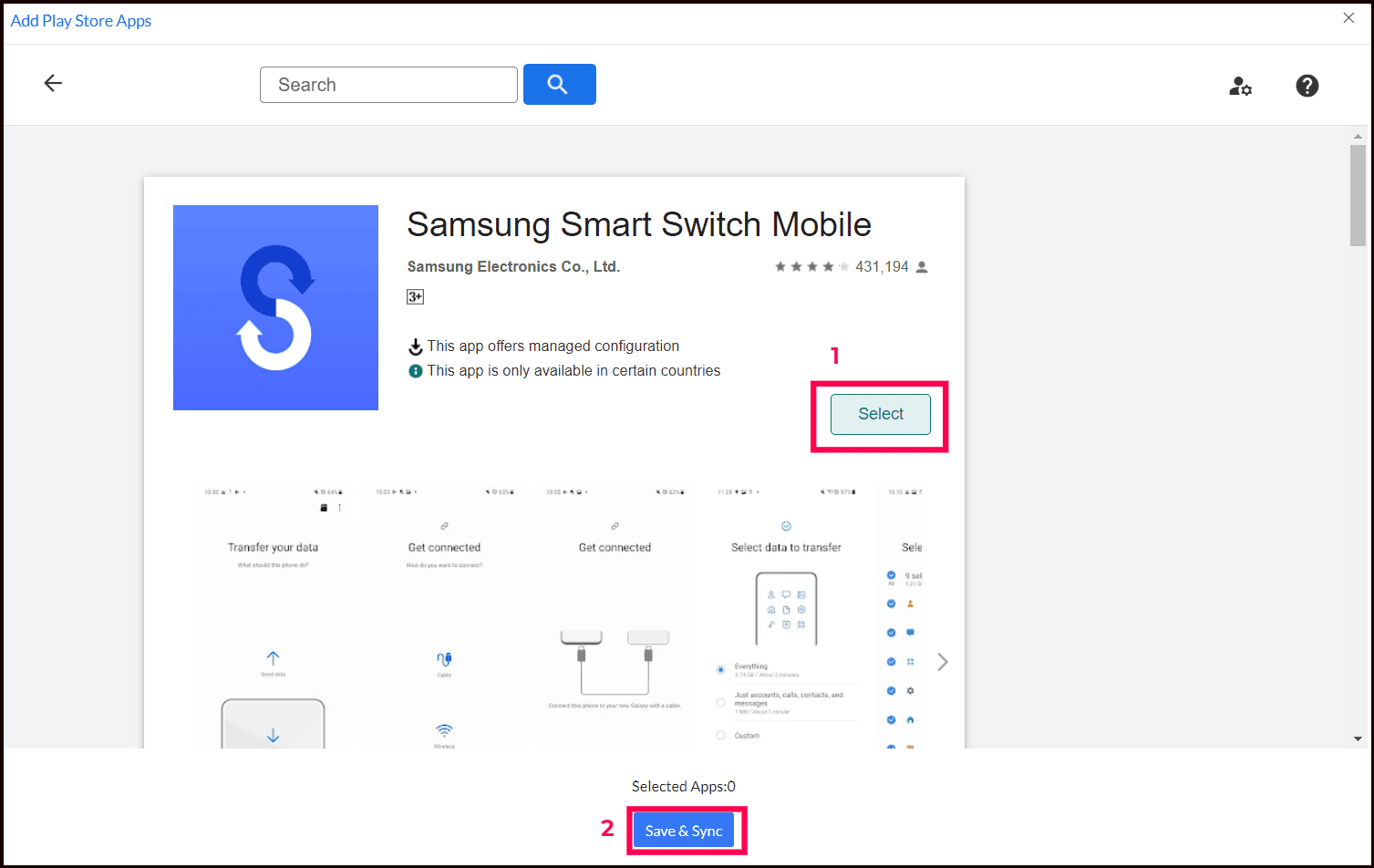
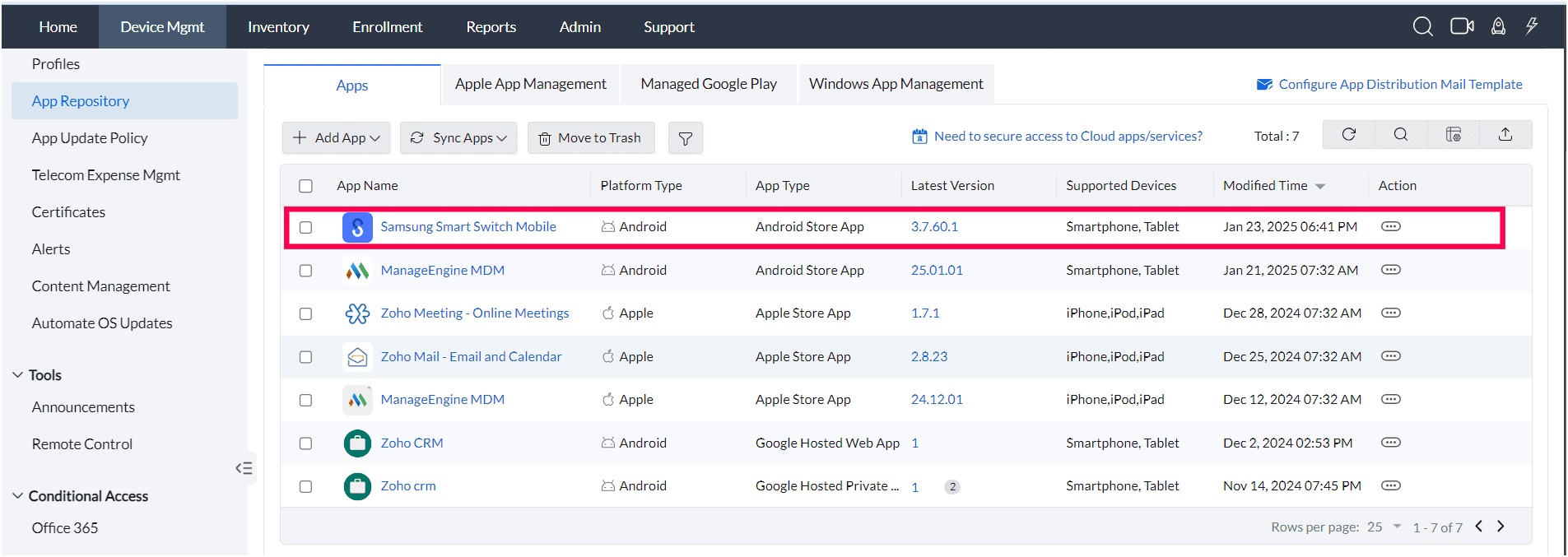
- Click on the Samsung Smart Switch app. Select Configurations, Enable the "Allow SmartSwitch Run" toggle. Click on save to add the Samsung Smart Switch app as an approved app.
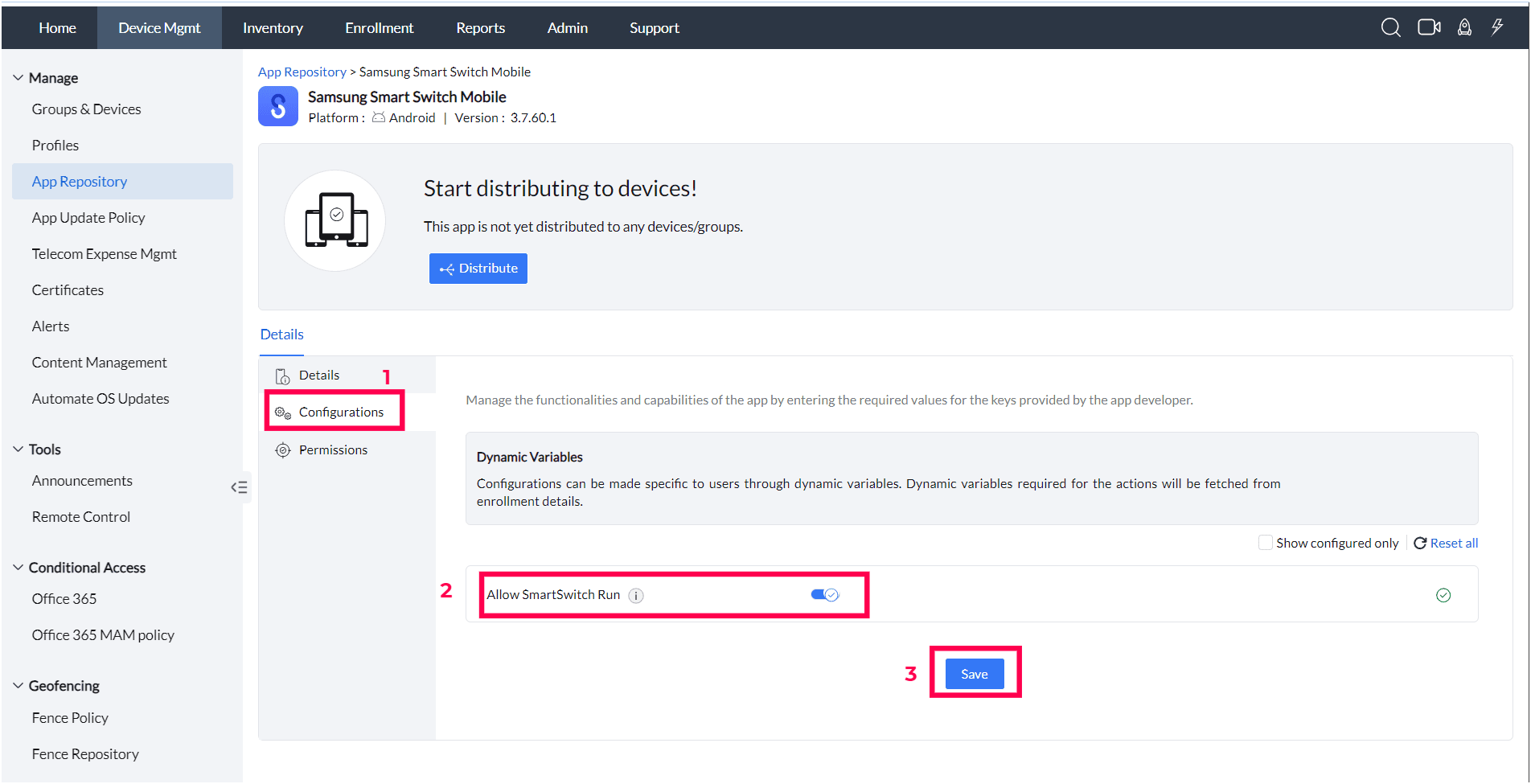
- Click on "Distribute" to distribute the app to the devices or groups.
Enable Smart Switch (Knox Service Plugin)
If Samsung Smart Switch is blocked by MDM restrictions and the device is managed with a Knox Service Plugin (KSP) OEMConfig profile, enable the Allow Smart Switch option in the OEM profile.
Location in Knox Service Plugin OEM Profile:
Device-wide policies → Device Restriction → Allow Smart Switch
Steps
- Navigate to Profiles → Create Profile and select the Android platform.
- Set Profile Type to OEMConfig Profile, choose Knox Service Plugin as the OEM config app, and click Continue.
- Under Device-wide policies, enable Enable device policy controls.
Under Device Customization controls (Premium), enable Enable device customization.
Under Device Restrictions, enable Enable device restriction controls and Allow Smart Switch. - Distribute the profile to the target devices or groups.
Notes:
- The Samsung Smart Switch app might not work as intended on all devices due to its design for personal use.
- The app’s functionality depends on enabling the Managed App Configuration settings. Failure to configure these settings may result in app malfunction.
- For a detailed explanation and troubleshooting, refer to Samsung’s knowledge base article.