Advanced Reports
OpManager offers Advanced Report generation capabilities, allowing users to create and view data on multiple monitoring parameters within a single report. These reports are designed to provide comprehensive insights by displaying as many columns as required based on the selected monitoring parameters. Advanced reports are fully customizable, enabling users to tailor the data presentation according to their specific needs. However, these reports are generated exclusively in a tabular format.

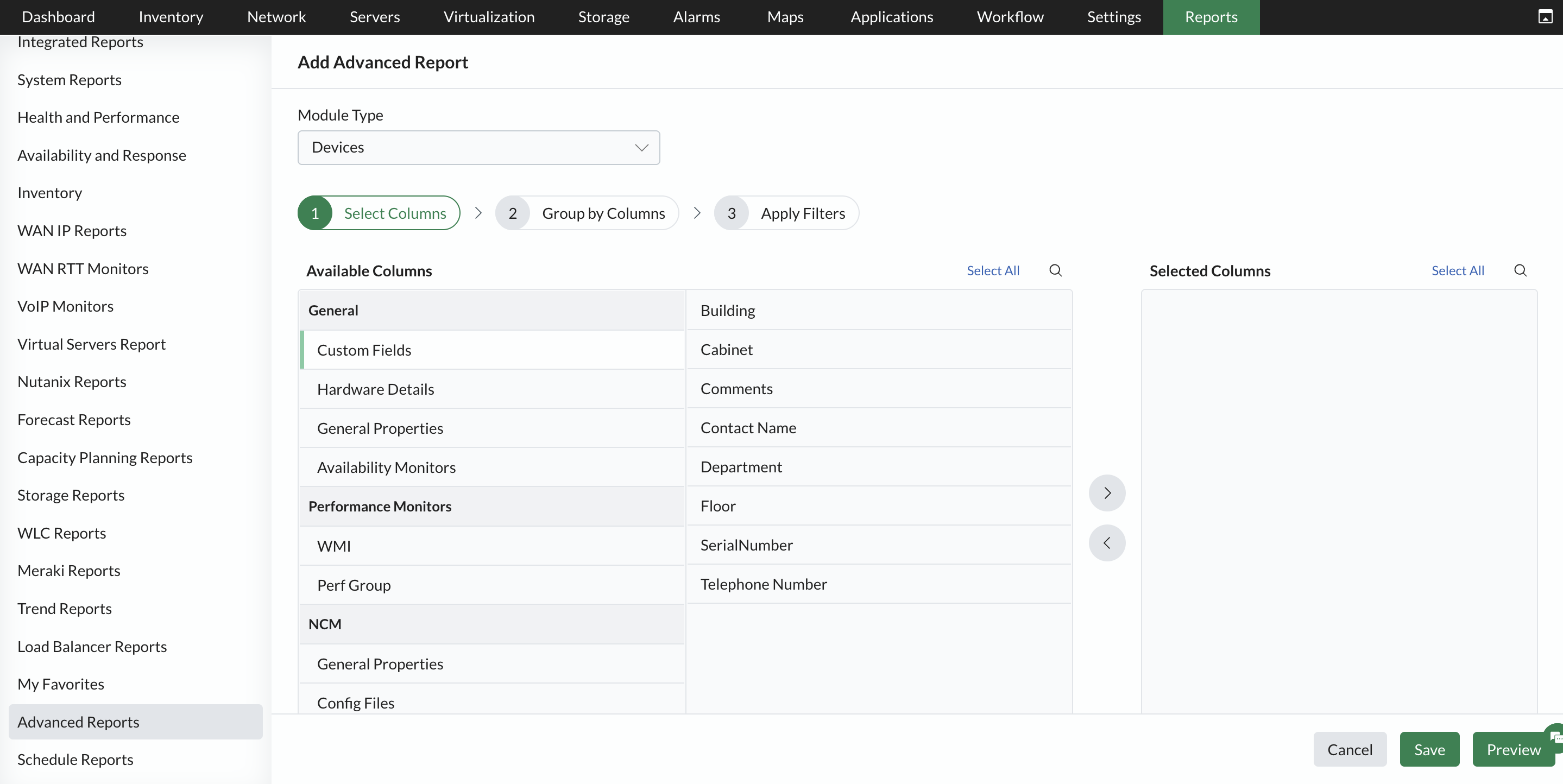
To generate an advanced report, users must first select the module type, such as Devices, Interfaces, Alarms, or other monitoring categories. Once the module type is selected, a list of column groups along with their corresponding columns is displayed. Users can then choose the necessary columns to be included in the report. Additionally, reports can be organized using the Group by Columns option, which allows users to categorize data by up to two selected columns in either ascending or descending order.
For enhanced filtering, users can apply specific criteria to refine the report data. This includes conditional checks such as equals, not equals, contains, and does not contain to filter out unnecessary information. Furthermore, the Filter by Period option is available when selecting columns from Availability Monitors or Performance Monitors, allowing users to specify a particular time frame for which the report should be generated.
Once all parameters are set, users can preview the report before finalizing it. The generated advanced report can be exported in either PDF or Excel format for further analysis or sharing. Additionally, OpManager provides scheduling options, enabling users to automatically send reports via email or publish them as a URL for easy access. If a user needs to create a report similar to an existing one, OpManager allows them to copy the existing report format and modify it instead of starting from scratch.
Create advanced reports in OpManager
Previously, users could create reports with anyone of the following categories: Performance/Availability/Response Time and Packet Loss/ Inventory.
Now OpManager has advanced report creation capabilities and allows its users to create reports covering multiple categories. There will be as many columns as the number of monitoring parameters specified.
How to create a New Advanced Report?
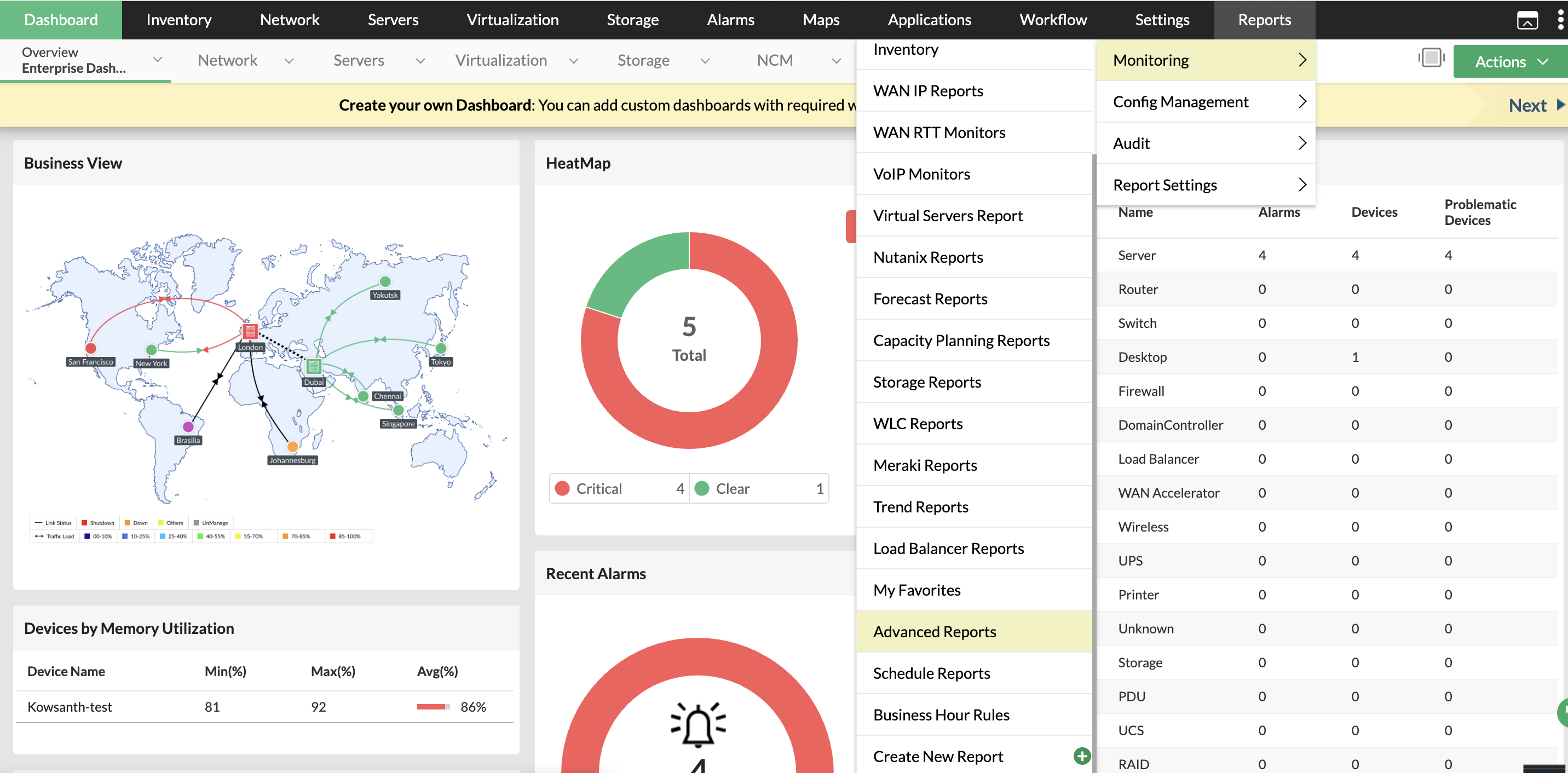
- Navigate to Reports OpManager --> Advanced report.
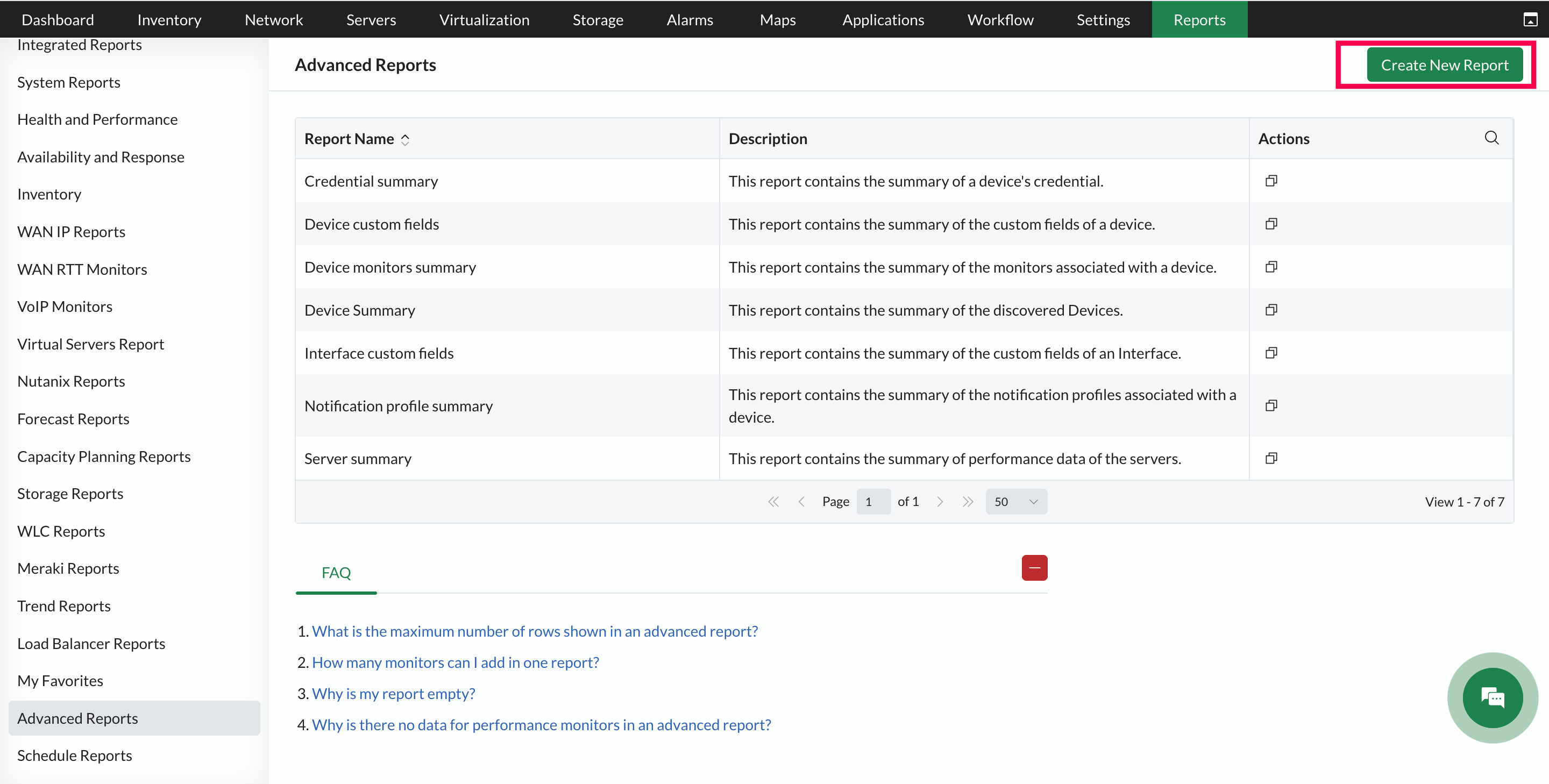
- Click on Create New Report button available on the top right corner. (This option to create a new report is provided on the top right corner of every default report.)
- Enter a suitable Name and Description for the report.
- Select a Module from the available list of modules - Devices, Interfaces, Service Monitors, URL Monitors, Alarms.
- Select your preferred parameter categories from the Available Column Groups. Within each parameter category, there are multiple properties. (Advanced reports give users the option to view inventory data and performance monitors in a single report.)
- Now select the required properties from each category under Available Columns, and move them to the Selected Columns. (Users can view upto a maximum of 5 performance monitors in the report). You can then group the data using Group by Columns option and use the Apply Filters option to narrow down the results.
- Click on the Group by Columns button, if you want to sort the elements in the report. (For instance, if you choose to sort by Contact Name, the data will be displayed in alphabetical order of Contact Name.)
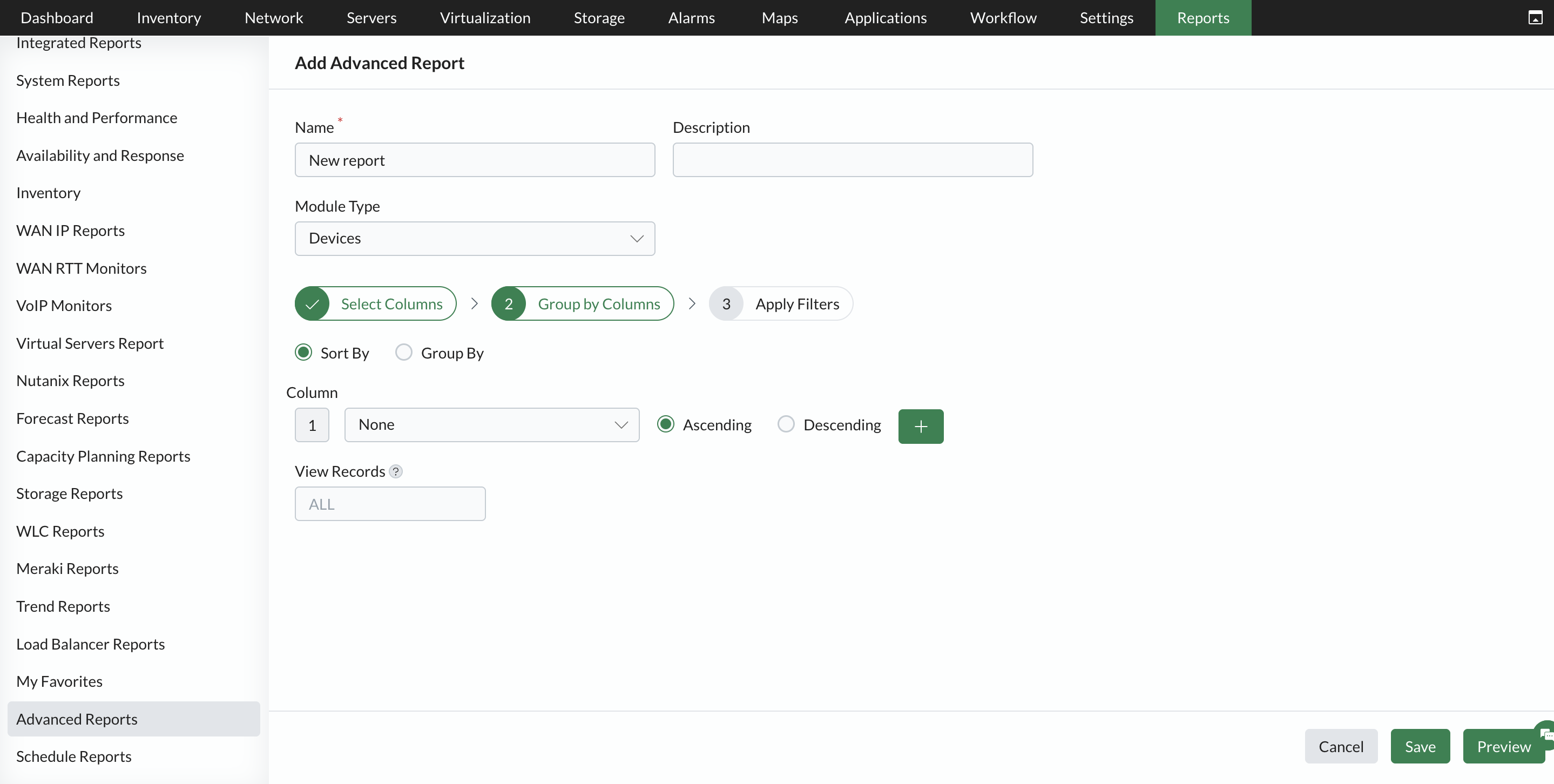
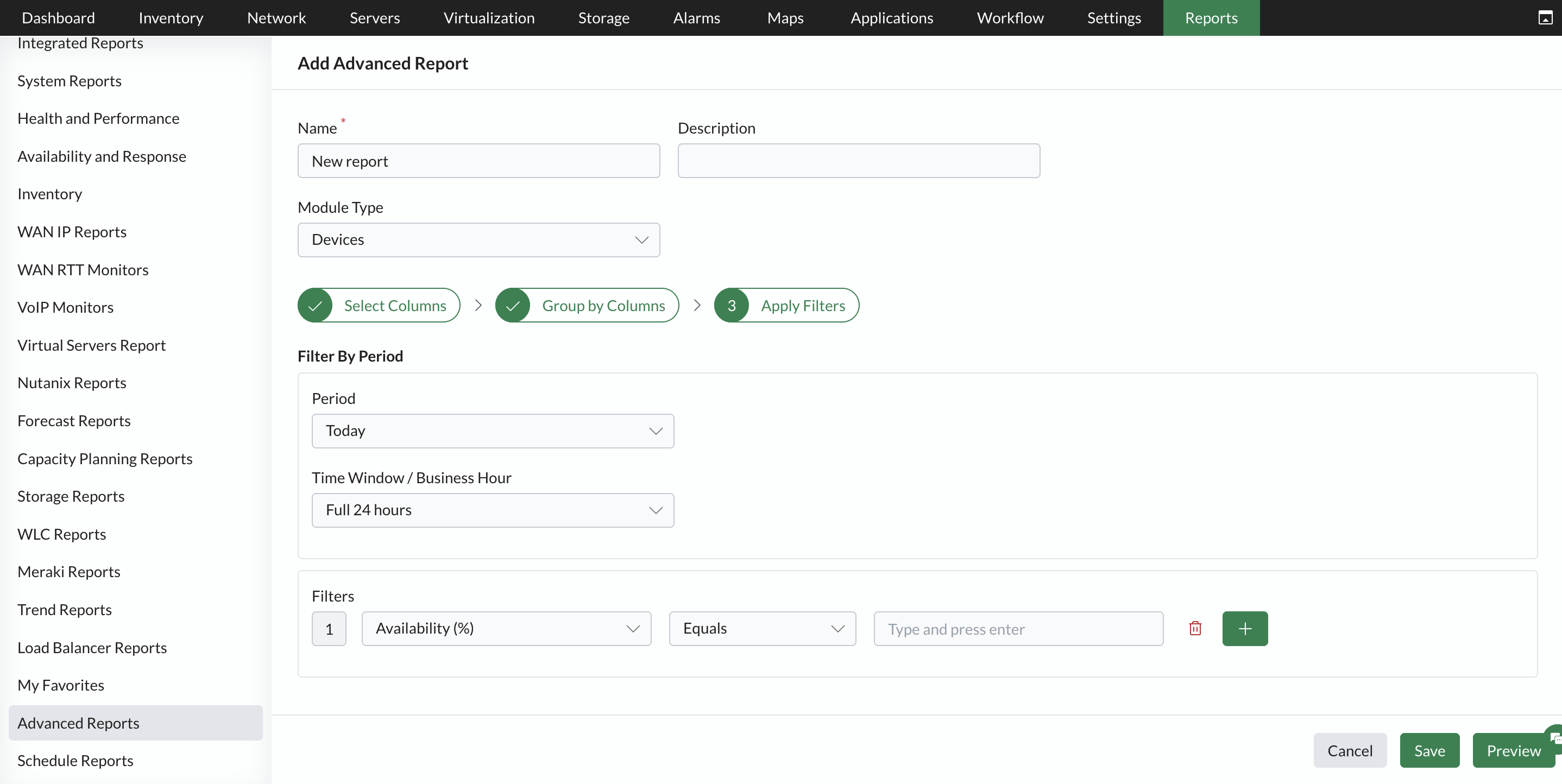
Click on the Apply Filters button and add the criteria to fetch a report based on that criteria. You can also specify the mandatory fields of filtering time period and the Business Hour of your organization. (The filtering period by default takes the value of 12 hours. But you can choose a different value from the dropdown list.)
- Click on Preview to view the report before being created. Click on Edit Report button to return to the previous page.
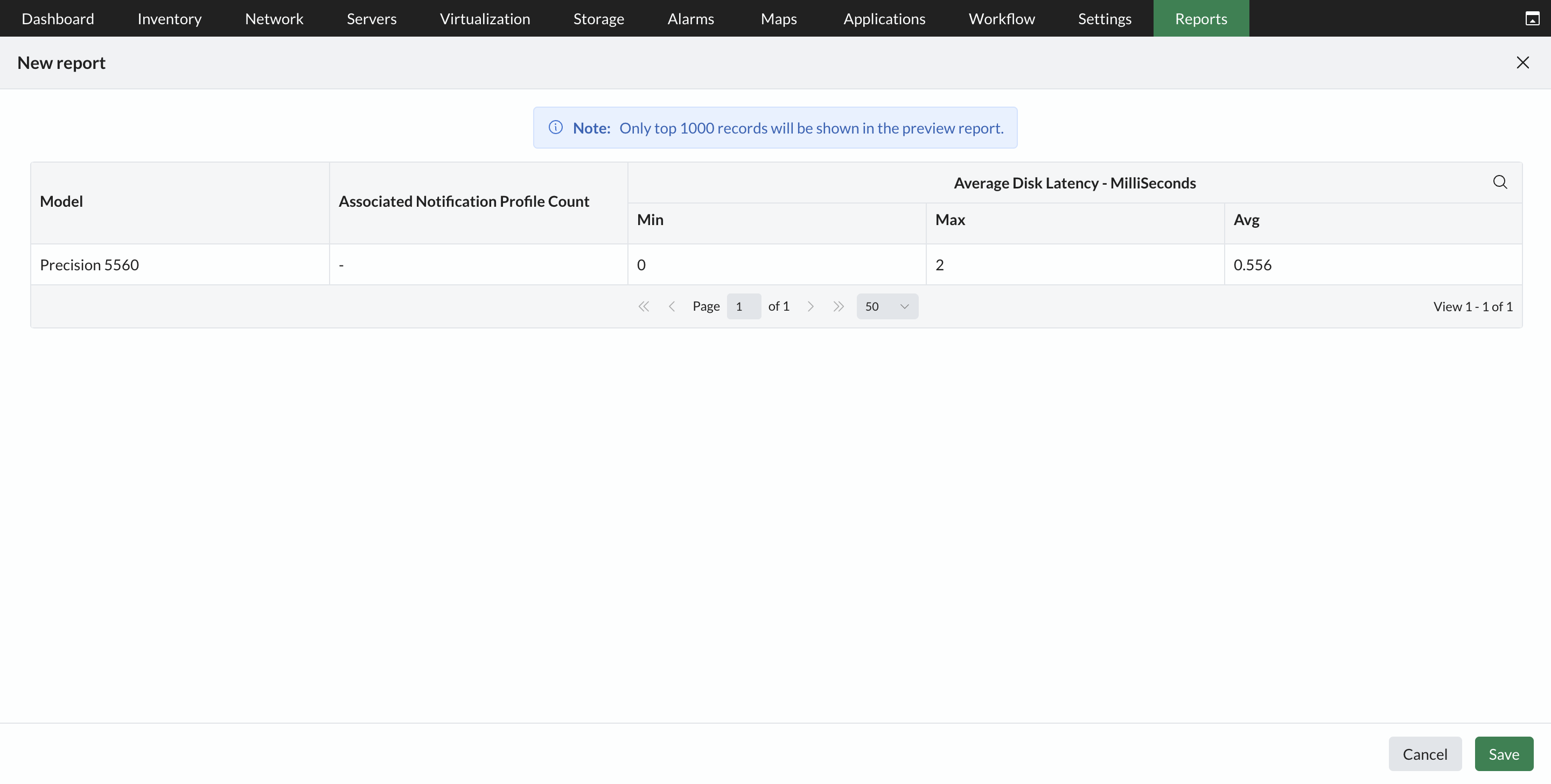
- Then click on Save.
- The report will be generated and stored and can be accessed in Reports --> OpManager --> Advanced report.
Useful features in advanced reports
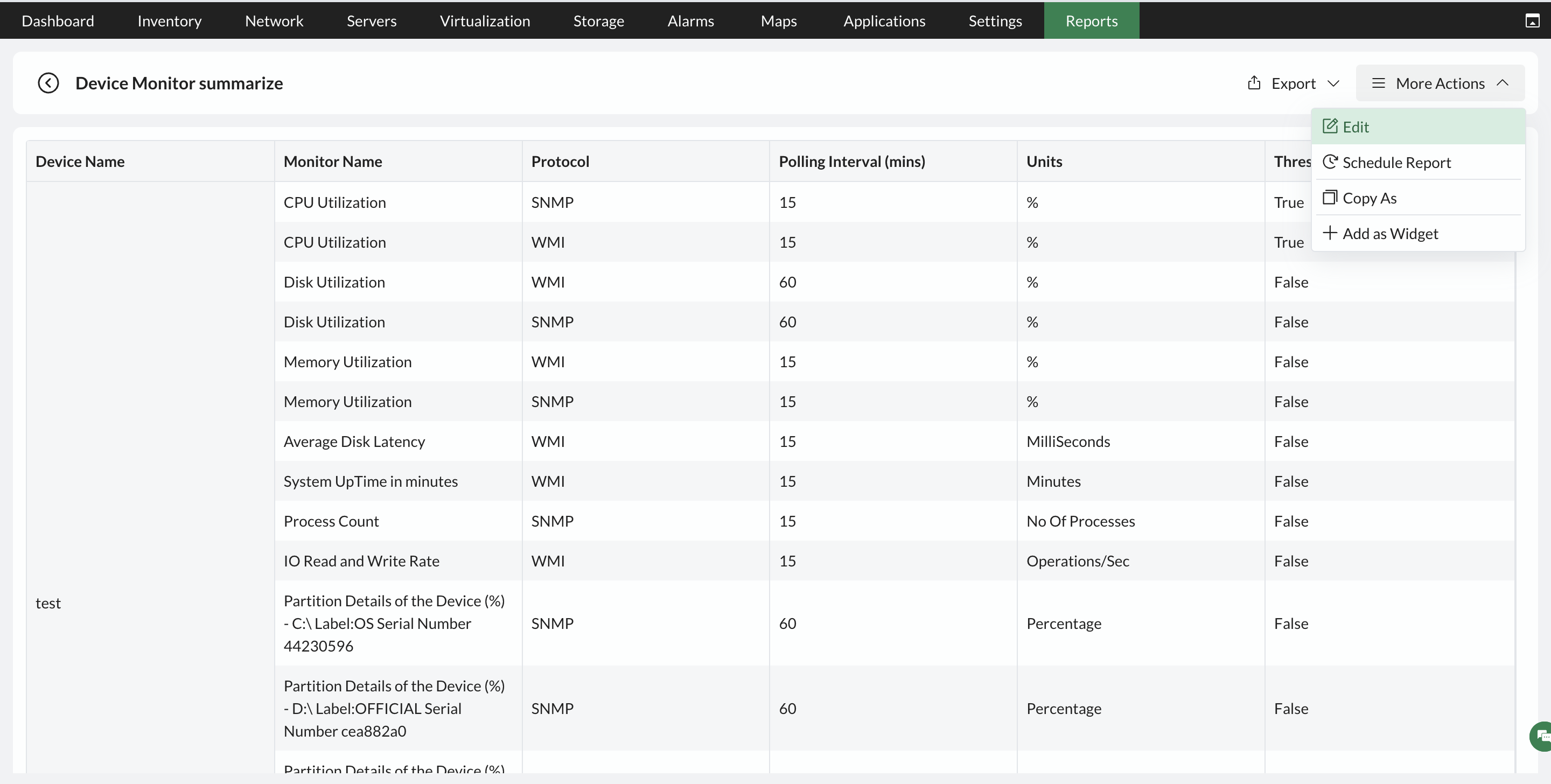
- Export: The report can be exported and downloaded in PDF/Excel format. (Reports having upto 8 columns can be exported as PDF)
- Edit: Using the edit option users can add/remove or replace columns. It essentially gives the user a chance to re-design the report completely.
- Copy As: It enables the users to copy the report. Users can give a Name and Description for this copied report.
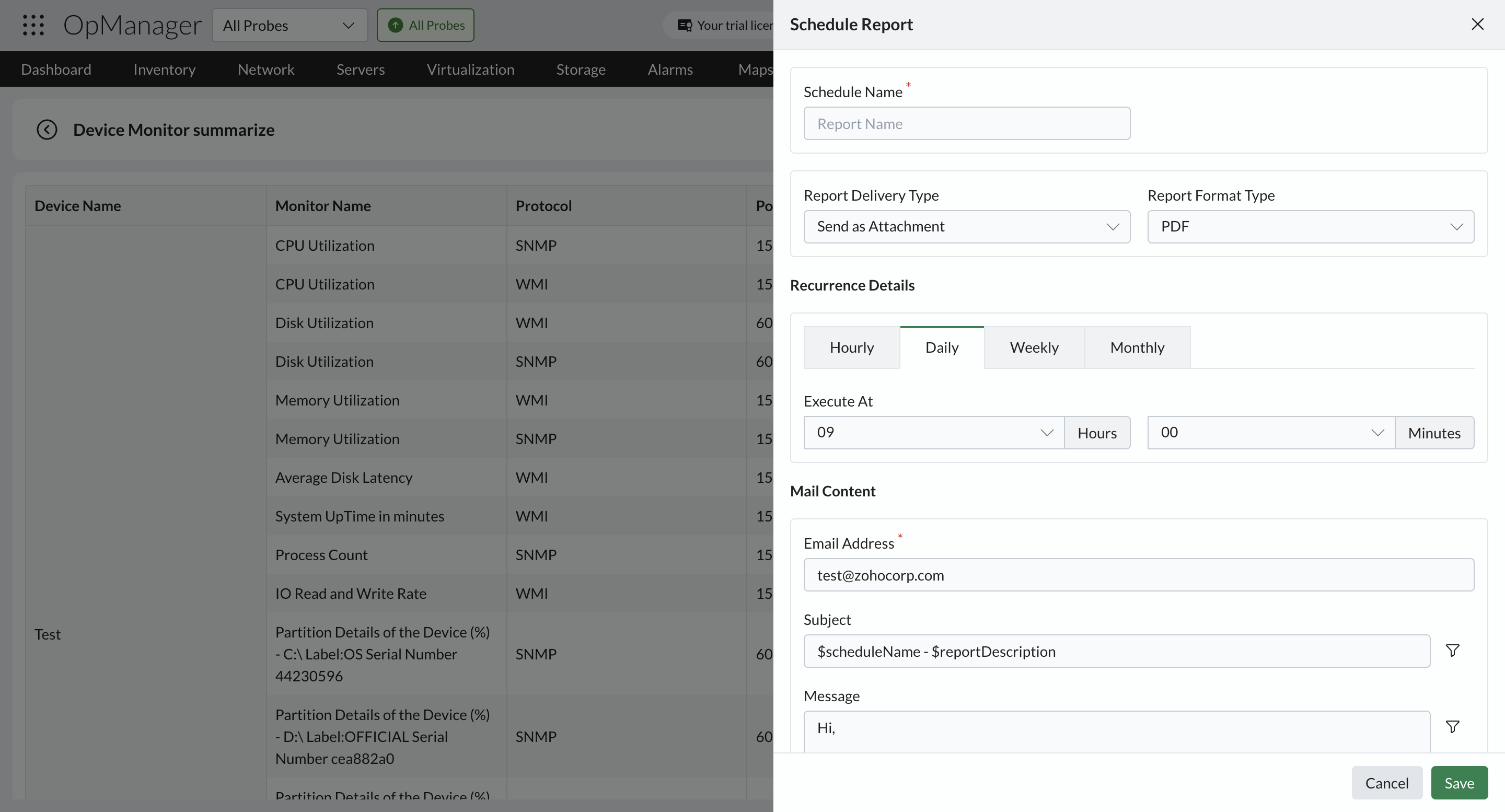
- Schedule this: This option enables users to send this report to a specified mail id at specific time intervals. Users can enter the Schedule Name, Mail id, Report Format, Schedule time - Daily, Weekly, Monthly and Mail Content.
- Add as Widget: This option enables users to add the report as a widget to custom dashboards for quick access.
Frequently asked questions:
- Why is there no data for performance monitors in an advanced report?
- What is the maximum number of rows shown in an advanced report?
- How many monitors can I add in one report?
- What are the modules supported in advanced reports?
- What is the difference between default reports and advanced reports?
- What is a Group?
- Can a combination of devices and interfaces be placed in a Group?
To know more about the Available Filters in various reports of OpManager, Click here.