Deploying OpManager agents using Endpoint central
ManageEngine Endpoint Central is a unified endpoint management and security solution that helps network admins manage the devices in their network. By using Endpoint central, network admins can easily deploy OpManager agents in OpManager, that further helps them with monitoring their network.
OpManager agents can be deployed on Windows servers and Linux servers using custom script configurations through Endpoint Central.
OpManager Windows Agent deployment via Custom Scripts
- Navigate to Configurations → Windows → Custom script → computer.
- Specify the name as OpManager Windows Agent Installation.
- Download the script from this page and save it as InstallOPMAgent.vbs.
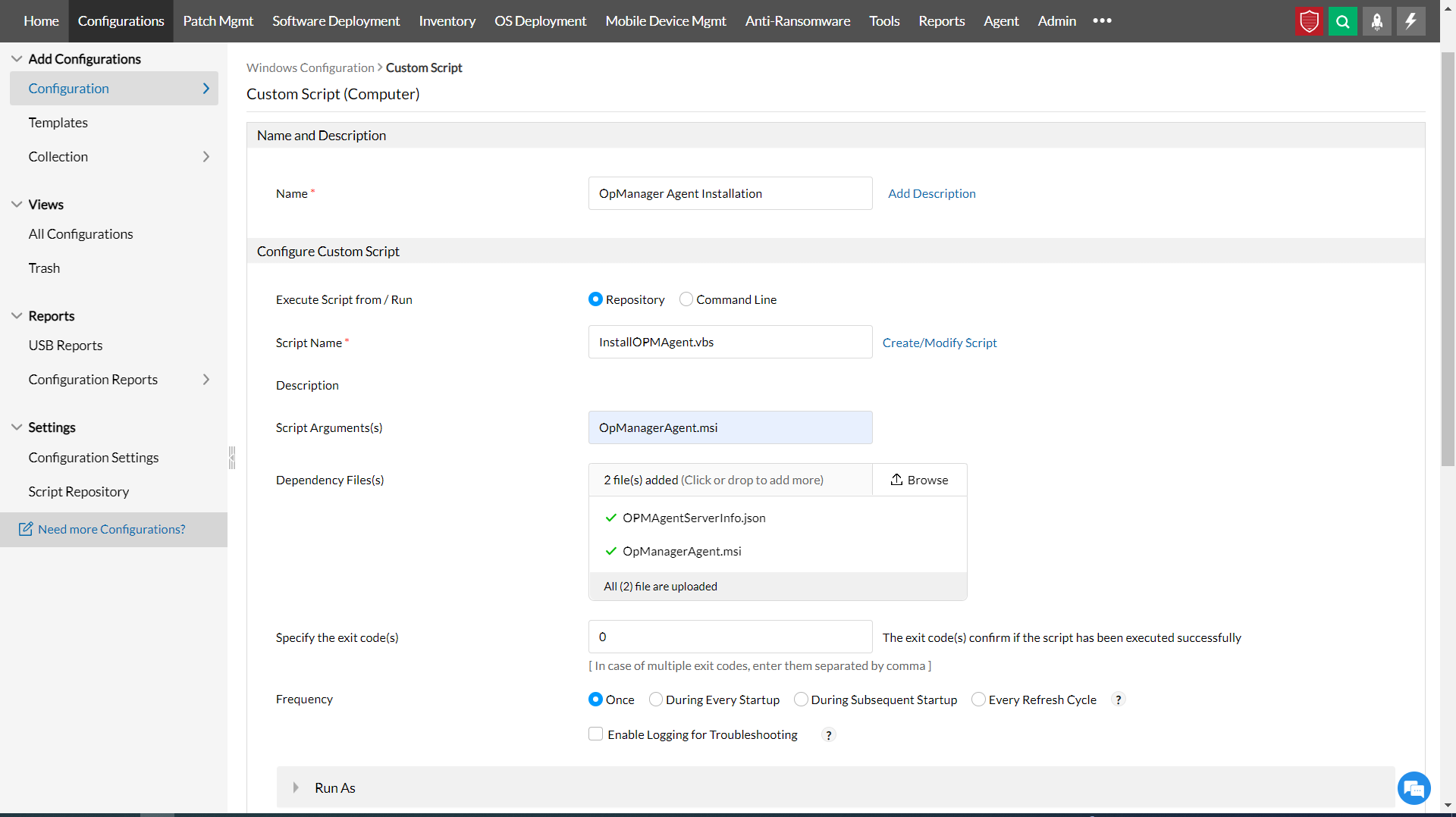
If the InstallOPMAgent.vbs file is already uploaded in the Endpoint Central Repository, then choose the Repository option or the Command Line option under Execute Script from / Run field.:
- If the Repository option has been chosen:
- Under the Script name field, select the InstallOPMAgent.vbs file.
- Enter OpManagerAgent.msi in the Script Arguments.
If the Command line option has been chosen:
- Enter InstallOPMAgent.vbs and OpManagerAgent.msi in the Command Line field.
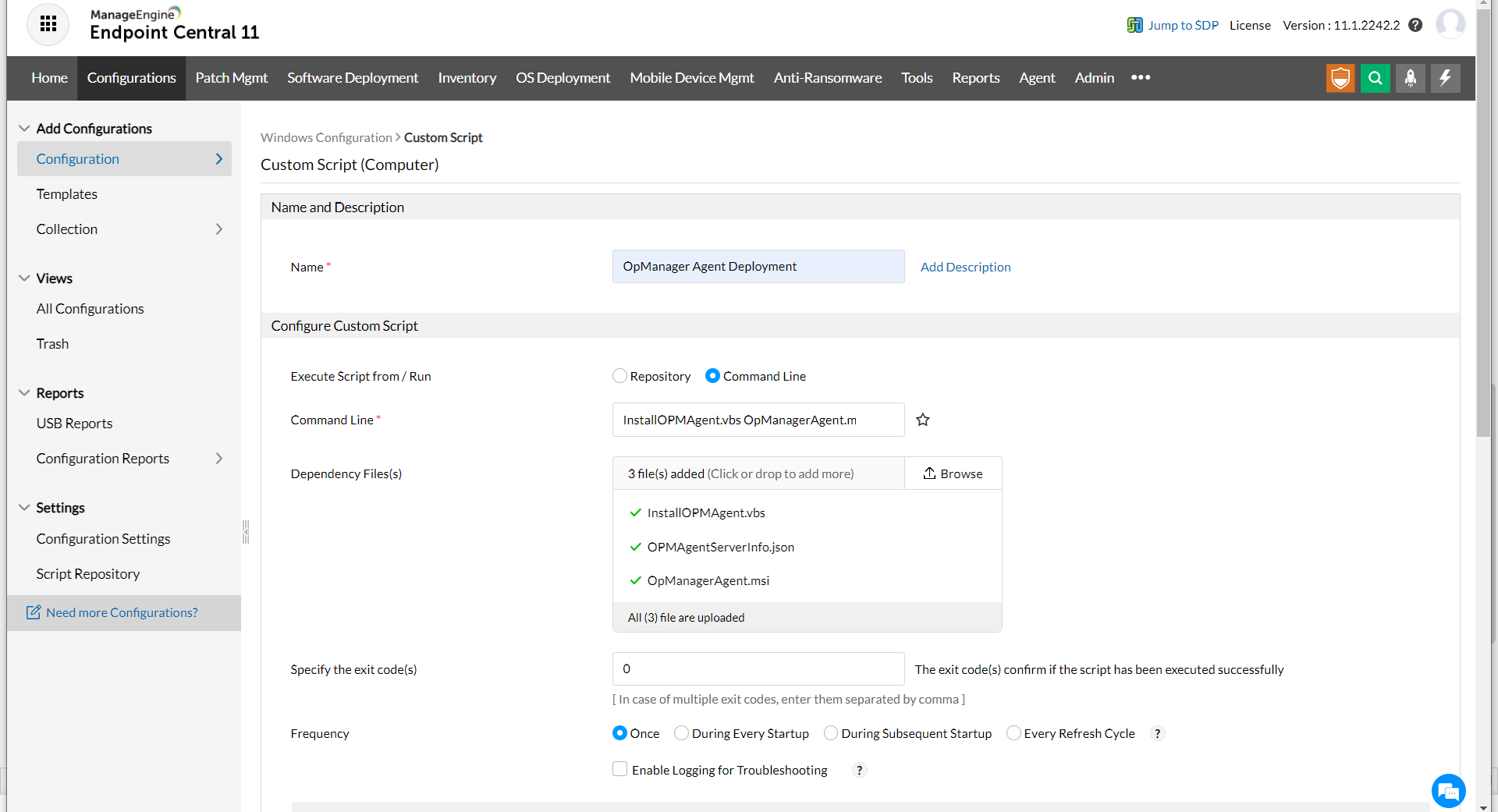
- Download the OpManager Agent zip file from the OpManager web console, under Settings → Discovery → Deploy Agent → Windows, and extract the OpManagerAgent.msi and OPMAgentServerInfo.json files from the zip file. Now, place them in the local directory.
- Upload the OpManagerAgent.msi and OPMAgentServerInfo.json files in the Dependency file(s) section. If the command line is chosen in step 4, upload the downloaded InstallOPMAgent.vbs file as well.
- Set the Specify the exit code(s) as 0.
- Set the Frequency as Once.
- In the Run as option, choose the user with the required permissions (Admin / Application installation privilege user).
- Choose the required target machines.
- Under the Retry this configuration on failed targets, set the value as 2 for the out of which retry option, 0 for the time(s) during startup and time(s) during refresh options.
- Click Deploy Immediately. It will be redirected to the View Configuration Page, where you can see the status of the installation in remote machines.
Linux Agent Installation via Custom Script
The following procedure describes how to install the Linux agent on target machines using a custom script through Endpoint Central.
Prerequisite: The Linux agent installer files must be present in the OpManager directory, under the path agent/resources/unix/installer. If the installer files are missing, download them from this page and place it in the same directory, under OpManager.- Download the script from this page and save it as InstallOPMLinuxAgent.sh.
- From the OpManager web console, navigate to Settings → Deploy Agent → Linux and copy the two commands displayed for Linux agent deployment.
- In the script file:
- Replace
<REPLACE_THIS_WITH_YOUR_COMMAND1>with the first command copied from the OpManager UI. - Replace
<REPLACE_THIS_WITH_YOUR_COMMAND2>with the second command copied from the OpManager UI.
- Replace
- After replacing both commands, save the file.
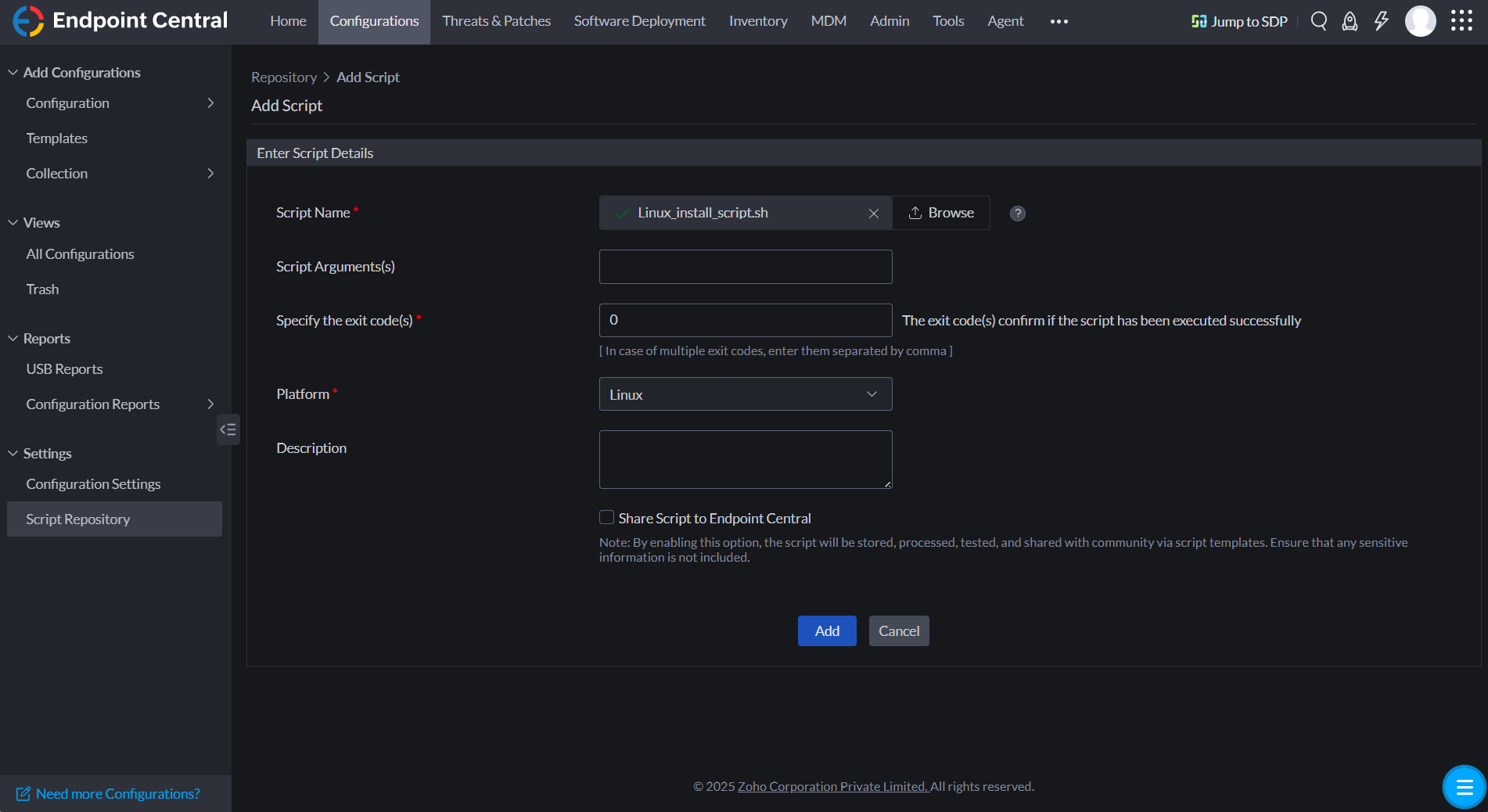
- In Endpoint Central, navigate to Configurations → Settings → Script Repository.
- Select Add Script and import the saved
.shscript file. Select Linux as the platform.
- Navigate to Configurations → Add Configuration → Configuration and select Linux as the platform.
- Select "Custom Script" as the configuration type, and provide a name for the configuration.
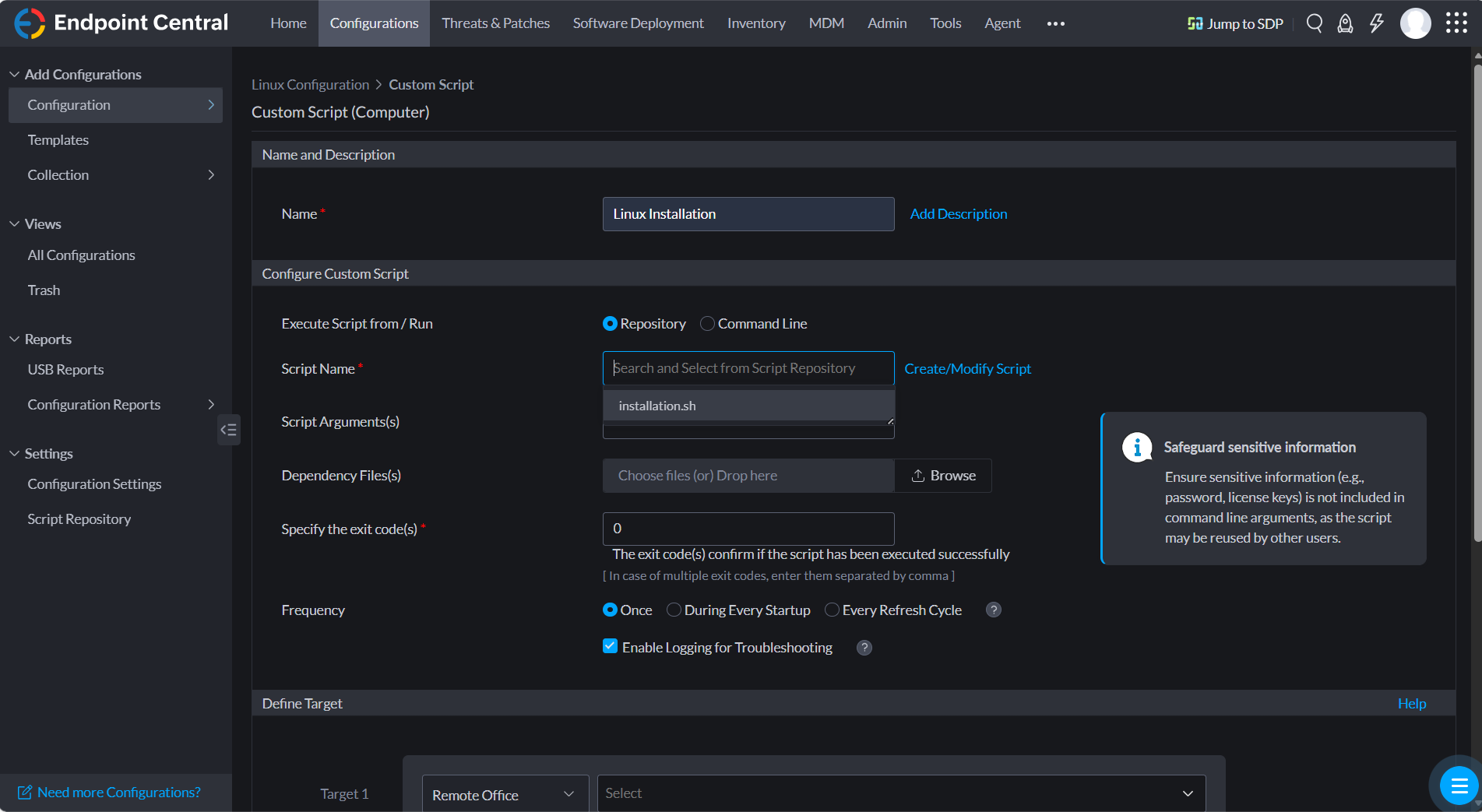
- For Execute Script from / Run, select Repository. Select the script uploaded earlier in the Script Name field.
- Under Define Target, select the Linux devices on which the agent installation must be performed.
- Under Execution Settings, enable the Retry this configuration on failed targets option to automatically retry deployment on failed devices.
- Select Deploy Immediately. The Linux agent installation will begin on the selected devices.
If the agent has not been installed on any of the devices, or if you are facing issues with agent installation, kindly write to our support team.
- If the Repository option has been chosen: