Steps to create a business view with application monitors

To configure a business view with the application monitors, follow these steps:

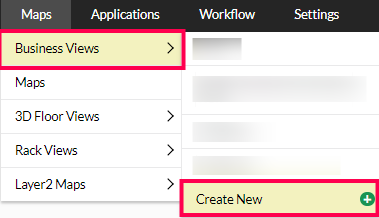
  1. Navigate to Maps > Business Views > Create New.
  2. Steps to create business view with applications monitor in OpManager: New Business View

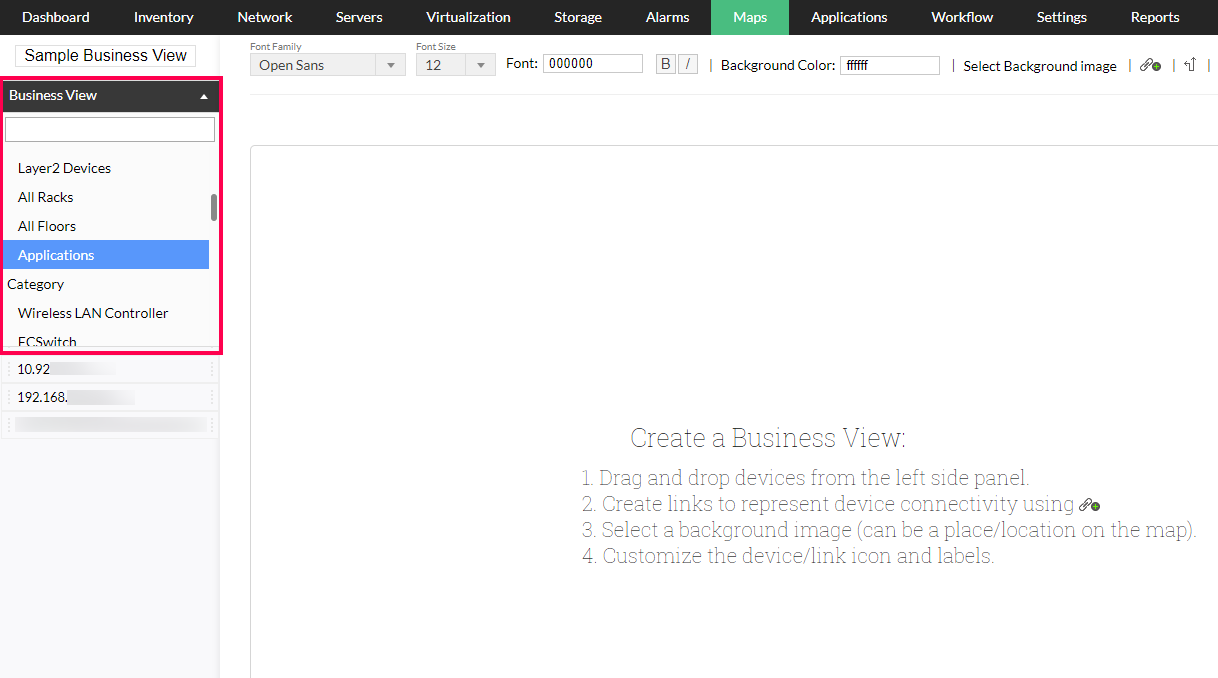
  3. On the left-side panel, click on the drop-down arrow named Business View. Scroll down, and select Applications.
  4. Steps to create business view with applications monitor in OpManager: Application Business View

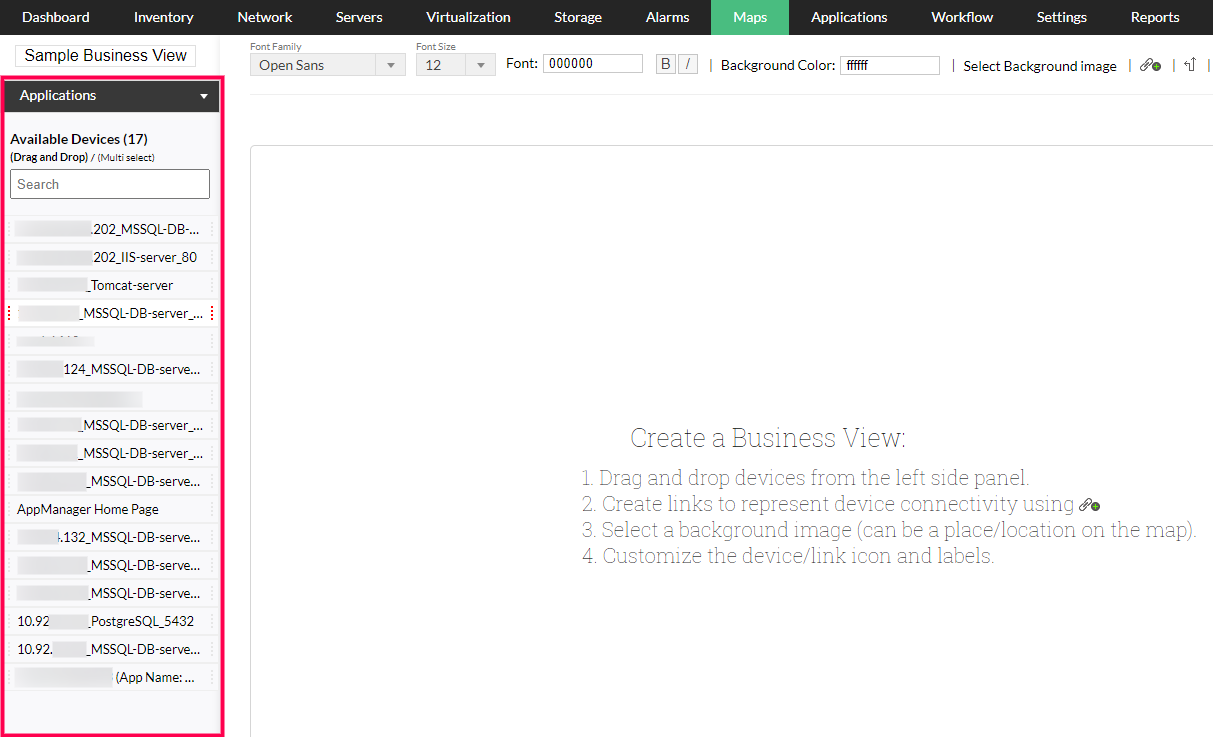
  5. On the same left-hand panel, OpManager will list the monitors added in the APM plug-in.
  6. Steps to create business view with applications monitor in OpManager: APM Monitors Business View

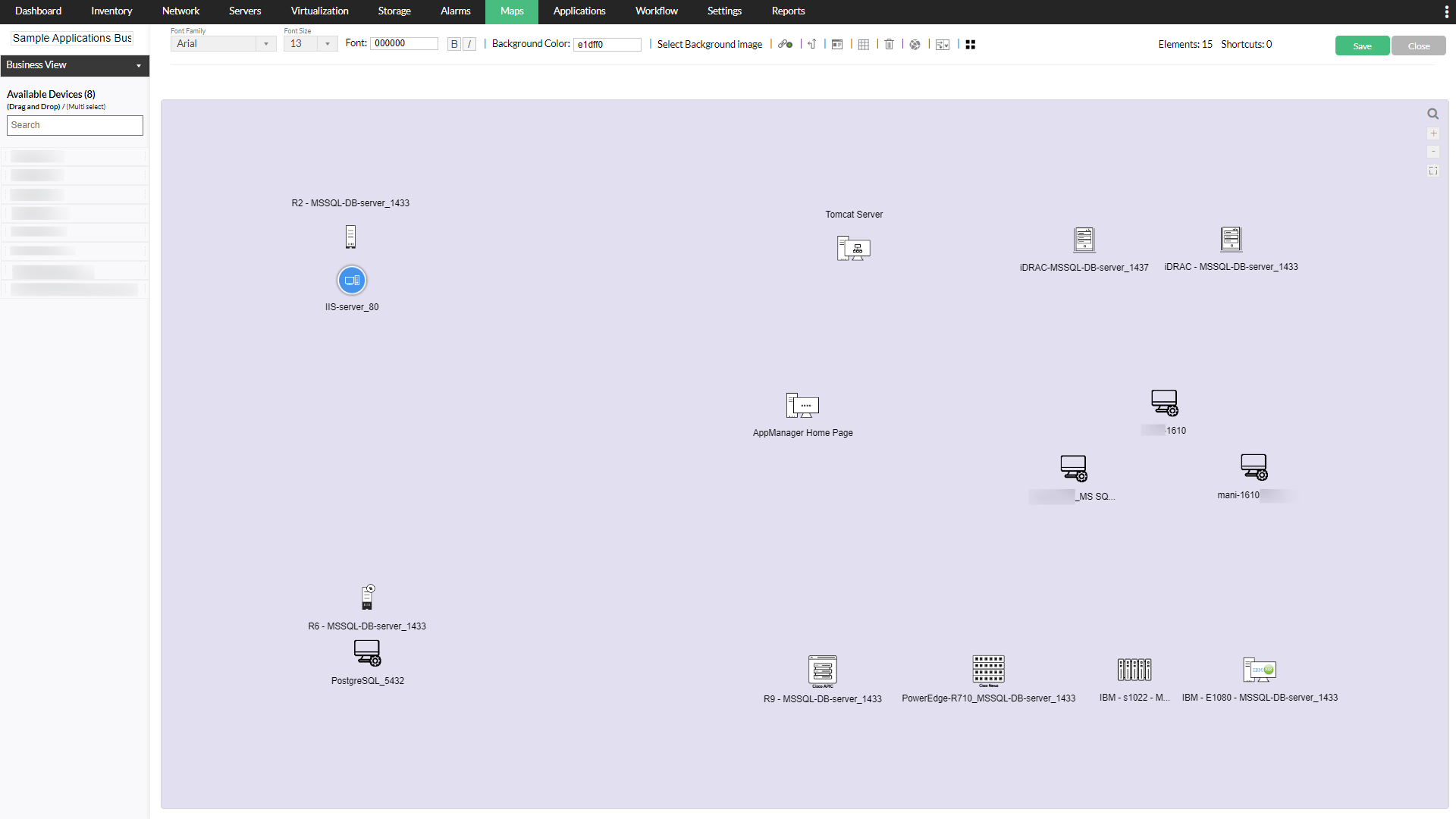
  7. Drag the individual objects to the business view area and arrange them to fit your architecture.
  8. Steps to create business view with applications monitor in OpManager: Create Business View

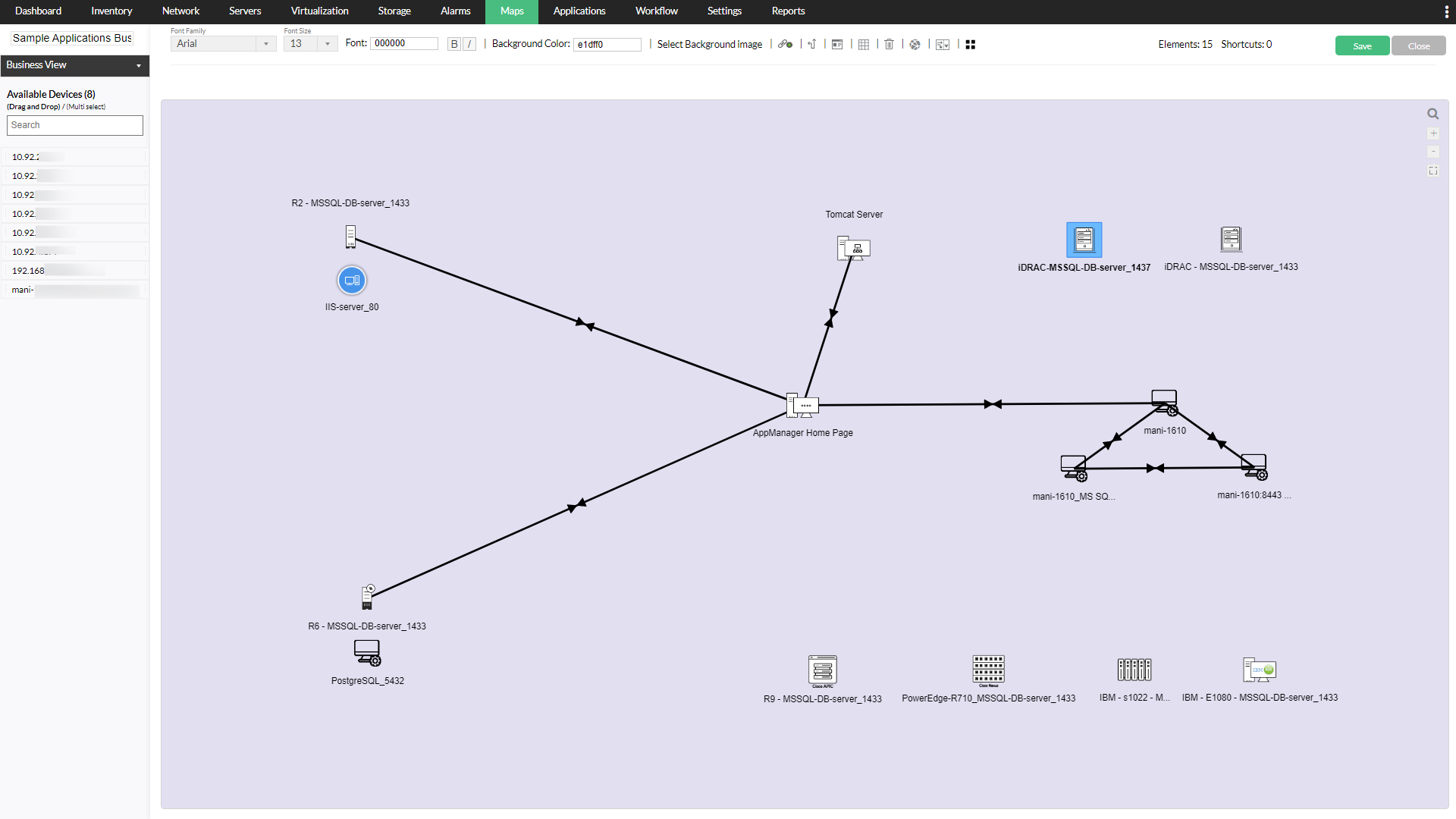
  9. Draw the dependencies, if any.
  10. Steps to create business view with applications monitor in OpManager: Business View Dependencies

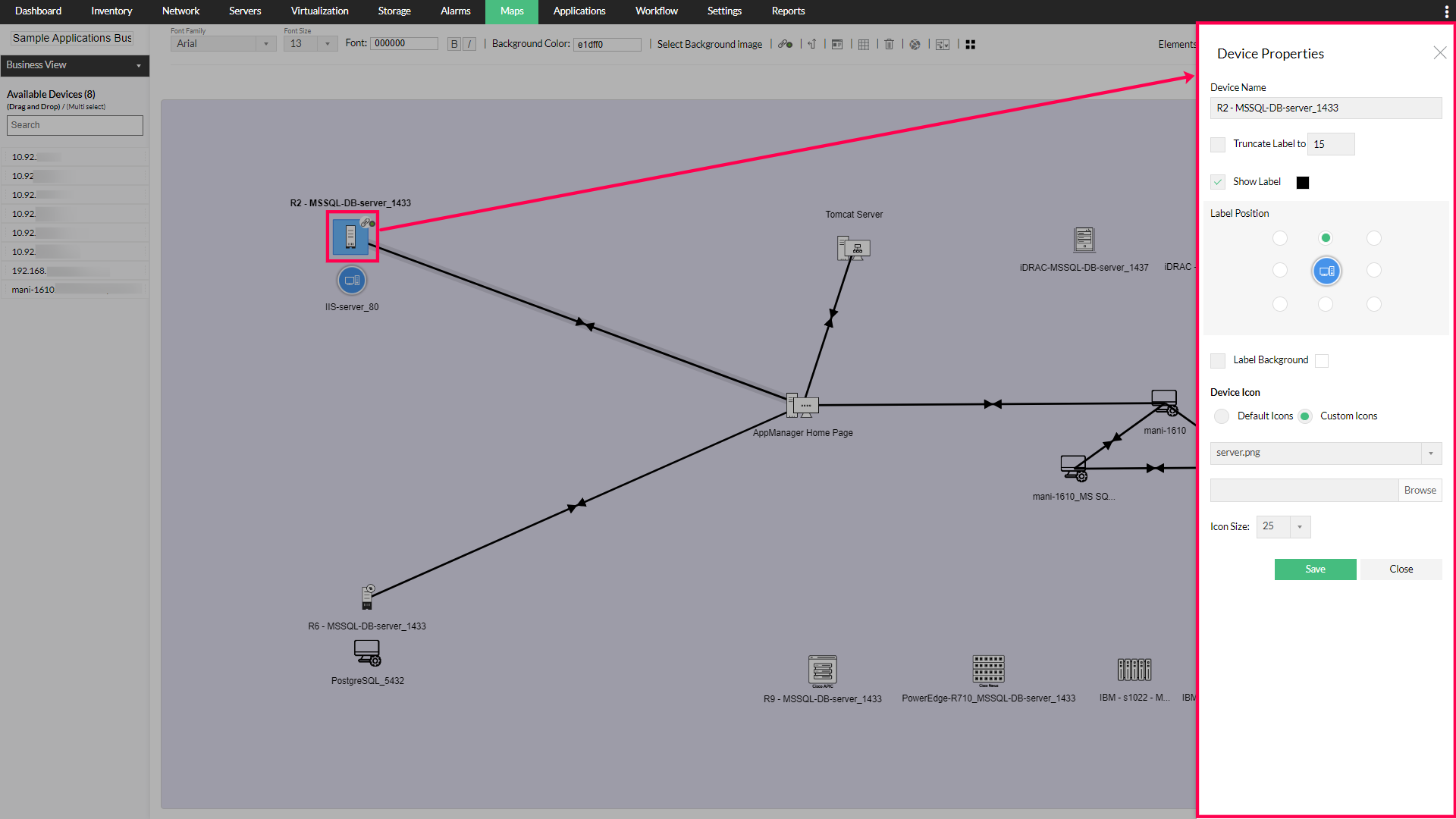
  11. Configure additional settings related to names, icons, labels, etc. by double clicking on the individual objects.
  12. Steps to create business view with applications monitor in OpManager: Business View Configuration

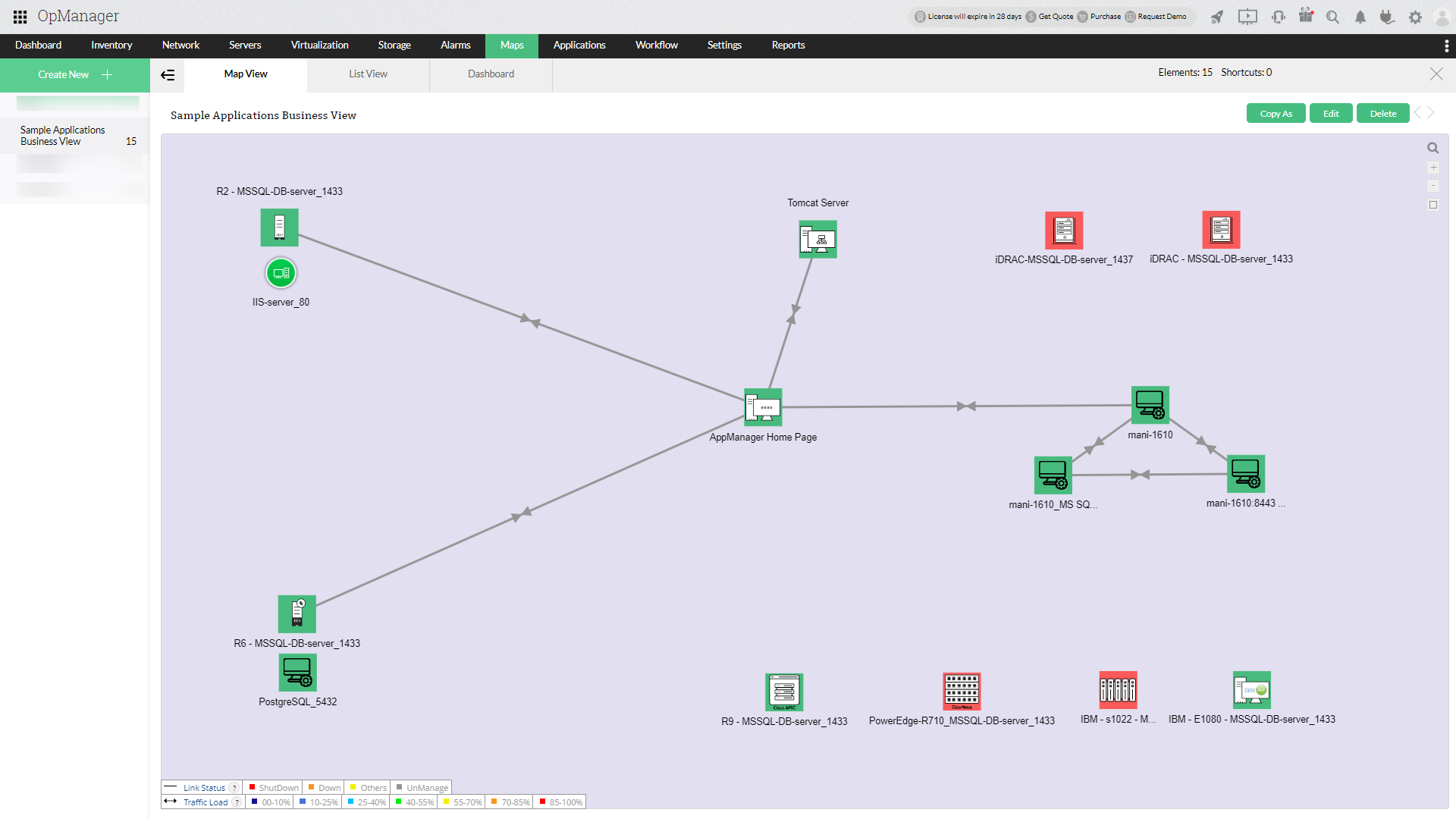
  13. When done, click on Save. You will find the business view of your applications monitors on the Business Views page.
  14. Steps to create business view with applications monitor in OpManager: Application Monitors Business View

Thank you for your feedback!

Was this content helpful?

We are sorry. Help us improve this page.

How can we improve this page?
Do you need assistance with this topic?
By clicking "Submit", you agree to processing of personal data according to the Privacy Policy.