OpManager TOPdesk Integration
ManageEngine OpManager integrates with TOPdesk, an IT service management tool for incident management along with monitoring. This integration helps reduce Mean Time to Respond (MTTR) by forwarding the network alerts generated by OpManager to TOPdesk as incidents. These incidents can be automatically assigned to the appropriate technician to troubleshoot the issue. Hence, this TOPdesk integration helps enable faster incident response and troubleshooting.
- Configuration in TOPdesk settings
- Configure TOPdesk in OpManager
- Configure Notification Profile
- Configure Notification Template
- OpManager Alerts in TOPdesk as Incidents
- TOPdesk Incident IDs in Alarm Notes
Configuration in TOPdesk Settings
To integrate OpManager with TOPdesk, you need a unique application token generated from TOPdesk that will allow OpManager to access TOPdesk.
- Login to your TOPdesk account and on the top-right corner, open User Menu.
- My Settings -> Application tokens, and click Add.
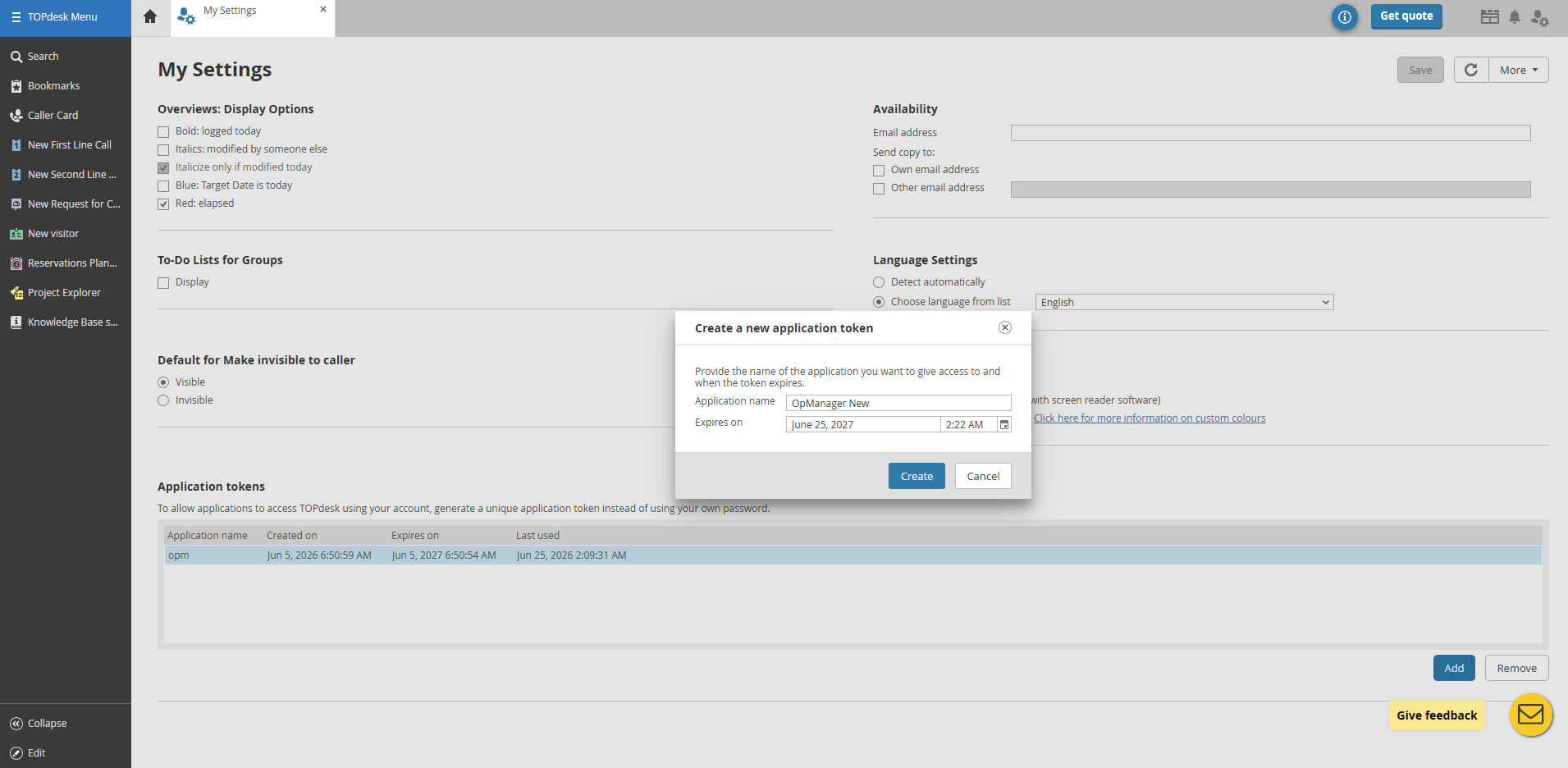
- In the dialogue box, Enter Application name and provide an expiry date.
- Click Create.
An application token will be created, copy the token to use in OpManager.
Configure TOPdesk in OpManager
Once you've created the application token, you can integrate TOPdesk with OpManager console.
- In OpManager, go to Settings -> Integrations -> TOPdesk -> Configure.
- In the Configuration page, enter the TOPdesk Instance URL (the url of your TOPdesk account).
- Provide the Username and under Application Token, paste the copied token from TOPdesk and click on Validate.
- If the credentials are valid, the
Credential Success message is displayed.
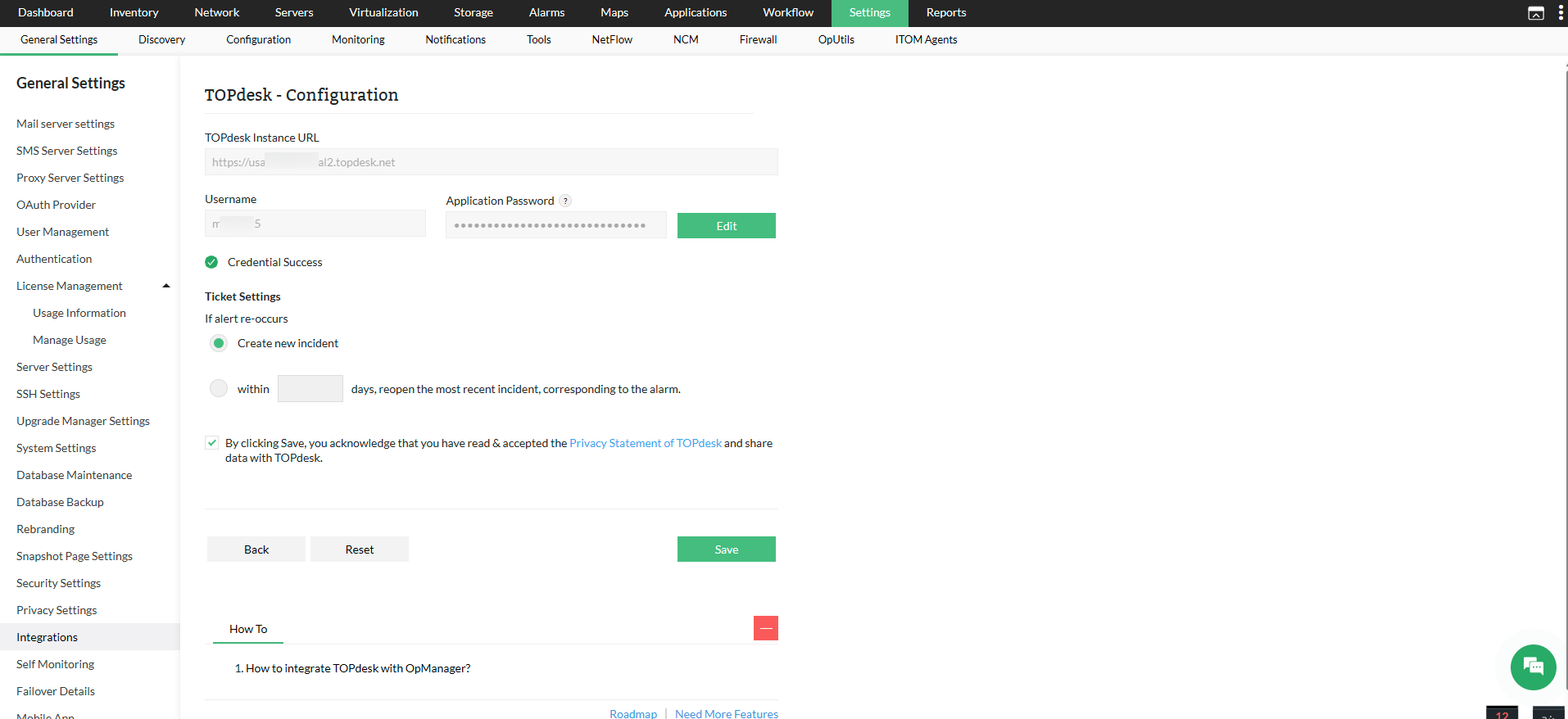
- Under Ticket Settings:
- Select Create new incident to create a new incident whenever an alert re-occurs.
- Alternatively, select Reopen the most recent incident and specify the number of days to reopen the incident if the alarm reoccurs.
- Click Save.
Configure Notification Profiles
After configuring TOPdesk in OpManager, associate a notification profile to automatically create incidents in TOPdesk whenever an alert is generated in OpManager.
- Go to Settings -> Notifications -> Notification Profiles -> Add.
- Click on Log a Ticket and select TOPdesk from the left panel.
- Under Ticket Details, fill in the required fields such as Title, Description, External Number, Caller and Operational Group, Status, Priority, etc.


- Click Test Action to verify the configuration.
- Once verified, click Next to choose a criteria to log the tickets.
- Click here to learn more about choosing criteria, associating devices, applying a time window etc.
- Enter a name for the notification profile, then click Save.
Note:
- Click Refresh to fetch any newly added field values from TOPdesk into OpManager. The newly fetched values will be automatically added to the existing fields in OpManager.
- A Major Call in TOPdesk is a high-priority incident that affects multiple users or services. To create a Major Call, set the Major Call field to True in OpManager. The incident will then be created as a Major Call rather than a regular incident.
Configure Notification Templates
You can create a notification template for TOPdesk in OpManager by following the steps below.
- Go to Settings → Notifications → Notification Templates.
- Click on Log a Ticket from the dropdown and select TOPdesk.
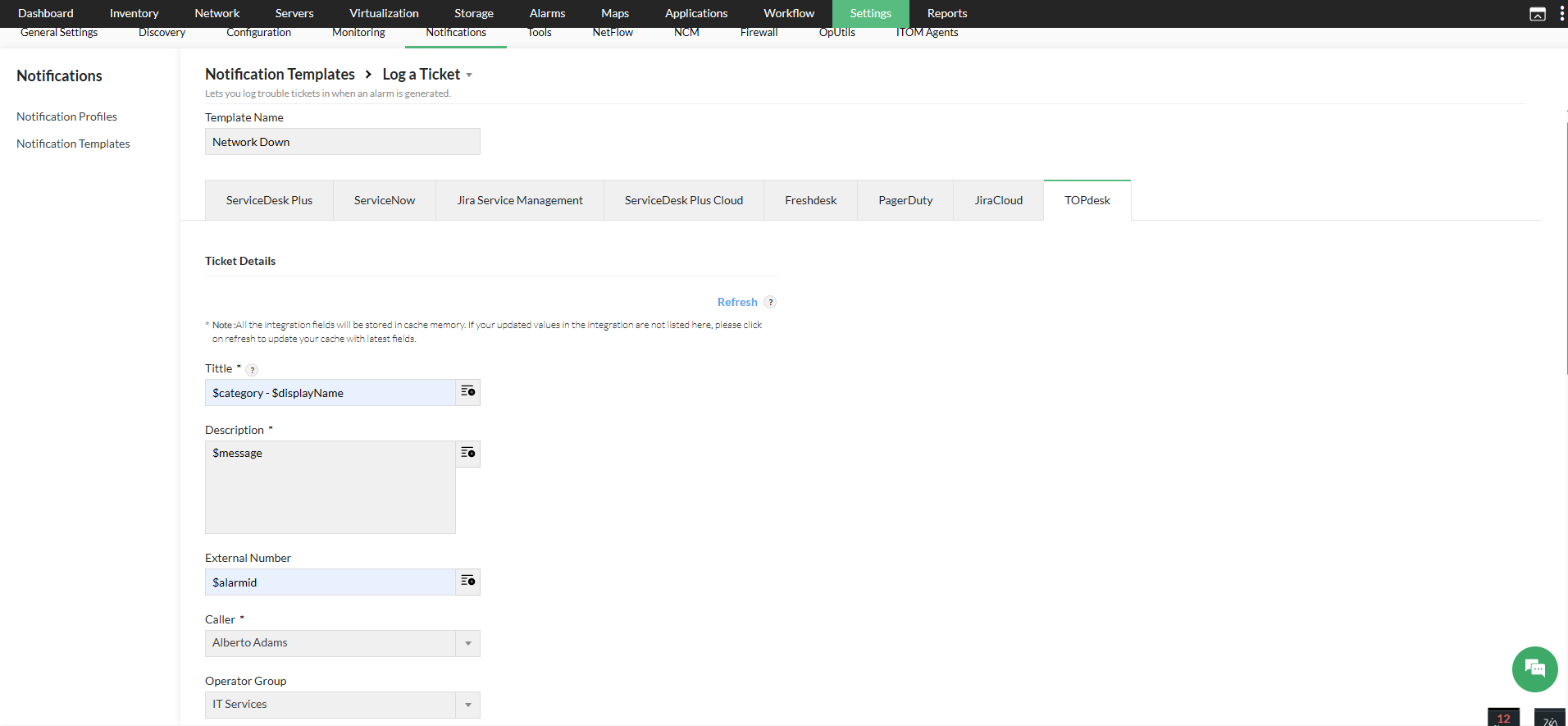
- Under Ticket Settings, Enter a Template Name.
- Fill in the required fields such as Title, Description, External Number, Caller, etc.
- Click on Test Action to verify the configuration.
- click Save.
OpManager Alerts in TOPdesk as Incidents
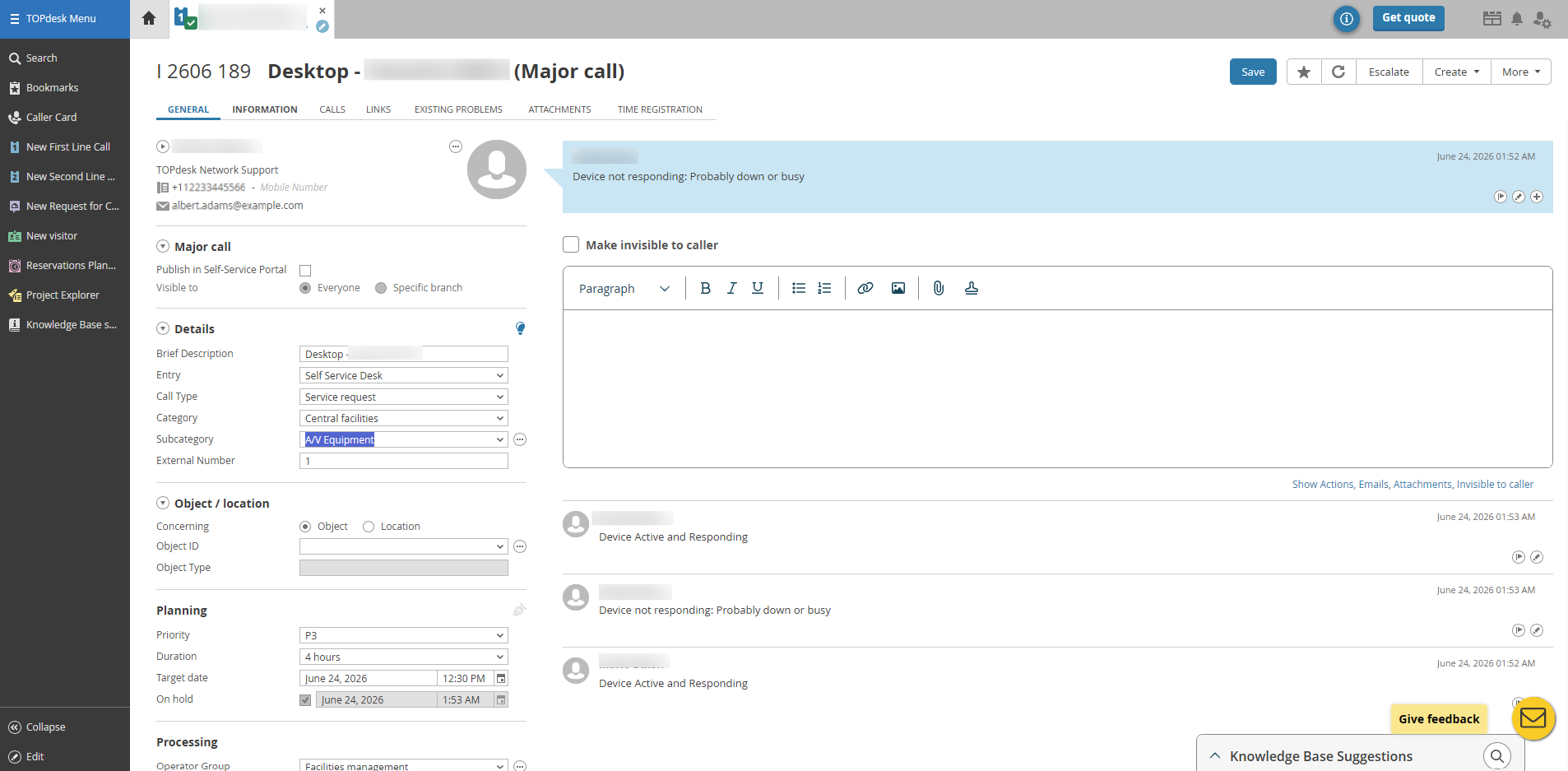
TOPdesk Incident IDs in Alarm Notes
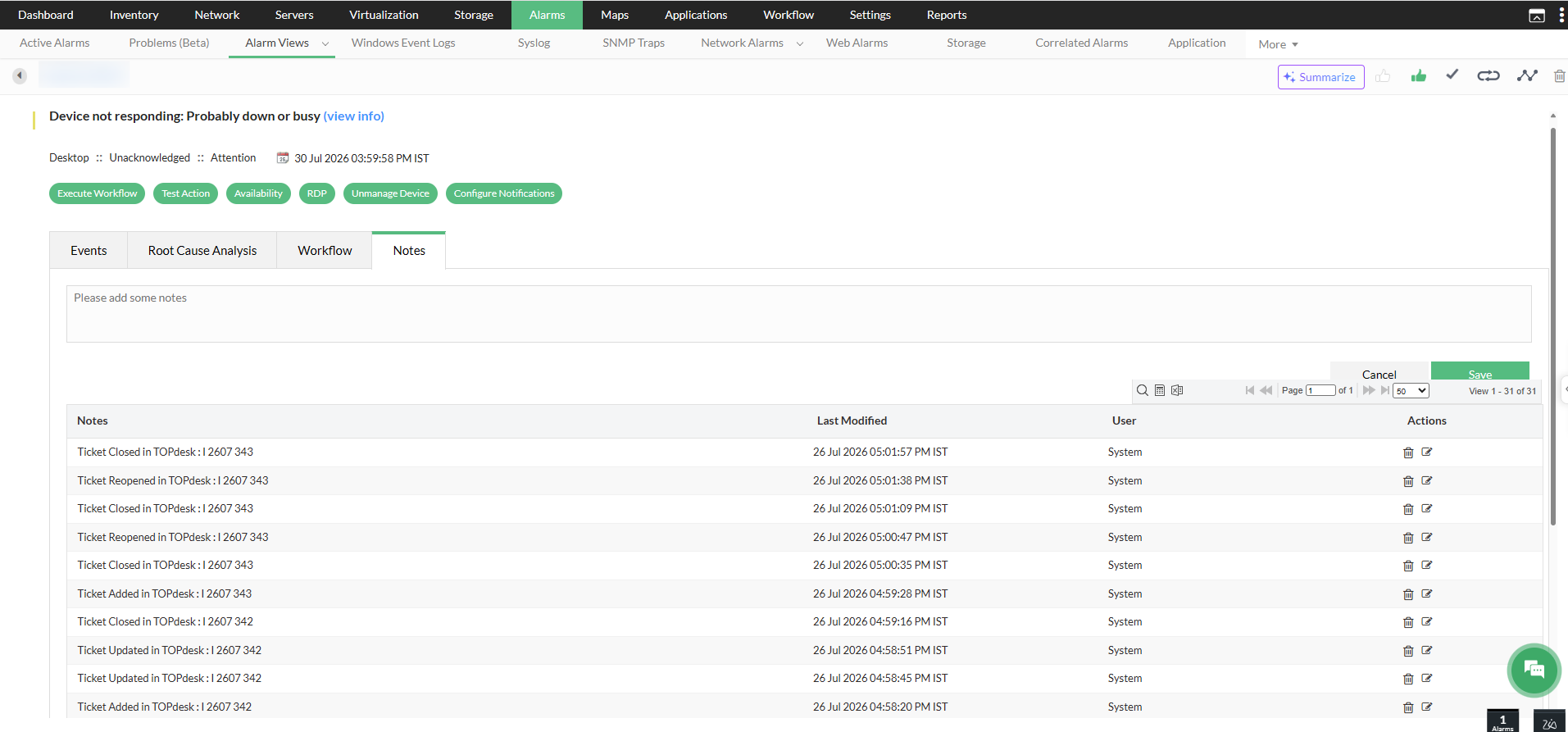
In OpManager, when an alarm is generated for a device associated with a notification profile, the corresponding TOPdesk incident ID will be logged under the alarm's Notes tab.
- Go to Alarms open an alarm associated with a notification profile.
- Click on Notes to view the corresponding incident ID from TOPdesk for the alarm generated.