Discovering Proxmox VE in OpManager
OpManager provides seamless monitoring for your Proxmox Virtual Environment, assuring ideal performance and availability for your virtual infrastructure. Whether you are running virtual machines using KVM or containers with LXC, OpManager provides deep insights into resource usage, performance metrics, and system health — all from a centralised console. Monitoring your Proxmox with OpManager helps you stay ahead of issues and simplify virtual environment management.
How to Discover Proxmox Nodes in OpManager?
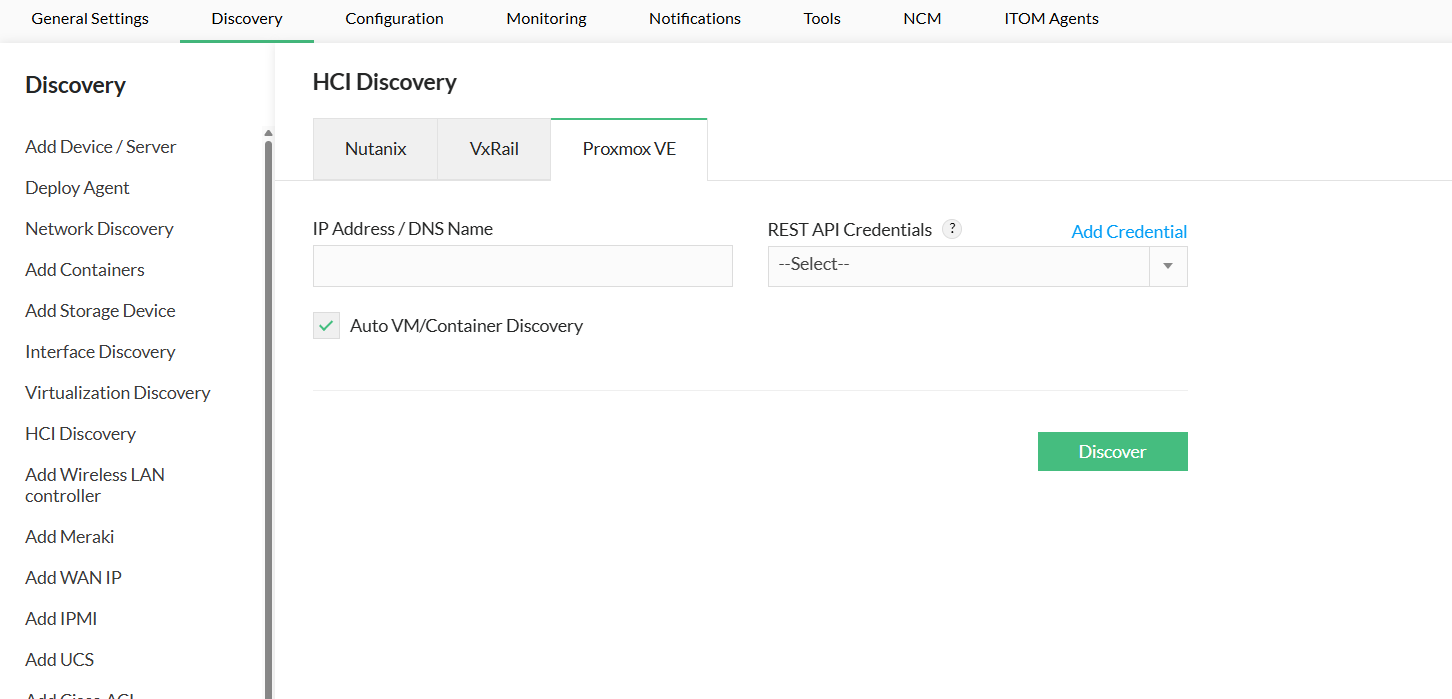
Navigate to the Proxmox VE Discovery Page
- Go to Settings > Discovery > HCI Discovery
- Click the Proxmox VE tab to open the discovery configuration page.
- Configure and Initiate Discovery
- Host Name/IP Address: Enter the IP address or DNS-resolvable hostname of any Proxmox node in the cluster. This node will be contacted to receive the data.
- Select Credential: Choose the credential profile OpManager should use. If you haven't created one yet, see Step 3 below.
Create a Credential Profile (if needed)
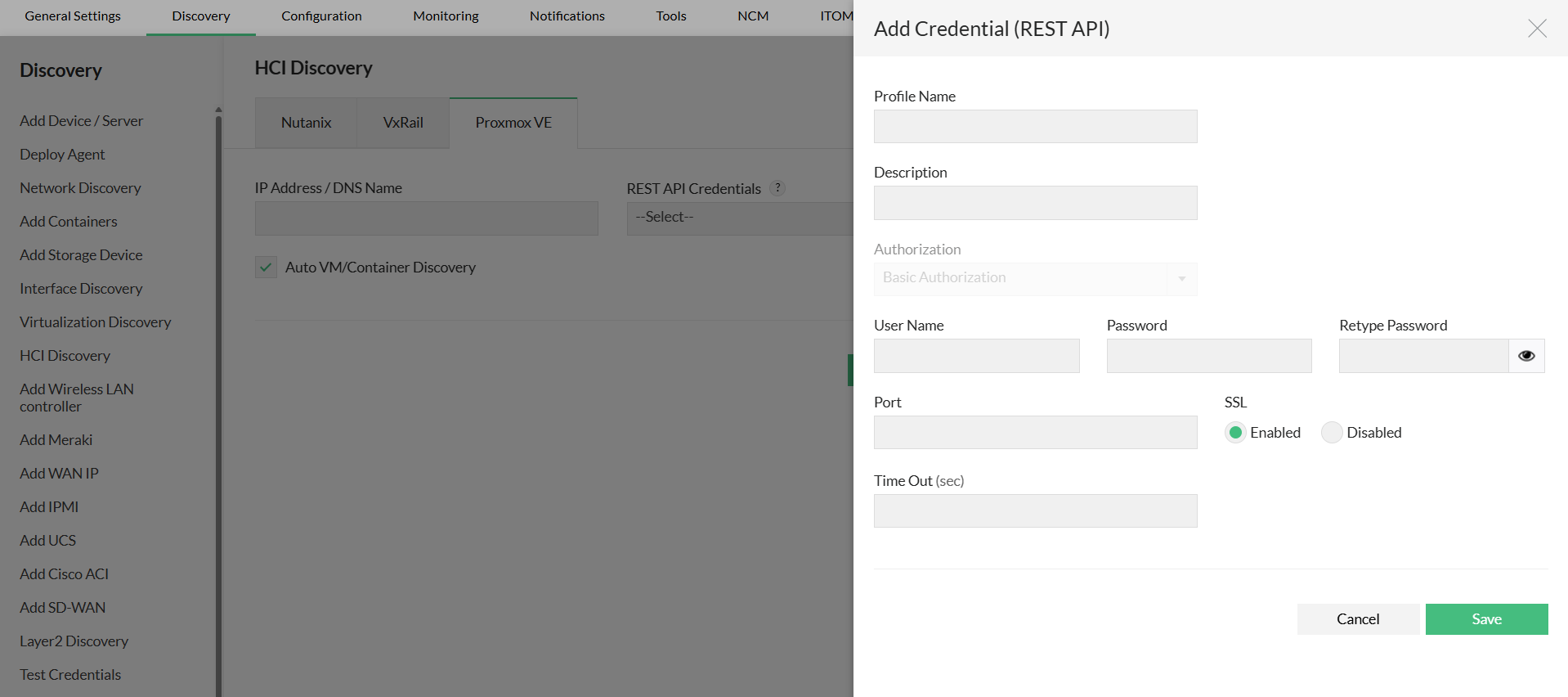
- Click the Add Credential button.
- Enter the following details:
- Profile Name: A descriptive name (e.g., "Proxmox Lab Admin").
- Description (optional)
- Username: <userid>@<realm>
- Password: Enter a password of your choice.
- Port: The port on which the Proxmox Node Web Interface is running. Default is 8006.
- Connection Type: HTTP or HTTPS based on requirement.
- Click Save. The profile becomes available in the dropdown list.
Discover VMs & Containers
- Enable "Auto discover VMs & Containers" to automatically detect all VMs and containers.
- Click Discover to begin the process.
NOTE : If any of the VMs are already discovered or added, OpManager will automatically map them as virtual devices.
Configuring VM/Containers IP Address
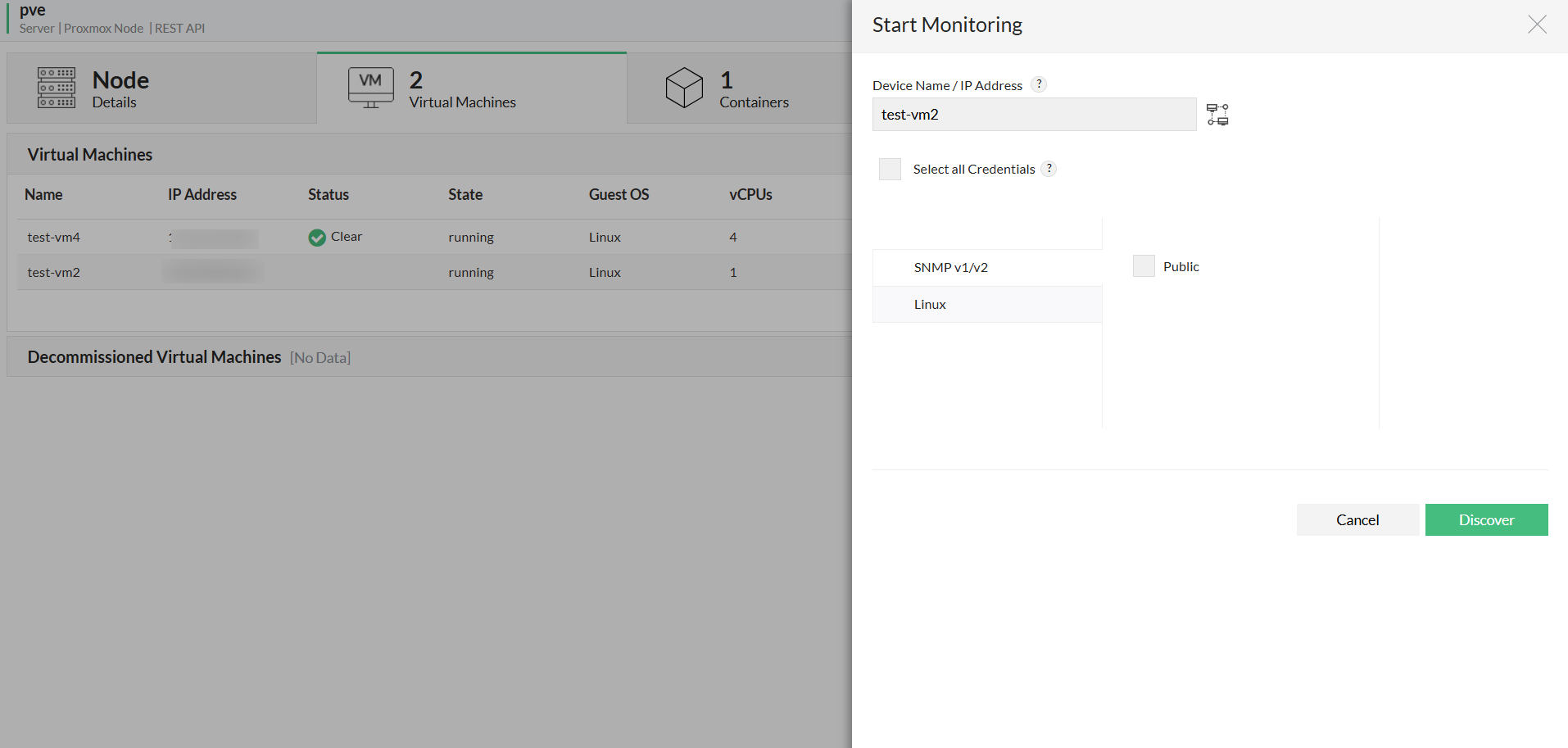
OpManager, with the help of the discovered Proxmox VE, identifies the IP address of the VM's and maps it to the host. If QEMU Guest agent is not installed or enabled in Virtual Machine, OpManager discovers it using the VM's host name. If the VM is not discovered automatically, In such case, You can assign the IP address manually for such VMs in the node or cluster snapshot page. (Navigate to Inventory -> Devices and then click on the device to open its snapshot page.) If a VM is not discovered because of an unassigned IP address, you can assign an IP address to a VM by following the simple steps below.
- Go to the Node snapshot page → Virtual Machines tab or Cluster snapshot page -> Virtual Machines widget
- Click the start monitoring button in the Monitoring column for devices that are not monitored. This will open IP Mapping. Enter the VM's IP address/ DNS name and the corresponding credentials if needed, to start monitoring the VM.
Similarly, you can assign an IP address to a container by following the same steps as above for the desired container.
Prerequisites
The Proxmox Node’s user credential must have these permissions:
- Path - '/' → Privilege - Sys.Audit
- Path - '/storage' → Privilege - Datastore.Audit
- Path - '/VM's' → Privilege - VM.Audit
- Path - '/pool' → Privilege - Pool.Audit
The cluster must be configured in Proxmox for OpManager to monitor it.