Audits and Notifications
For builds 8500 and above, refer to this help document.
As PAM360 manages sensitive privileged access information, maintaining a complete record of all user activities within the application is essential. To ensure comprehensive tracking, all user actions and resource events are recorded as audit entries, along with the corresponding timestamps and IP addresses from which users accessed the application.
PAM360 maintains detailed audit trails that capture most operational activities. If you prefer to audit only specific operations, PAM360 provides flexible options for selective auditing. In addition, you can configure notifications to alert designated recipients when specific events occur, enabling improved monitoring and tighter control over privileged access activities. Refer to this document for detailed information on selective auditing, audit notifications, and audit management.
This help document covers the following topics in detail:
- Resource Audit
- User Audit
- Task Audit
- User Sessions Audit
- Recorded Connections
- Active Privileged Sessions
- Keys and Certificates Audit
- SDK Application Audit
- Frequently Asked Questions
1. Resource Audit
Resource audits in PAM360 provide comprehensive tracking of all activities related to privileged accounts and passwords, resources, resource groups, sharing, and password policies. These audits help ensure accountability by maintaining detailed records of access, modifications, and actions performed on critical resources.
Navigate to Audit >> Resource Audit. From here, you can view summaries of individual audit entries and access related audits, export audit trails in PDF or CSV formats, and create customized views using filters to display only the audit records of interest.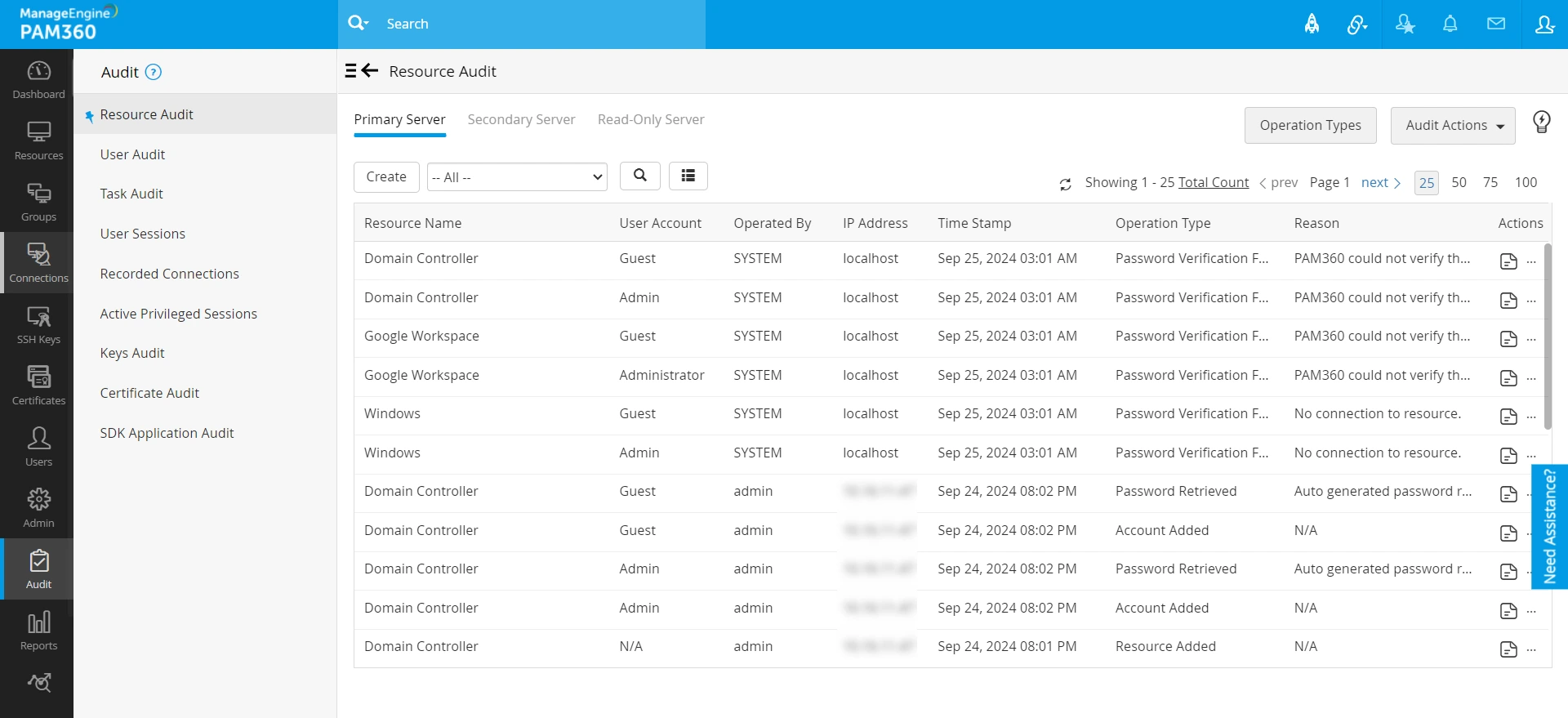
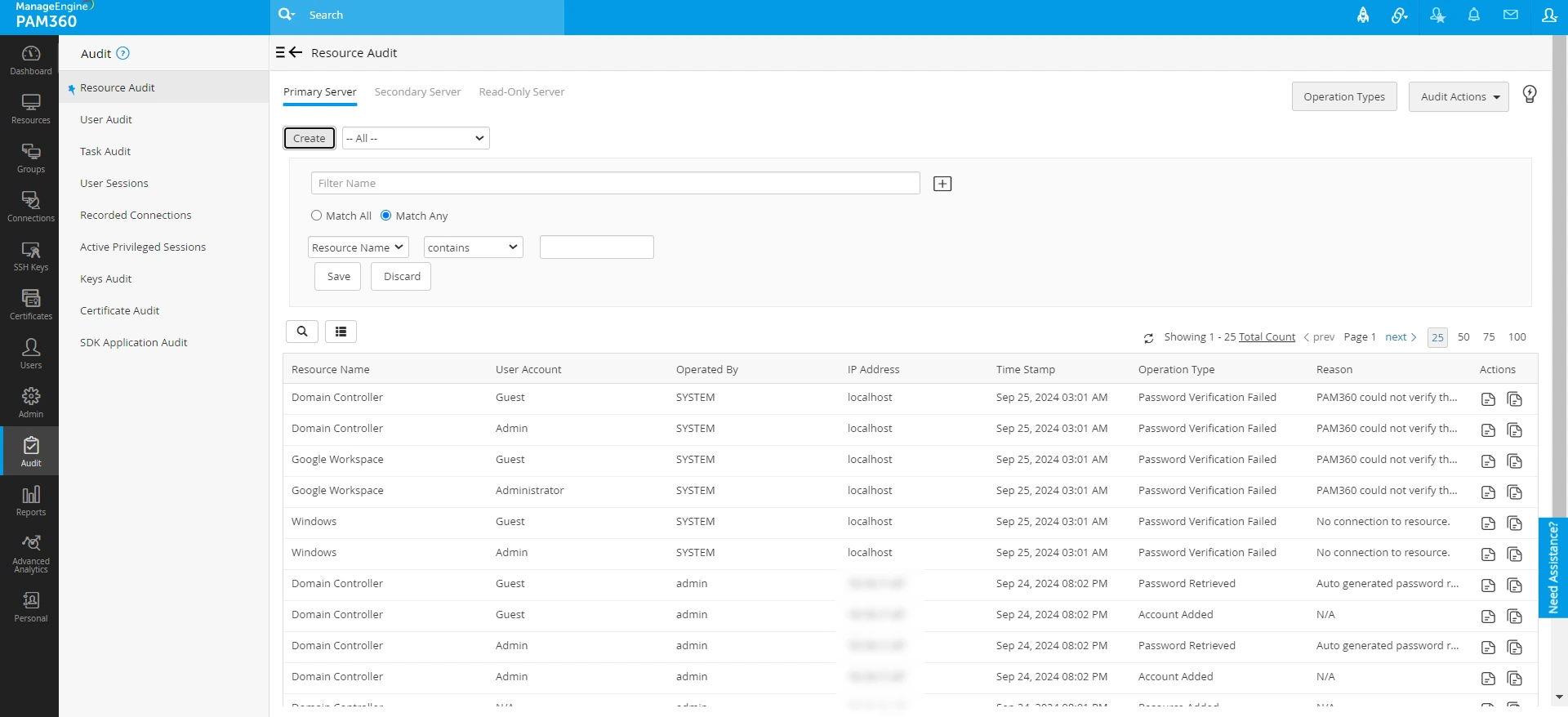
- Audit Filter - Click the Create button on the Resource Audit page, specify a name for the filter, select the required operation from the drop-down menu, enter your criteria to filter the audit trails, and click Save to configure the audit filter successfully. To configure the filter based on operation types, click the Operation Types button in the top-right corner of the screen to view the available options.
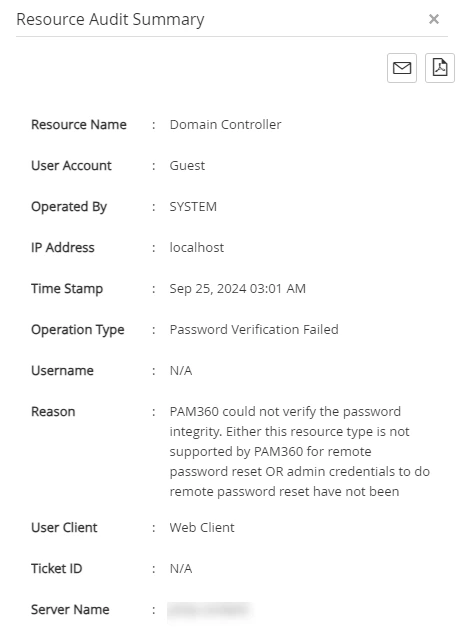
- Audit Summary - Click the Audit Summary icon under the Actions column to view a detailed overview of the selected audit entry. On the Resource Audit Summary page, click the Email Audit Summary icon to receive the audit summary in your email, and the Export as PDF icon to download the audit summary as a PDF file to your machine.
- Related Resource Audits - Click the Related Audits icon under the Actions column beside the desired resource audit to view all the audit events associated with a specific resource, helping you track audit trails effectively. From the Related Resource Audits page, you can click the Audit Actions button and choose the desired option to download the related resource audits as a CSV or PDF file to your machine or receive them in your email.
- Export - To export the audit details, click the Audit Actions button on the top-right corner of the screen and click on:
- Export as CSV to download the audit details as an Excel file.
- Export as PDF to download the audit details as a PDF file.
- Email this Report to receive the audit details in your email.

- Custom Audit Report - To create a custom audit report, click Audit Actions and select Create Custom Report from the available options. In the Create Custom Report window that appears, enter the following details and click Save to store the report in PAM360, or click Generate Report to generate the report based on the configured criteria.
- Report Information - Enter the report name and description in the respective fields, and select the appropriate report type from the Report Type drop-down list.
- Report Criteria - Define the criteria and time range to filter and include the relevant audit entries in the report.
- Report Result - Select the columns to be displayed in the report. Choose the required column names from the Columns List and click the right arrow to move them to the Selected Columns list.
Additional Detail
Saved custom reports can be accessed from Reports >> Custom Reports.
2. User Audit
User audits capture all user-related activities within PAM360, providing detailed visibility into user operations. You can view audit summaries, export audit trails in PDF or CSV formats, and apply filters to display only relevant records.
Navigate to Audit >> User Audit. From here, you can view summaries of individual audit entries and access related audits, export audit trails in PDF or CSV formats, and create customized views using filters to display only the audit records of interest.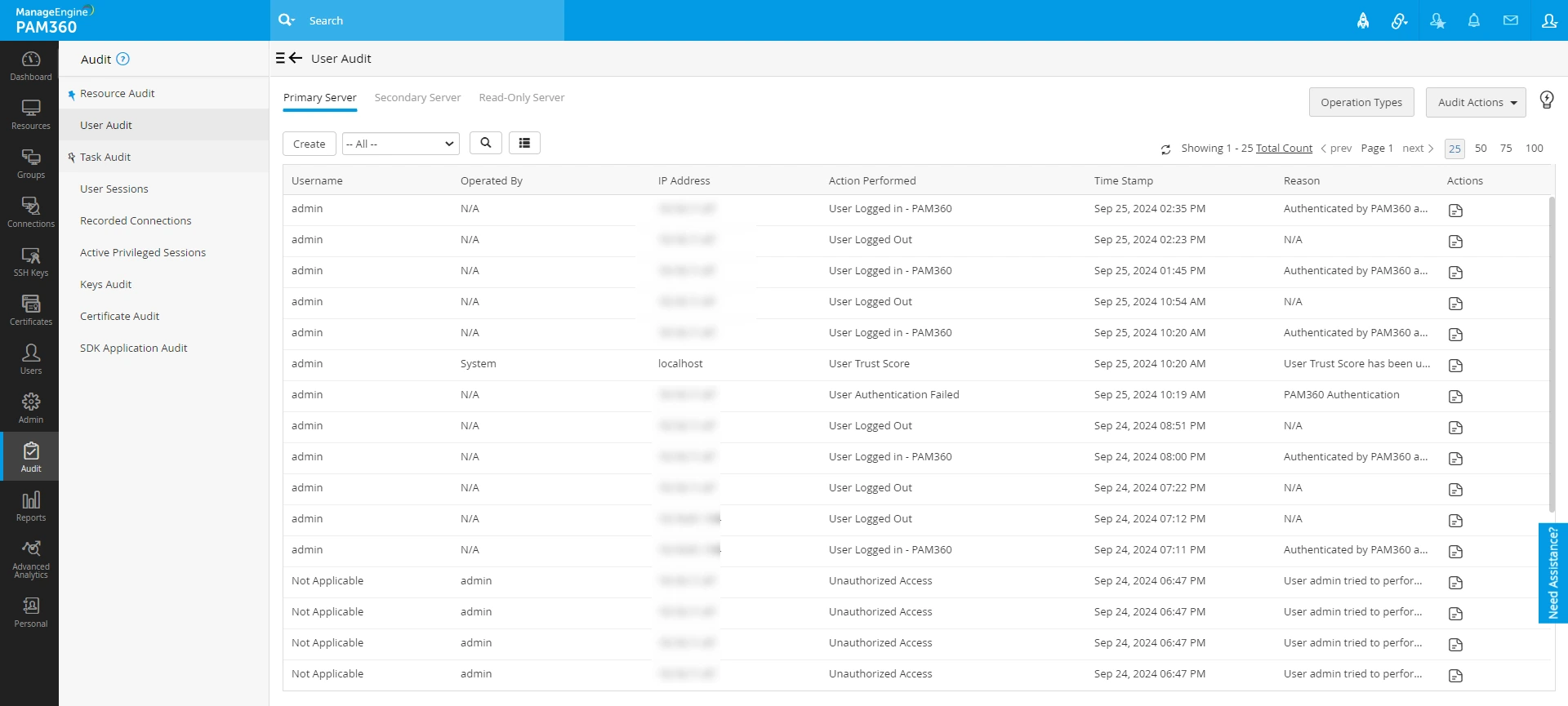
- Audit Filter - Click the Create button on the User Audit page, select the required operation from the drop-down menu, enter your criteria to filter the audit trails, and click Save to configure the audit filter successfully. To configure the filter based on operation types, click the Operation Types button in the top-right corner of the screen to view the available options.
- Audit Summary - Click the Audit Summary icon under the Actions column beside the desired audit to view all the details associated with that specific user audit trail. On the User Audit Summary page, click the Email Audit Summary icon to receive the audit summary in your email, and the Export as PDF icon to download the audit summary as a PDF file to your machine.
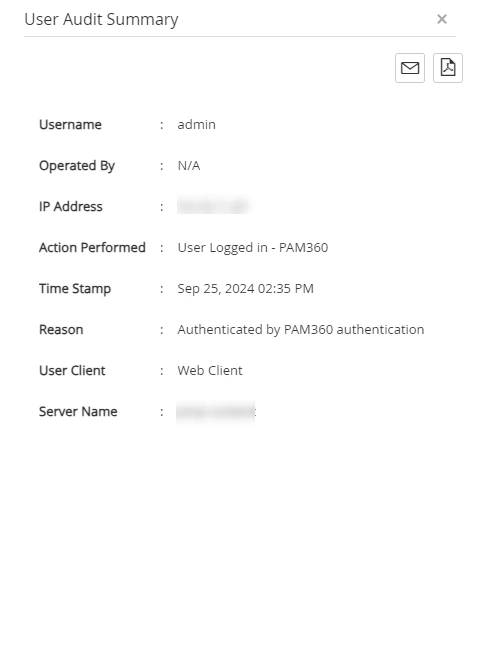
- Export - To export the audit details, click the Audit Actions button on the top-right corner of the screen and click on:
- Export as CSV to download the user audit details as an Excel file.
- Export as PDF to download the user audit details as a PDF file.
- Email this Report to receive the user audit details in your email.
- Custom Audit Report - To create a custom audit report, click Audit Actions and select Create Custom Report from the available options. In the Create Custom Report window that appears, enter the following details and click Save to store the report in PAM360, or click Generate Report to generate the report based on the configured criteria.
- Report Information - Enter the report name and description in the respective fields, and select the appropriate report type from the Report Type drop-down list.
- Report Criteria - Define the criteria and time range to filter and include the relevant audit entries in the report.
- Report Result - Select the columns to be displayed in the report. Choose the required column names from the Columns List and click the right arrow to move them to the Selected Columns list.
Additional Detail
Saved custom reports can be accessed from Reports >> Custom Reports.
3. Task Audit
Task audits in PAM360 capture records of all scheduled tasks created and executed, providing detailed tracking of task executions. You can view a quick summary of any particular task audit, view audits related to a particular task, export task audit trails as PDF or CSV files to your machine for easy reference, and create customized views of task audit trails by adding filters to display only the audit records of interest.
Navigate to Audit >> Task Audit. From here, you can view summaries of individual audit entries and access related audits, export audit trails in PDF or CSV formats, and create customized views using filters to display only the audit records of interest.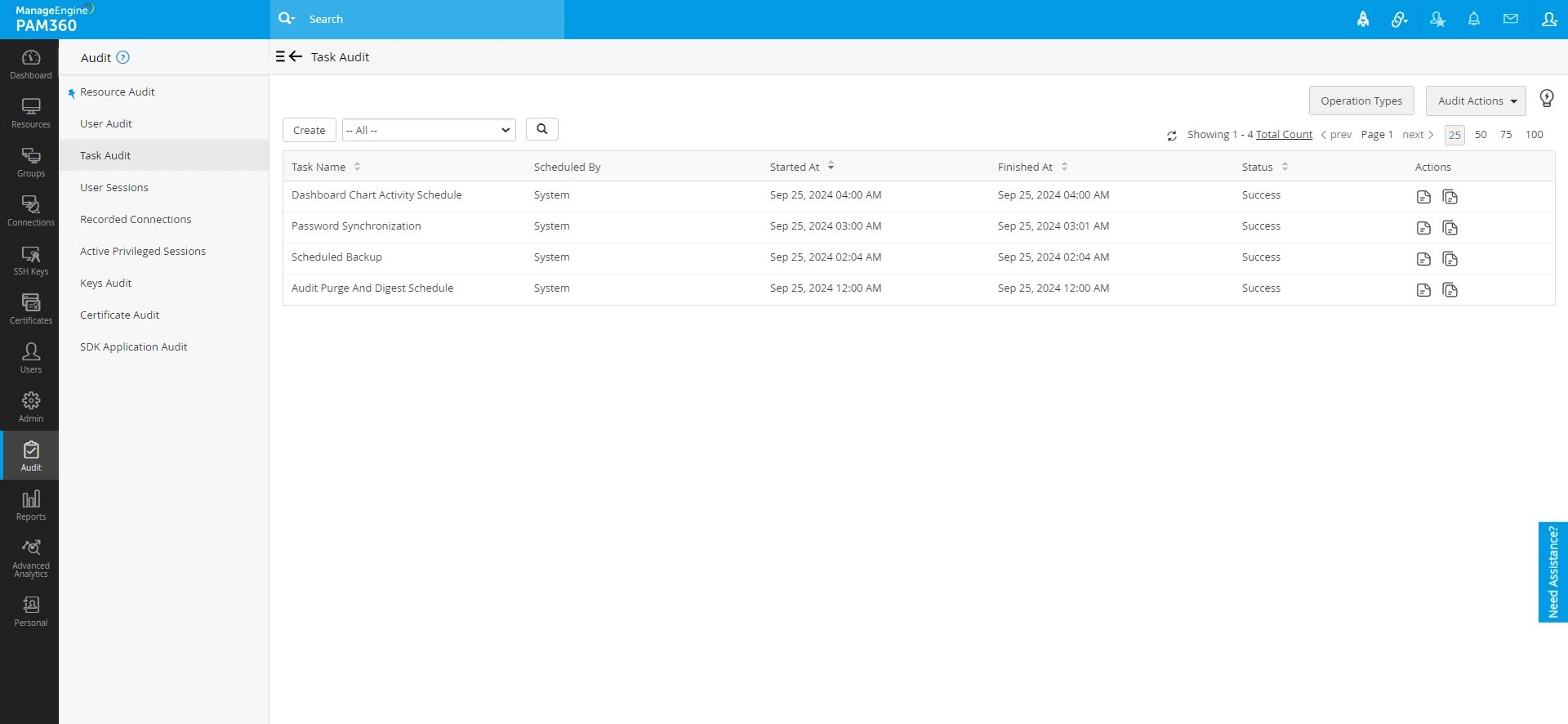
- Audit Filter - Click the Create button on the Task Audit page, select the desired operation from the drop-down menu, enter your criteria to filter the audit trails, and click Save to configure the audit filter successfully. To configure the filter based on operation types, click the Operation Types button in the top-right corner of the screen to view the available options.
- Audit Summary - Click the Audit Summary icon under the Actions column beside the desired audit to view a comprehensive overview of all the details associated with that specific task audit trail. On the Task Audit Summary page, click the Email Audit Summary icon to receive the audit summary in your email, and the Export as PDF icon to download the audit summary as a PDF file to your machine.
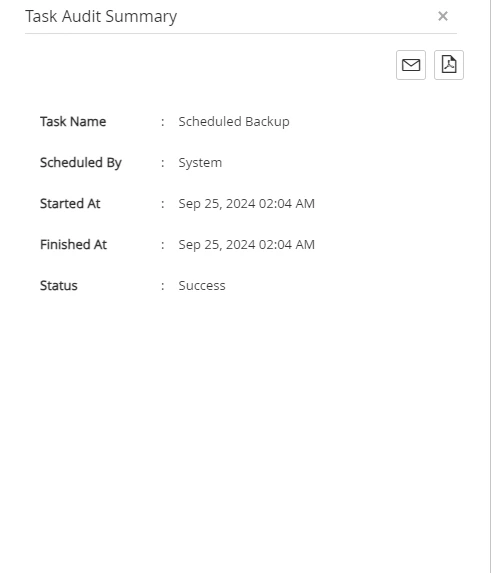
- Related Task Audit - Click the Related Audits icon under the Actions column beside the desired task audit trail to view all the audits associated with a specific task, helping you track audit trails effectively. From the Related Task Audits page, you can download the related task audits as a CSV or PDF file or receive them in your email. Click Audit Actions and choose the desired option.
- Export - Click the Audit Actions button on the top-right corner of the screen and click on:
- Export as CSV to download the task audit details as an Excel file.
- Export as PDF to download the task audit details as a PDF file.
- Email Related Audits to receive the task audit details in your email.
- Custom Audit Report - To create a custom audit report, click Audit Actions and select Create Custom Report from the available options. In the Create Custom Report window that appears, enter the following details and click Save to store the report in PAM360, or click Generate Report to generate the report based on the configured criteria.
- Report Information - Enter the report name and description in the respective fields, and select the appropriate report type from the Report Type drop-down list.
- Report Criteria - Define the criteria and time range to filter and include the relevant audit entries in the report.
- Report Result - Select the columns to be displayed in the report. Choose the required column names from the Columns List and click the right arrow to move them to the Selected Columns list.
Additional Detail
Saved custom reports can be accessed from Reports >> Custom Reports.
4. User Sessions Audit
The User Sessions audit in PAM360 provides a comprehensive view of all user sessions, including the currently active sessions in your environment. To access the User Sessions audit, navigate to Audit >> User Sessions. The User Sessions audit page is divided into two sections: the left pane and the Session Details section. The left pane displays the currently active sessions along with essential user information such as username, role, and login time. By default, the current date is selected, and all sessions for that date are listed in the left pane.
When a session is selected, the Session Details section displays information about the selected session including the user's email ID, the IP address and hostname of the machine used for login, the login time, and a detailed record of all operations performed by the user during that session.
Follow these steps to view the list of all user sessions in your environment, the operations performed during each user session, to terminate an active user session, and to lock a user account:
- To view the list of user sessions on a specific date, click the Calendar icon beside the search field in the left pane, navigate to the desired month on the calendar, and double-click the desired date. Alternatively, to view the list of user sessions over a range of dates, use the Custom Range picker to select the start and end dates.
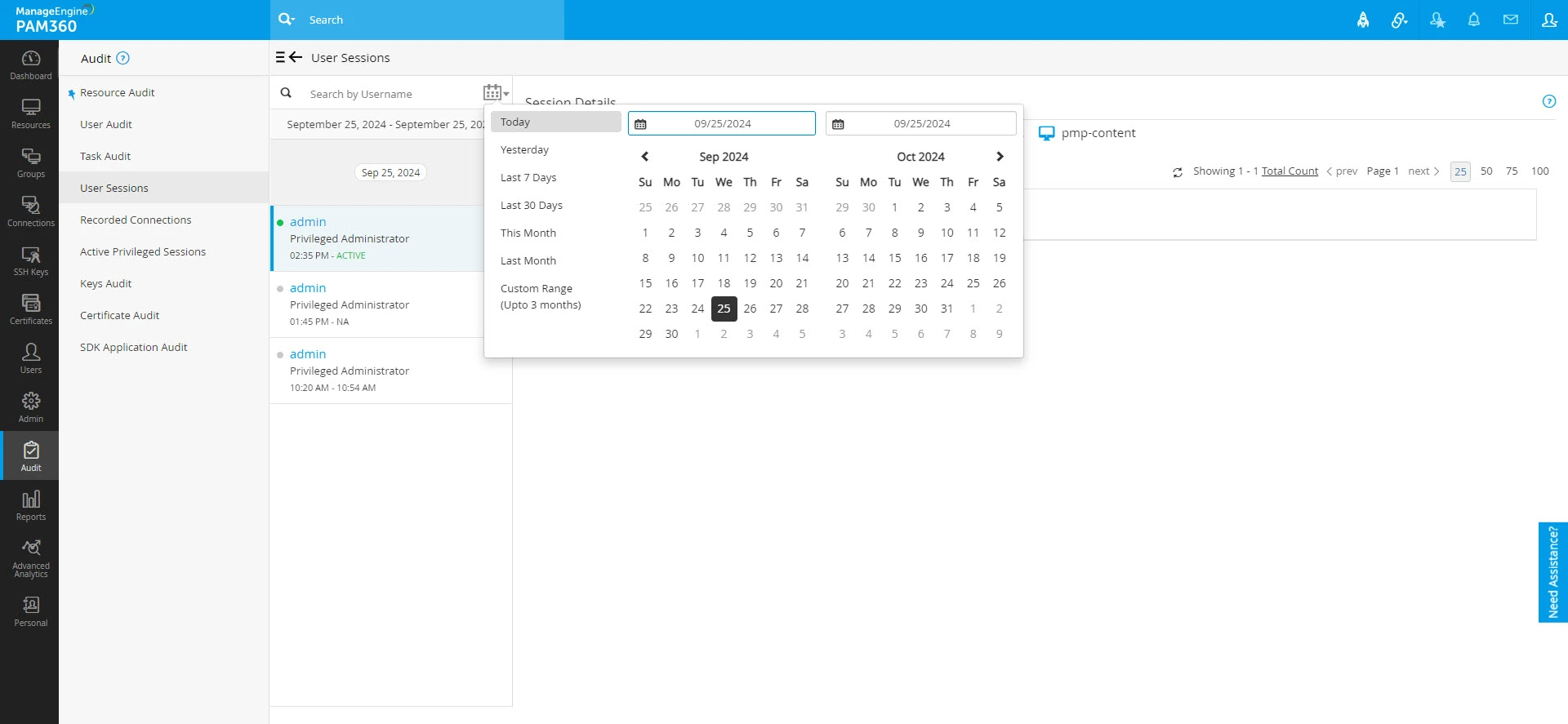
- From the displayed user session entries, select the desired user session on the left pane to view all the operations performed during that session.

- You can use the Search option in the left pane to view all user sessions of a specific user on the selected date or within a specific date range. Enter the user's first name, last name, or full name in the search bar to filter user sessions.
- After selecting a session, you can use the Search option within the Session Details window to locate specific operations performed during that session using relevant keywords.
- From the displayed user session entries, select the desired user session on the left pane to view all the operations performed during that session.
- To terminate an active user session, click the Terminate button under the desired user session to terminate that session. In the Terminate Session window that appears, enter the reason for termination in the Reason field and click Ok.
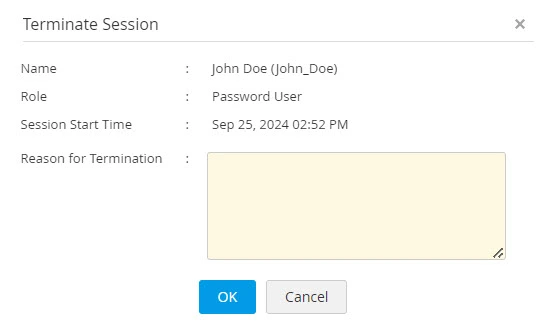
- To terminate an active session and temporarily lock the user from accessing their PAM360 account, click the Terminate and Lock button in the top-right corner of the Session Details window. In the Terminate Session and Lock User window that appears, enter the reason for termination in the Reason field, and click Ok. This action will terminate all active user sessions for the selected user and lock the user from accessing their PAM360 account until it is unlocked by an administrator.
Additional Details
- Only users with the Terminate User Sessions privilege in their user role can terminate a user session.
- The client organization owner's (i.e., Account Manager's) session can only be terminated by the administrators of the MSP organization.
- When a user session is terminated, only the selected session will be terminated. Any other active sessions initiated by the same user will remain unaffected.
- To unlock a user account, navigate to the Users tab and click the User Actions icon beside the desired user you wish to unlock and select Unlock User from the displayed options.
5. Recorded Connections
All the recorded RDP, SSH, Telnet, VNC, and SQL sessions can be accessed from Audit >> Recorded Server Connections, and the recorded website sessions can be viewed from Audit >> Recorded Website Connections. You can search for the desired recorded sessions using details such as resource name, account name, or time stamp. To view a recorded session, click the Play icon beside the desired recording and use the Seek bar to skip parts of the session as needed. Refer to this help document to know more in detail about recorded connection configurations and other settings.
6. Active Privileged Sessions
PAM360 allows administrators to monitor and join active privileged sessions on sensitive resources in real time, offering the ability to observe and terminate sessions if needed. Additionally, administrators can leverage this feature to assist users during troubleshooting sessions by shadowing their activities. To monitor an active privileged session, navigate to Audit >> Active Privileged Session, find the desired session, and click Join. Explore this link for more details about real-time monitoring of active privileged sessions.
7. Keys and Certificates Audit
The Keys and Certificates audit in PAM360 allows you to view detailed records of all operations related to SSH keys and SSL certificates. Navigate to Audit >> Keys/Certificate Audit to view the audit records. Additionally, you can apply filters and selectively access specific records as required. Certificate audits are accessible to all administrators, while the keys audits are user-specific, i.e., only the respective user can view their SSH key records. For more details about the SSH and SSL audits and reports, refer to this link.
8. SDK Application Audit
PAM360 enables administrators to monitor all operations performed within PAM360 SDK deployed applications or services. By navigating to Audit >> SDK Application Audit, you can view a comprehensive audit trail of activities executed directly from these SDK-deployed applications. Additionally, you can switch between different deployed SDK applications to review the specific actions performed from each application.
9. Frequently Asked Questions
1. Does PAM360 record attempts by users to view and retrieve passwords?
Yes, PAM360 helps in establishing strong accountability for all operations carried out within the application. All user operations, including password viewing, retrieval, and copying actions, are audited by PAM360. The list of operations that are audited, along with their timestamps and IP addresses, includes:
- User accounts created, deleted, and modified.
- Users logging in and off the application.
- Resources and passwords created, accessed, modified, and deleted.
2. How are the audit logs protected against modification?
All audit records are stored in the SQL database. To ensure security, the SQL server is configured not to accept connections from remote hosts. Additionally, the password to access the SQL server is randomly generated for every PAM360 installation. Therefore, unless unauthorized individuals gain direct access to the database, the audit records cannot be modified.