Generating Custom Reports in PAM360
PAM360 allows you to create custom reports derived from four predefined reports - Password Inventory, Password Compliance, Password Expiry, and Password Integrity - as well as two audit reports: Resource Audit and User Audit. You can customize these reports by specifying criteria to generate reports tailored to your specific needs.
Custom reports offer more targeted information compared to the general data provided by canned reports. You can extract detailed insights from the database by customizing the predefined reports to match your specific requirements.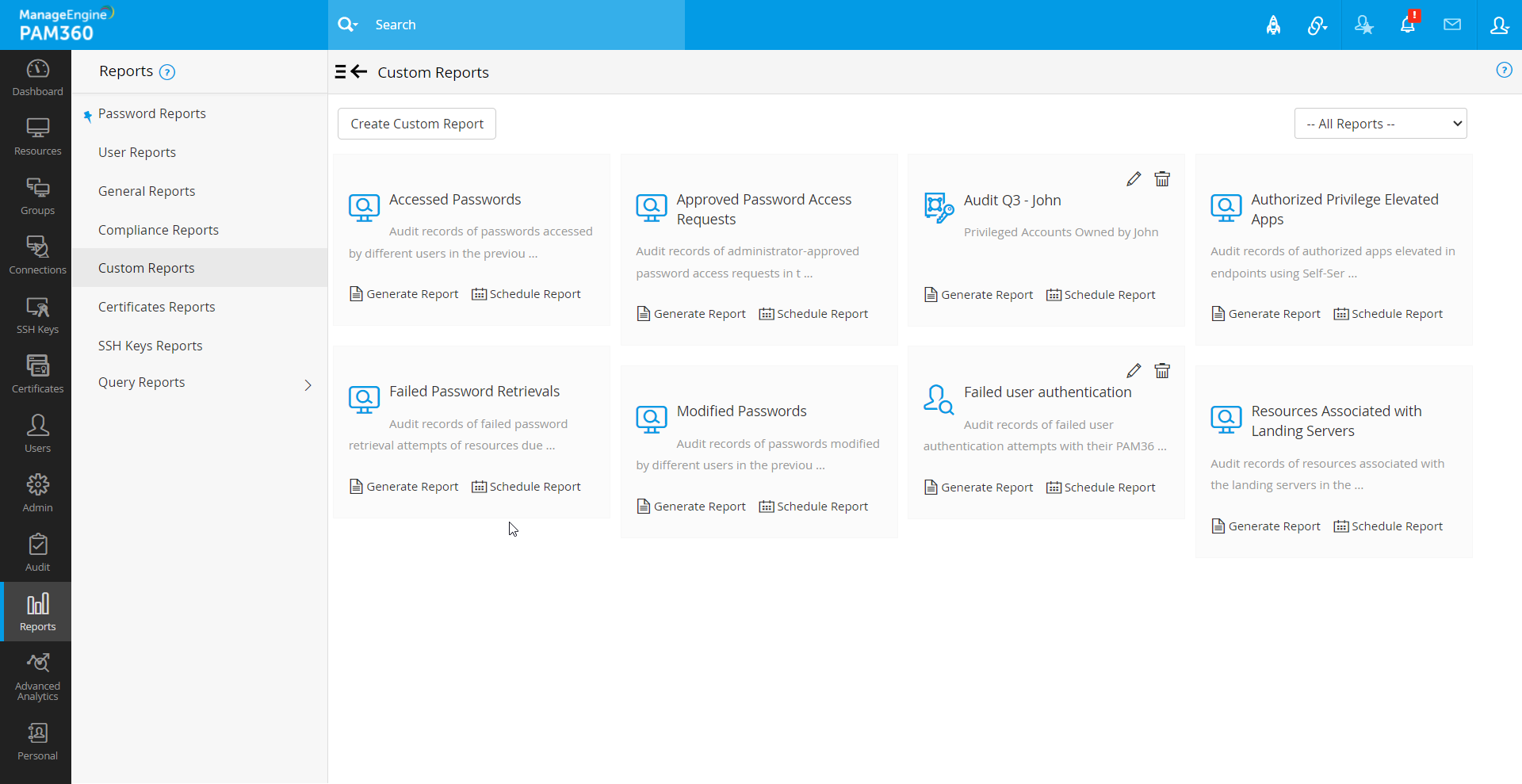
1. Custom Report Requirement Scenarios
Scenario 1
Suppose you want to generate a report from the Password Inventory Report showing resources owned by user - John from the 'Network Administration' department, you can create a custom report by defining the condition as follows:
- 'Department' is 'Network Administration'
- 'Owner' is 'User A'
This allows you to filter out specific information, giving you control over the output based on your needs.
Scenario 2
Consider a scenario where you need to generate a list of sensitive passwords for resource types like Windows, Windows Domain, and Cisco, owned by a specific administrator, John. You also want to know the sharing permissions for these passwords. The following conditions must be met:
1. Identify sensitive accounts:
- For Windows and Windows Domain, look for the account name 'administrator'
- For Cisco devices, look for the account name is 'root'
2. These accounts must be owned by John.
The criteria expression to achieve this would be - ((Resource Type starts with Windows AND Account Name is 'administrator') OR (Resource Type contains Cisco AND Account Name is 'root')) AND the Owner is John
2. Creating a Custom Report
- Navigate to Reports >> Custom Reports and click Create Custom Reports at the top left.
- In the pop-up window that opens, provide a Report Name and Report Description for easy identification of the custom report.
- Select the Report Type (e.g., Password Inventory, Resource Audit) from which you want to create the custom report.
- Specify the conditions and criteria for the report. Refer to the example above for setting the criteria. If you need to specify multiple values for a column (e.g., multiple accounts), separate them with commas (e.g., 'administrator,sysadmin').
- Edit the Criteria Expression field to create advanced conditions using logical operators, as shown in the example.
- Choose and arrange columns in the Report Result section using the provided controls to display the report results as desired.
- Click Save to save the custom report.
- Click Generate Report to view the customized report.
3. Custom Reports Use Case
By leveraging the power of custom reports, you can meet many of your auditing requirements with ease. Following is just one use case:
3.1 Generating a User Exit Audit Report
Continuously assessing the vulnerability concerning password access is one of the important auditing requirements. When an administrator, who had active access to the privileged passwords leaves the organization, it is imperative to assess the vulnerability. This requires taking a list of all the passwords that were accessed by the particular user during a specified time period and then initiating steps to change the passwords.
Taking a report on all the password management operations performed by the particular administrator during a specified time period could serve as an 'Exit Audit Report'. Custom reports help you generate a report to achieve this precisely. All that you need to do is to get the report out of the 'Resource Audit'.
- Specify the period during which the audit should take place.
- Set a condition C1 as Operation Type contains any (leave the field blank to include all operations).
- Set another condition C2 as Operated by with the username, who is leaving the organization.
This custom report will generate a report listing all password management activities performed by the departing user during the specified period, helping you quickly identify and mitigate any potential vulnerabilities.
By leveraging custom reports from the 'Resource Audit' and 'User Audit', you can meet most of your organization's auditing and compliance requirements efficiently.