Setting up Two-Factor Authentication - YubiKey
YubiKey is a physical key made by Yubico, that ensures secure and strong user authentication. You can set up Two-Factor Authentication (TFA) with YubiKey in PAM360 and enforce users to use YubiKey as the second factor of authentication.
At the end of this document, you will have learned the following topics in detail:
1. YubiKeys Compatible with PAM360
PAM360 supports YubiKey devices that provide Yubico OTP functionality. This includes both current and legacy YubiKey models.
Caution
Enable YubiKey as the TFA and enforce it to the PAM360 users prior using Yubikey as the TFA. Refer here for detailed instructions.
3. Connecting to the PAM360 Web Interface with YubiKey as TFA
While logging into PAM360, the users for whom TFA is enabled will have to authenticate twice successively. The first level of authentication will be through the usual authentication method i.e., through PAM360's local authentication or Active Directory/Entra ID/LDAP authentication, whichever is enabled for the user.
Perform the following steps to connect to the PAM360 web interface after enabling YubiKey TFA:
- On the PAM360 login page, proceed with the first level of authentication and click Login.
- Now, PAM360 will prompt you to enter your YubiKey one-time password.

- Insert the YubiKey into the USB port of your laptop or computer.
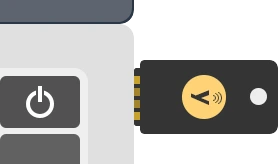
- Before generating a one-time password, you need to decide which slot of the YubiKey (slot 1 or slot 2) you are going to use for authentication throughout.
- Slot 1: If you tap the YubiKey once, it generates a 44-character security key whose first 12 characters are unique to this slot. For every subsequent login through this slot, the first 12 characters remain the same, and the rest of the 32 characters are randomized.
- Slot 2: If you tap and hold the YubiKey for 2-5 seconds, it generates a 44-character security key whose first 12 characters are unique to this slot. For every subsequent login through this slot, the first 12 characters will remain the same and the rest of the 32 characters will be randomized.
- Here is a sample output from a YubiKey where the button has been pressed three times.
cccjgjgkhcbbirdrfdnlnghhfgrtnnlgedjlftrbdeut
cccjgjgkhcbbgefdkbbditfjrlniggevfhenublfnrev
cccjgjgkhcbbcvchfkfhiiuunbtnvgihdfiktncvlhck
Additional Details
By default, YubiKey generates slot 1 passcode for NFC configured mobile devices. You can set slot 2 passcode as default by changing the setting from slot 1 to slot 2 using the Yubikey Personalization tool.
- PAM360 matches the 12-character key against your account in its database and verifies the same for the second level of authentication during future login attempts.
- After submitting the YubiKey one-time password, click Register and Login.