The retention period depends on your security log size and overwrite settings on each machine. Once the log is full, older entries are overwritten. Increasing the log size or centralizing logs in an auditing tool can help you store the login history for longer.
- Audit policy
- Event Viewer
- PowerShell
- ADAudit Plus
- FAQ and troubleshooting
The Active Directory (AD) user login history is a record of a user's successful and failed logins, reconstructed from security log events across domain controllers (DCs) and endpoints. Auditing the AD user login history is essential for meeting the security and compliance needs of any IT environment. It enables administrators to:
- Detect unusual or potentially malicious behavior, such as a surge in failed login attempts.
- Maintain a comprehensive audit trail of all logins across the domain.
To check a user’s login history:
- Enable login auditing via a Group Policy.
- Obtain information from the relevant event IDs in the security log using Event Viewer, PowerShell, or a login history auditing tool like ADAudit Plus.
1. Enable login auditing via a Group Policy
- Run gpmc.msc to open the Group Policy Management Console (GPMC).
- Right-click the relevant domain and select Create a GPO in this domain, and Link it here.
- In the New GPO dialog box, type a name and click OK.
- Right-click the newly created GPO and select Edit.
- Navigate to Computer Configuration > Policies > Windows Settings > Security Settings > Advanced Audit Policy Configuration > Audit Policies and configure the following settings:
Logon/Logoff
- For Audit Logon, enable auditing for both Success and Failure.
- For Audit Logoff, enable auditing for Success.
- For Audit Other Logon/Logoff Events, enable auditing for Success.
Account Logon
- For Audit Kerberos Authentication Service, enable auditing for Success and Failure.
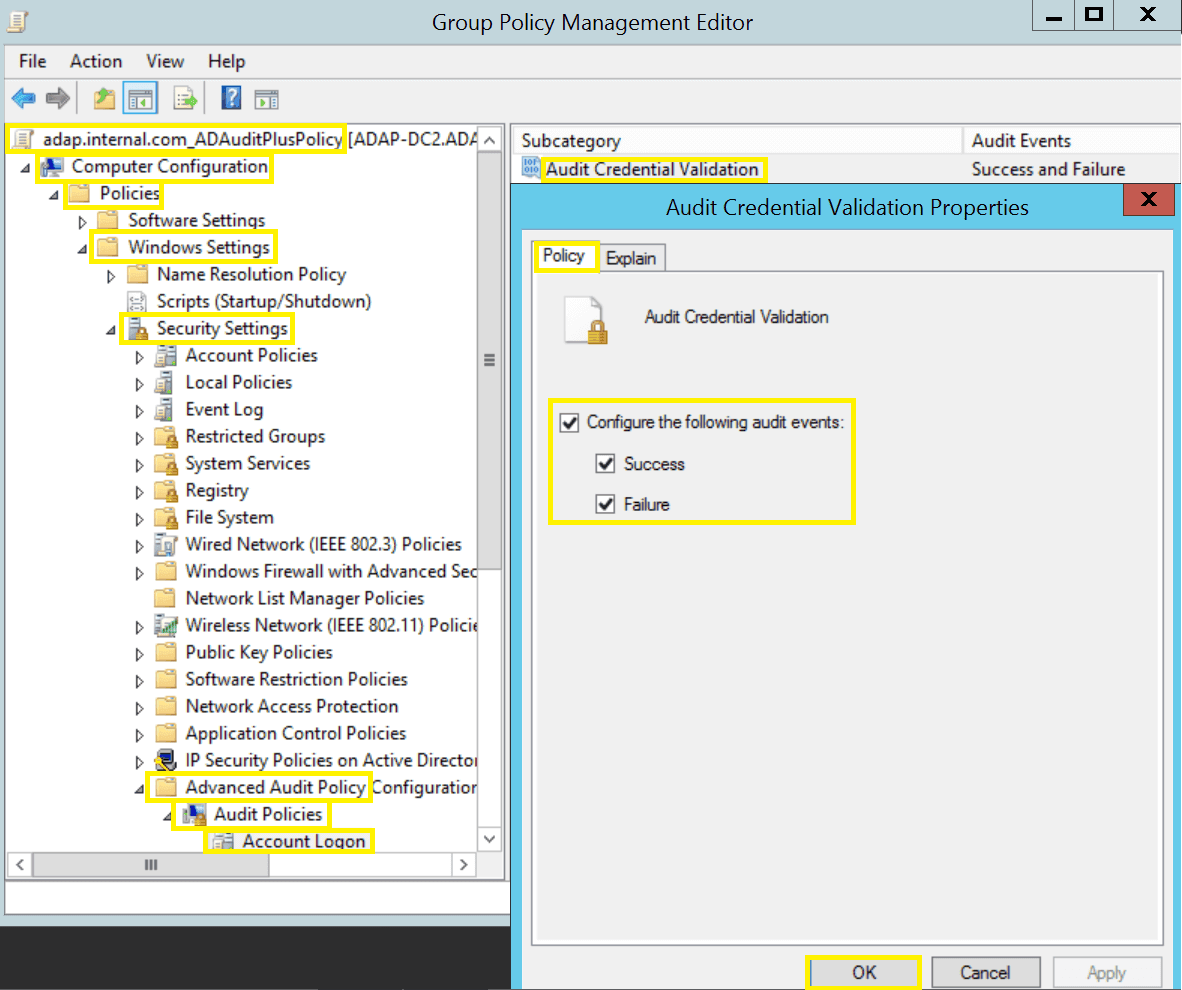
- Open Command Prompt and execute gpupdate /force to enable the advanced audit policy settings immediately.
2. Analyze the user login history using Event Viewer
- Open Event Viewer and navigate to Windows Logs > Security.
- Click Filter Current Log, enter the event IDs below as comma-separated values in the Event ID field, and click OK.
- Review the filtered events to analyze the user login history.
| Event ID | Description |
|---|---|
| Event ID 4624 An account was successfully logged on. | This event records every successful attempt to log in to the local computer. It includes critical information about the login type (e.g., interactive, batch, network, or service), security identifier, username, network information, and more. |
| Event ID 4634 An account was logged off. | This event signals the end of a login session. |
| Event ID 4647 User initiated logoff. | This event, like event 4634, signals that a user has logged out; however, this particular event indicates that the login was interactive or RemoteInteractive (remote desktop). |
| Event ID 4625 An account failed to log on. | This event documents every failed attempt to log in to the local computer, including information on why the login failed (a bad username, expired password, expired account, etc.), which is useful for security audits. |
| Event ID 4648 A logon was attempted using explicit credentials. | This event is logged when a process attempts a login by explicitly supplying credentials other than those of the already logged-in user. |
| Event ID 4768 A Kerberos authentication ticket (TGT) was requested. | This event is generated when the DC grants a ticket-granting ticket (TGT). That means a user has entered the correct username and password, and their account passed status and restriction checks. If the ticket request fails (because the account is disabled, expired, or locked; an attempt is made outside of login hours; etc.), then this event is logged as a failed login attempt. |
| Event ID 4771 Kerberos pre-authentication failed. | This event means that the ticket request failed, so this event can be considered a login failure. |
Note
Login and logout activity are denoted by different event IDs, so to tie these events together, you need a common identifier. The login ID is a number (unique between reboots) that identifies the most recently initiated login session. Any subsequent activity is reported with this ID. By associating login and logout events with the same login ID, you can calculate the login duration.
3. Get the user login history using PowerShell
- Open PowerShell as an administrator (as required for security log access).
- Enter the PowerShell script below.
Note
- This script collects Kerberos authentication events (4768 and 4771) from all DCs, giving the domain-wide user authentication history.
- Run it with an account that can read the security log on your DCs.
- This requires the AD PowerShell module (for Get-ADDomainController).
- Remote querying via -ComputerName uses the EventLog Remoting Protocol (RPC), so each DC needs the Remote Event Log Management (RPC) inbound firewall rule enabled.
Update the script parameters based on your requirements
- Time range: Modify the AddDays value in the StartTime to match the required period (for example, -2 for the last two days).
- DCs: By default, the script discovers all DCs automatically.
PowerShell script
$DCs = (Get-ADDomainController -Filter *).HostName

foreach ($dc in $DCs) {
    $events = Get-WinEvent -ComputerName $dc -FilterHashtable @{
        LogName   = 'Security'
        ID        = 4768, 4771
        StartTime = (Get-Date).AddDays(-2)   # Last 2 days
    } -ErrorAction SilentlyContinue

    foreach ($event in $events) {
        $xml    = [xml]$event.ToXml()
        $user   = ($xml.Event.EventData.Data | Where-Object { $_.Name -eq 'TargetUserName' }).'#text'
        $ip     = ($xml.Event.EventData.Data | Where-Object { $_.Name -eq 'IpAddress' }).'#text'
        $status = ($xml.Event.EventData.Data | Where-Object { $_.Name -eq 'Status' }).'#text'

        # 4771 is always a failure; 4768 is a success only when Status = 0x0.
        $result = if ($event.Id -eq 4768 -and $status -eq '0x0') { 'Success' } else { 'Failed' }

        [PSCustomObject]@{
            User   = $user
            Result = $result
            IP     = $ip
            Time   = $event.TimeCreated
            DC     = $dc
        }
    }
}
4. Get the user login history using ADAudit Plus
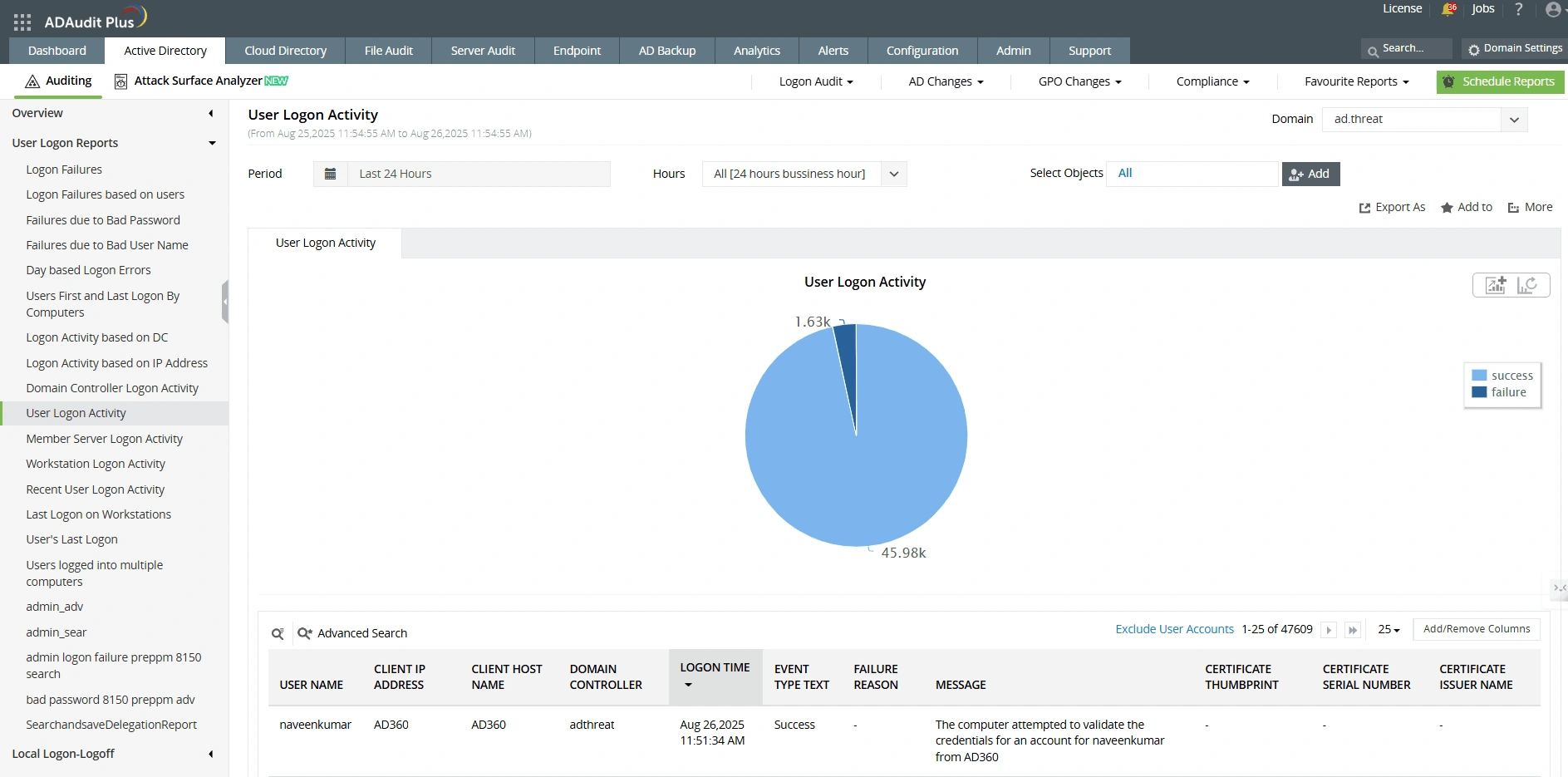
- Log in to ADAudit Plus as an administrator.
- Navigate to Active Directory > Auditing > User Logon Reports > User Logon Activity.
- Select the Domain, Period, and Objects for which you want to view the user login history.
Bridging the gaps in native auditing with ADAudit Plus
Limitations in native Windows auditing tools, such as the need for expertise, the time-intensive process, and the missing capabilities listed below, make it necessary to use third-party auditing tools like ADAudit Plus.
- Centralized auditing: Event logs that contain login audit data are not replicated, so manually reviewing logs on each computer is impractical. While Windows Event Forwarding enables log aggregation, setting it up involves technical complexity. ADAudit Plus simplifies the process by aggregating logs from all computers in a central console.
- Threat mitigation: Windows Task Scheduler can send alerts on specific event IDs but cannot detect unusual patterns, like multiple failed logins followed by a successful one: a telltale sign of a brute-force attack. ADAudit Plus leverages correlation and machine learning to detect such patterns in real time.
- Compliance reporting: Windows events often lack complete context. For example, a user's login duration is split across events, requiring manual correlation. PowerShell can help but isn’t practical for real-time auditing at scale. ADAudit Plus provides a consolidated audit trail of all changes and helps you meet compliance requirements.
A one-stop solution for all your IT auditing, compliance, and security needs
ADAudit Plus provides capabilities like change auditing, login monitoring, file tracking, compliance reporting, attack surface analysis, response automation, and backups and recovery for diverse IT systems.
FAQ and Troubleshooting
Possible causes include the following:
- Login auditing is not enabled in a Group Policy.
- The correct advanced audit policy category is not configured.
- Security logs have rolled over and overwritten older entries.
Both attributes keep a record of when a user last logged in, but they serve different purposes. The lastLogon is accurate to the second but is not replicated; each DC records it only for the users it has authenticated. The lastLogonTimestamp is replicated on all DCs, but in order to reduce replication traffic, it only updates when the new login is approximately nine to 14 days more recent than the value already stored. So, the lastLogon helps you get accurate timing, and the lastLogonTimestamp helps you identify stale or inactive accounts.
To track this natively, you have to correlate event ID 4624 (logins) with event IDs 4634 and 4647 (logouts) across all the machines for the particular user account and look for logins that have no matching logout. The fact that multiple active sessions are happening across different machines may indicate that credentials are being shared or that the account has been compromised. ADAudit Plus automatically monitors concurrent login sessions, without requiring manual correlation.
Event ID 4625 is used to record failed login attempts and includes the name of the source workstation and the source network address. On DCs, Kerberos pre-authentication failures are logged as event ID 4771. These fields do not always show the actual origin since cached credentials, mapped drives, or stale sessions can hide the true source, making it especially difficult to trace account lockouts. ADAudit Plus can help you trace the source of failed logins and lockouts with just a few clicks.
Logins can be limited to business hours for user accounts using the logonHours attribute. If a person attempts to log in outside these hours, the attempt will be refused and will be recorded as a failed login, specifically as event ID 4625 with the failure status 0xC000006F (STATUS_INVALID_LOGON_HOURS) on the workstation or as a failed Kerberos ticket request (event ID 4768) on the DC. ADAudit Plus automatically reports such login attempts and can notify you whenever they happen.
Experience
ADAudit Plus for free
With ADAudit Plus, you can:
- Get full visibility into logins.
- Monitor employee attendance.
- Detect attacks like Kerberoasting.
- Generate audit trails for compliance.
- Do much more.